This guide demonstrates how to build a simple REST API with AWS API Gateway and integrate it with AWS Lambda. We’ll create a small “library” API that exposes endpoints for books and authors, including a nested resource. Follow the steps in order: create the API, add resources and methods, connect Lambda functions, configure mapping and response behavior, then deploy and test.
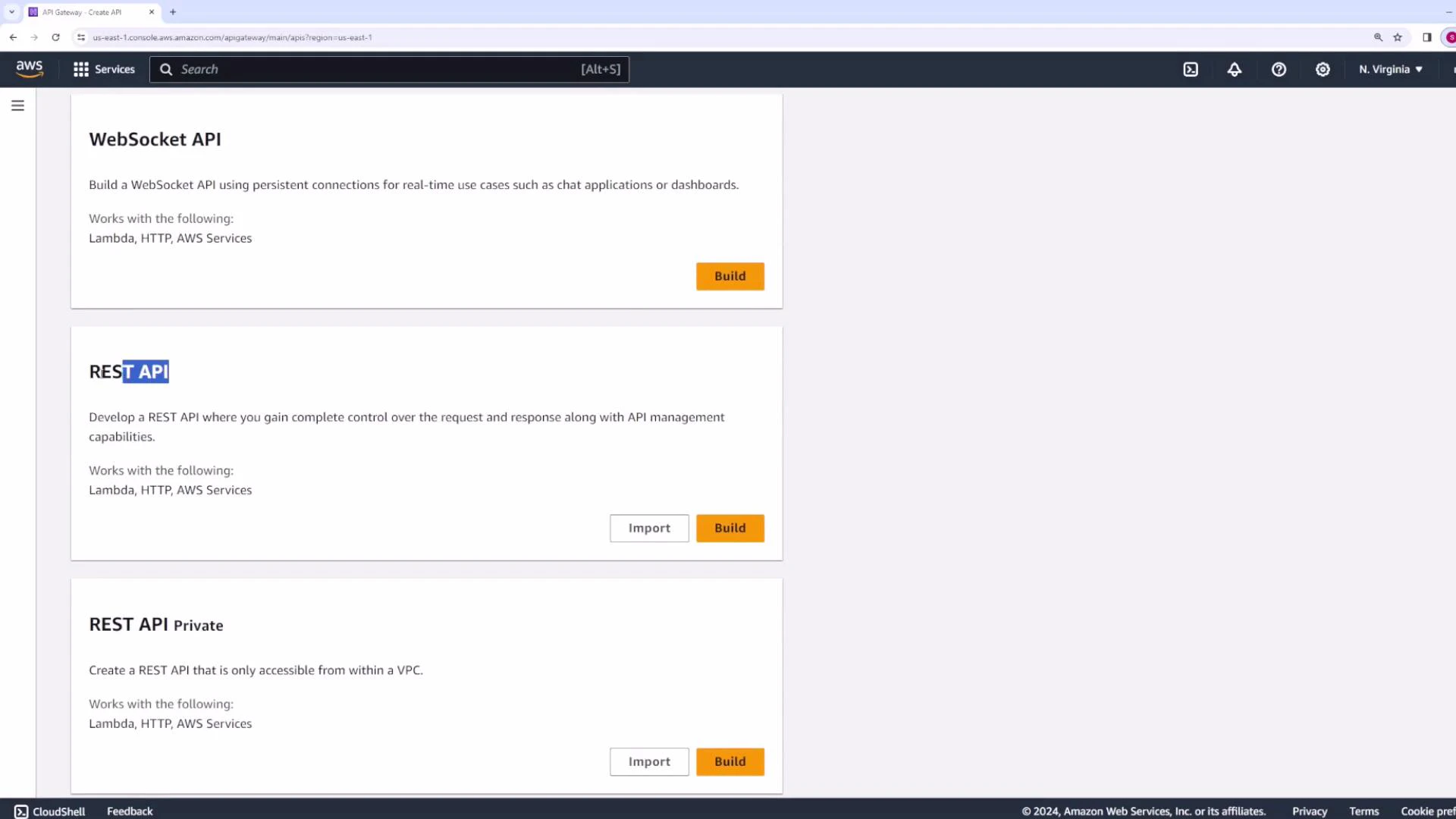
A screenshot of the Amazon Web Services API Gateway console showing options to create APIs, including WebSocket API, REST API, and REST API Private. Each option includes a brief description and buttons to "Build" or "Import."

Overview: what you’ll build

  • A REST API named library.
  • Resources: /books, /books/top (nested), and /authors.
  • Lambda-backed GET methods returning simple JSON bodies.
  • Demonstration of non-proxy Lambda integration and where mapping templates fit.
  • Deploy to a stage (dev) and test with curl/Postman or API Gateway’s Test tool.

Create a REST API

  1. In the API Gateway console choose REST API → Build.
  2. Select Create from scratch and set the API name to “library”.
  3. Pick an endpoint type. Typical choices:
Endpoint typeUse case
RegionalDefault for regional traffic; no CloudFront caching
Edge-optimizedBetter latency for global clients via CloudFront
PrivateAccessible only from within your VPC
For this demo choose Regional and click Create API.
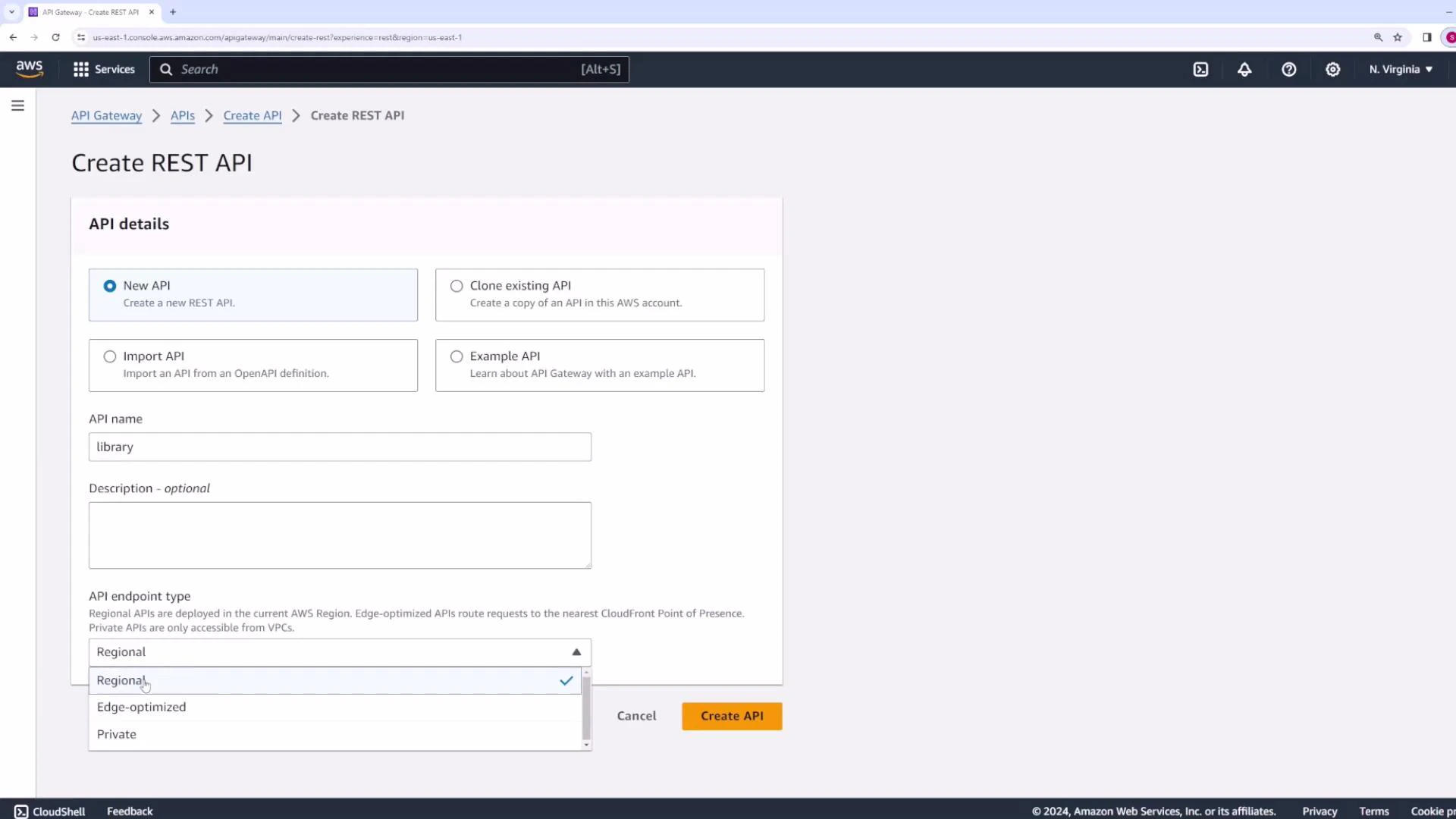
A screenshot of the AWS API Gateway "Create REST API" page showing form fields and options (New/Clone/Import/Example), an API name set to "library", and the API endpoint type dropdown with "Regional" selected. The "Create API" button is visible at the bottom.

Add a resource: /books

Resources in API Gateway map to URL path segments. Add a new resource named books so requests to /books route through that resource.
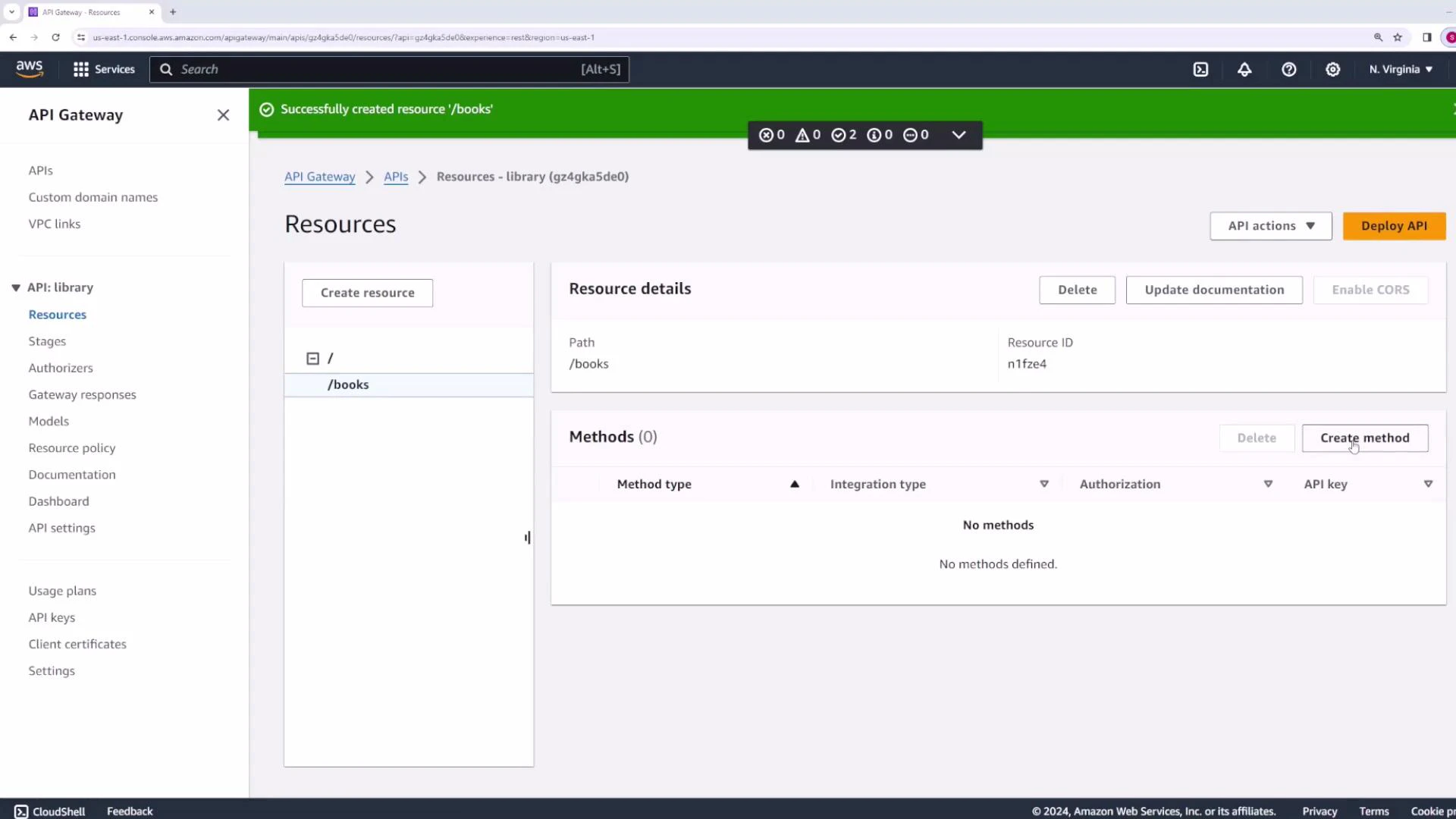
A screenshot of the AWS API Gateway console showing the Resources page for an API named "library" with the /books resource selected. A green banner reads "Successfully created resource '/books'" and the Methods panel shows no methods with a "Create method" button.

Create a GET method and integrate with Lambda

Add a GET method to /books. API Gateway supports standard HTTP methods (GET, POST, PUT, PATCH, DELETE, etc.). For the backend integration choose Lambda Function. Two common Lambda integration patterns:
Integration typeDescriptionWhen to use
Lambda Proxy IntegrationAPI Gateway forwards the full request to Lambda. The function must return where body is a string.Simpler to implement when you want Lambda to handle full HTTP semantics.
Lambda (non-proxy) IntegrationAPI Gateway forwards only configured fields. Use mapping templates to transform request/response payloads.Useful when you want API Gateway to control HTTP responses or transform payloads without changing Lambda code.
For this tutorial we show non-proxy integration (so API Gateway will map the Lambda JSON output into the HTTP response). You can also toggle proxy integration from the console if you prefer.
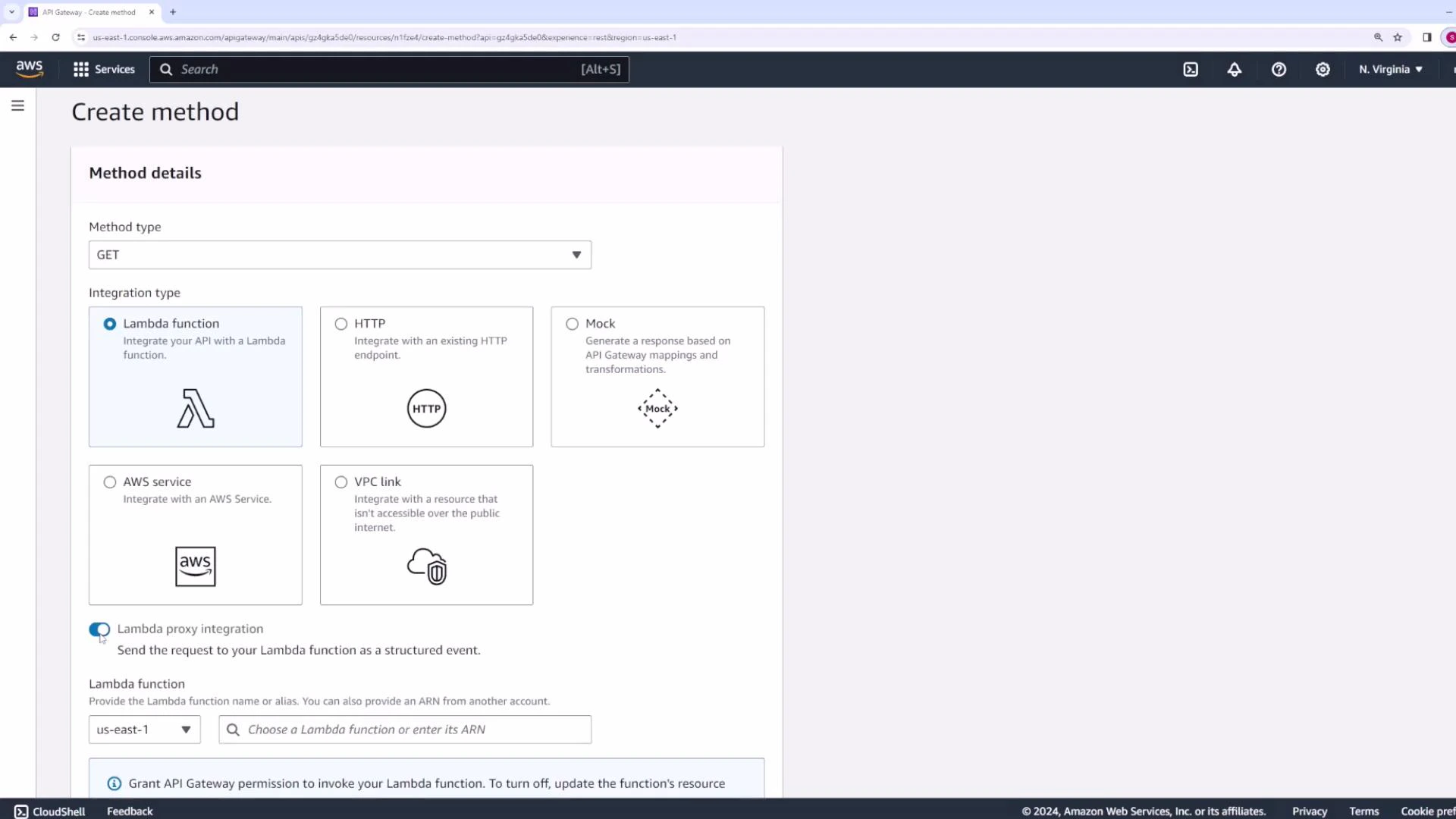
A screenshot of the AWS API Gateway "Create method" page showing a GET method with the Lambda function integration selected and the Lambda proxy integration enabled. Other integration options (HTTP, Mock, AWS service, VPC link) and a Lambda function selector are also visible.

Create the Lambda function: getBooks

In the Lambda console create a function named getBooks. For non-proxy integration the function can return a simple JSON object (API Gateway will map it to the HTTP response body). Example function (Node.js):
export const handler = async (event, context) => {
  const response = {
    body: "Here is a list of all books",
  };
  return response;
};
Deploy and test this function inside the Lambda console. Expected invocation result:
{
  "body": "Here is a list of all books"
}
Example execution logs (trimmed):
START RequestId: 7f461fba-2790-4870-bad7-5d7a8d2b1ec5 Version: $LATEST
END RequestId: 7f461fba-2790-4870-bad7-5d7a8d2b1ec5
REPORT RequestId: 7f461fba-2790-4870-bad7-5d7a8d2b1ec5	Duration: 11.50 ms
When Lambda proxy integration is enabled, your handler must return where body is a string. In non-proxy mode (used here) the function can return a JSON object which you map in API Gateway.

Integration settings and method flow

Open the Method Execution view to see the visual flow: Method Request → Integration Request → Lambda function → Integration Response → Method Response → Client Integration Request controls which parts of the HTTP request (path params, query string, headers, body) are forwarded to Lambda and allows mapping templates to transform the payload. Integration Response allows you to transform Lambda output back into the final HTTP response that clients receive.
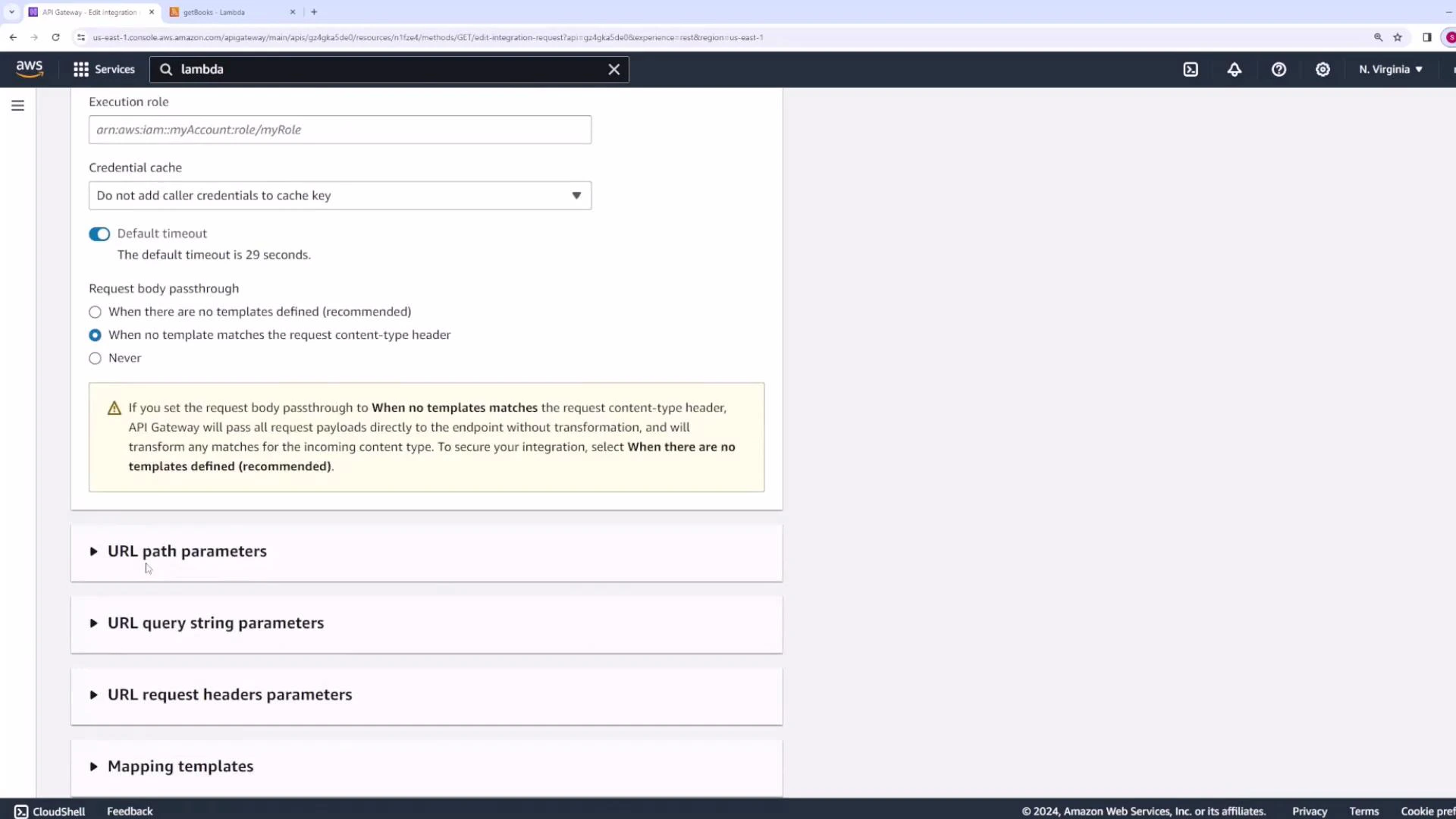
A screenshot of the AWS API Gateway integration settings page showing fields like execution role, credential cache, default timeout, and request body passthrough options with a warning. Expandable sections for URL path parameters, query string parameters, request headers, and mapping templates are visible.
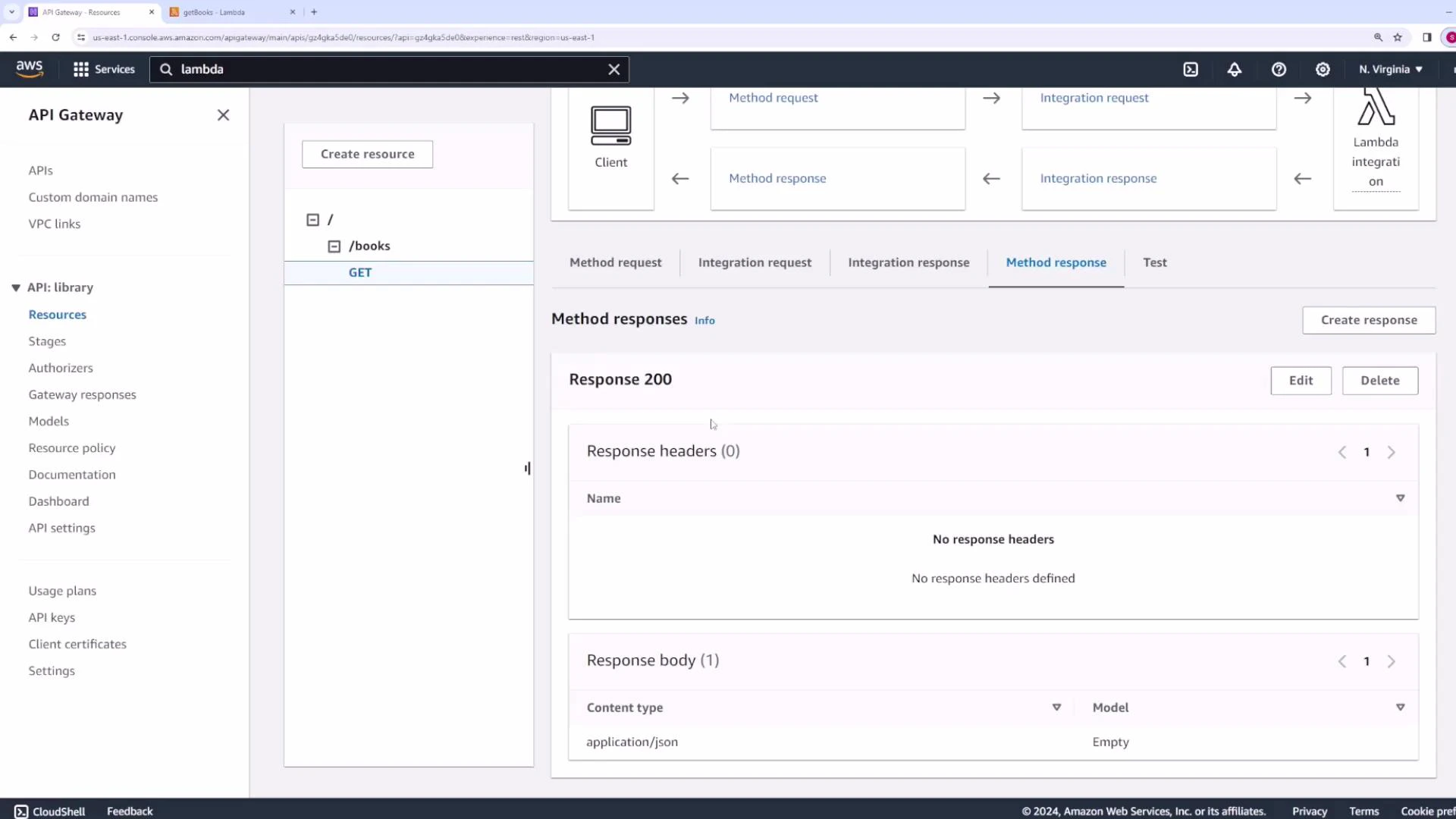
Method Response defines the HTTP status codes, response headers, and content types exposed to the client (by default GET returns 200). If you need different status codes for errors, map these in Integration Response based on Lambda output.
A screenshot of the AWS API Gateway console showing the "API: library" Resources view and the Method responses for a GET /books endpoint. The Response 200 panel shows no response headers and a response body content type of application/json.

Test the method inside API Gateway

Use the built-in Test tool to simulate HTTP requests (path, query string, headers, body) and view the response and log output. Example API Gateway test output for GET /books:
  • Status: 200
  • Latency: 112 ms
Response body:
{"body": "Here is a list of all books"}
Example log (trimmed):
/books - GET method test results
Mon Apr 01 00:21:20 UTC 2024 : HTTP Method: GET, Resource Path: /books
Mon Apr 01 00:21:20 UTC 2024 : Endpoint request URI: https://lambda.us-east-1.amazonaws.com/...:function:getBooks/invocations
Mon Apr 01 00:21:20 UTC 2024 : Endpoint response body before transformations: {"body":"Here is a list of all books"}
Mon Apr 01 00:21:20 UTC 2024 : Method completed with status: 200

Deploy the API to a stage

To expose the API publicly you must Deploy API to a stage (e.g., dev). Stages act as environments — dev, prod, etc. Remember to redeploy after making configuration changes.
Forgetting to redeploy is a common cause of “changes not taking effect.” Always deploy after configuration changes.
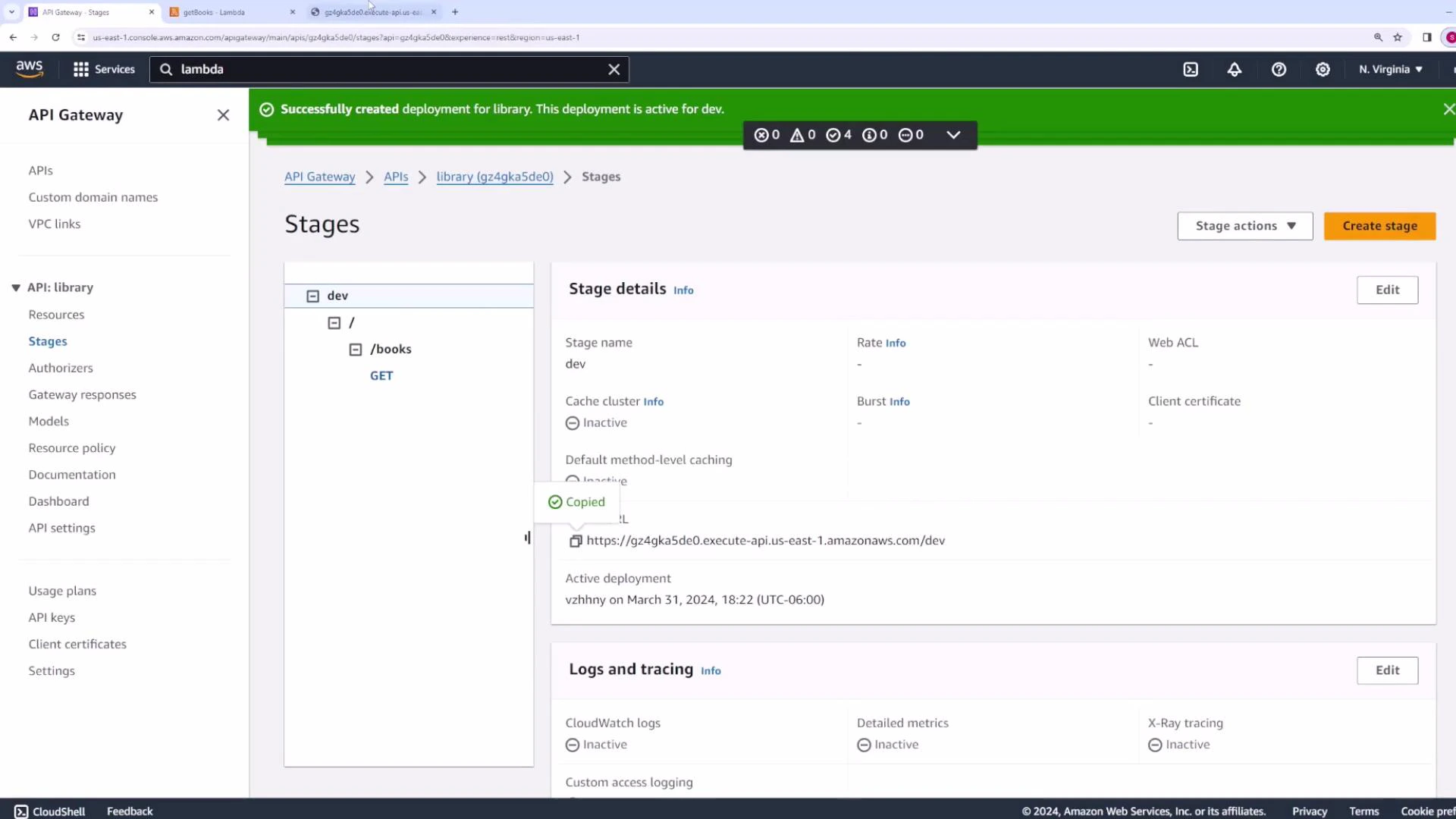
After deployment you receive an invoke URL in the format:
https://{rest_api_id}.execute-api.{region}.amazonaws.com/dev
Screenshot of the AWS API Gateway console showing the "Stages" page for an API named "library." It shows a "dev" stage with a /books GET resource and the stage invoke URL.
If you call the stage root without a path you’ll receive:
{"message":"Missing Authentication Token"}
This means no method is configured at the root (/) resource. Call the full resource path instead, for example:
https://gz4gka5de0.execute-api.us-east-1.amazonaws.com/dev/books
Test with curl or Postman: Example curl:
curl https://gz4gka5de0.execute-api.us-east-1.amazonaws.com/dev/books
Expected response:
{
  "body": "Here is a list of all books"
}
Response headers include Content-Type and API Gateway trace/request IDs.

Add another resource: /authors

Back in the Resources view create authors and add a GET method integrated with a Lambda function named getAuthors. The Lambda can return a JSON object similar to getBooks:
export const handler = async (event, context) => {
  const response = {
    body: "Here is a list of all authors",
  };
  return response;
};
Deploy to the dev stage. After deployment the endpoint:
GET https://gz4gka5de0.execute-api.us-east-1.amazonaws.com/dev/authors
will return:
{
  "body": "Here is a list of all authors"
}
Status: 200 OK by default unless you map errors to other status codes.

Create nested resources: /books/top

You can create nested resources under existing resources. Add a child resource top under /books and attach a GET method backed by a Lambda getTopBooks. Create the Lambda function getTopBooks (for example, Node.js runtime):
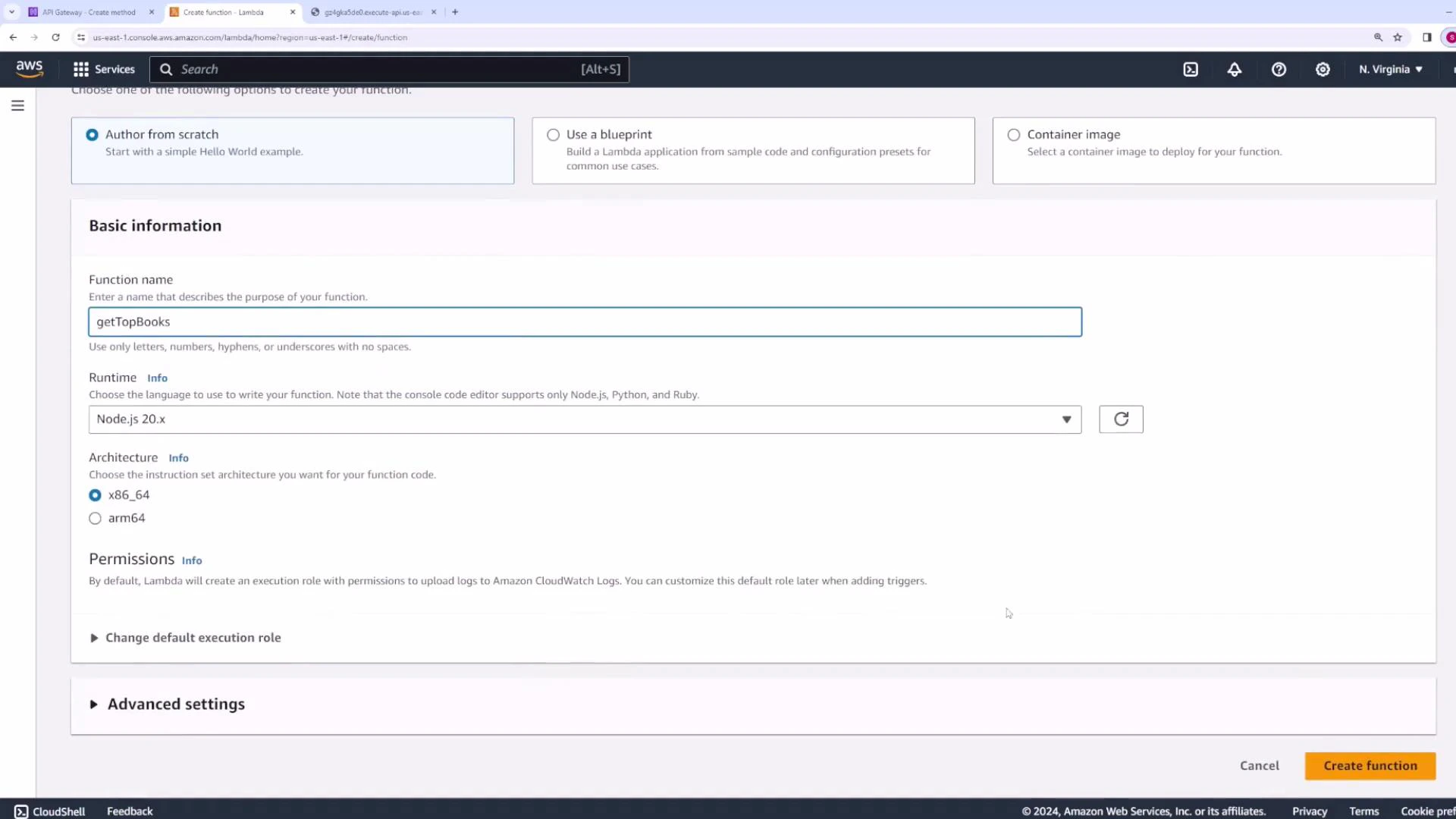
A screenshot of the AWS Lambda "Create function" console showing the "Author from scratch" form with the function name set to "getTopBooks." The runtime is set to Node.js 20.x, x86_64 architecture is selected, and a "Create function" button is visible.
Function code:
export const handler = async (event, context) => {
  const response = {
    body: "Here is a list of all top books",
  };
  return response;
};
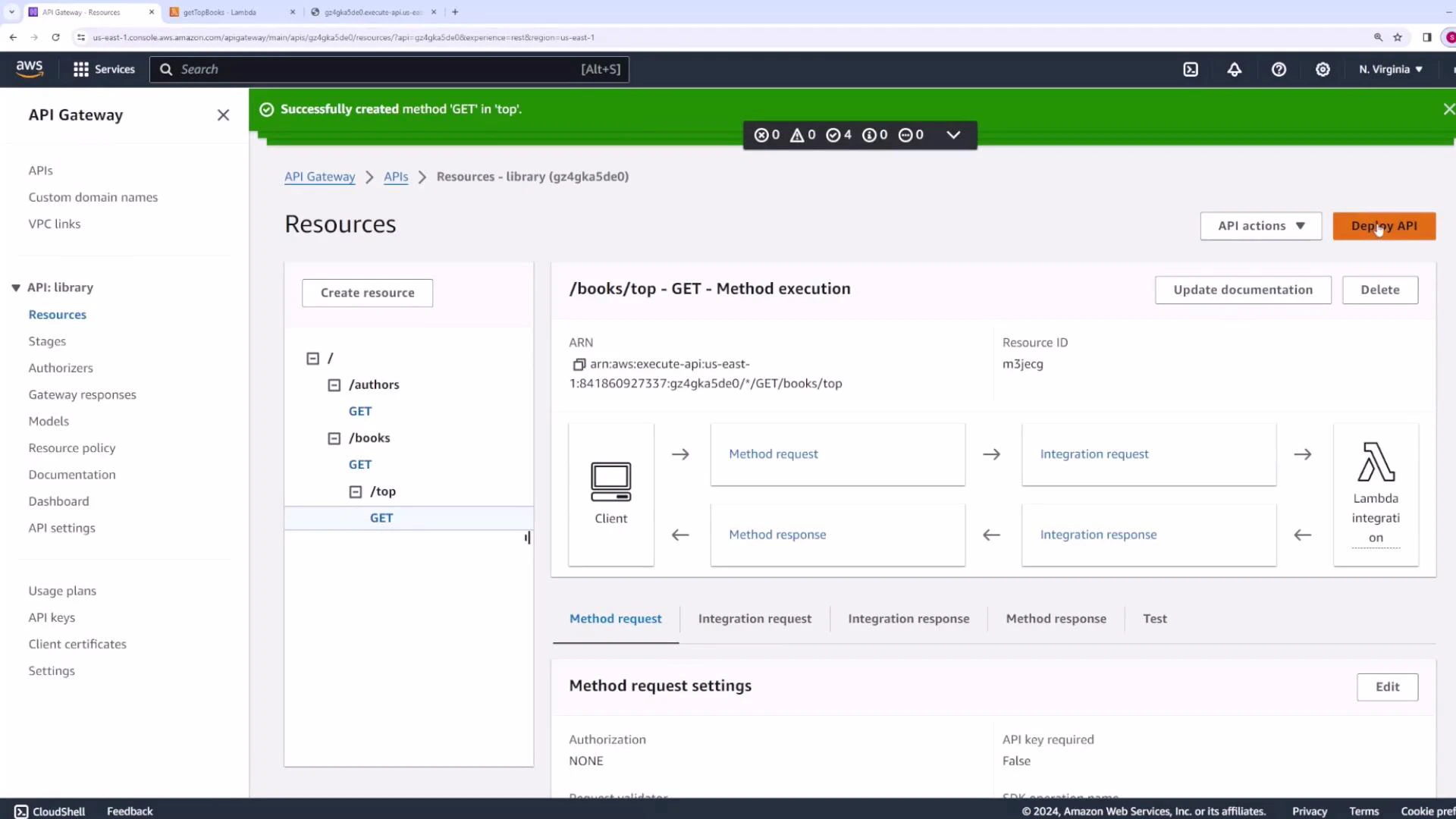
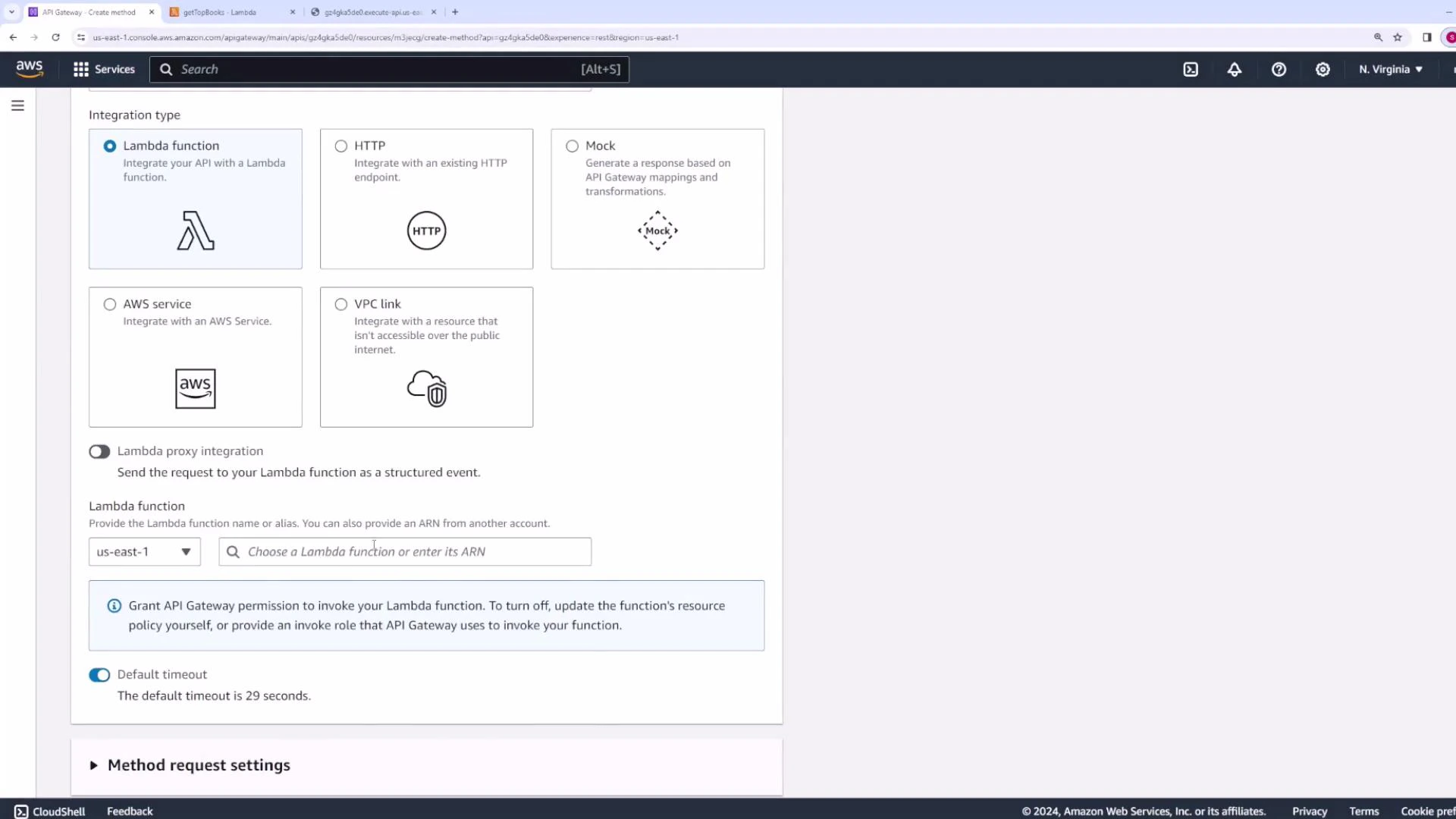
Integrate getTopBooks with /books/top GET, then Deploy API to the dev stage. The nested endpoint becomes:
https://gz4gka5de0.execute-api.us-east-1.amazonaws.com/dev/books/top
Screenshot of the AWS API Gateway console showing the "Integration type" panel with "Lambda function" selected, fields to choose a Lambda ARN, a lambda proxy integration toggle, and default timeout info. Other integration options like HTTP, Mock, AWS service, and VPC link are also visible.
Calling the nested endpoint returns:
{
  "body": "Here is a list of all top books"
}
A screenshot of the AWS API Gateway console showing the "Resources" page for an API named "library," with a /books/top GET method configured and integrated with a Lambda function. The left panel lists resources like /authors and /books, while the main pane shows the method execution flow, ARN, and deployment options.

Quick checklist

  • Create resources and methods under API Gateway → Resources (not Stages).
  • Link methods to Lambda functions using proxy or non-proxy integration according to your needs.
  • Use Integration Request/Response mapping templates when you need to transform payloads or control HTTP responses from API Gateway.
  • Deploy to a stage and redeploy after changes.
  • Test using the API Gateway Test tool, curl, or Postman.
This completes the basic API Gateway + Lambda integration demo for the library API.

Watch Video

Practice Lab