

- An AWS account with permissions to launch EC2 instances.
- A key pair to access the instance (optional for this demo since configuration is via user data).
- A security group that allows HTTP (80) and HTTPS (443) inbound access.
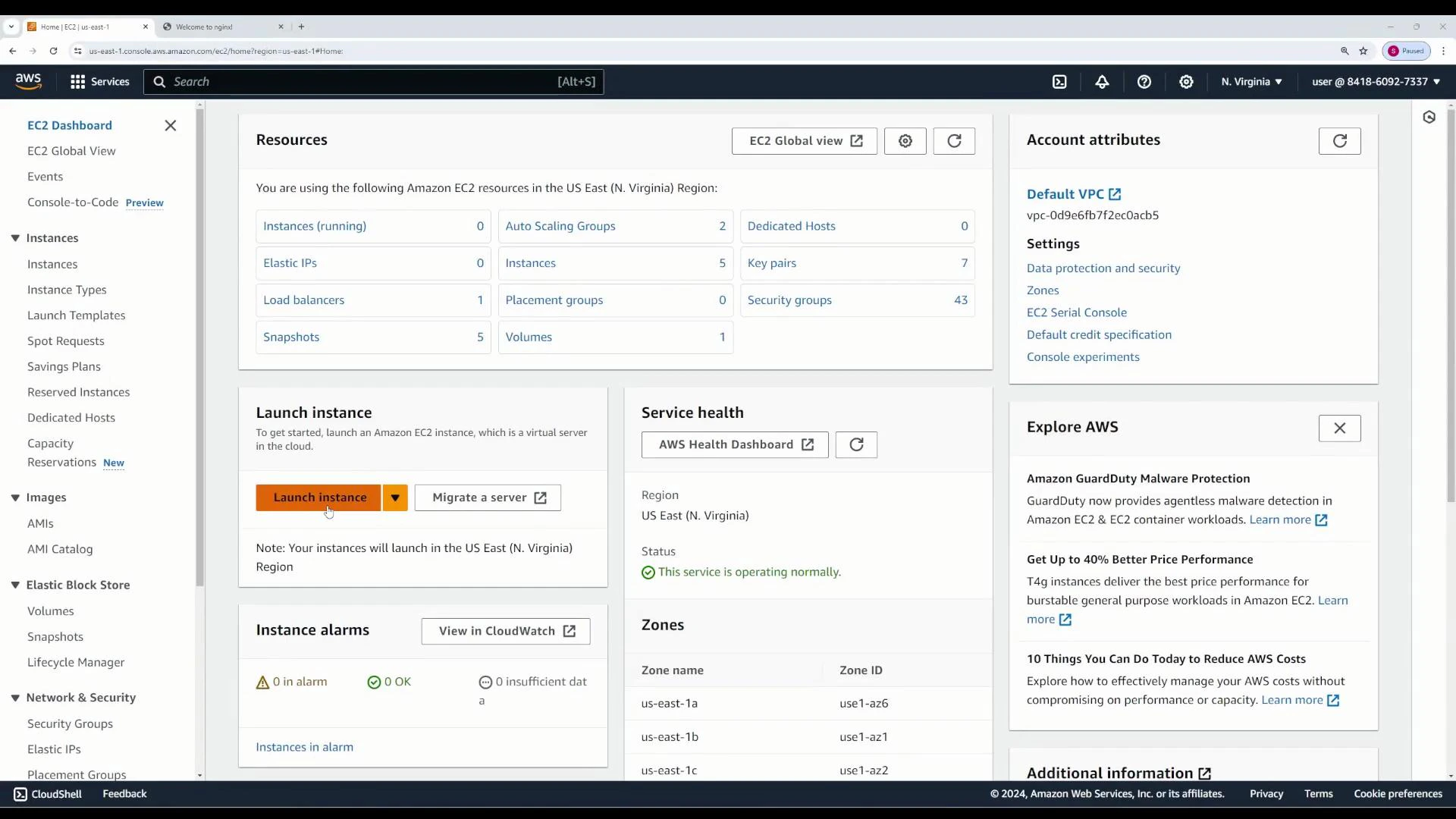
- Open the EC2 console and click “Launch instance”.
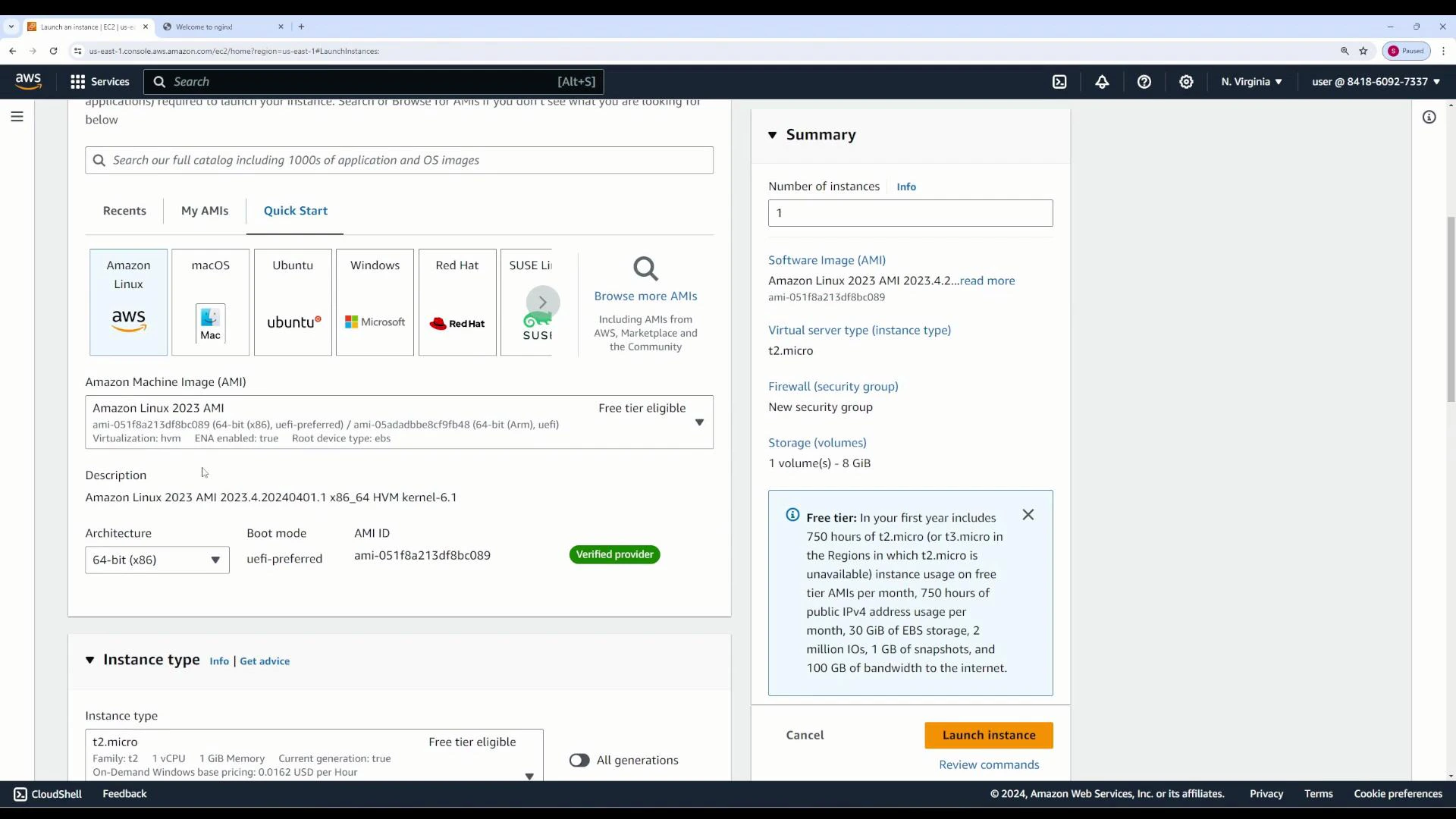
- Give the instance a descriptive Name (for example, userdata-demo).
- Select an Amazon Linux AMI (or another supported Linux AMI that uses yum).
- Choose an appropriate instance type (t2.micro is fine for testing and is often within the AWS Free Tier).
- Select your key pair or create one if you plan to SSH later.
- Configure networking and storage as needed.
Step 4 — Add your user data script
Open Advanced Details on the launch page and paste the script into the User data field (you can also upload a file). The script below runs as root during the instance’s first boot and uses yum to install nginx, then starts and enables it:
User data scripts run as root on first boot via cloud-init. If you need to troubleshoot, check /var/log/cloud-init-output.log on the instance for the script’s output and any error messages.
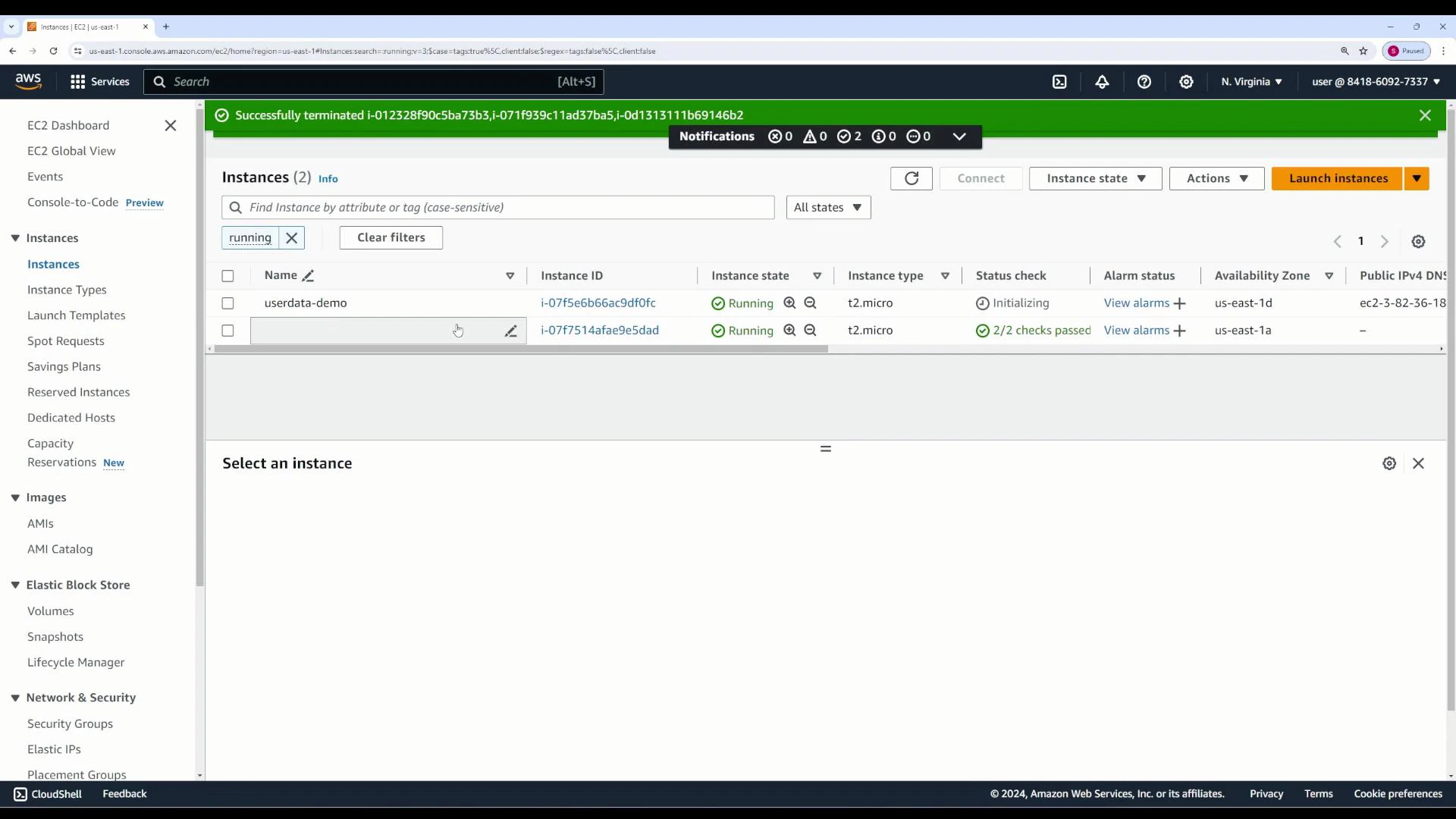
- Launch the instance and wait for its status checks to pass.
- From the EC2 Instances page, note the instance’s Public IPv4 address or Public DNS.
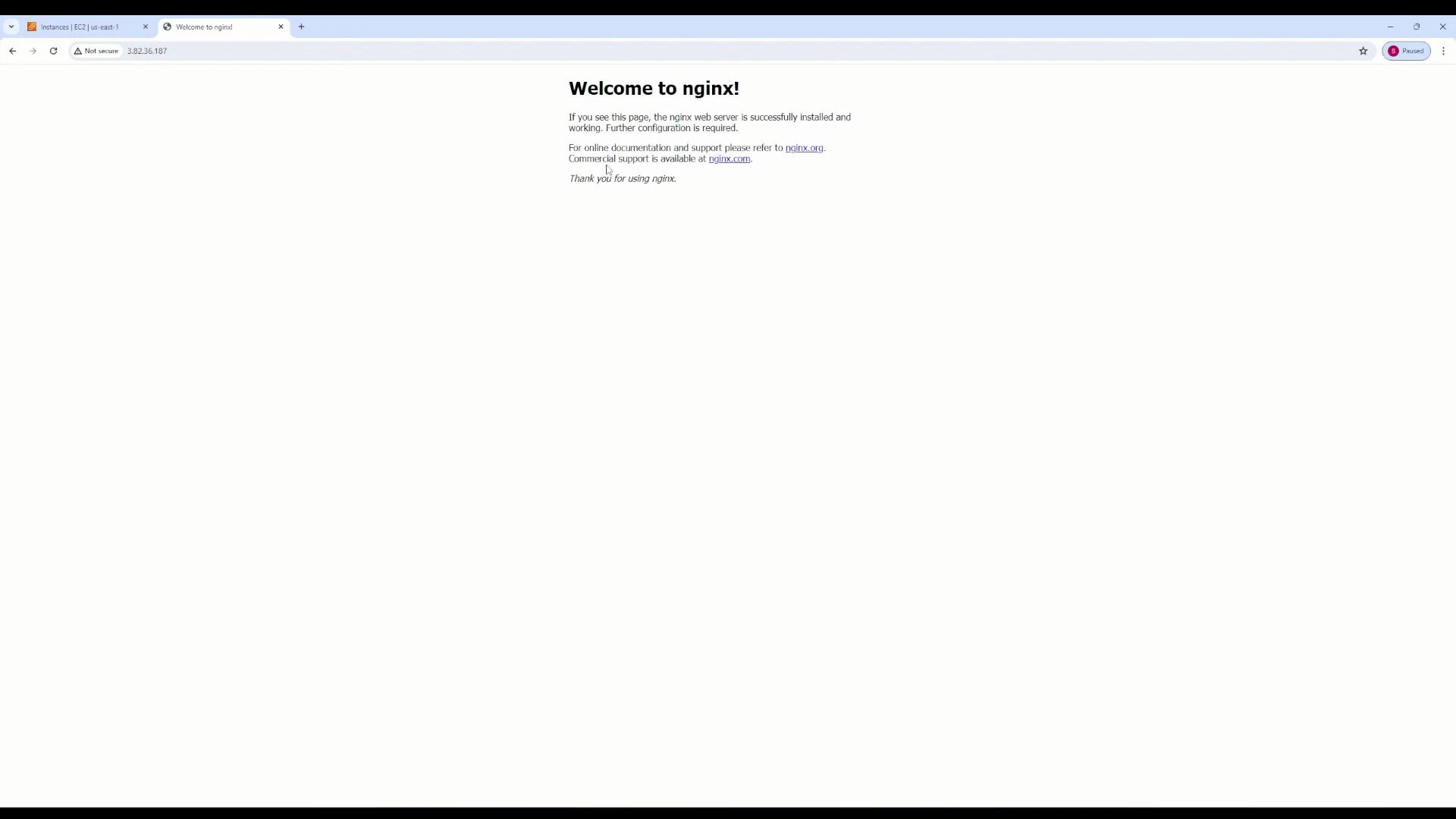
- Confirm the instance has a public IP and the security group allows inbound HTTP.
- Verify cloud-init ran by inspecting /var/log/cloud-init.log and /var/log/cloud-init-output.log on the instance.
- If the package manager fails, ensure your chosen AMI supports yum (Amazon Linux / RHEL / CentOS) or adjust the script for apt (Ubuntu/Debian).
User data runs only during the instance’s initial boot. To re-run initialization you can: bake a new AMI with the changes, use configuration management (Ansible/Chef/Puppet), or manually re-run scripts via SSH or with cloud-init’s re-run options.
- Amazon EC2 User Guide — Running Commands on Your Linux Instance at Launch
- cloud-init Documentation
- nginx Official Site
- Amazon Linux AMI