

Creating a Repository and Uploading a File
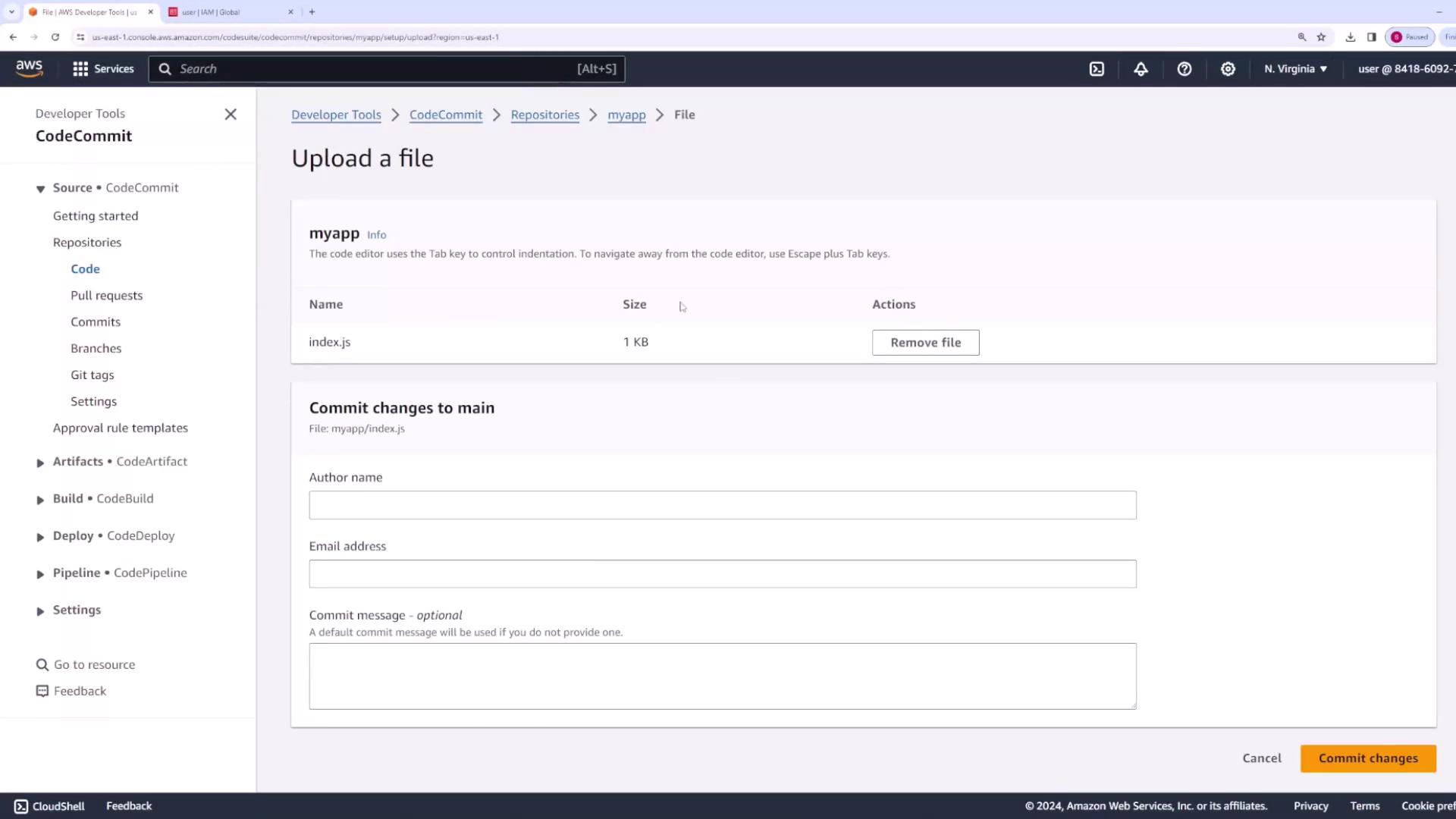
Begin by navigating to the CodeCommit service in your AWS console and create a new repository. Name it “myapp” (or any preferred name) and click Create. After the repository is created, you will be provided with instructions on how to connect to it. For example, you might see a command such as:- Click Add file.
- Select Upload file.
- Choose a file from your computer (for instance,
index.js).
index.js file. You can inspect its contents directly within the CodeCommit interface.
Viewing the Repository Contents
When inspecting the uploaded file, you will notice that the current branch is indicated in the interface. By default, CodeCommit creates a single branch (commonly namedmain or sometimes master). Here is an example of what the content of index.js might look like:
Branching for Feature Development
Suppose your team wants to add a new feature (for example, implementing authentication) without impacting the main branch. The recommended approach is to create a new branch. Follow these steps:- Navigate to the Branches section.
- Create a branch named
create-authderived from the main branch. - Switch to the
create-authbranch and modify theindex.jsfile as needed. For example, you might add a log statement to indicate the addition of authentication:
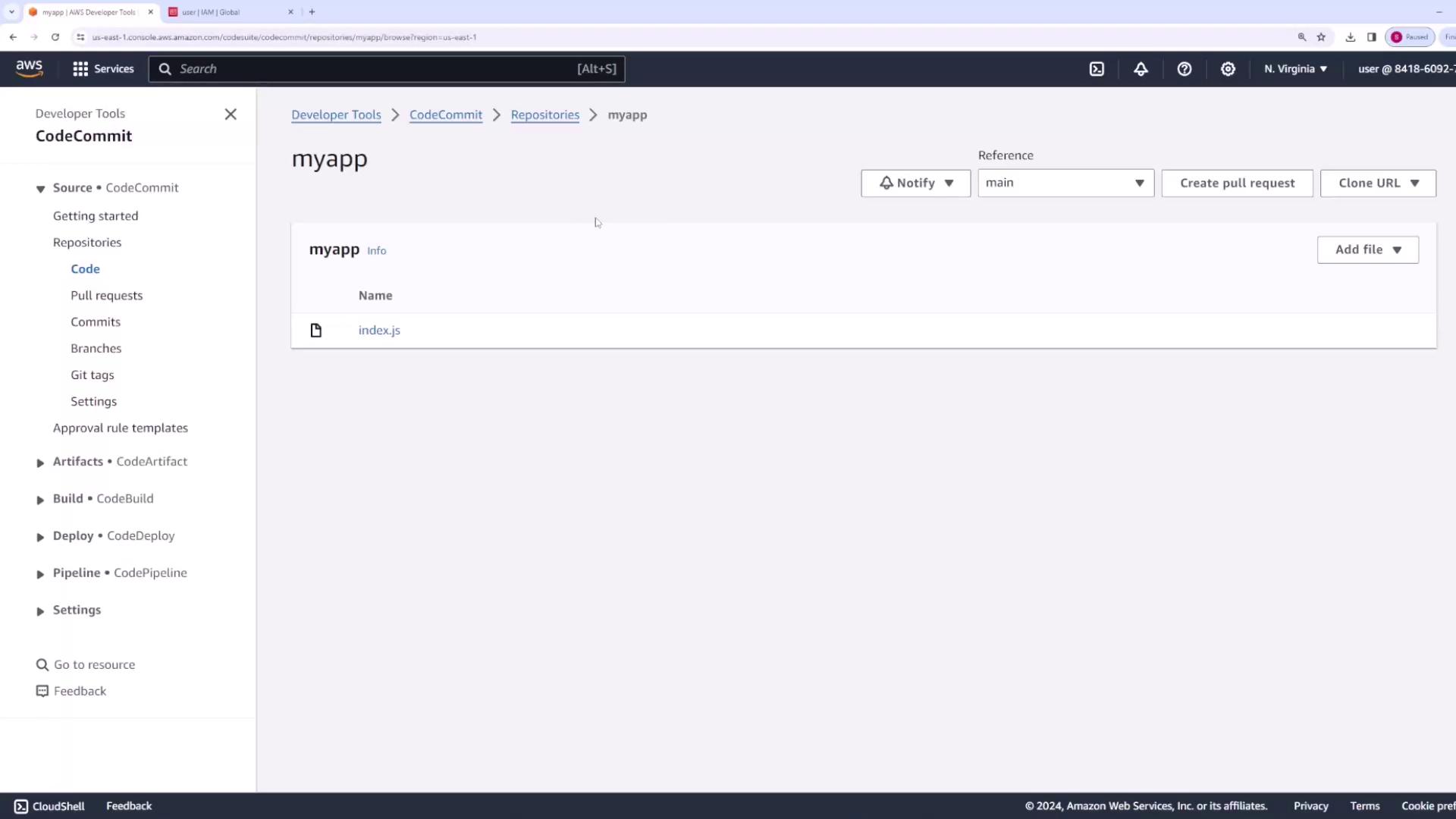
index.js could appear as follows:
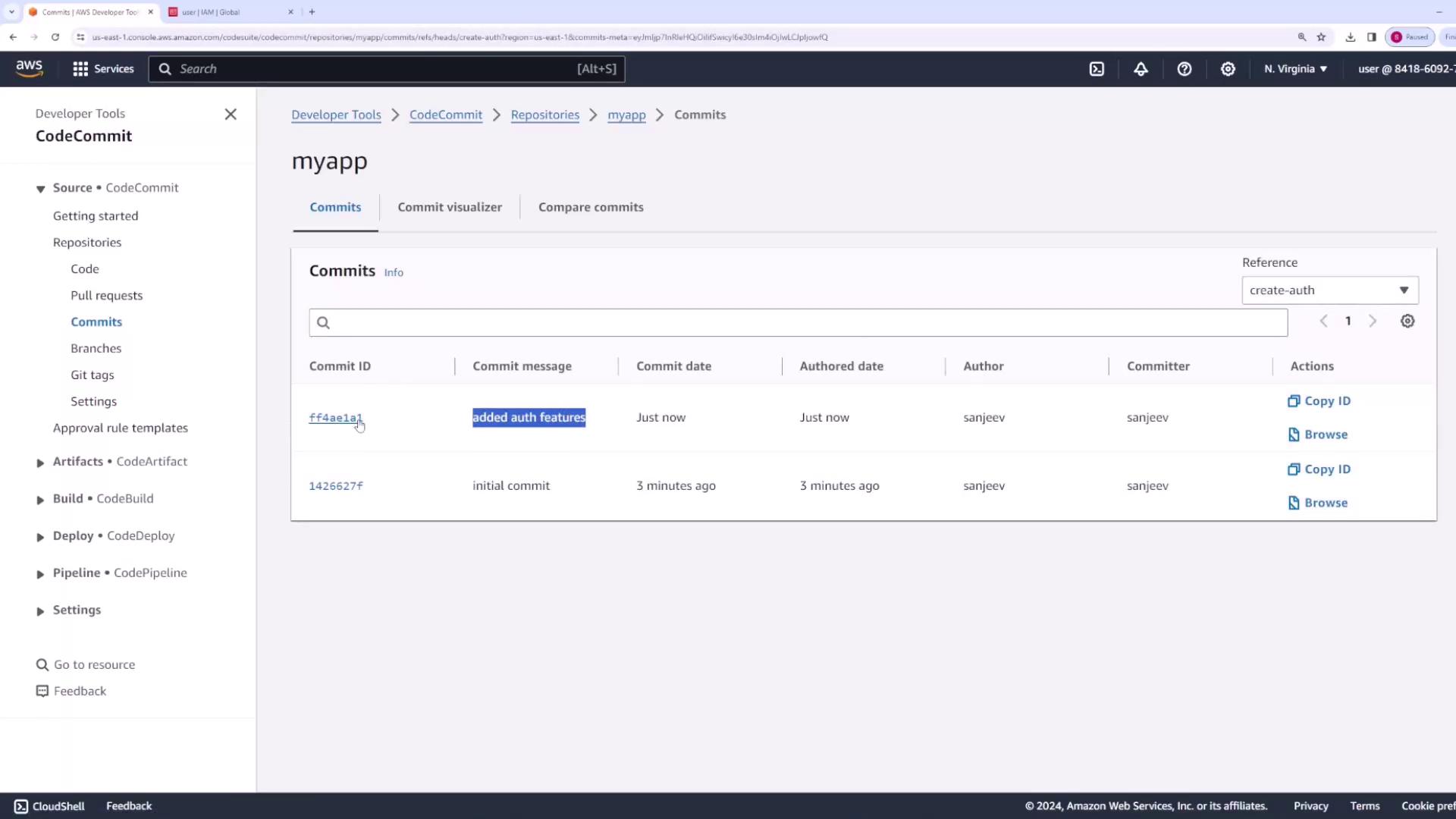
create-auth branch with the appropriate author information and a commit message, such as “added auth features.” Remember that these changes are isolated to the create-auth branch. Switching back to the main branch will show the index.js file without the authentication log.
Changes made on a feature branch allow your team to work concurrently without affecting the main codebase.
Creating and Merging a Pull Request
Once the new authentication feature has been tested and verified, you can merge the changes into the main branch by creating a pull request. The process involves:- Navigating to the Pull Requests section.
- Setting the source branch to
create-authand the destination branch to the main branch. - Providing an appropriate title (e.g., “added auth features”) and a detailed description.
- Creating the pull request.
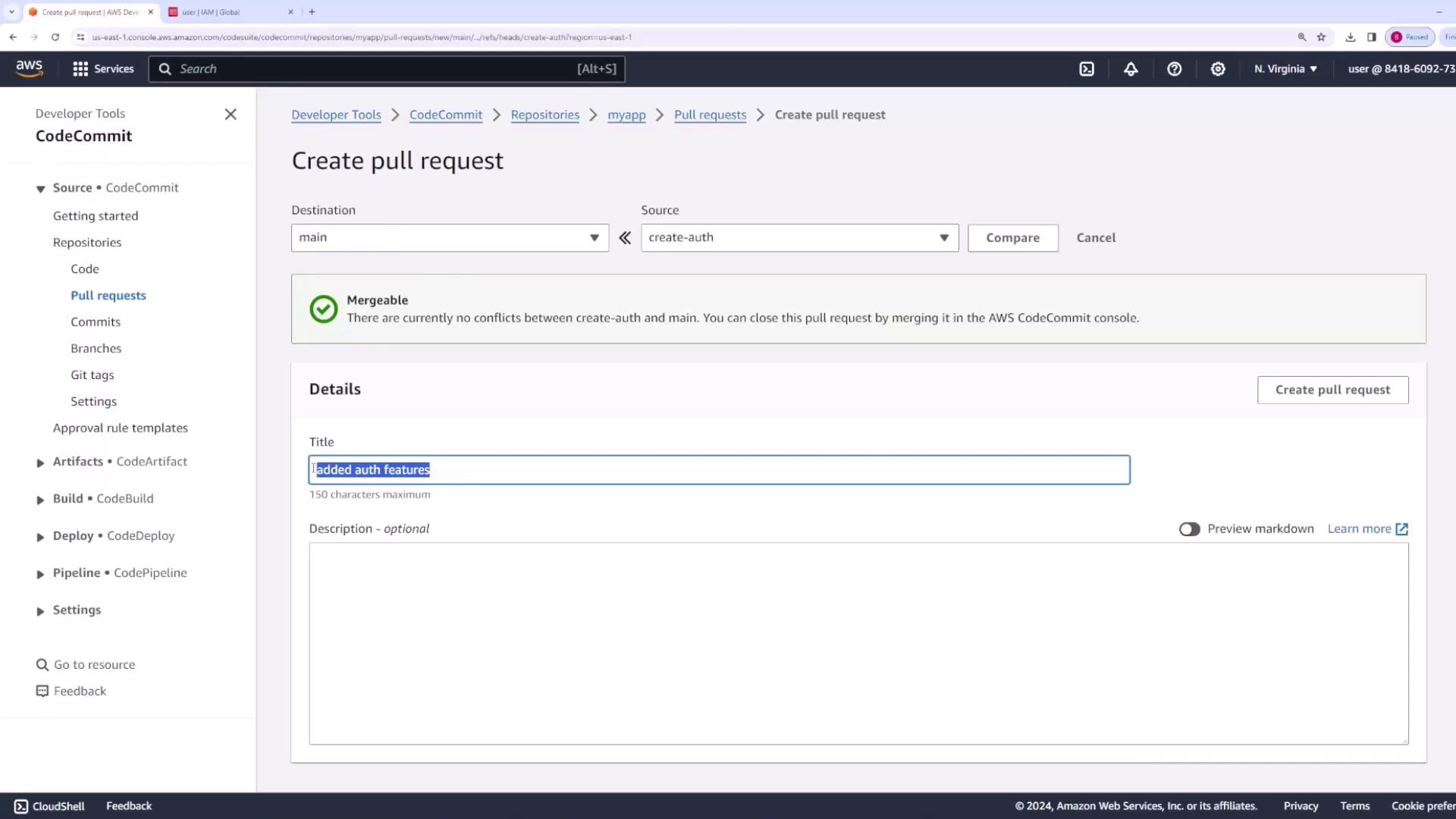
index.js file in the main branch will now look like this:
Reviewing Commit History
You can inspect the commit history for each branch independently. For example, when viewing thecreate-auth branch, the commit history will detail the changes made, such as the addition of the authentication log lines. This granular view is helpful for understanding the evolution of your codebase.
Configuring Notifications and Triggers
Beyond code management, AWS CodeCommit allows you to configure notifications to alert your team whenever certain events occur (e.g., on new commits or pull request status changes). Notification rules can be set within the repository settings, enabling delivery through AWS Chatbot, SNS topics, or other integrations.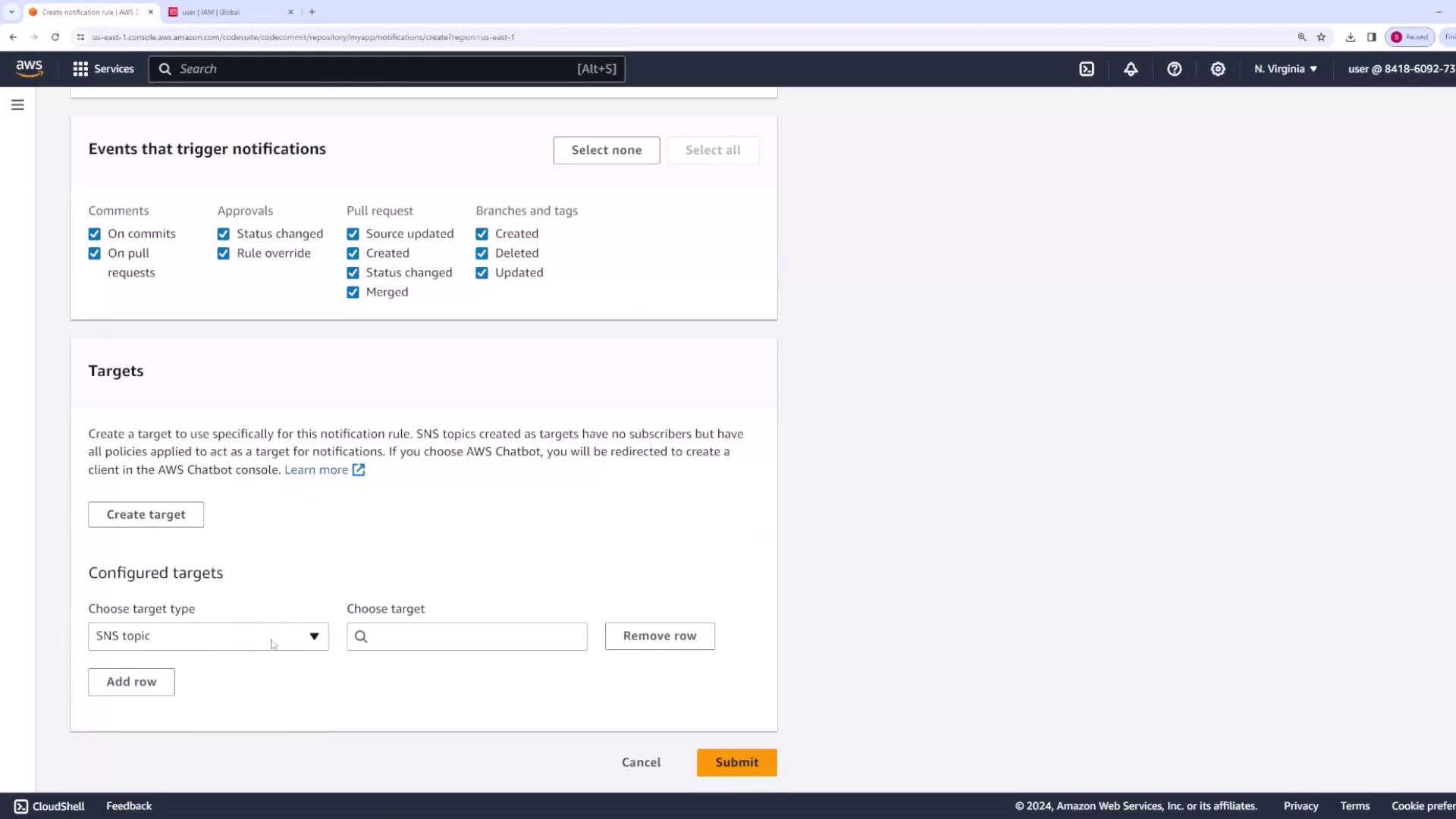
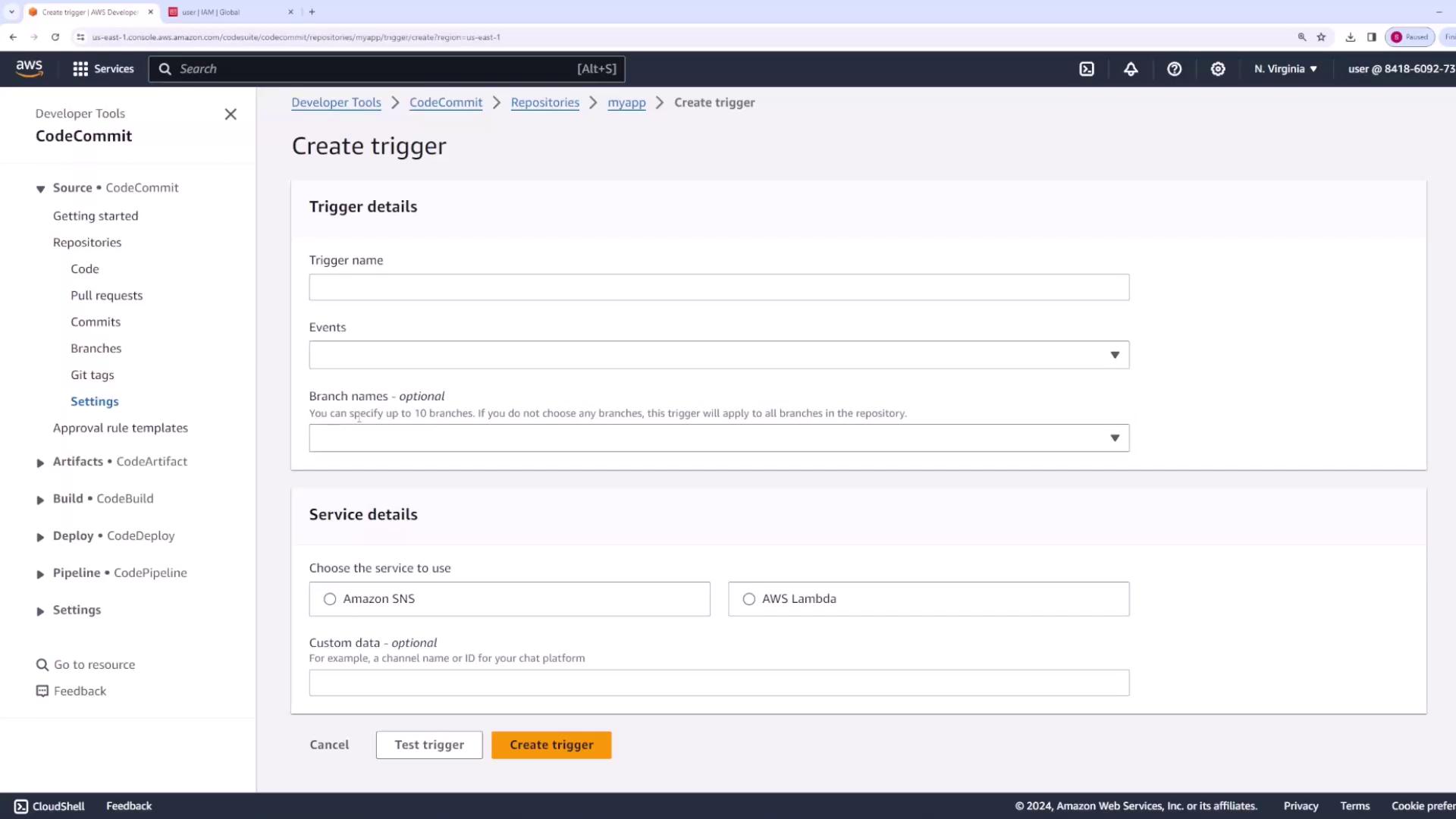
Configured notifications and triggers can help streamline your development workflow by ensuring the right team members are alerted to significant repository events.