

Getting Started with AWS CloudShell
Begin by searching for and launching the CloudShell service. Once open, you’ll see a terminal session similar to the welcome screen below: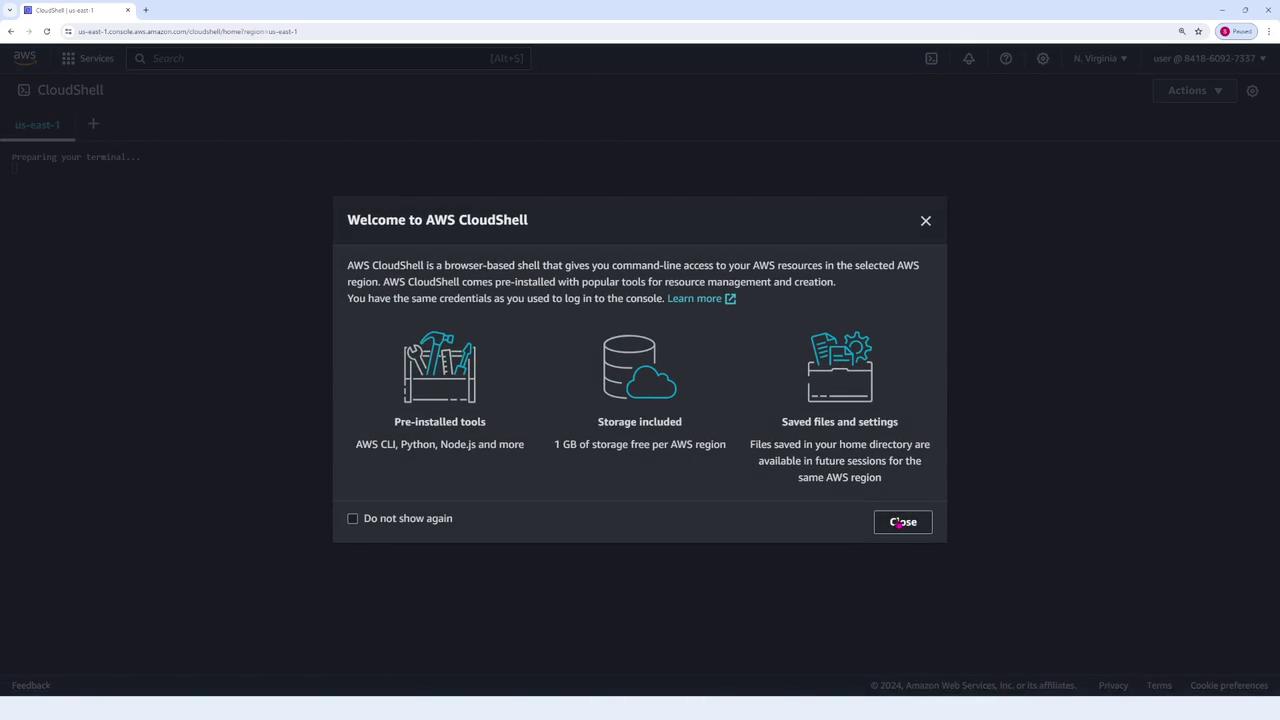
AWS CloudShell automatically configures your credentials, allowing you to use the AWS CLI without any additional setup.
Executing AWS CLI Commands
CloudShell’s pre-configuration makes it ideal for quick tasks. For example, to list your S3 buckets, run the following command:Handling CLI Errors
If a command is entered with an invalid subcommand, the CLI will return an error message. For example, an incorrect invocation might yield:Example Session Workflow
A typical CloudShell session might involve listing S3 buckets, clearing the terminal, and viewing local directory contents. Here’s an example session:-
Listing S3 Buckets
-
Clearing the Terminal
-
Listing Directory Contents
-
Returning Prompt
The terminal finally returns control to the user:
Using AWS CloudShell simplifies the process of working with the AWS CLI by eliminating setup overhead and manual configuration. This makes it an excellent tool for quick command-line tasks directly within your AWS environment.