

Launching an EC2 Instance
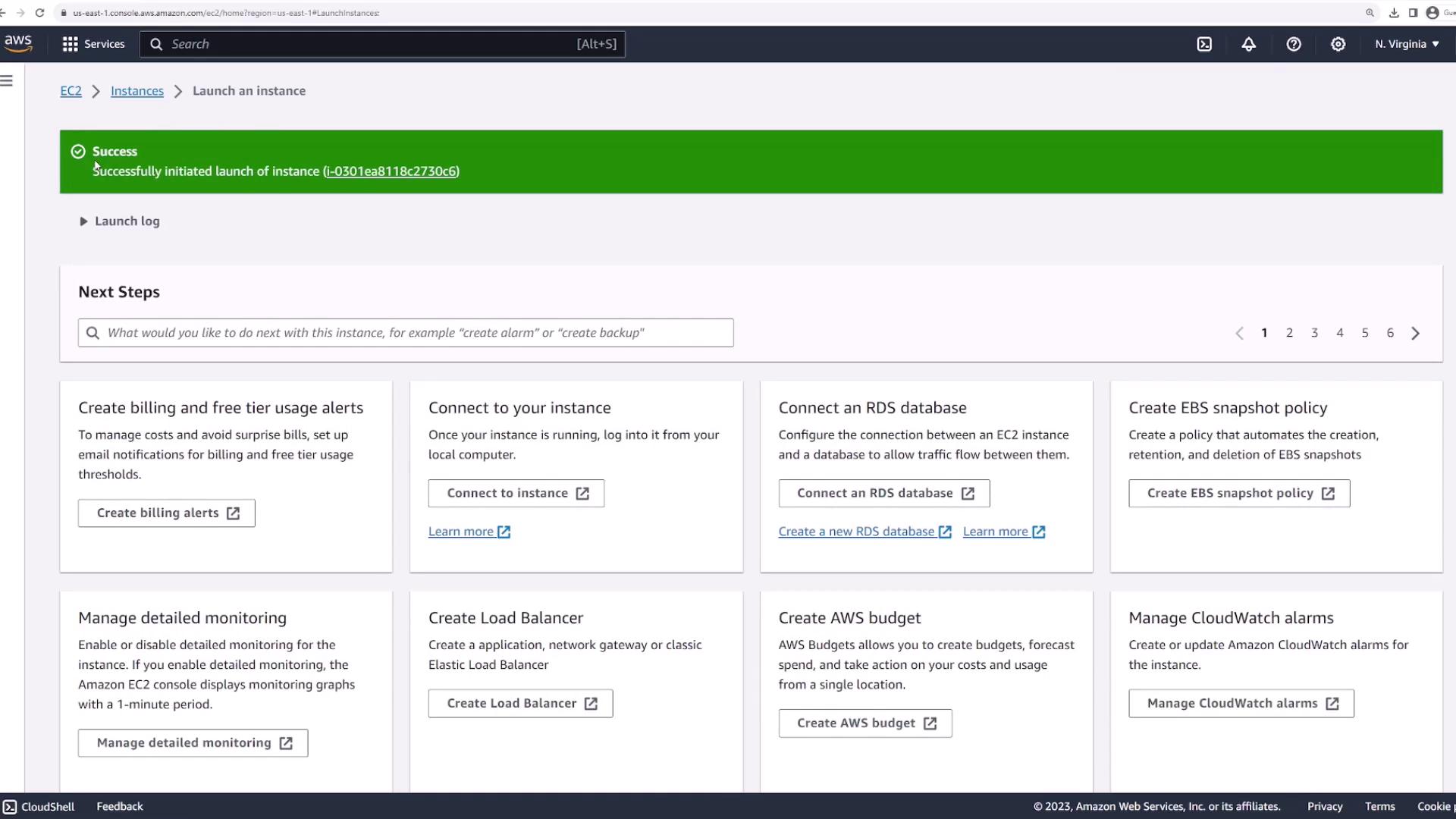
Begin by accessing the EC2 service from the AWS Management Console. In the EC2 dashboard, navigate to “Instances” where you will find a shortcut to launch a new instance: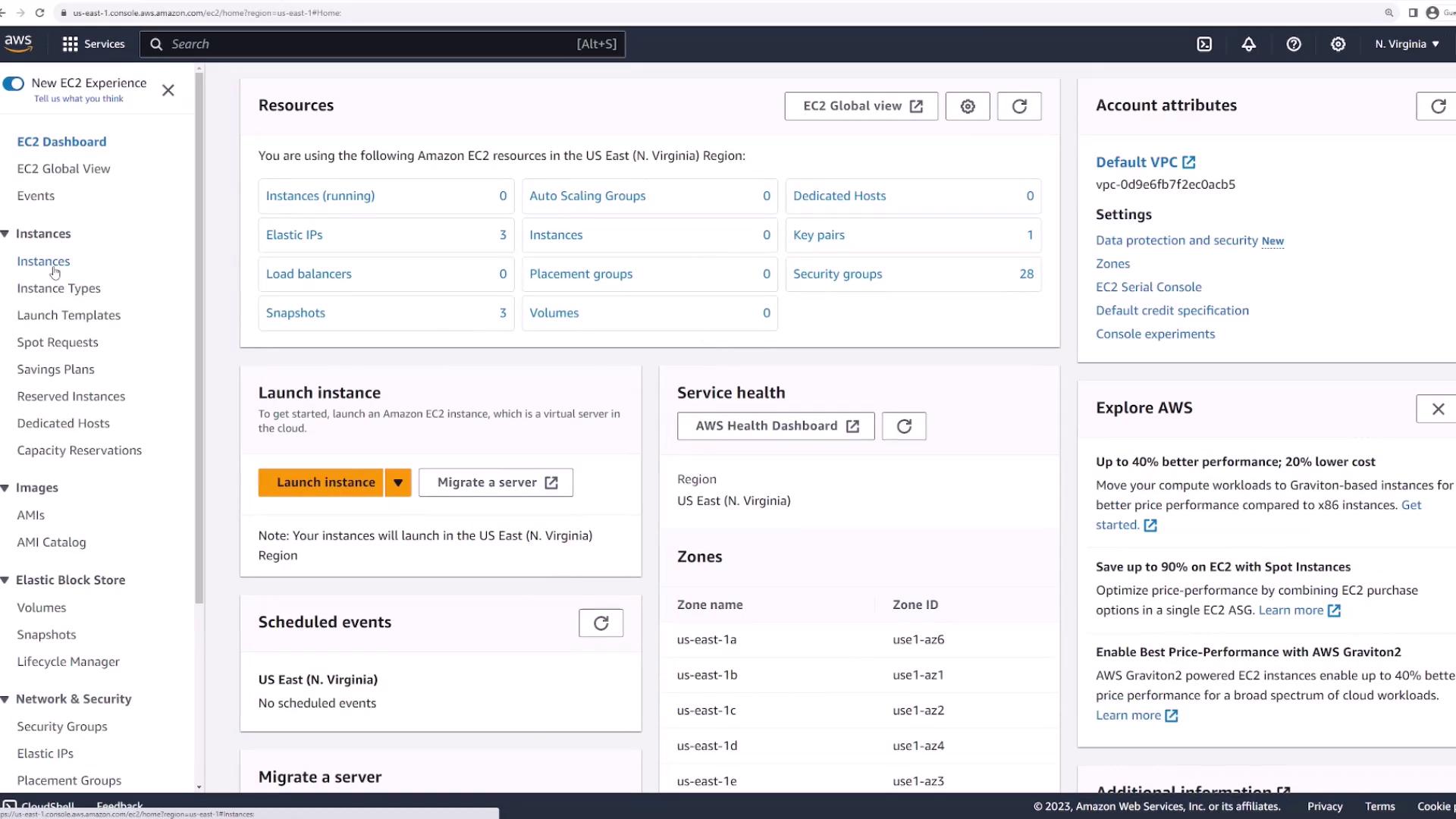
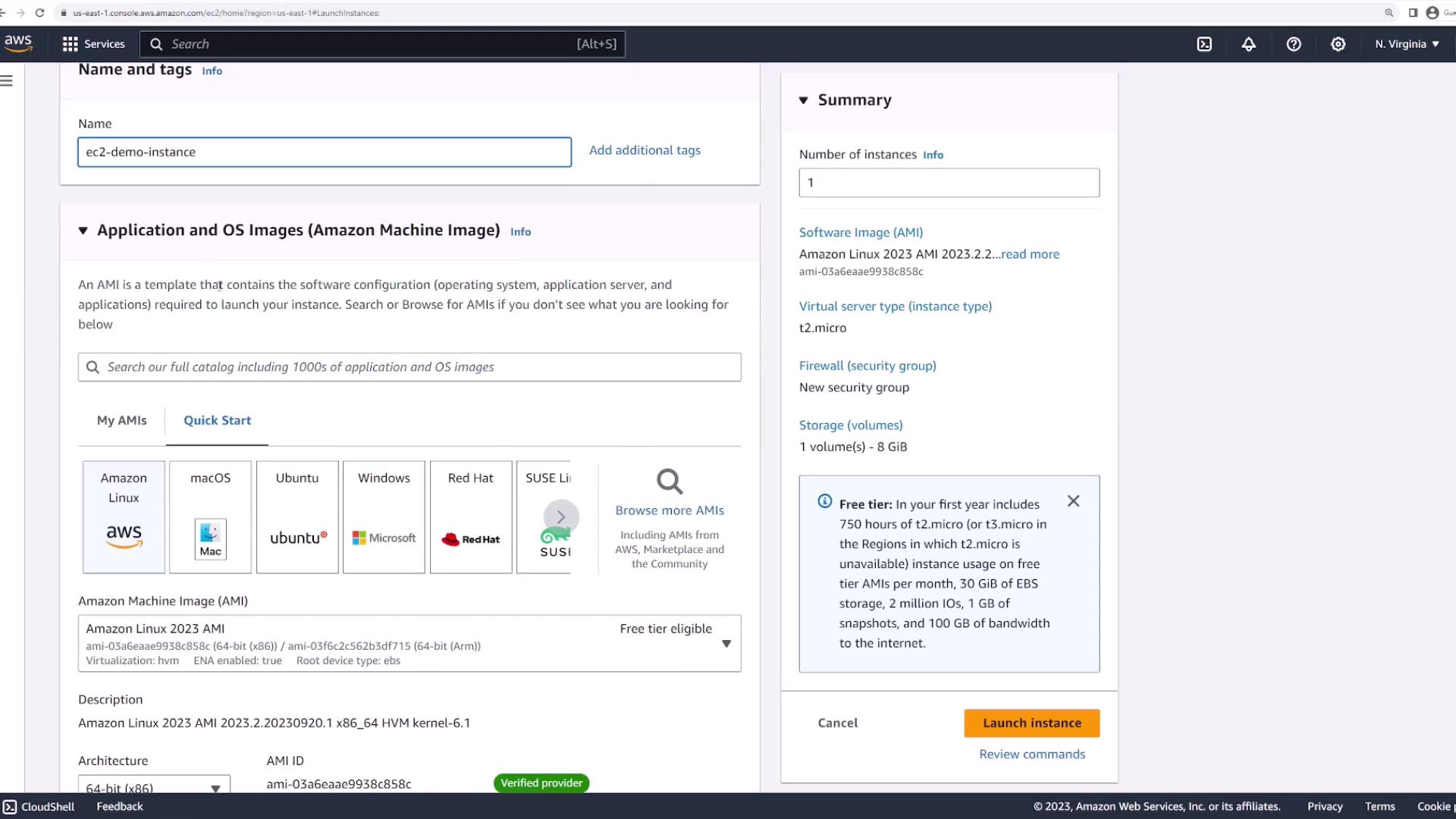
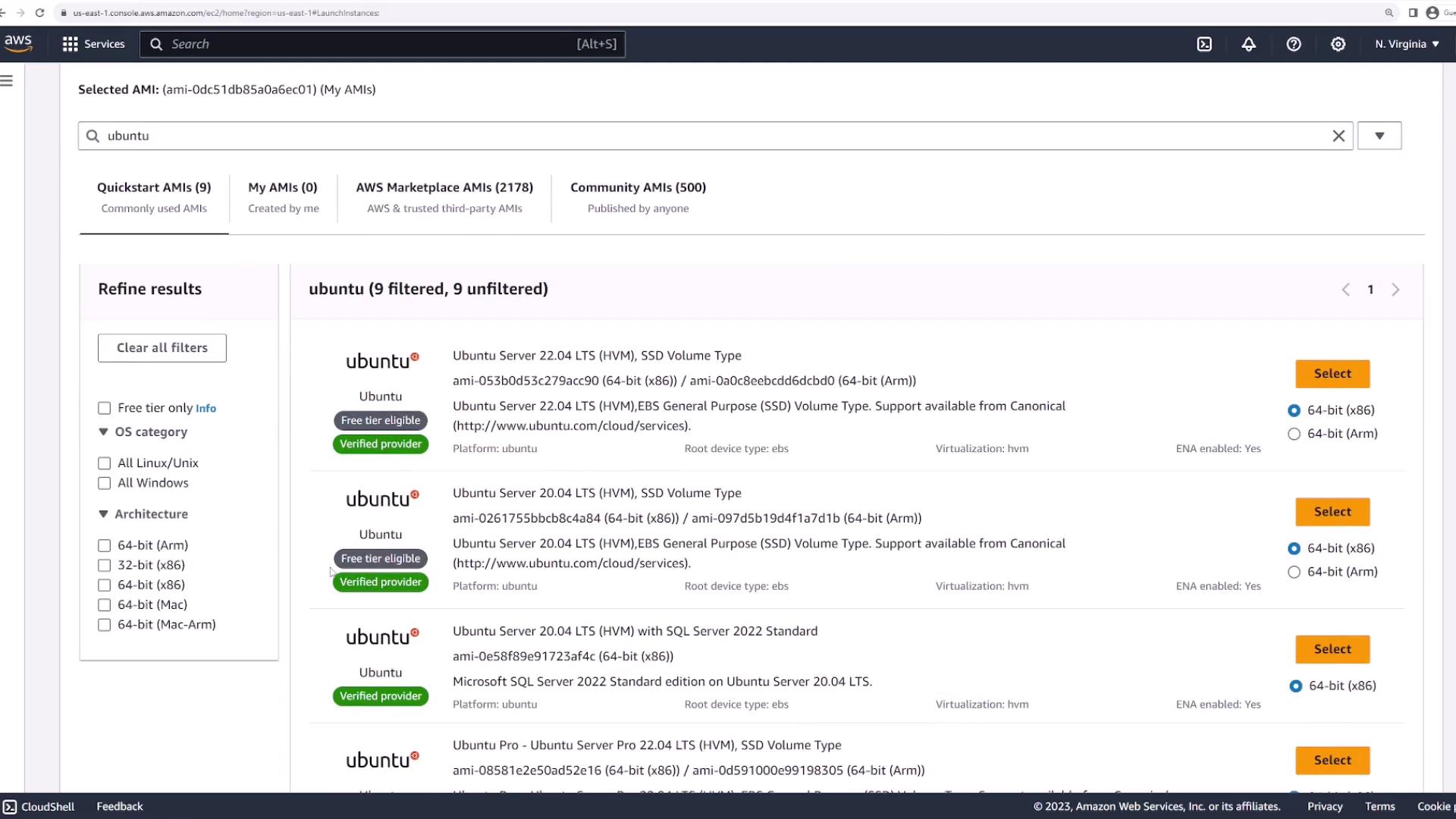
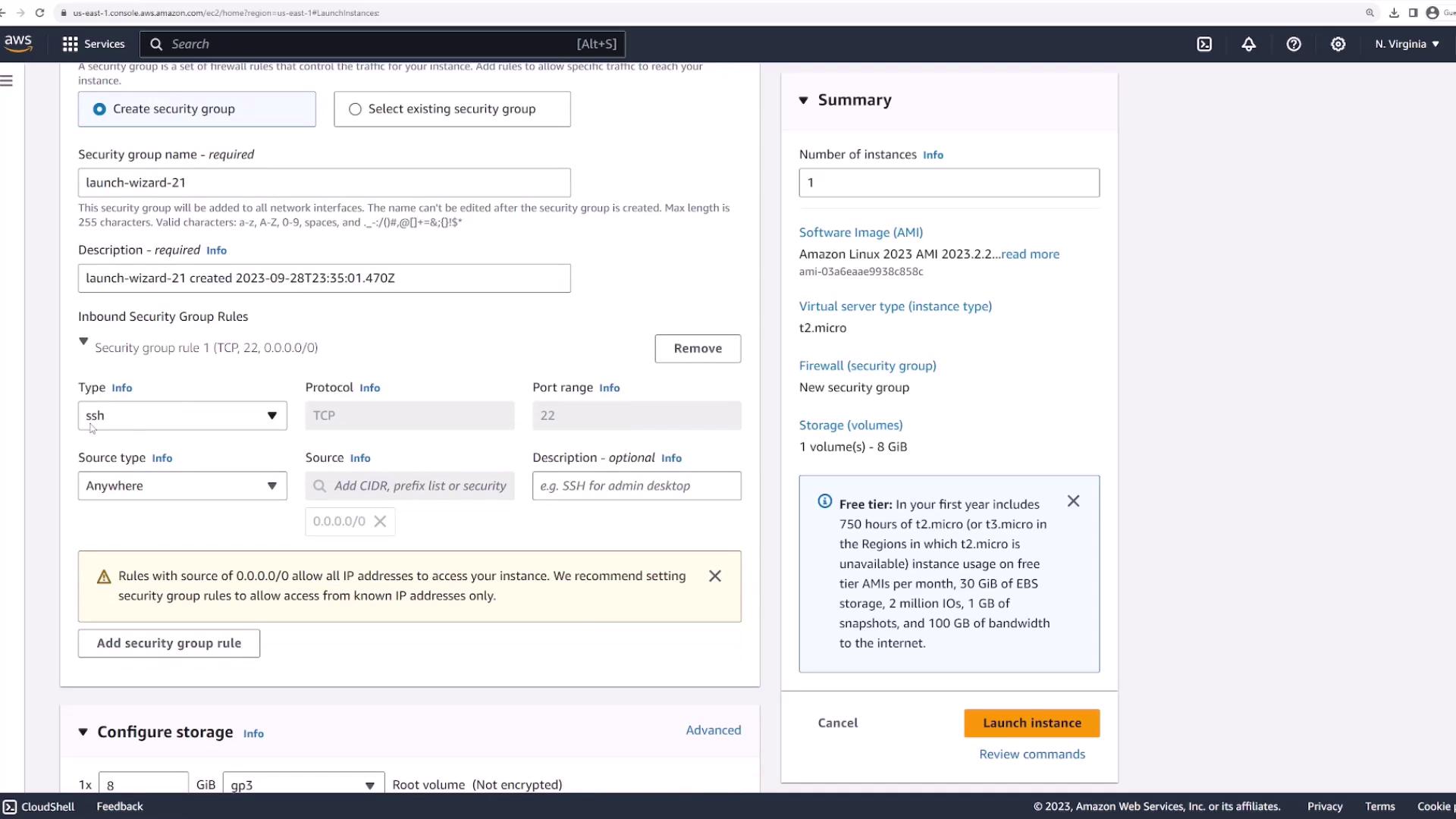
Configuring Instance Details
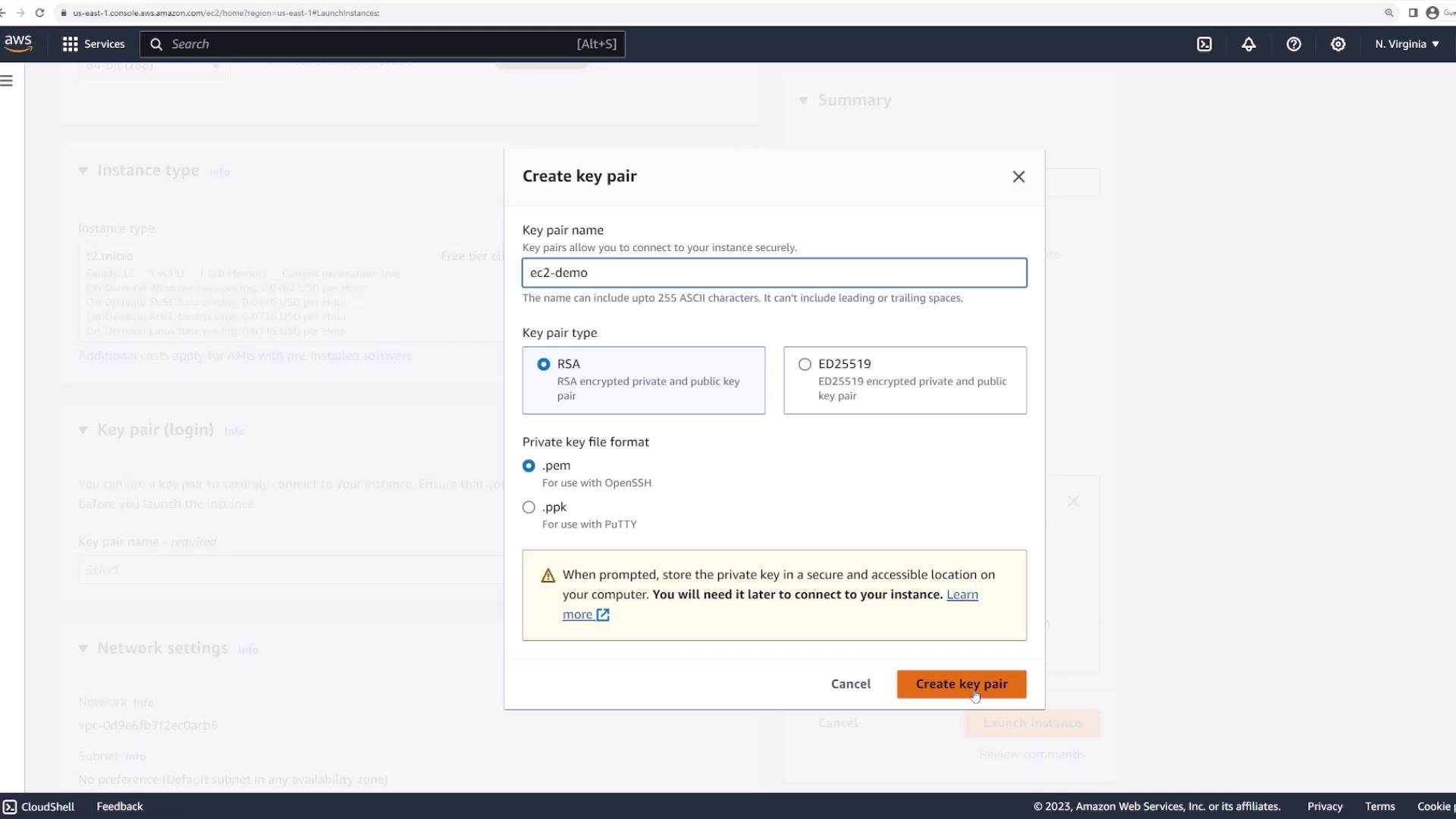
After selecting your AMI, choose an instance type that fits your workload. This demo uses a T2 micro instance, which is free tier eligible. Next, specify the key pair required for secure connection management. You can select an existing key pair or create a new one. To create a new key pair:- Select Create new key pair.
- Enter a name, for example, “EC2 demo”.
- Leave the RSA option and the .pem file format as default.
- Click Create key pair and securely save the downloaded PEM file (e.g., “EC2.pem”).
Reviewing Instance Details
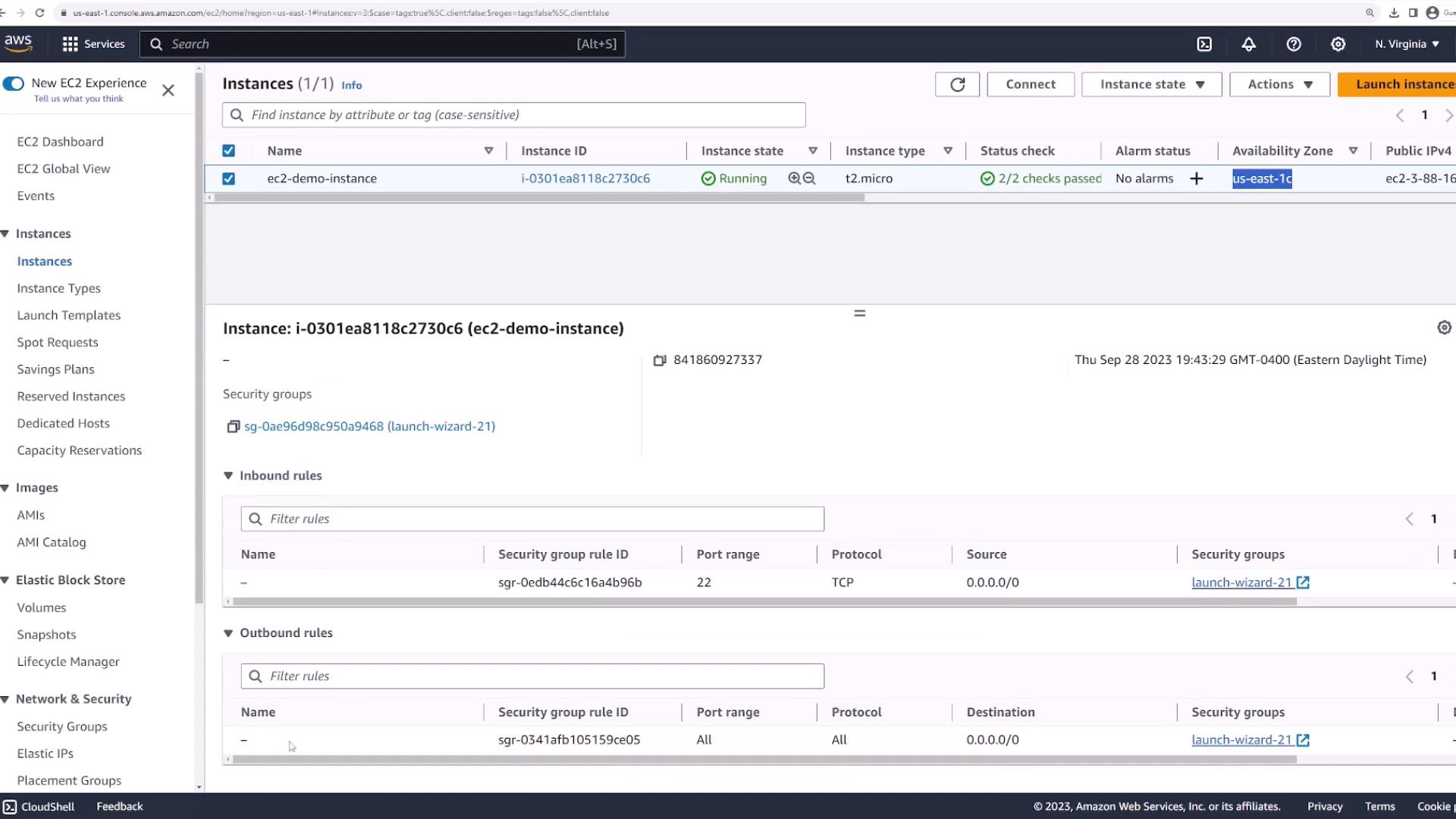
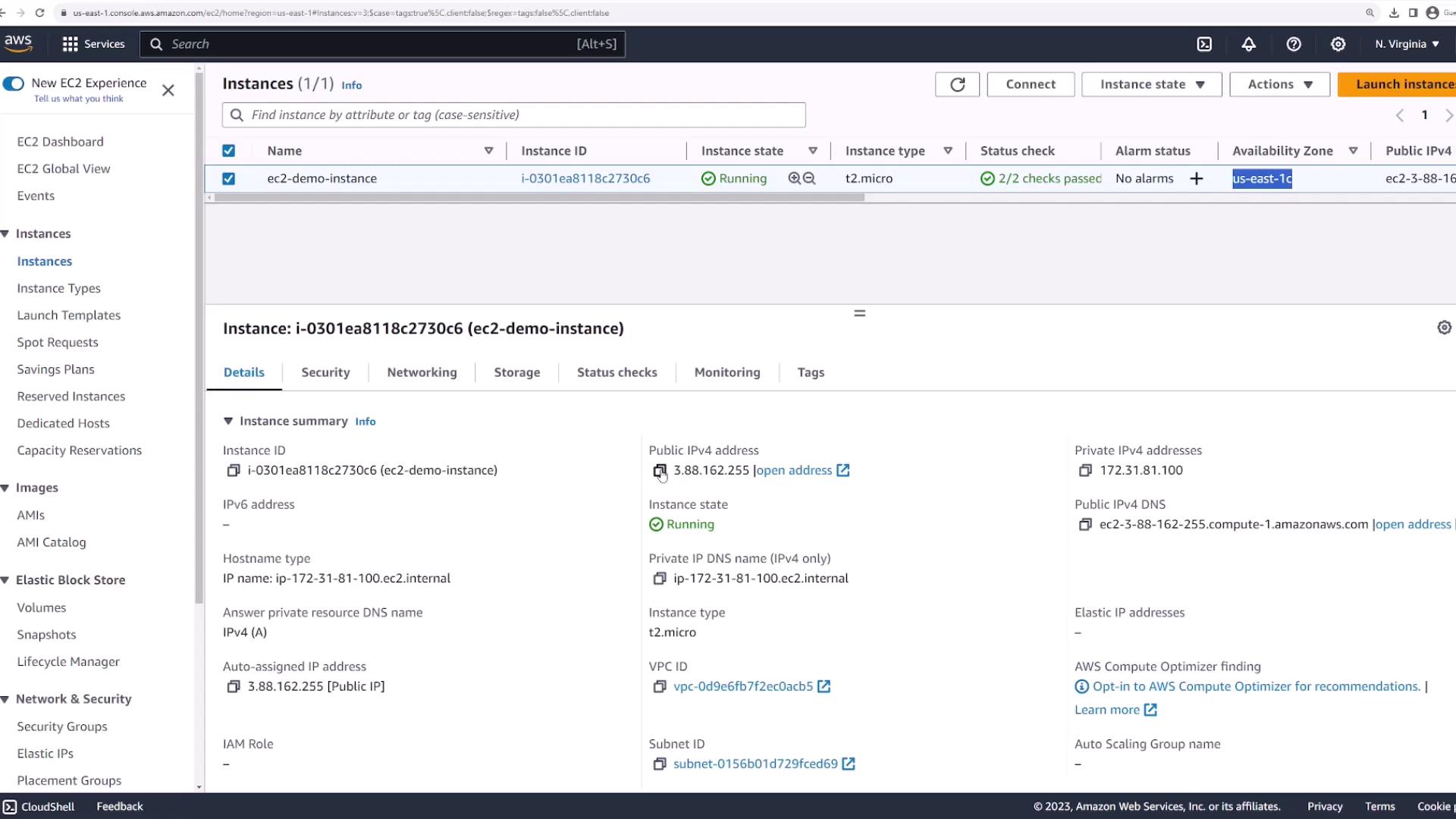
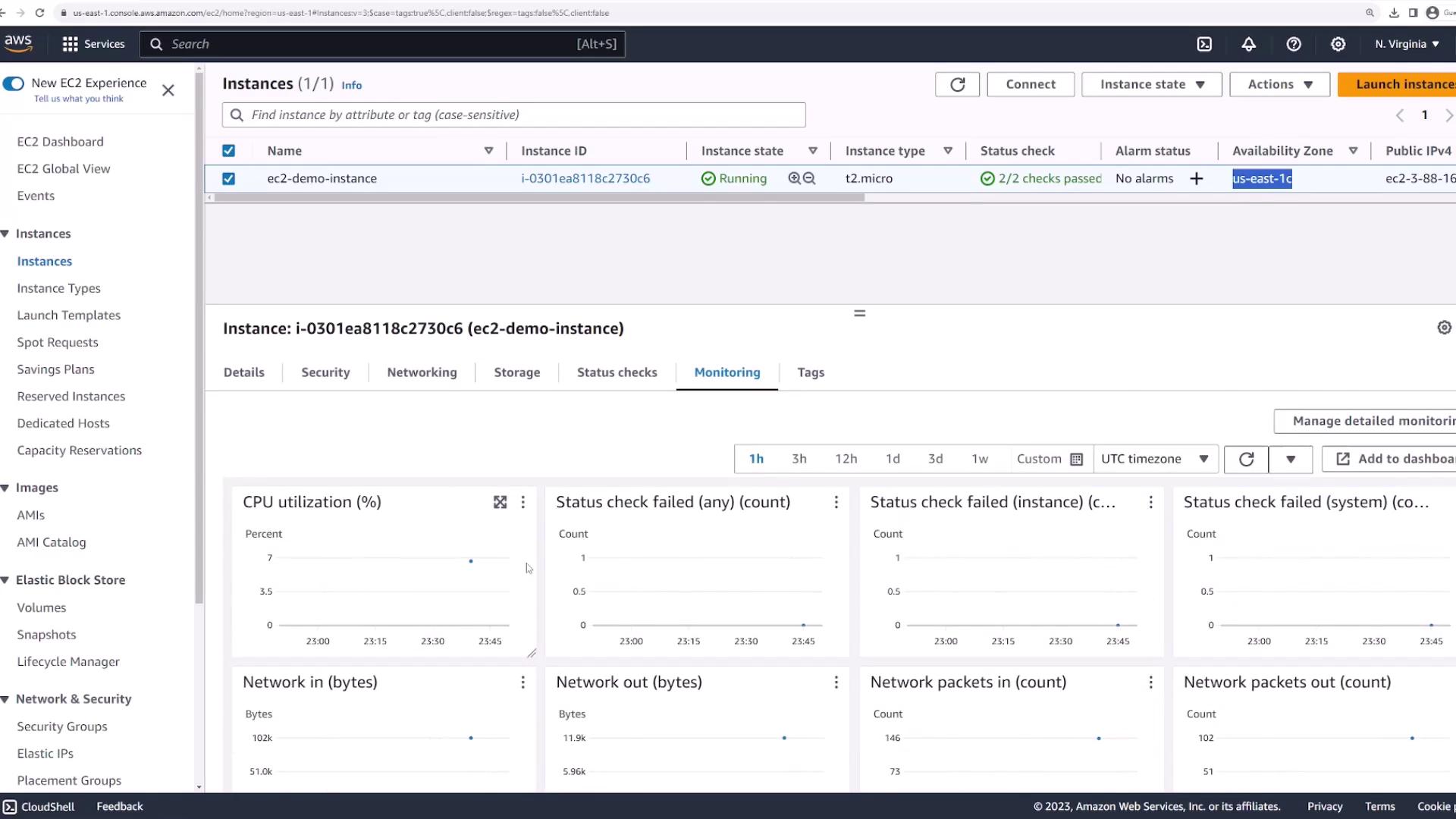
After launching your instance, go to the EC2 console and click the instance to review its details. Verify critical metadata such as the instance ID, state (e.g., running), instance type, public IP address, and public DNS name. These details are essential for managing and connecting to the instance. Additional instance information includes:- Security Group settings (SSH inbound and outbound rules)
- Network configuration (VPC, subnet, public/private IP addresses, availability zone)
- Storage data (volume ID, device name)
- Monitoring metrics (CPU utilization, status checks)
- Tags
Connecting to the EC2 Instance
To securely connect to your EC2 instance:- Retrieve the instance’s public IP address or public DNS.
- Open your terminal and navigate to the directory containing your PEM file (e.g., EC2.pem).
-
Confirm the presence of your PEM file:
-
Use the SSH command below, replacing “username” with the correct value as per your AMI documentation. For example, for Amazon Linux the default username is “ec2-user”:
For enhanced security, always protect your PEM file and set the correct permissions (e.g., using
chmod 400) before connecting.Stopping and Terminating the Instance
When you have finished using the instance, return to the AWS Management Console to manage its state. To stop the instance, select it and choose Stop Instance from the Instance State menu. The instance will change from running to stopping, and eventually to stopped.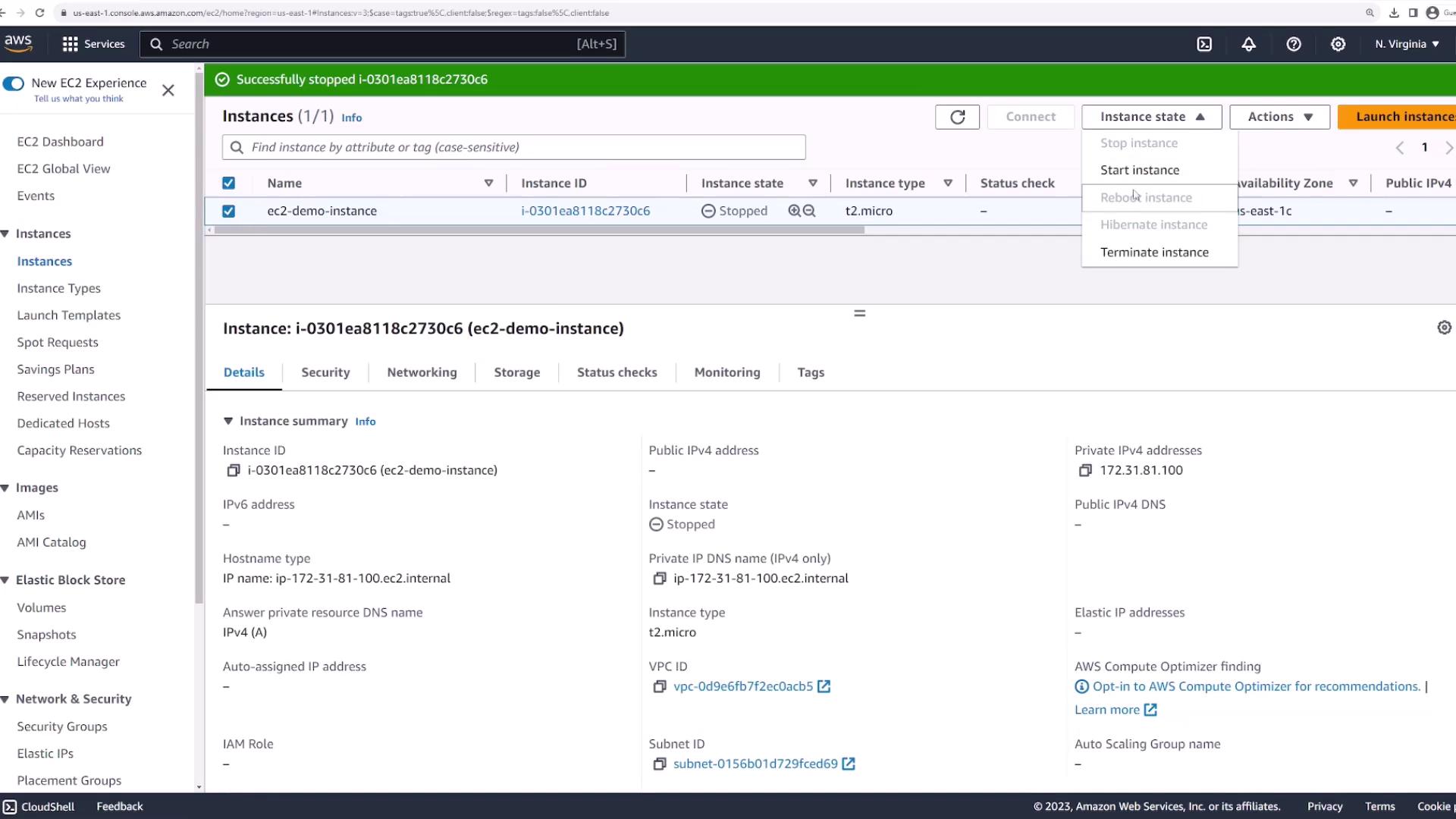
Remember to terminate your EC2 instance if it is no longer needed. Unused instances may continue to incur costs.
This lesson has demonstrated how to deploy an Amazon EC2 instance, securely connect to it, and manage its lifecycle effectively. For more details on EC2 instance management and additional AWS services, visit the AWS Documentation.