

Accessing the S3 Service
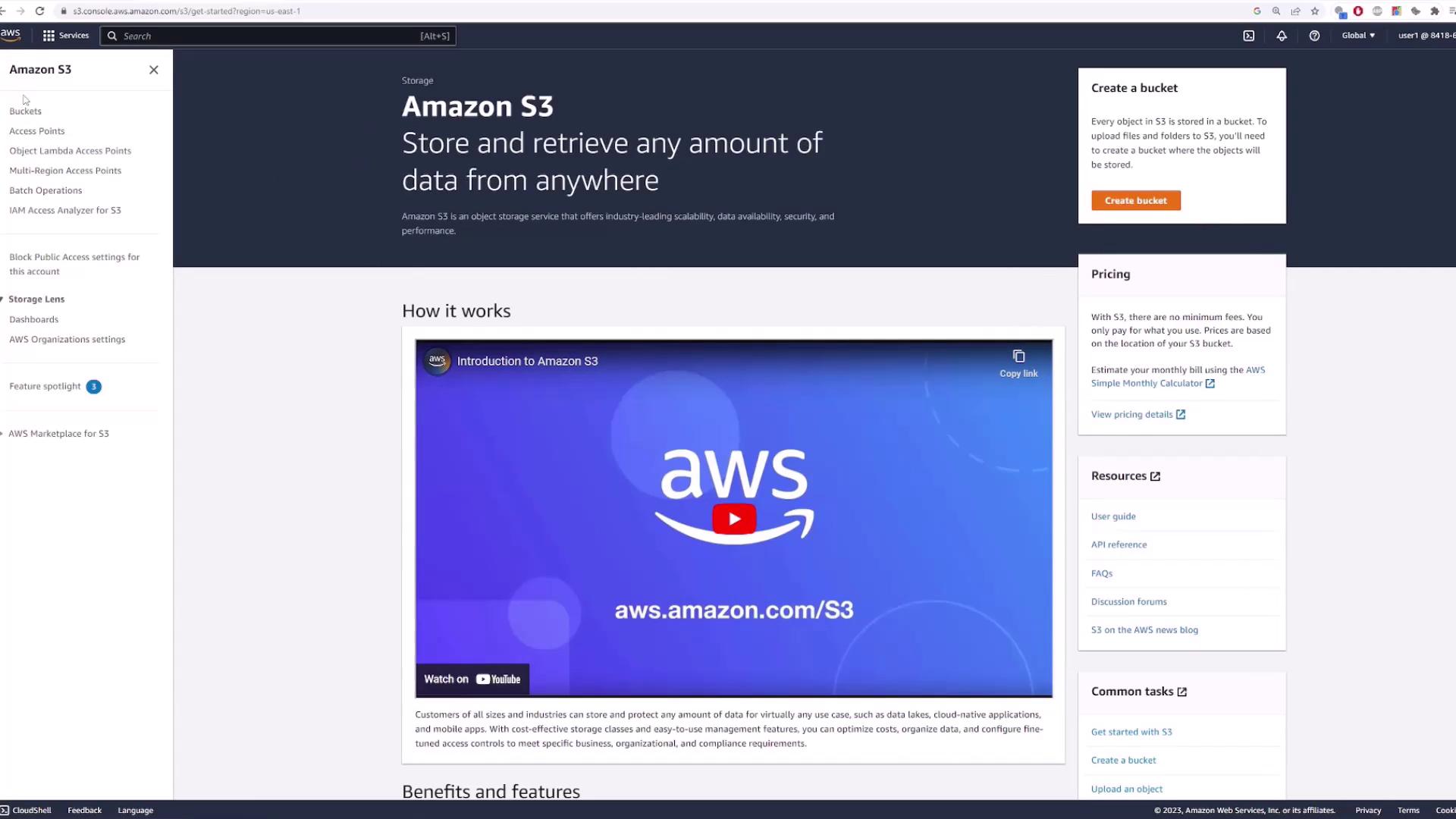
Begin by logging in to the AWS Management Console. In the search bar, type “S3” to locate and access the S3 service. This page allows you to manage your buckets. If you have not created any buckets yet, you’ll see a prompt to create one; otherwise, a list of your existing buckets will be displayed.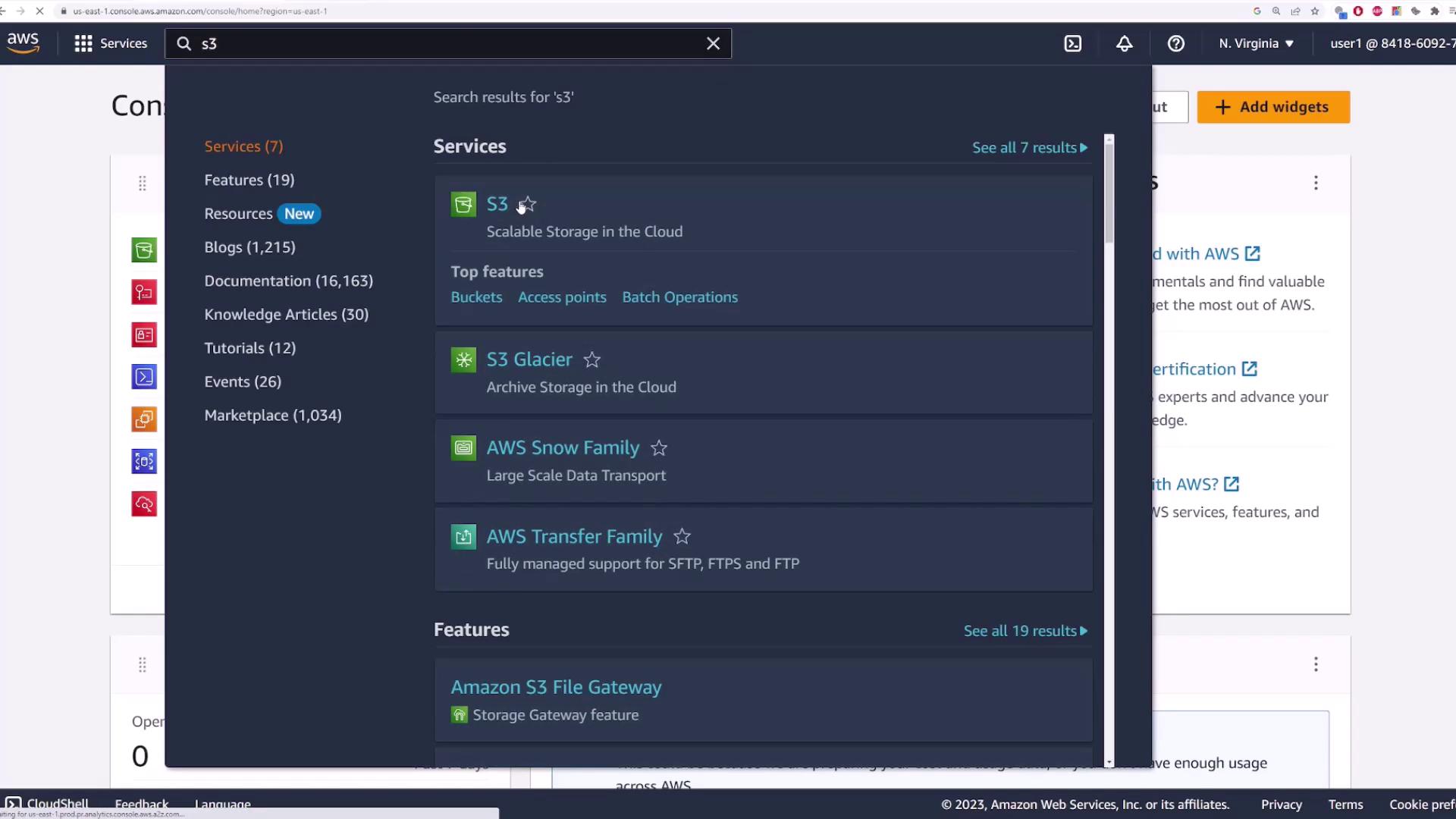
Understanding S3’s Global Namespace
Amazon S3 uses a global namespace, meaning that all your buckets across regions are displayed together. The specific region for a bucket is selected only during creation, not in the overall management interface.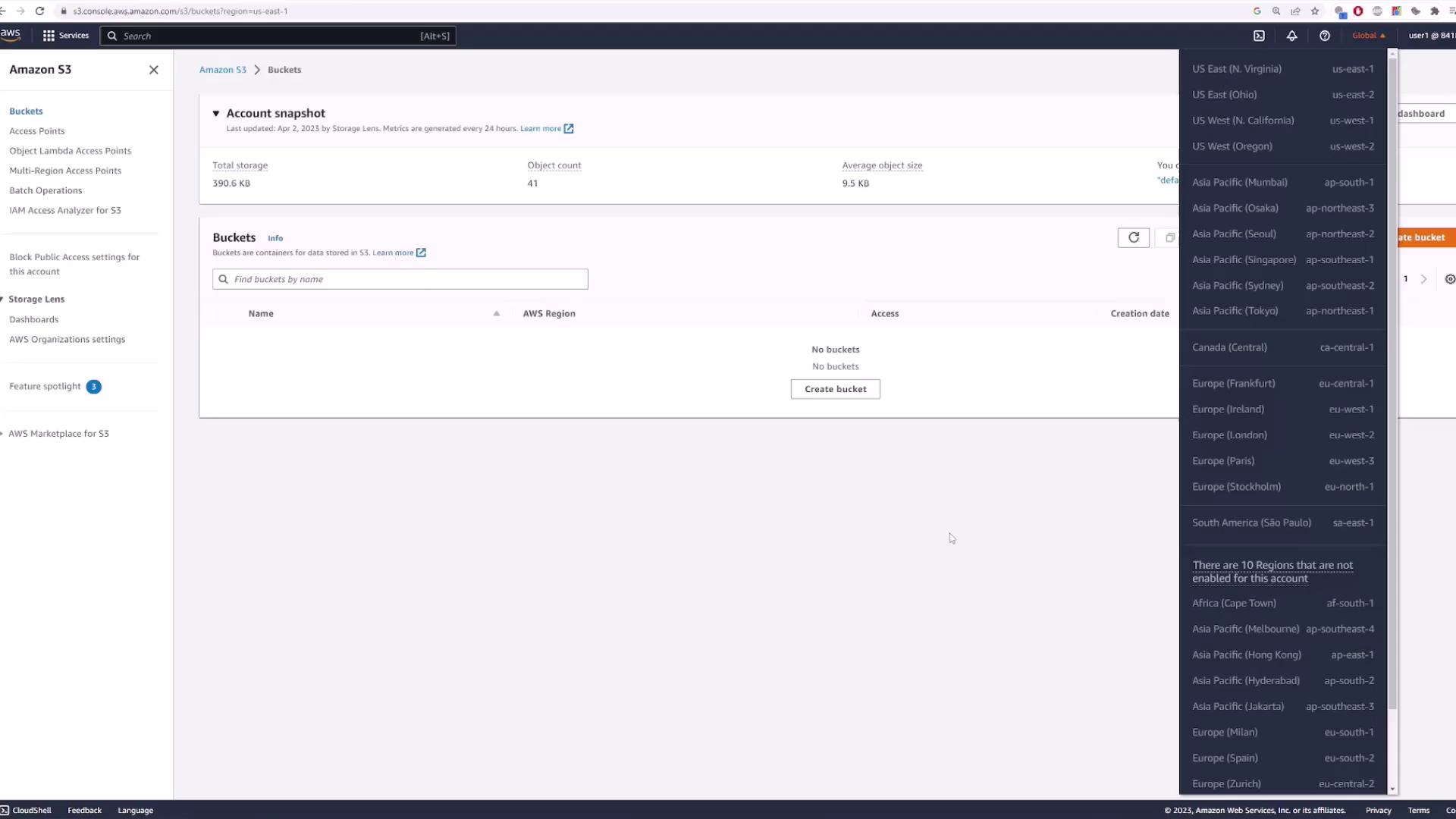
Creating Your First Bucket
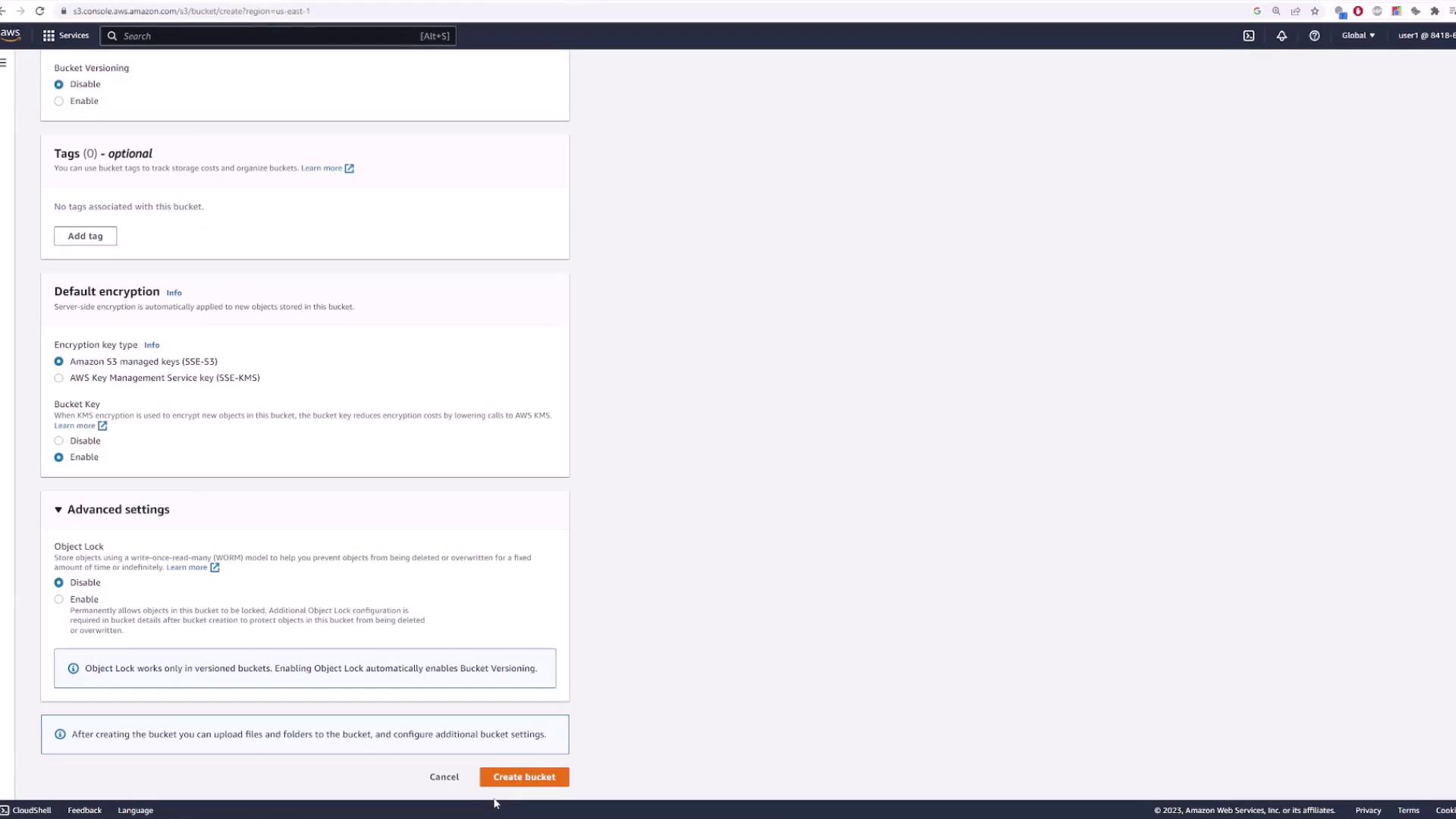
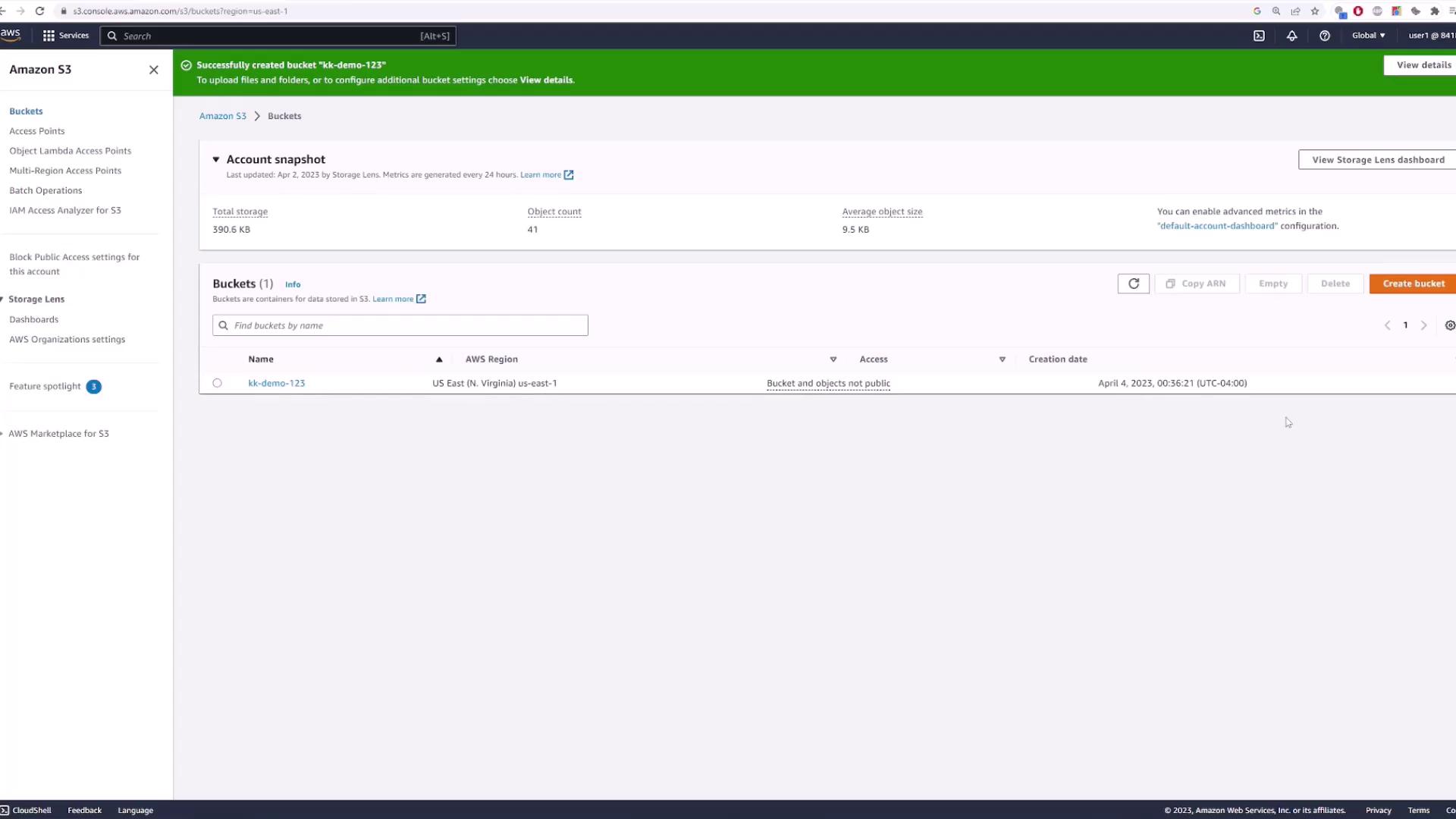
Click on the Create bucket button. You must provide a unique bucket name since bucket names in S3 are globally unique. For this demo, we’ll use “KK-demo-123”. If you need more information on naming conventions, consult the AWS documentation.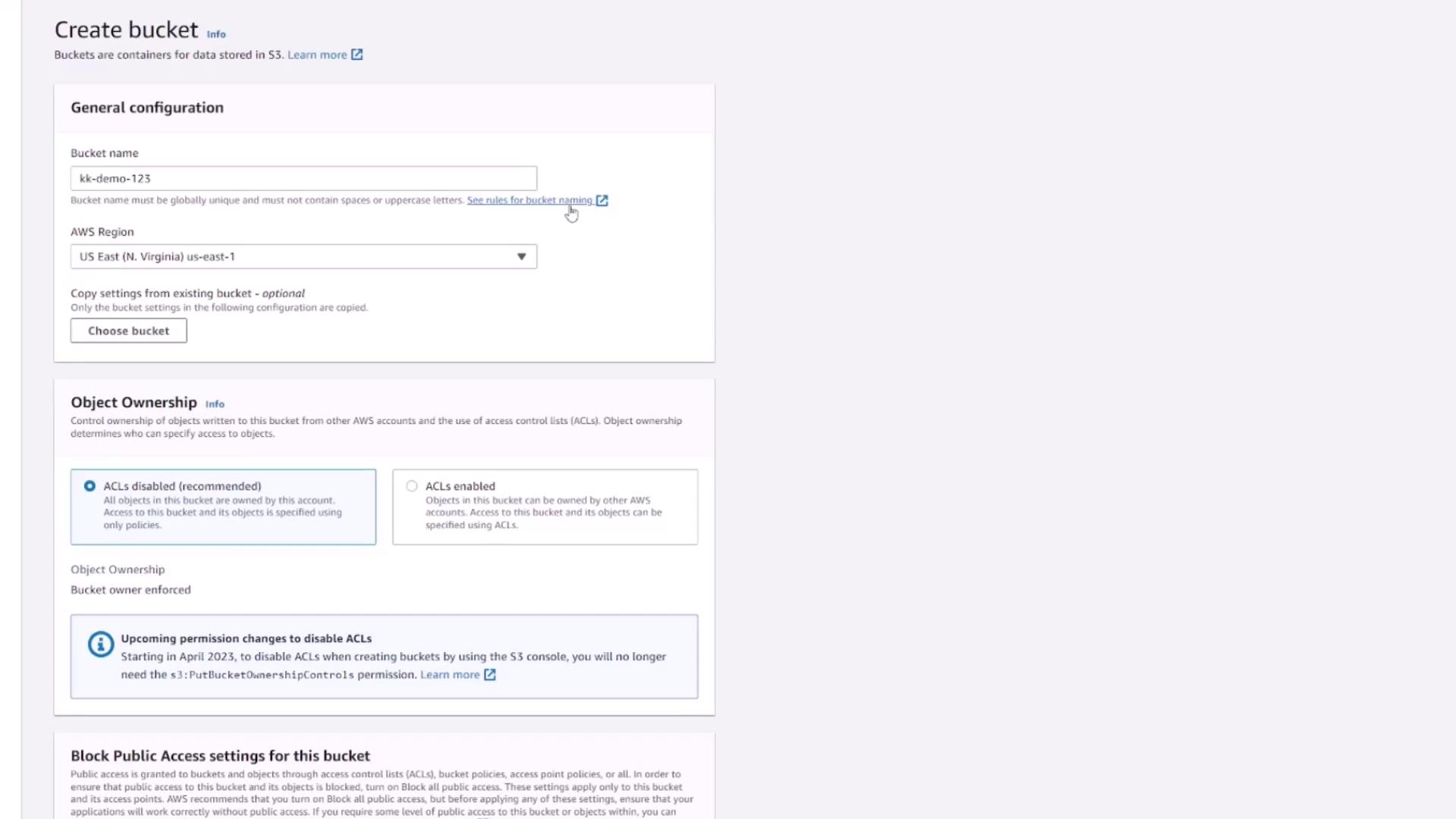
Exploring Bucket Contents and Properties
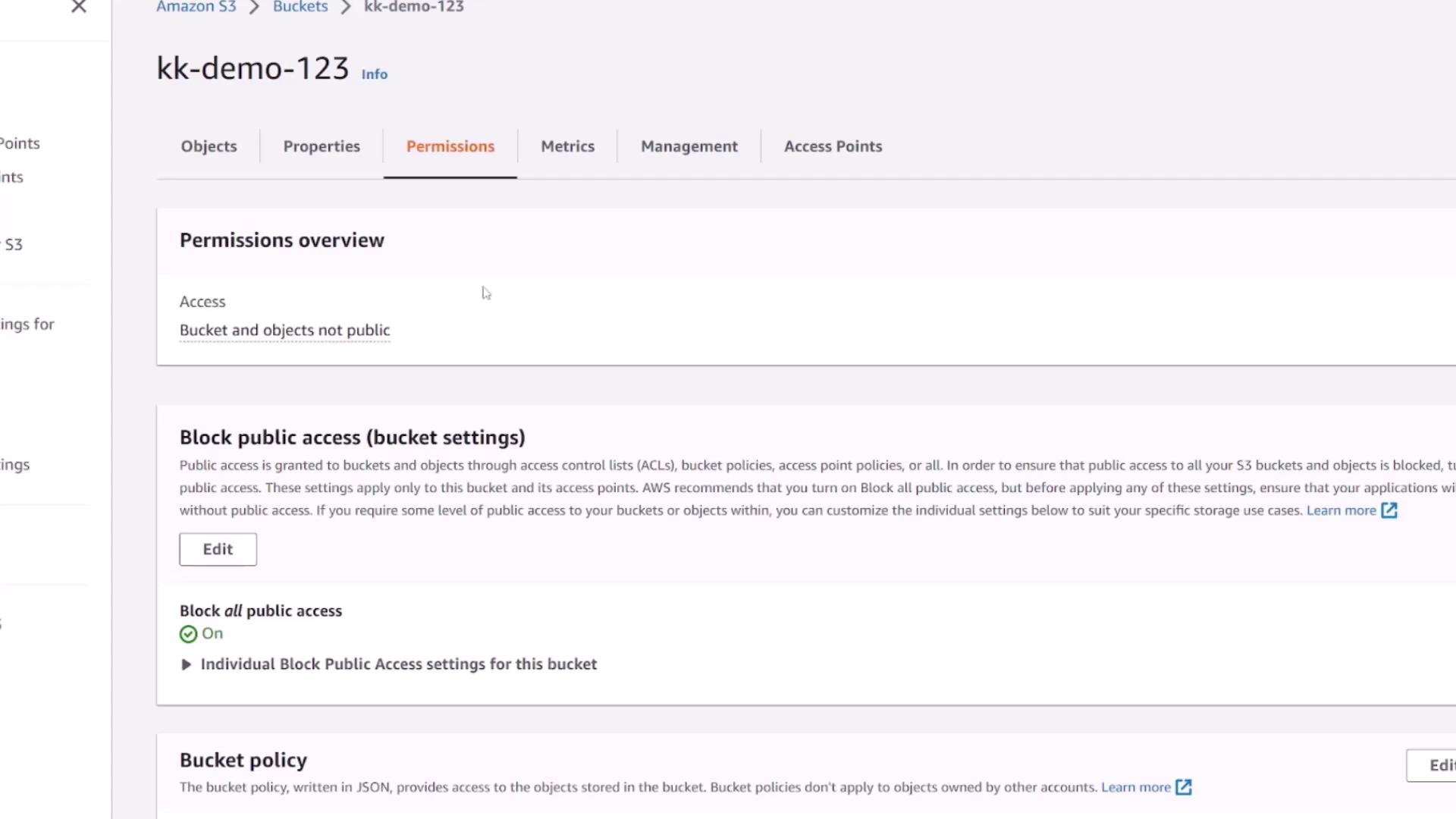
Once inside your bucket, you’ll notice the Objects page where you can view or upload files—initially, this will be empty.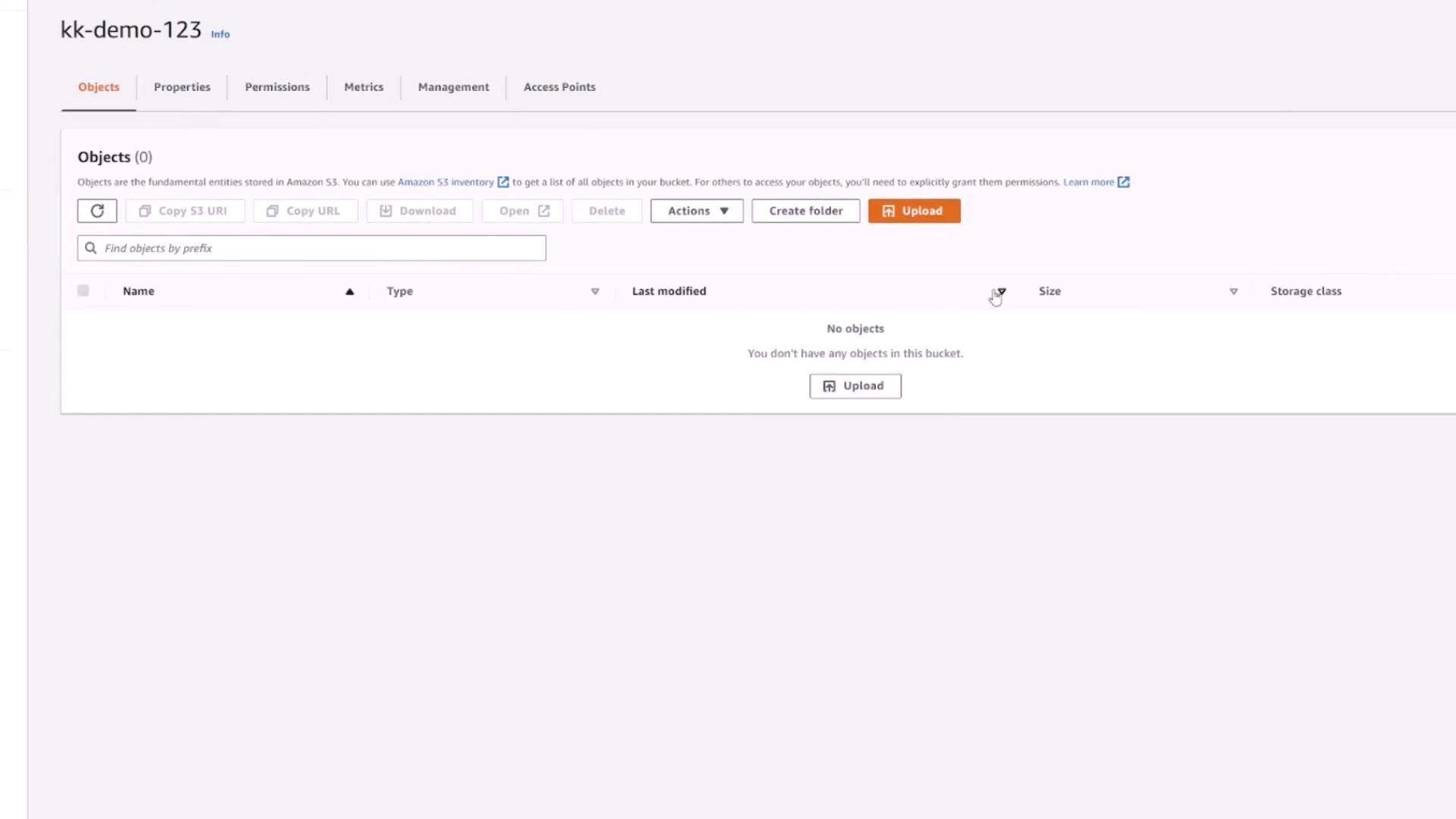
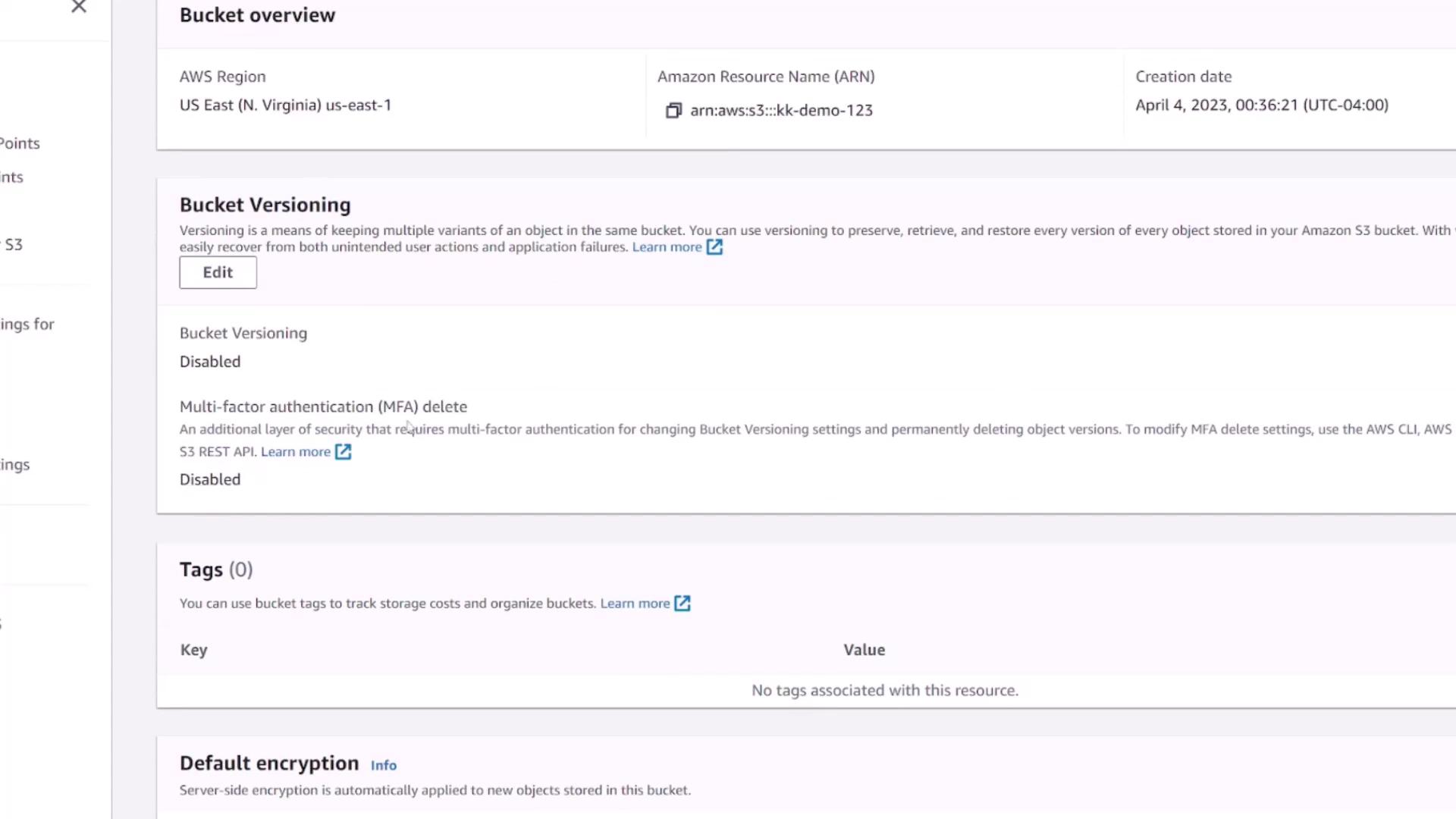
- Region
- ARN (Amazon Resource Name)
- Bucket creation date
- Versioning status (disabled by default)
Uploading Files to the Bucket
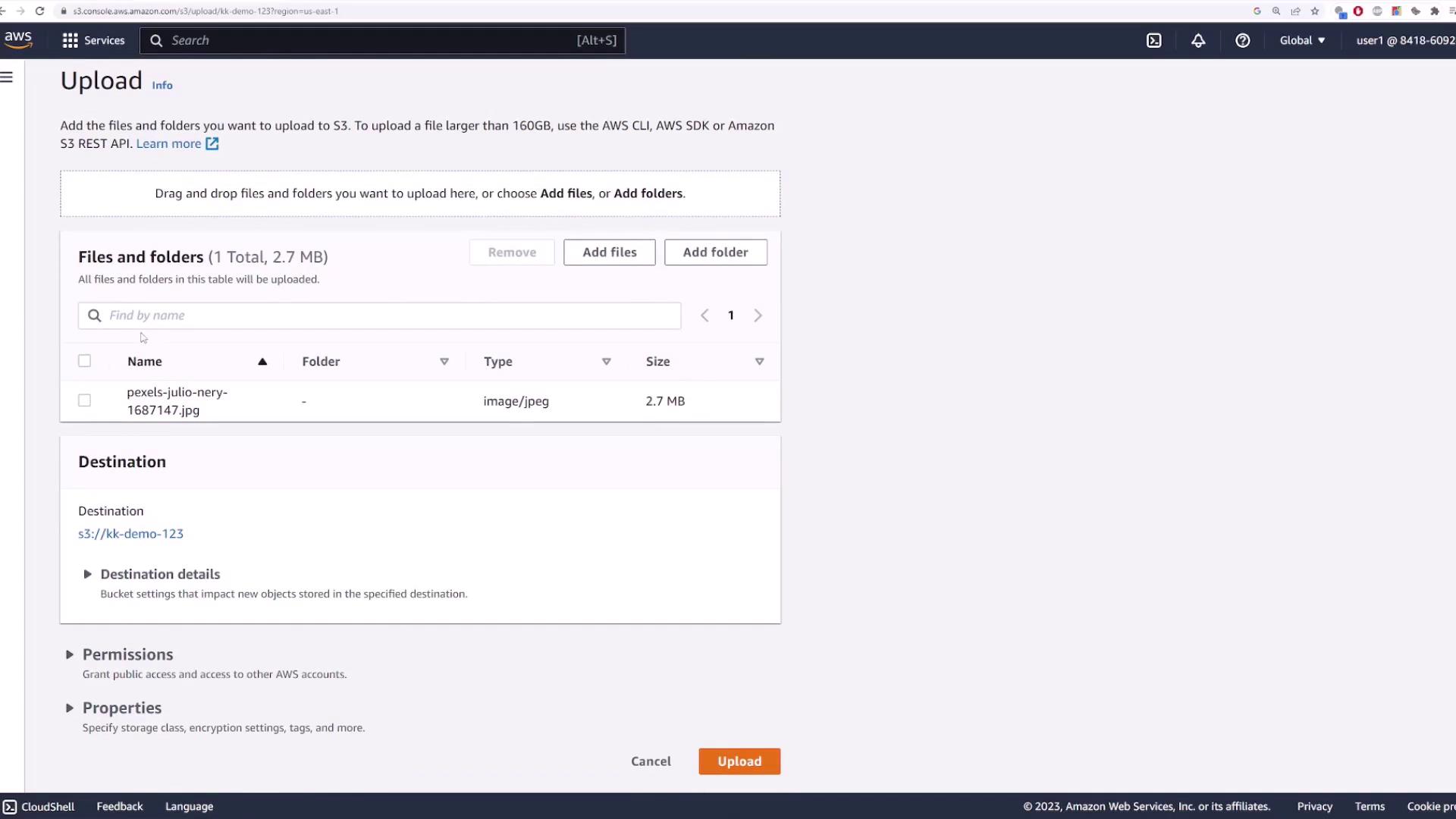
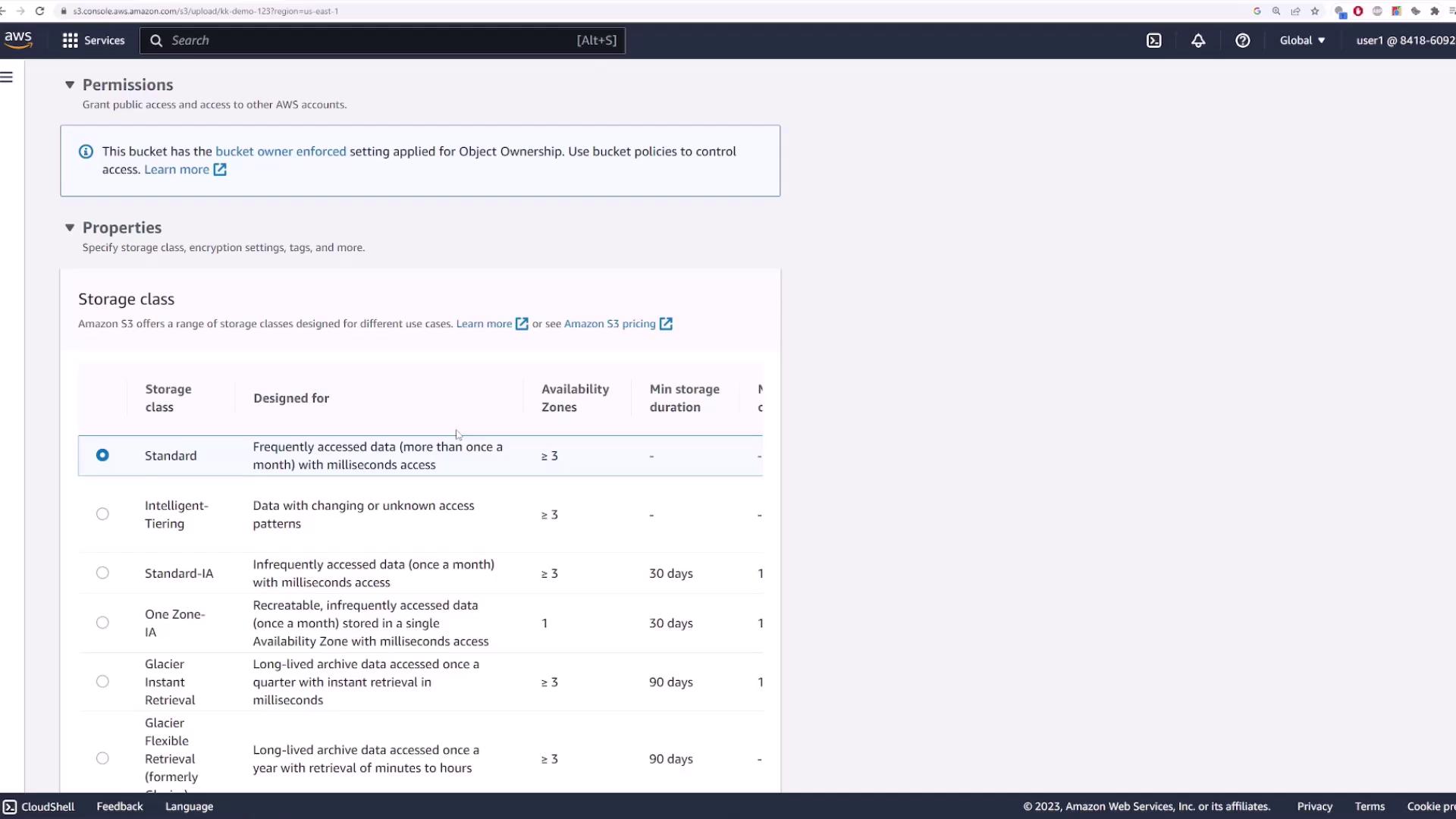
To add files, navigate back to the Objects page and click Upload. You can drag-and-drop files or use the file selection dialog.Tip: When uploading, ensure that your files comply with S3’s naming conventions and that you understand the available storage class options. These options balance cost, access frequency, and redundancy.For instance, you can upload a photo file, after which the file details such as size and type (e.g., JPEG) will be displayed.
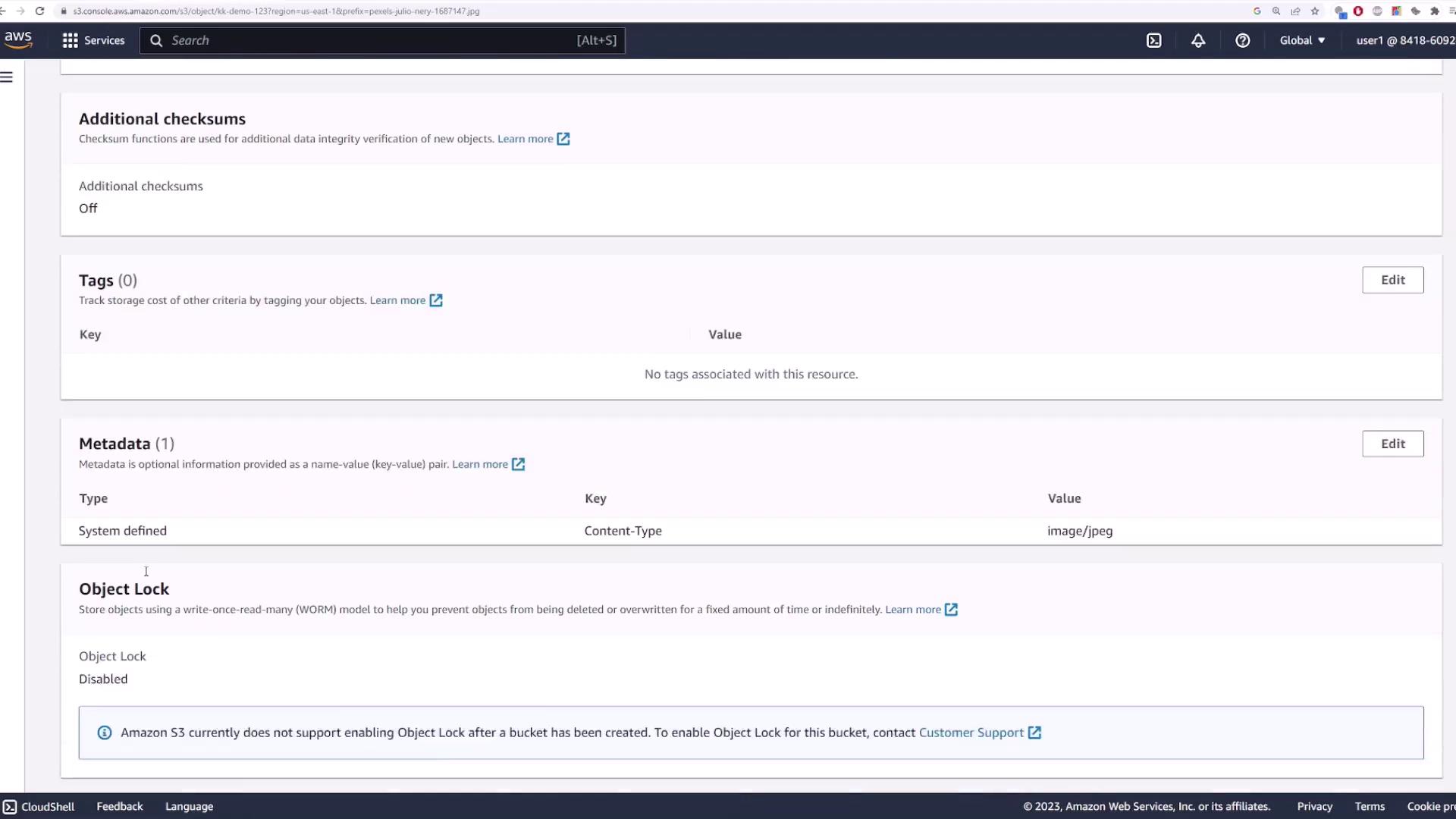
- Region and file size
- Last modified date
- Unique URI and ARN
- Direct object URL
- Additional settings like object lock, storage class, and server-side encryption
Accessing Files: Authenticated vs. Public Users
When you click the file’s URL as a public (unauthenticated) user, you will see an access denied message:Security Reminder: Always ensure that your S3 bucket permissions match your security requirements. Use authenticated access for sensitive data or adjust permissions if you need to allow public access for specific files.
Creating Folders and Organizing Files
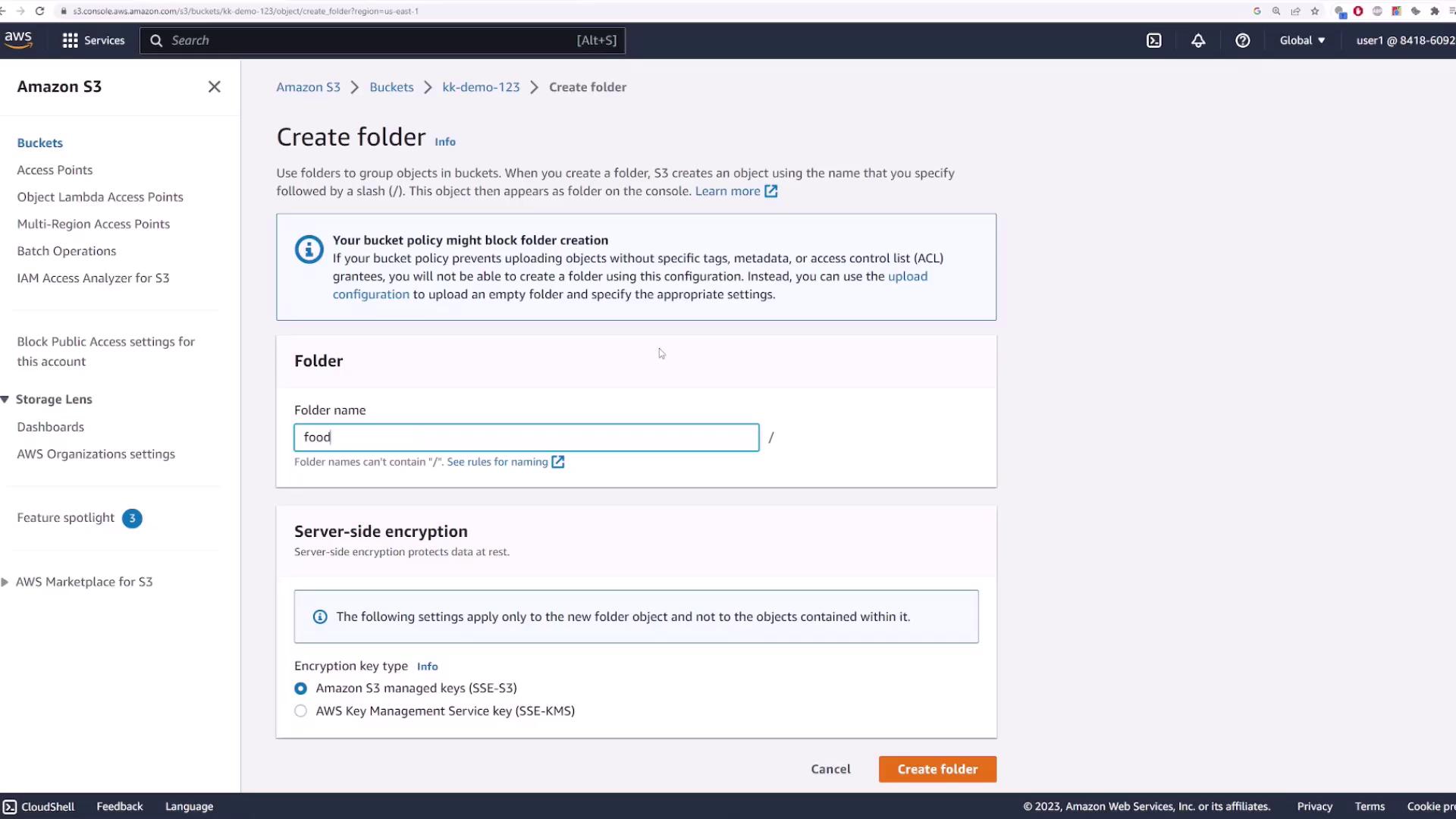
Although Amazon S3 employs a flat storage structure without true folders, folder-like organization can be simulated using prefixes in object names. Follow these steps to create a folder:- Click Create folder.
- Name the folder (for example, “food”).
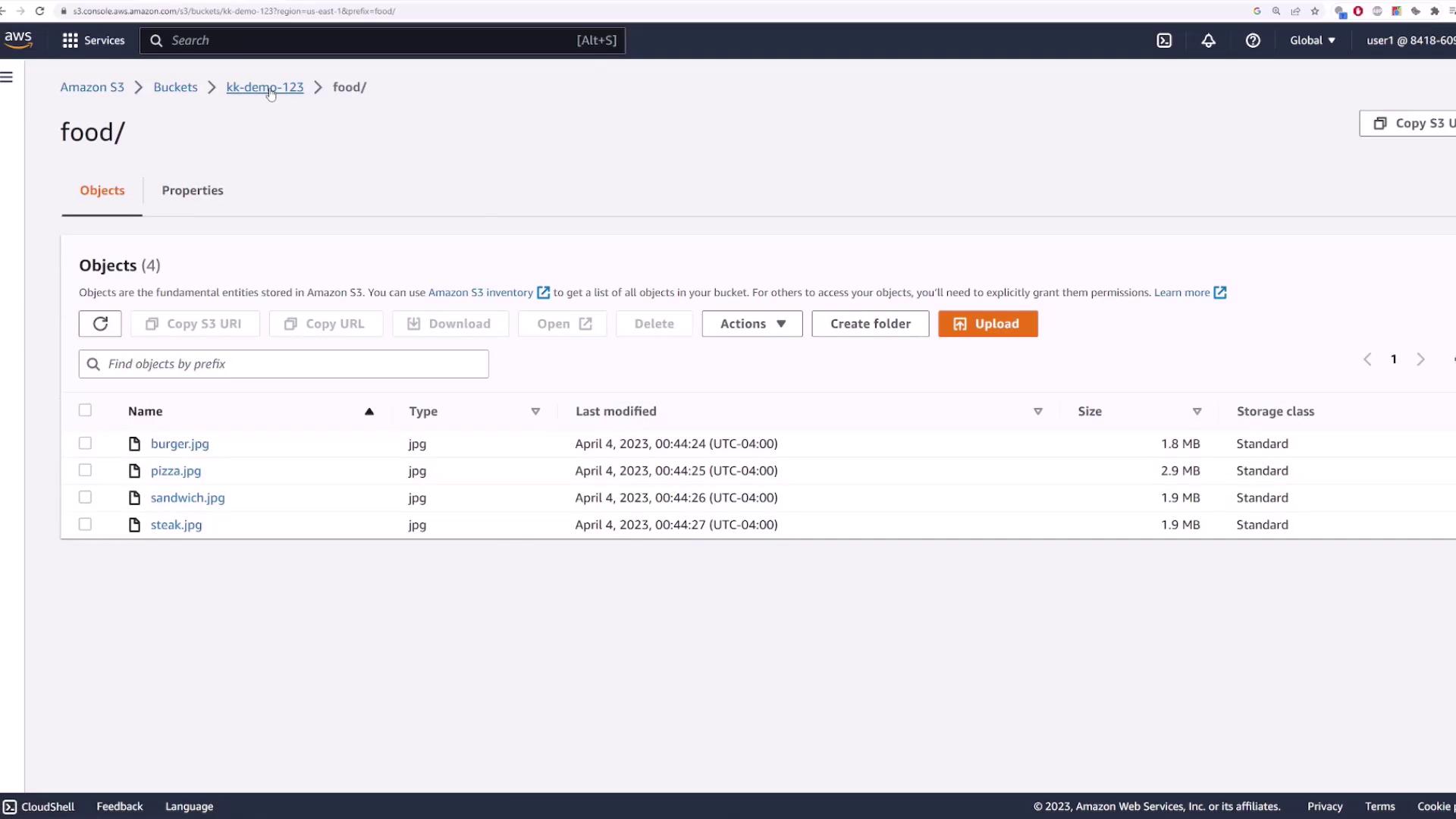
- Open the newly created folder and upload additional files, such as high-resolution food images.
Deleting Files and Moving Objects
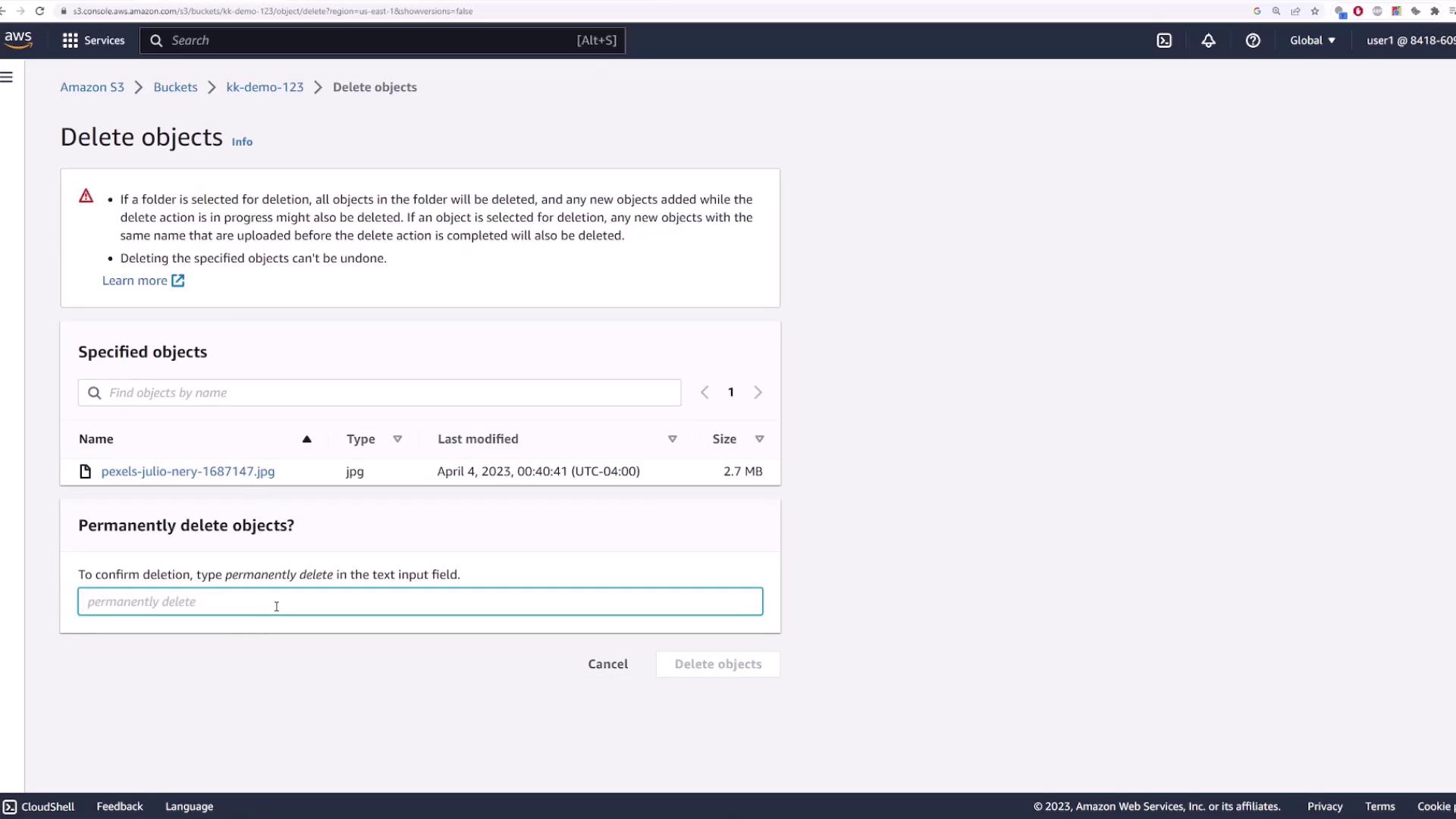
To delete a file:- Select the file.
- Click Delete.
- Confirm by typing “permanently delete”.
Note: If versioning is disabled, the file will be permanently removed.
- Select the file.
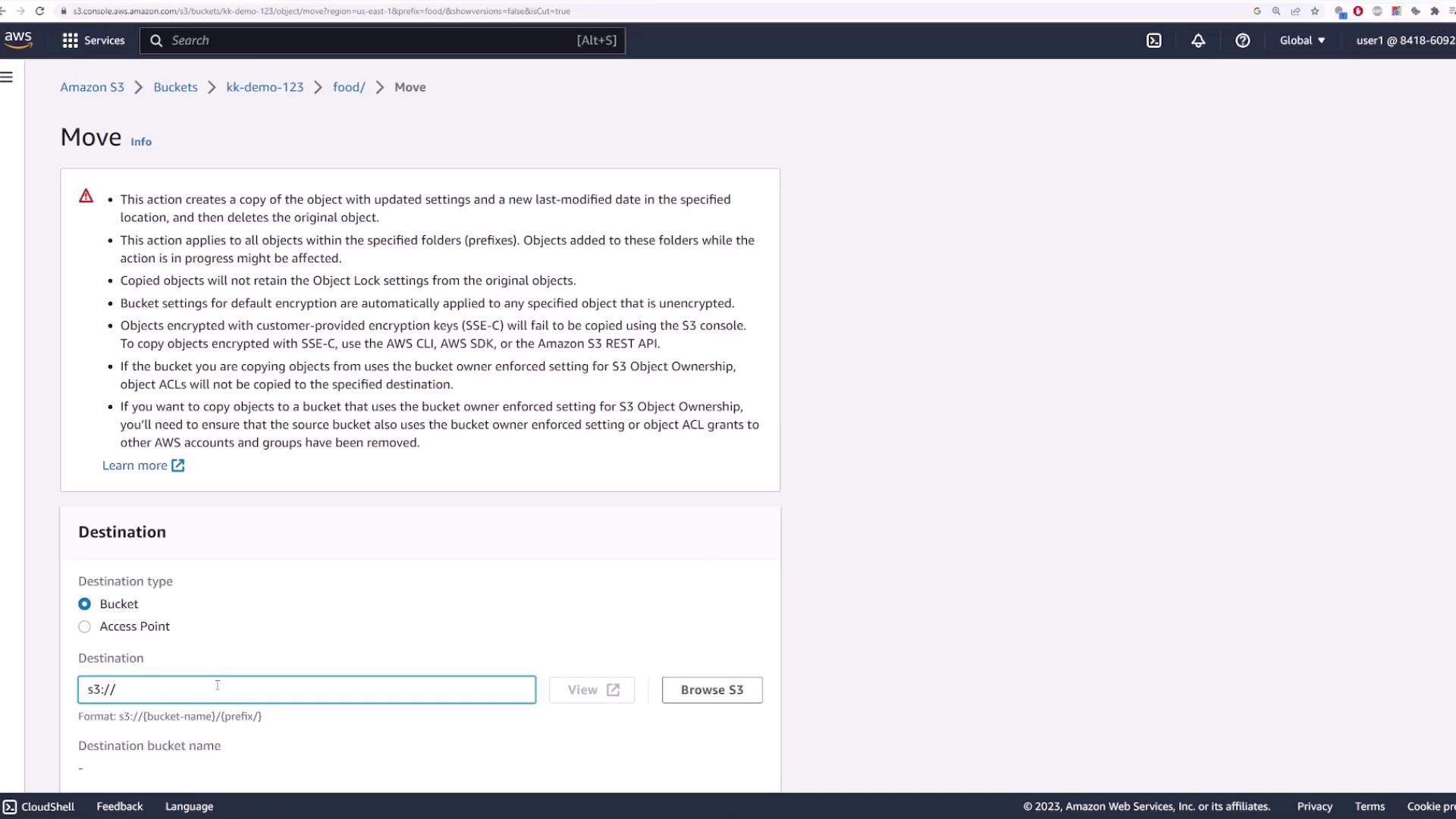
- Choose Actions and then Move.
- Provide the full destination path by updating the object key prefix. For example, to move a file to a “test” folder, the key might change to S3://[bucket-name]/test/[file-name].
- Alternatively, you can use the browse feature to select the destination folder.
Deleting the Bucket
Before deleting a bucket, ensure that it is empty. An error will occur if you try to delete a bucket containing objects. Steps to delete the bucket:- Select the bucket and click Delete.
- If the bucket is not empty, click the option to empty it and confirm the action by typing “permanently delete”.
- Once the bucket is empty, proceed to delete it by typing the bucket’s name when prompted to confirm the deletion.
This concludes our comprehensive introduction to managing Amazon S3 buckets. We explored how to create a bucket, upload and organize files, manage permissions, and safely delete buckets. For more details on S3 features and best practices, refer to the official Amazon S3 documentation.