

Launching an EC2 Instance with a Security Group
First, create an EC2 instance—named “server one”—using the default Linux AMI. During the networking configuration, select your pre-existing VPC. At this point, a new security group is automatically created with a default inbound rule for SSH (TCP port 22).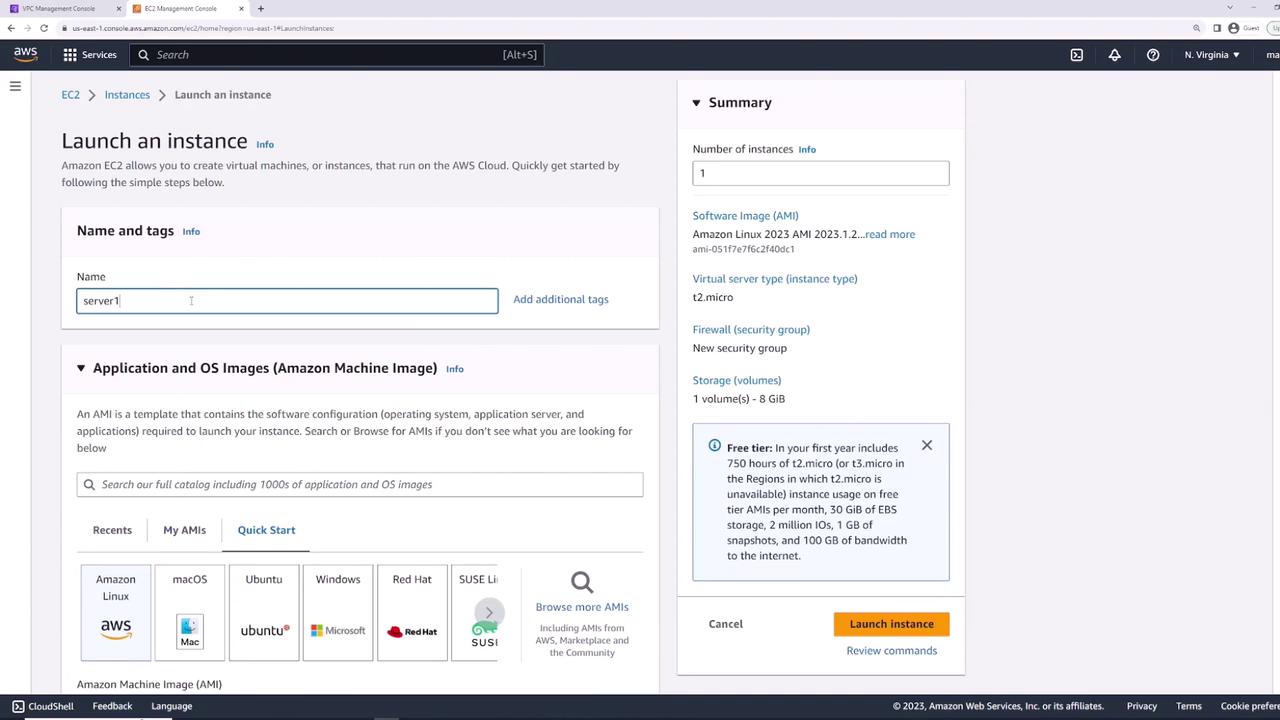
Testing SSH Connectivity
With port 22 open, you can connect to the EC2 instance using SSH. For example, run the following command:Modifying Security Group Rules
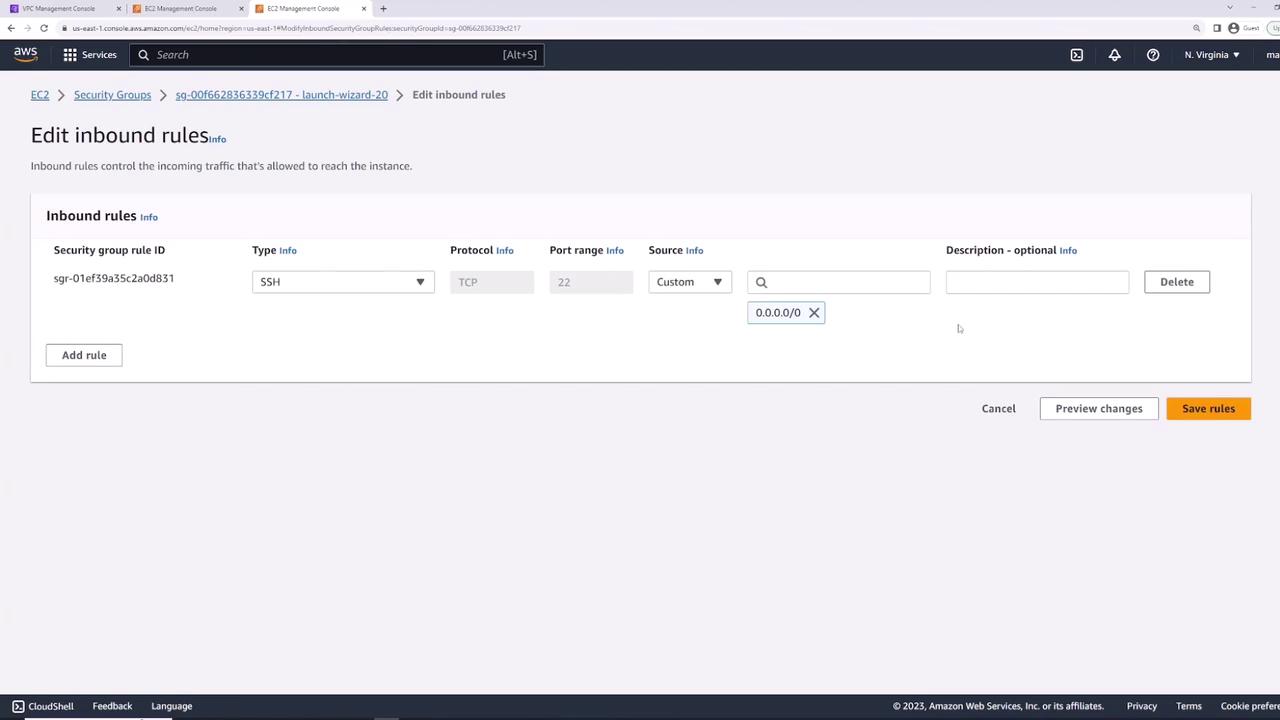
To simulate a restrictive security scenario, you can modify the security group by deleting the SSH rule. Follow these steps:- Open the security group settings.
- Click on “Edit inbound rules.”
- Delete the SSH rule.
Creating a New Security Group for a Web Server
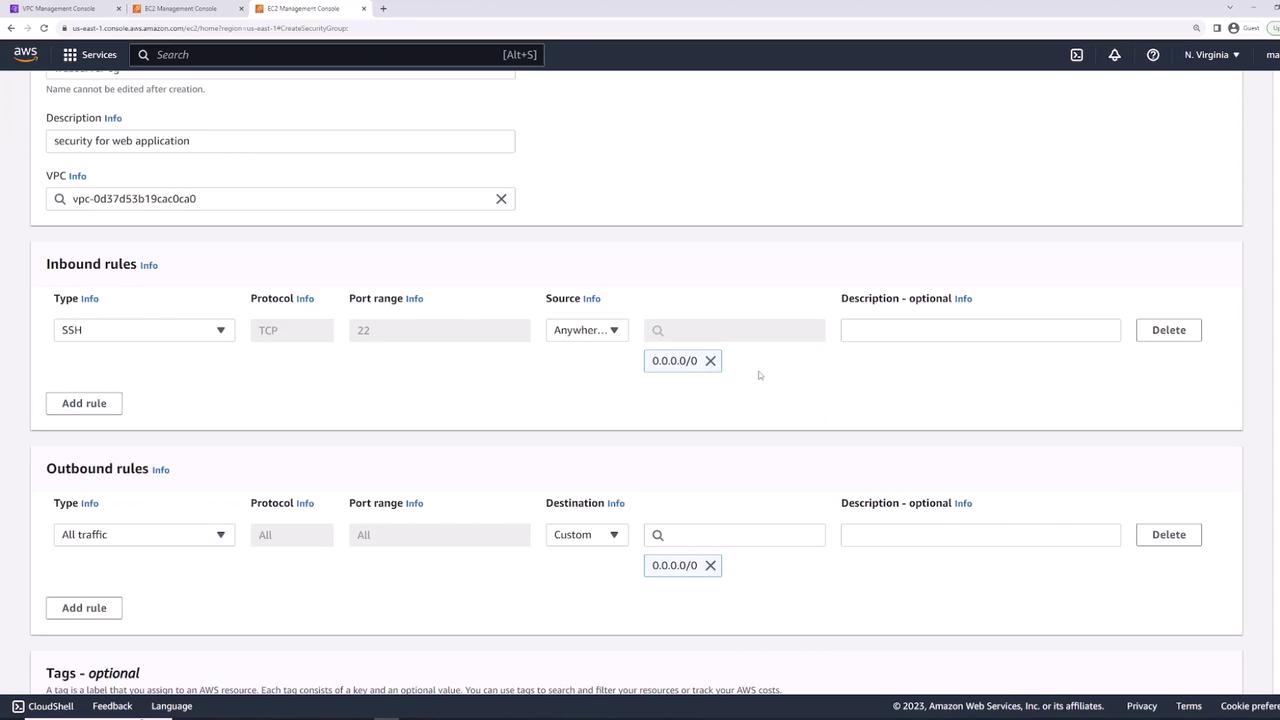
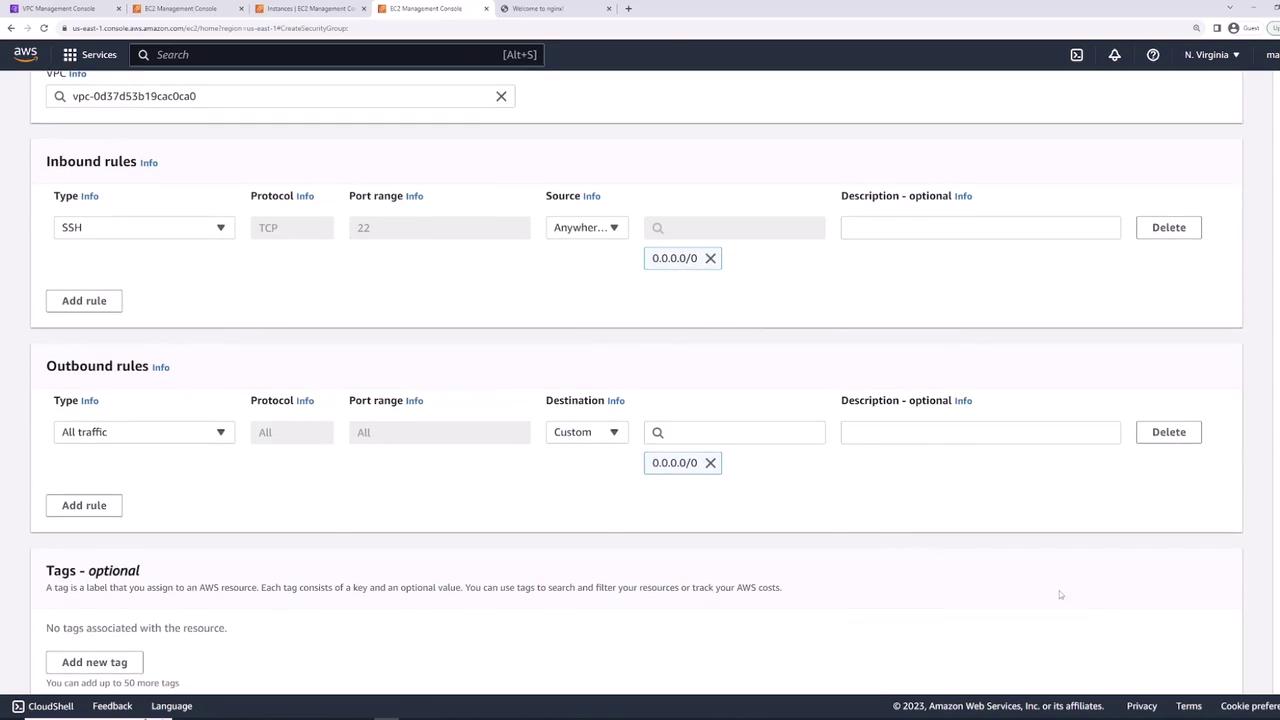
Next, create a new security group for web server use. Name it “web server security group” (or “web applications”) and select the appropriate VPC. Configure the following rules:- Inbound: Allow SSH (TCP port 22) from any IP.
- Outbound: Allow all traffic.
Installing and Testing a Web Server
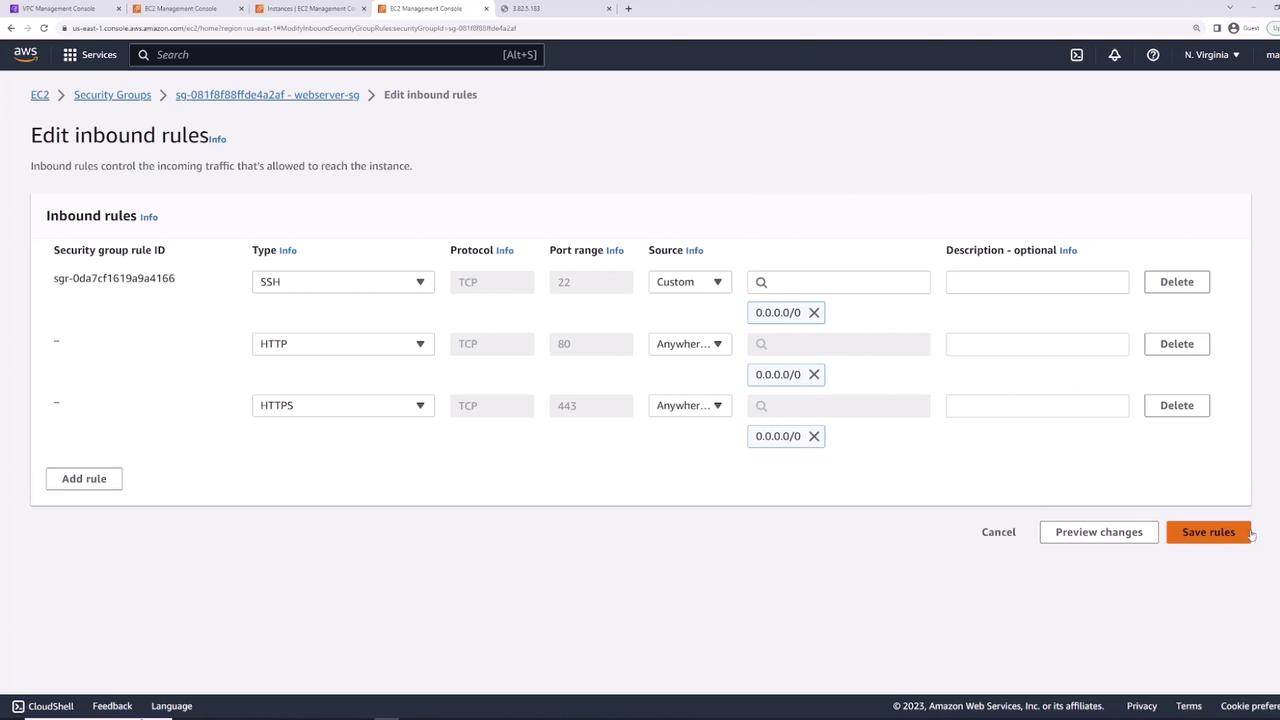
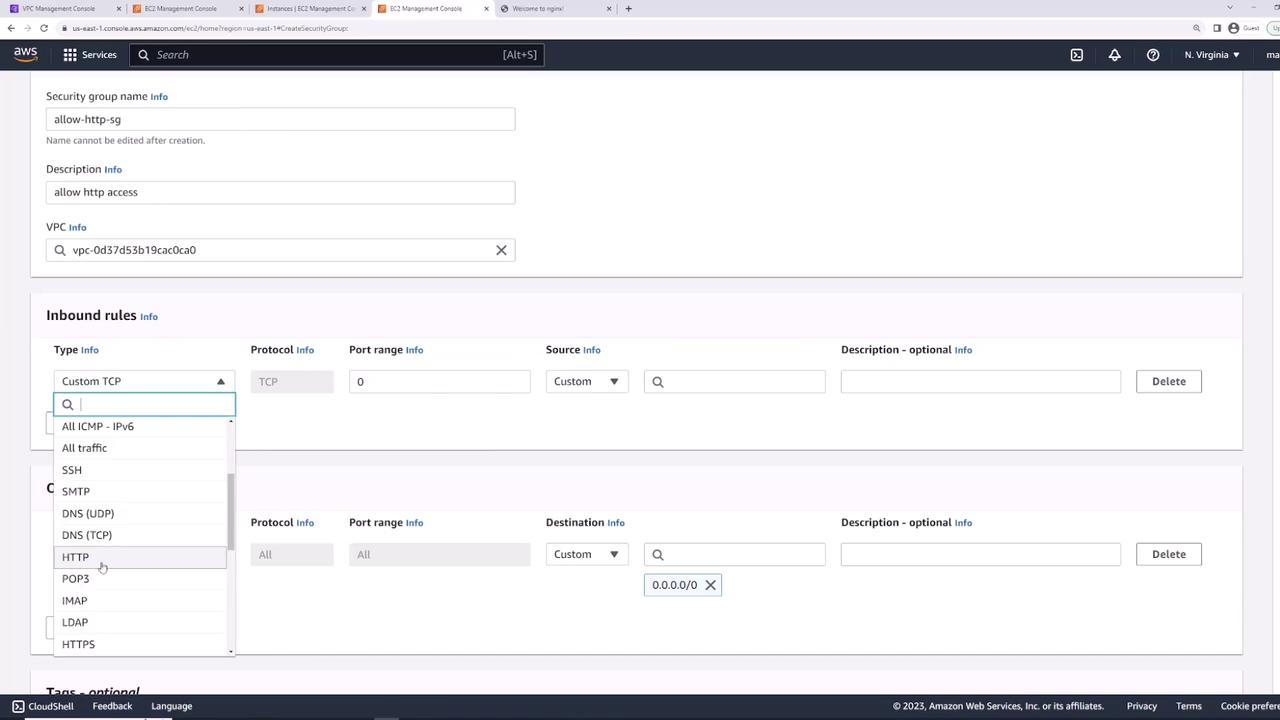
Since “server one” is now set up to host a web server, install Nginx by executing:- HTTP: Allow TCP port 80 from any IP.
- HTTPS: Allow TCP port 443 from any IP.
Understanding Stateful Firewalls
Security groups act as stateful firewalls. When an inbound request is allowed (e.g., on port 80), the returning outbound traffic is automatically permitted—even if outbound rules are restrictive.
ping command), ensure your outbound rules explicitly allow that traffic. For instance, running:
Combining Multiple Security Groups
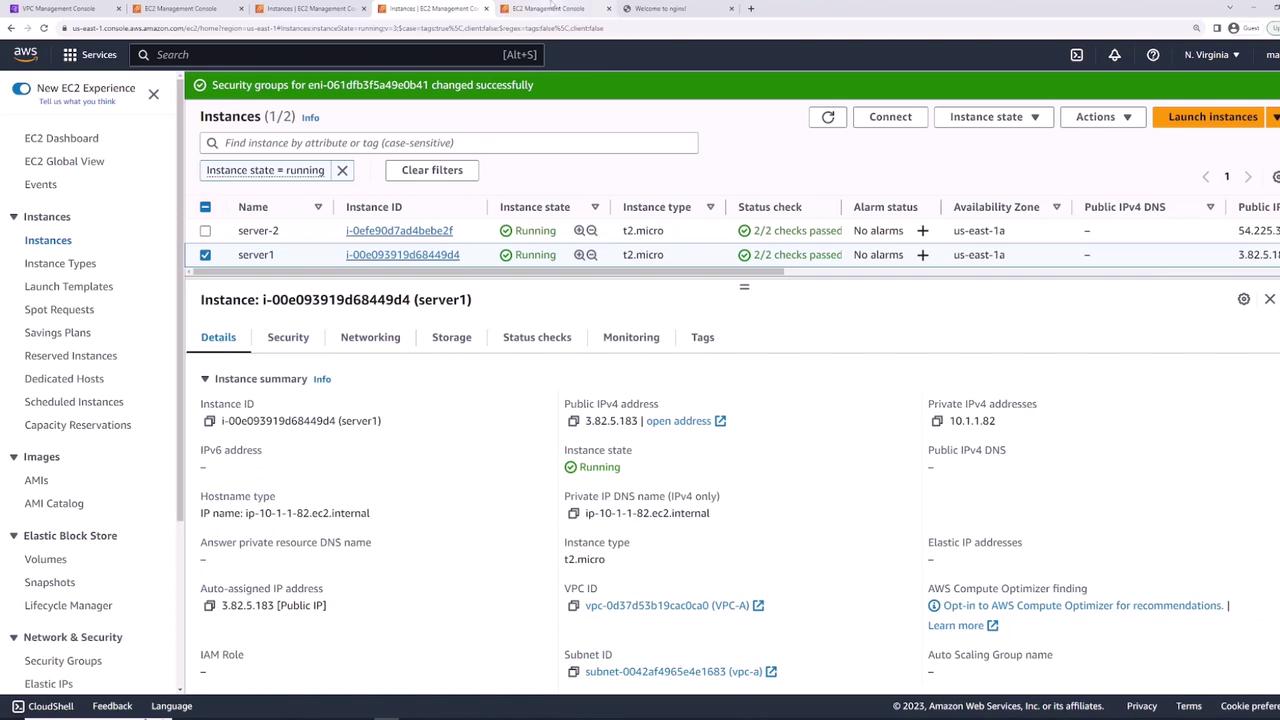
AWS allows you to attach multiple security groups to a single EC2 instance. The rules from all attached groups are merged. This modular approach enables you to separate concerns by creating:- An “allow SSH” security group (permitting only SSH inbound traffic).
- An “allow HTTP” security group (permitting only HTTP inbound traffic).
- Go to “Actions” → “Security” → “Change Security Groups.”
- Remove the existing security group.
- Add both the “allow SSH” and “allow HTTP” security groups.
- Save the changes to ensure that port 22 (SSH) and port 80 (HTTP) are permitted.
Creating a Security Group for a Database
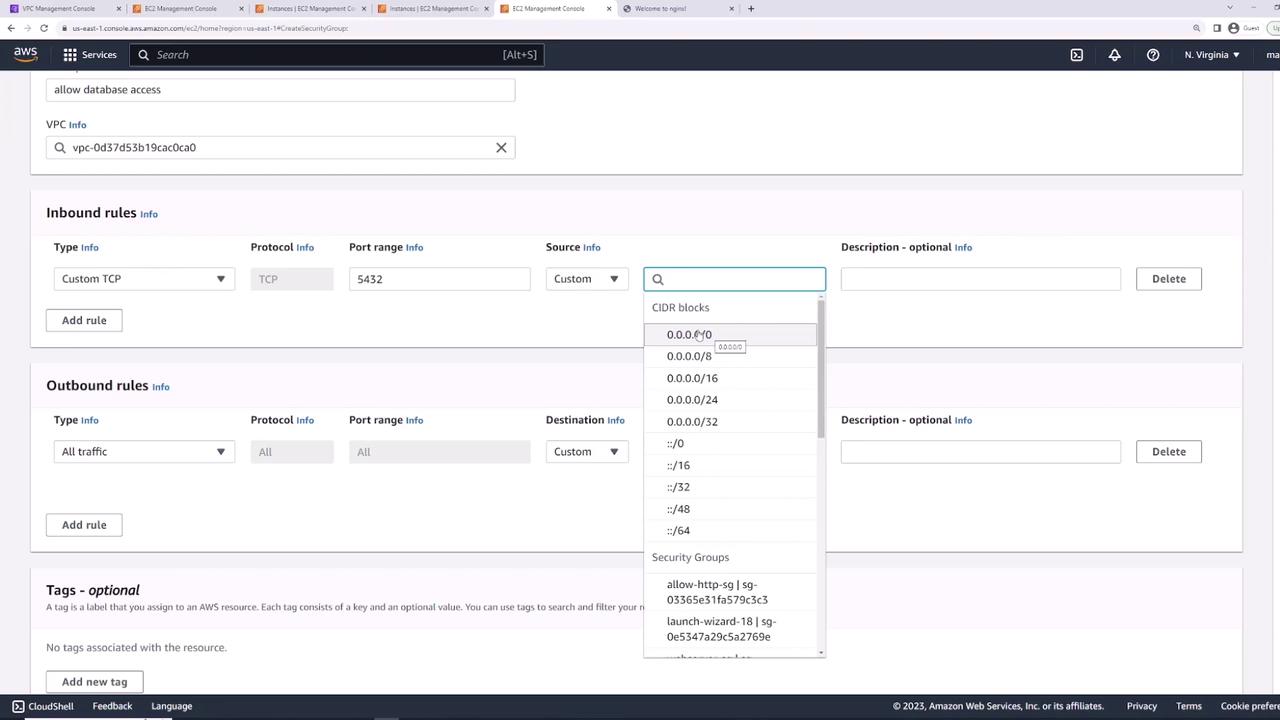
Finally, create a security group for your database instance. Name it “database security group” and include an inbound rule for your database port (such as port 5432 for PostgreSQL). In production systems, avoid exposing the database directly to the internet. Instead of allowing access from 0.0.0.0/0, restrict inbound access to your web servers. One effective method is to set the source to any resource associated with the “allow HTTP” security group. This dynamic approach automatically includes new web servers with that security group without manually updating IP addresses.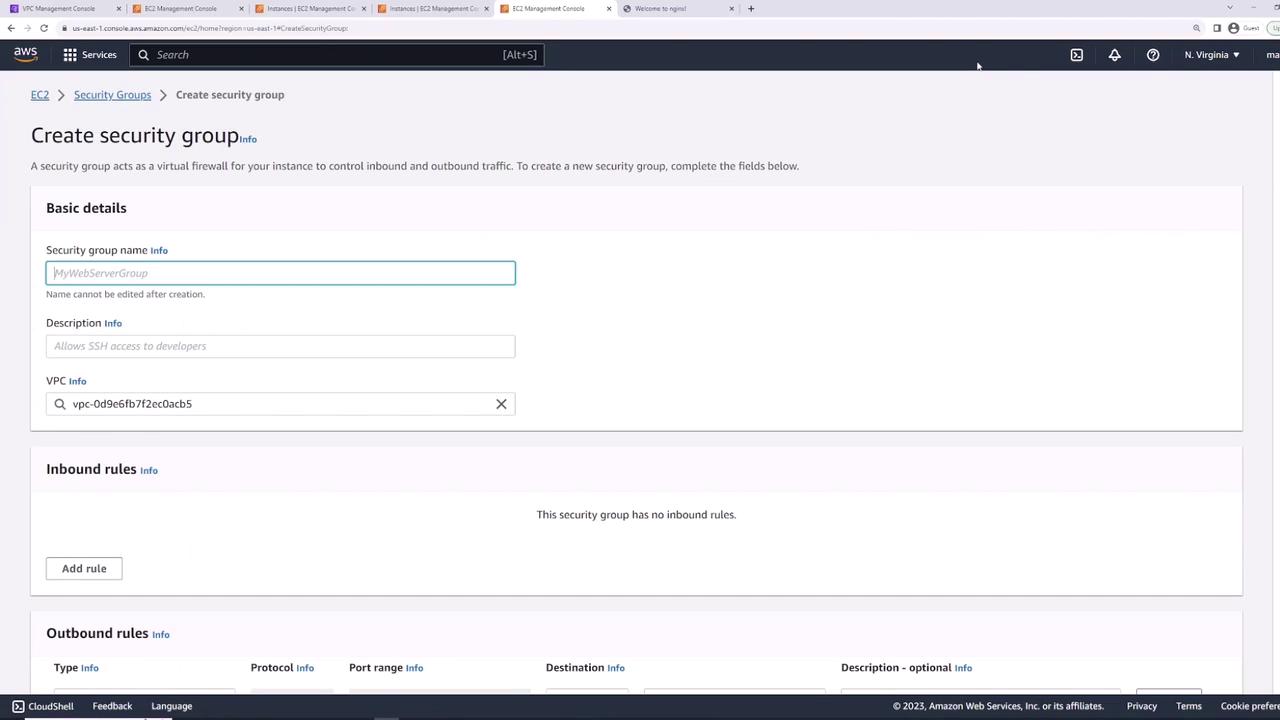
Conclusion
In this lesson, you learned how to:- Launch an EC2 instance with a default security group.
- Modify security group rules to control traffic.
- Install and validate a web server (Nginx) on an EC2 instance.
- Apply multiple security groups for modular and scalable rule management.
- Implement security group-based restrictions for database instances instead of using static IP addresses.