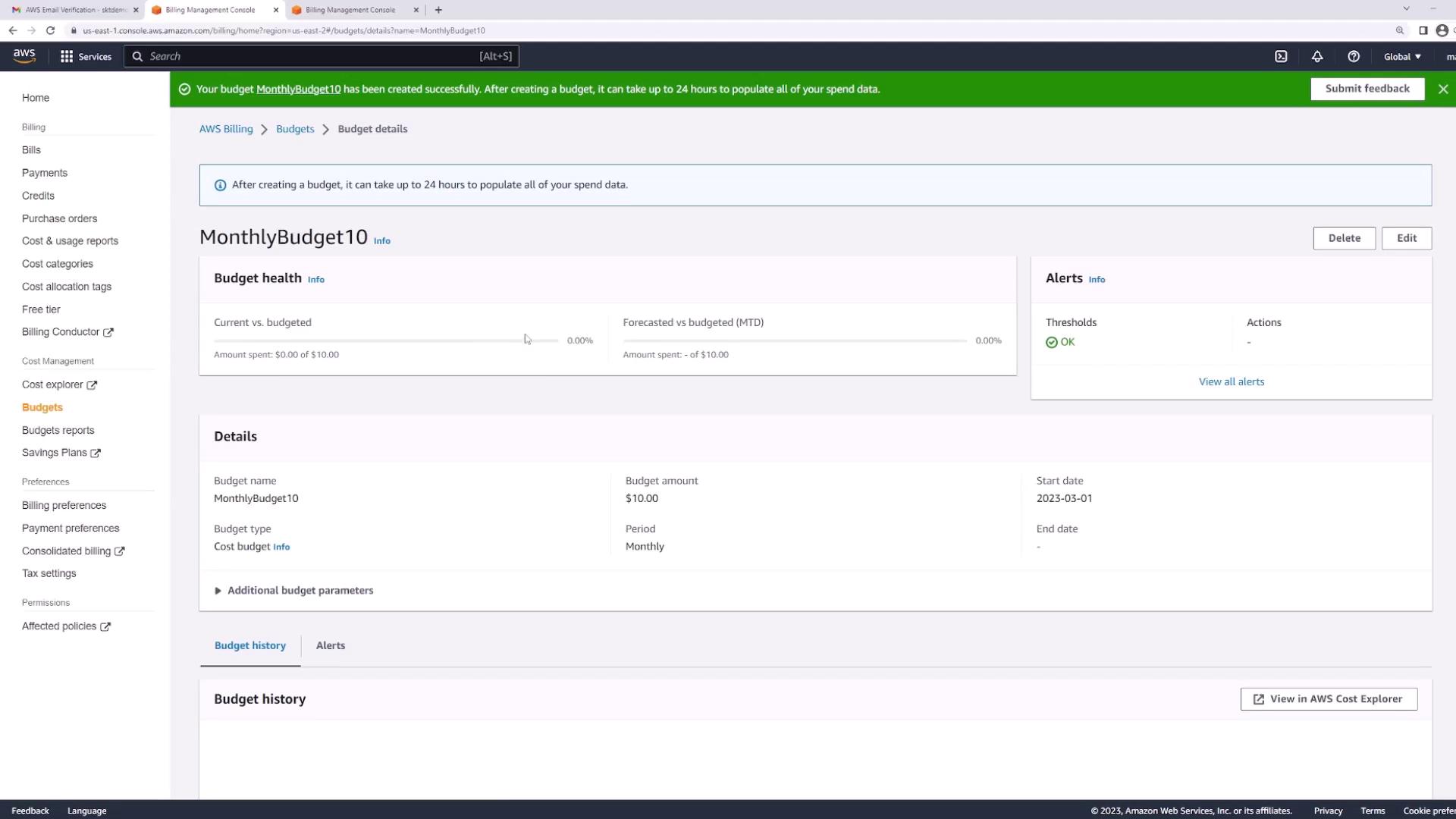
Navigating to the Billing Dashboard
To begin, log in to your AWS console. Locate your account name in the top right corner and select it to access the billing dashboard. This dashboard is your central hub for reviewing payment methods, past invoices, previous monthly payments, and real-time estimates of your current month’s spend. In a new AWS account, the dashboard might initially appear empty; however, as you begin using AWS resources, various fields, columns, and charts will populate with your financial data.Setting Up a Budget
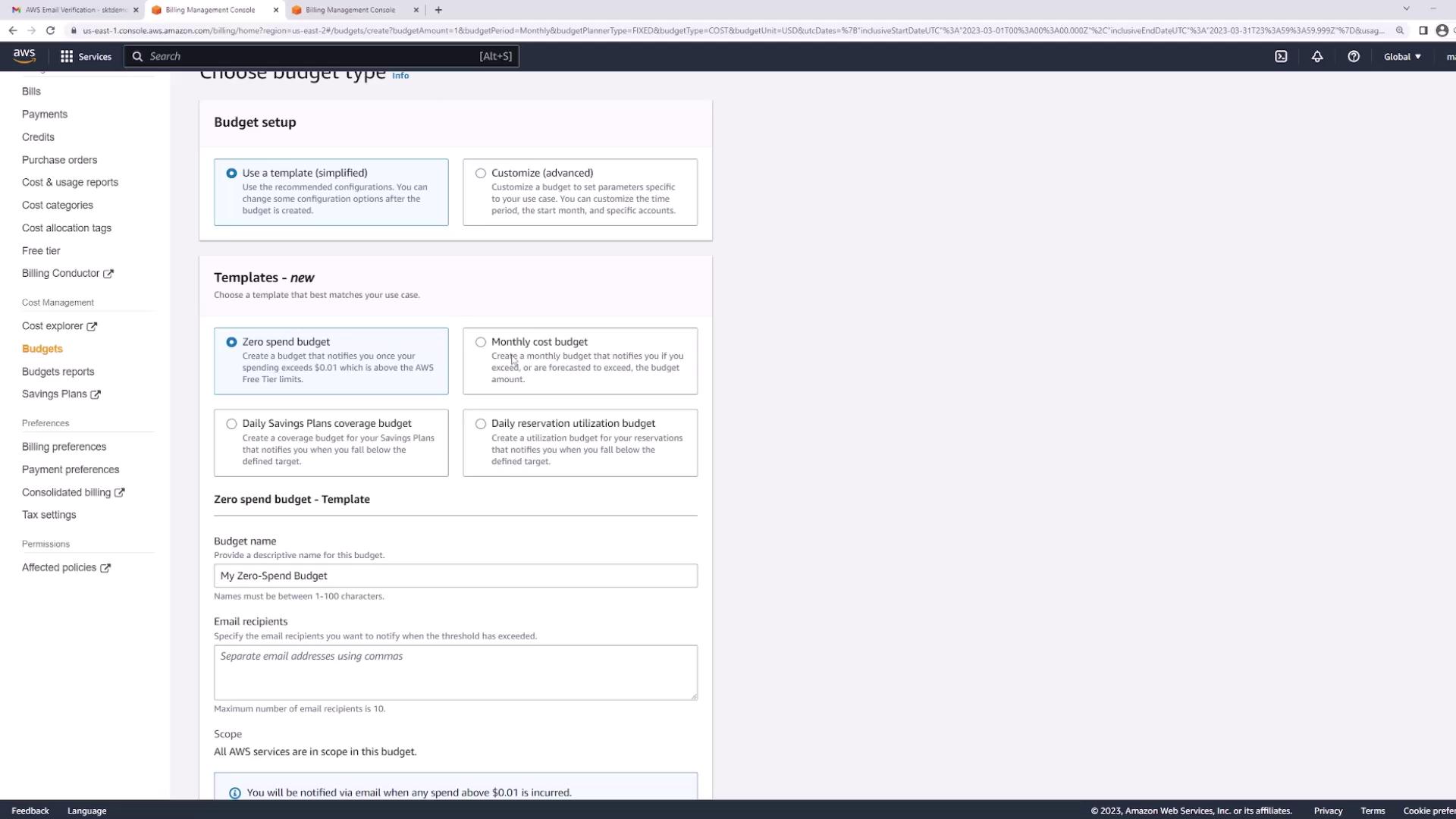
Follow these steps to create a budget:- In the billing dashboard, navigate to the budget section.
- Click on Create a budget.
- Zero Spend Budget: This template monitors your free tier usage and triggers an alert immediately if your spending exceeds $0.
- Monthly Cost Budget: This budget helps you manage a specific monthly dollar amount (for example, $100 per month). An alert will be triggered once your cost exceeds this specified threshold.
For this demonstration, we will use the Monthly Cost Budget template with a set budget of $10.
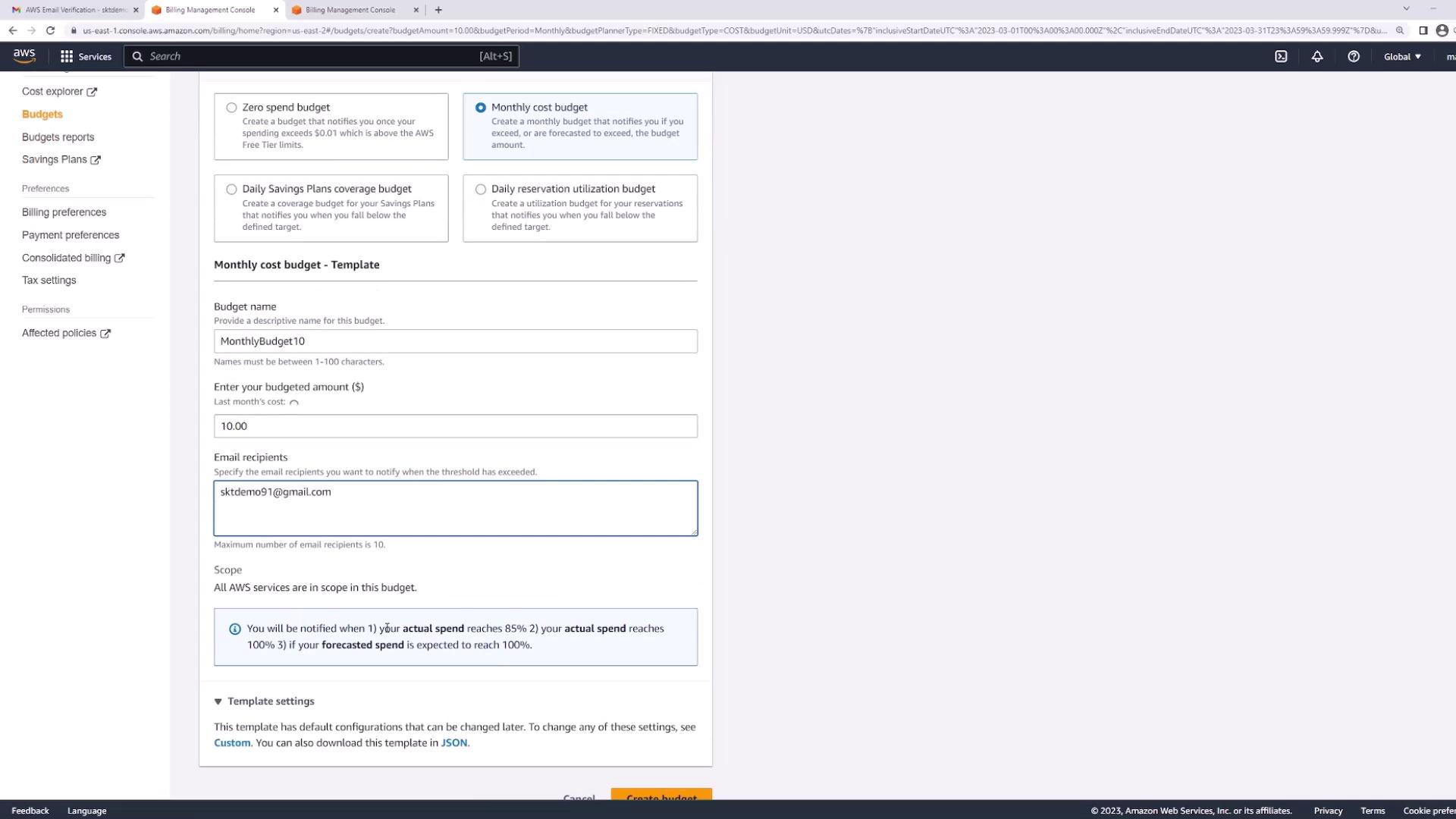
AWS notifies you in three scenarios:
- When your actual spend reaches 85% of your budget.
- When it hits 100% of your budget.
- When the forecasted spend is expected to hit 100% of your budget. This system helps ensure that you remain in control of your AWS spending.