Step 1: Enable DynamoDB Streams on the Products Table
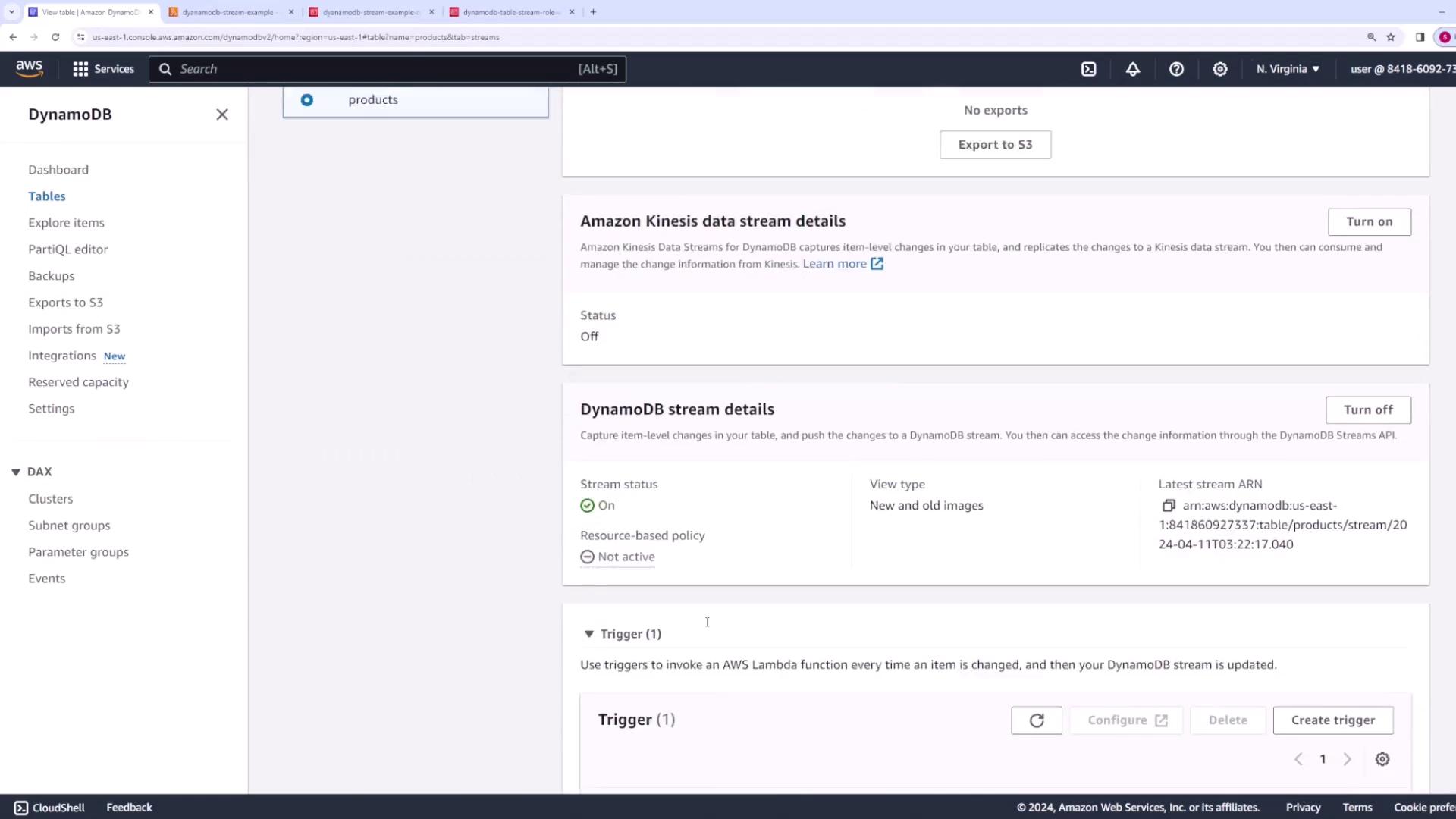
First, open the Products table in your AWS DynamoDB console. Navigate to the Exports and Streams section and scroll down to review the DynamoDB Streams details.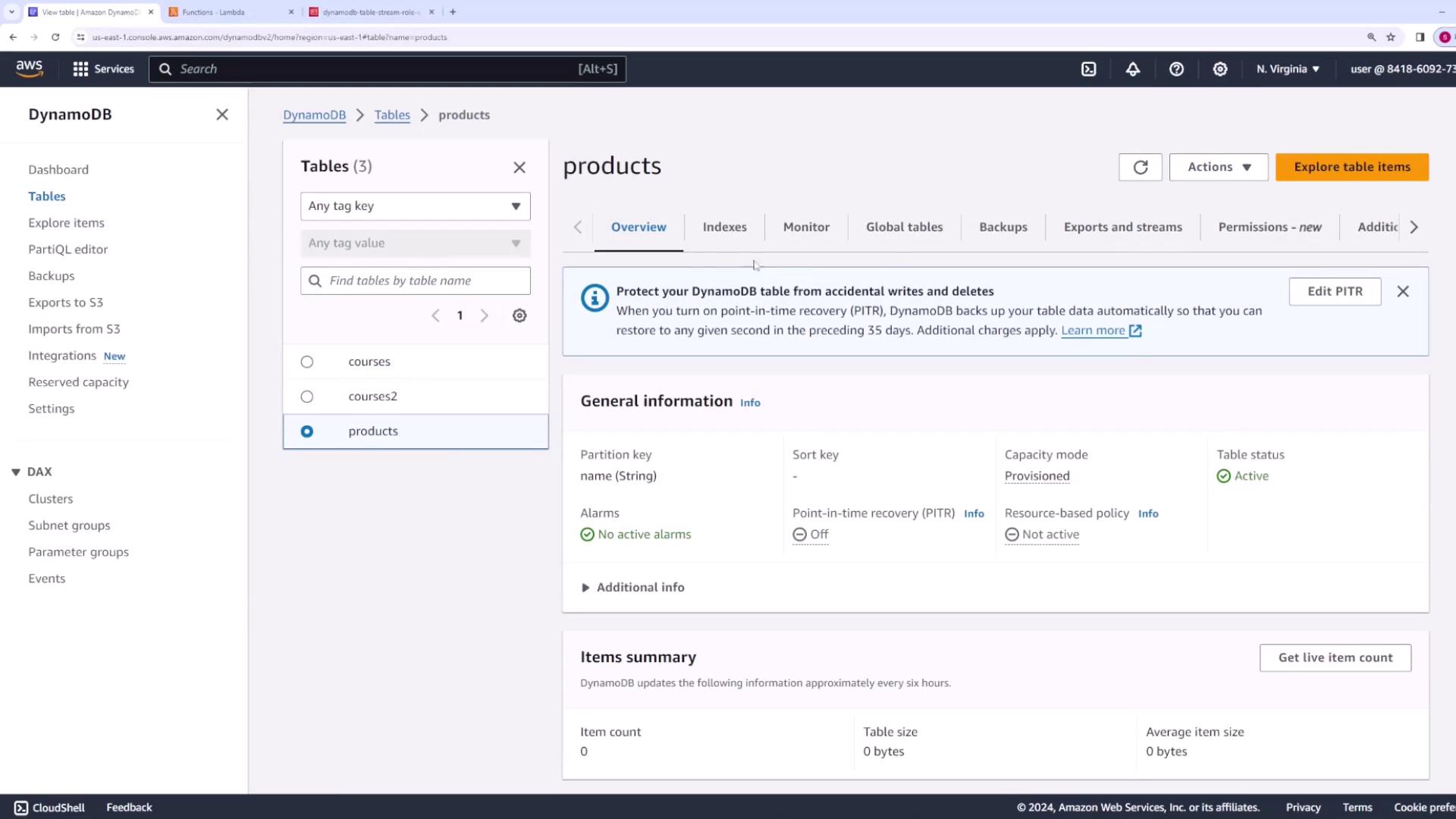
- Key Attributes Only - Streams only the key attributes of the modified item.
- New Image - Streams the entire item as it exists after the change.
- New and Old Images - Captures both the previous and new images of the item.
Step 2: Create a Lambda Trigger for the Stream
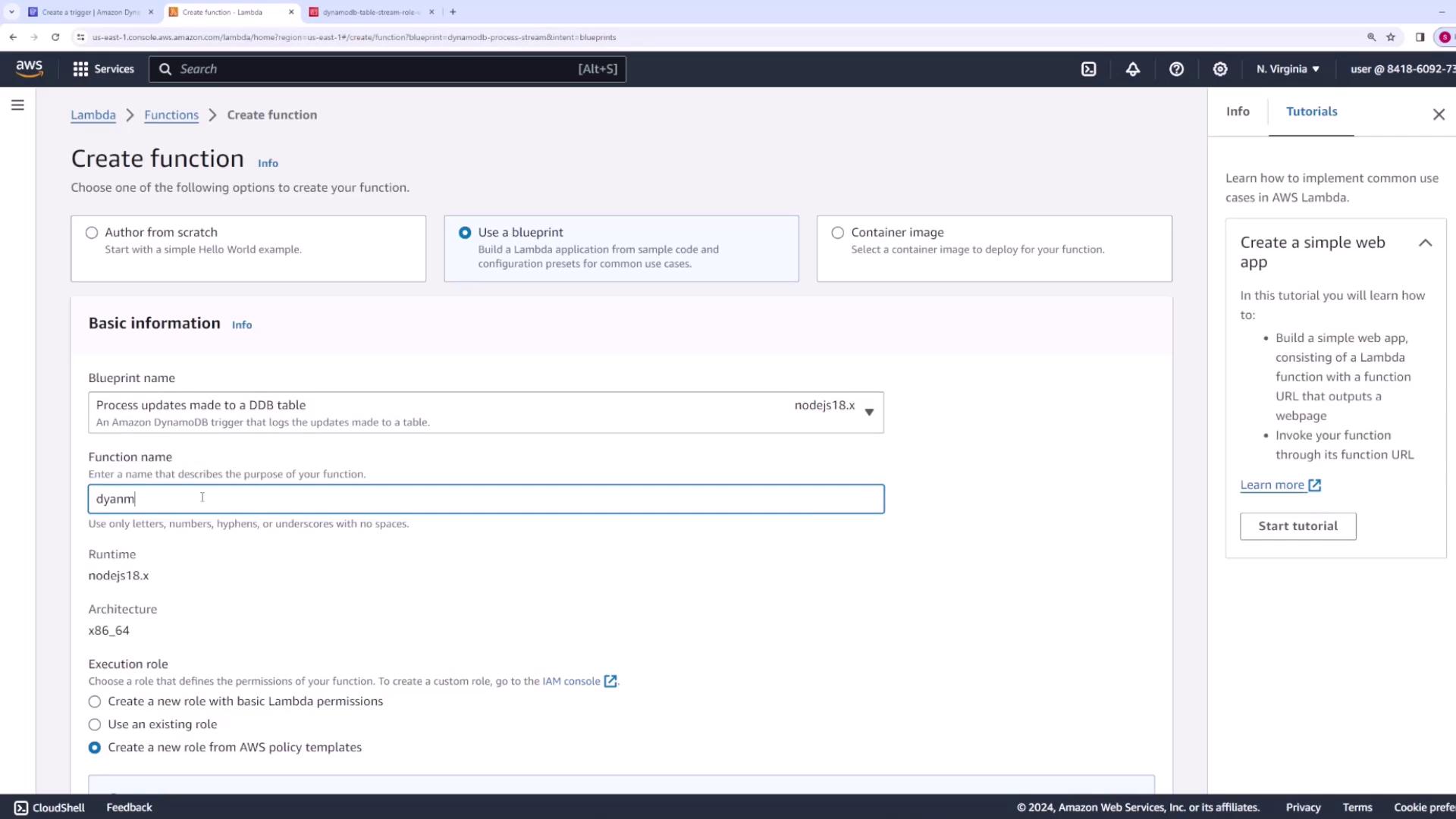
Since there is no trigger configured yet, create one by associating a Lambda function to process the stream events.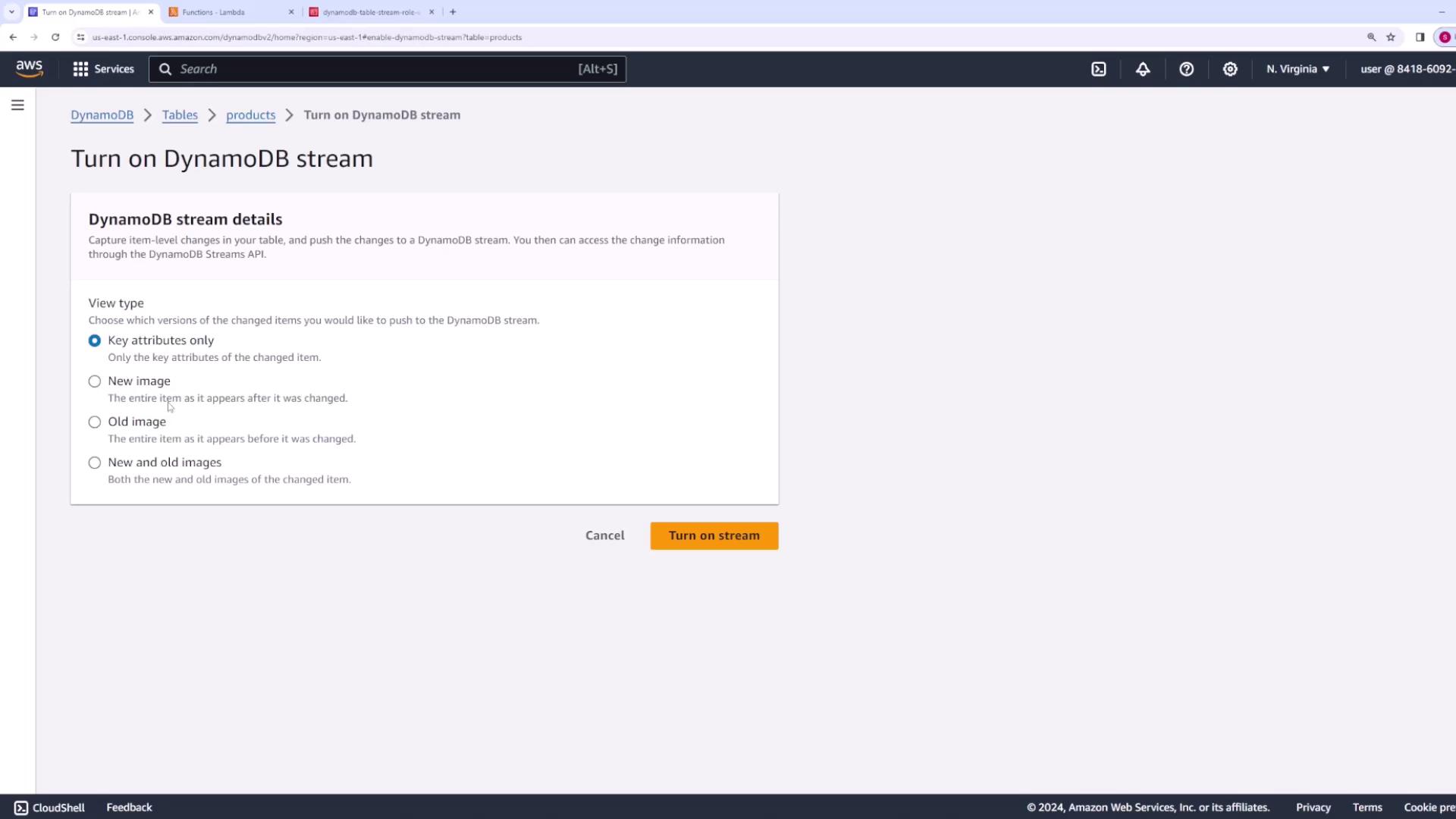
- In the AWS Lambda console, choose to create a new function.
- Use the provided DynamoDB Streams template. When prompted, select the blueprint named “process updates made to a DynamoDB table” and choose the Node.js version.
- Name your function (e.g., “DynamoDBStreamExample”) and create a new role with basic Lambda permissions. Note that you may need to add additional permissions later.
Review the Example Code
The template provides sample Node.js code which iterates over the records from DynamoDB and logs the event details. Below is the sample code used to process the stream events:Step 3: Link the DynamoDB Table to the Lambda Function
Configure the trigger by specifying that the Products table should stream data to the new Lambda function. You can adjust the batch size (e.g., 10 records per invocation) and choose “LATEST” for the starting position. Once configured, create the trigger.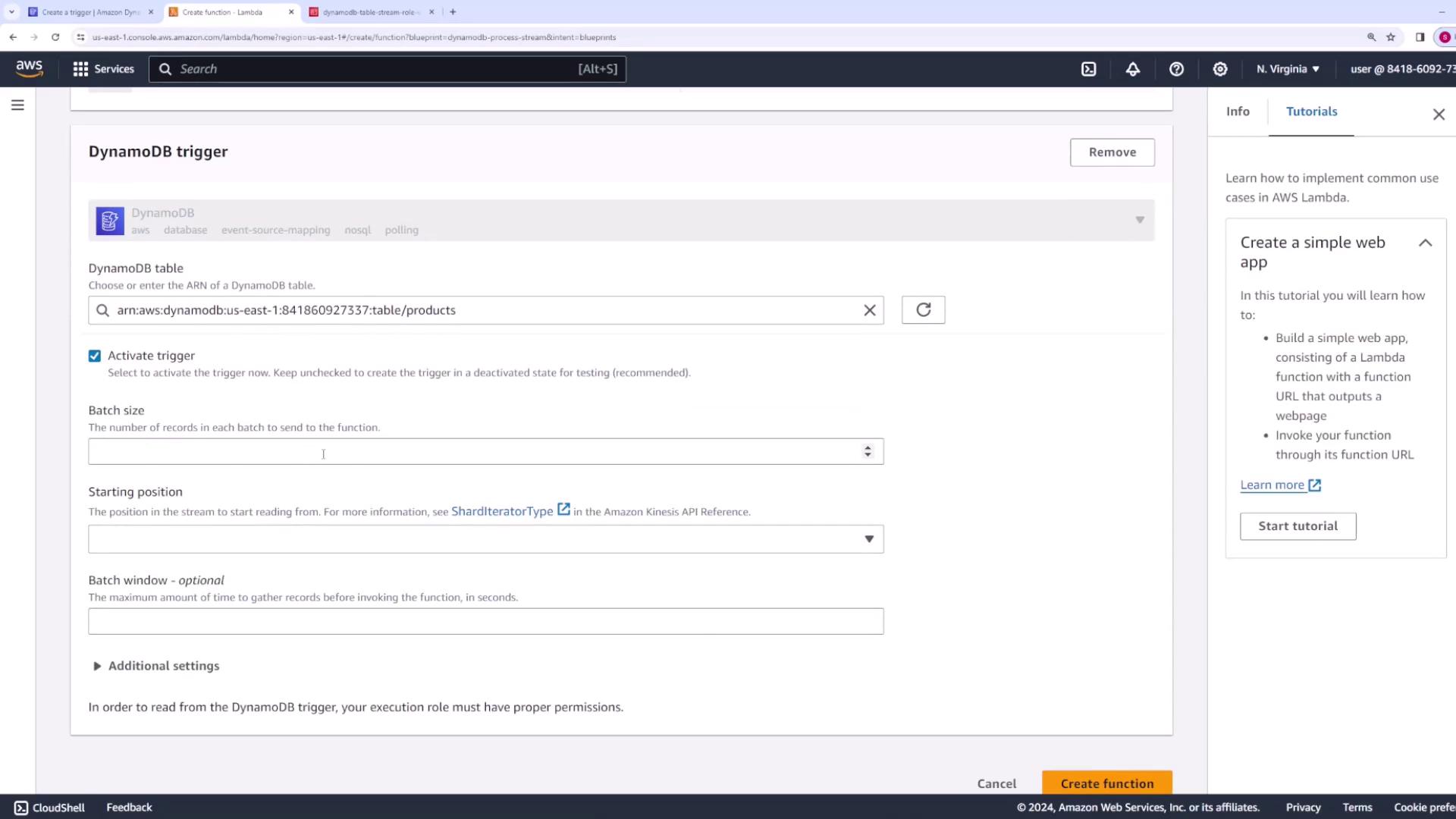
Step 4: Update IAM Permissions If Needed
After creating the Lambda function, you might see an error indicating that the function lacks permissions to access DynamoDB Streams. To resolve this:- Navigate to the Lambda function’s Configuration -> Permissions tab.
- Click the role associated with the Lambda function.
- Attach the policy AWS Lambda DynamoDB Execution Role to grant the necessary permissions.
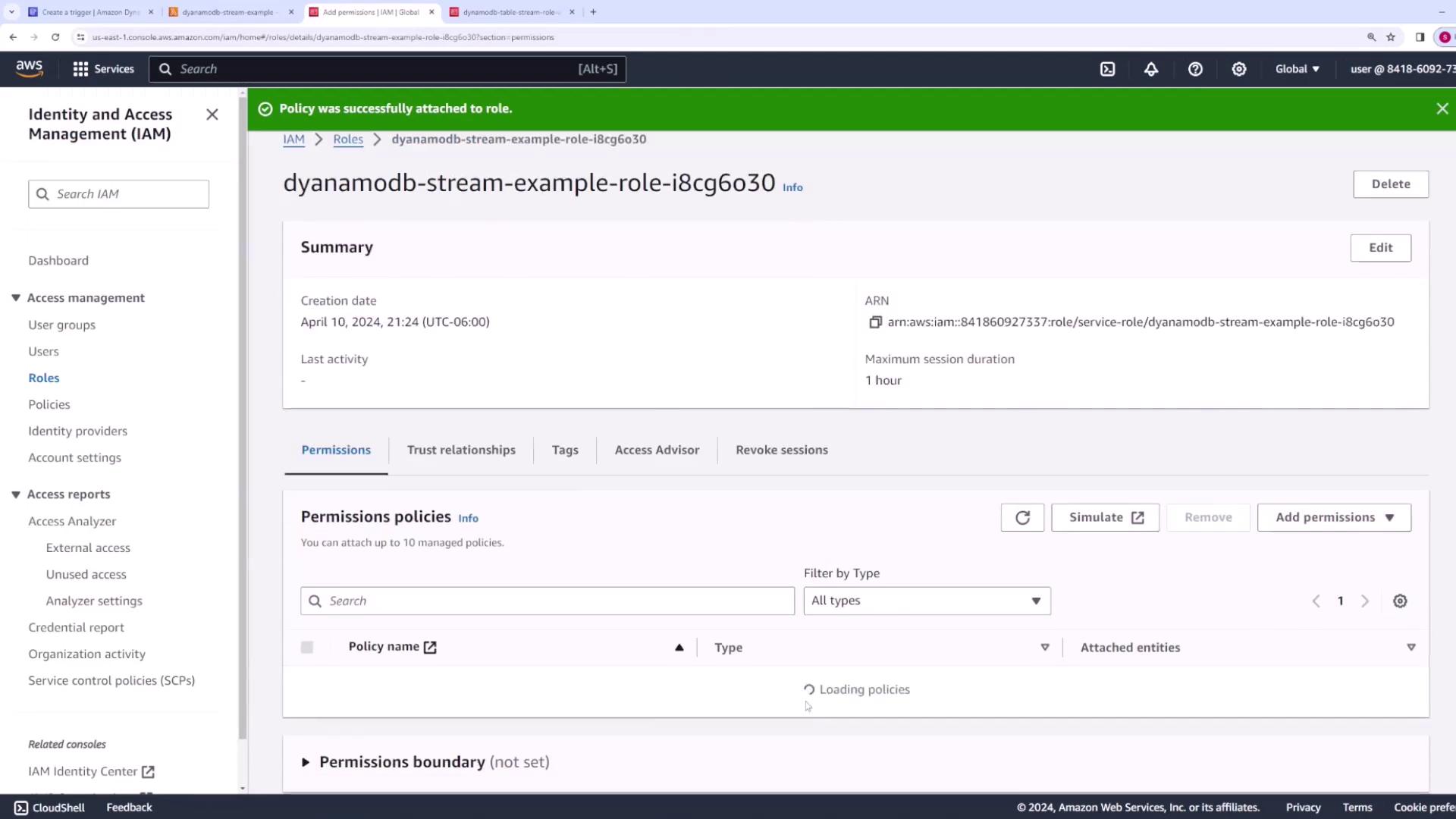
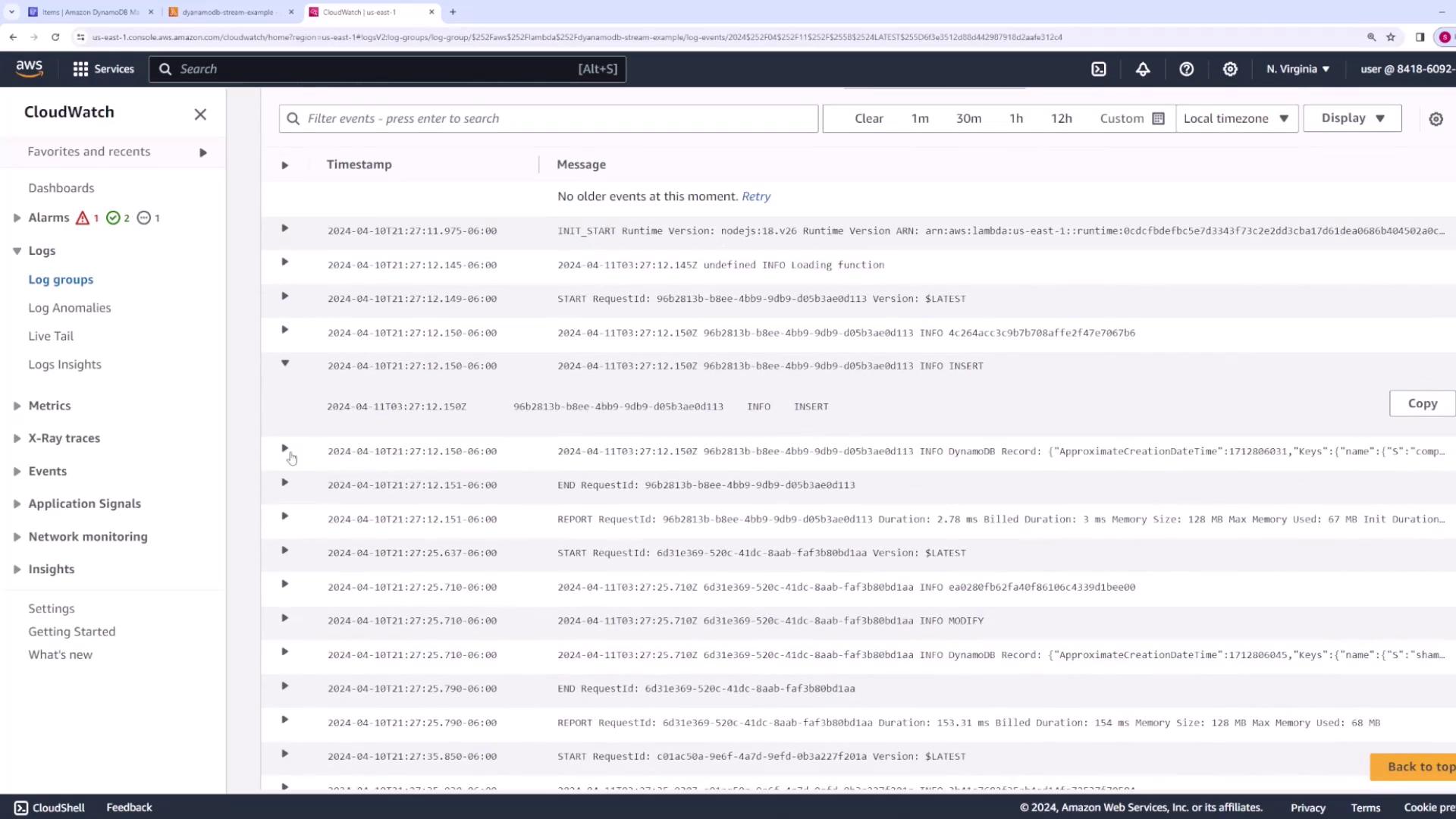
After updating the IAM policies, refresh the Lambda console and the DynamoDB Streams configuration. You should now see that the Lambda function is properly attached as a trigger.
Step 5: Test the Stream with Table Operations
To confirm that your setup is working, perform some of the following operations on your DynamoDB table:- Create an Item: Add a new product (e.g., a computer) with attributes like price ($2000) and category (electronics).
- Modify an Item: Update an existing item (for example, change the price of a shampoo item from $10 to $5).
- Delete an Item: Remove an item (such as a TV).