Creating a Demo VPC and Subnets
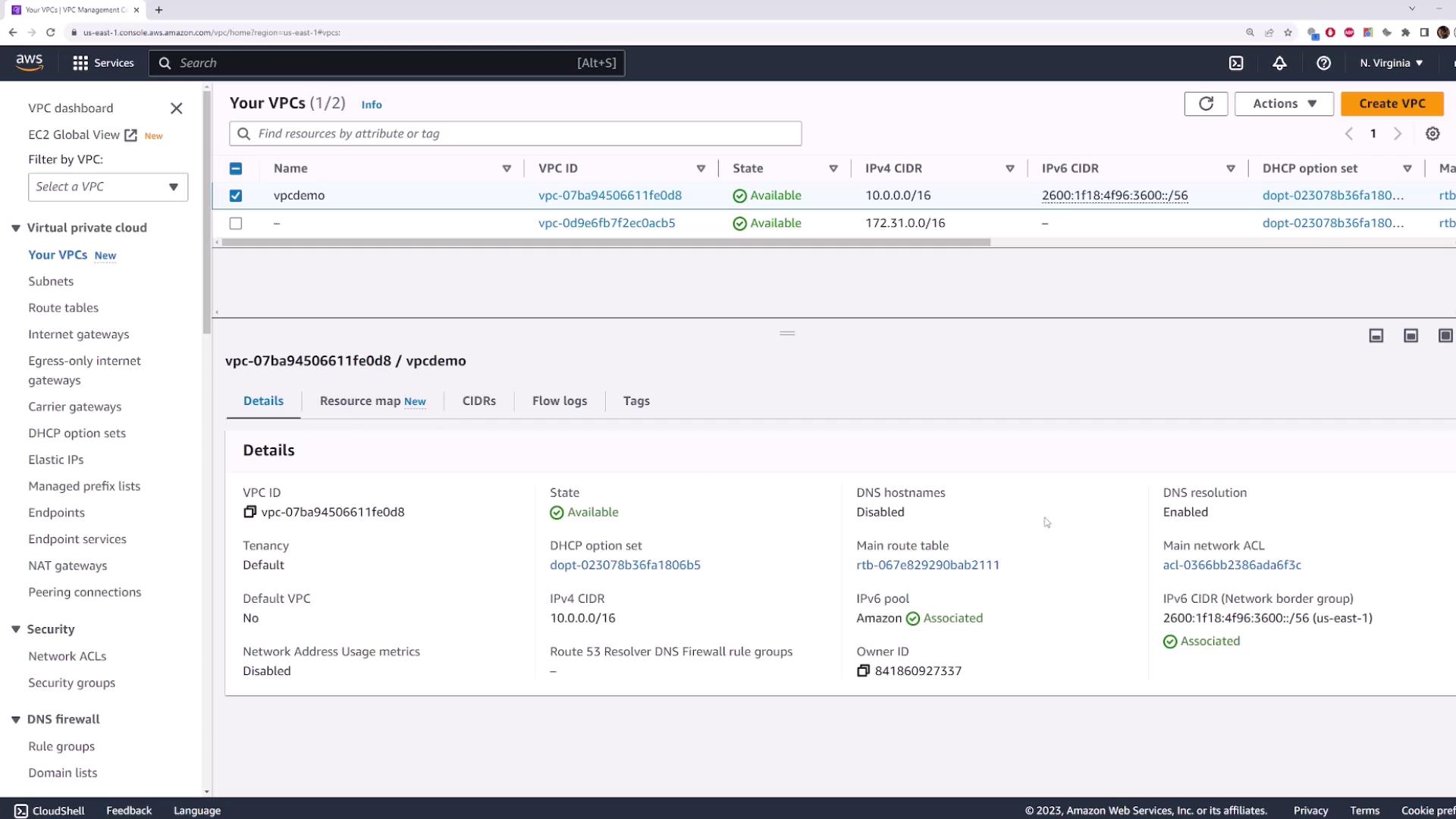
Begin by creating a demo VPC named “VPC demo” with a predefined CIDR block and enabled IPv6. Then, set up two subnets:-
Subnet One:
- CIDR Block: 10.0.1.0/24
- Associated IPv6 CIDR block.
-
Subnet Two:
- CIDR Block: 10.0.2.0/24
- The availability zone is chosen automatically.
Exploring the Default Route Table
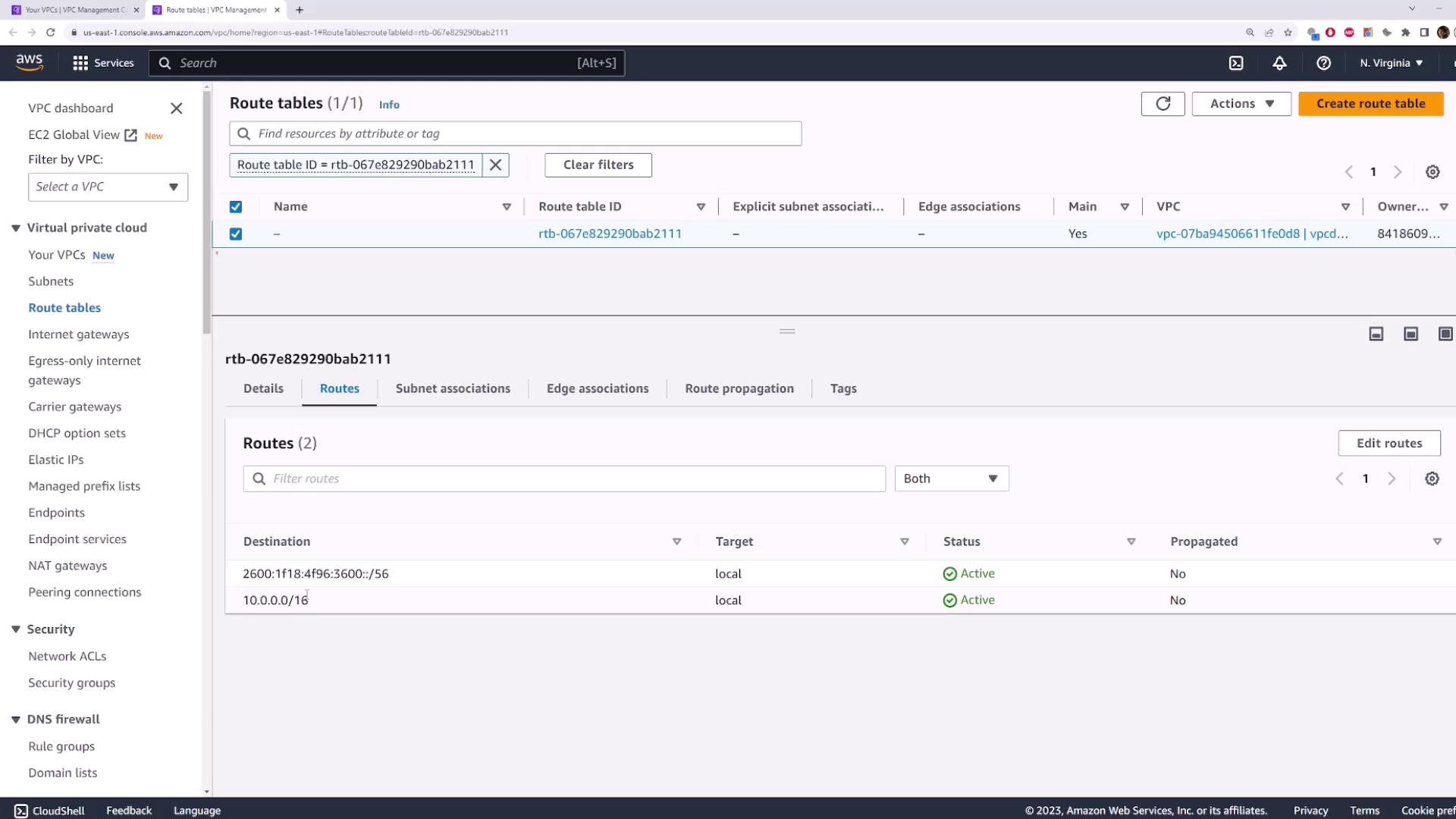
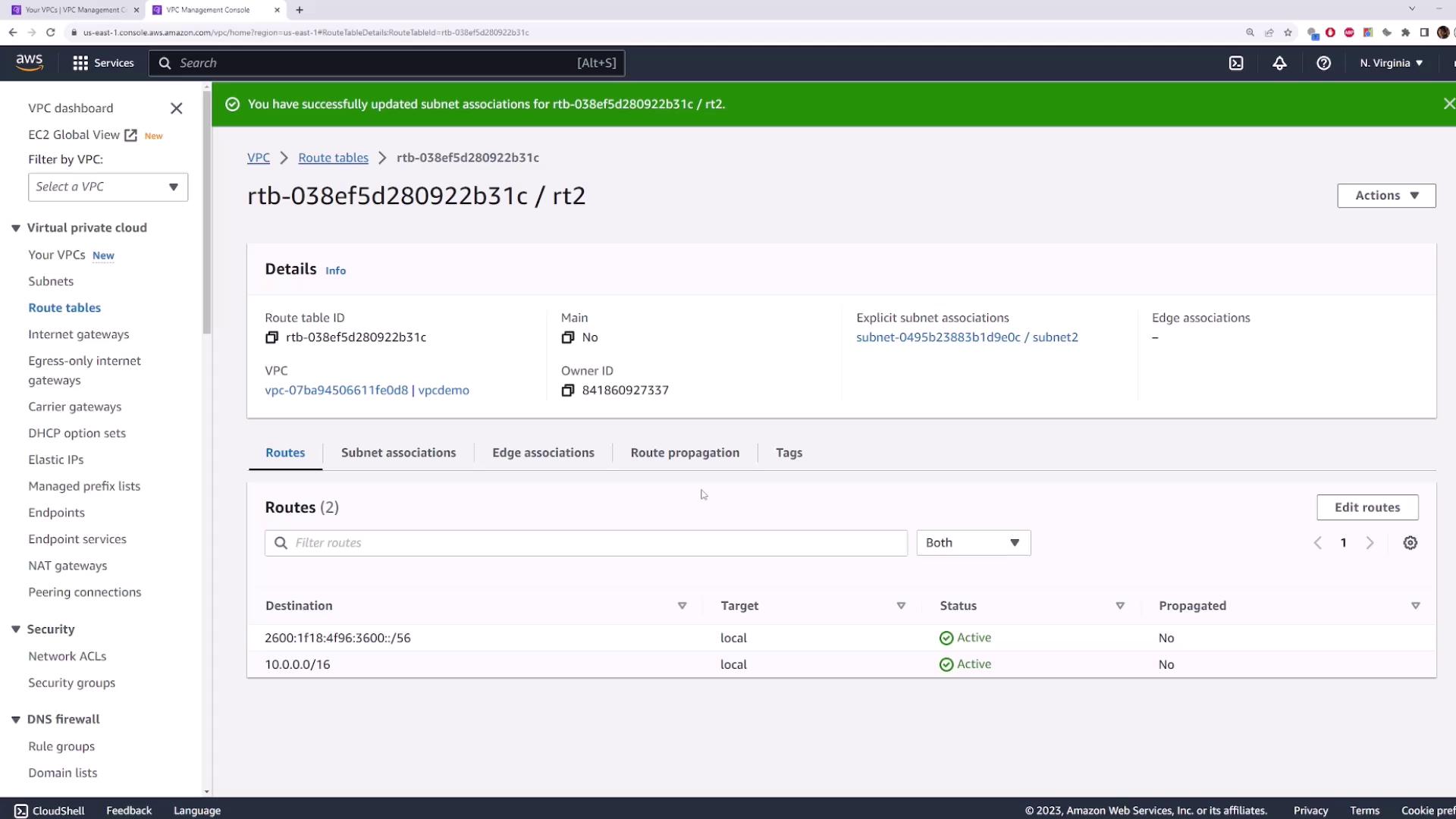
Navigate to the VPC section and open the main route table in a new tab. In this route table, you will observe two default entries:- A local route for IPv4: All traffic destined for IP addresses within the VPC CIDR block is routed internally.
- A corresponding local route for IPv6.
Creating and Associating a Custom Route Table
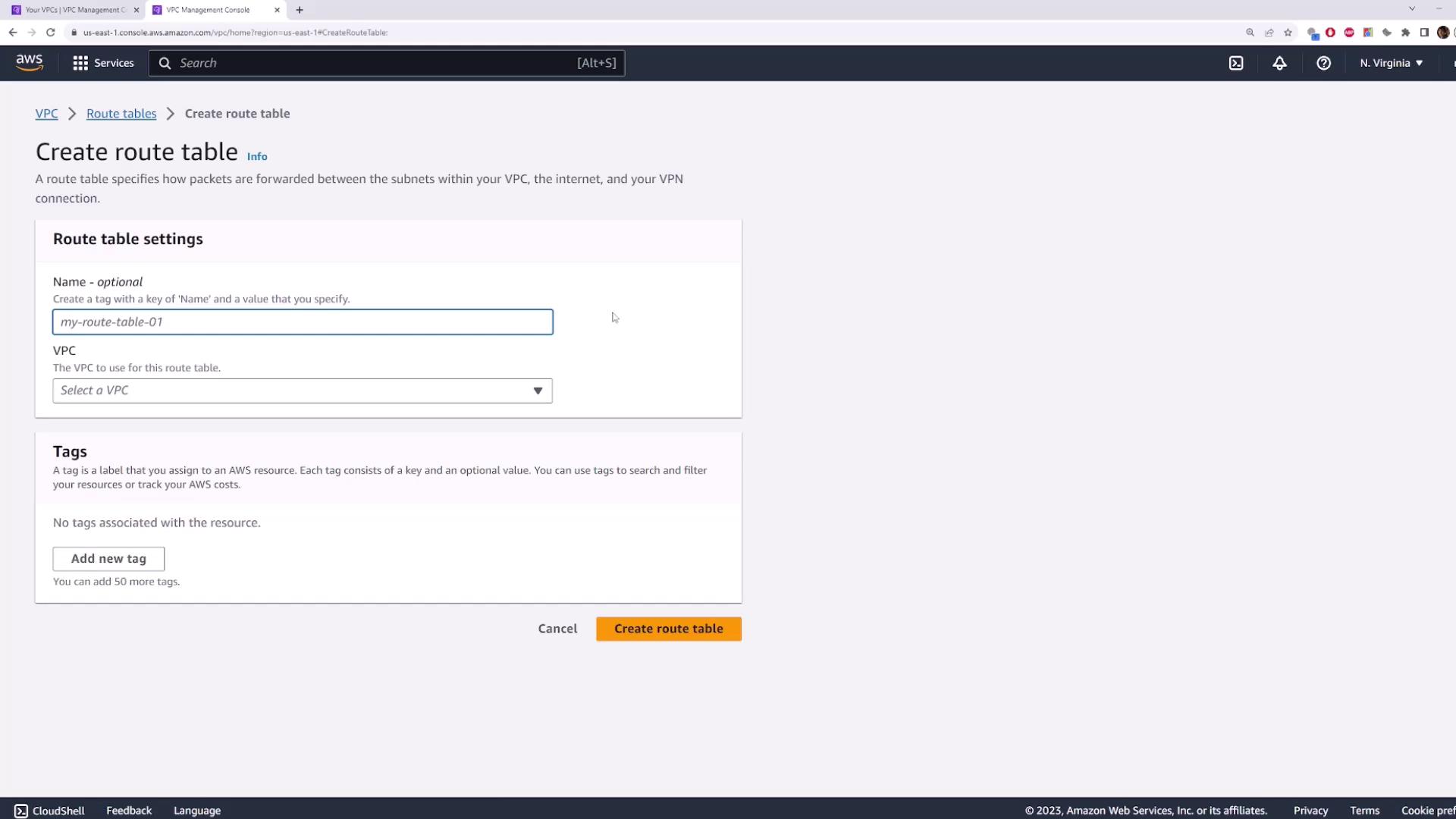
You can also create a custom route table tailored to your needs. Follow these steps:- Navigate to the Route Tables section and create a new route table (for example, name it “Route Table One”) selecting your “VPC demo.”
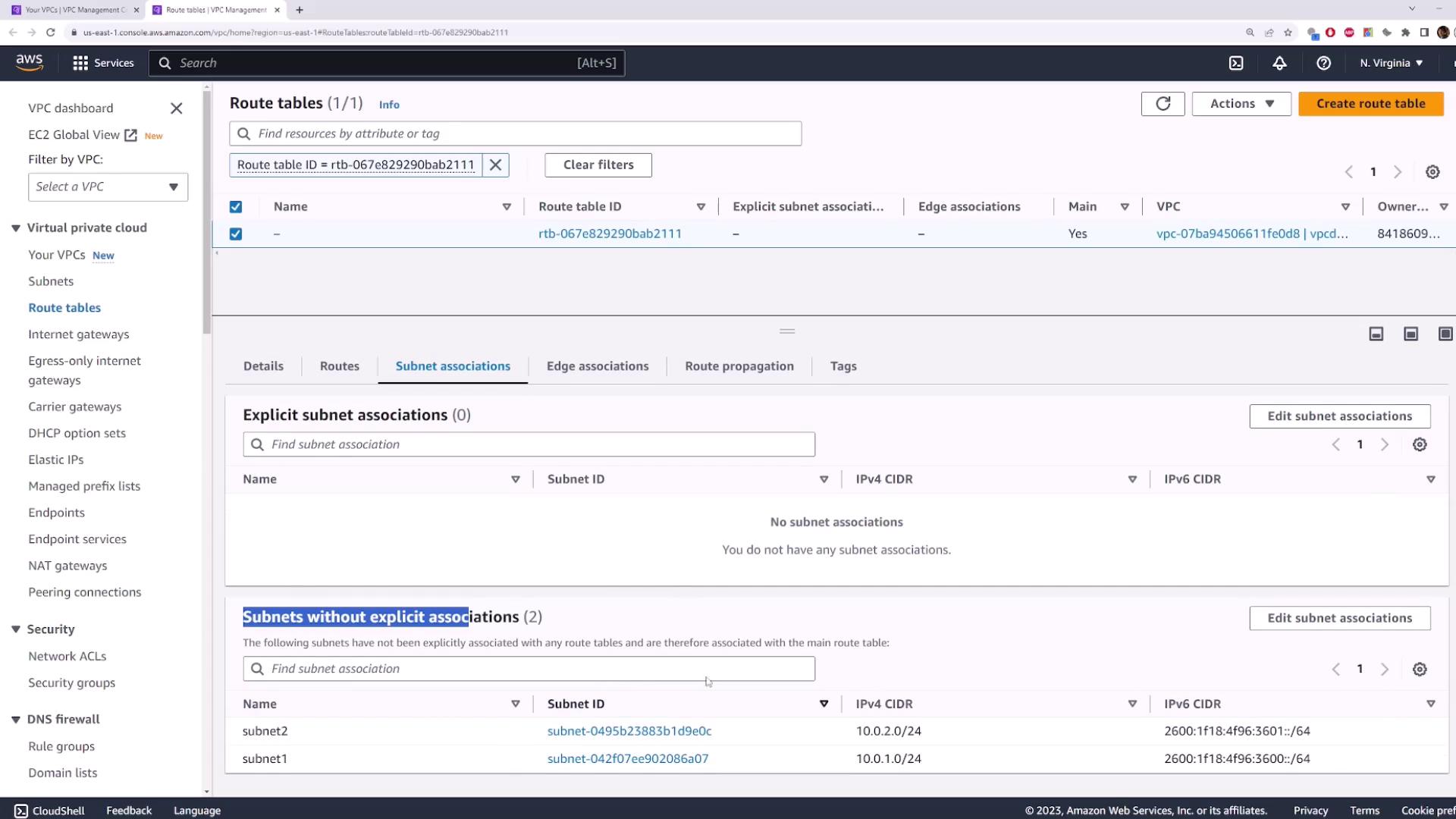
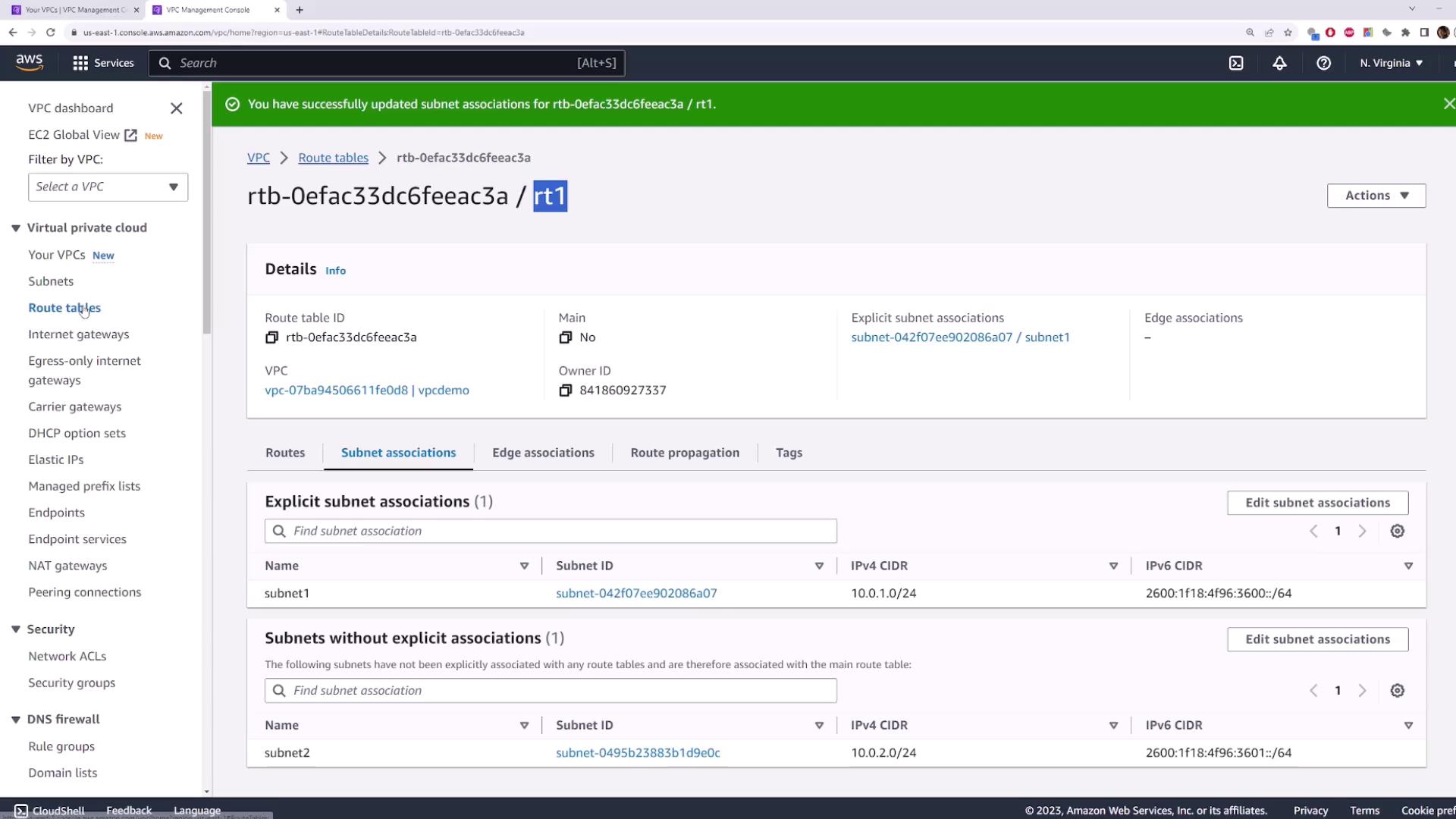
- By default, the new route table will not be associated with any subnets. Edit the subnet associations to add Subnet One.
- Once Subnet One is linked with “Route Table One,” all traffic from that subnet adheres to the rules defined in this custom route table.
Editing Routes
To update or add routes in a route table:- Select your target route table and click the option to edit routes.
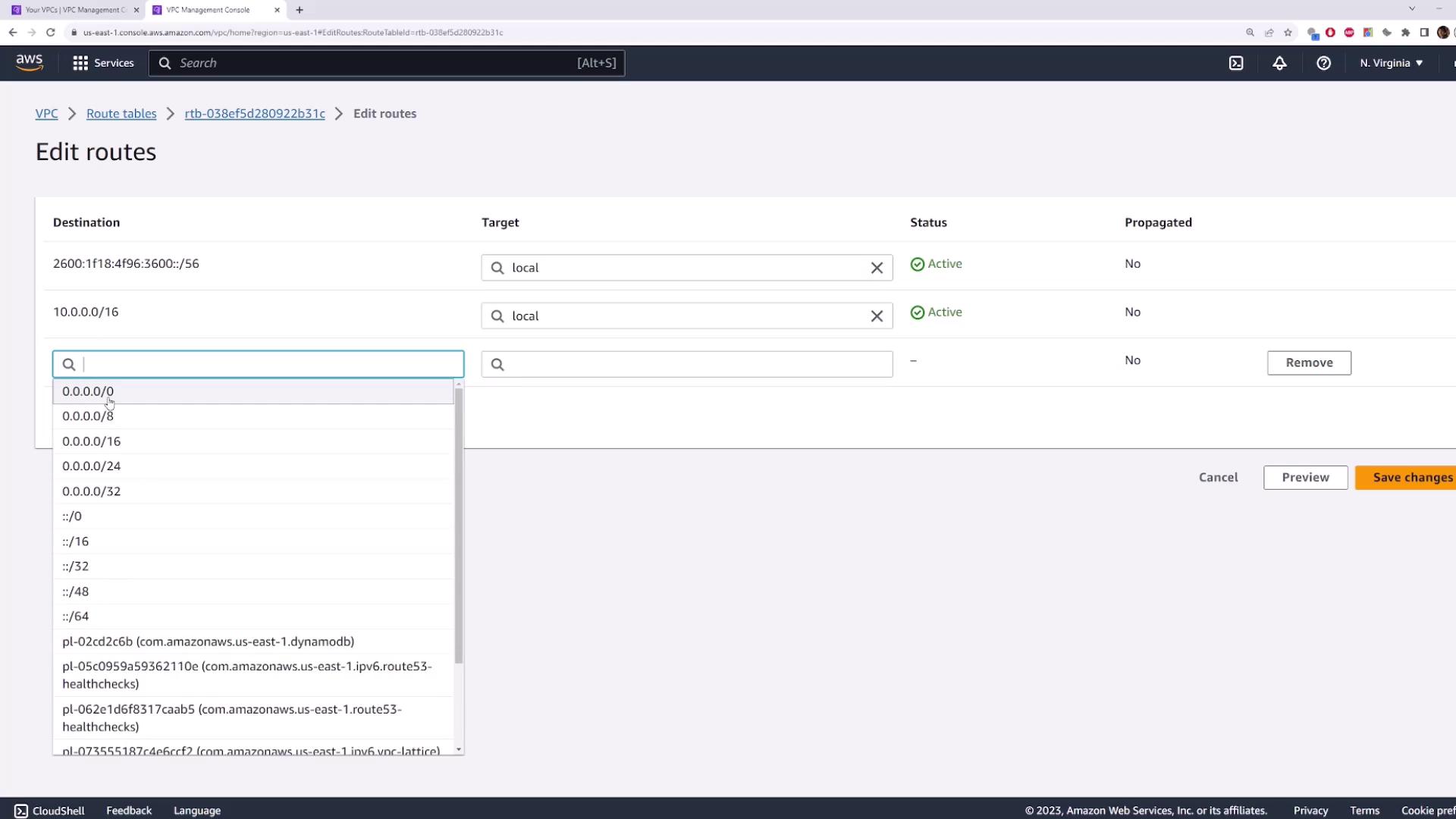
- Click “Add route” to include a new rule. For example, adding a default route with the destination “0.0.0.0/0” ensures that any packet not matching another rule follows this default path.
- Specify the target for the new route; your choices include an internet gateway, a NAT gateway, or routing locally.
- Save your changes to update the route table accordingly.
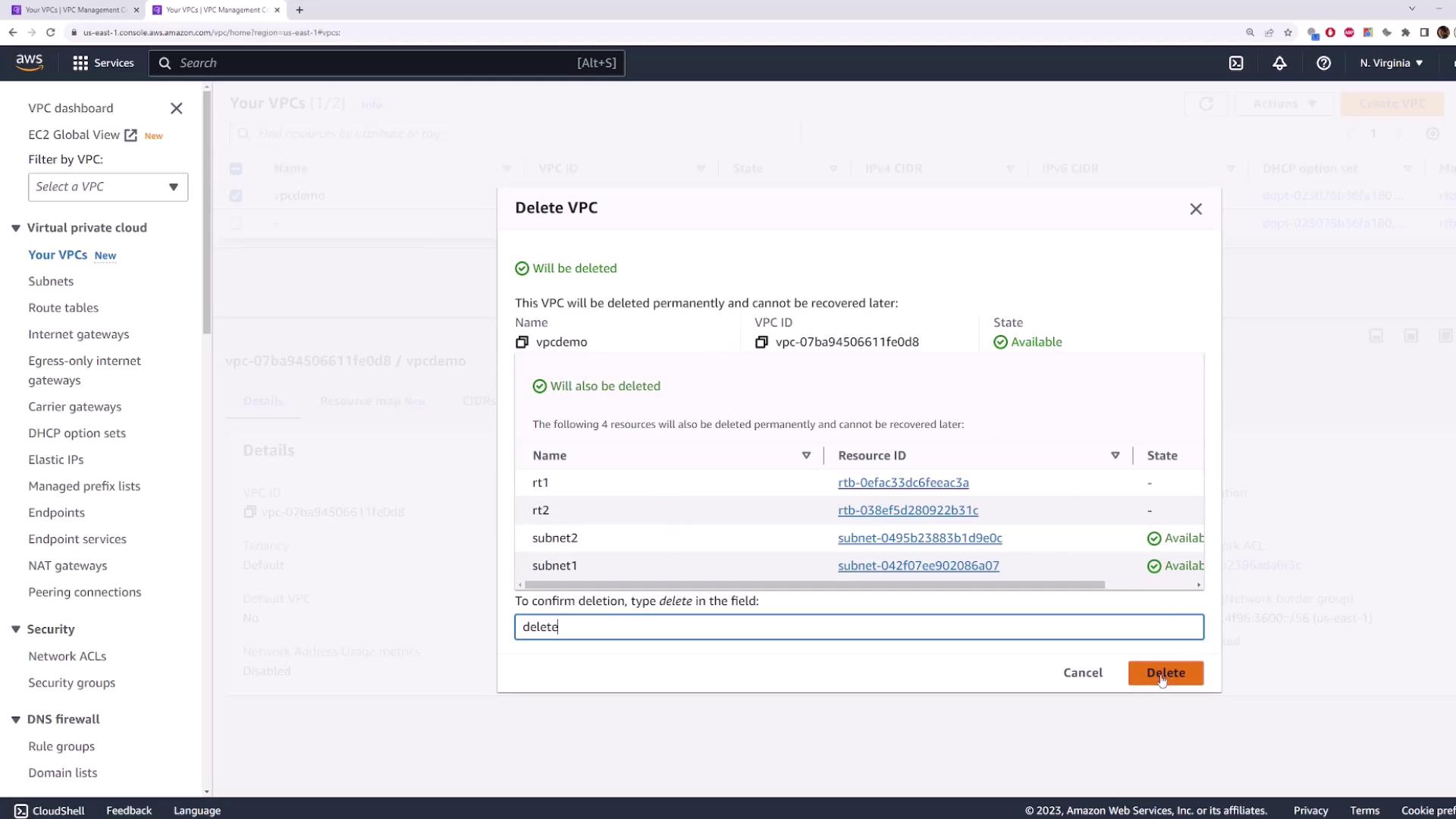
Cleanup
After completing your testing, it is important to delete the created resources to avoid incurring unnecessary charges. Simply delete the VPC (“vpcdemo”), and AWS will automatically remove all associated subnets and route tables.