Learn to configure a dead letter queue for AWS Lambda functions to analyze and troubleshoot failed events effectively.
In this lesson, you’ll learn how to configure a dead letter queue (DLQ) for an AWS Lambda function. When your Lambda is invoked asynchronously and encounters errors, AWS Lambda automatically retries the invocation a predetermined number of times. If the function continues to fail, the event is forwarded to an Amazon SQS queue that acts as the dead letter queue. This setup enables you to analyze and troubleshoot problematic events effectively.
Test the function by invoking it asynchronously via AWS CloudShell. Make sure to specify the invocation type as Event and include a sample payload. A status code of 202 confirms that your request for asynchronous processing has been accepted.Additionally, review CloudWatch logs to verify that the event data has been logged correctly.
Even though the explanation repeats similar code blocks, only one instance of working code is maintained.
Invoke the function again and inspect the CloudWatch log stream. You should see error messages indicating the function failed with the message “OOPS, something went wrong.”
To forward failed invocations to a DLQ, follow these steps:
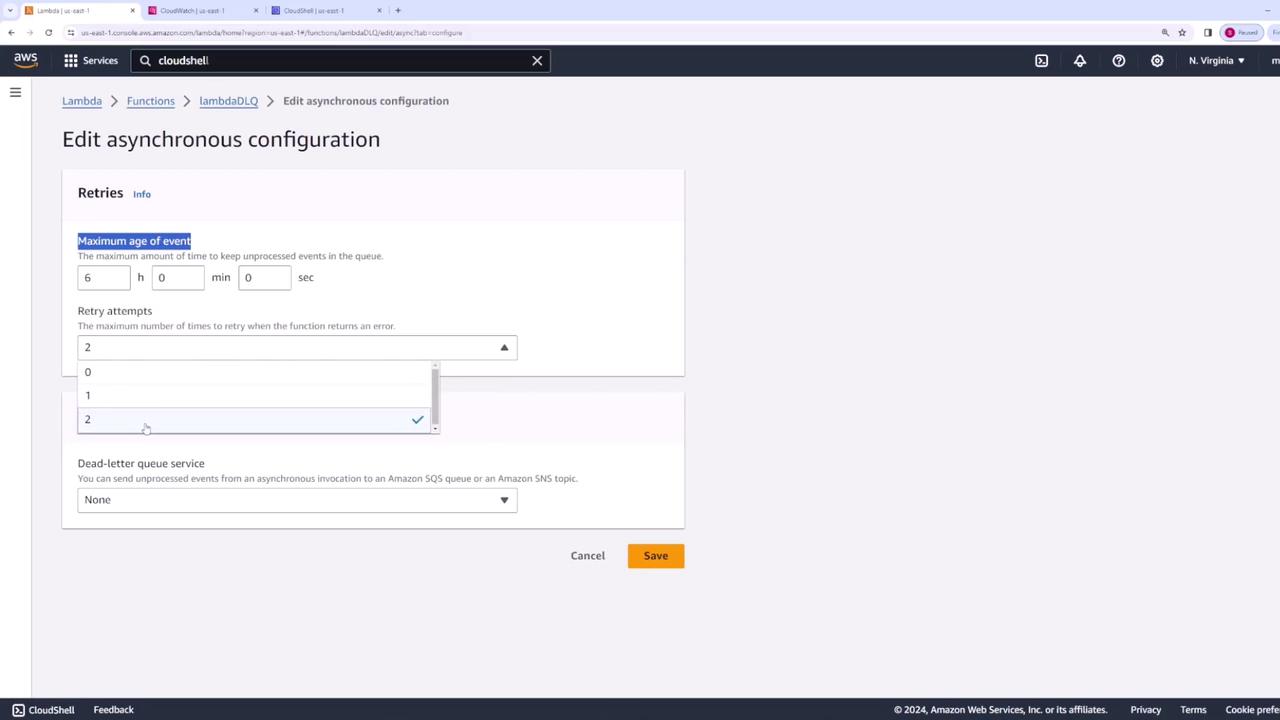
Navigate to your Lambda function’s configuration page and select the Asynchronous invocation section.
Configure the “Maximum age of event” and set the “Retry attempts” (by default, AWS retries twice).
Specify an SQS queue to serve as your dead letter queue.
If you haven’t created a DLQ yet, go to the SQS service in the AWS Management Console and create a new standard queue named “lambda DL queue” with default settings.
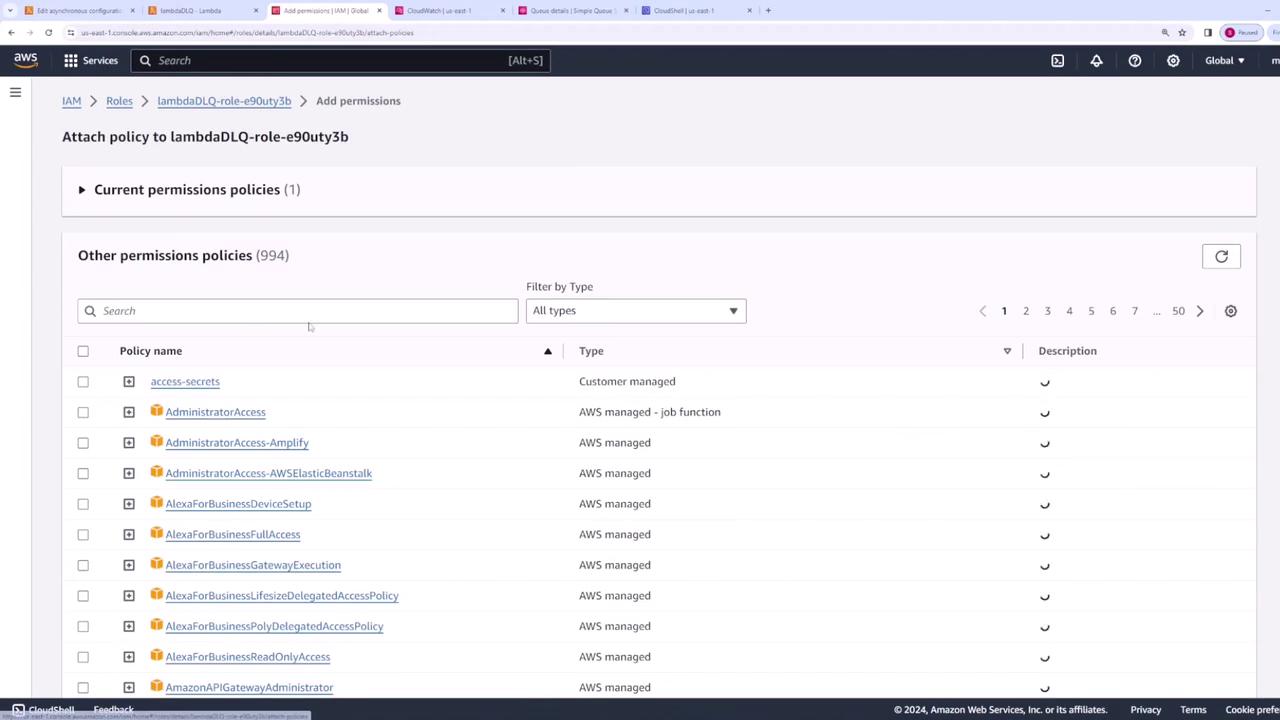
Return to your Lambda configuration, refresh the DLQ settings, select the new “lambda DL queue”, and save the configuration. If you encounter a permission error for SendMessage on the SQS queue, proceed to update the Lambda function’s IAM role.
With the DLQ configured, it’s time to test the setup. Since the function now throws an error, AWS Lambda retries the invocation (twice, as configured) before sending the failed event to the DLQ.Use the following AWS CLI command in CloudShell to trigger the function:
A status code of 202 confirms that the invocation was accepted. CloudWatch logs will show multiple retries and corresponding error messages, similar to this output:
{ "errorType": "Error", "errorMessage": "OOPS something went wrong", "stack": [ "Error: OOPS something went wrong", " at Runtime.handler (file:///var/task/index.js:4:9)", " at Runtime.handleOnce (file:///var/runtime/index.js:117:29)" ]}
Finally, visit the SQS console to poll for messages. The message sent by the Lambda function, including error details, should appear in the DLQ.
This lesson demonstrated how to set up and test a dead letter queue for an AWS Lambda function. By configuring asynchronous invocation settings and properly updating the Lambda execution role, you ensure that failed events are captured in an SQS DLQ for detailed analysis and troubleshooting. This robust approach helps maintain the reliability and resilience of your serverless applications.