

Installing the AWS SAM CLI
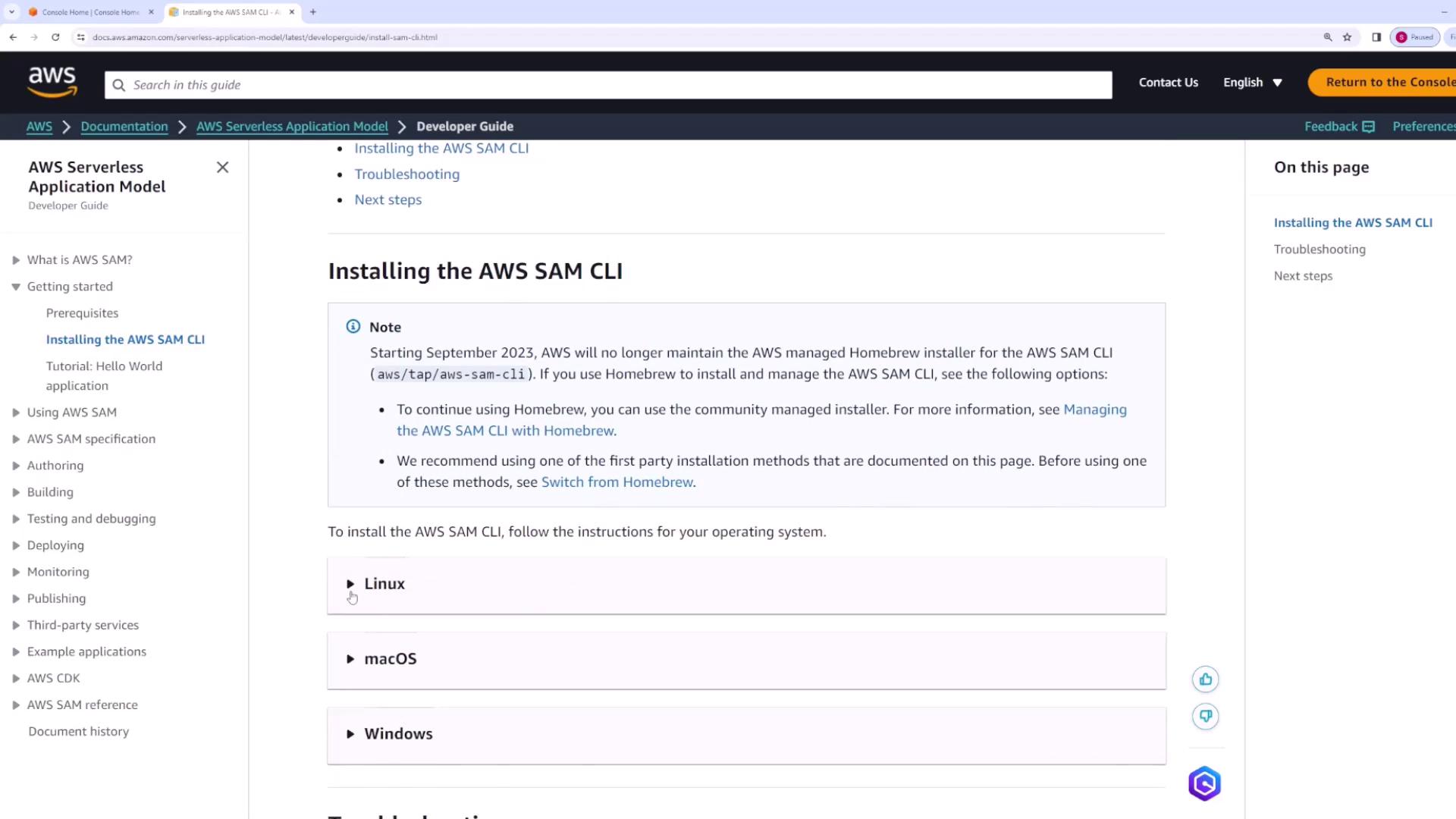
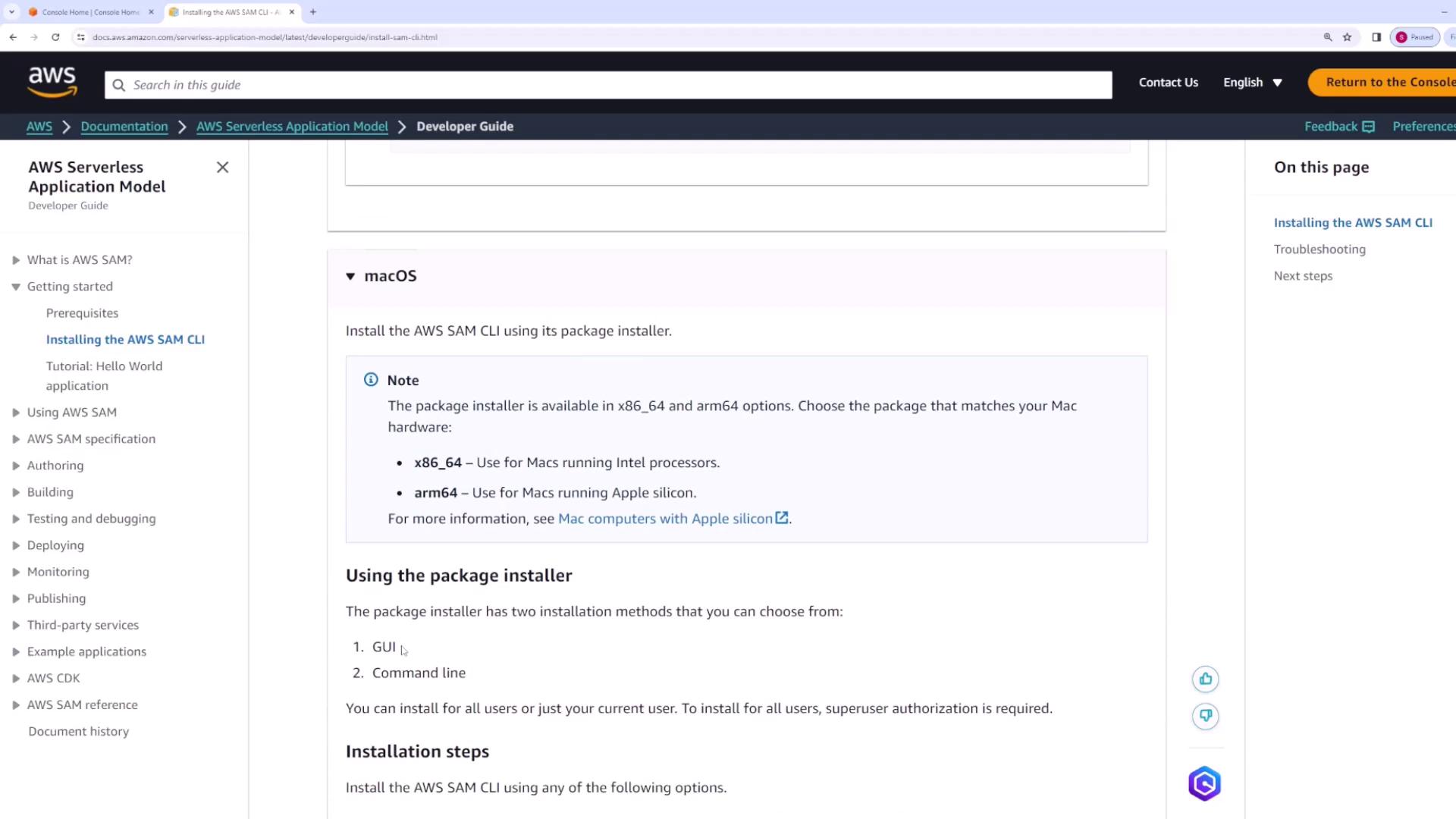
Before you begin, review the AWS Serverless Application Model Developer Guide’s Getting Started section for installation instructions specific to your operating system. For instance, when following the Linux instructions, you will find a downloadable installer.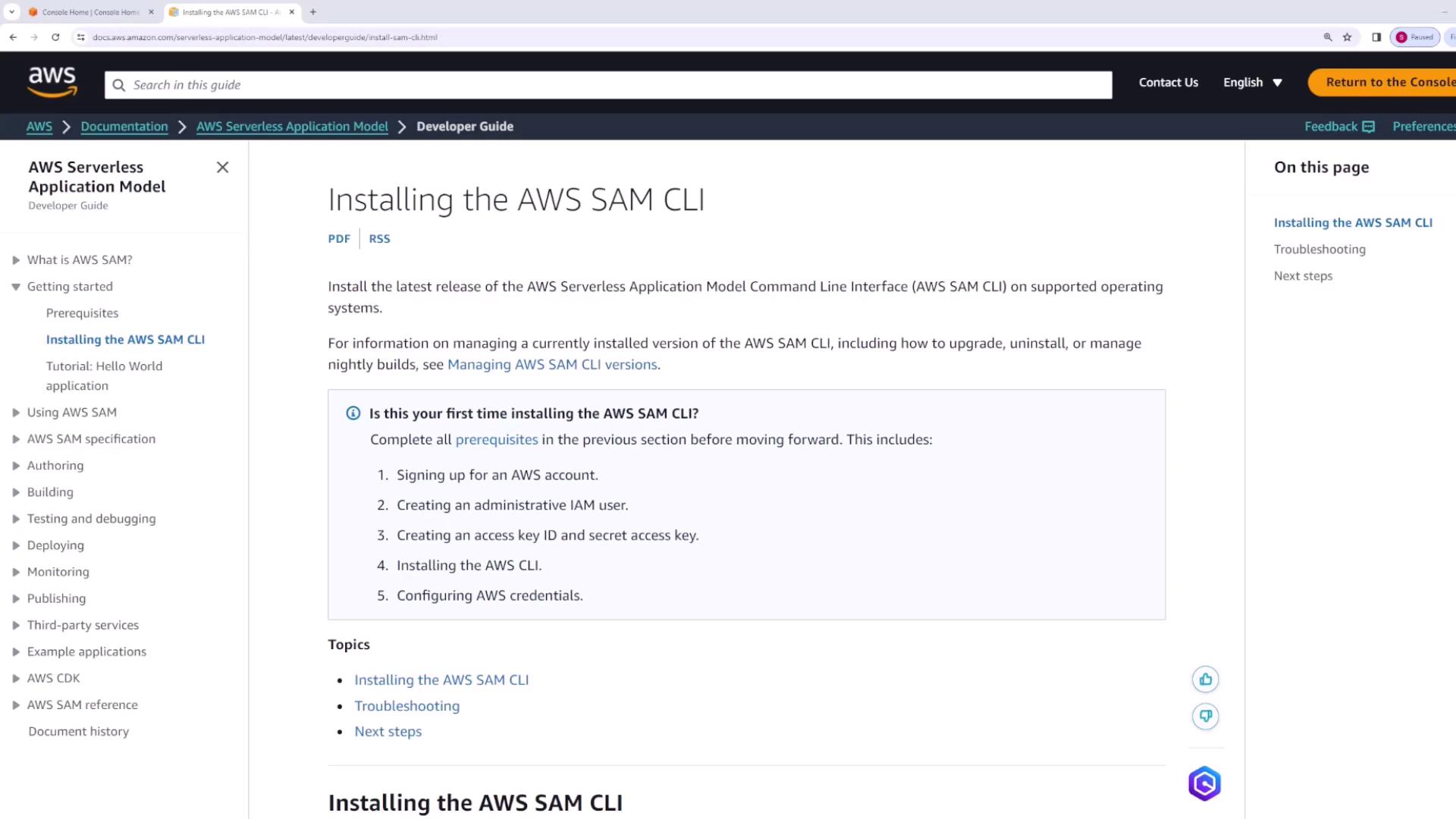
- docs – Opens the CLI documentation in your browser.
- init – Bootstraps a new AWS SAM application.
- build – Builds your serverless function code.
- sync – Synchronizes your changes with AWS.
- package and deploy – Package and deploy your Lambda functions and configurations.
Creating a Basic Lambda Function
In this section, we will manually create the files for our Lambda function. In future demos, we will use the SAM CLI init command to bootstrap projects.Setting Up the Project Structure
- Create a folder called
Hello-world. - Inside this folder, create a file named
app.js(note that the file name can be arbitrary, but the SAM template must reflect the correct handler).
app.js:
Creating the SAM Template
Create a file calledtemplate.yaml in your project root. This file documents your serverless application resources. Below is a basic configuration defining a Lambda function resource named HelloWorld:
- The Runtime is set to Node.js 20.x.
- Handler: app.handler indicates that SAM will look in the
app.jsfile for the exportedhandlerfunction. - CodeUri specifies the folder containing your Lambda source code.
- MemorySize and Timeout define your function’s memory allocation and execution timeout.
Deploying the Application
With your code and template ready, you can deploy your application using the SAM CLI.Running a Guided Deployment
Start the guided deployment process by running:samconfig.toml file exists initially, SAM will prompt you for deployment options. An example session might look like:
y, CloudFormation provisions the required resources, including an IAM role and the Lambda function.
Verifying Resource Creation
After deployment, verify that the resources have been created in AWS.In S3
An S3 bucket is created to store your deployment artifacts. For example: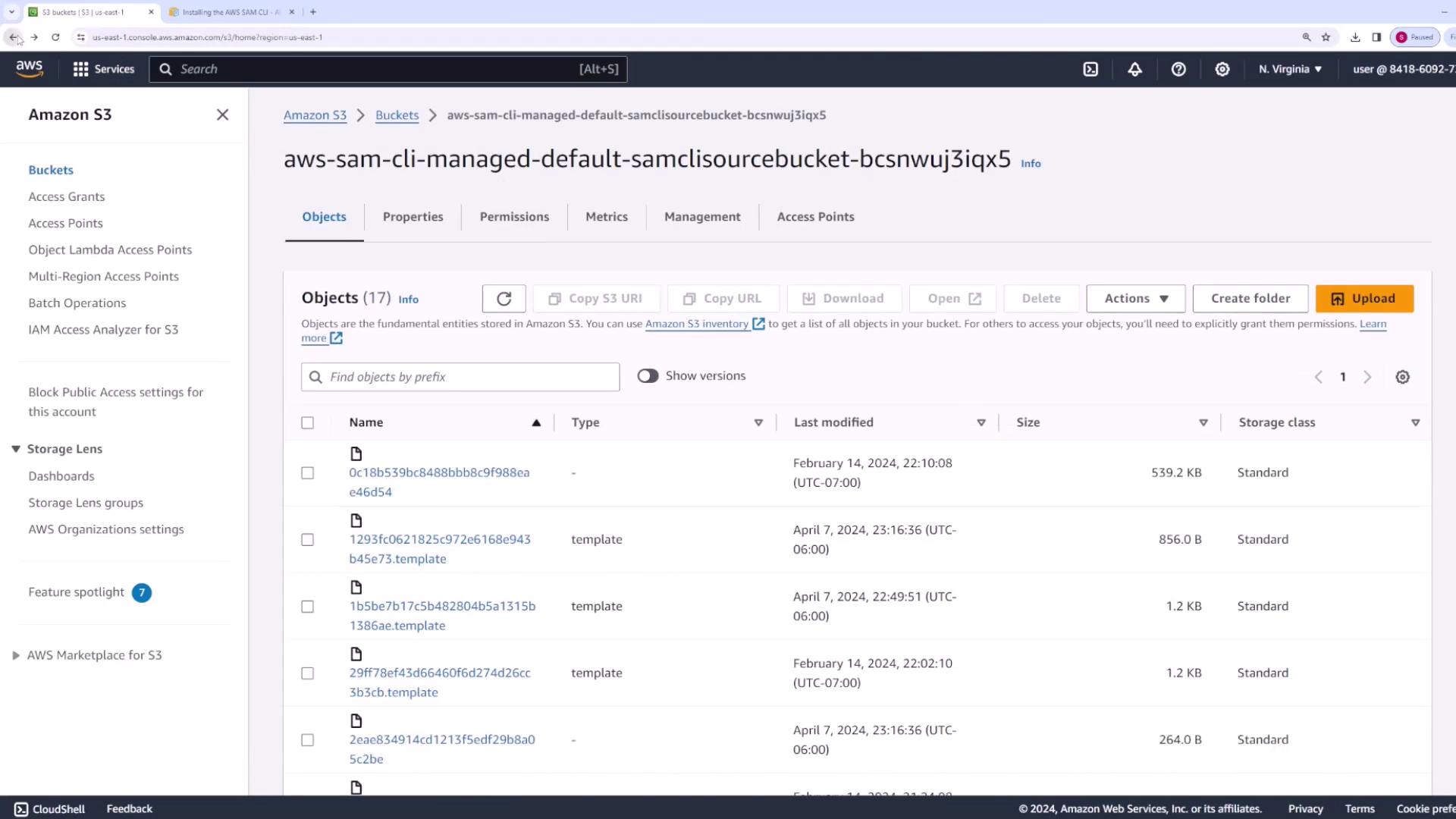
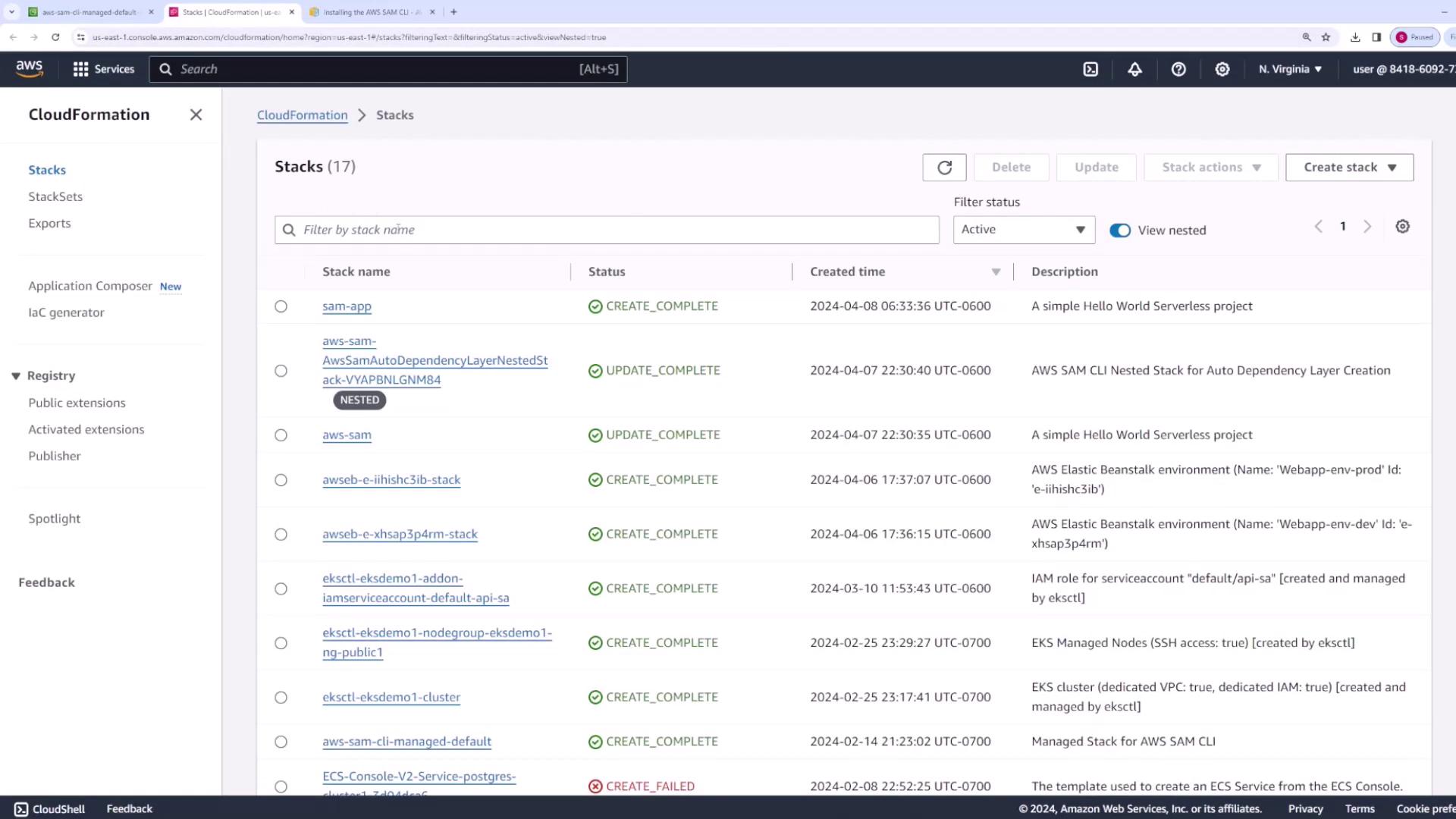
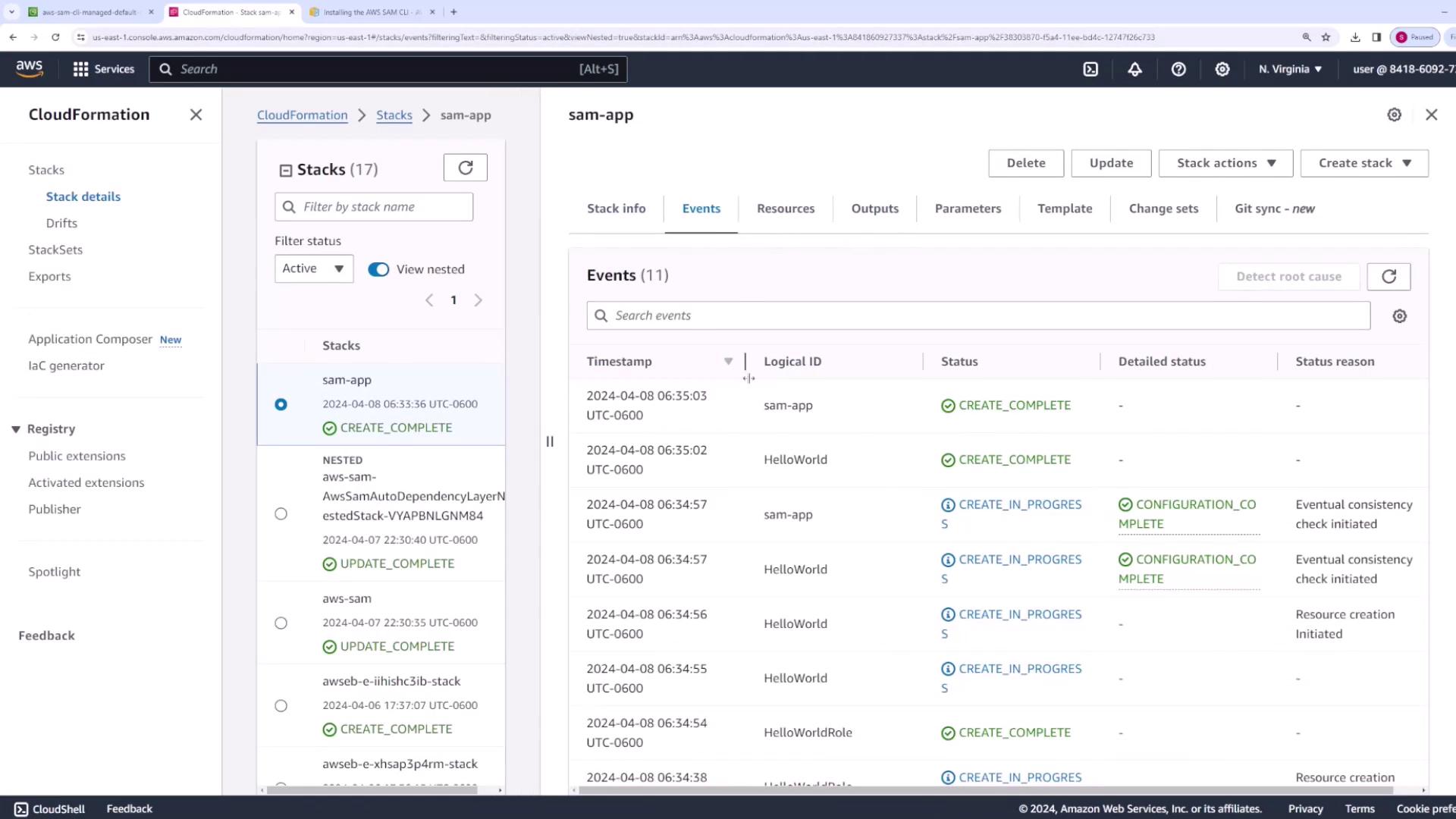
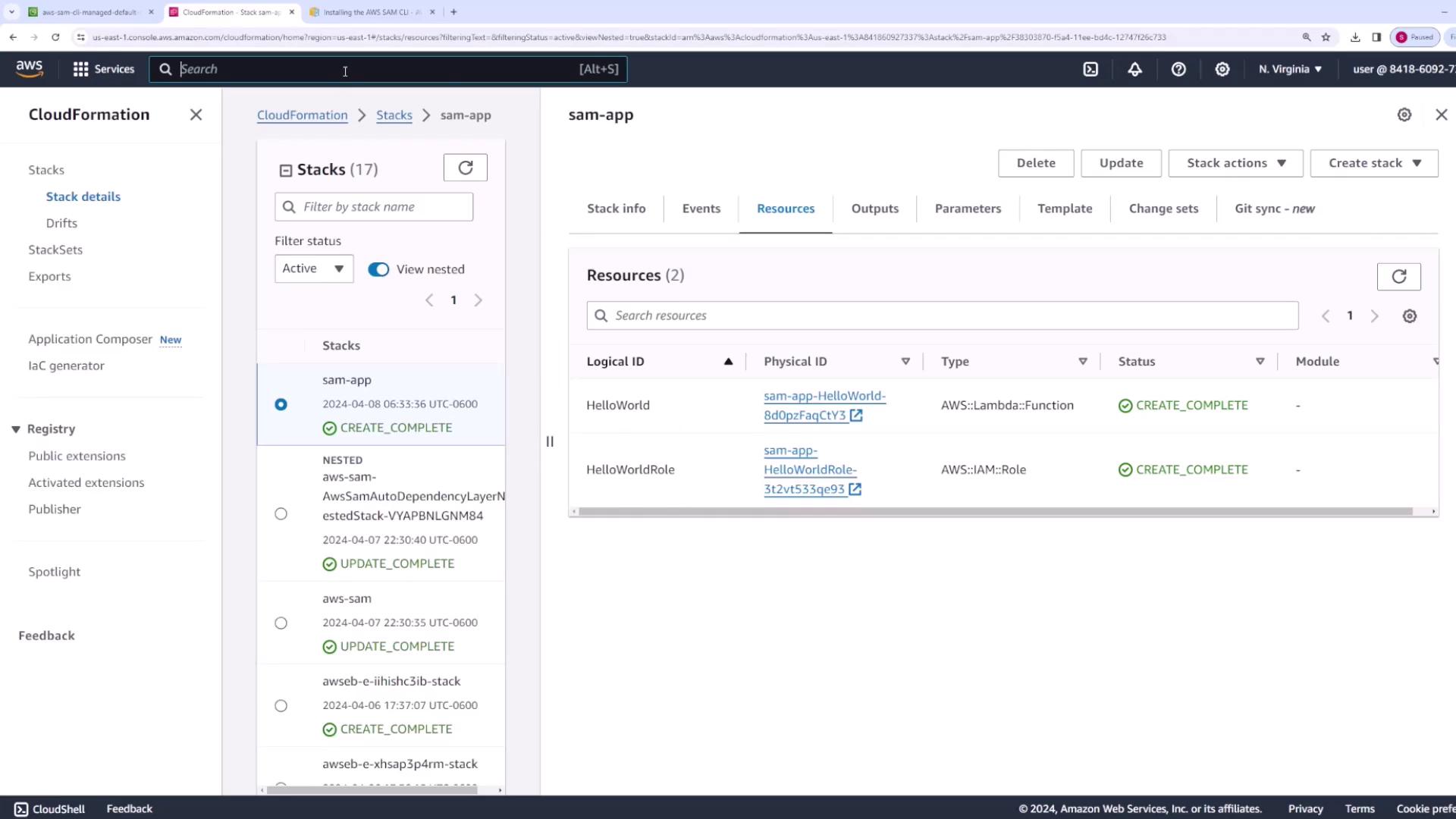
In CloudFormation
The CloudFormation console displays thesam-app stack with resources like the Lambda function and its associated IAM role.
In Lambda
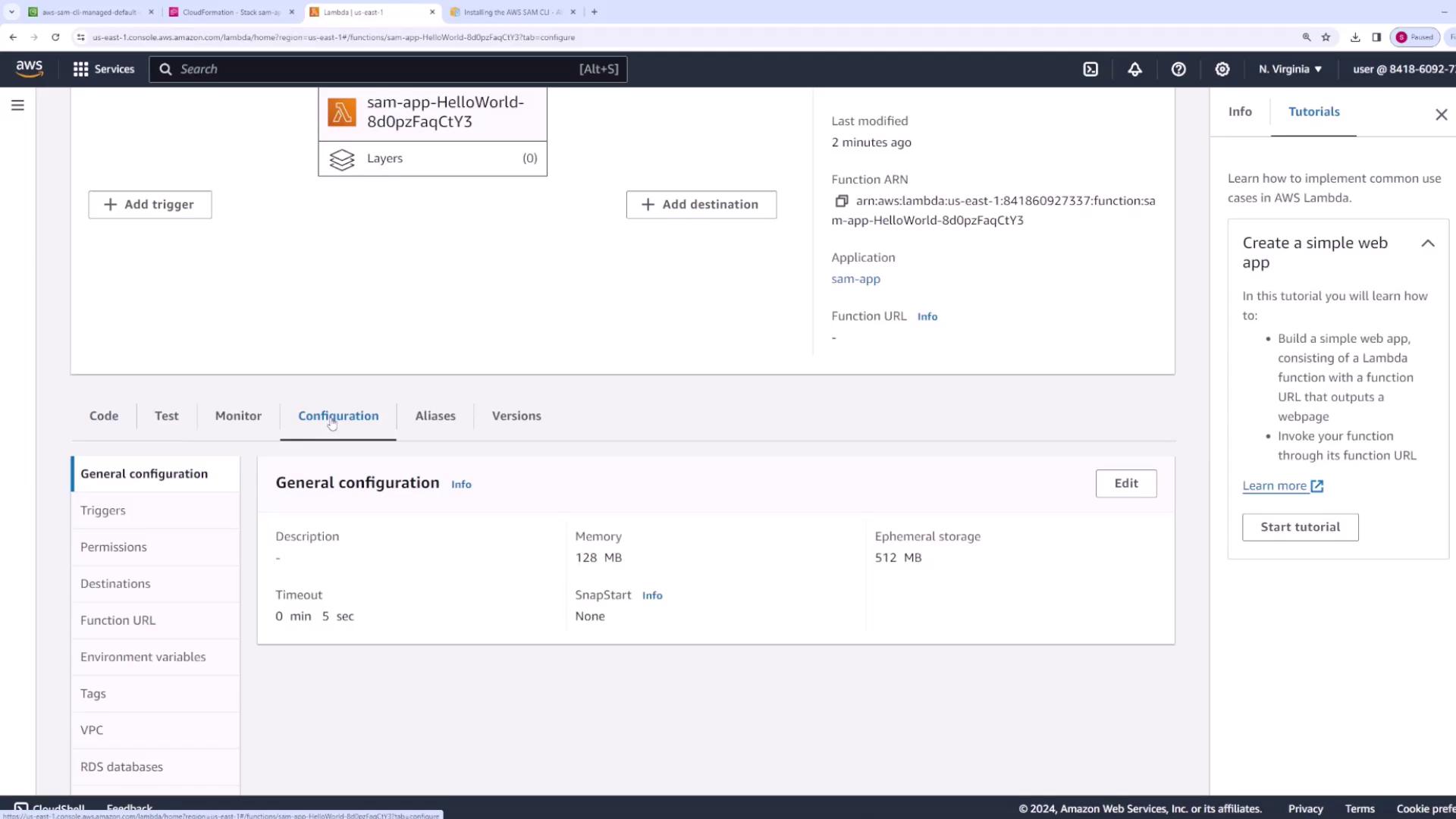
Visit the Lambda console to verify the deployed function. Check the function’s code, memory settings (128 MB), timeout (5 seconds), and the attached IAM role.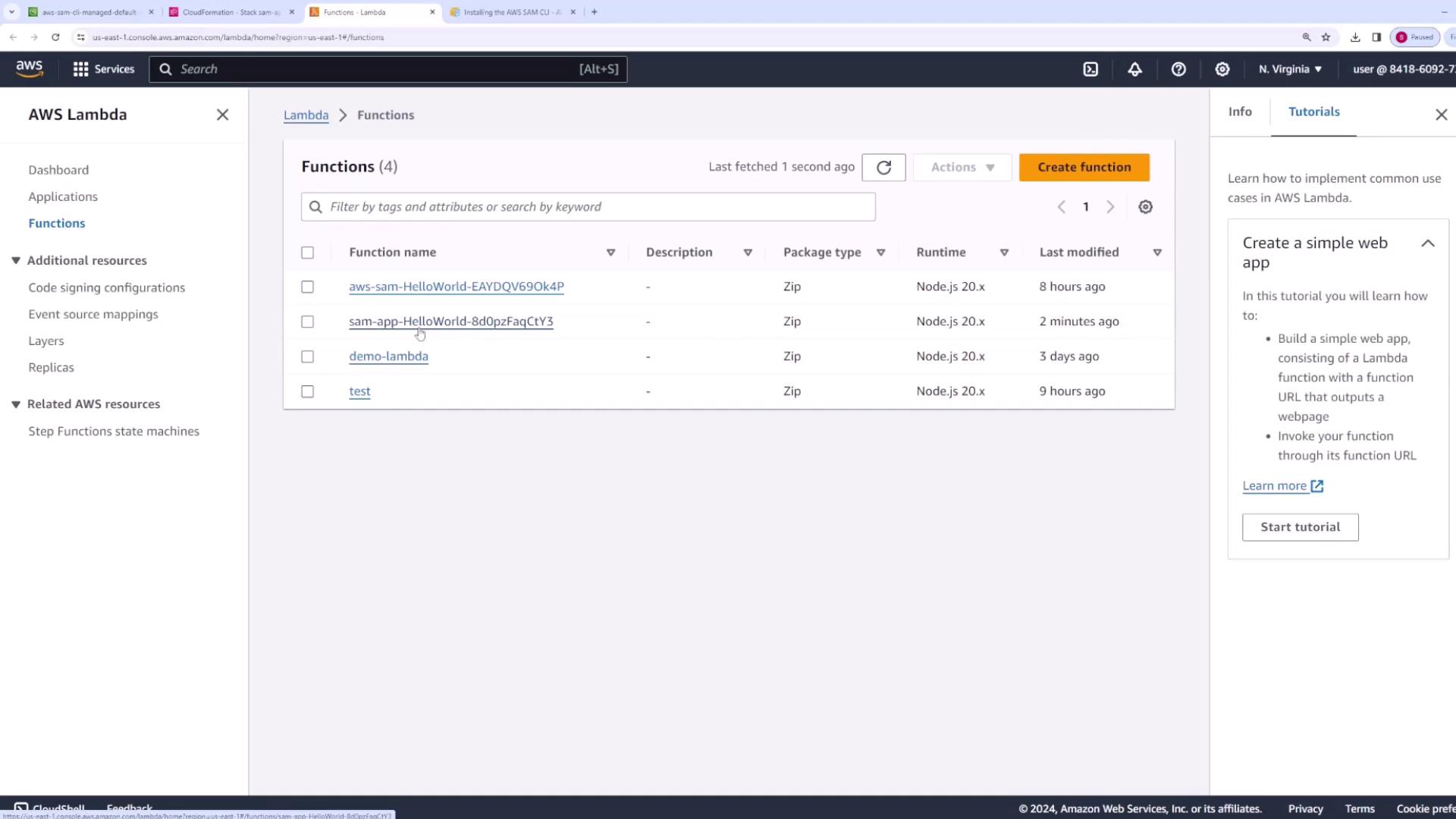
Invoking the Lambda Function from the CLI
You can test your deployed Lambda function directly from the CLI. Run the following command:Updating Code Efficiently with SAM Sync
For iterative development, rather than performing a full deploy each time you modify your code, use the SAM sync command to update your function quickly. For example, after changing the response message inapp.js, update the code like this:
Listing Deployed Resources
The SAM CLI also provides a way to list the resources and endpoints deployed by your SAM application. To do this, run:samconfig.toml. An example configuration might be:
Cleaning Up
When you’re finished testing, clean up the deployed resources by running:This process ensures that no unnecessary resources are left running, which can help avoid unwanted charges.
This concludes our introductory demonstration of working with the AWS SAM CLI. In our next article, we’ll explore more advanced functionalities of the SAM CLI and discuss further optimization techniques for your development workflow. Happy coding!