Use this file to discover all available pages before exploring further.
In this guide, we explore how to work with AWS using the AWS SDK. The AWS SDK enables you to interact with AWS services directly from your application code. Whether you’re building applications in JavaScript, Python, or any other supported language, simply provide your AWS credentials, install the appropriate SDK, and perform operations programmatically—just as you would via the AWS Console or CLI.
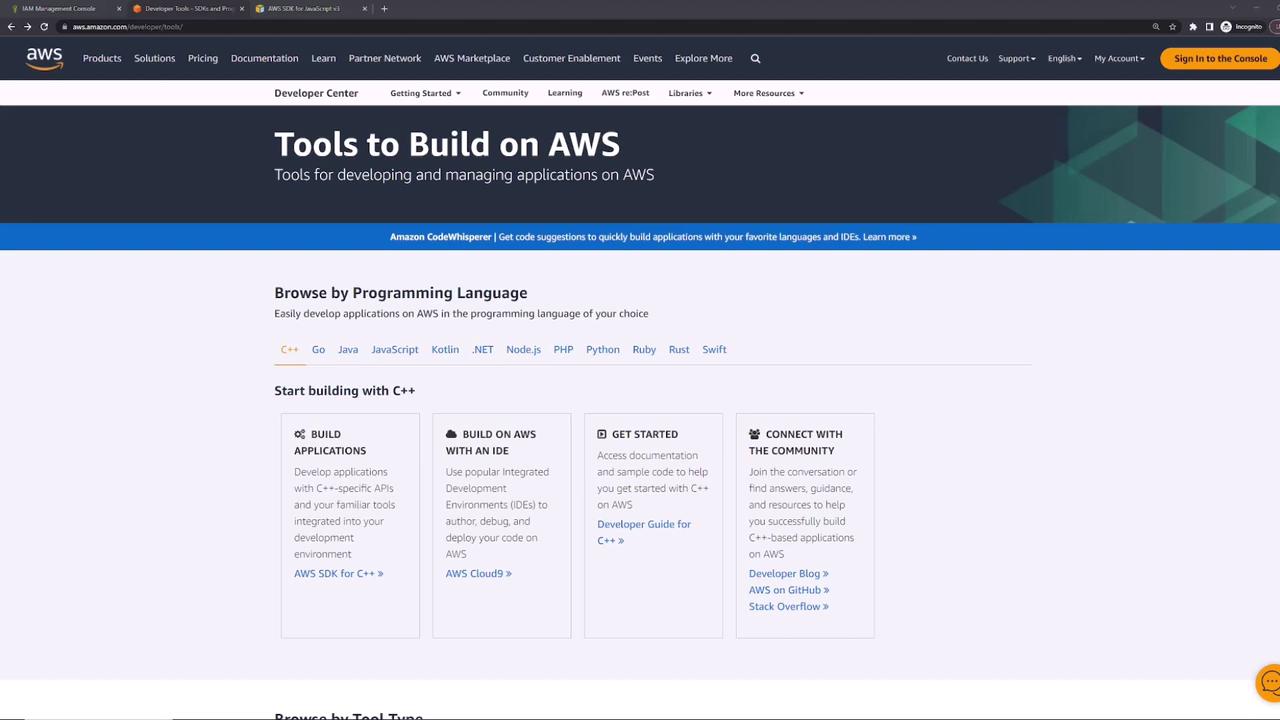
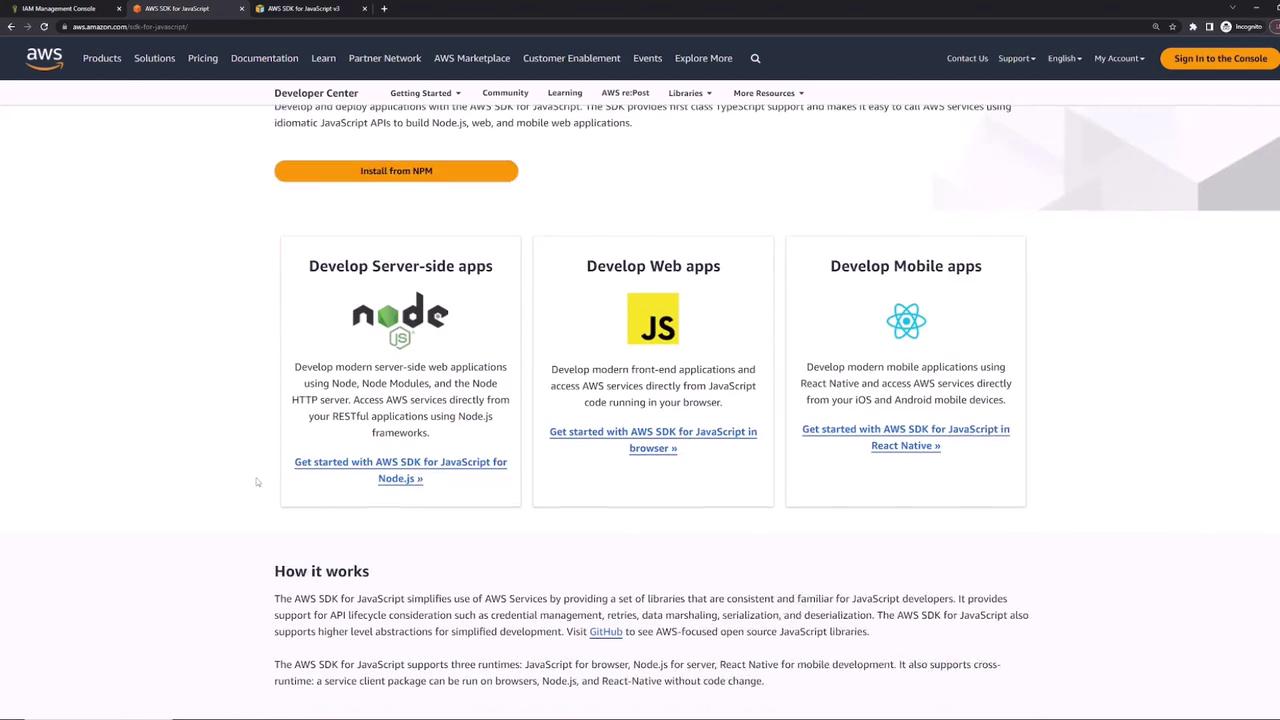
Consider a scenario where you are using Amazon S3 to store images or files for a web application. Every time a user uploads a file, your server can use the AWS SDK to seamlessly store that file in S3. For comprehensive documentation and setup instructions tailored for different programming languages, visit the AWS Developer Tools page. Selecting JavaScript, for example, will guide you to the AWS SDK for JavaScript documentation. This article focuses on a Node.js example.
Before you begin, ensure that you have Node.js installed on your development environment. For detailed setup instructions, refer to the official AWS SDK documentation.
The first step in using the AWS SDK is to import the required methods or objects from the library. In this Node.js example, we import the S3 client along with the commands needed to create and list S3 buckets. (Note that for other programming languages, the library installation and syntax might differ; for example, Python uses pip instead of npm.)Below is a consolidated code example that imports the S3 client, creates a bucket with specific configuration parameters, and then lists all available S3 buckets:
import { S3Client, CreateBucketCommand, ListBucketsCommand,} from "@aws-sdk/client-s3";// Initialize the S3 client with the default regionconst client = new S3Client({ region: "us-east-1" });// Configure the new bucketconst bucketConfig = { Bucket: "kk-sdk1-demo", CreateBucketConfiguration: { LocationConstraint: "us-east-2", // Overrides the default region for bucket creation },};// Create the bucketconst command = new CreateBucketCommand(bucketConfig);const response = await client.send(command);// List all bucketsconst listCommand = new ListBucketsCommand({});const listResponse = await client.send(listCommand);// Output the list of buckets to the consoleconsole.log(listResponse);
Refer to the AWS SDK documentation to determine which commands and objects to import for your particular needs. The documentation for AWS SDK version 3 for JavaScript provides a full list of available operations for Amazon S3, including the CreateBucketCommand and ListBucketsCommand.
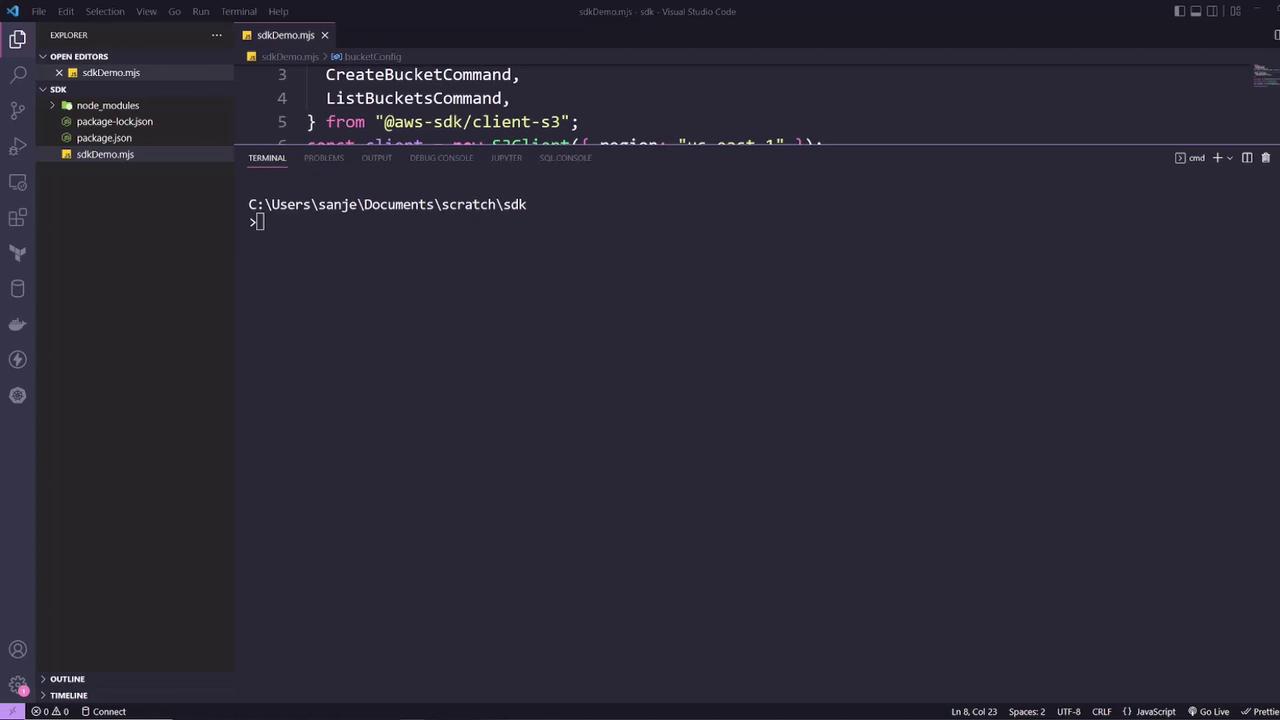
After setting up your code (for example, saving it as sdkDemo.mjs), run the application using Node.js. The terminal output should confirm that the bucket was created and list all existing buckets. A sample terminal output might resemble the following:
This output confirms that the bucket “kk-sdk1-demo” was successfully created and shows other existing buckets. The process of interfacing with the AWS SDK is analogous to using the AWS Console or CLI; once you understand the documentation, you can perform most tasks programmatically.
Integrating AWS services like Amazon S3 into your applications is simplified by using the AWS SDK. By installing the SDK and following the official AWS documentation for commands and configuration, you can streamline the interactions with AWS services. This abstraction allows you to focus on your application logic while the SDK handles the complexities of interacting with AWS.