Before you begin, ensure Git is installed on your machine. You can download it from the official Git website. After installation, confirm by running:git —versionIf a version number appears, Git is installed correctly.
Setting Up Authentication
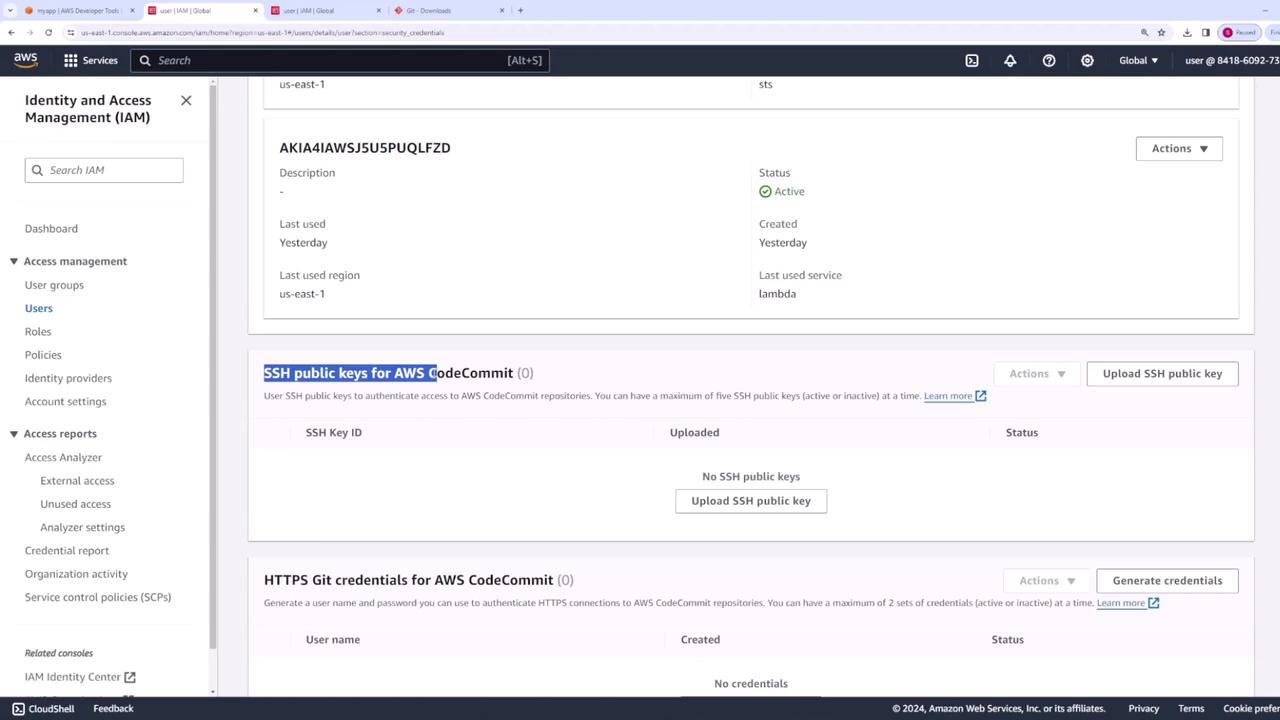
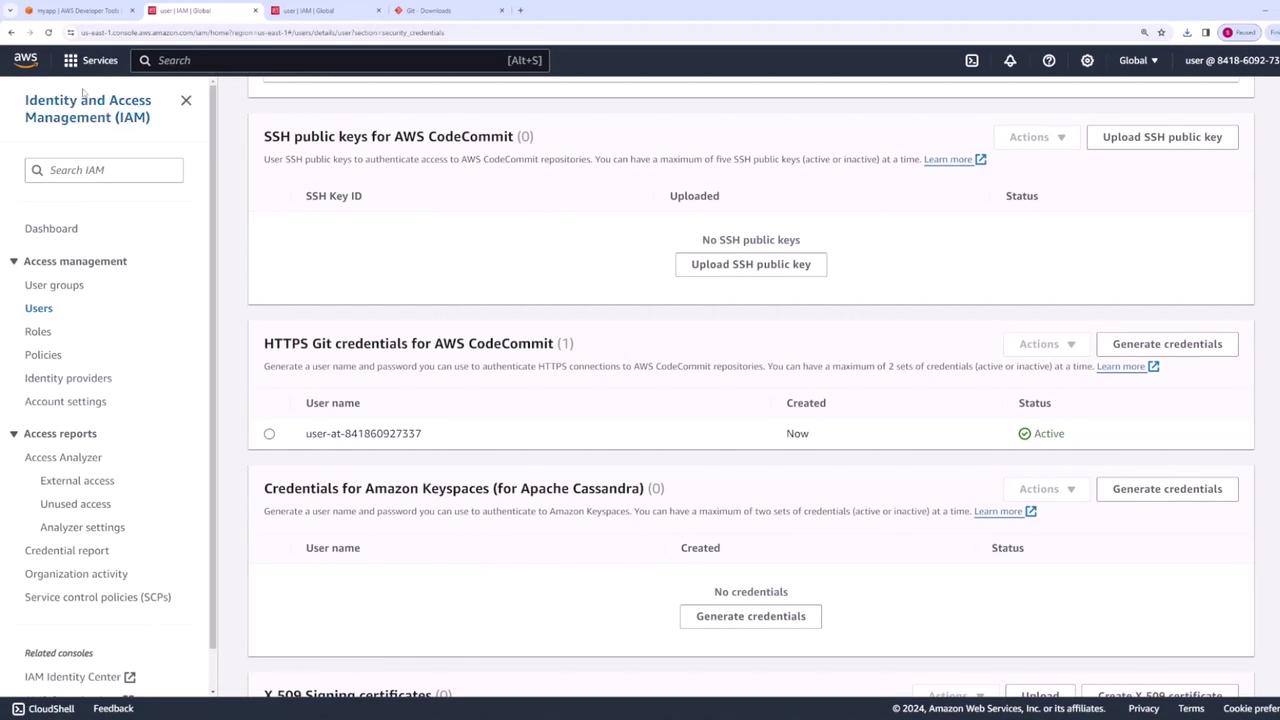
Since CodeCommit repositories are private, you must configure authentication to access them. Follow these steps to set up HTTPS Git credentials:- Sign in to the AWS IAM console and select your user account (e.g., “user”).
- Navigate to the Security Credentials tab.
- You will see two options for authentication:
- SSH Public Keys: Upload your SSH public key to AWS.
- HTTPS Git Credentials: Generate a username and password specific for CodeCommit.
Cloning the Repository
Open your terminal and, if necessary, clear it before proceeding. Use the HTTPS clone URL to clone your repository:index.js file with pre-configured authentication code. Below is an example of an Express.js application contained in the repository:
Adding Local Files and Committing Changes
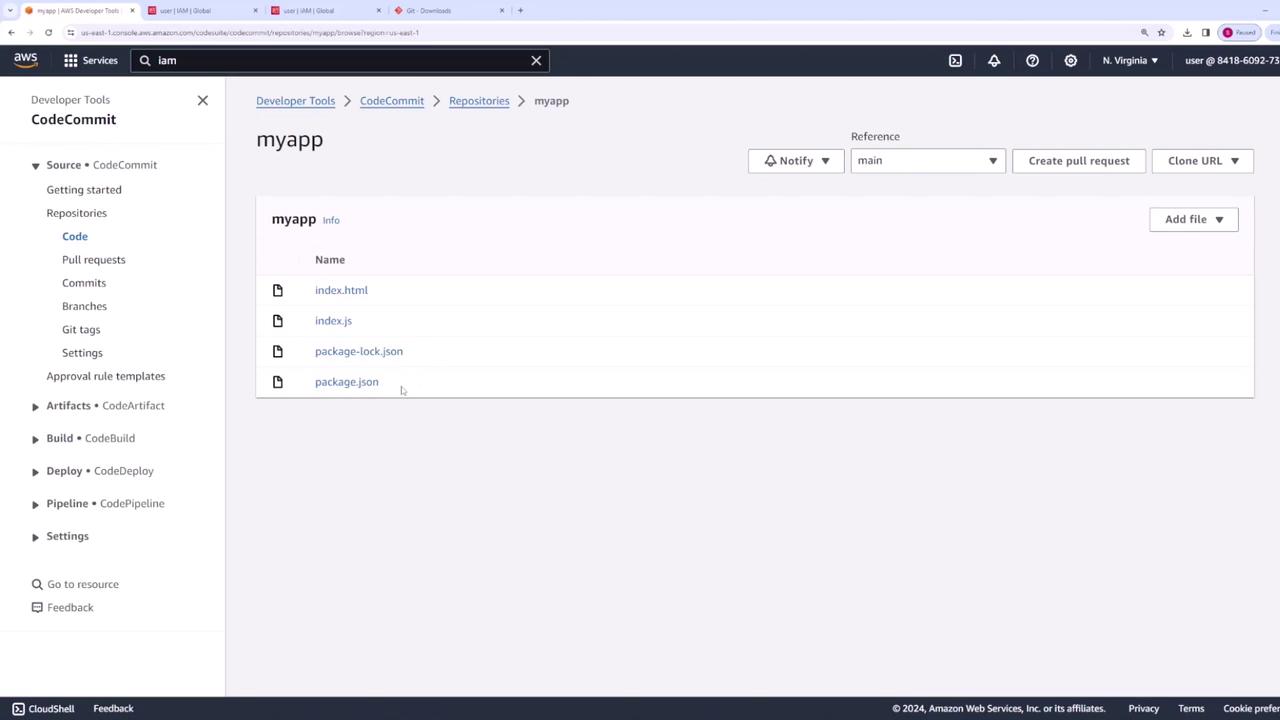
After cloning the repository, add any additional files (likepackage.json, package-lock.json, and index.html) to the “myapp” folder. Then, follow these steps in your terminal:
-
Navigate to the repository folder:
-
Stage the new files:
You might receive warnings regarding line endings (e.g., in
package.jsonandpackage-lock.json). These warnings can typically be ignored, but ensure your commit message is clear and descriptive. -
Commit the changes with a meaningful message:
Pushing Changes to AWS CodeCommit
Once your changes are committed locally, push the updates back to your CodeCommit repository using:- index.js
- index.html
- package.json
- package-lock.json