Creating the Initial Lambda Function (Version 1)
Begin by creating a new Lambda function. For this demonstration, the function is named “demo Lambda.” Once you access the AWS Lambda function creation page, you’ll see a setup screen similar to the one below: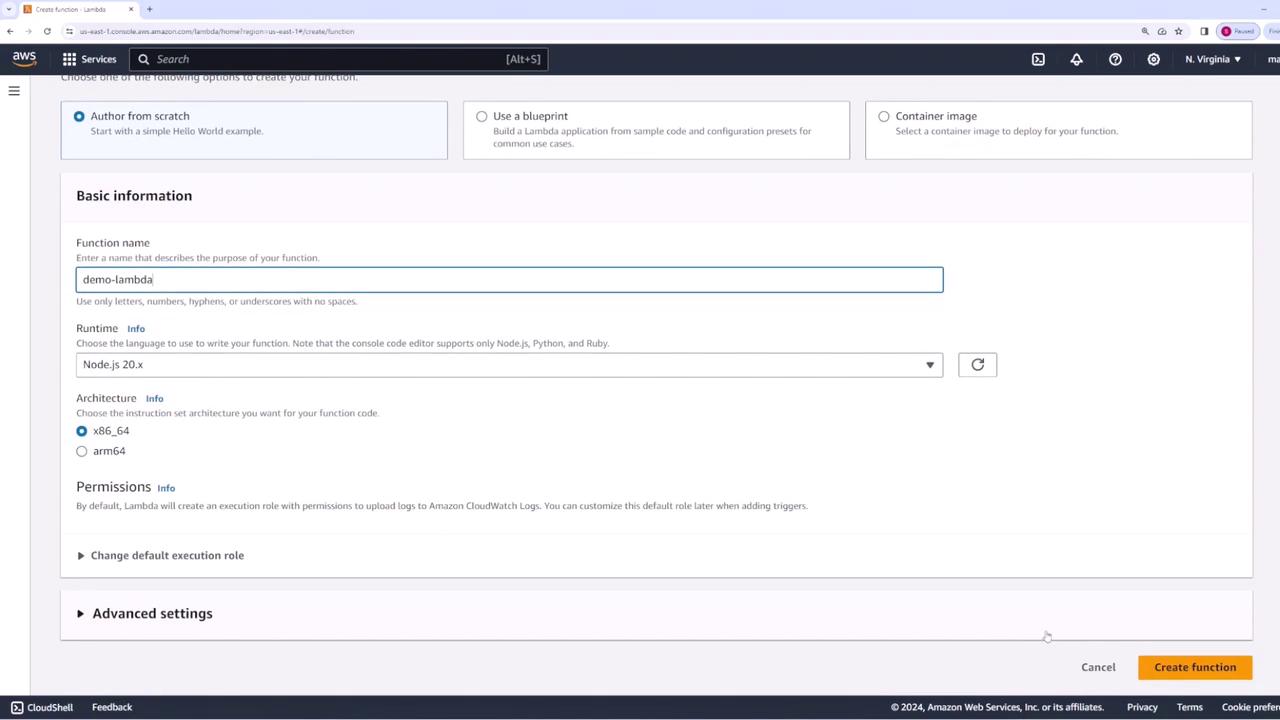
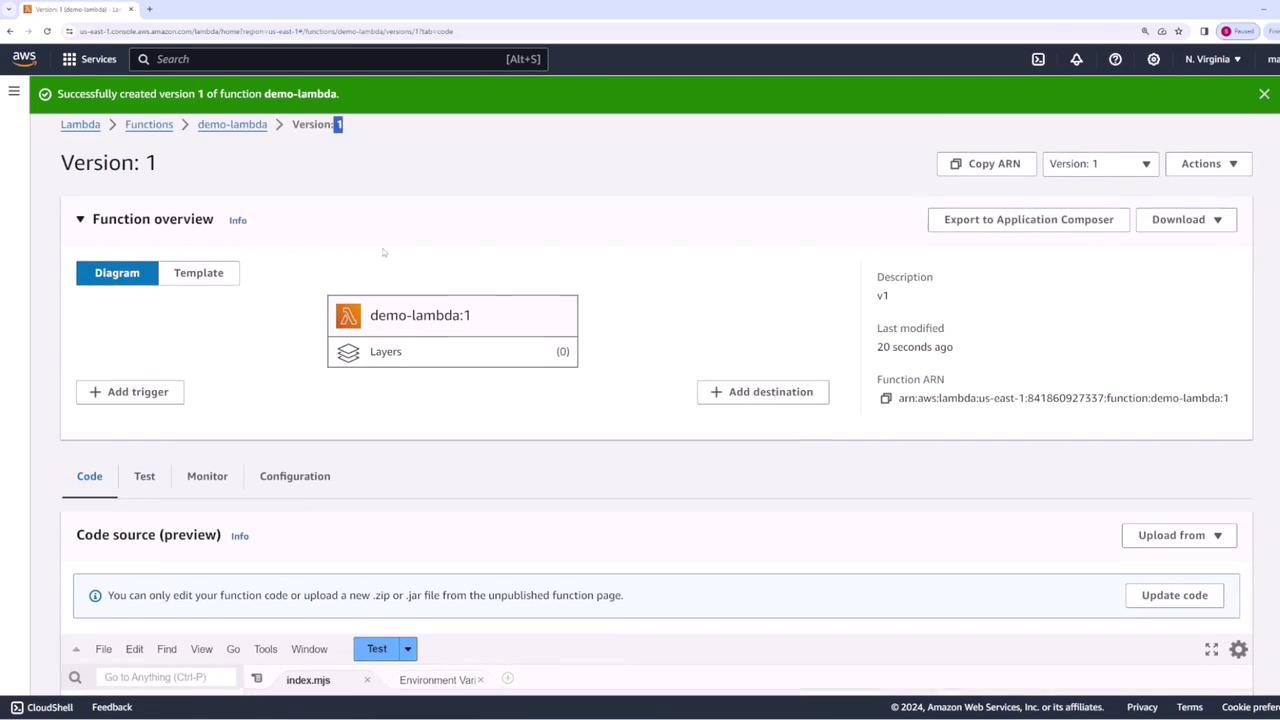
When viewing a specific version, note that the function code is read-only. To modify the code, return to the main Lambda page.
Updating the Lambda Function (Creating Version 2 and Version 3)
Return to the main Lambda page to update the function code and create new versions.Creating Version 2
For version two, update the code—even if it appears the same during testing—and deploy the changes:Creating Version 3
Next, modify the code again to craft version three:Creating and Managing Aliases
Aliases simplify the integration of Lambda functions with services such as API Gateway by abstracting specific version numbers.1. Creating the “prod” Alias
Create an alias named “prod” to signify the production environment. Assign version one to the “prod” alias. The alias creation interface appears as follows: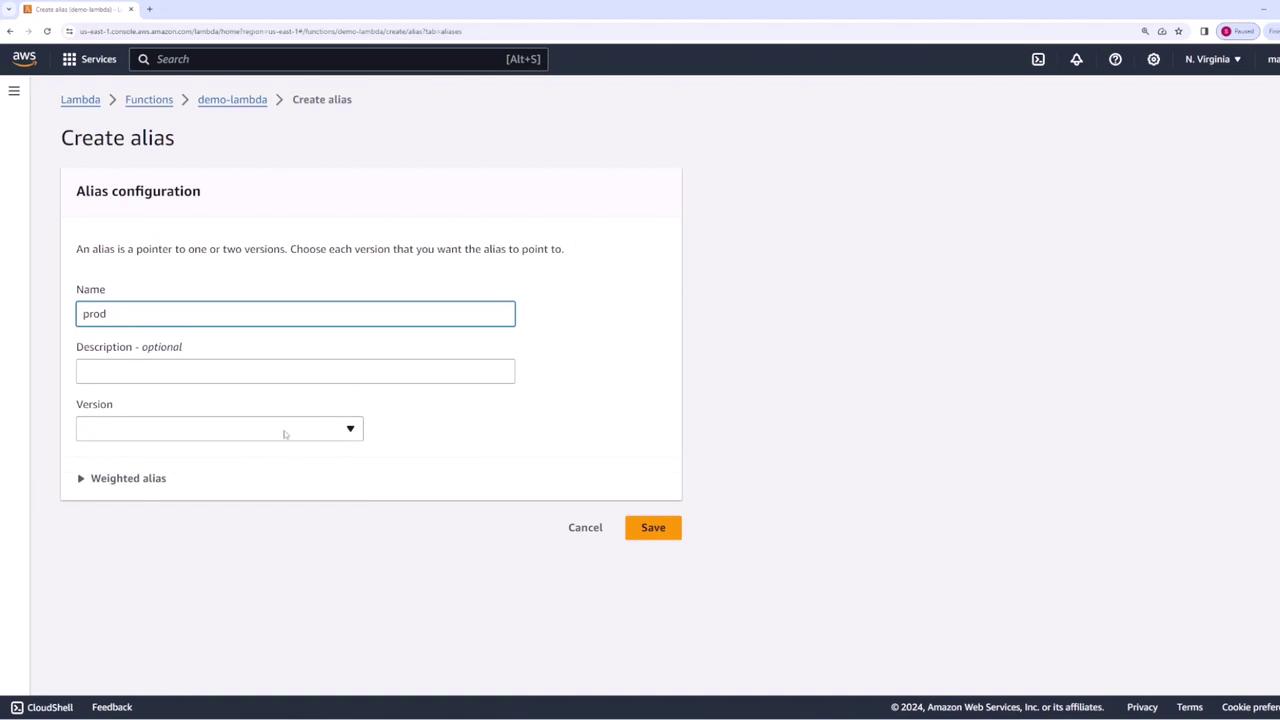
2. Creating the “staging” Alias
Next, create an alias named “staging” and point it to version two. After creation, the Lambda console will show the alias: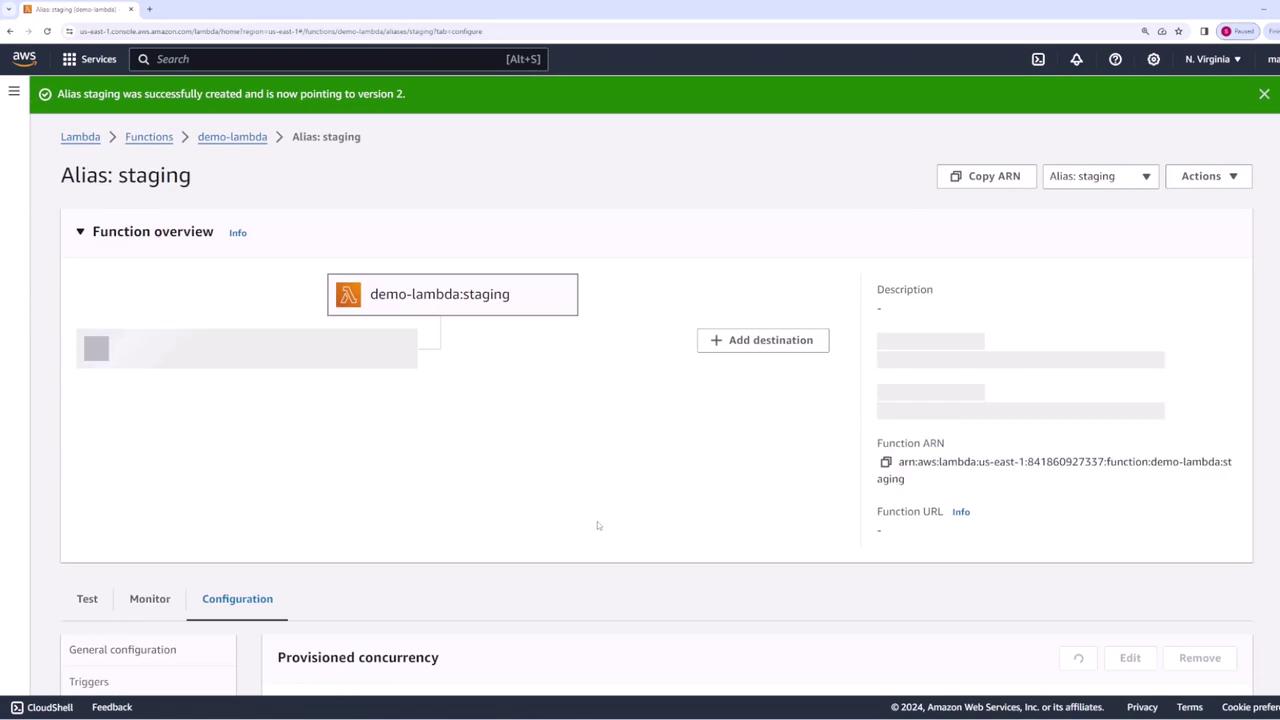
3. Creating the “dev” Alias
Similarly, set up a “dev” alias and assign it to version three. Tests should confirm that the “dev” alias invokes version three.4. Creating a “playground” Alias for the Latest Code
If you haven’t published your latest changes, the main Lambda page shows the most recent code as “$LATEST.” You can create an alias—for example, “playground”—to point to this version. Before testing the “playground” alias, update the code to represent a new iteration: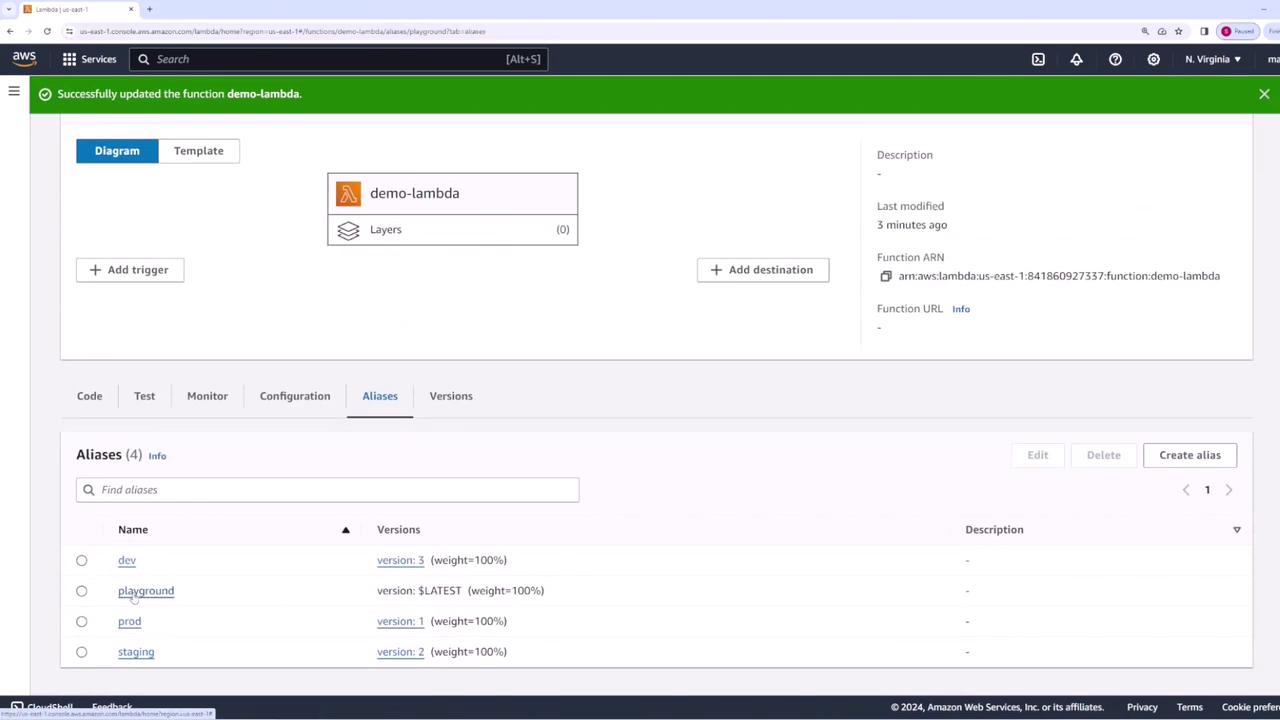
Implementing Weighted Aliases
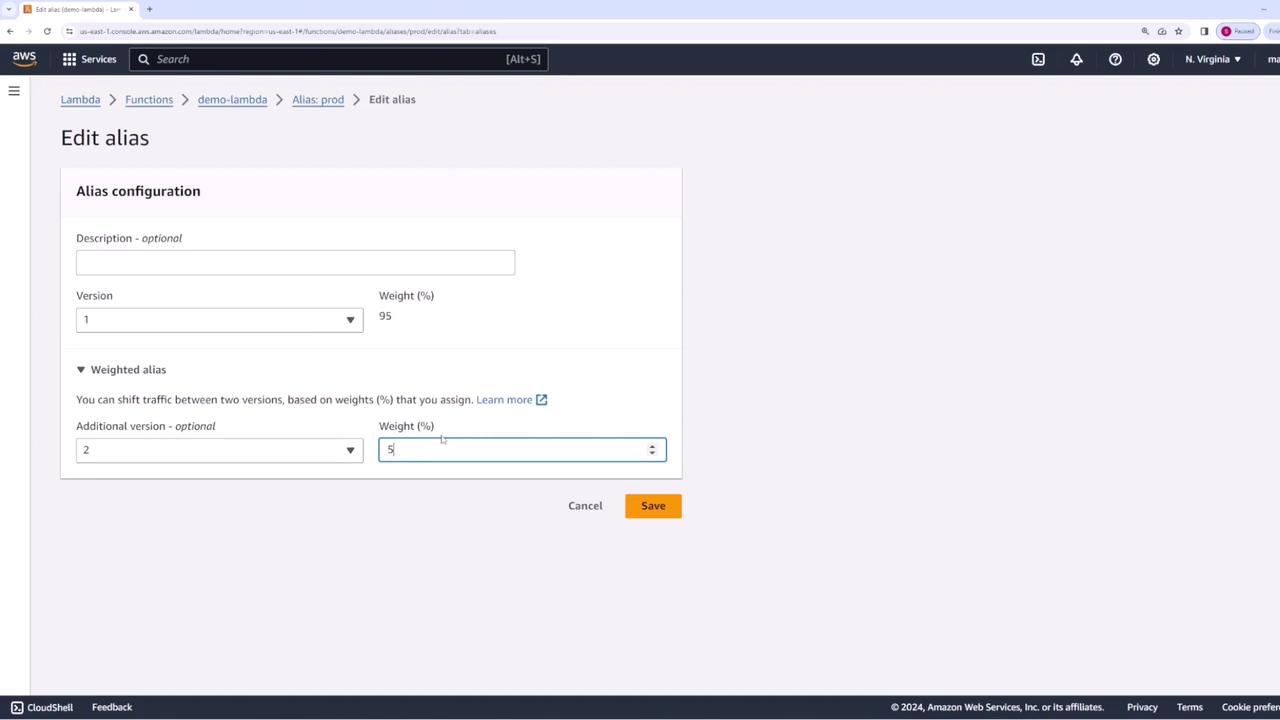
Weighted aliases enable you to gradually shift traffic between different function versions. For example, to roll out version two in production, you can allocate a specific percentage of traffic to it while maintaining the remaining traffic on version one. Follow these steps to set up weighted aliases:- Navigate to the “prod” alias and click on “Edit.”
- Enable the weighted alias option. Add version two as an additional target and set the weight to 50% (in practice, you could start with a smaller percentage, such as 5-10%, for initial testing).