Creating the Lambda Function
Begin by creating a simple Lambda function using the Node.js runtime from the AWS Lambda console. For this demo, we are naming the function “my app” (the exact name is not critical). This function logs the incoming event and returns a response with a status code of 200 along with a message.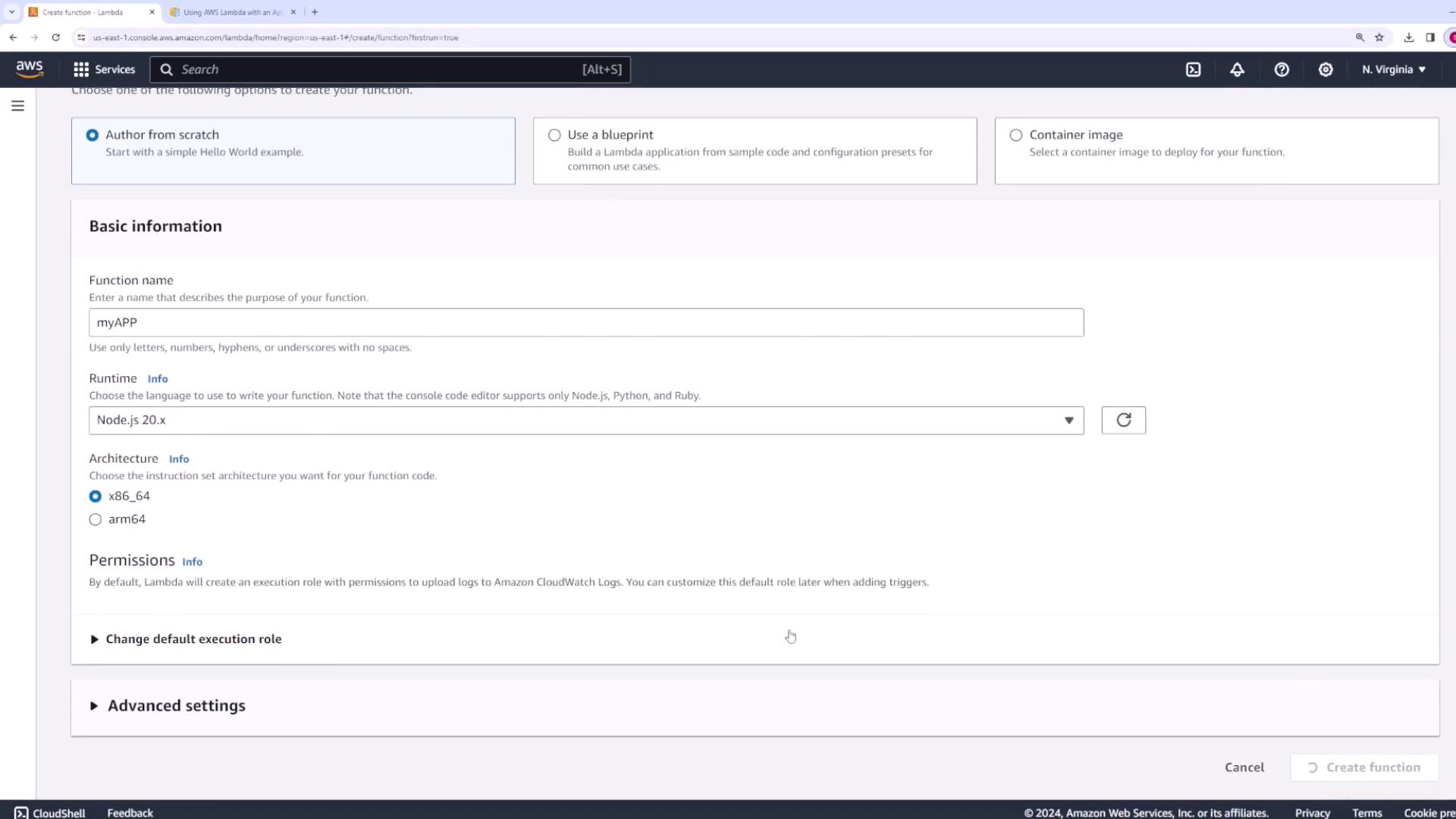

Creating the Application Load Balancer
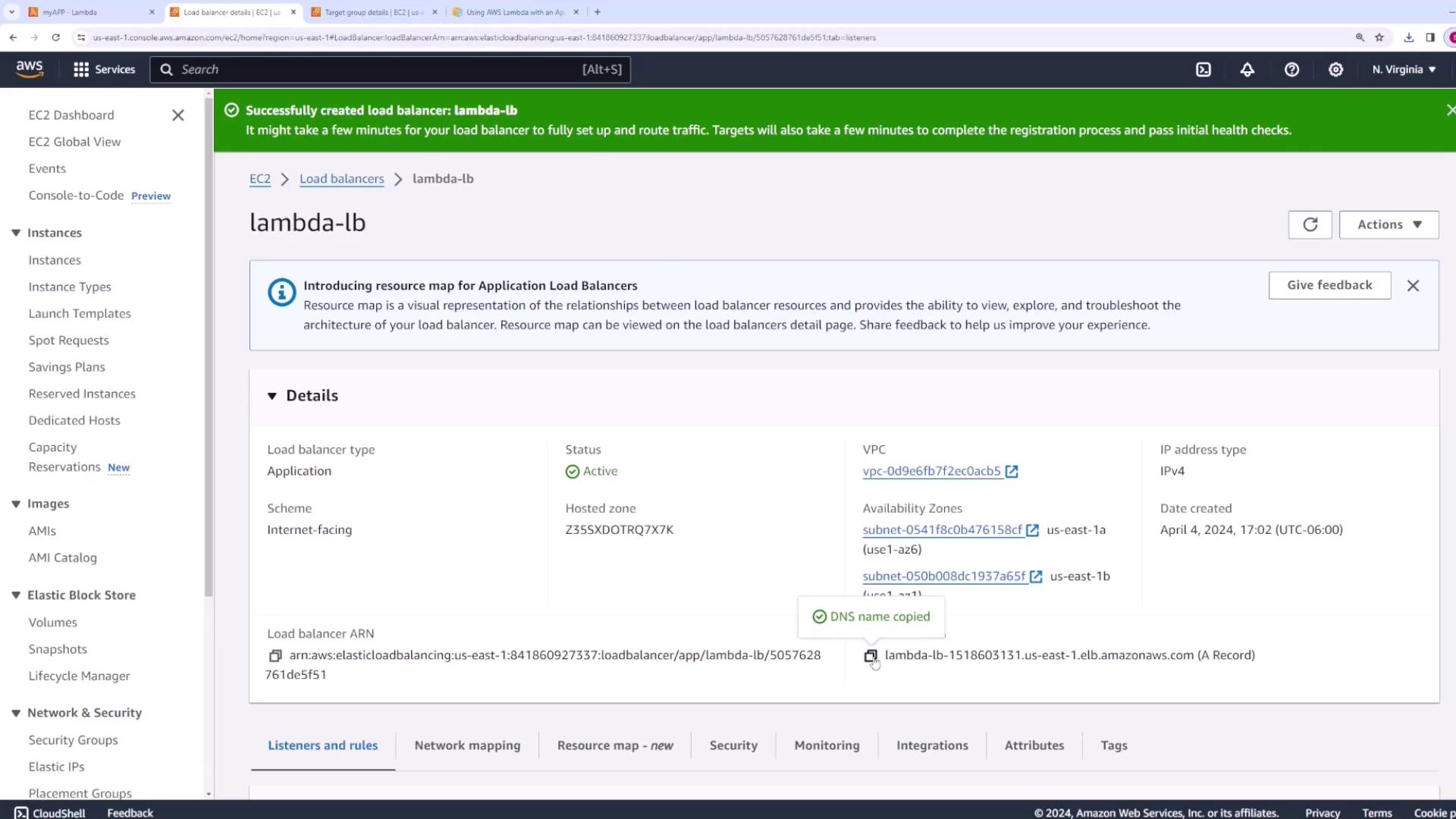
Next, set up the Application Load Balancer that will forward requests to your Lambda function. In the AWS Management Console, navigate to the Load Balancer service and choose to create a new Application Load Balancer.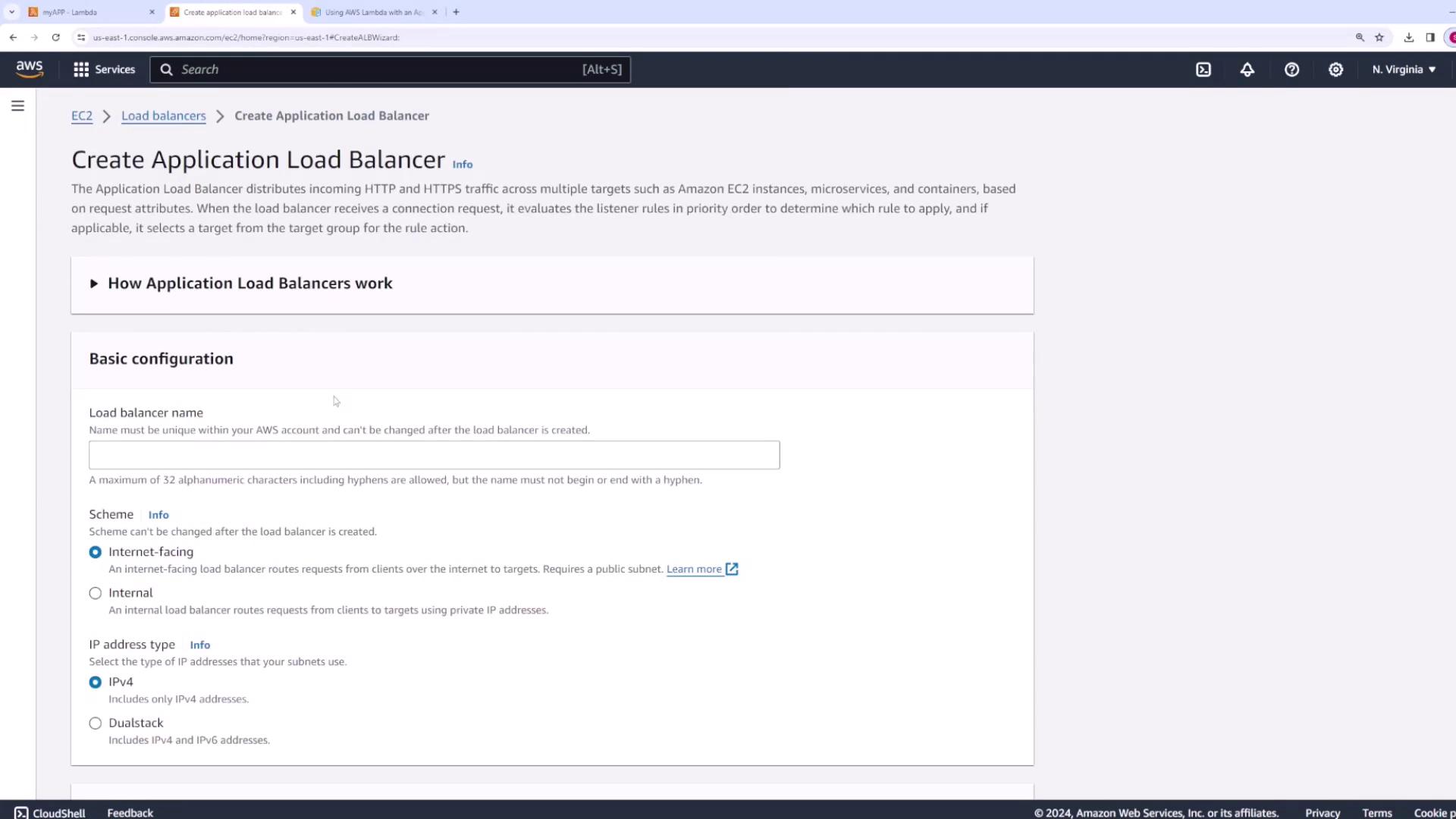
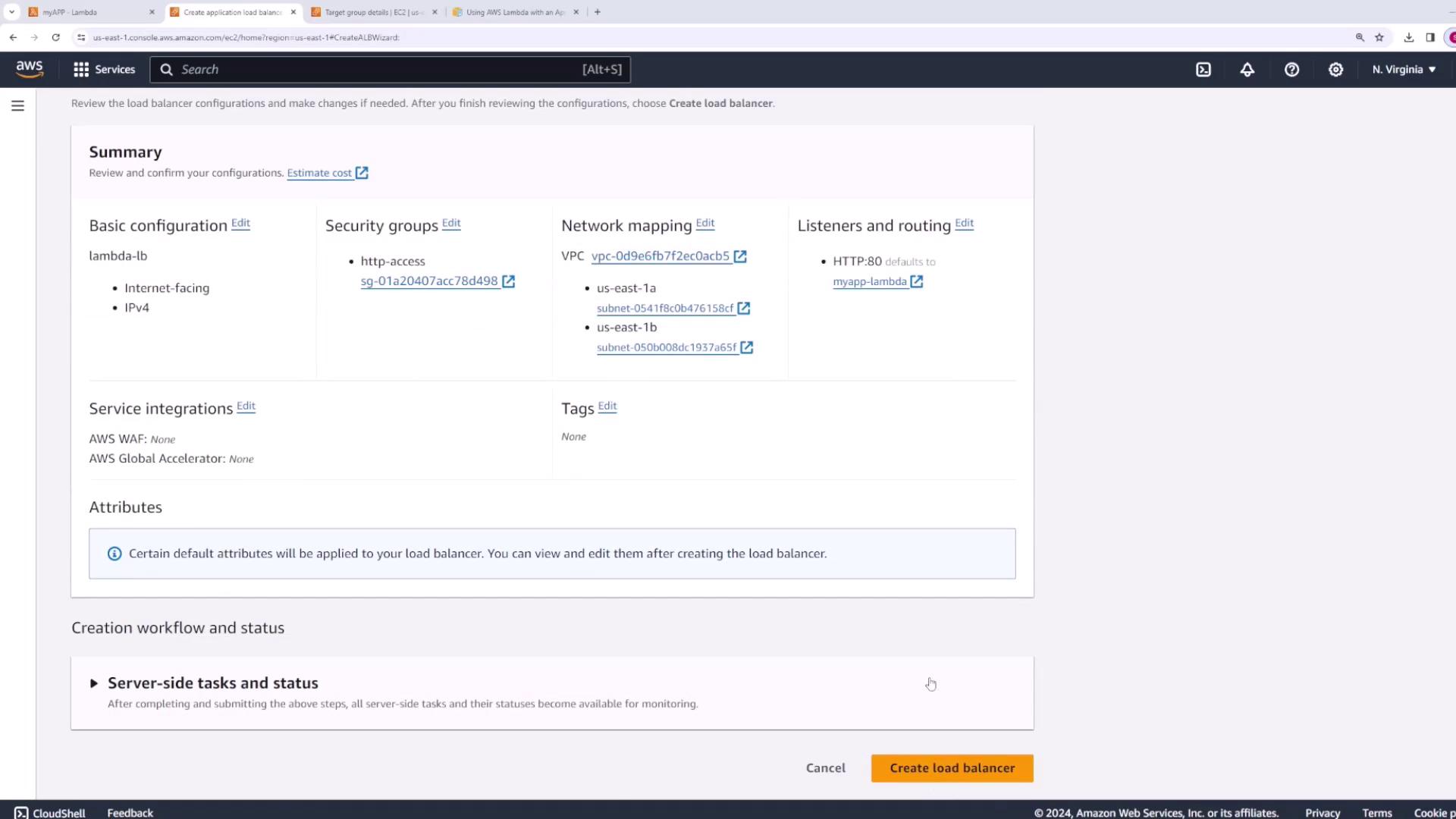
- Name your load balancer (e.g., “Lambda LB”).
- Set the scheme to internet-facing.
- Use IPv4.
- Select your desired VPC (the default VPC is acceptable).
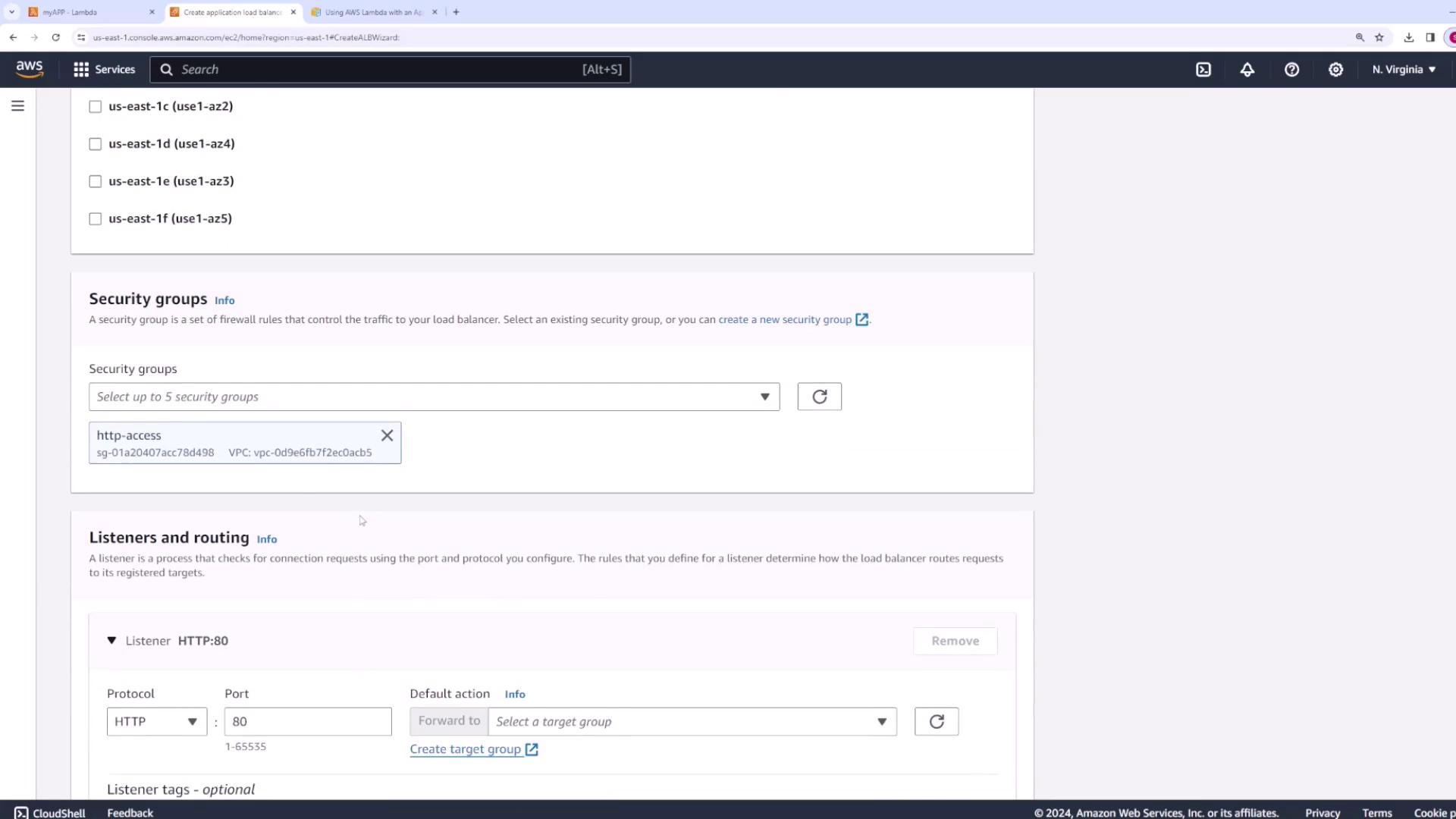
- Choose a security group that allows web traffic on port 80 (or port 443 for HTTPS).
Configuring Listeners and Target Group
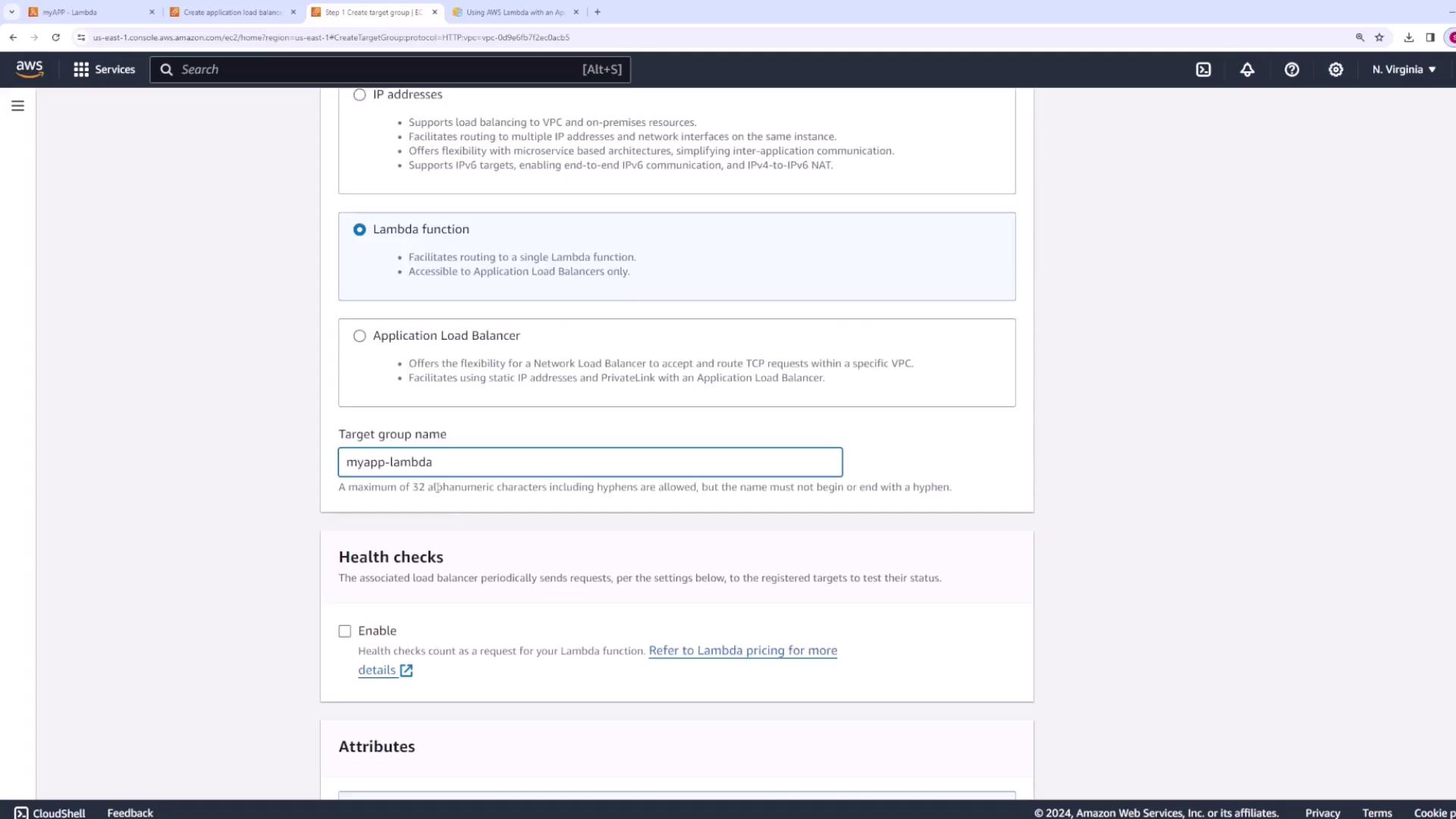
Set up the listeners for your load balancer. For a web application, create a listener on port 80 (and port 443 if using HTTPS). When configuring the target group:- Select Lambda function as the target type.
- Name the target group (e.g., “my app Lambda”).
- Choose your Lambda function directly or register it by entering its ARN.
- Keep the version as “latest” and create the target group.

Testing the Integration and Correcting the Content Type
Open your browser and paste the DNS entry of the load balancer. Initially, you might find that your browser downloads a file instead of displaying the response properly. This occurs because the Lambda function response omits the Content-Type header. When you open the downloaded file in a text editor, you’ll see “Hello from Lambda”. To resolve this, update your Lambda function to include a Content-Type header in the response. Choose one of the following formats based on your content type: For an API (JSON response):When using an API, the browser will display the JSON response directly:Hello from Lambda!
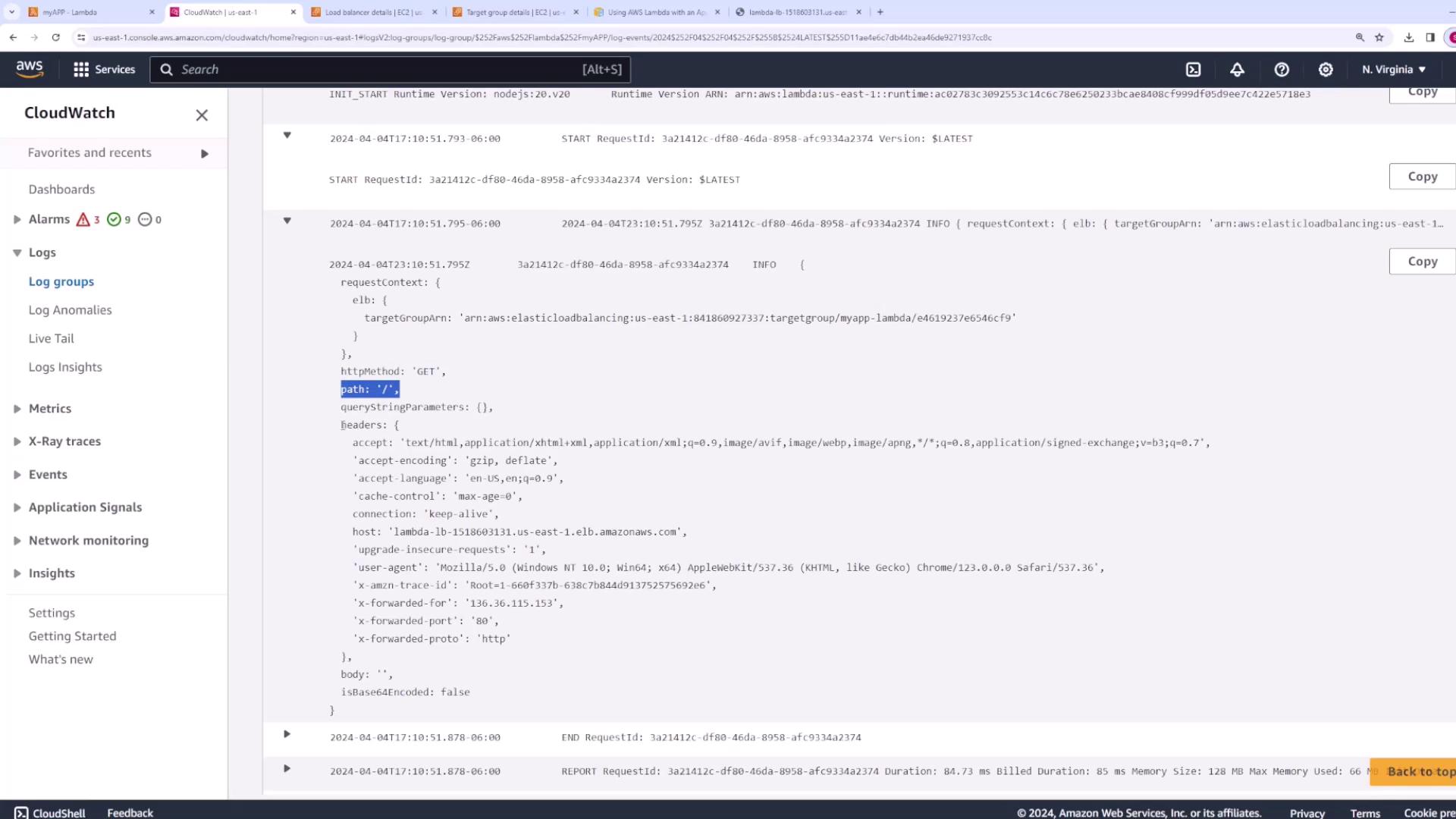
Understanding the Event Object
When the Application Load Balancer invokes your Lambda function, it passes an event object structured as shown below: