This tutorial explains how to configure Amazon EventBridge to invoke AWS Lambda functions for automated workflows.
In this tutorial, you’ll learn how to configure Amazon EventBridge to invoke AWS Lambda functions. Whether you want to trigger a Lambda function when a file is uploaded to S3, when a commit is made in CodeCommit, or on a scheduled basis similar to a cron job, EventBridge offers an efficient and automated solution.Let’s walk through the complete process.
In this example, we have a Lambda function named “lambda-EventBridge”. Follow these steps to add an EventBridge trigger:
Navigate to the Lambda function configuration and add a new trigger.
Search for “EventBridge” in the trigger options.
Select EventBridge and choose to create a new rule.
Provide a rule name (for example, “EveryMinute”) and select the “Schedule expression” option.
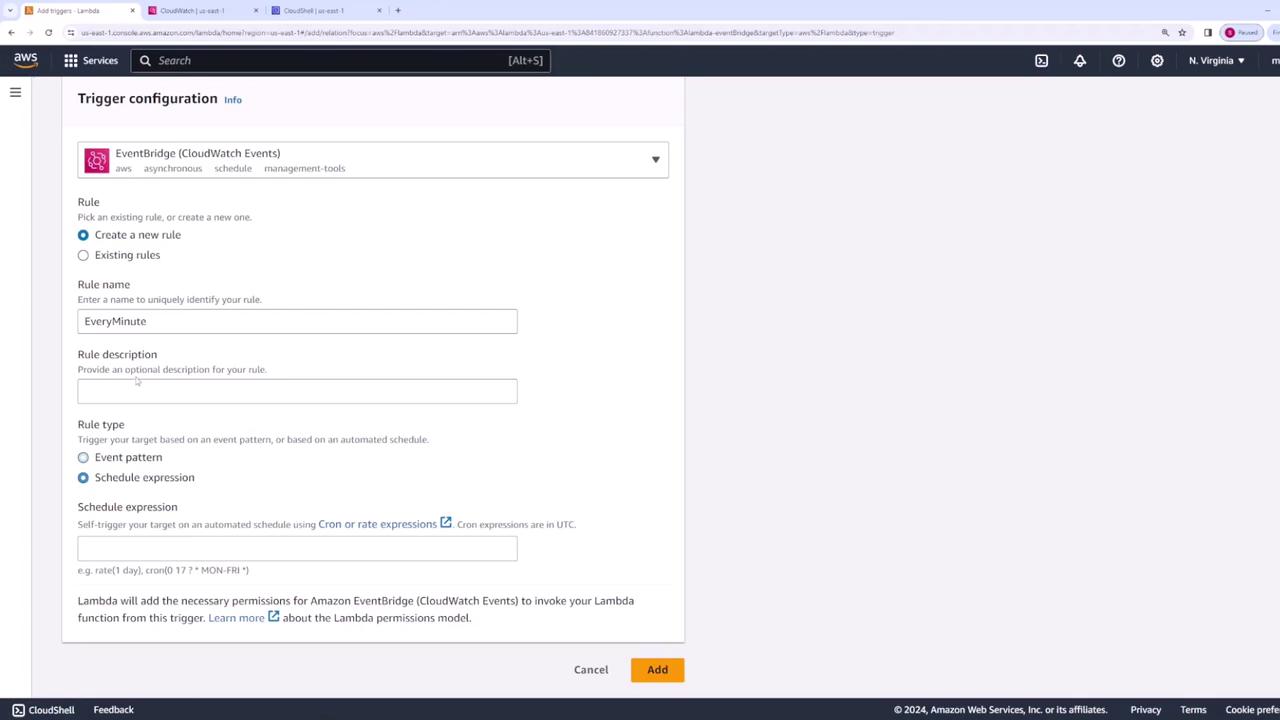
The image below shows the AWS Lambda interface for configuring an EventBridge trigger, including options for creating a new rule, naming the rule, and selecting a schedule expression:
Set the rule to run every minute by specifying the following schedule expression:
Copy
Ask AI
rate(1 minute)
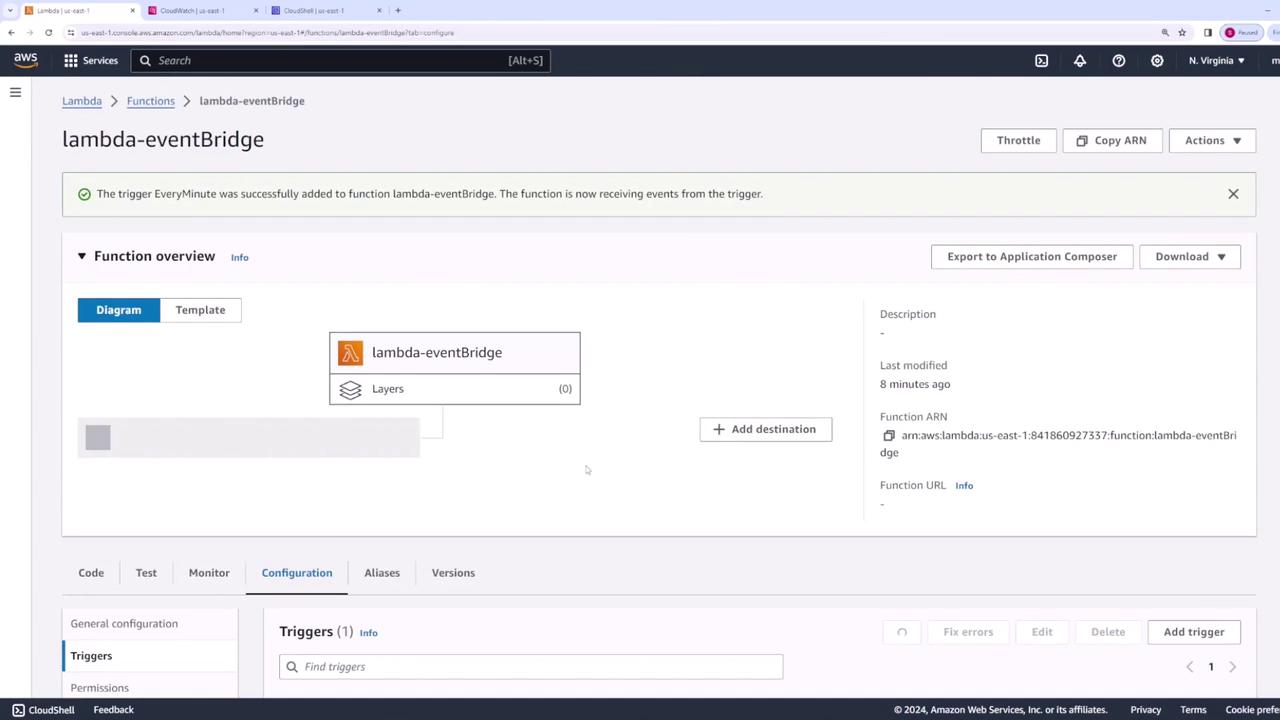
After adding the trigger, your Lambda function configuration will now include an EventBridge trigger.The next image illustrates the Lambda console with the “lambda-eventBridge” function and the successfully added “EveryMinute” trigger:
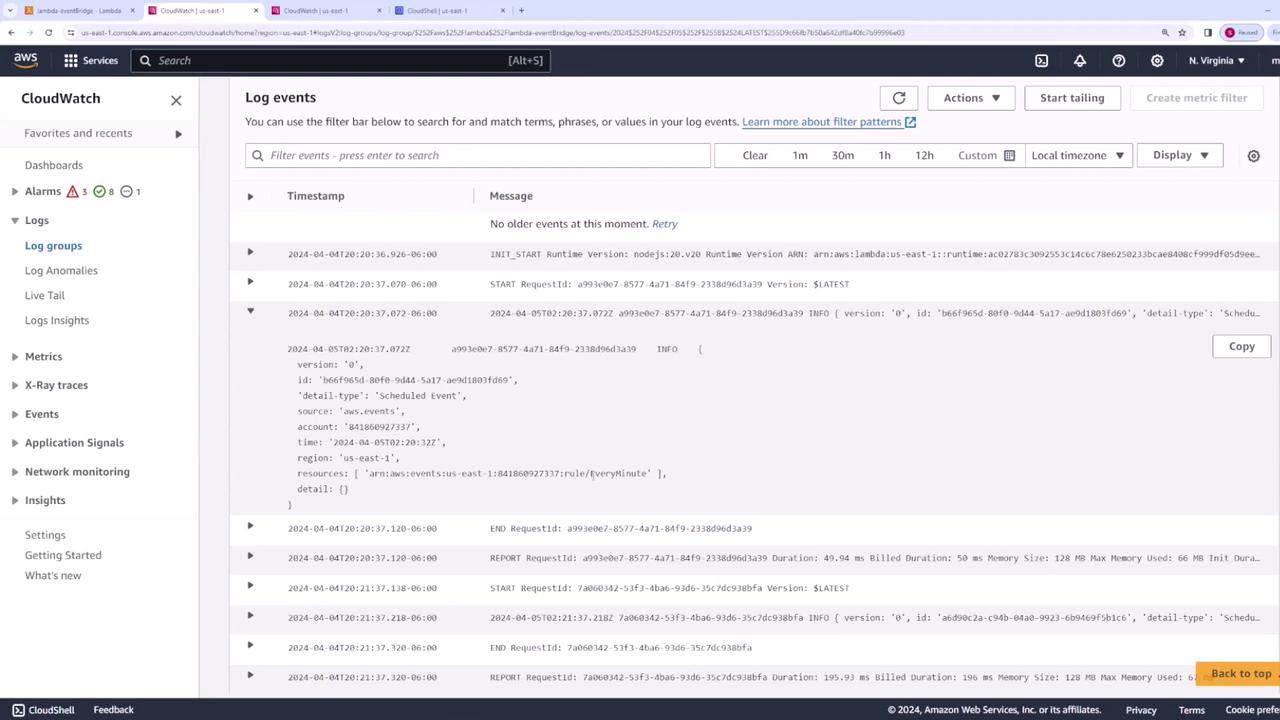
After the Lambda function runs a few times, navigate to CloudWatch to review the logs. In the most recent log stream, you should notice entries indicating that your function is triggered every minute.Below is an example snippet from the CloudWatch logs:
Copy
Ask AI
2024-04-04T20:37:06.080-06:00 END RequestId: a993e3e7-8577-4a1f-84f9-233896d33a392024-04-04T20:37:06.080-06:00 REPORT RequestId: a993e3e7-8577-4a1f-84f9-233896d33a39 Duration: 49.94 ms Billed Duration: 50 ms Memory Size: 128 MB Max Memory Used: 66 MB Init Duration: 3.12 ms2024-04-04T20:37:16.267-06:00 START RequestId: 7a600432-53f4-4ba6-936d-35c7dc93fbfa Version: $LATEST2024-04-04T20:37:16.267-06:00 2024-04-04T20:37:16.267Z 7a600432-53f4-4ba6-936d-35c7dc93fbfa INFO { version: '0', id: 'ads09e2a-c94b-40a2-9923-6b9469f9b6c', 'detail-type': 'Scheduled Event', source: 'aws.events', account: '341868092733', time: '2024-04-04T20:37:16Z', region: 'us-east-1', resources: [ 'arn:aws:events:us-east-1:841868092733:rule/EveryMinute' ], detail: {} }2024-04-04T20:37:16.273-06:00 END RequestId: 7a600432-53f4-4ba6-936d-35c7dc93fbfa2024-04-04T20:37:16.273-06:00 REPORT RequestId: 7a600432-53f4-4ba6-936d-35c7dc93fbfa Duration: 5.19 ms Billed Duration: 6 ms Memory Size: 128 MB Max Memory Used: 66 MB Init Duration: 3.12 ms
The image below displays a CloudWatch Logs page with log entries, timestamps, and messages:
This demo illustrated how to integrate Amazon EventBridge with AWS Lambda. You learned how to:
Create an EventBridge trigger using the Lambda console.
Verify that the appropriate permissions are configured.
Update your Lambda function to log and process event data.
Monitor the function’s execution using CloudWatch logs.
By following these steps, you can automate various workflows using EventBridge and Lambda, ensuring seamless execution of scheduled tasks or responses to AWS events.For additional insights into AWS Lambda and EventBridge, check out the AWS Lambda Documentation and Amazon EventBridge Documentation.