Learn to grant EC2 instances permissions to interact with AWS services using IAM roles and create an S3 bucket programmatically.
In this article, you will learn how to grant an EC2 instance the necessary permissions to interact with other AWS services by leveraging IAM roles. The example demonstrates how a simple application uses the AWS SDK to programmatically create an S3 bucket. Although the code is straightforward, the focus is on the authentication process using credentials initially, and then transitioning to the more secure IAM role-based access.Below is an excerpt of the code that creates a new S3 bucket:
const accessKeyId = "";const secretAccessKey = "";const s3Config = { region: "us-east-1" };if (secretAccessKey !== "" && secretAccessKey !== null) { s3Config.credentials = { accessKeyId, secretAccessKey, };}const s3Client = new S3Client(s3Config);// Create the parameters for calling createBucketvar bucketName = process.argv[2];// Call S3 to create the bucketconst main = async () => { try { const response = await s3Client.send( new CreateBucketCommand({ Bucket: bucketName }) ); } catch (e) { console.log("failed to create bucket"); }};
To run this application, execute the following command, providing the desired bucket name as an argument:
If you encounter an error similar to “InvalidAccessKeyId”, it indicates that the AWS access key provided does not exist in AWS records. This confirms an authentication issue when using explicit credentials.
Initially, the application was configured to accept AWS access keys by directly embedding a user’s credentials:
For example, here’s the section of code where the credentials are defined:
const { S3Client, CreateBucketCommand, GetObjectCommand, } = require("@aws-sdk/client-s3");// Set the regionconst accessKeyId = ""; const secretAccessKey = ""; const s3Config = { region: "us-east-1" };if (secretAccessKey !== "" && secretAccessKey !== null) { s3Config.credentials = { accessKeyId, secretAccessKey, };}const s3Client = new S3Client(s3Config);// Create the parameters for calling createBucketvar bucketName = process.argv[2];// Call S3 to create the bucketconst main = async () => { // ...};
To authenticate with AWS, a dedicated IAM user was created for the application. The steps followed include:
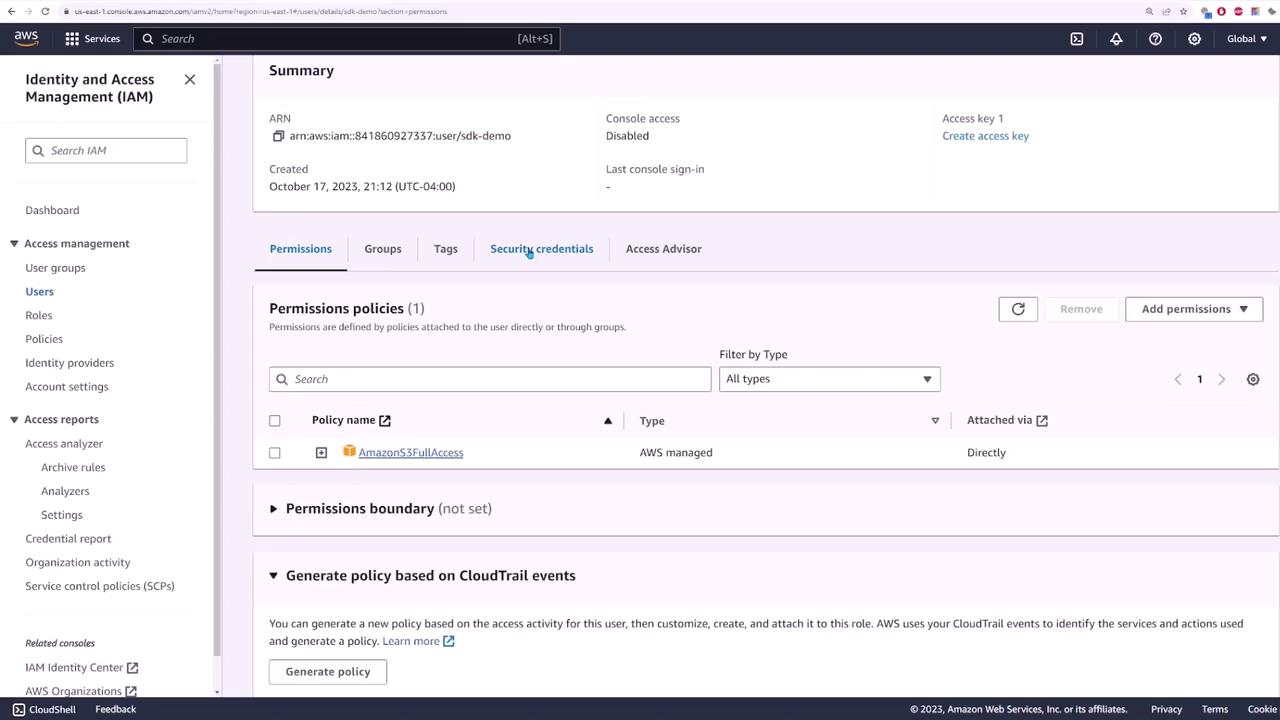
Accessing the IAM console and creating a new user (e.g., SDK demo).
Attaching the “Amazon S3 Full Access” policy directly to this user.
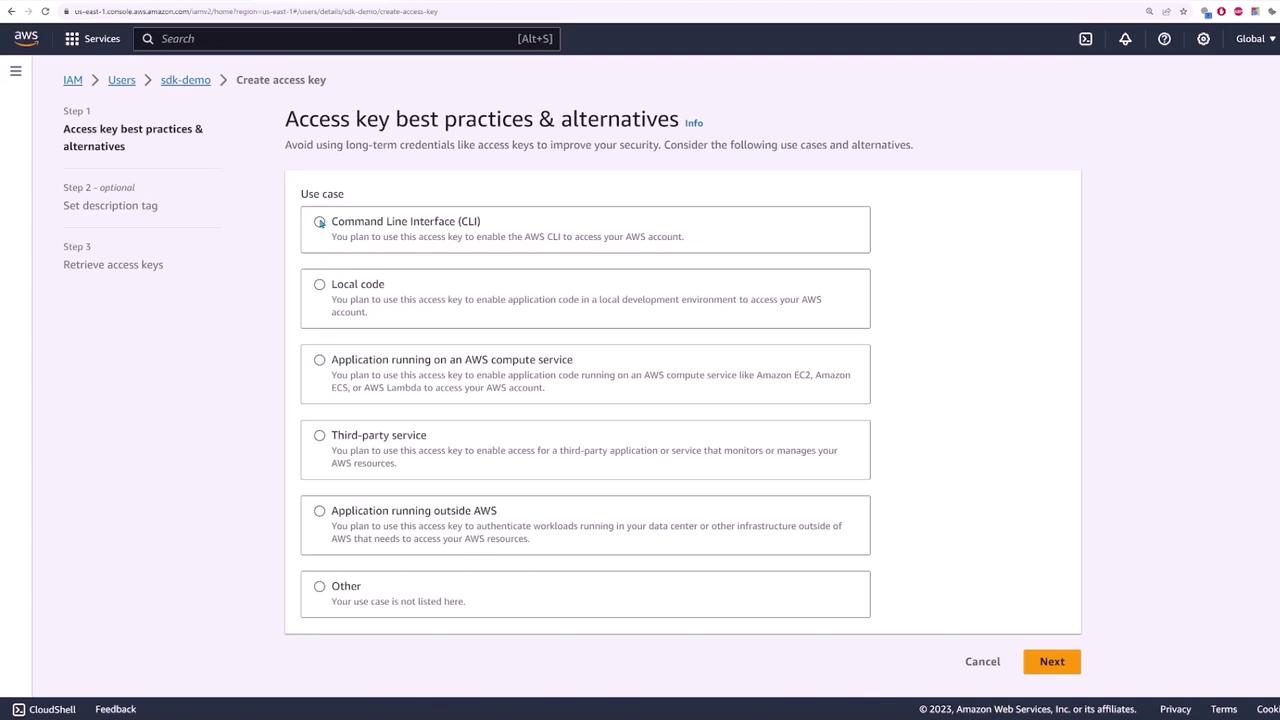
Generating an access key for the user and updating the application with the provided access key and secret access key.
The following images illustrate parts of this process:
After updating the credentials, the application code looked like this:
const { S3Client, CreateBucketCommand, GetObjectCommand} = require("@aws-sdk/client-s3");// Set the regionconst accessKeyId = "AKIAIAWSJ5U7MTRXX52";const secretAccessKey = "WW1UN1SS/bIaEf+VlqYpXRlc4vQpNbQEOGKRg7D73";const s3Config = { region: "us-east-1" };if (secretAccessKey !== "" && secretAccessKey !== null) { s3Config.credentials = { accessKeyId, secretAccessKey, };}const s3Client = new S3Client(s3Config);// Create the parameters for calling createBucketvar bucketName = process.argv[2];// Call S3 to create the bucketconst main = async () => { try { const response = await s3Client.send( new CreateBucketCommand({ Bucket: bucketName }) ); } catch (err) { console.error(err); }};
A successful bucket creation produces an output similar to:
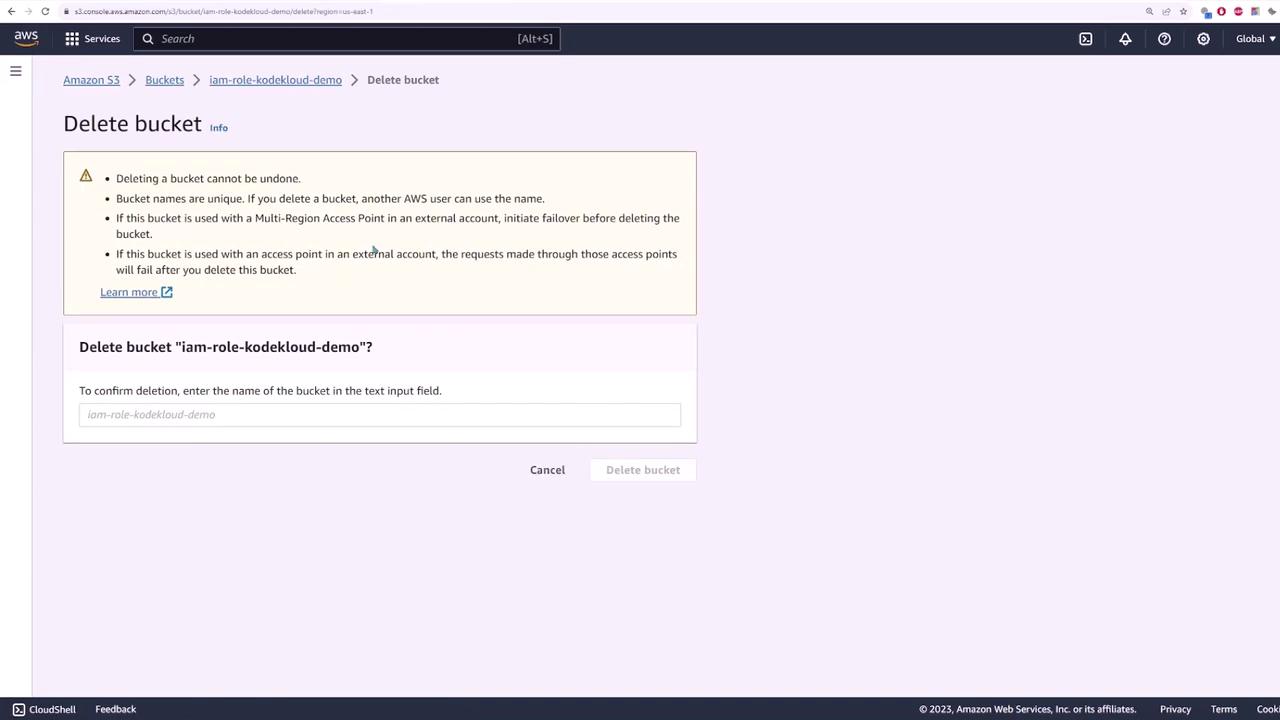
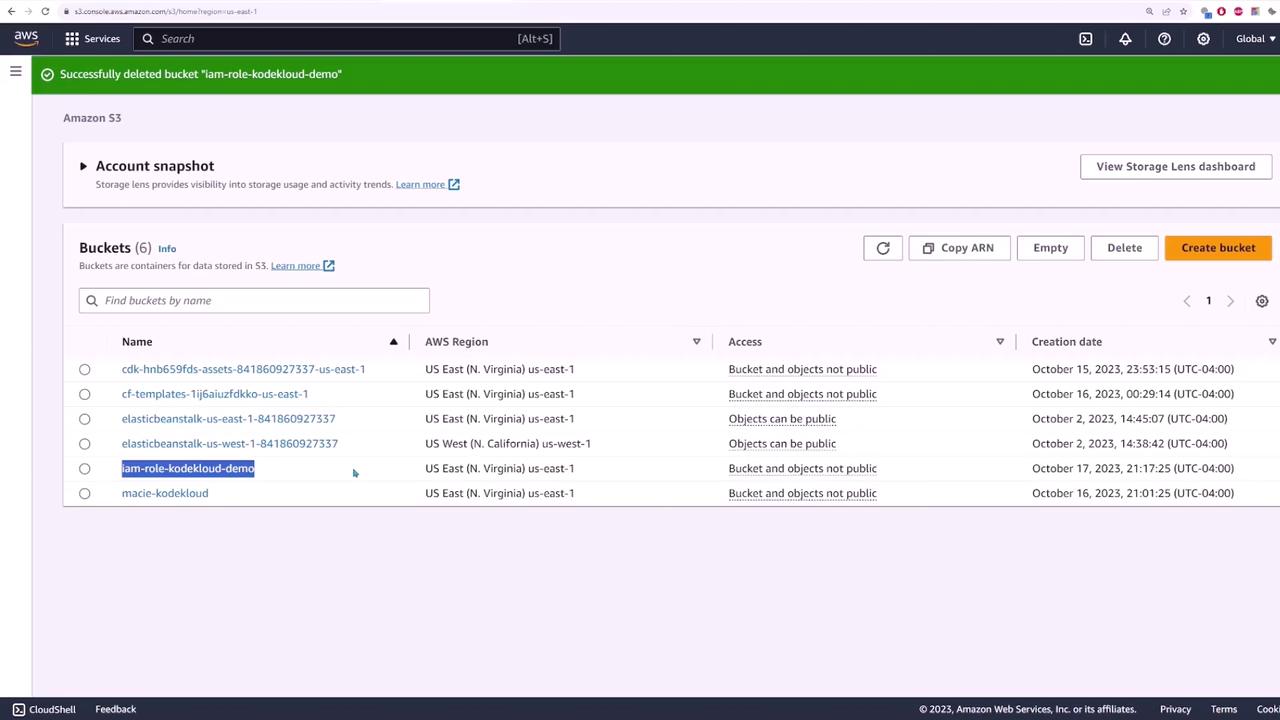
After refreshing the S3 console, you’ll see that a new bucket (named “IAM Role - Code Cloud - Demo”) has been created. This confirms that your application successfully authenticated and communicated with S3 using the provided credentials.The next step is to remove the dependency on hardcoded credentials by using IAM roles. First, delete the bucket to clean up:
After deleting the bucket, remove the credentials from your code. Without any authentication details, running the application will now fail and display an error such as:
InvalidAccessKeyId: The AWS Access Key ID you provided does not exist in our records.
    at throwDeFaultError (/.../default-error-handler.js:8:22)
    ...
    Code: 'InvalidAccessKeyId',
    AWSAccessKeyId: 'ASIAIAWSJ5JUYPMTDGI',
    RequestId: 'F6T0F9WQRS8BTV4',
    HostId: 'WtZX27Bif8wIk+wfmF9ISEeo2BdC8ER4TsWCVBLJfwtjI1mC8WqNwruenGSYzgS08CMaX6xA='
Next, create an IAM role that allows EC2 instances to interact with S3 without the need for explicit credentials:
In the IAM console, select “Roles” and create a new role.
Choose “AWS service” as the trusted entity since the role will be assumed by an EC2 instance.
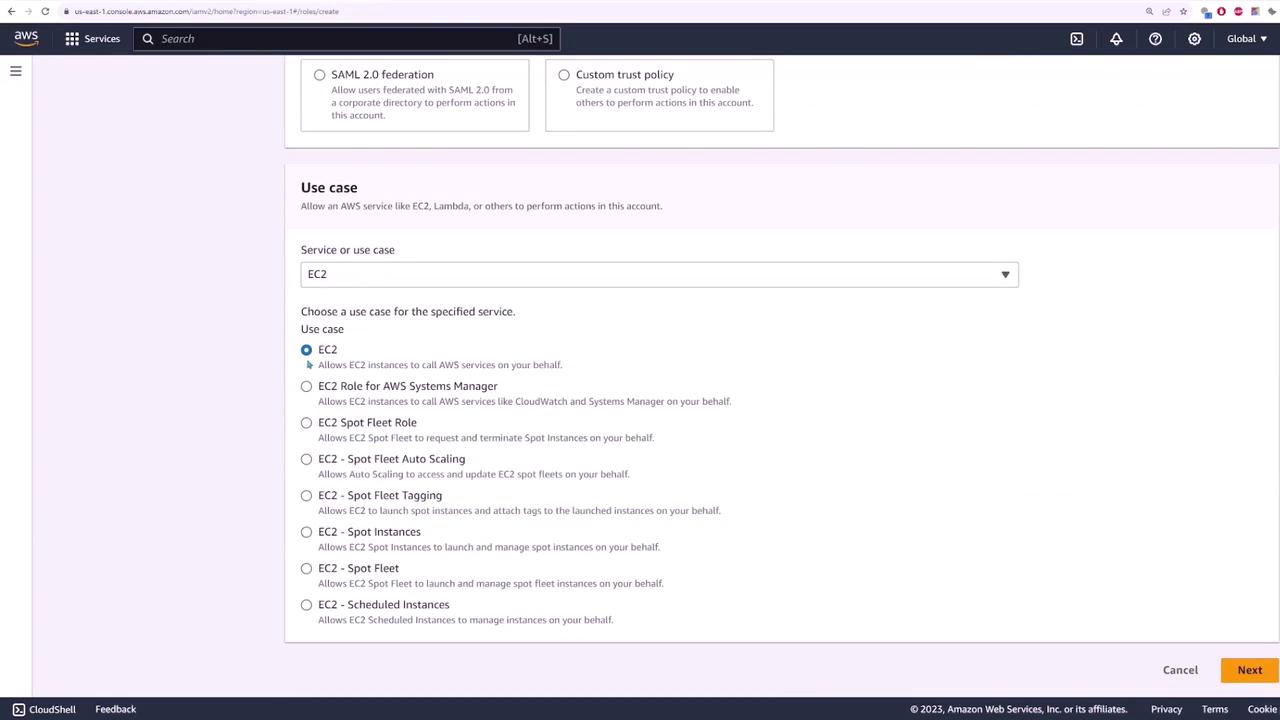
Under “Use case”, select EC2 to enable the instance to call AWS services on your behalf.
On the permissions page, attach the “Amazon S3 Full Access” policy.
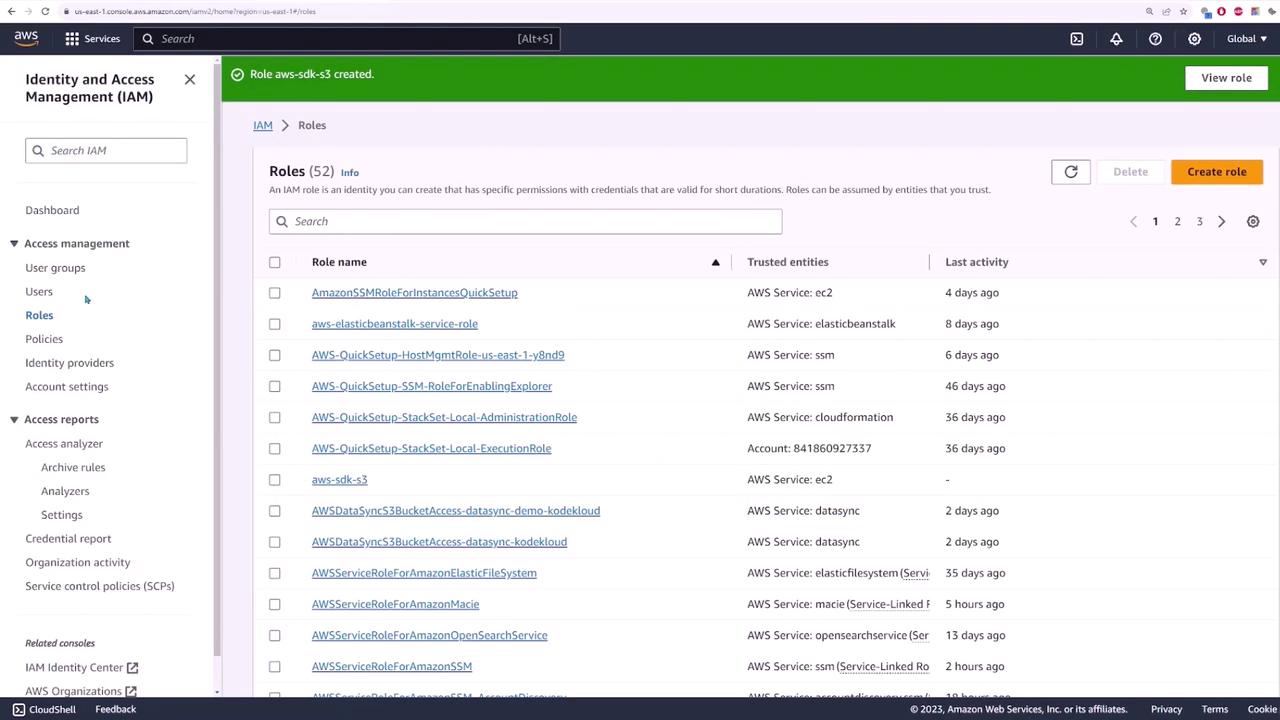
Name the role (e.g., AWS SDK S3) and complete the role creation.
The image below shows the use case selection screen:
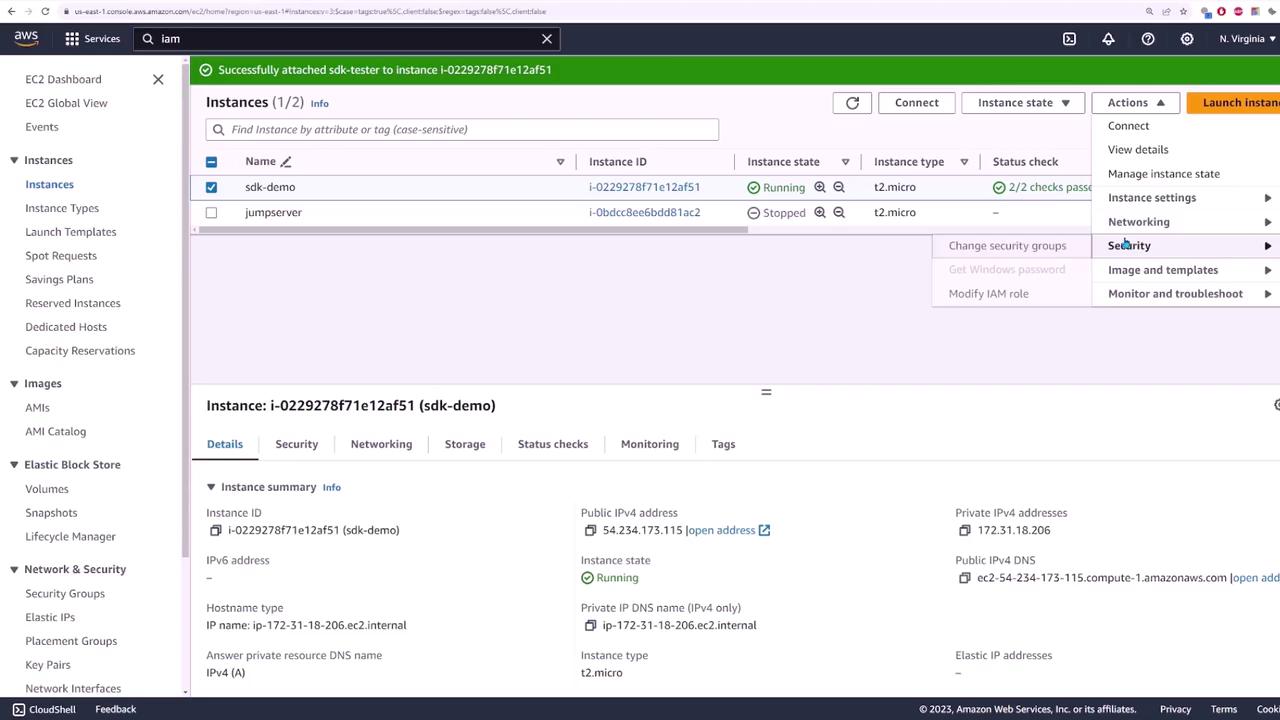
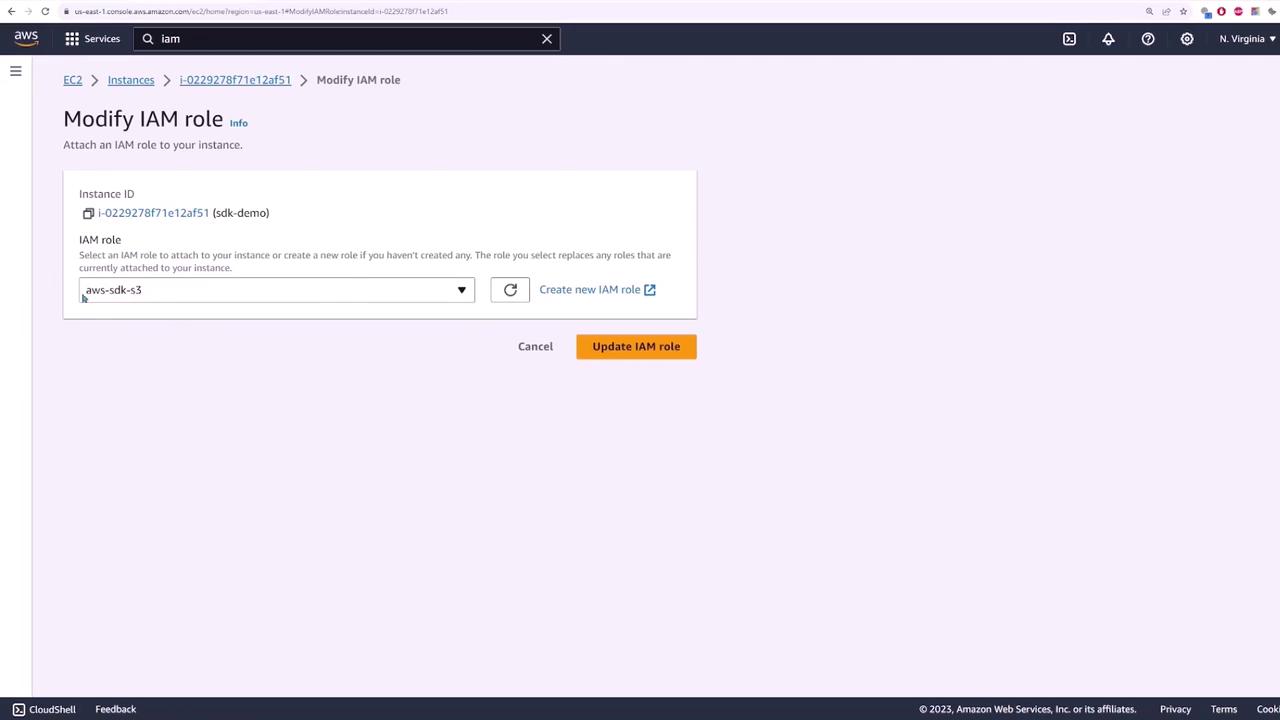
After creating the role, return to your EC2 instances and modify the instance’s IAM role to assign the newly created role:
Since the application no longer includes any credentials, running:
allows the EC2 instance to assume the attached IAM role. The application then automatically authenticates and creates the S3 bucket. Double-check in the S3 console to confirm that the bucket has been successfully created.
By assigning an IAM role to your EC2 instance, you enhance security and eliminate the risk associated with hardcoding access keys in your application. This method is applicable not only to the AWS SDK but also to the AWS CDK and other AWS platform tools.
Finally, view the S3 console to see the bucket list: