

Viewing Recent Events
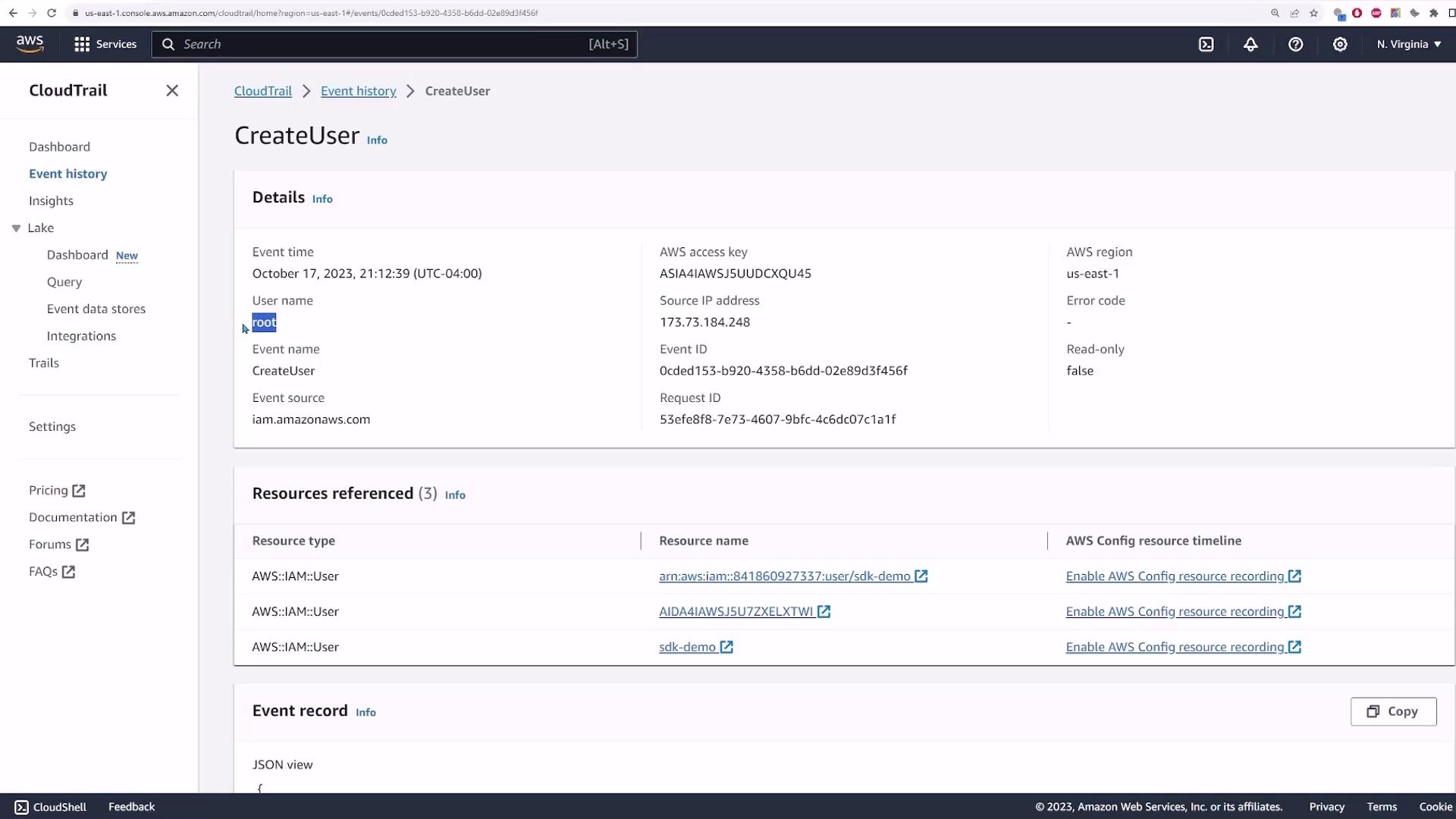
AWS CloudTrail automatically records events for the past 90 days. You can view these events directly from the event history without the need to create a trail. For instance, when you search for a “CreateUser” event, you’ll see detailed information such as the event timestamp, the actor responsible, the source IP address, and the relevant AWS resource.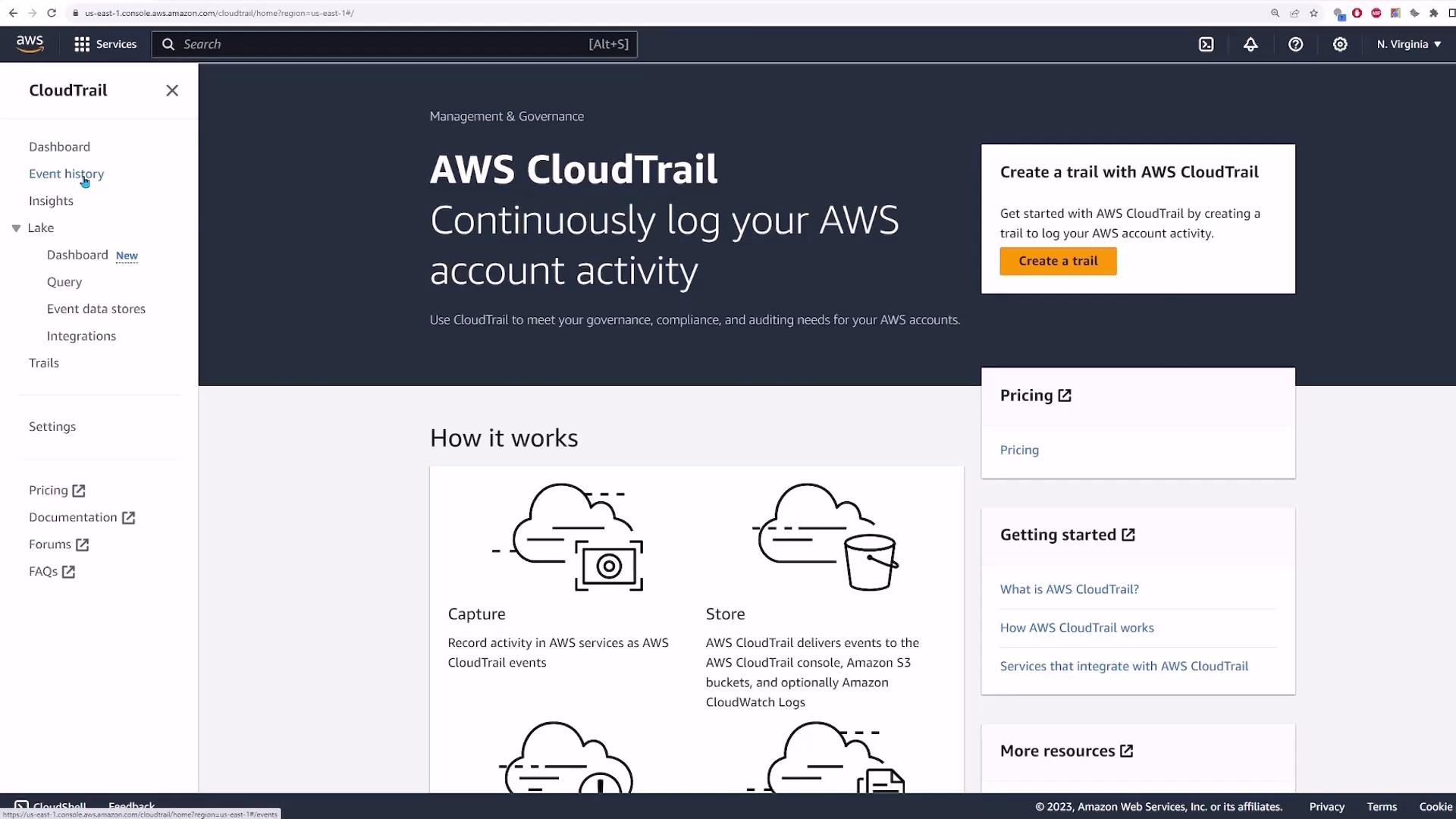
Creating a CloudTrail Trail
If you require event logs beyond the standard 90-day period, or want to forward events to Amazon S3 or CloudWatch, you can create a CloudTrail trail. Follow these step-by-step instructions:- Click on Create trail.
- Enter a trail name, for example, “CodeCloud-CloudTrail-demo”.
- By default, CloudTrail captures events from all regions. Optionally, you can capture events across all accounts in your organization (for this demo, leave this unchecked).
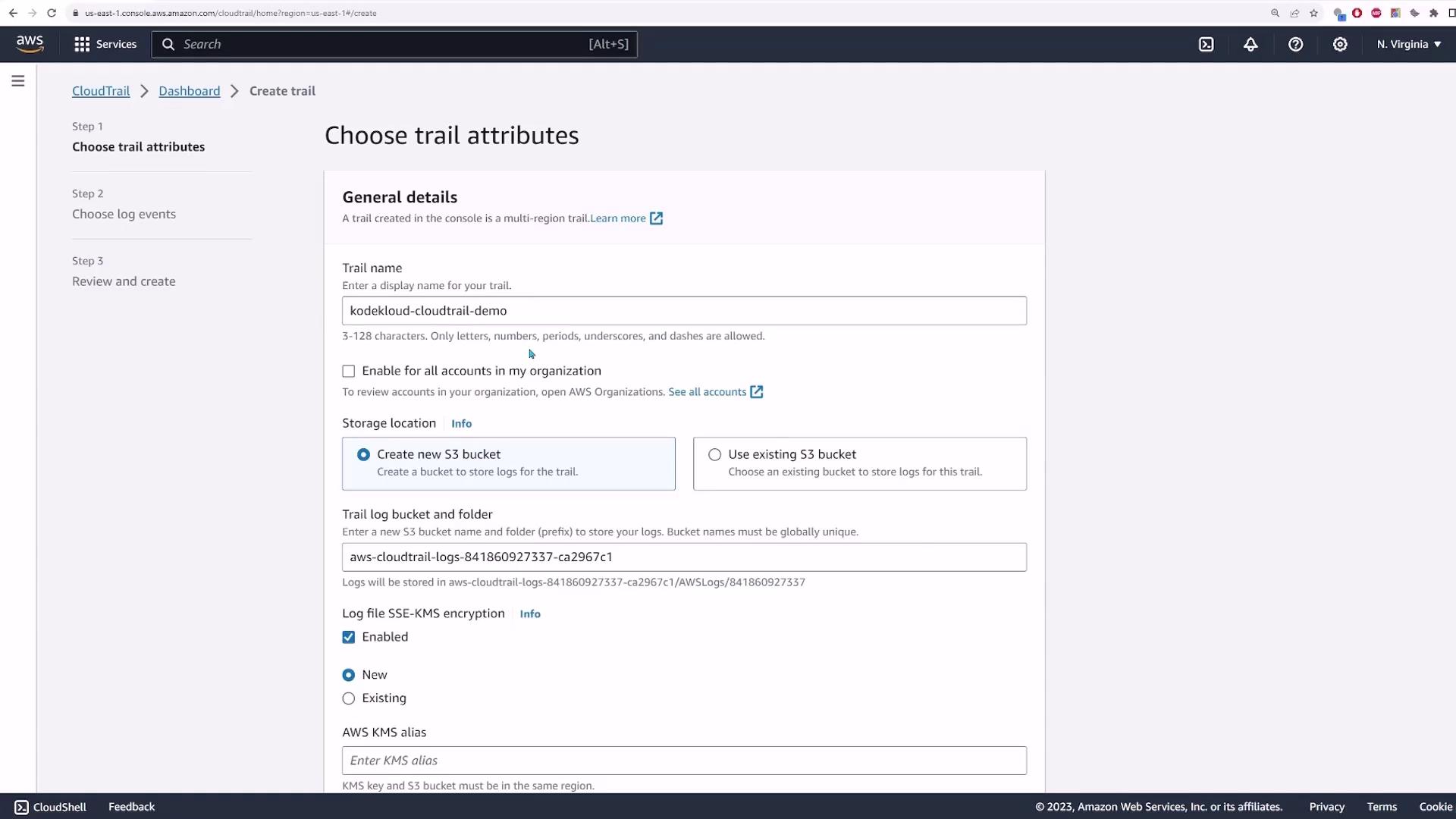
- Decide if you want to create a new S3 bucket or use an existing one. In this demonstration, a new S3 bucket will be created.
- Optionally, enable encryption for your log files. In this example, encryption remains disabled.
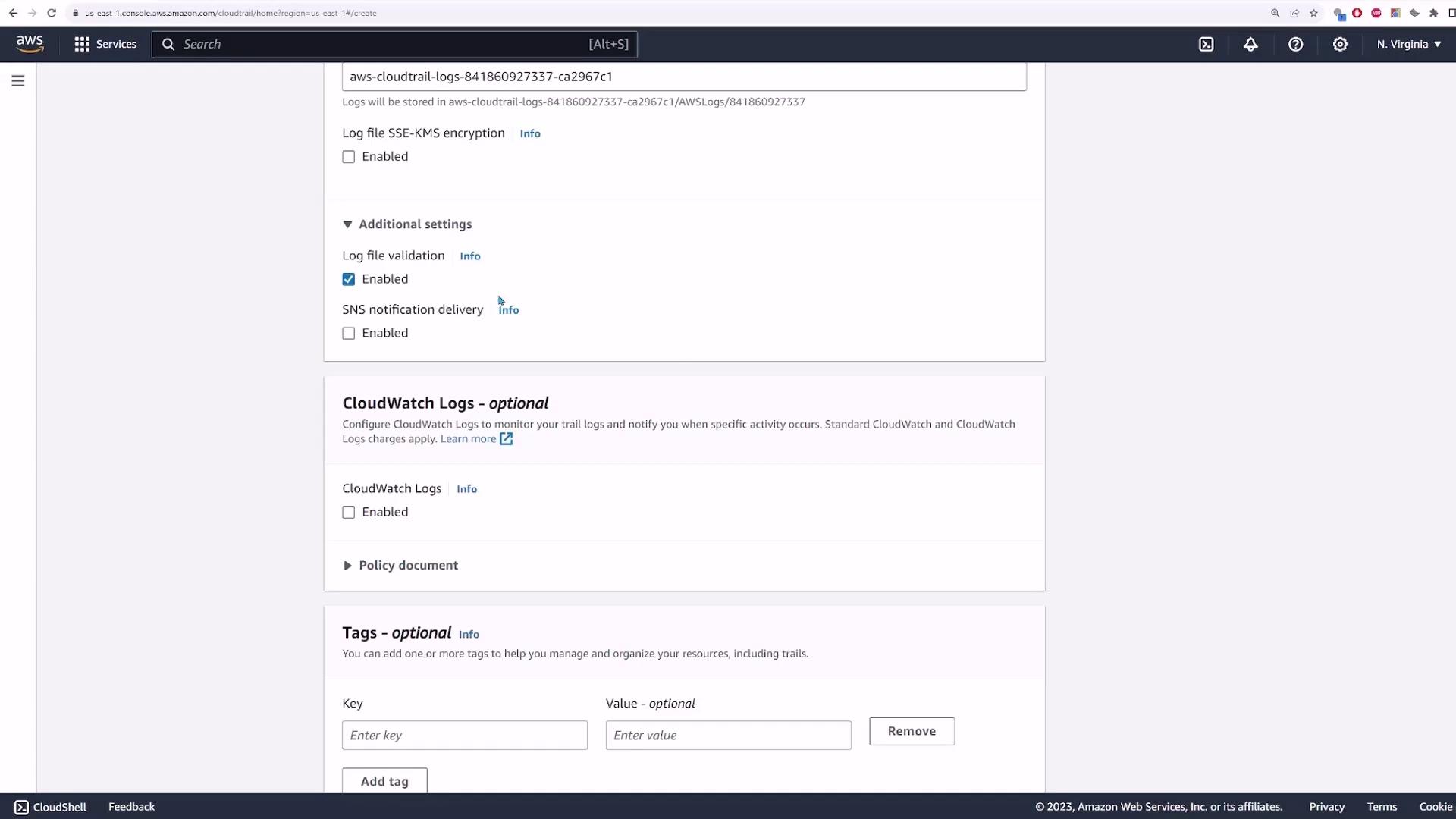
- Optionally, enable log file validation to verify log integrity—this is not essential for this demo.
- You may configure SNS notifications to be alerted when CloudTrail events occur or when log files are delivered. For simplicity, leave SNS notifications disabled.
- To forward logs to CloudWatch, enable the CloudWatch Logs option. Then choose to create a new log group (default settings can be applied).
- Configure a role for CloudTrail to forward logs to CloudWatch by selecting “New” and accepting the default role name (e.g., “CloudTrail CloudWatch role”).
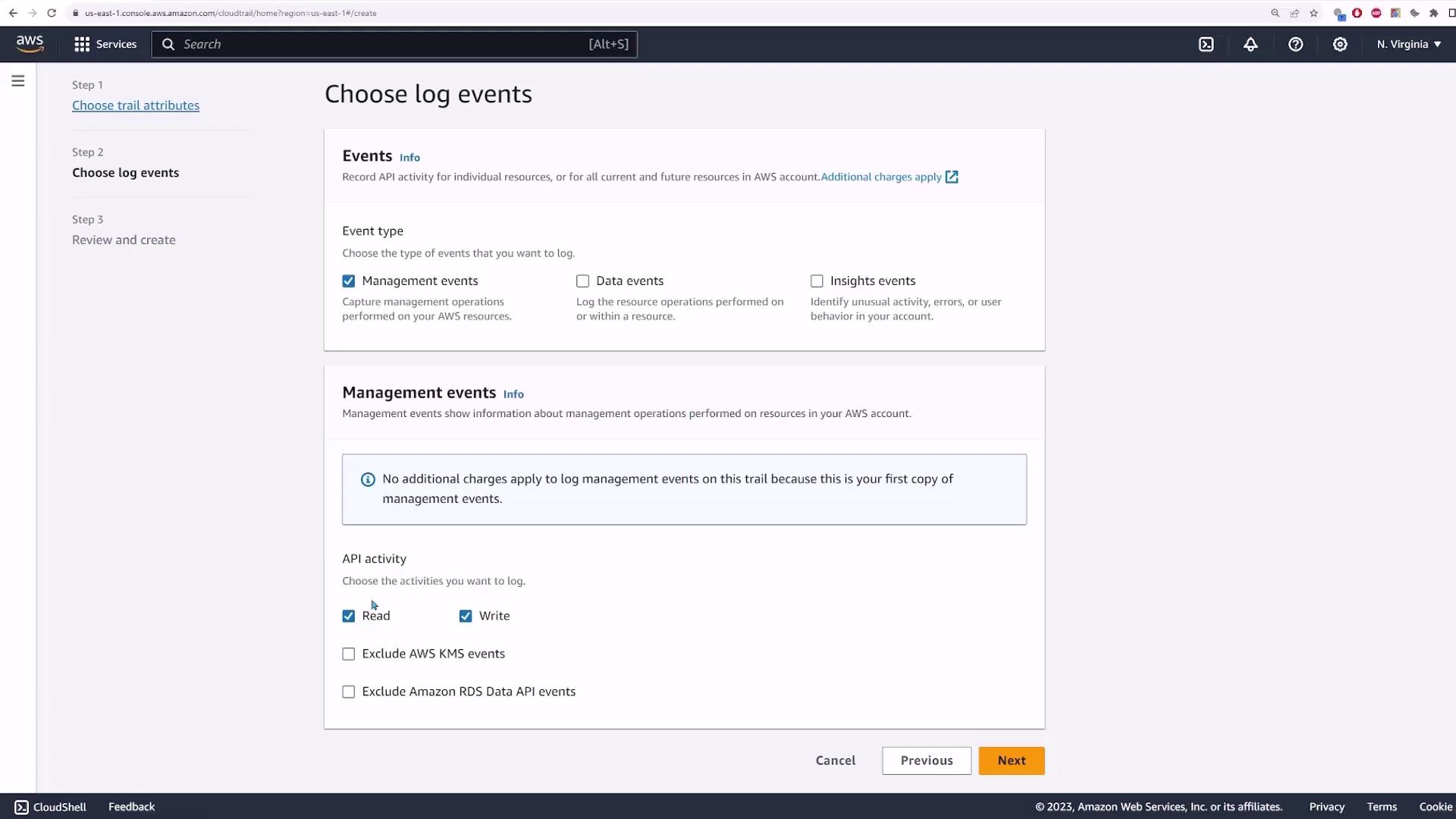
Exploring S3 Log Storage
After creating the trail, navigate to your designated S3 bucket. CloudTrail provides a link, taking you to a specific path within the bucket where your logs reside. The structure typically appears as follows:- A folder named “AWS Logs” followed by your account ID (e.g., 841860923737).
- Within the account folder, a “CloudTrail” folder exists.
- Logs are organized by region—in our example, only logs for the “us-east-1” region are available.
- Within the regional folder, logs are further divided by year, month, and day.
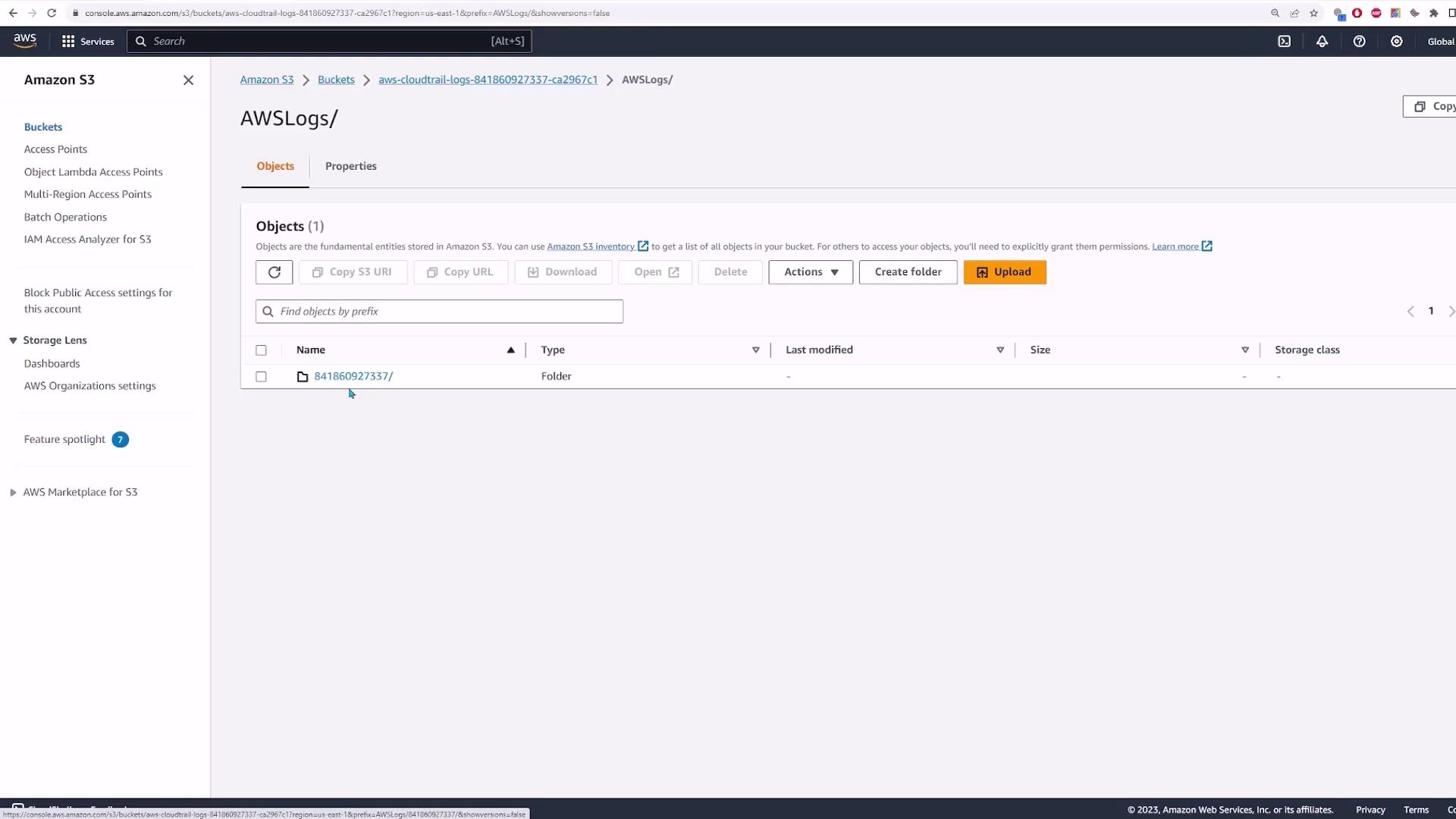
For an enhanced viewing experience, copy your JSON output into a JSON Viewer or formatter. This helps in parsing the data for easier analysis.
Forwarding Logs to CloudWatch
To enable real-time monitoring and leverage analysis tools, CloudTrail logs can be forwarded to CloudWatch. Navigate to CloudWatch and open the log groups section to locate the log group created by your CloudTrail configuration. Within the log group, select a log stream to inspect events—these logs will follow the same JSON structure previously shown. Below is a simplified CloudWatch log record example: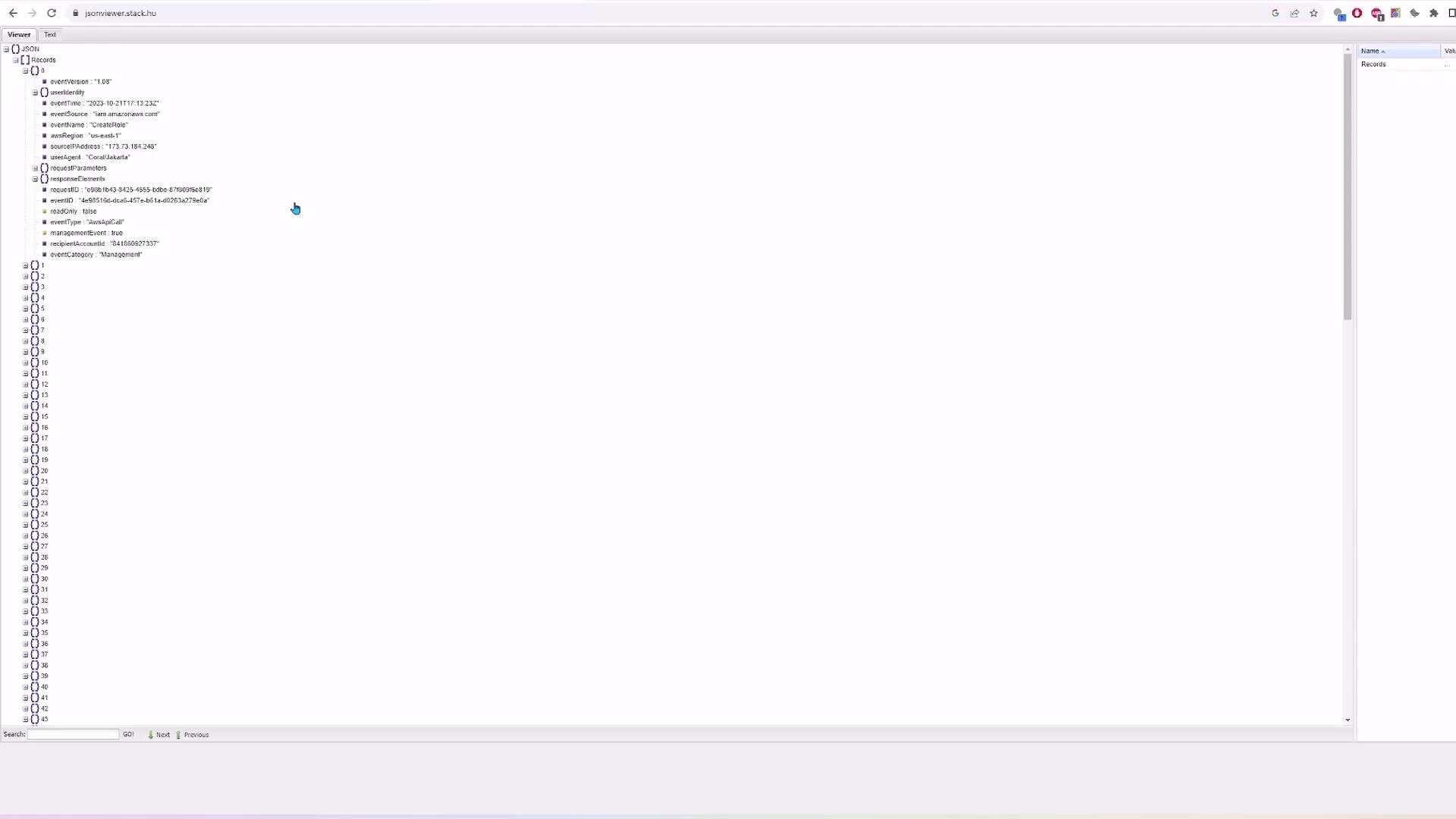
Conclusion
In this lesson, you learned how to:- View recent CloudTrail events without creating a trail.
- Set up a CloudTrail trail to store logs in Amazon S3 and forward them to CloudWatch.
- Navigate and analyze JSON log files for comprehensive monitoring of AWS account activity.
Using AWS CloudTrail in conjunction with S3 and CloudWatch provides a robust solution for auditing and monitoring your AWS environment. Ensure that you customize log retention and forwarding based on your organization’s security and compliance requirements.