Welcome to this lesson on OCR (Optical Character Recognition) with Azure AI Vision. This guide explains how Azure extracts text from images — from photos of signs and labels to scanned documents and handwritten notes — using the Read capability. You’ll learn when to use the Read API versus Document Intelligence, how the JSON output is structured, and how to call the Read feature with a concise Python example.

When to use Read vs Document Intelligence

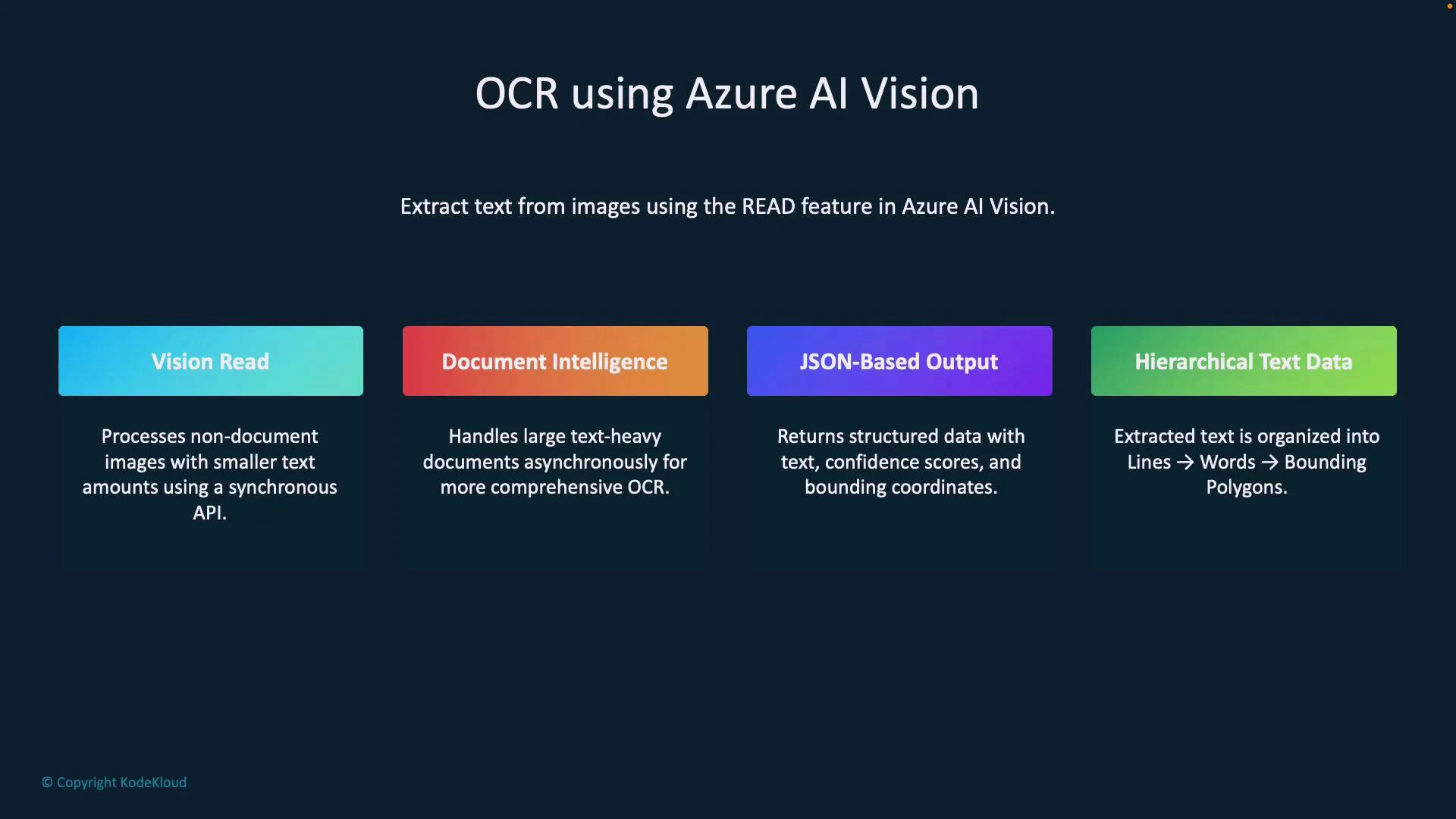
Choose the right service based on document complexity and scale.
FeatureBest forNotes
Vision ReadPrinted or handwritten text in images, short notes, signs, labelsTypically synchronous and optimized for smaller images and short text blocks
Document IntelligenceMulti-page PDFs, invoices, receipts, structured formsRicher parsing, field extraction, and often asynchronous for larger workloads
Document Intelligence is intended for richer document processing (forms, invoices, multi-page PDFs). For short images or quick handwritten notes, the Read feature is usually sufficient and simpler to integrate.

Key outputs from the Read API

  • JSON-based output containing recognized text, confidence scores, and positional coordinates.
  • Hierarchical structure (blocks → lines → words) with bounding polygons for each text element.
  • Useful for highlighting text in UI overlays, computing coordinates, or downstream analytics.
A presentation slide titled "OCR using Azure AI Vision" that outlines four features—Vision Read, Document Intelligence, JSON-Based Output, and Hierarchical Text Data—each shown in colored boxes with brief descriptions. The slide explains extracting text with the READ feature and returning structured data (text, confidence scores, bounding coordinates).

Sample JSON output (excerpt)

The Read API returns structured JSON where each line includes a bounding polygon and words with their own polygons and confidence scores. This abbreviated example demonstrates the typical nesting and coordinates you can expect:
[
  {
    "lines": [
      {
        "text": "You must be the change you",
        "boundingPolygon": [
          { "x": 251, "y": 265 },
          { "x": 673, "y": 260 },
          { "x": 674, "y": 308 },
          { "x": 252, "y": 318 }
        ],
        "words": [
          {
            "text": "You",
            "boundingPolygon": [
              { "x": 251, "y": 265 },
              { "x": 320, "y": 260 },
              { "x": 320, "y": 308 },
              { "x": 251, "y": 308 }
            ],
            "confidence": 0.996
          },
          {
            "text": "must",
            "boundingPolygon": [
              { "x": 321, "y": 265 },
              { "x": 380, "y": 260 },
              { "x": 380, "y": 308 },
              { "x": 321, "y": 308 }
            ],
            "confidence": 0.992
          }
        ]
      }
    ]
  }
]
This structure makes it straightforward to extract human-readable text, compute confidence metrics, or render spatial overlays in a UI.

Sample Python code to call Read (ImageAnalysisClient)

The following Python snippet demonstrates calling the Read feature using ImageAnalysisClient, converting the SDK result to a dictionary, and extracting text from readResult → blocks → lines. Ensure you set endpoint and key variables and install required Azure SDK packages.
from azure.ai.vision import ImageAnalysisClient, VisualFeatures
from azure.core.credentials import AzureKeyCredential
import json

# Image URL
image_url = "https://azai102imagestore.blob.core.windows.net/images/note.webp"

# Initialize the client
client = ImageAnalysisClient(
    endpoint=endpoint,
    credential=AzureKeyCredential(key)
)

# Analyze the image for read (OCR)
result = client.analyze_from_url(
    image_url=image_url,
    visual_features=[VisualFeatures.READ]
)

try:
    # Convert to a dictionary if the SDK result supports as_dict()
    result_dict = result.as_dict() if hasattr(result, "as_dict") else result

    # Extract text from readResult -> blocks -> lines
    extracted_text = ""
    if "readResult" in result_dict and "blocks" in result_dict["readResult"]:
        for block in result_dict["readResult"]["blocks"]:
            for line in block.get("lines", []):
                extracted_text += line.get("text", "") + "\n"

    print("Extracted Text:\n" + extracted_text)

    # Optionally print the raw JSON (pretty)
    print("Raw JSON output:")
    print(json.dumps(result_dict, indent=2))
except Exception as e:
    print("Error analyzing image:", e)
Keep your Azure endpoint and key secure. Do not hard-code secrets in source files; use environment variables or a secrets manager.

Sample console output

Running the script prints the extracted human-readable text and, optionally, the full JSON structure with model version, metadata, blocks, lines, words, bounding polygons, and confidence scores. Example printed output:
$ python3 app_ocr.py
Extracted Text:
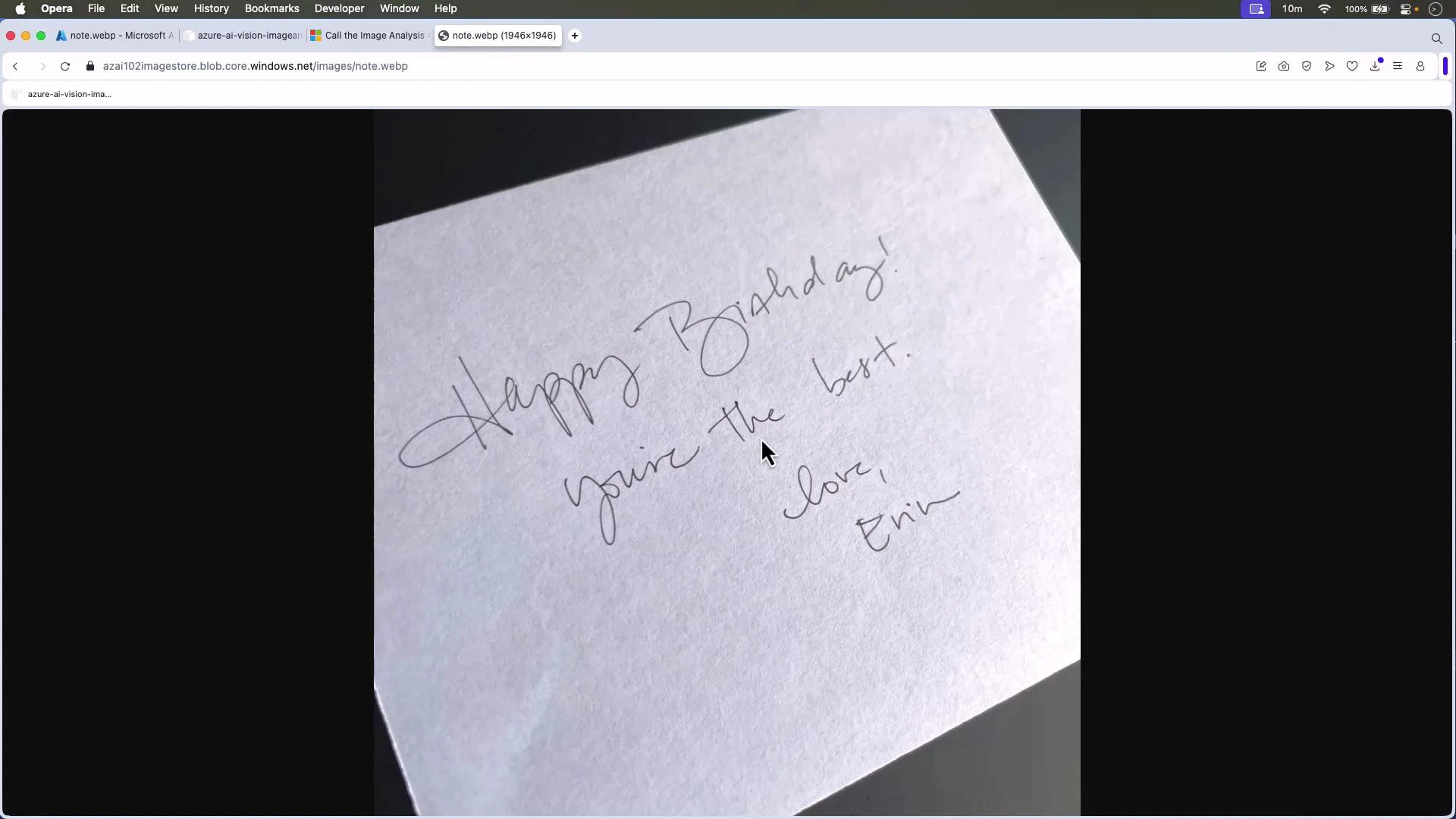
Happy Birthday!
you're the best.
love
Erin

Raw JSON output:
{
  "modelVersion": "2023-10-01",
  "metadata": { "width": 1946, "height": 1946 },
  "readResult": {
    "blocks": [
      {
        "lines": [
          {
            "text": "Happy Birthday!",
            "boundingPolygon": [
              { "x": 3, "y": 2 },
              { "x": 814, "y": 2 },
              { "x": 1383, "y": 312 },
              { "x": 1452, "y": 123 }
            ],
            "words": [
              { "text": "Happy", "confidence": 0.657, "boundingPolygon": [...] },
              { "text": "Birthday!", "confidence": 0.211, "boundingPolygon": [...] }
            ]
          },
          {
            "text": "you're the best.",
            "words": [
              { "text": "you're", "confidence": 0.165 },
              { "text": "the", "confidence": 0.994 },
              { "text": "best.", "confidence": 0.894 }
            ]
          },
          { "text": "love", "words": [{ "text": "love", "confidence": 0.667 }] },
          { "text": "Erin", "words": [{ "text": "Erin", "confidence": 0.666 }] }
        ],
        "language": "en"
      }
    ]
  }
}

Example: Handwritten note

This lesson used a photographed handwritten birthday note. The Read API extracted the content and returned bounding polygons and confidence values for each recognized word, enabling UI overlays or further processing.
A handwritten birthday note on white paper that says, "Happy Birthday! You're the best. Love, Erin." The photo is taken at an angle and shows a cursor near the center.

Summary

  • Use Vision Read for extracting printed or handwritten text from images (short notes, signs, labels).
  • Use Document Intelligence for multi-page, structured, or complex document extraction tasks (receipts, invoices, contracts).
  • The Read API returns hierarchical JSON (blocks → lines → words) with bounding polygons and confidence scores — ideal for UI overlays and downstream analytics.
  • The provided Python example shows a straightforward integration pattern to call the Read API and extract text.

Watch Video