Implementing a knowledge store in Azure AI Services lets you persist enrichment outputs from an Azure Cognitive Search skillset into storage for downstream analysis, reporting, or application consumption. This article walks through the architecture, projection types (objects, tables, files), portal configuration, and an example skillset JSON that includes knowledge store projections. Why use a knowledge store?
  • Persist enrichment outputs (entities, key phrases, pages, images) to storage for auditing, downstream ETL, or analytics.
  • Turn unstructured content into structured, queryable artifacts (JSON objects, relational tables, or files).
  • Keep search index data and persisted enrichment artifacts separate and optimized for different use cases.
Overview When you build an enrichment pipeline (skillset) in Azure Cognitive Search (Azure AI Search), you can include a knowledgeStore block that defines where and how to persist the results. Projections describe the output format and destination:
  • objects — JSON blobs written to blob storage
  • tables — relational rows written to Azure Tables
  • files — binary or large artifacts written back to blob storage
Use these projections individually or combined to control which enrichment artifacts are stored and how they are organized. Projection types and examples Object projections
  • Save enrichment output as structured JSON objects in a blob container.
  • Common use cases: storing entire enriched documents or structured metadata for downstream processing.
Example JSON (object projection writing /structured_data to container):
{
  "objects": [
    {
      "storageContainer": "<container>",
      "source": "/structured_data"
    }
  ],
  "tables": [],
  "files": []
}
Table projections
  • Create relational tables that are queryable with SQL-like patterns (via Azure Tables).
  • Useful for aggregations, joins, or building dashboards (e.g., documents, pages, or key phrases).
Example JSON (projects documents and extracted keywords into tables):
{
  "objects": [],
  "tables": [
    {
      "tableName": "ExtractedKeywords",
      "generatedKeyName": "keyword_id",
      "source": "/structured_data/key_phrases/*"
    },
    {
      "tableName": "Documents",
      "generatedKeyName": "doc_id",
      "source": "/structured_data"
    }
  ],
  "files": []
}
File projections
  • Persist binary or large extracted content (e.g., OCR output images, processed images, or large text blobs) back into blob storage.
  • Good for assets that are better stored as files rather than table rows or JSON objects.
Example JSON (writes processed images to container):
{
  "objects": [],
  "tables": [],
  "files": [
    {
      "storageContainer": "<container>",
      "source": "/structured_data/processed_images/*"
    }
  ]
}
Projection comparison
Projection TypeBest forExample artifacts
ObjectStructured JSON documents for ETL or downstream servicesEnriched document JSONs
TableRelational queries, dashboards, joinsDocuments, pages, key phrases
FileLarge binary output or mediaProcessed images, OCR outputs
Knowledge store inside the skillset Include a knowledgeStore block in your skillset JSON to configure the destination storage and any projections. The block contains the storage connection and an array of projections that describe objects, tables, or files to persist. Example knowledgeStore block:
"knowledgeStore": {
  "storageConnectionString": "<your_storage_connection_string>",
  "projections": [
    /* projections go here (objects, tables, files) */
  ]
}
Storage connection strings must be in one of the accepted formats:
  • Full storage access: “DefaultEndpointsProtocol=https;AccountName=[your account name];AccountKey=[your account key];”
  • SAS token: “BlobEndpoint=[your account endpoint];SharedAccessSignature=[your sas token]”
  • If your search service uses Managed Identity, you can use: “ResourceId=[your resource id];”
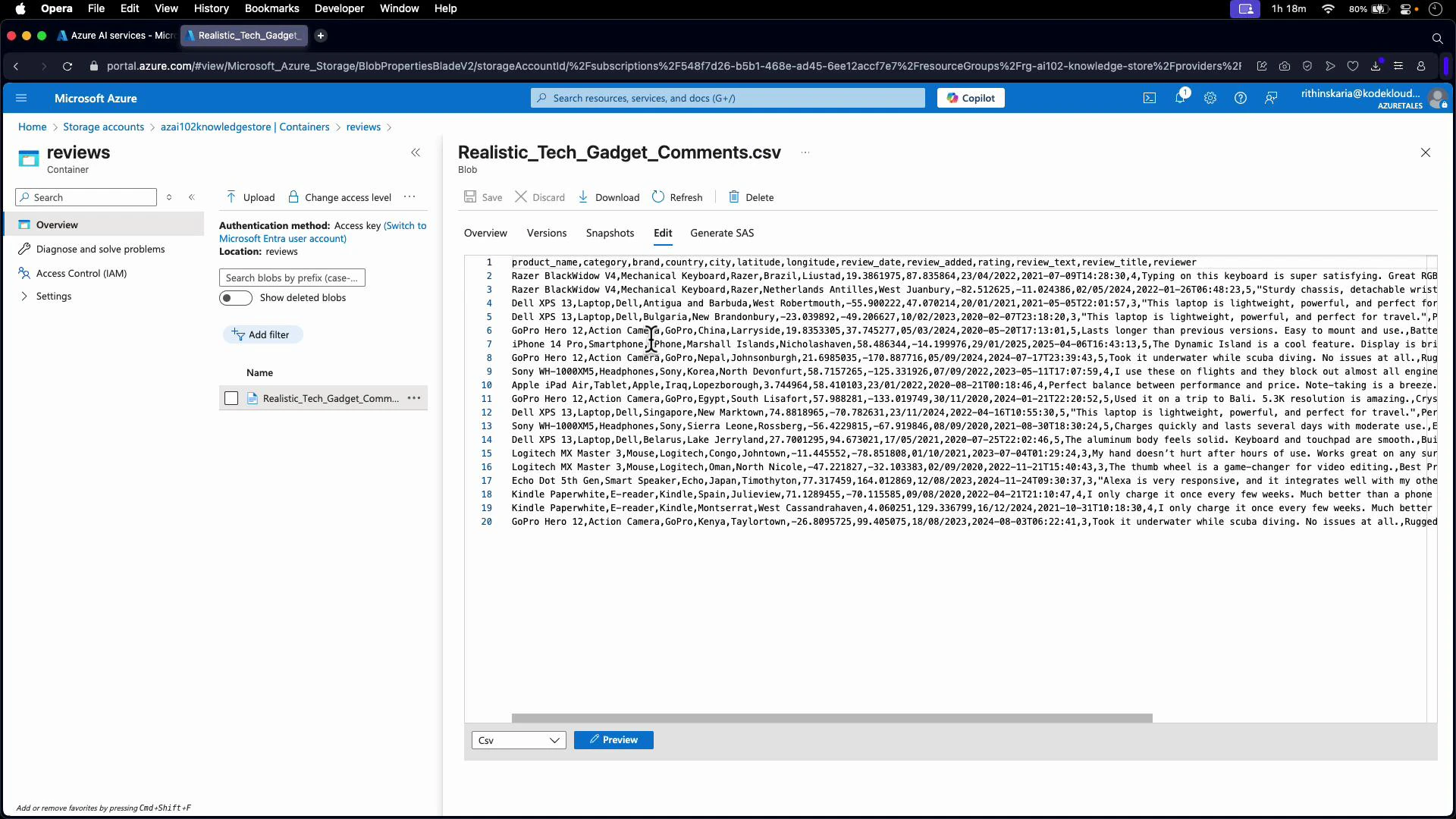
Portal walkthrough: CSV source and search import Below is an example dataset: a storage container named “reviews” that contains a CSV file of product reviews. Each row holds fields such as product name, category, brand, reviewer location, rating, and review text. This CSV is the input for the skillset and knowledge store projections.
A screenshot of the Microsoft Azure portal showing a storage container named "reviews" with a blob file "Realistic_Tech_Gadget_Comments.csv" open; the file preview displays rows of product review data (product names, locations, ratings and review text).
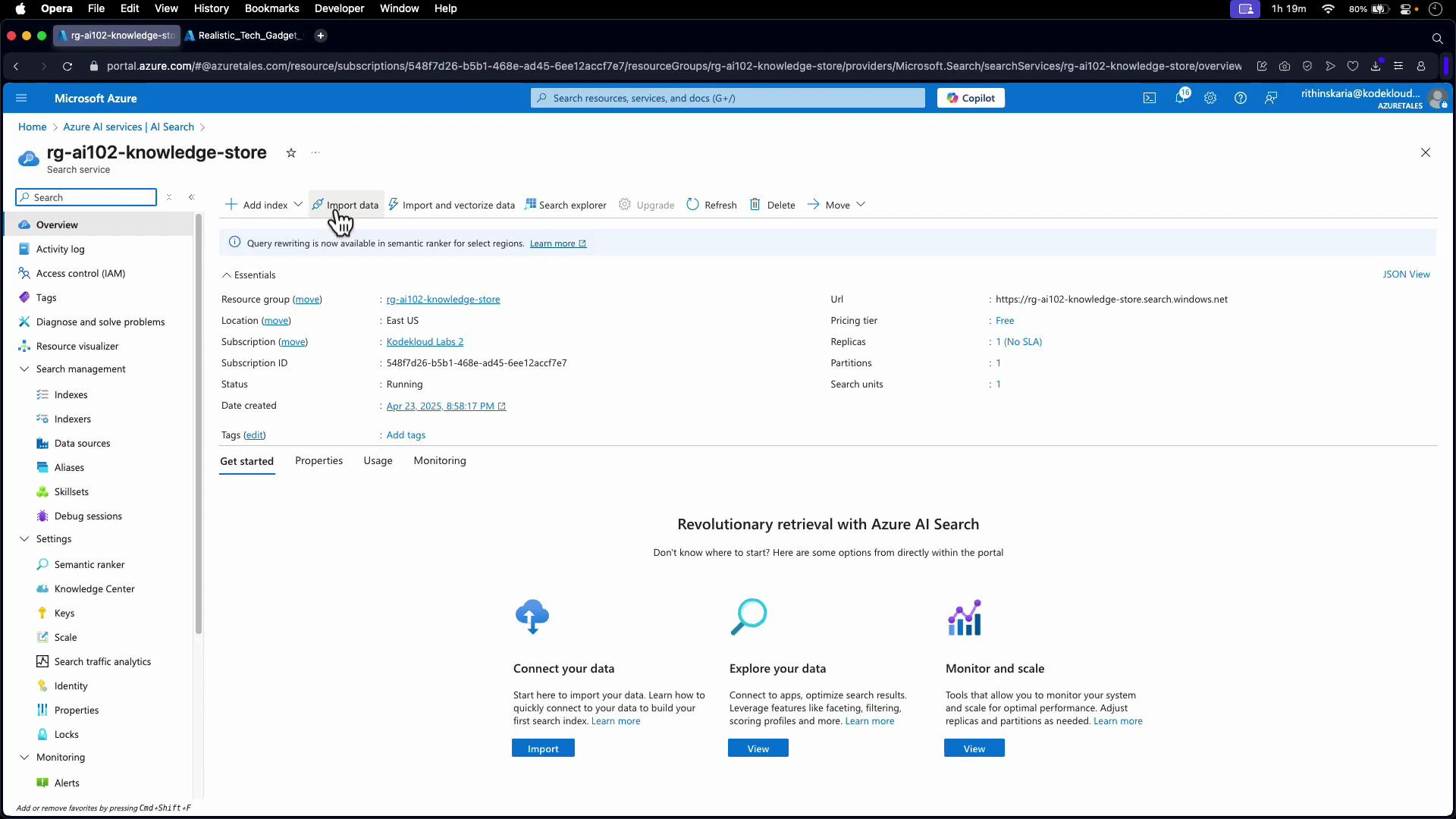
I scraped a website to collect these reviews; each CSV row includes reviewer username, country, location, review text, category, and date posted. We’ll enrich this CSV to create structured reports. From your Azure Cognitive Search resource overview, click Import data to configure an indexer that reads from Azure Blob Storage.
A screenshot of the Microsoft Azure portal showing the overview page for an Azure AI Search resource named "rg-ai102-knowledge-store." The page displays resource essentials (location, subscription, URL, status), action buttons like Import data and Add index, and guidance tiles for connecting, exploring, and monitoring data.
Connect the data source to your blob storage and configure the parsing options for the CSV:
  • Data source name: e.g., “reviews data source”
  • Data to extract: Content and metadata
  • Parsing mode: Delimited text
  • Delimiter: comma (or other if needed)
  • If the first CSV row contains headers, enable the “first line contains headers” option so fields map correctly
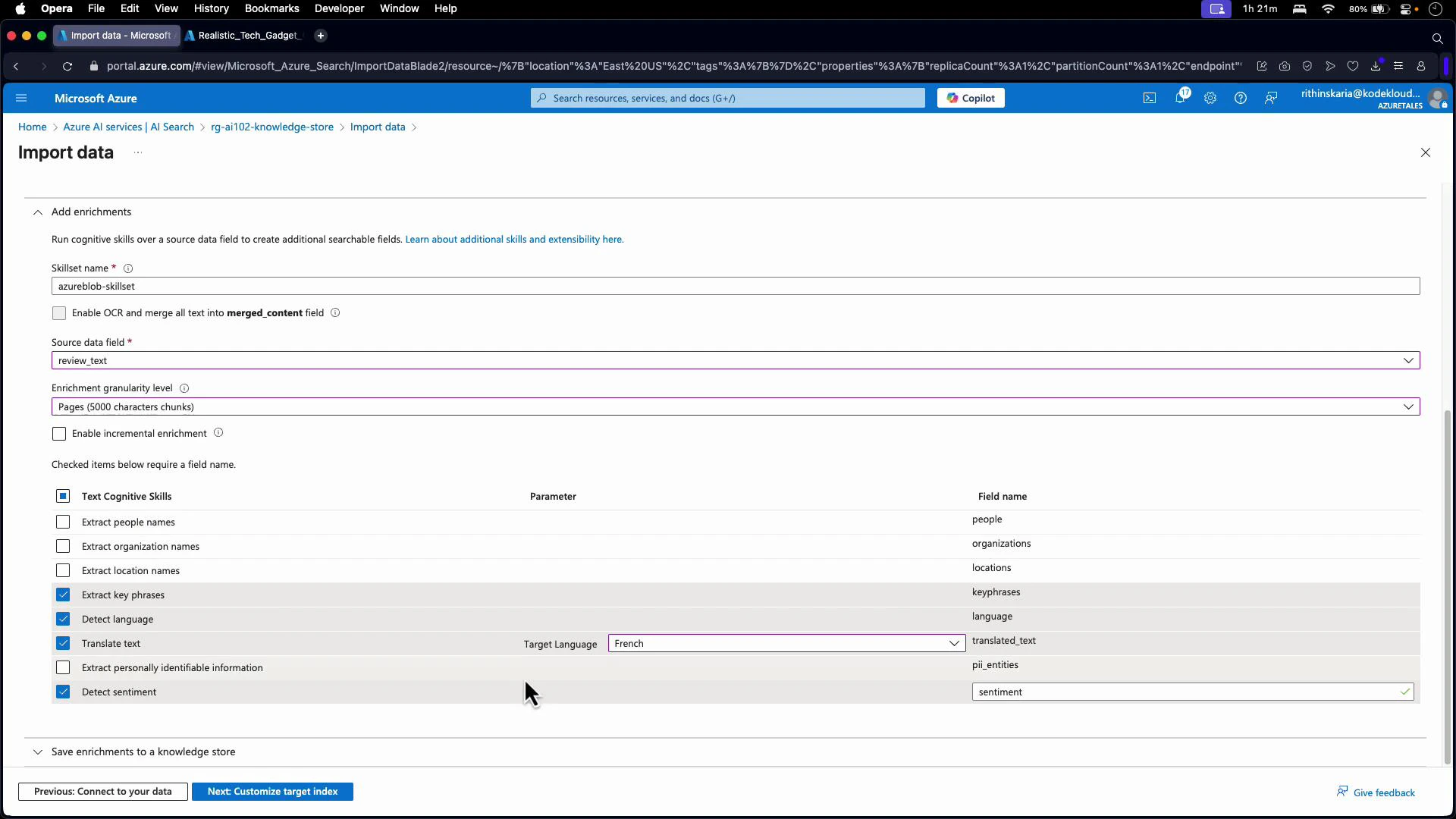
Add cognitive skills (enrichments) Add cognitive skills in the skillset to generate structured outputs from the raw review text. You can attach an AI service to enable more advanced enrichments; Azure provides a limited set of free enrichments if you don’t attach an AI service. Typical skill selections for review text (e.g., review_text):
  • Detect language
  • Extract key phrases
  • Translate text (if you need translated outputs)
  • Detect sentiment
Choose the granularity of enrichment (document, page, etc.) depending on how you want results grouped or projected.
A screenshot of the Microsoft Azure portal showing the "Import data" page for an AI Search/knowledge store, with a skillset configuration panel. The form lists text cognitive skills (extract key phrases, detect language, translate to French, detect sentiment, etc.) and fields like source data field and enrichment granularity.
Save enrichments to a knowledge store When you configure the skillset, enable the option to save enrichments to the knowledge store. If you skip this step, enrichment outputs will still be produced for indexing but will not be persisted to your storage account. When enabling the knowledge store:
  1. Select or create the destination storage account and container (for example, a container named “knowledgestore”).
  2. Provide the storage connection string or select a managed identity option in the portal.
  3. Confirm container permissions and that the portal shows the selected connection string.
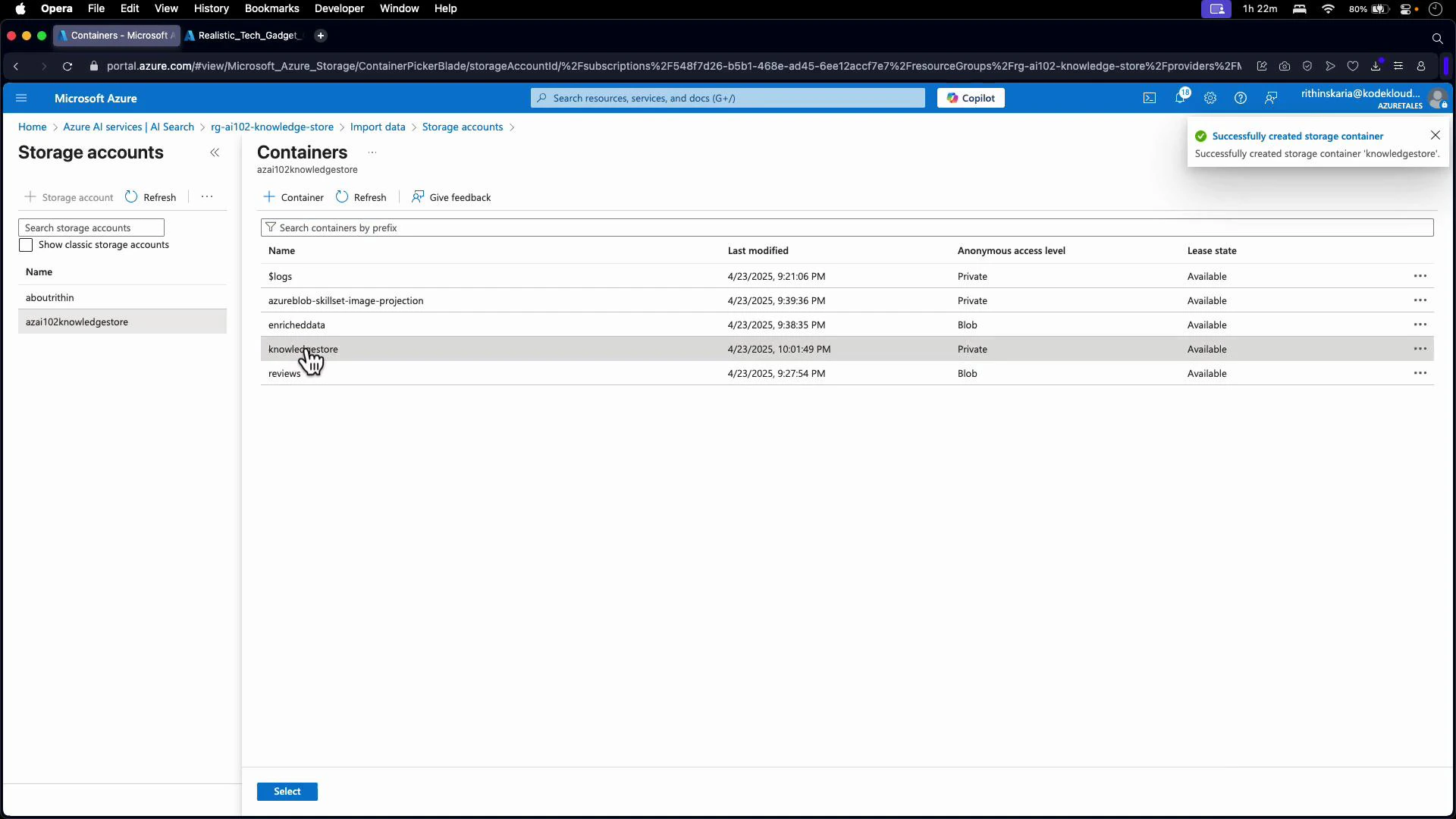
A screenshot of the Microsoft Azure portal displaying Storage accounts and a list of Containers for the account "azai102knowledgestore," with the "knowledgestore" container selected. A notification in the top-right says a storage container was successfully created.
Field mapping and index customization Customize which fields should be included in the search index and which should be persisted to the knowledge store. For example:
  • Mark product name, category, and brand as searchable and retrievable in the index.
  • Include metadata fields (country, city) in the knowledge store if you selected “content and metadata”.
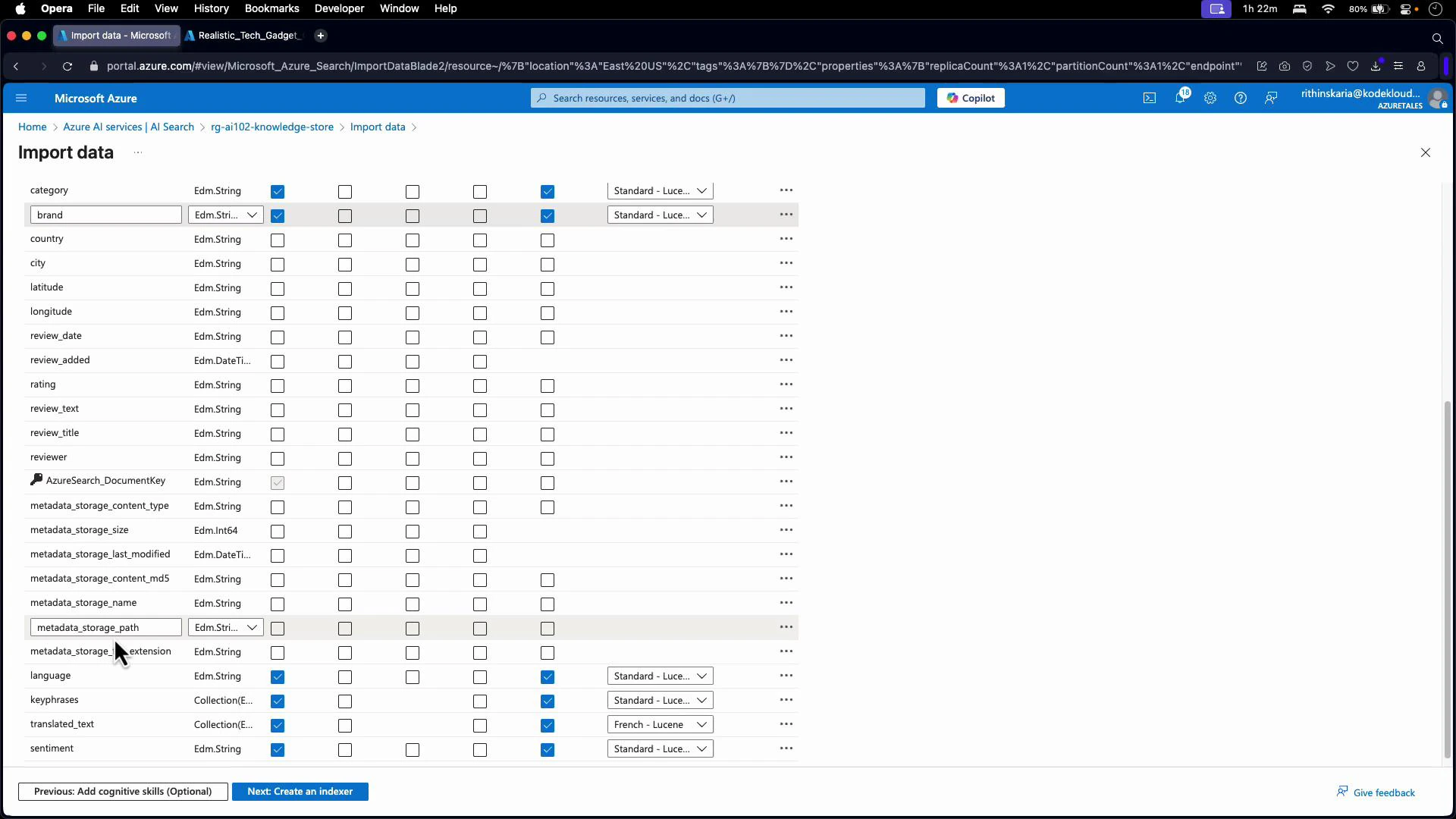
A browser screenshot of the Microsoft Azure portal showing an "Import data" field-mapping table for an AI Search/knowledge store, listing columns like brand, country, city, latitude, review_text and metadata with data types and checkbox/indexing options. The page includes navigation buttons at the bottom to add cognitive skills or create an indexer.
Create and run the indexer Create an indexer (for example, “blob indexer”) and submit it. The indexer will:
  • Read blobs from the storage container
  • Execute the configured skillset to enrich content
  • Write enrichment results to the search index
  • Persist projections to the knowledge store if enabled
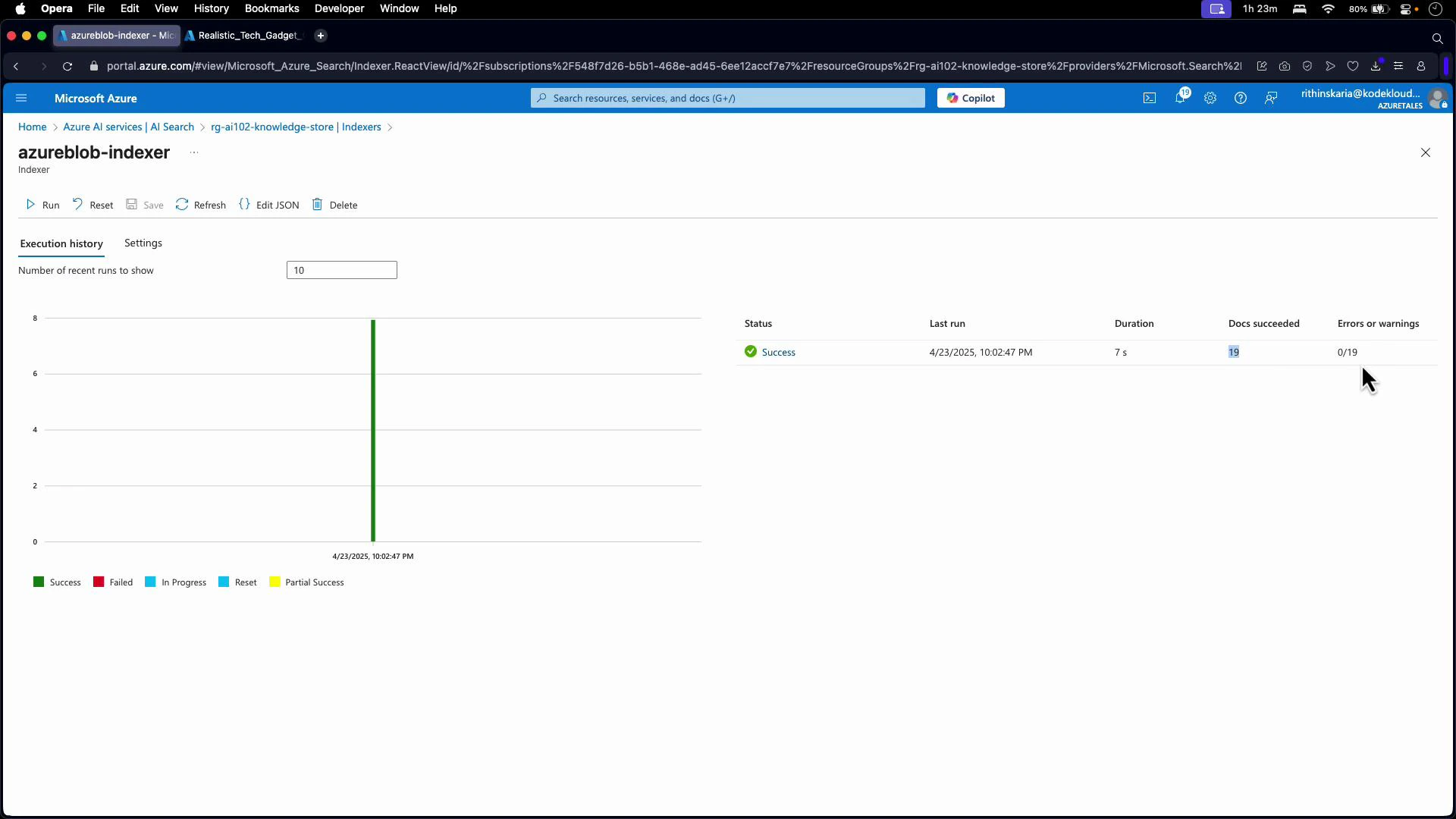
In this example the indexer completed successfully and processed multiple documents:
Screenshot of the Microsoft Azure portal displaying the "azureblob-indexer" indexer execution history. It shows a successful run with a green bar, 19 documents succeeded, a 7s duration, and the last run timestamp.
Inspect persisted knowledge store artifacts If you selected table projections, the knowledge store persists enrichment outputs into Azure Tables. From the storage account you can browse the tables created by the knowledge store (for example: azureblobSkillsetDocument, azureblobSkillsetKeyPhrases, azureblobSkillsetPages). Each table contains rows for pages, key phrases, documents, sentiment, translations, and other enriched fields. Example: key phrases table showing RowKey, Timestamp, PageId, and key phrase content.
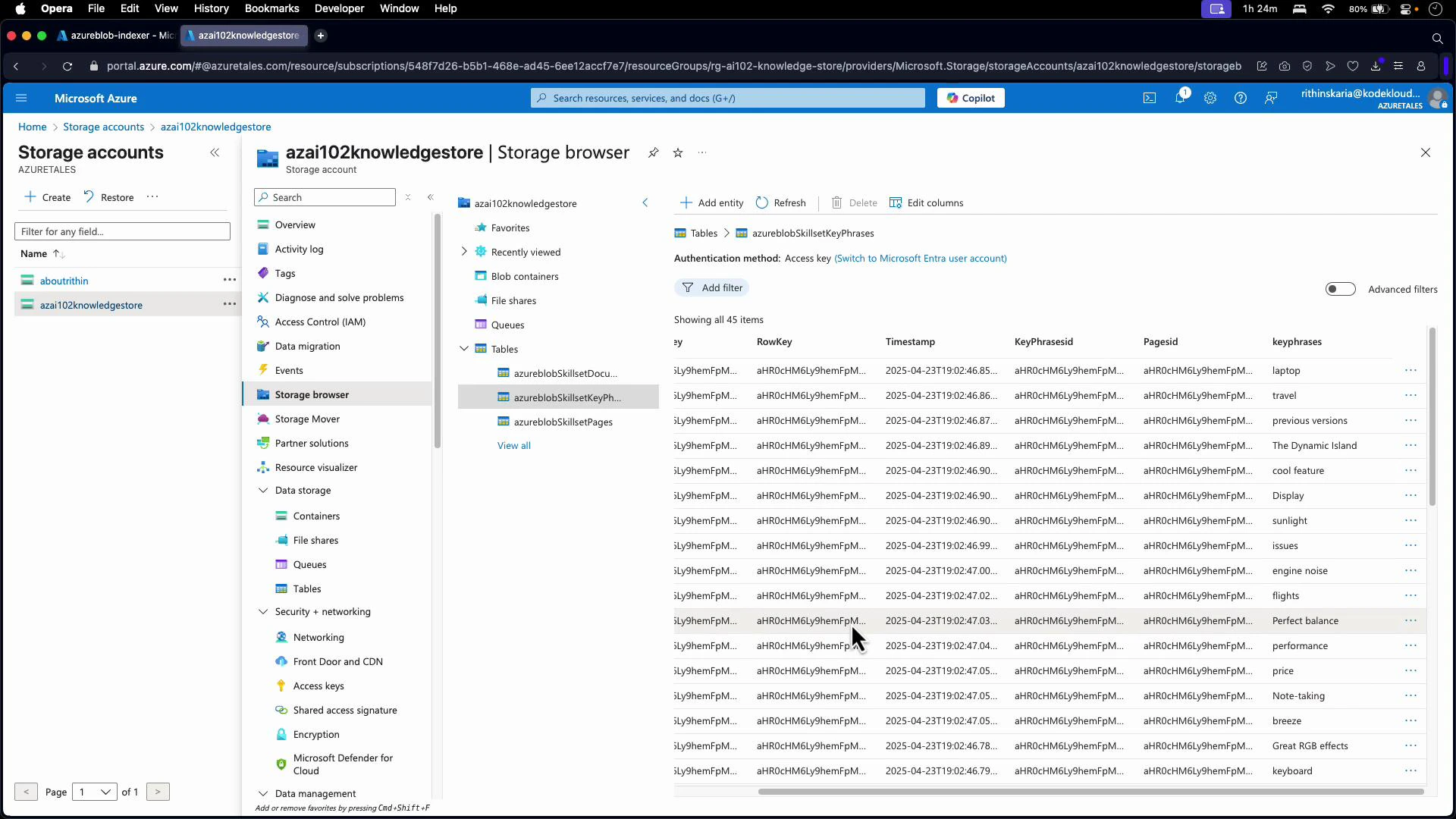
Screenshot of the Microsoft Azure portal open to a Storage accounts > Storage browser view. The right pane shows a table of storage entities (azureblobSkillsetKeyPhrases) with columns like RowKey, Timestamp, Pagesid and keyphrases.
Persisted artifacts can serve as the foundation for:
  • Sentiment analysis dashboards
  • Customer experience reporting
  • Archival or compliance workflows
  • Downstream ML feature stores
Skillset JSON example including knowledge store projections The following skillset JSON excerpt demonstrates table and file projections for Documents, Pages, KeyPhrases, and extracted images. Use this pattern to map enrichment paths to table names or file containers.
"knowledgeStore": {
  "projections": [
    {
      "tables": [
        {
          "tableName": "azureblobSkillsetDocument",
          "generatedKeyName": "DocumentId",
          "source": "/document/tableprojection",
          "inputs": []
        },
        {
          "tableName": "azureblobSkillsetPages",
          "generatedKeyName": "Pagesid",
          "source": "/document/tableprojection/pages/*",
          "inputs": []
        },
        {
          "tableName": "azureblobSkillsetKeyPhrases",
          "generatedKeyName": "KeyPhrasesid",
          "sourceContext": "/document/tableprojection/pages/*/keyPhrases/*",
          "inputs": [
            {
              "name": "keyphrases",
              "source": "/document/tableprojection/pages/*/keyPhrases/*",
              "inputs": []
            }
          ]
        }
      ],
      "objects": [],
      "files": [
        {
          "storageContainer": "azureblob-skillset-image-projection",
          "generatedKeyName": "imagepath",
          "source": "/document/tableprojection/Images/*/imgdata",
          "inputs": []
        }
      ]
    }
  ]
}
This example shows how to:
  • Map enrichment outputs into specific table names and generated keys
  • Project page-level artifacts and nested key phrases
  • Persist extracted image binary data to a blob container
Conclusion A knowledge store in Azure Cognitive Search provides a reliable mechanism to persist enriched data (objects, tables, files) from your skillset. By projecting enrichments into JSON blobs, relational tables, or files, you create a structured knowledge layer that supports analytics, downstream applications, and long-term storage strategies. Links and references

Watch Video