In this lesson we’ll explore how to analyze images with Azure AI Vision. You’ll learn what goes into image analysis, how to call the service via the REST API and SDKs (C# and Python), how to configure analysis options, and how to parse the structured responses the service returns. We cover:
  • What the Analyze API returns (captions, detected objects and people, OCR/read, smart crops, etc.)
  • How to select Visual Features to limit and focus the response
  • SDK usage patterns and a full Python example to parse results
  • REST usage patterns and a sample query string for the Analyze endpoint
  • Practical options (smart crops, language, gender-neutral captions, model versioning)
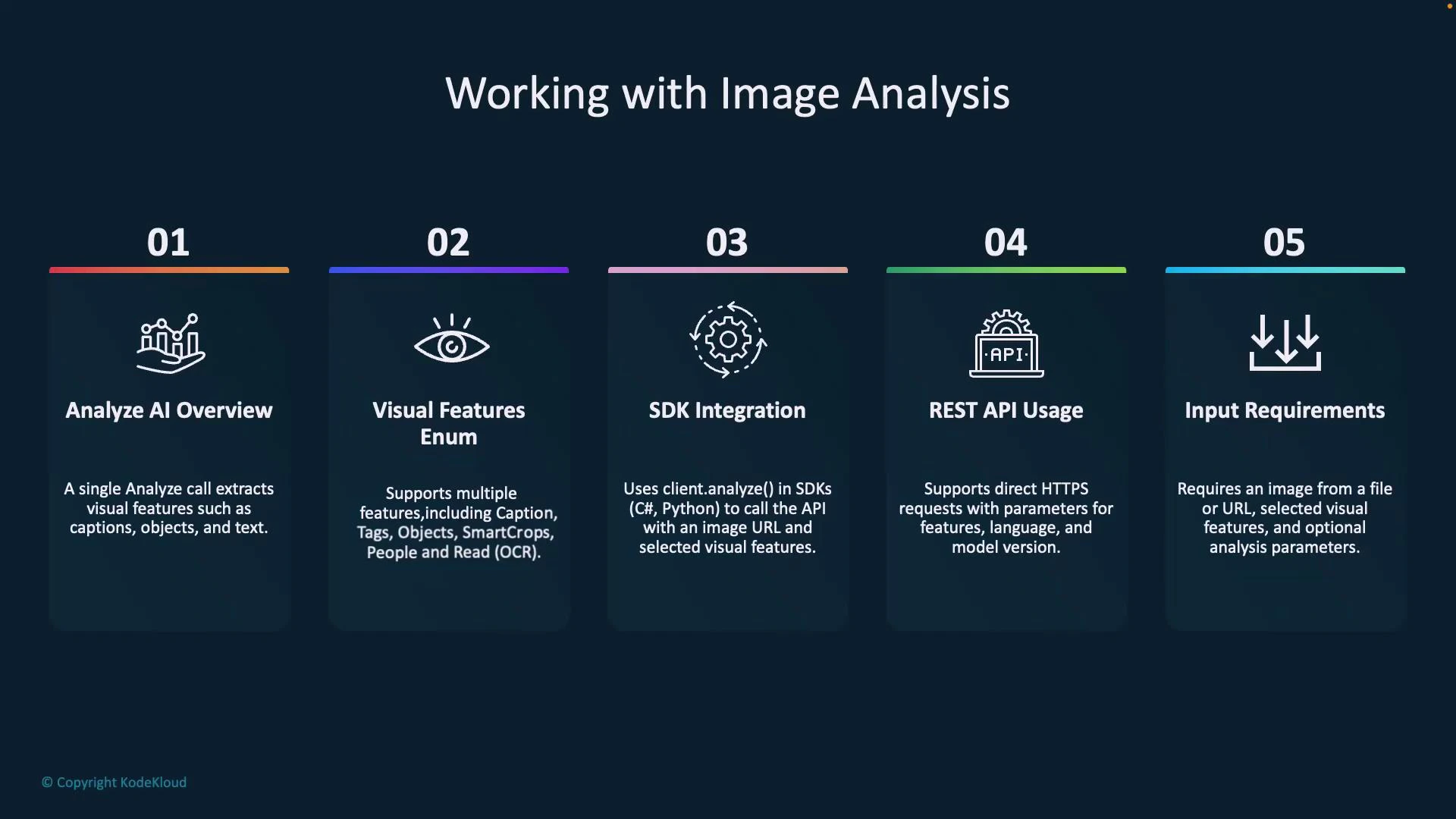
Key aspects of image analysis are summarized in the table below.
ResourcePurposeTypical Use Case
Analyze APISingle call to extract visual insightsGenerate captions, detect objects/people, OCR, suggest crops
Visual Features enumSelect which features to returnReduce latency and payload by choosing only needed outputs
SDKs (C#, Python)Wrap the REST calls and provide typed resultsFaster integration in apps and fewer manual request steps
REST APIDirect HTTPS calls to the analyze endpointFlexibility for non-.NET/Python environments or custom clients
Input formatsImage URL or raw bytesUse blob/storage URLs or upload binary bytes in request body
An infographic titled "Working with Image Analysis" showing five numbered panels that summarize: Analyze AI Overview, Visual Features Enum, SDK Integration, REST API Usage, and Input Requirements. Each panel includes a short description and an icon explaining the corresponding image-analysis feature.

REST API example

A typical REST Analyze request is performed against the Image Analysis endpoint. Example URL (replace <your-endpoint> and ):
https://<your-endpoint>/computervision/imageanalysis:analyze?
features=caption,people&model-name=latest&
language=en&api-version={version}
  • Query parameters:
    • features — comma-separated visual features to return (example: caption, people, objects, read, smartCrops).
    • model-name — model to use (e.g., latest or a specific version).
    • language — language for captions / OCR results.
    • api-version — service API version.
You include the image either as:
  • an image URL in the JSON request body, or
  • raw image bytes in the request body (binary upload).
The service responds with structured JSON containing captionResult, objectsResult, peopleResult, smartCropsResult, tagsResult/read results, metadata, and modelVersion.

SDK usage (C# and Python — conceptual)

SDKs simplify calls and return typed objects. Below are conceptual method signatures to illustrate common patterns. C# (conceptual):
// C# (conceptual)
ImageAnalysisResult result = client.Analyze(
    new Uri("<uri-to-image>"),
    VisualFeatures.Caption | VisualFeatures.People,
    analysisOptions // Optional ImageAnalysisOptions
);
Python (conceptual):
# Python (conceptual)
result = client.analyze(
    image_url="<uri-to-image>",
    visual_features=[
        VisualFeatures.CAPTION,
        VisualFeatures.PEOPLE,
    ],
    <analysis_options>  # Optional analysis options (e.g., language, gender_neutral_caption)
)

Visual features (examples)

Visual FeatureWhat it returns
CaptionShort descriptive caption and confidence
ObjectsDetected objects with bounding boxes and confidence
PeopleDetected people with bounding boxes and confidence
Read / OCRText regions and recognized text
TagsLabels/tags with confidence scores
Smart CropsSuggested crop bounding boxes for specified aspect ratios
Dense CaptionsMultiple region captions with context

Analysis options

You can tune the behavior of the analysis call with these options:
  • Cropping aspect ratios — request smart-crop suggestions for thumbnail generation or fixed aspect ratios.
  • Gender-neutral captioning — enable gender-neutral language for generated captions.
  • Language selection — specify language for OCR and captions.
  • Model versioning — pin to a specific model for reproducible results.
  • Additional flags — options vary between SDKs and REST; consult the model-name and API docs.
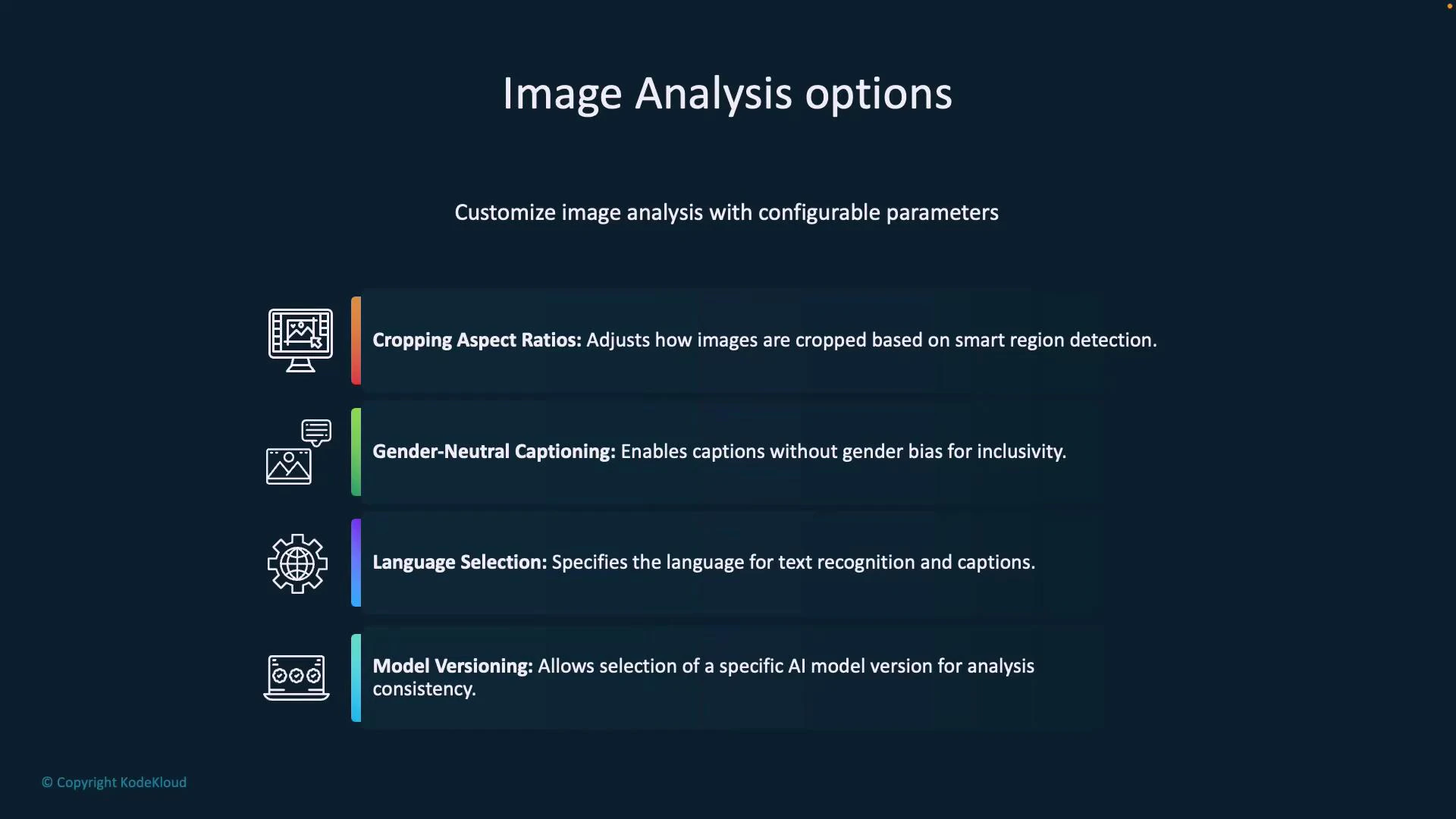
A dark-themed infographic titled "Image Analysis options" that lists configurable settings for image analysis. It highlights four features: Cropping Aspect Ratios, Gender-Neutral Captioning, Language Selection, and Model Versioning, each with an icon and short description.

Example: setting analysis options

C# (conceptual):
ImageAnalysisOptions options = new ImageAnalysisOptions {
    GenderNeutralCaption = true,
    Language = "en"
};
ImageAnalysisResult result = client.Analyze(
    imageURL,
    visualFeatures,
    options
);
Python (conceptual):
result = client.analyze(
    image_url=image_url,
    visual_features=visual_features,
    gender_neutral_caption=True,
    language="en"
)

Image analysis results

Responses from the service are structured and predictable so you can parse them reliably. Typical top-level sections:
  • captionResult — best caption and confidence
  • objectsResult — array of detected objects with bounding boxes and confidence
  • peopleResult — array of people detections with bounding boxes and confidence
  • smartCropsResult — suggested crop boxes for requested aspect ratios
  • tagsResult / tags — label/tag information and confidence
  • read / ocr results — recognized text blocks/lines
  • metadata — image dimensions and format
  • modelVersion — the model used for inference
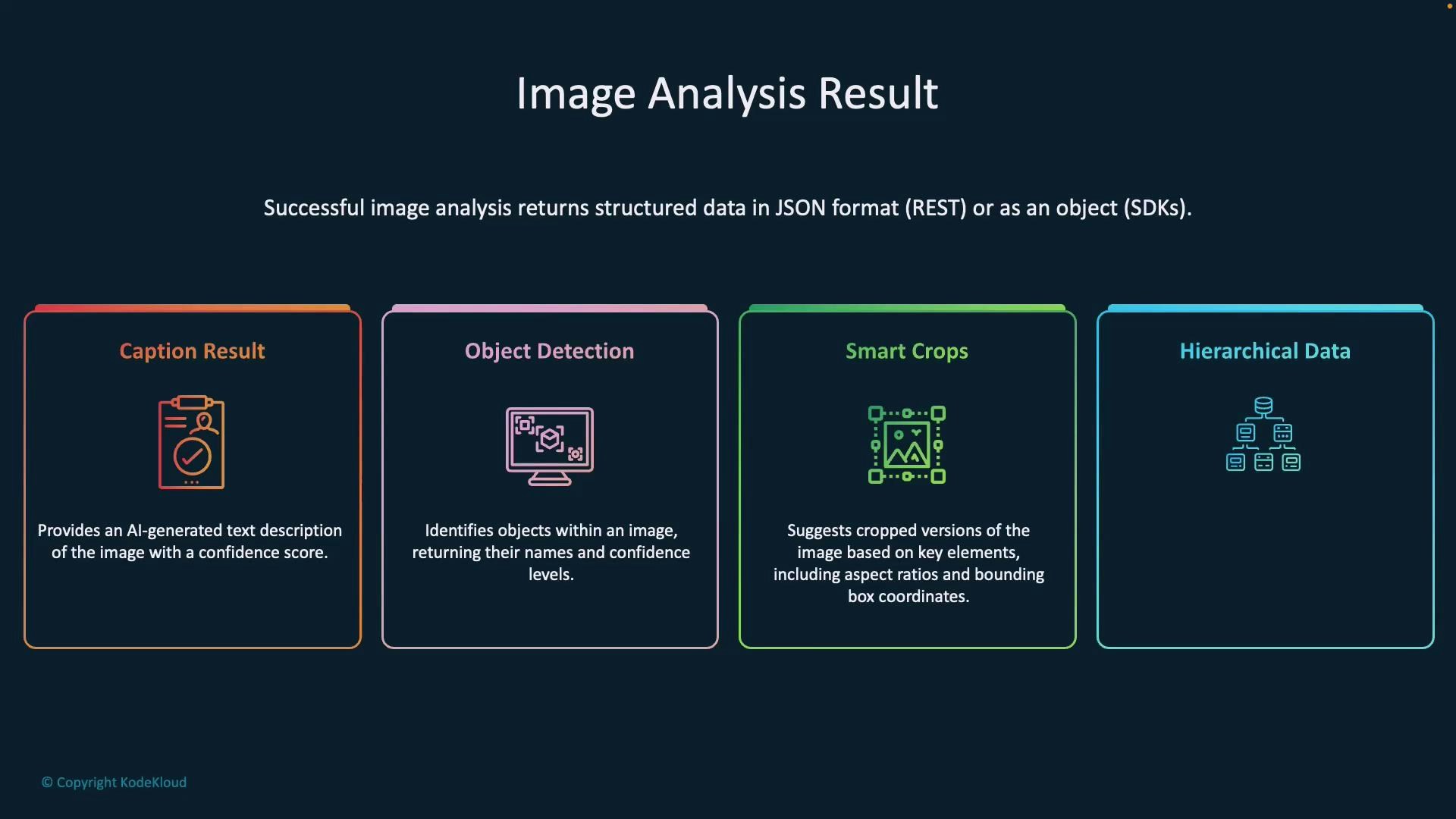
A dark-themed infographic titled "Image Analysis Result" with four colored panels labeled Caption Result, Object Detection, Smart Crops, and Hierarchical Data, each showing an icon and a short description. It explains that successful image analysis returns structured data (JSON/SDK).
Example JSON structure (illustrative):
{
  "captionResult": {
    "text": "a man pointing at a screen",
    "confidence": 0.4891590476036072
  },
  "objectsResult": {
    "values": [
      {
        "name": "laptop",
        "confidence": 0.95
      }
    ]
  },
  "smartCropsResult": {
    "values": [
      {
        "aspectRatio": 1.33,
        "boundingBox": {
          "x": 0,
          "y": 0,
          "w": 0,
          "h": 0
        }
      }
    ]
  },
  "peopleResult": {
    "values": [
      {
        "boundingBox": { "x": 164, "y": 21, "w": 329, "h": 378 },
        "confidence": 0.9396107197
      }
    ]
  },
  "metadata": {
    "width": 600,
    "height": 400
  },
  "modelVersion": "latest"
}
Use these fields to:
  • render captions for accessibility,
  • draw bounding boxes for objects and people,
  • select recommended crops for thumbnails, and
  • display detected tags and OCR text in the UI.

Hands-on: Python SDK example

Install the Azure AI Vision package for Python:
pip install azure-ai-vision
Replace endpoint and key values below with the endpoint and key from your Azure AI service (Keys and Endpoint in the Azure portal). Never commit production keys into source control.
A consolidated, practical Python example demonstrating initialization, choosing visual features, calling analysis, and parsing results safely:
# python
import json
from azure.ai.vision.imageanalysis import ImageAnalysisClient
from azure.ai.vision.imageanalysis.models import VisualFeatures
from azure.core.credentials import AzureKeyCredential

# Replace with your service values
endpoint = "https://<your-endpoint>.cognitiveservices.azure.com/"
key = "<your-key>"

# Example image URL (replace as needed)
image_url = "https://azai102imagestore.blob.core.windows.net/images/young-smiling-happy-cheerful-owner-600nw-2397244269.webp"

# Initialize client
client = ImageAnalysisClient(
    endpoint=endpoint,
    credential=AzureKeyCredential(key)
)

# Select features
visual_features = [
    VisualFeatures.TAGS,
    VisualFeatures.OBJECTS,
    VisualFeatures.CAPTION,
    VisualFeatures.DENSE_CAPTIONS,
    VisualFeatures.READ,
    VisualFeatures.SMART_CROPS,
    VisualFeatures.PEOPLE,
]

# Request analysis
result = client.analyze_from_url(
    image_url=image_url,
    visual_features=visual_features,
    smart_crops_aspect_ratios=[0.9, 1.33],
    gender_neutral_caption=True,
    language="en"
)

# Format SDK response into a dict for flexible parsing
try:
    result_dict = result.as_dict() if hasattr(result, "as_dict") else dict(result)
    print("Raw response as formatted JSON:")
    print(json.dumps(result_dict, indent=2))
    print("\n")
except Exception as e:
    print(f"Could not format result as JSON: {str(e)}")
    print(f"Raw response: \n {result} \n\n")
    result_dict = {}

# Helper: safe nested getter
def safe_get(d, *keys, default=None):
    for key in keys:
        if isinstance(d, dict) and key in d:
            d = d[key]
        else:
            return default
    return d

# Parse people
people = safe_get(result_dict, "peopleResult", "values", default=[])
if people:
    print("People detected:")
    for person in people:
        bbox = person.get("boundingBox", {})
        confidence = person.get("confidence", 0)
        print(f"  Bounding Box: x={bbox.get('x')}, y={bbox.get('y')}, width={bbox.get('w')}, height={bbox.get('h')}")
        print(f"  Confidence: {confidence:.2f}")
else:
    print("No people detected.")

# Parse caption
caption = safe_get(result_dict, "captionResult")
if caption:
    text = caption.get("text", "")
    conf = caption.get("confidence", 0)
    print(f"\nCaption: {text} (Confidence: {conf:.2f})")

# Parse tags (some responses use tagsResult.values or tags)
tags = safe_get(result_dict, "tagsResult", "values", default=None)
if tags is None:
    tags = safe_get(result_dict, "tags", default=None)

if tags:
    print("\nTags:")
    for t in tags:
        name = t.get("name") or (t.get("tag", {}) or {}).get("name")
        confidence = t.get("confidence", 0)
        print(f"  {name}: {confidence:.2f}")

# Parse objects
objects = safe_get(result_dict, "objectsResult", "values", default=[])
if objects:
    print("\nObjects:")
    for obj in objects:
        name = obj.get("name") or "object"
        confidence = obj.get("confidence", 0)
        bbox = obj.get("boundingBox", {})
        print(f"  {name}: bbox={bbox}, confidence={confidence:.2f}")

# Metadata & model version
metadata = safe_get(result_dict, "metadata", default={})
if metadata:
    print(f"\nImage width: {metadata.get('width')}, height: {metadata.get('height')}")
print(f"Model version: {result_dict.get('modelVersion')}")
This script:
  • Initializes ImageAnalysisClient with your endpoint and key.
  • Chooses the visual features to analyze.
  • Calls analyze_from_url with optional analysis options.
  • Prints the raw JSON response and demonstrates robust parsing of common result sections (people, caption, tags, objects).
Protect your API keys: rotate keys regularly, store secrets in a secure vault (e.g., Azure Key Vault), and avoid hard-coding secrets in source control.

Live demonstration notes and best practices

  • Provision an Azure AI service in the Azure portal. Use the Keys and Endpoint values from the portal for your client.
  • Use blob storage URLs or public URLs for images. For private images, upload binary image bytes in the request body.
  • Gender-neutral captions help avoid gender assumptions in generated text (e.g., “a person hugging a dog”).
  • Smart crops return bounding boxes for the aspect ratios you specify—use these to create thumbnails that preserve important content.
  • Pin model versions for reproducible results; use “latest” for new features and model improvements.
  • Always validate and sanitize service outputs before surface-level display in production applications.
Example parsed output (illustrative):
People detected!
  Bounding Box: x=164, y=21, width=329, height=378
  Confidence: 0.94

Caption: a person hugging a dog (Confidence: 0.89)

Tags:
  pet: 0.90
  golden retriever: 0.89

Model version: latest
This guide demonstrates how to call Azure AI Vision to obtain captions, detect objects and people, extract OCR text, and request smart crops. Use these structured outputs to annotate images, drive UI decisions (smart cropping), and provide accessible descriptions for your applications.

Watch Video