

- Face detection (locating faces and returning bounding boxes)
- Face attribute analysis (age, head pose, glasses, blur, occlusion, exposure, etc.)
- Facial landmark detection (precise key points on a face)
- Face comparison and verification
- Persisted face recognition (person groups and enrolled faces)
- Liveness detection (anti-spoofing)
Key capabilities at a glance
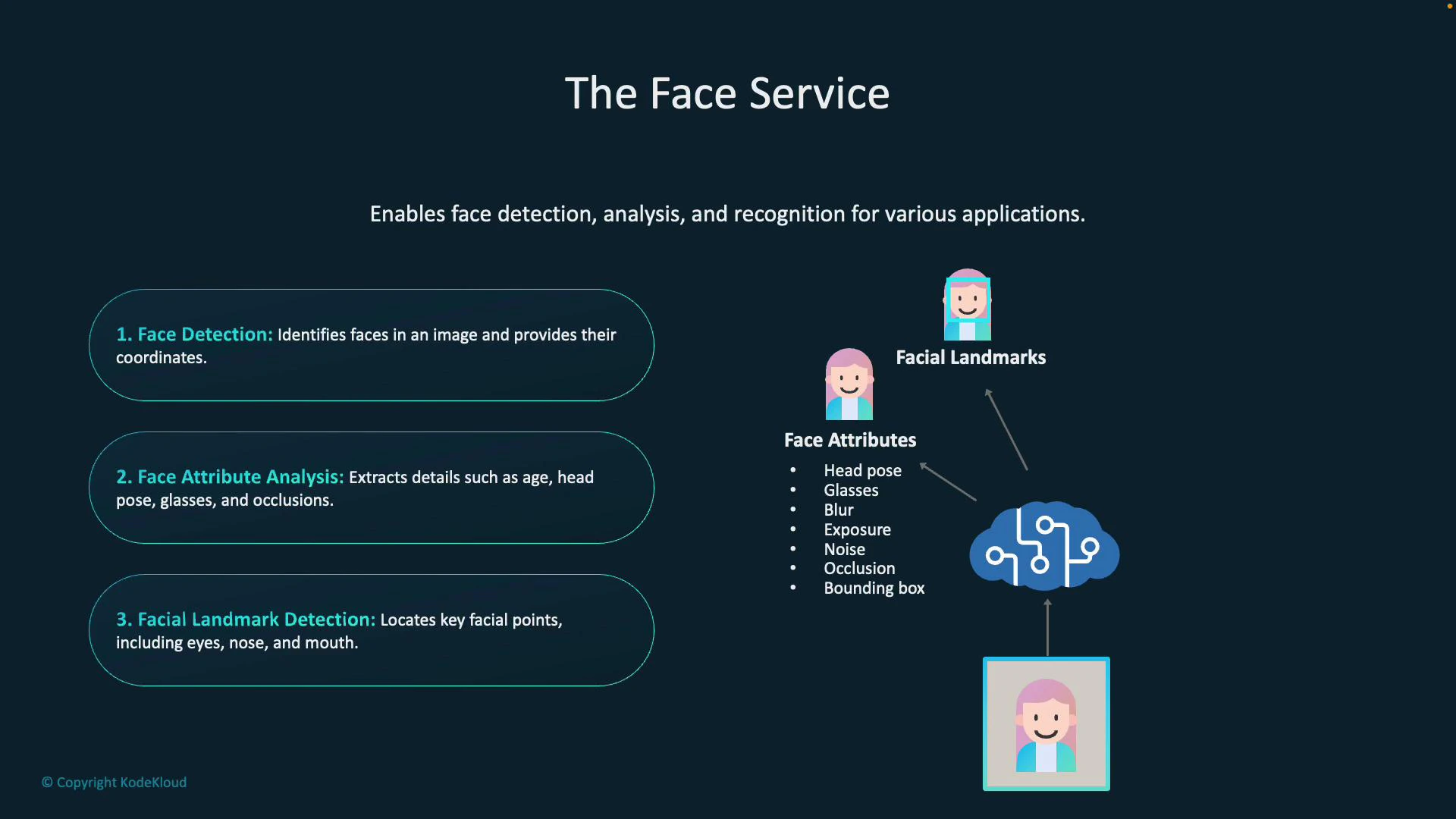
Face detection and attribute analysis
Face detection automatically locates faces in images and returns bounding boxes for each face so you can highlight or crop faces in UI. Attribute analysis extracts additional metadata such as approximate age, head pose (pitch/yaw/roll), whether the subject is wearing glasses, blur level, occlusion (e.g., masks), and exposure. These attributes help you determine face quality and suitability for downstream tasks (recognition, verification, or enrollment).Facial landmark detection
Facial landmark detection returns precise keypoints (for example, eye centers, nose tip, mouth corners, chin) useful for:- AR filters and face overlays
- Face normalization and alignment before recognition
- Digital makeup or facial animation pipelines
Face comparison and verification
Face comparison (verification) computes the likelihood that two faces belong to the same person. This is often used for one-to-one checks (e.g., selfie vs. ID). Because verification and identification can reveal sensitive personal data, enabling these features typically requires special approval from Microsoft.Face-related operations that identify or verify individuals are sensitive and typically require you to request access/approval from Microsoft. Ensure you understand the privacy, legal, and compliance implications before enabling these features.
Facial recognition and identification
Persisted or “enrolled” recognition compares a detected face against a stored set of persons (person groups). Use cases include attendance, authorized access, and customer verification workflows where faces are matched to labeled identities that you have legally and ethically enrolled.Liveness detection
Liveness checks determine whether the presented face is from a live subject (not a printed photo or replayed video). This reduces the risk of spoofing during authentication or verification flows.How detected faces are represented
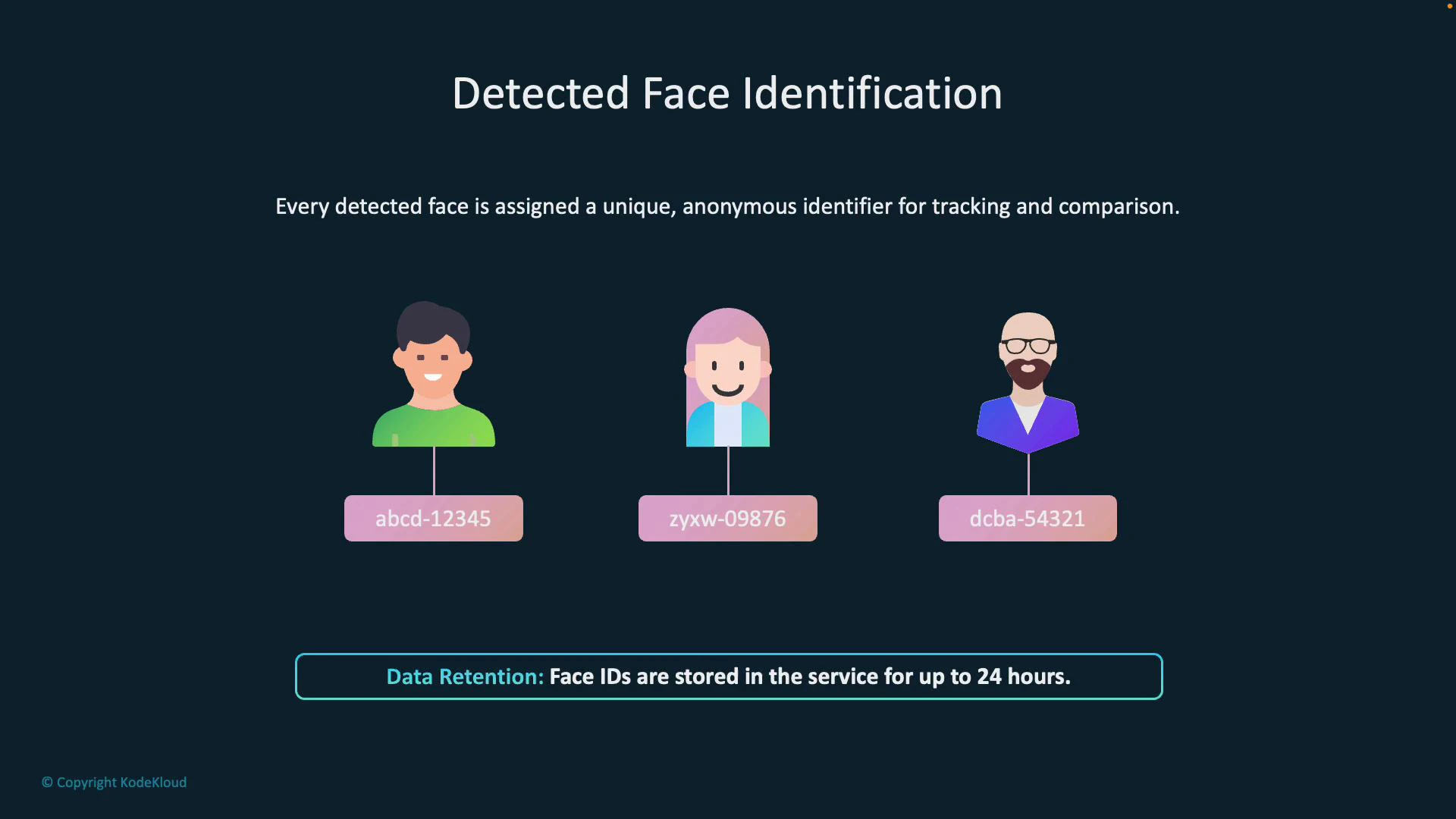
When a face is detected, the Face Service returns a temporary face identifier (faceId). Key points about detected faceIds:- faceId is ephemeral and available for a limited window (typically up to 24 hours).
- It enables follow-up operations (verification, find-similar, identification) within that timeframe.
- faceId is not tied to a person label unless you persist the face into a person group.
Operations built on detected-face identification
- Face verification: Compare two detected faceIds to confirm whether they are likely the same person.
- Find similar: Search a collection of detected or persisted faces for faces visually similar to a target face.
- Persisted recognition (identification): Compare a detected face against a trained person group to return one or more candidate matches.
Persisted face recognition concepts
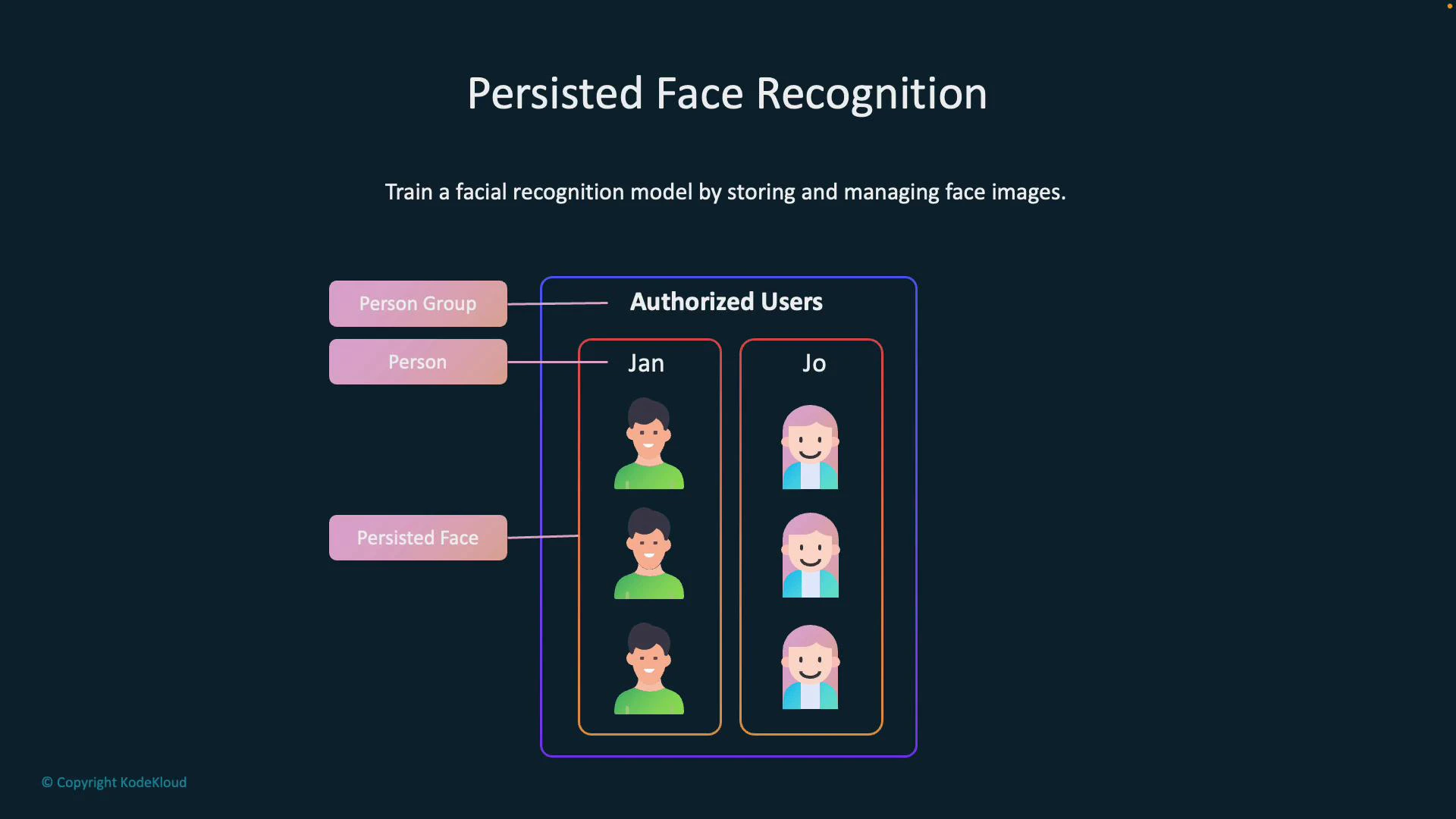
- Person group / large person group: A container for the people your application will recognize (for example, employees or students).
- Person: An entity within a person group with a human-readable label (for example, “Jan”).
- Persisted face: One or more stored face images associated with a Person. Persisted faces are used to train the recognition model.
Training a persisted-face recognition model
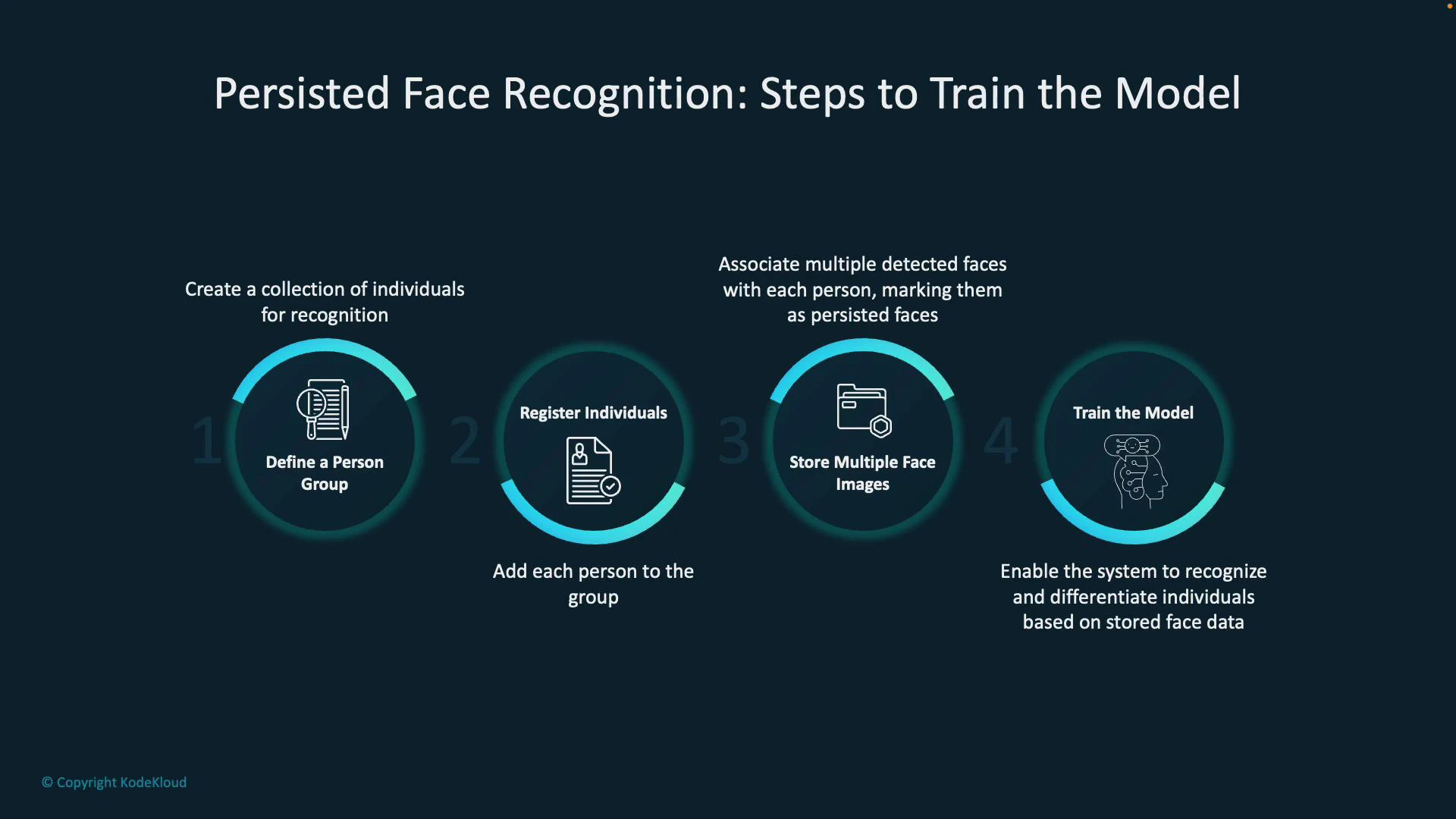
Follow these high-level steps to train a model that recognizes enrolled individuals:- Create a person group to contain all people you want to recognize.
- Register each person in the group (create a Person object with a label).
- Upload multiple face images for each person (persisted faces) to capture pose, expression, lighting, and occlusion variation.
- Train the person group—the service processes the persisted faces and builds a recognition model.
Common persisted-face recognition use cases
- Attendance and presence tracking in classrooms or workplaces
- Selfie-to-ID verification for account access or onboarding
- Finding visually similar faces in a database for investigative support or tag suggestions
Best practices and privacy considerations
- Collect and store persisted faces only when you have a lawful basis and explicit user consent. Comply with local regulations (GDPR, CCPA, or other applicable laws).
- Minimize retention of persisted faces and implement secure access controls and encryption for stored data.
- Remember detected faceIds are temporary (typically up to 24 hours). Use person groups for long-term recognition and prune them according to your data-retention policies.
- Request Microsoft approval (gated access) before enabling identification/verification features where required.
Detected face IDs are temporary (typically up to 24 hours). Persisted faces stored in person groups are the mechanism for long-term recognition — manage them carefully and prune as required by policy.