SSML (Speech Synthesis Markup Language) is an XML-based markup that gives developers precise control over how text is converted to speech. With SSML you can shape tone, pacing, pronunciation, and other delivery aspects so synthesized audio sounds more natural and expressive.
A presentation slide titled "Speech Synthesis Markup Language (SSML)" with an icon of a document being converted into a speech bubble. The caption explains SSML is a markup language for fine‑tuned customization of how text is converted to speech.
Core SSML capabilities
  • Speaking styles — set the voice’s tone or emotion (for example: cheerful, excited, empathetic).
  • Pauses and silence — insert breaks or delays to control pacing and rhythm.
  • Phonemes — define custom pronunciations for technical terms, names, or nonstandard words.
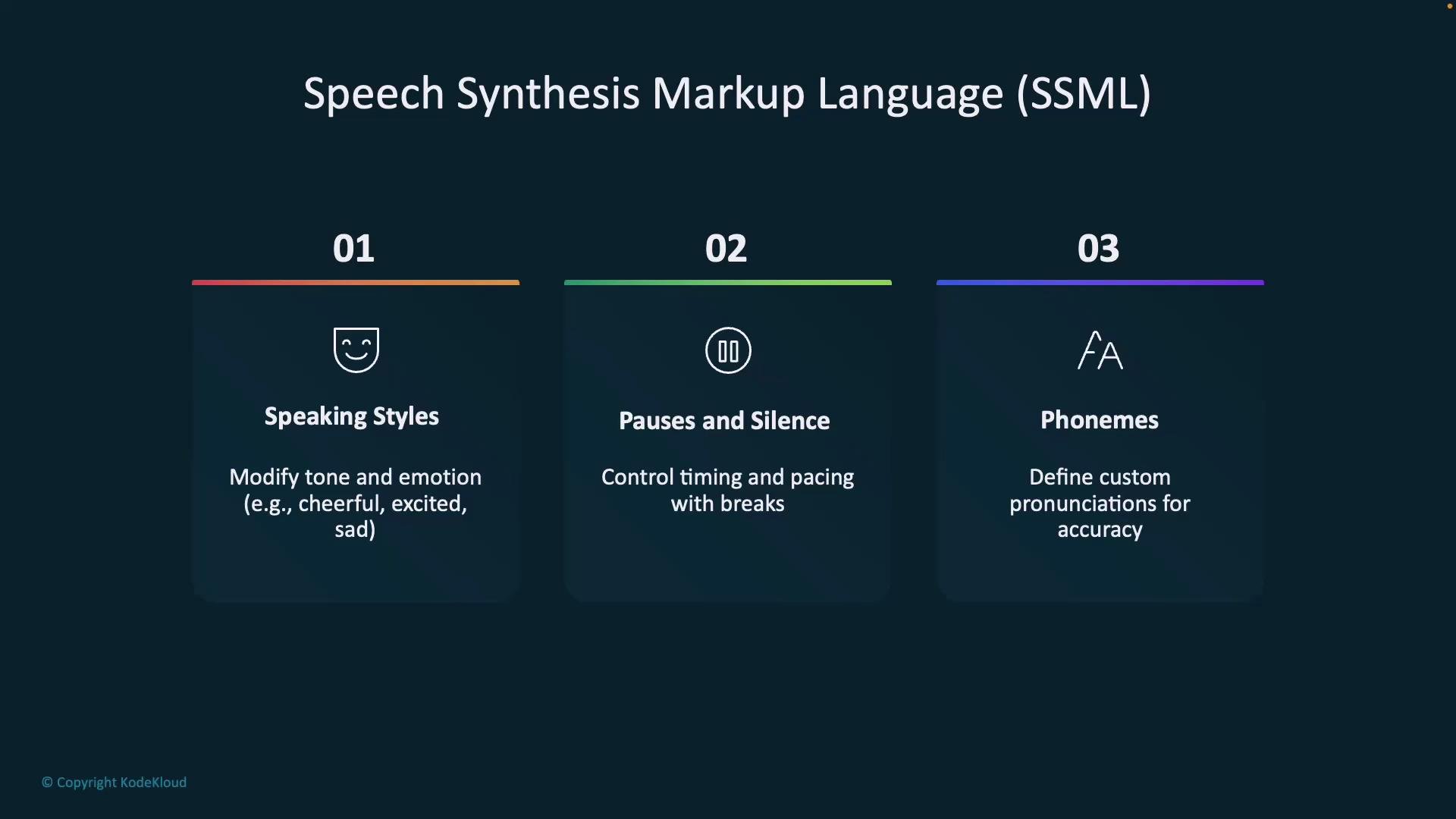
An infographic slide titled "Speech Synthesis Markup Language (SSML)" showing three panels: 01 Speaking Styles (modify tone and emotion), 02 Pauses and Silence (control timing and pacing), and 03 Phonemes (define custom pronunciations). Each panel includes a simple icon and brief explanatory text.
Additional expressive features
  • Prosody adjustments — change pitch, rate, and volume to create a more dynamic delivery.
  • Say-as formatting — control how numbers, dates, times, phone numbers, and other tokens are spoken (for example, as a year, ordinal, or telephone number).
  • Embedded audio — insert pre-recorded audio or background music for branding or effects.
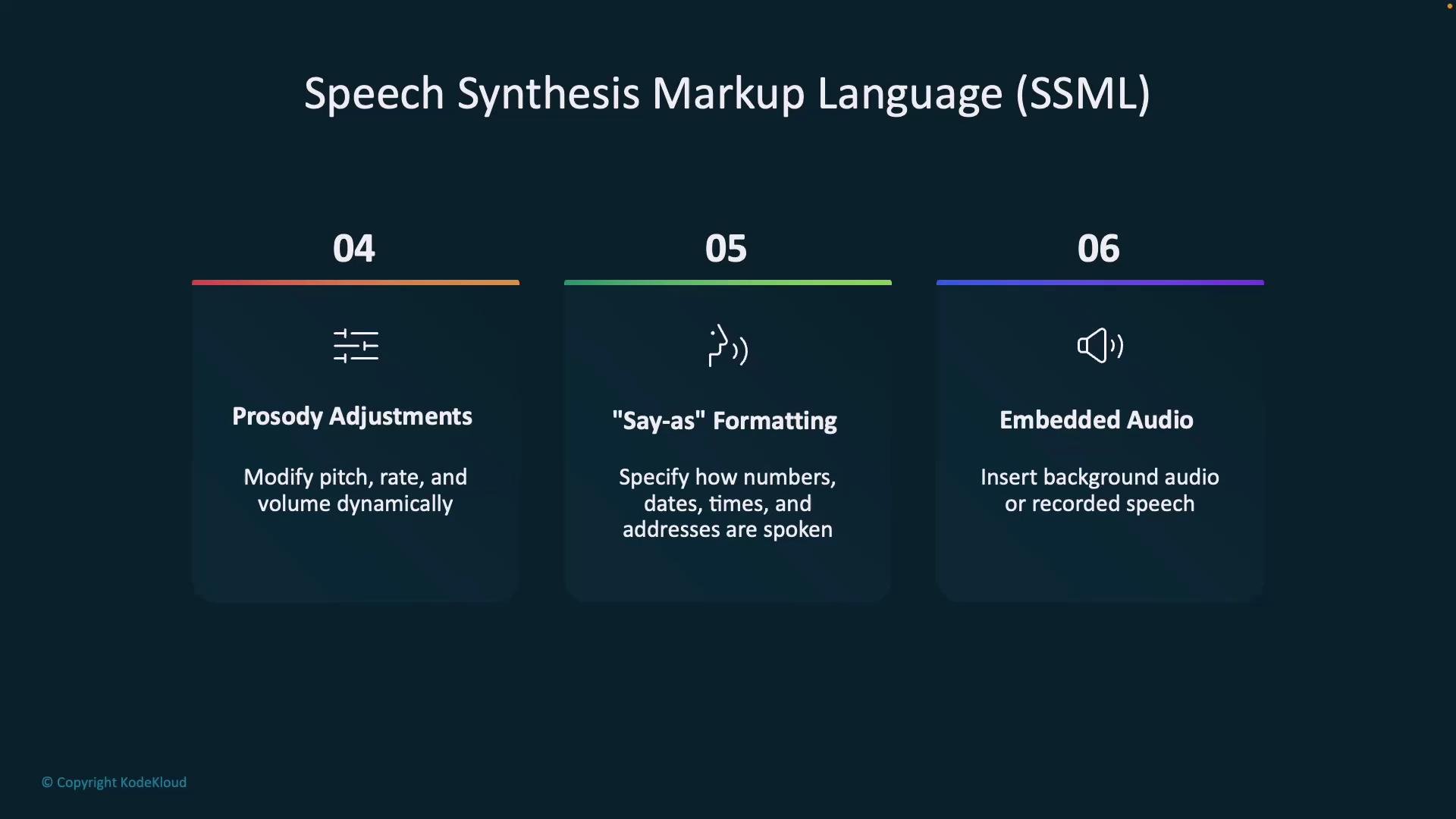
A presentation slide titled "Speech Synthesis Markup Language (SSML)" showing three numbered feature cards: Prosody Adjustments, "Say-as" Formatting, and Embedded Audio with short descriptions. Each card lists what the feature does (modify pitch/rate/volume; specify how numbers/dates/times are spoken; insert background or recorded audio).
Common SSML tags and when to use them
TagPurposeExample use
speakRoot element for SSMLWrap all SSML content in <speak>
voiceSelect a voice or locale<voice name="en-US-JennyNeural">
prosodyAdjust rate, pitch, volume<prosody rate="-10%" pitch="+4%">
breakInsert pauses<break time="300ms"/>
phonemeForce pronunciation<phoneme alphabet="ipa" ph="ælɡəˌrɪðəm">algorithm</phoneme>
say-asControl formatting of numbers/dates<say-as interpret-as="date">2026-03-17</say-as>
mstts:express-asApply provider-specific speaking styles<mstts:express-as style="cheerful">
Example SSML — C# string literal This C# example shows two voices with different behaviors, using expressive styles, phonemes, and a pause:
string ssmlString = @"
<speak xmlns='http://www.w3.org/2001/10/synthesis' xmlns:mstts='http://www.w3.org/2001/mstts' version='1.0' xml:lang='en-US'>
    <voice name='en-US-JaneNeural'>
        <mstts:express-as style='empathetic'>I love programming!</mstts:express-as>
    </voice>
    <voice name='en-US-MarkNeural'>
        I pronounce <phoneme alphabet='ipa' ph='ælɡəˌrɪðəm'>algorithm</phoneme> differently.
        <break time='500ms'/> Let's continue!
    </voice>
</speak>";
This snippet demonstrates:
  • mstts:express-as — apply emotional/speaking styles (provider-specific).
  • phoneme — use IPA to precise pronunciation.
  • break — insert a pause for natural pacing.
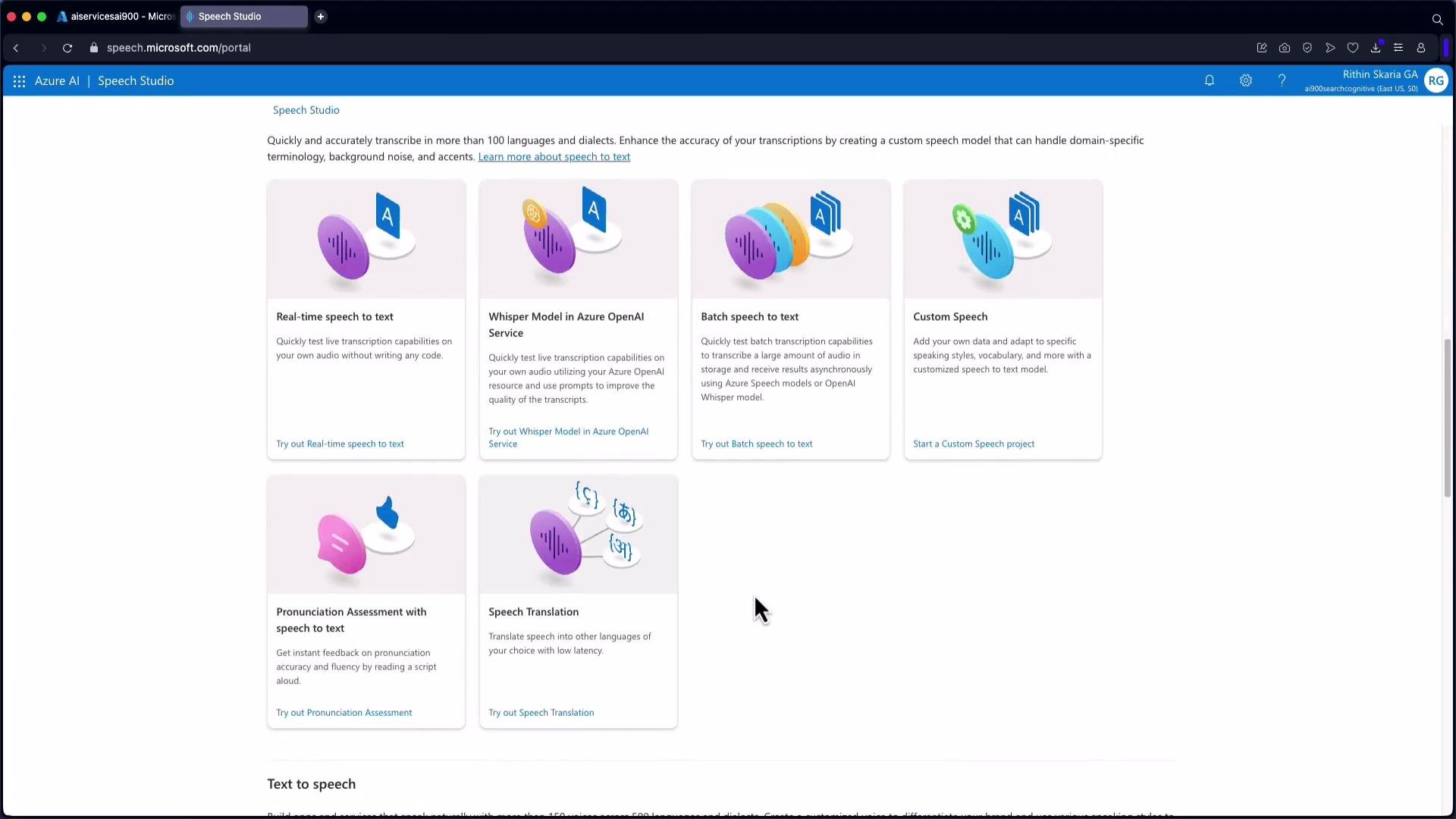
Authoring and previewing SSML in Speech Studio You can author and preview SSML directly in the browser with Azure Speech Studio. The UI helps configure voice selection, pronunciation rules, rate, pitch, and volume, then lets you export the resulting SSML for programmatic use.
A screenshot of the Azure AI Speech Studio web page showing feature tiles for speech-to-text and related services (Real-time speech-to-text, Whisper Model, Batch speech-to-text, Custom Speech, Pronunciation Assessment, and Speech Translation). The page includes a top navigation bar and a user profile icon in the upper right.
Speech Studio’s real-time preview functionality is supported in Edge and Chrome. If you use other browsers (for example, Opera), some preview features may not work as expected.
When you export SSML from Speech Studio you may see metadata comments followed by the SSML itself. Example exported SSML with metadata:
<!--ID=B7267351-473F-409D-9765-754A8EBCDDE05;Version=1|{"VoiceNameToldMapItems":[{"Id":"6c640df5-9977-4a98-b785-6b2f195db0e3c","Name":"Microsoft Server Speech Text to Speech Voice (de-DE, SeraphinaMultilingualNeural)","ShortName":"de-DE-SeraphinaMultilingualNeural","Locale":"de-DE","VoiceType":"StandardVoice"}]}-->
<!--ID=FCB40C2B-1F9F-4C26-B1A1-CF8E67B0E7D1;Version=1|{"Files":[]}-->
<!--ID=5B95B1CC-2C7B-494F-B746-CF22A0E779B7;Version=1|{"Locales":{"de-DE":{"AutoApplyCustomLexiconFiles":[]}}}-->
<speak xmlns="http://www.w3.org/2001/10/synthesis" xmlns:mstts="http://www.w3.org/2001/mstts" xmlns:emo="http://www.w3.org/2009/10/emotionml" version="1.0" xml:lang="de-DE">
  <voice name="de-DE-SeraphinaMultilingualNeural"> </voice>
</speak>
SSML from code — Python example using the Azure Speech SDK When synthesizing SSML programmatically with the Azure Speech SDK, call the SSML-specific method (for example, speak_ssml_async) instead of plain-text APIs. The Python example below demonstrates creating a SpeechSynthesizer and synthesizing expressive SSML:
import azure.cognitiveservices.speech as speechsdk

# Replace with your subscription key and service region
speech_key = "YourSubscriptionKey"
service_region = "YourServiceRegion"

speech_config = speechsdk.SpeechConfig(subscription=speech_key, region=service_region)
audio_config = speechsdk.audio.AudioOutputConfig(use_default_speaker=True)
speech_synthesizer = speechsdk.SpeechSynthesizer(speech_config=speech_config, audio_config=audio_config)

ssml = """<speak xmlns="http://www.w3.org/2001/10/synthesis" xmlns:mstts="http://www.w3.org/2001/mstts" version="1.0" xml:lang="en-US">
  <voice name="en-US-JennyNeural">
    <mstts:express-as style="cheerful">
      <prosody rate="-10%" pitch="+4%">Welcome to the [AI-102: Microsoft Certified Azure AI Engineer Associate](https://learn.kodekloud.com/user/courses/ai-102-microsoft-certified-azure-ai-engineer-associate) course, your gateway to building smart apps with Azure AI.</prosody>
    </mstts:express-as>

    <break time="300ms"/>

    <prosody rate="-12%">From computer vision... to chatbots... we'll cover it all.</prosody>

    <break time="400ms"/>

    <mstts:express-as style="excited">
      <prosody rate="-10%">Let's get started - and level up your AI skills.</prosody>
    </mstts:express-as>
  </voice>
</speak>"""

# Speak the SSML content
result = speech_synthesizer.speak_ssml_async(ssml).get()

# Check result
if result.reason == speechsdk.ResultReason.SynthesizingAudioCompleted:
    print("Speech synthesized and played through speaker.")
elif result.reason == speechsdk.ResultReason.Canceled:
    cancellation = result.cancellation_details
    print(f"Speech synthesis canceled: {cancellation.reason}")
    if cancellation.reason == speechsdk.CancellationReason.Error:
        print(f"Error details: {cancellation.error_details}")
Sample run
$ python3 app_ssml.py
Speech synthesized and played through speaker.
Implementation notes and best practices
  • Use express-as (or provider-specific equivalents) to apply emotional or speaking styles (cheerful, excited, empathetic, etc.).
  • Use prosody to fine-tune rate, pitch, and volume. Negative rate values slow speech; positive values speed it up.
  • Use break to add pauses for natural pacing.
  • Use phoneme tags to force correct pronunciations for technical terms and names.
  • Export SSML from Speech Studio to iterate quickly in the UI, then integrate the SSML into your application code.
  • Always test SSML playback on target platforms and browsers, as preview features and supported styles may vary.
Tip: When programmatically synthesizing SSML, prefer SSML-specific synthesis methods (for example, speak_ssml_async in the Azure Speech SDK) to ensure the markup is interpreted correctly.
Conclusion SSML enables precise control over voice, timing, pronunciation, and emotion, helping you craft natural, expressive speech for accessibility, conversational interfaces, voice-enabled apps, and branded audio experiences. You can author SSML in code, export it from Azure Speech Studio, or use the SDKs to synthesize SSML directly in your application. Links and references Now that you know how to convert text to speech and enhance it with SSML, begin applying these techniques to build conversational and accessible experiences in your applications.

Watch Video