This guide explains how to ground Azure OpenAI responses with your own documents (Retrieval-Augmented Generation — RAG). It covers the Chat playground workflow for quickly testing data grounding, an end-to-end demo indexing a PDF from Azure Blob Storage, REST and SDK integration patterns, and a production-minded Python example. Why ground models with your data?
  • Prevent hallucinations by giving models verifiable context.
  • Surface organization-specific knowledge not present in base models.
  • Enable citations so answers include traceable sources.

Quick workflow: Chat playground (no code required)

The Azure OpenAI Studio chat playground provides a central UI for composing prompts, selecting deployments, and adding data sources so the assistant can reference documents you control. Use this for rapid iteration before implementing code. Steps to connect a data source from the Chat playground:
  1. Open Chat playground in Azure OpenAI Studio.
  2. Click Add your data.
  3. Choose an existing data source (for example, Azure AI Search index) or create one from the dialog.
  4. After adding, a new chat session is created and grounded in that data — the model can integrate content from your documents and cite sources.
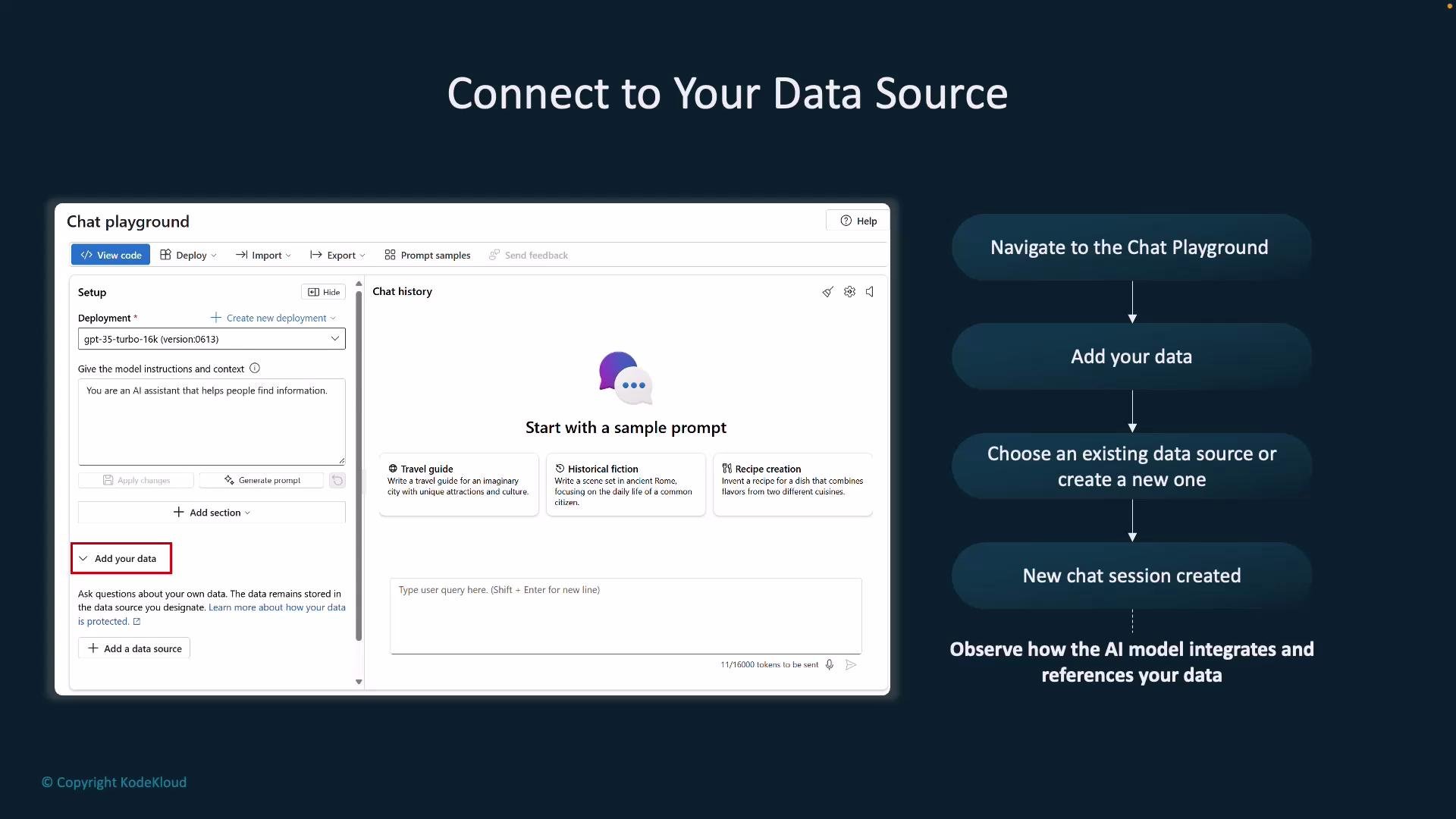
A slide showing the "Chat playground" interface (model selection, prompt area, and an "Add your data" option) on the left. On the right is a vertical flowchart explaining steps to connect a data source and start a new chat session so the AI can reference your data.
This lets you move quickly from prototype to a deployment-ready configuration.

Demo: Indexing a PDF from Azure Blob Storage

Scenario: You have Project_Orion_Confidential.pdf stored in Blob Storage and want the assistant to answer questions using the PDF content.
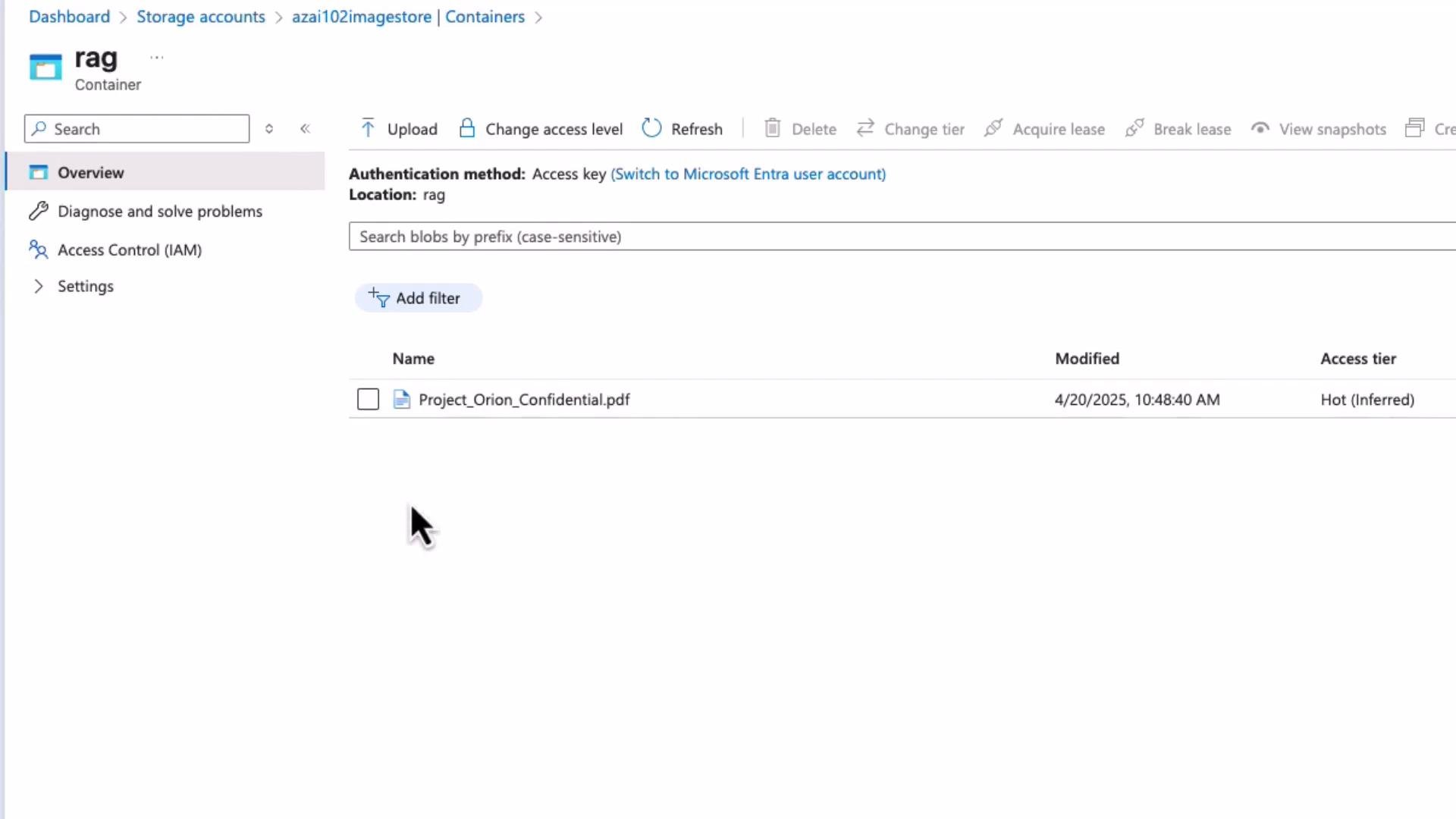
A screenshot of an Azure Storage container named "rag" showing one blob file, "Project_Orion_Confidential.pdf," with a modified date of 4/20/2025 and access tier "Hot (Inferred)." The left pane shows container navigation options like Overview, Diagnose and solve problems, Access Control (IAM), and Settings.
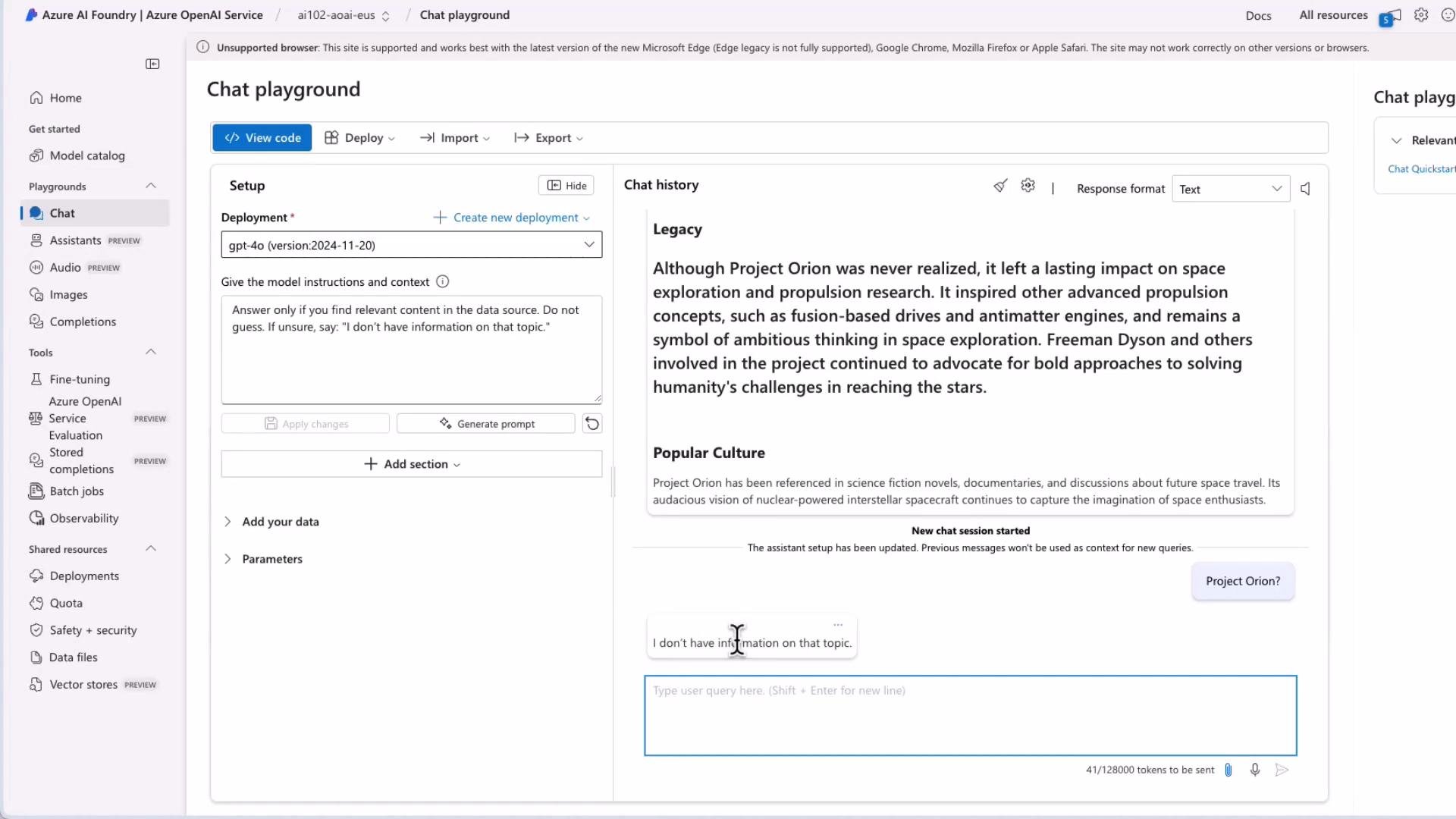
Before ingestion, the assistant will answer from general model knowledge. To enforce that responses only come from the indexed document content, set a system message telling the model not to guess. Example system instruction: “Answer only if you find relevant content in the data source. Do not guess. If unsure, say: ‘I don’t have information on that topic.’” After adding that system message, queries about Project Orion will return “I don’t have information…” until you ingest and index the PDF.
A screenshot of the Azure AI Foundry / Azure OpenAI Service "Chat playground" interface, showing the setup/deployment panel on the left and a chat history pane on the right with text about "Project Orion." The page includes controls for deployment selection, prompt/instructions, and a text input box for user queries.

Add the Blob Storage data source

  1. In the Add data dialog choose Azure Blob Storage and point to the container with your file.
  2. Select an Azure Cognitive Search resource — this service builds the index and returns semantically ranked documents to Azure OpenAI.
  3. Provide an index name (for example, rag) and configure authentication (API key or managed identity).
  4. Save and let the platform ingest and index the document. A status indicator shows ingestion progress; once complete, the chat session can return citations from the indexed file.
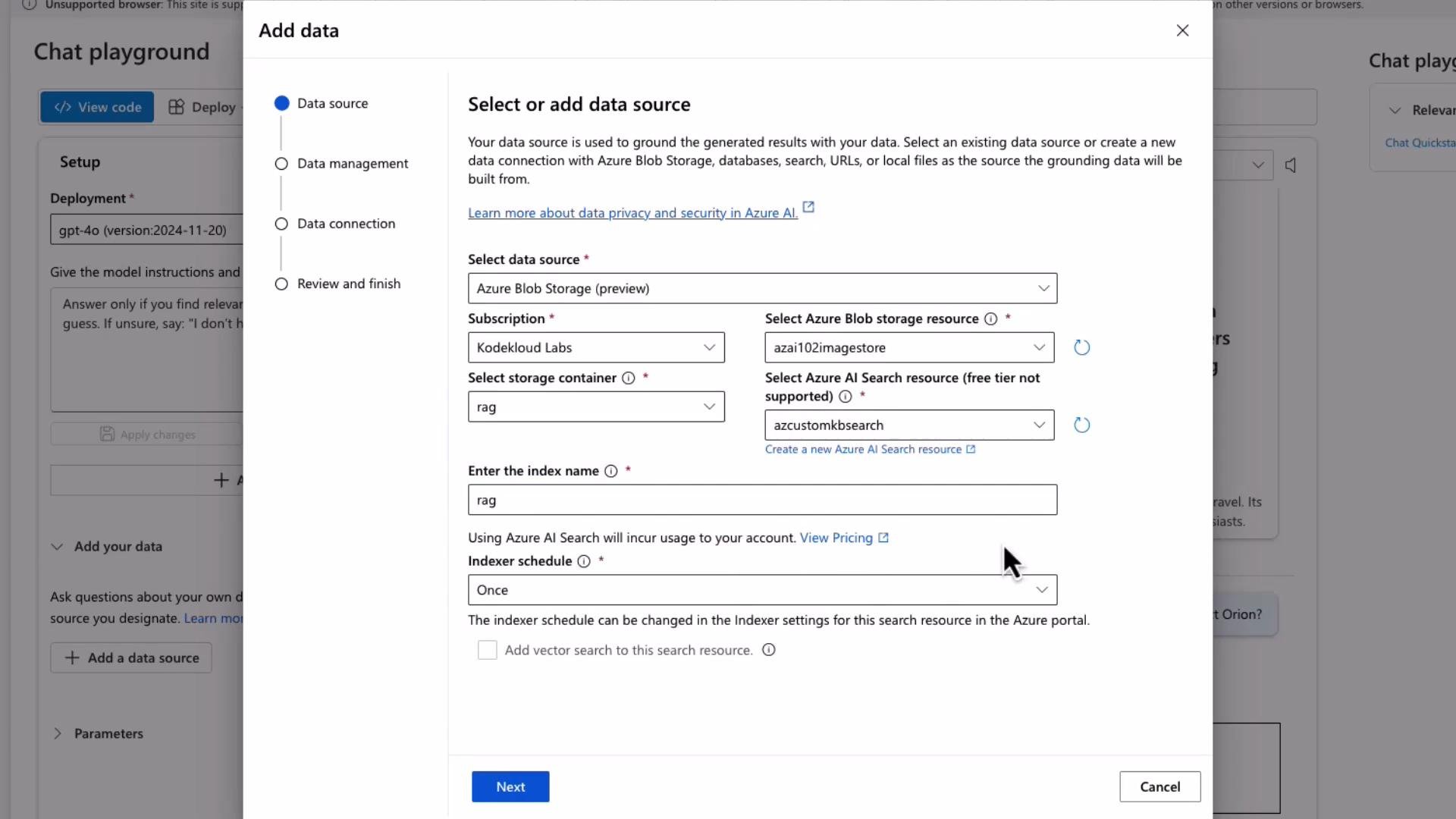
A screenshot of an "Add data" dialog in Azure AI where the user selects an Azure Blob Storage data source, subscription, storage container, Azure AI Search resource, index name, and indexer schedule. The dialog overlays a "Chat playground" interface in the background.
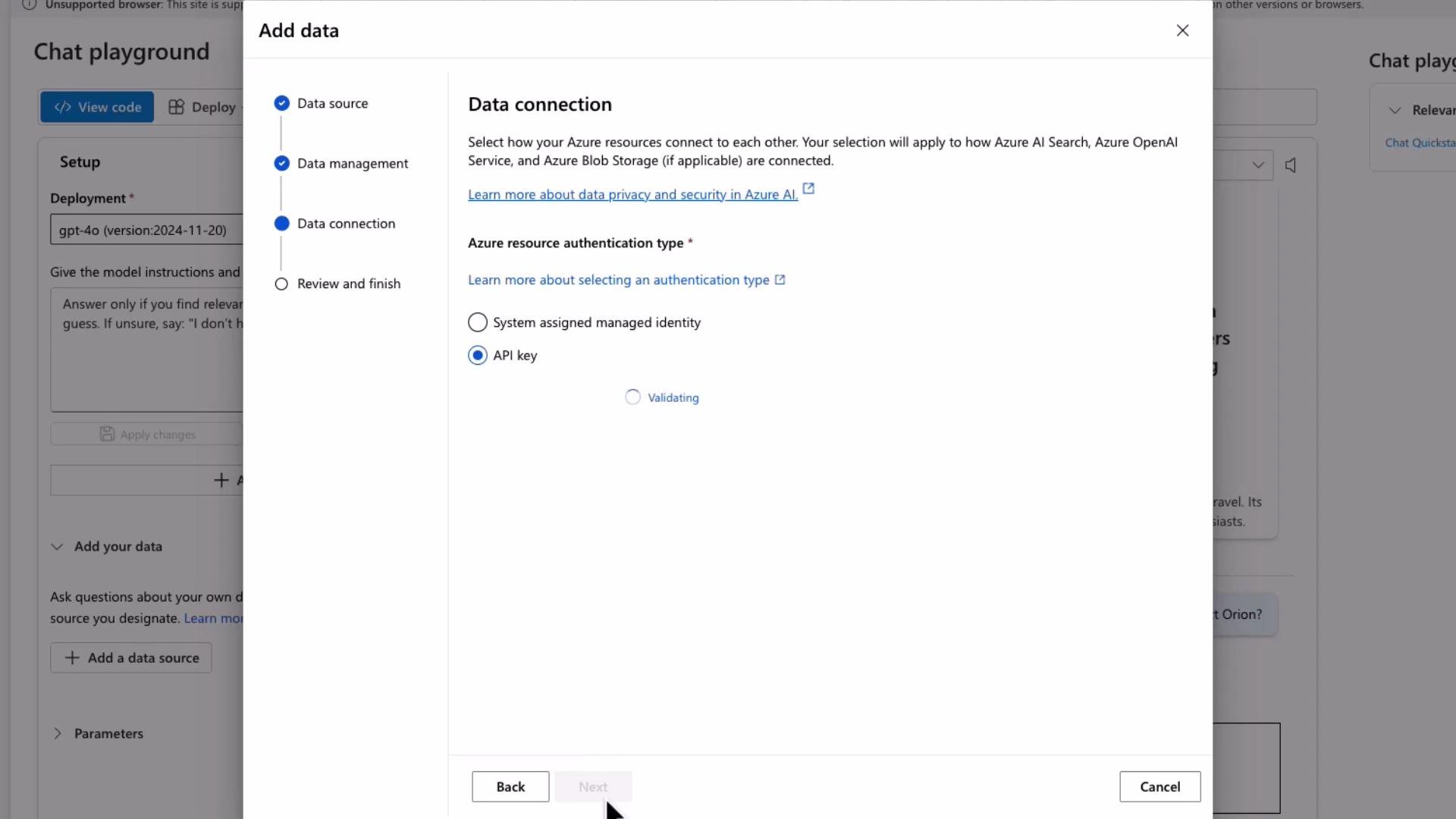
Select your search resource, choose authentication, and save. The platform handles ingestion and indexing; once indexing completes the chat assistant can cite document chunks when answering.
A screenshot of an "Add data" dialog in the Azure portal showing the Data connection step with "Azure resource authentication type" options, the "API key" option selected and a "Validating" status. The dialog overlays a "Chat playground" setup page in the background.
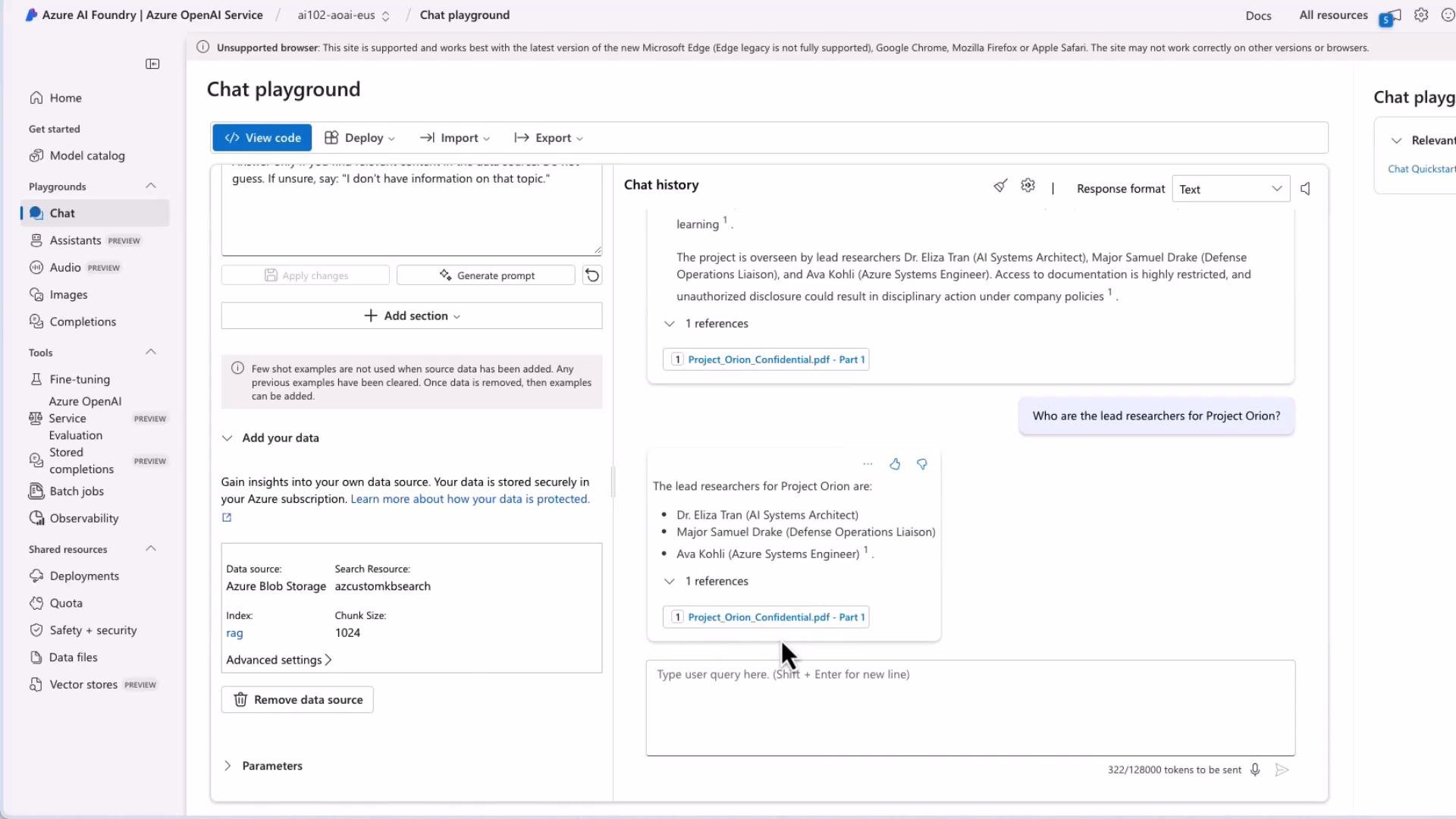
Once indexed, asking about Project Orion returns answers that include citations (for example: “Project Orion Confidential — Part One”) and specific content such as lead researcher names.
A screenshot of the Azure OpenAI "Chat playground" interface with the left navigation menu and a central chat pane. The chat shows a user asking about Project Orion and the assistant replying with a list of three lead researchers.

REST integration: key considerations

  • Each REST request to the Azure OpenAI endpoint for RAG-enabled interactions should include a data_sources array. This tells the model where to look for external content (for example an Azure Cognitive Search index).
  • Authentication for the data source is managed through the search resource (or other data service), not the Azure OpenAI resource. Ensure the access method you pick (API key or managed identity) is configured correctly and the identity has appropriate permissions.
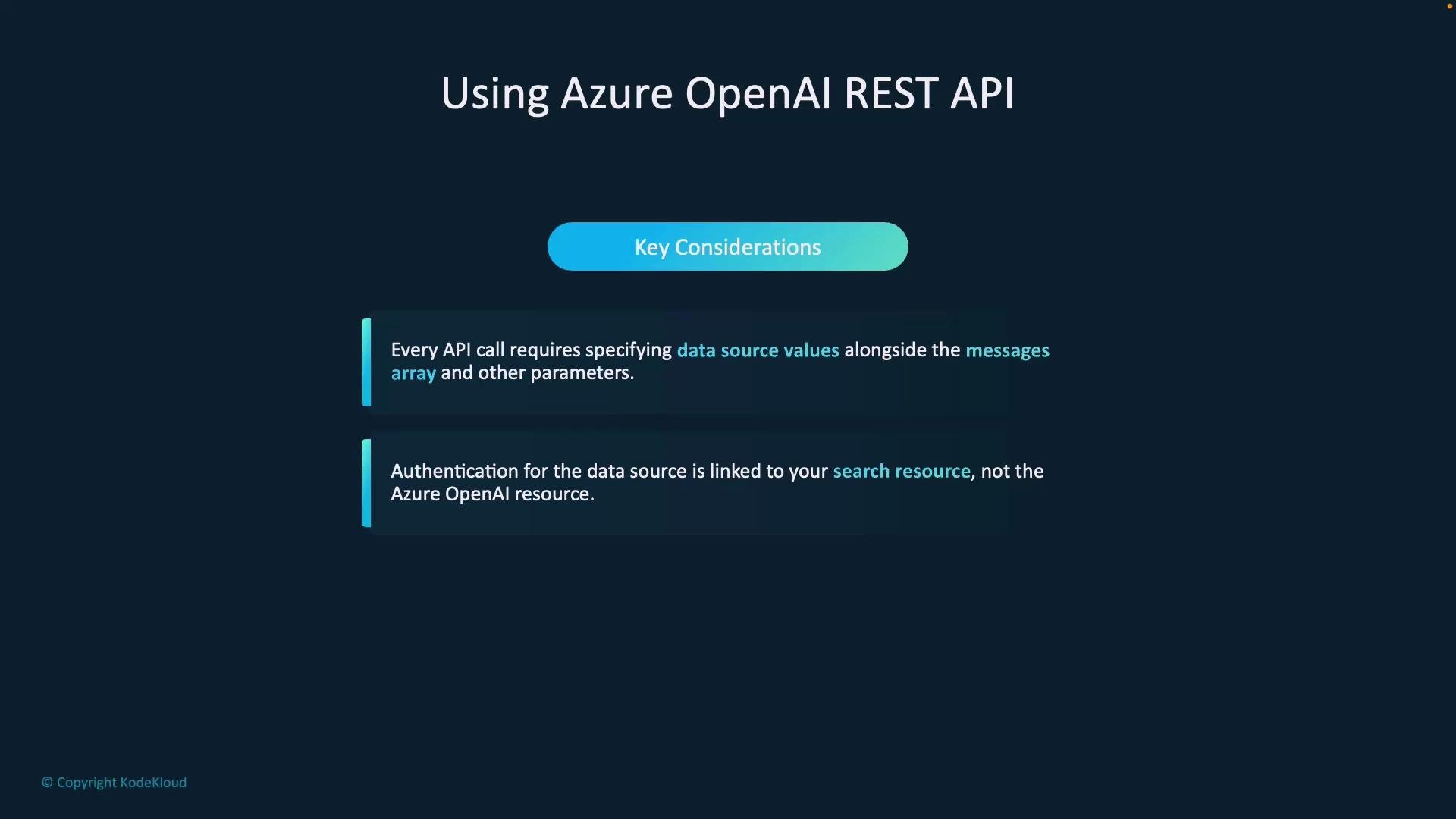
A presentation slide titled "Using Azure OpenAI REST API" with a "Key Considerations" header. It lists two points: every API call must include data source values alongside the messages array, and data-source authentication is linked to your search resource, not the Azure OpenAI resource.
Example RAG-enabled REST request body (replace placeholders with your values):
POST https://<your_openai_endpoint>/openai/deployments/<deployment>/chat/completions?api-version=<api_version>
Content-Type: application/json
api-key: <your_api_key>

{
  "data_sources": [
    {
      "type": "azure_search",
      "parameters": {
        "endpoint": "https://<your_search_endpoint>",
        "index_name": "<your_search_index>",
        "authentication": {
          "type": "system_assigned_managed_identity"
        },
        "semantic_configuration": "default",
        "query_type": "simple",
        "top_n_documents": 5,
        "strictness": 3,
        "role_information": "Answer only if you find relevant content in the data source. Do not guess. If unsure, say: \"I don't have information on that topic.\""
      }
    }
  ],
  "messages": [
    {
      "role": "system",
      "content": "Answer only if you find relevant content in the data source. Do not guess. If unsure, say: \"I don't have information on that topic.\""
    },
    {
      "role": "user",
      "content": "Who are the lead researchers for Project Orion?"
    }
  ],
  "past_messages": 10,
  "temperature": 0.0,
  "max_tokens": 800
}

SDK overview and typical flow

Azure OpenAI SDKs (used with Azure OpenAI deployments) simplify integration in languages like Python and C#. Even when using the SDK you still supply a messages array and a data source object to indicate where to find ground-truth content. Typical steps:
  1. Install the Azure OpenAI/OpenAI SDK for your language.
  2. Create a client (API key or identity-based auth).
  3. Define chat messages (system + user).
  4. Attach a data_sources object (endpoint, index, authentication).
  5. Send the request and process the response.
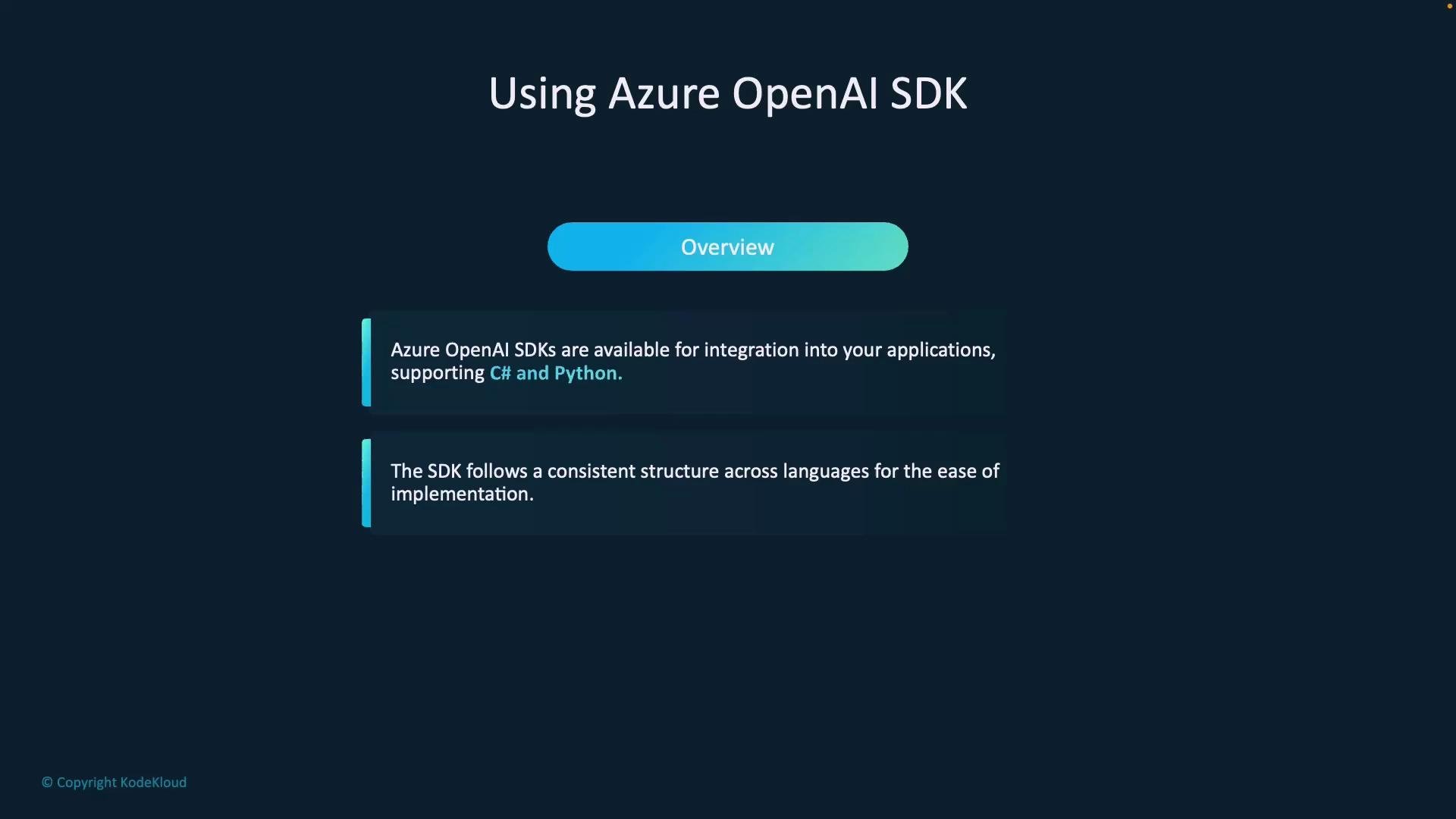
A dark-themed presentation slide titled "Using Azure OpenAI SDK" with an "Overview" button and two text boxes stating that the SDKs support integration with C# and Python and follow a consistent structure across languages. A small "© Copyright KodeKloud" appears in the bottom-left corner.
Supported data sources (SDK)
  • Azure AI Search — primary index for grounding (GA).
  • Azure Cosmos DB for MongoDB vCore — document-level grounding (preview).
  • More connectors are being added — check Azure release notes for updates.
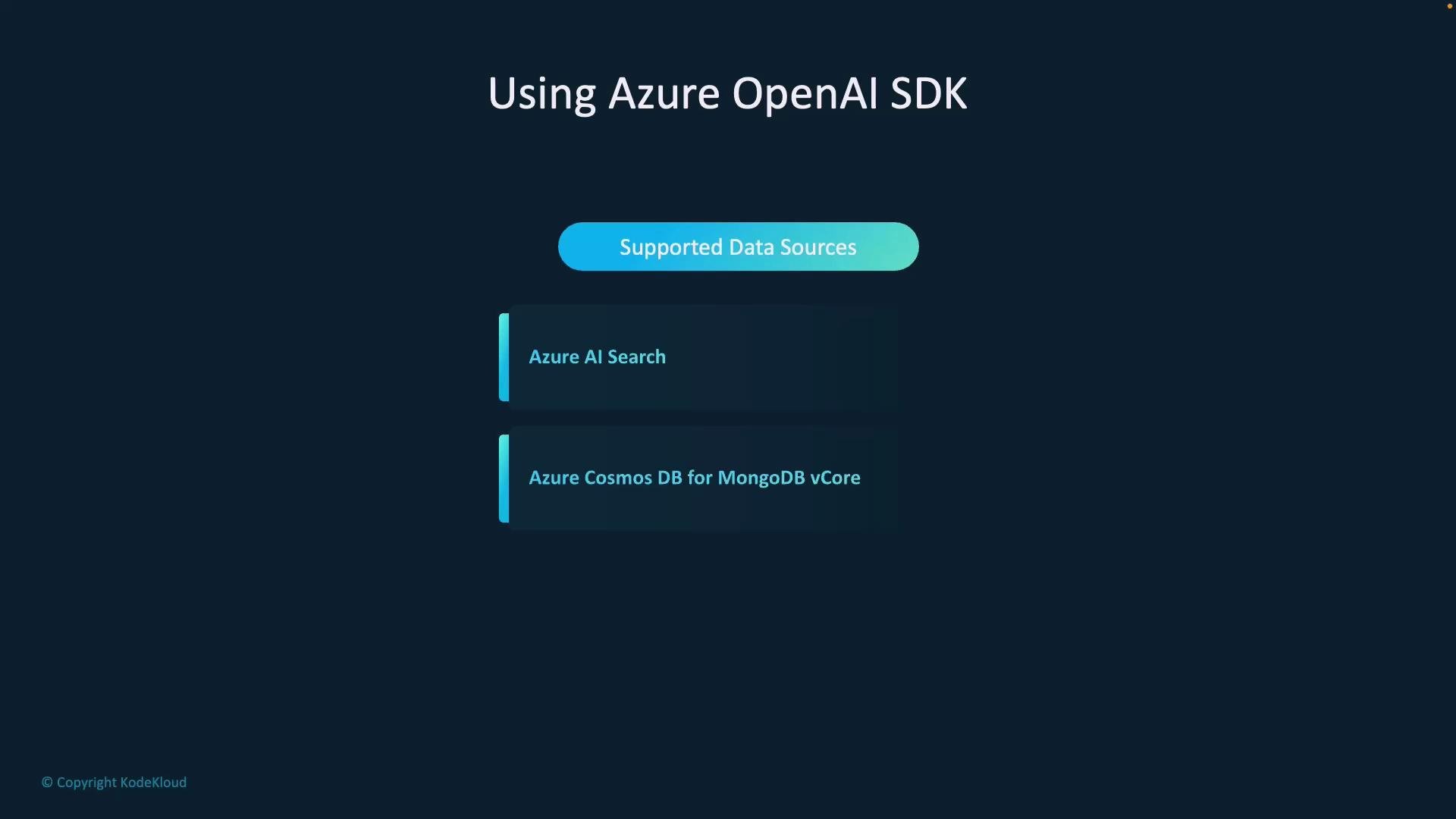
A dark-themed slide titled "Using Azure OpenAI SDK" listing supported data sources: "Azure AI Search" and "Azure Cosmos DB for MongoDB vCore." The slide also shows a small "© Copyright KodeKloud" note in the corner.
Table: Common data-source options
Resource TypeTypical Use CaseAvailability
Azure AI SearchSemantic indexes for document retrieval and rankingGenerally available
Azure Blob StorageRaw documents (PDF, DOCX) used by search indexerWorks with search indexer
Azure Cosmos DB (MongoDB vCore)Document-level grounding (preview)Preview — check release notes
Tip: pick a connector that matches where your documents live and your required retrieval semantics.

When to let the service retrieve vs. app-side retrieval

Two common patterns:
  • Service-side retrieval: include data_sources in the API call and let Azure OpenAI + Azure Cognitive Search handle retrieval + generation. Simpler; less client code.
  • App-side retrieval: query Cognitive Search from your app, select top-K docs, and include the content in messages. Offers more control over retrieval, filtering, and privacy.
When integrating data, choose between (a) letting the OpenAI service call your search index via the data_sources parameter in the API, or (b) performing retrieval in your application (query search), then sending the retrieved content as context. Both approaches are valid—pick one that meets your latency, cost, and security requirements.
Authentication for data sources is tied to the search/data resource, not the Azure OpenAI resource. Ensure the identity (API key or managed identity) you configure has appropriate permissions to access the search index or storage.

Example: Python end-to-end (Azure Cognitive Search + Azure OpenAI)

This simplified Python example shows one common pattern:
  • Query Azure Cognitive Search to get top-K documents.
  • Format these documents into a context.
  • Call Azure OpenAI chat completions with messages containing the context.
  • Print the assistant response.
Replace placeholders with your environment values and use secure credential management in production.
# app.py
import os
from openai import AzureOpenAI
from azure.core.credentials import AzureKeyCredential
from azure.search.documents import SearchClient

# Configuration (use environment variables in production)
AZURE_OPENAI_ENDPOINT = os.getenv("AZURE_OPENAI_ENDPOINT", "https://<your_openai_endpoint>")
AZURE_OPENAI_API_KEY = os.getenv("AZURE_OPENAI_API_KEY", "<your_openai_api_key>")
DEPLOYMENT_NAME = os.getenv("AZURE_OPENAI_DEPLOYMENT", "gpt-4o")

SEARCH_ENDPOINT = os.getenv("SEARCH_ENDPOINT", "https://<your_search_endpoint>")
SEARCH_KEY = os.getenv("SEARCH_KEY", "<your_search_key>")
SEARCH_INDEX_NAME = os.getenv("SEARCH_INDEX", "rag")

# Initialize Azure OpenAI client (key-based auth example)
client = AzureOpenAI(
    api_key=AZURE_OPENAI_API_KEY,
    azure_endpoint=AZURE_OPENAI_ENDPOINT,
    api_version="2024-02-15-preview"
)

def query_search_service(query_text, top_n=5):
    """Query Azure Cognitive Search and return top N documents."""
    search_client = SearchClient(
        endpoint=SEARCH_ENDPOINT,
        index_name=SEARCH_INDEX_NAME,
        credential=AzureKeyCredential(SEARCH_KEY)
    )

    results = search_client.search(query_text, top=top_n)
    docs = []
    for r in results:
        # r is a SearchResult; r.document contains the indexed fields
        docs.append(r.document)
    return docs

def format_documents_for_prompt(documents):
    """Convert search documents to a single context string for the model."""
    parts = []
    for i, doc in enumerate(documents, start=1):
        # Adjust fields according to your index schema. Example uses 'title' and 'content'
        title = doc.get("title", f"Document {i}")
        content = doc.get("content", "")
        parts.append(f"Source: {title}\n{content}\n")
    return "\n---\n".join(parts)

def ask_question_with_rag(question):
    # 1) Retrieve relevant documents
    docs = query_search_service(question, top_n=5)
    if not docs:
        return "I don't have information on that topic."

    # 2) Prepare context from documents
    context_block = format_documents_for_prompt(docs)

    # 3) Prepare messages (system instructs to only answer with supporting evidence)
    messages = [
        {
            "role": "system",
            "content": "Answer only if you find supporting content in the provided data. Do not guess. If unsure, say: \"I don't have information on that topic.\""
        },
        {
            "role": "user",
            "content": question
        },
        {
            "role": "system",
            "content": f"Context documents:\n{context_block}"
        }
    ]

    # 4) Send request to Azure OpenAI (RAG enabled via explicit context handling)
    response = client.chat.completions.create(
        model=DEPLOYMENT_NAME,
        messages=messages,
        max_tokens=800,
        temperature=0.0
    )

    # Extract the assistant message
    assistant_msg = response.choices[0].message["content"]
    return assistant_msg

def main():
    print("Azure OpenAI RAG Demo")
    print("----------------------")

    # Example question (replace with your prompt)
    question = "Who are the lead researchers for Project Orion?"
    print(f"\nQuestion: {question}")

    print("\nRetrieving information and generating answer...")
    answer = ask_question_with_rag(question)

    print("\nAnswer:")
    print(answer)

if __name__ == "__main__":
    main()
Note: This example demonstrates one pattern—client-side retrieval and context injection. The REST/SDK approaches also support a data_sources parameter so the service performs retrieval alongside generation. Choose the approach that best fits your architecture and security requirements. Example console output (expected behavior)
  • If documents are indexed and retrieved, the assistant responds with a supported answer and cites the source.
  • If no relevant documents are found, the assistant replies: “I don’t have information on that topic.”
Example:
Azure OpenAI RAG Demo
----------------------

Question: Who are the lead researchers for Project Orion?

Retrieving information and generating answer...

Answer:
The lead researchers for Project Orion are:
- Dr. Eliza Tran (AI Systems Architect)
- Major Samuel Drake (Defense Operations Liaison)
- Ava Kohli (Azure Systems Engineer)

Closing notes and references

  • Ensure Azure Cognitive Search and its authentication method (API key, managed identity) are configured properly — data-source auth is tied to the search resource.
  • Use clear system messages to constrain the assistant and reduce hallucinations.
  • Choose between service-side retrieval (data_sources parameter) and app-side retrieval (explicit queries) based on latency, cost, and security trade-offs.
  • Monitor Azure release notes for new data-source connectors and SDK updates.
Helpful links This workflow demonstrates how to ground Azure OpenAI responses with your own documents, helping you move from experiments to robust RAG-enabled applications.

Watch Video