

You need an Azure subscription and appropriate permissions to access models and create deployments in the portal. Check with your Azure administrator if you cannot see the resources described here.
Key capabilities at a glance
The Foundry Portal focuses on three core capabilities that support the model lifecycle:- Model management: Browse, deploy, and manage foundation models and deployment configurations via a GUI.
- Integration: Connect models to Azure services and external data sources for tasks like document summarization, search, or API-driven automation.
- Customization: Fine-tune or adapt foundation models with your own domain data to align outputs with your organization’s tone and requirements.
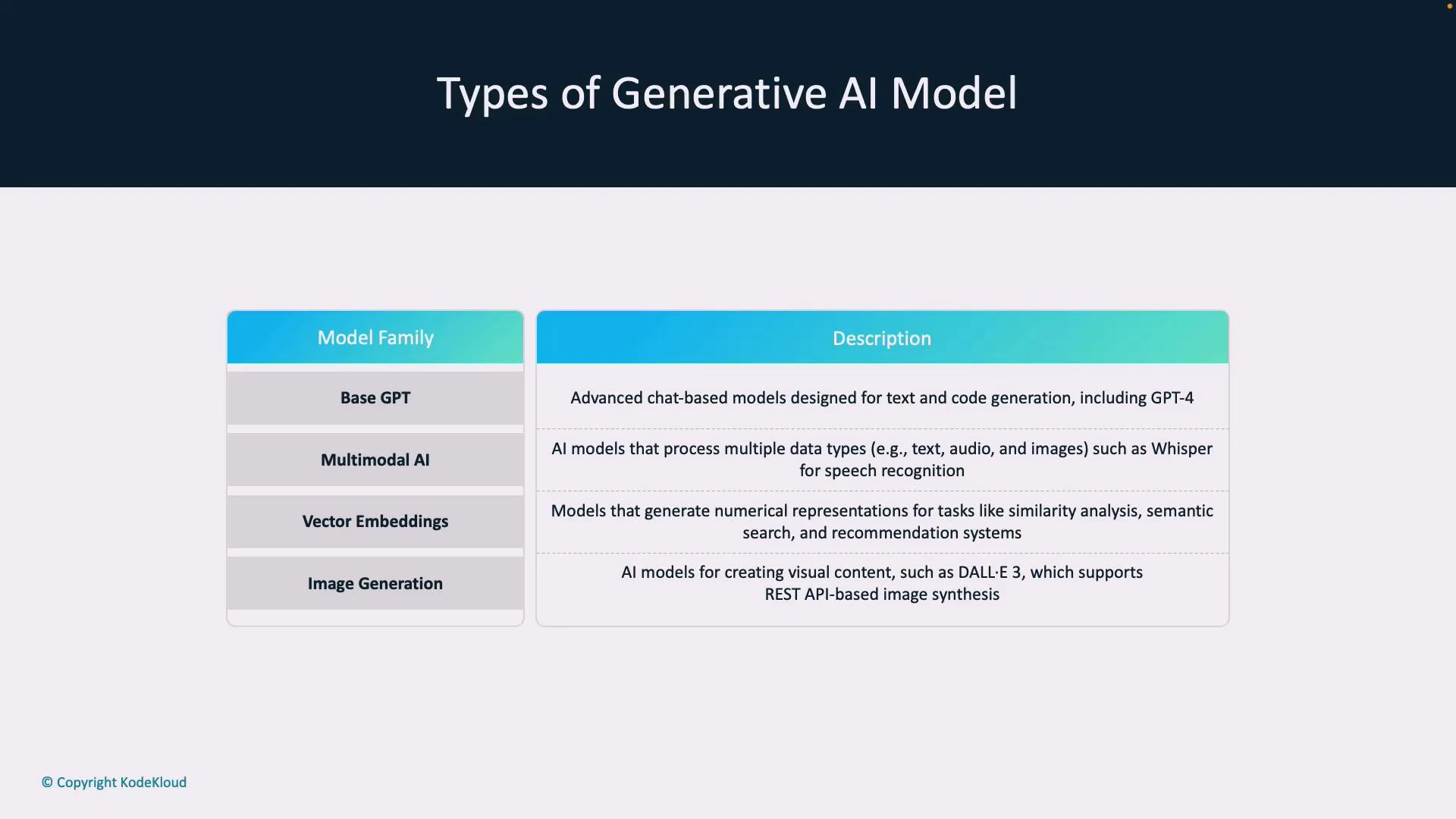
Model families — when to use each
Use the table below to quickly match a model family to common tasks and example models. This helps you pick the right family when evaluating options in the Model Catalog.
Model catalog highlights:
- Base-GPT: Chat-focused models for conversational agents and creative content.
- Multimodal: Models that understand or combine text, audio, and images.
- Vector embeddings: Encoded representations for search and retrieval.
- Image generation: Text-to-image models accessible through REST APIs.
Exploring the portal UI
When you open the Foundry Portal and navigate to Playgrounds or Chat, you may see a “deployment needed” prompt if no deployment exists for the selected model. From that prompt you can create a deployment, configure options, and then test the model in playgrounds (chat, assistant, images, audio, completions, or fine-tuning).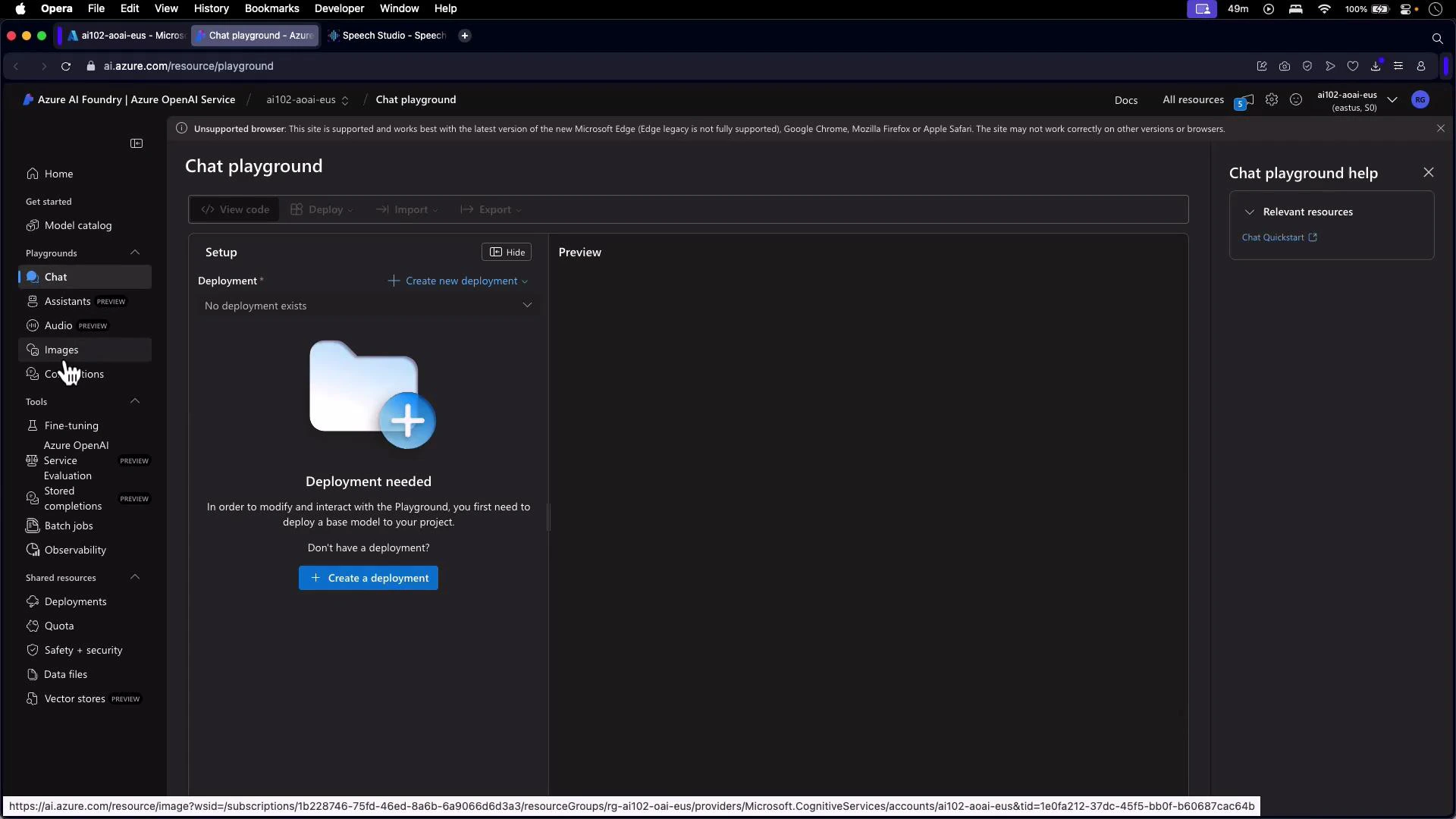
- Chat and Assistant: Build conversational experiences and multi-turn flows.
- Image generation: Generate visuals from prompts (DALL·E).
- Audio & transcription: Convert speech to text or synthesize audio.
- Completions & code: One-shot or streaming completions for text and code tasks.
- Fine-tuning & evaluation: Train and evaluate models against your dataset.
- Admin: Quota, safety & security settings, data files, and vector stores.
Model Catalog — discover and compare models
The Model Catalog is a curated listing of available models and families. Use it to compare capabilities, supported modalities, and recommended use cases before choosing a model for a deployment.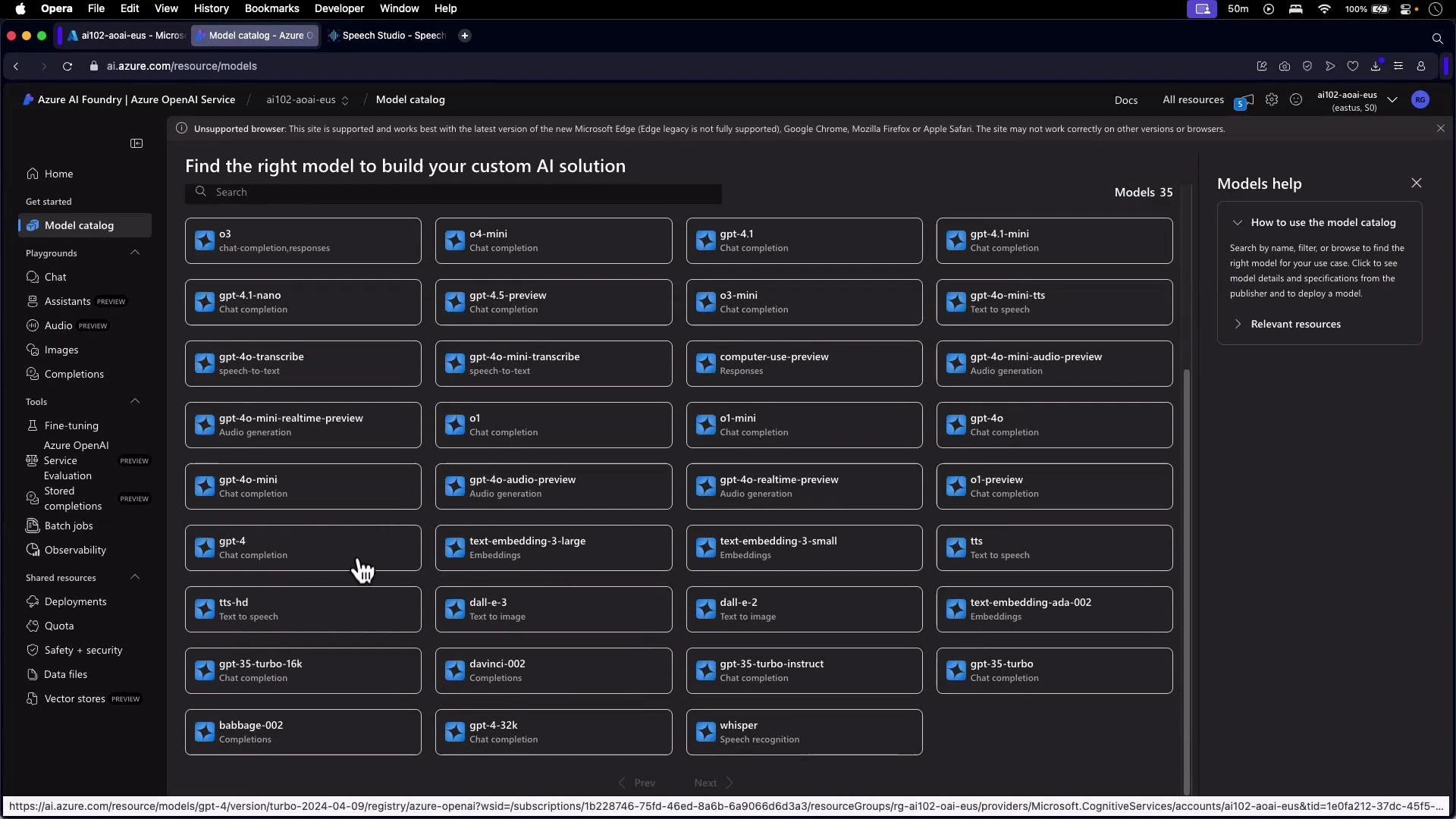
- Latency and cost profile (use smaller variants like GPT-4o-mini for interactive or lower-cost needs).
- Modality support (text-only vs. multimodal vs. audio).
- Fine-tuning and embedding support for search or retrieval augmentation.
- Safety and data handling configuration available in the portal’s admin settings.
Next steps
- Browse the Model Catalog to identify the model family that fits your use case.
- Create a deployment and try the appropriate playground (chat, assistant, image, or audio) to validate model behavior interactively.
- Learn how to fine-tune models with your data and how to integrate deployments into applications using SDKs or REST APIs.
- Refer to Azure OpenAI documentation for detailed guides and API references: Azure AI Documentation.