

Create an Azure AI resource
To get started, create an Azure AI resource in the Azure portal. Required information includes:- Subscription and resource group
- Deployment region — pick a region close to your users to reduce latency and meet data residency requirements
- Instance name
- Pricing tier — some capabilities may offer a free tier for experimentation; otherwise select a plan matching your expected usage
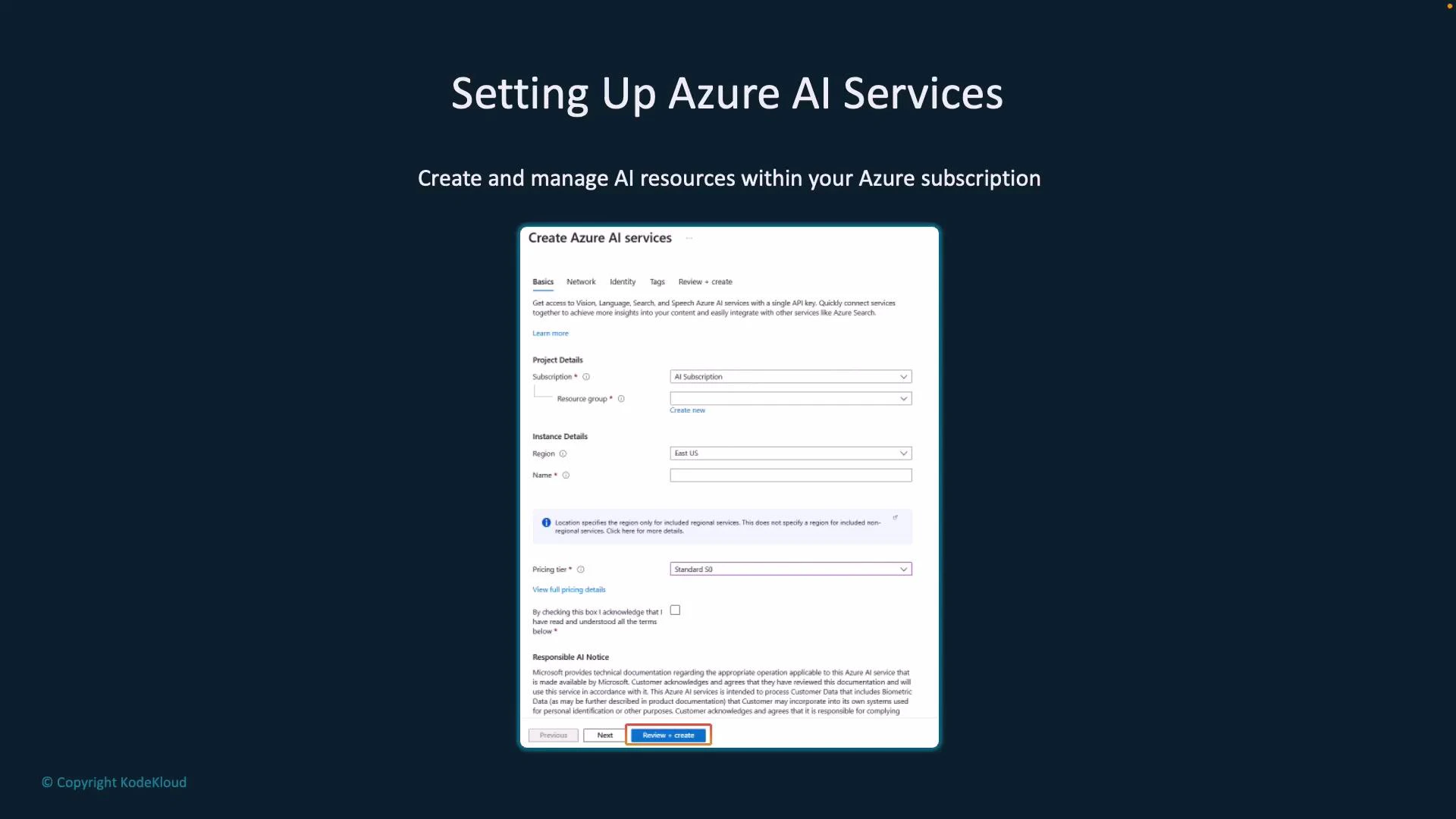
Tip: Use a descriptive name and consistent tagging for resources to simplify billing, monitoring, and automation. Free tiers are ideal for testing but verify quotas and limits before using in production.
Multi-service vs Single-service resources
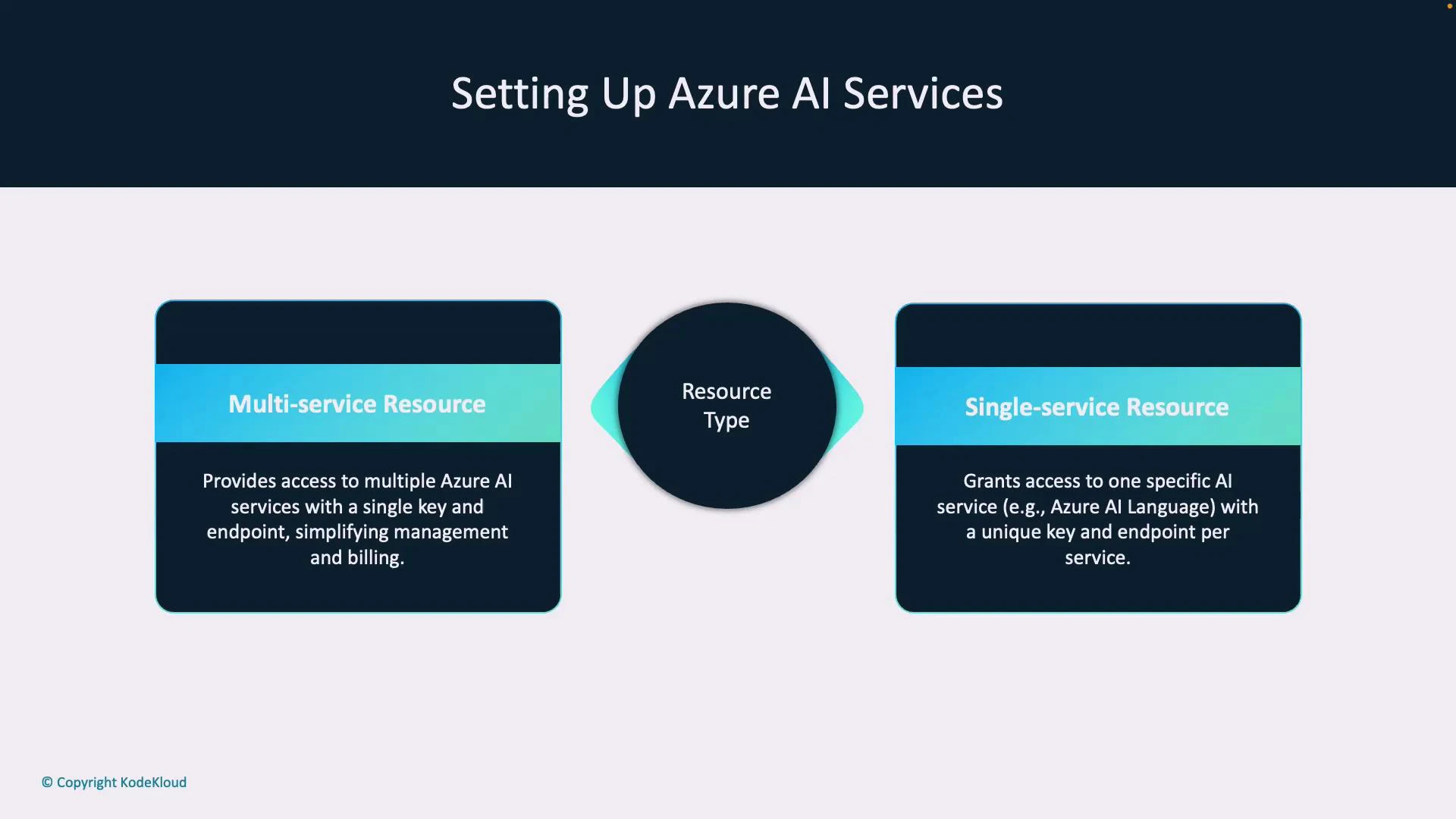
When creating a resource you can choose between:- Multi-service resource: exposes multiple AI capabilities (Language, Vision, Speech, etc.) through a single endpoint and shared keys — simplifies management and billing.
- Single-service resource: scoped to one capability (for example, a Language-only or Vision-only resource) with its own endpoint and keys — useful for isolation, fine-grained permissions, or separate team ownership.
Deployment considerations
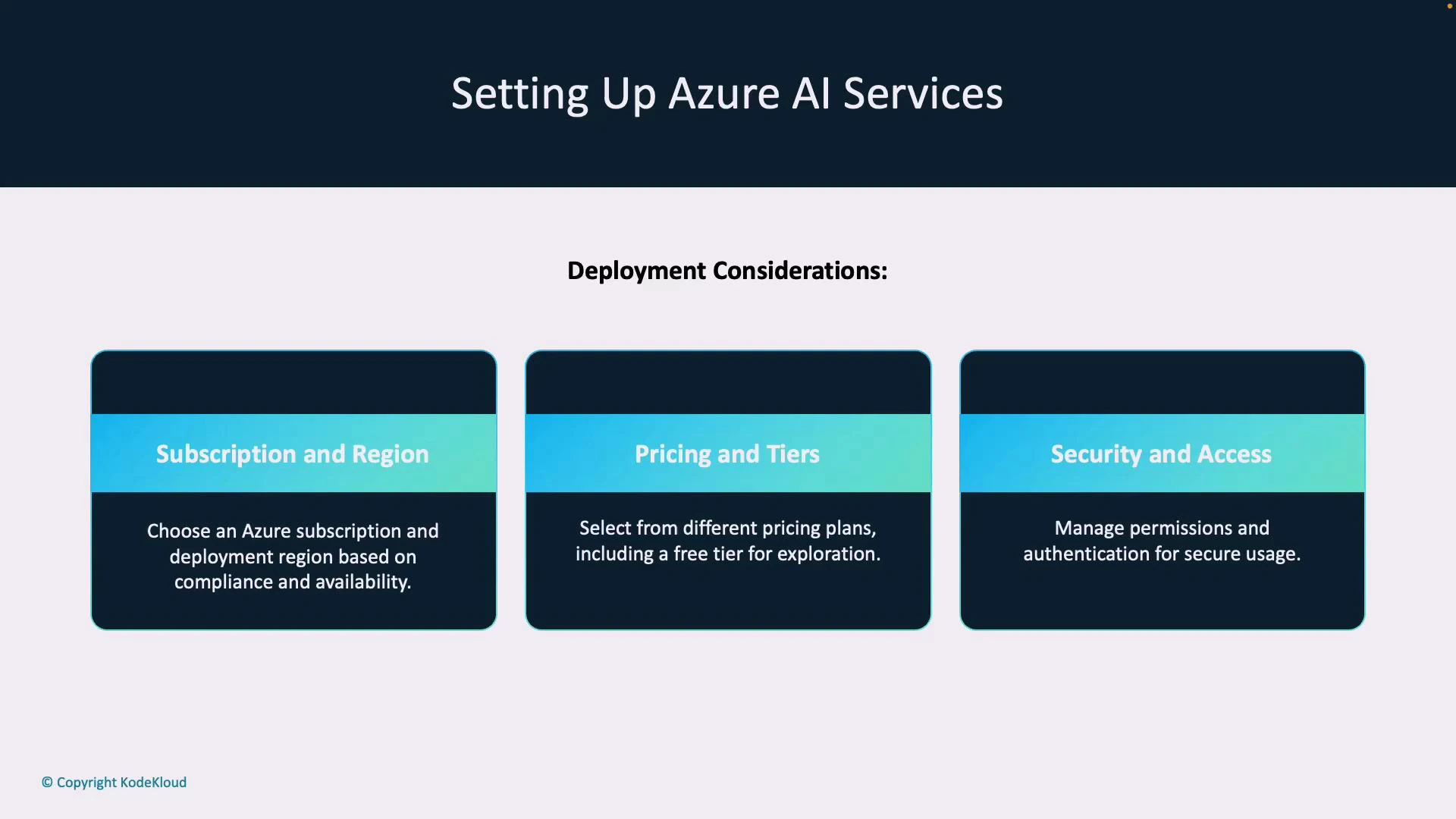
Plan these factors before provisioning to avoid rework:- Subscription & region — compliance, data residency, and latency constraints
- Pricing & tiers — costs, quotas, and available features differ by tier
- Security & access — use Azure RBAC, key rotation, and managed identities where possible
Endpoints, keys, and locations
After deployment you will obtain:- Endpoint — base URL your application calls
- Keys — typically two API keys for key rotation; either key can be used
- Location — region hosting the resource (for example, eastus). Some SDKs and REST endpoints require the region value
Best practice: rotate keys regularly and prefer Microsoft Entra ID (OAuth bearer tokens) where supported for stronger identity-based authentication. See Microsoft Entra ID docs: https://learn.microsoft.com/en-us/azure/active-directory/
Accessing Azure AI Services via REST APIs
REST endpoints provide platform-independent access to Azure AI capabilities. Typical request flow:- Client sends an HTTP request to the service endpoint.
- Request contains authentication (API key header or Microsoft Entra ID bearer token).
- Request body is JSON following the service schema.
- Service returns a structured JSON response with analysis results.
Example curl request (replace placeholders):
- Full control over HTTP behavior and payloads
- Platform/language agnostic
- Useful for environments without official SDK support
Using SDKs
Official SDKs reduce boilerplate and provide language-native interfaces, automatic retries, and credential handling. SDKs are available for .NET, Python, Node.js, and Java. Benefits of SDKs:- Simplified authentication and request construction
- Native response objects and error types
- Built-in retry logic and telemetry integration
Summary and next steps
You now know how to:- Provision an Azure AI resource in the portal
- Choose between multi-service and single-service resources
- Plan deployment with region, pricing, and security in mind
- Retrieve endpoint, keys, and location values
- Call services via REST or use language SDKs for faster integration