This guide demonstrates how to create an Azure AI Language service in the Azure portal and call its sentiment analysis capability using both the Python SDK and the REST API. You’ll see that the SDK provides a more concise developer experience, while the REST example shows the underlying HTTP payloads and is useful when SDKs are unavailable. What you’ll learn:
  • How to create an Azure AI service (multi-service account vs. single dedicated service)
  • Where to find endpoints and keys
  • Example code for sentiment analysis using the Python SDK
  • Example code for sentiment analysis using the REST API
  • When to choose SDK vs. REST

Create an Azure AI service in the portal

If you already have a multi-service account, it exposes multiple capabilities (OpenAI, Speech, Vision, Language, etc.) under the same account-level keys. The portal lists AI service resources like this:
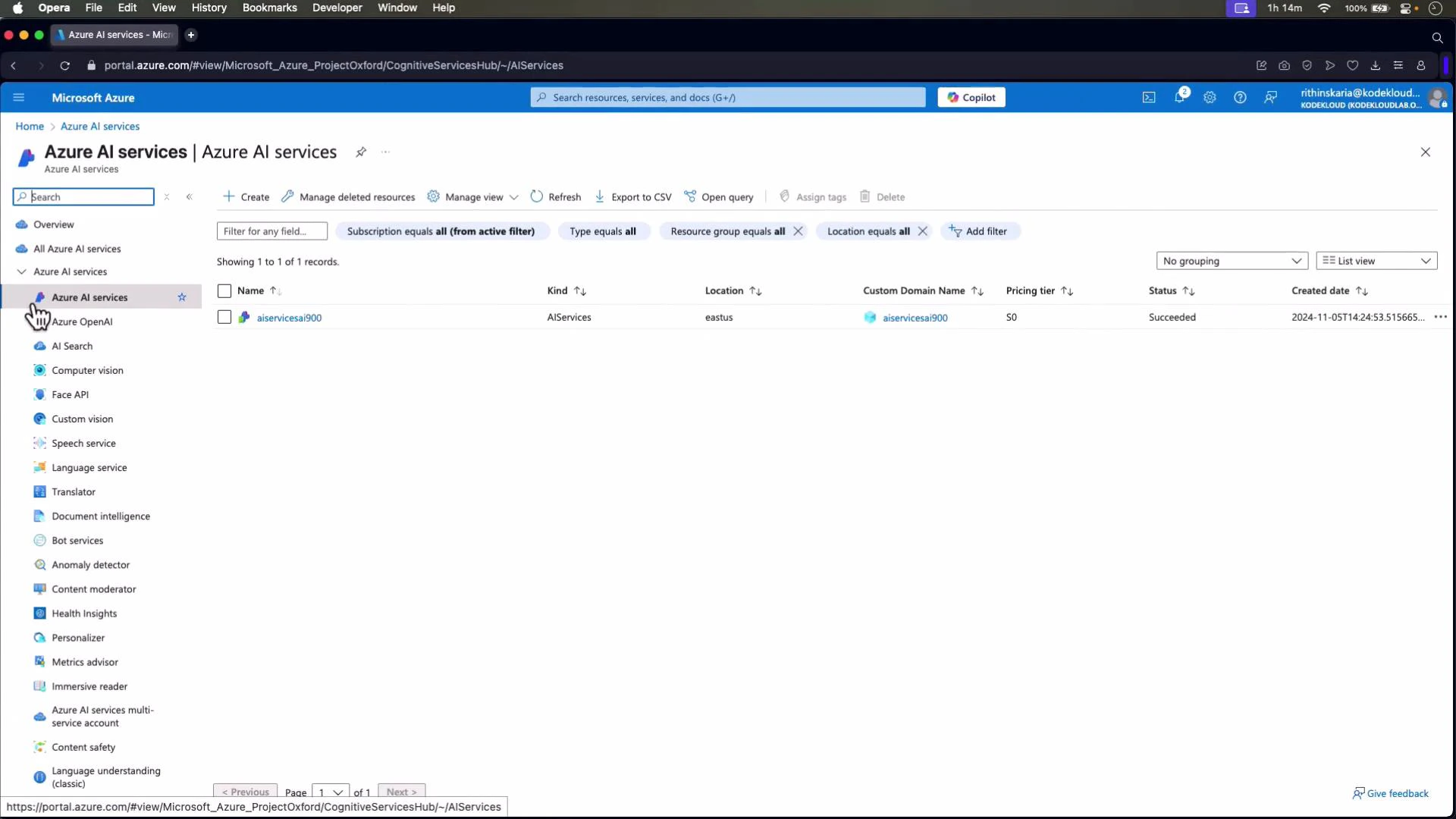
A screenshot of the Microsoft Azure portal showing the "Azure AI services" page, with a left-hand menu of AI service options and a single listed resource named "aiservicesai900" in the main pane.
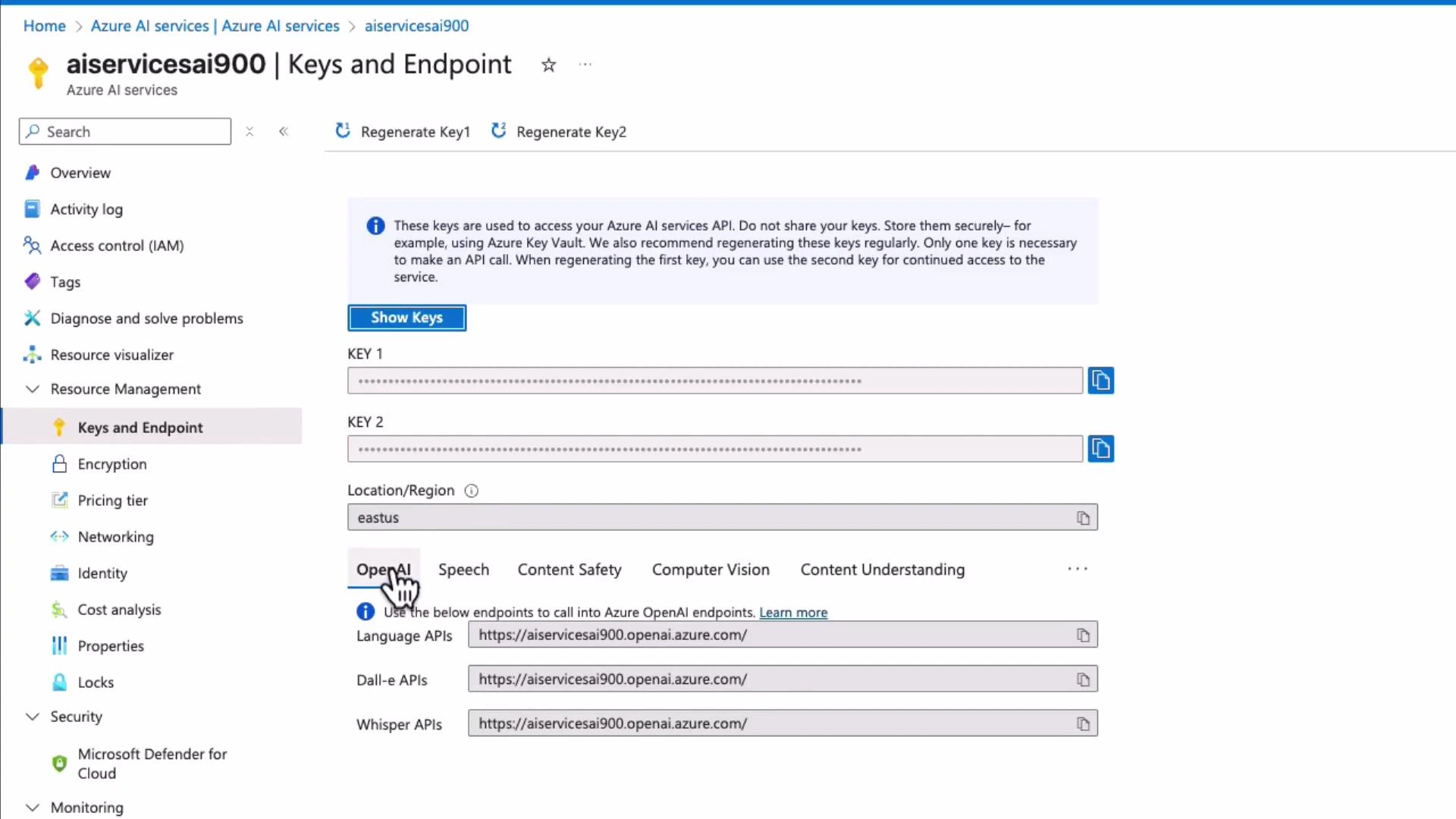
If you open a multi-service account and look at Keys and Endpoint, you’ll see the shared account-level keys and multiple capability endpoints (OpenAI, Speech, Content Safety, Computer Vision, Content Understanding, etc.).
A screenshot of the Azure AI Services "Keys and Endpoint" page for the resource "aiservicesai900." It shows masked API keys, the location "eastus," and OpenAI endpoints for Language, Dall‑E, and Whisper.
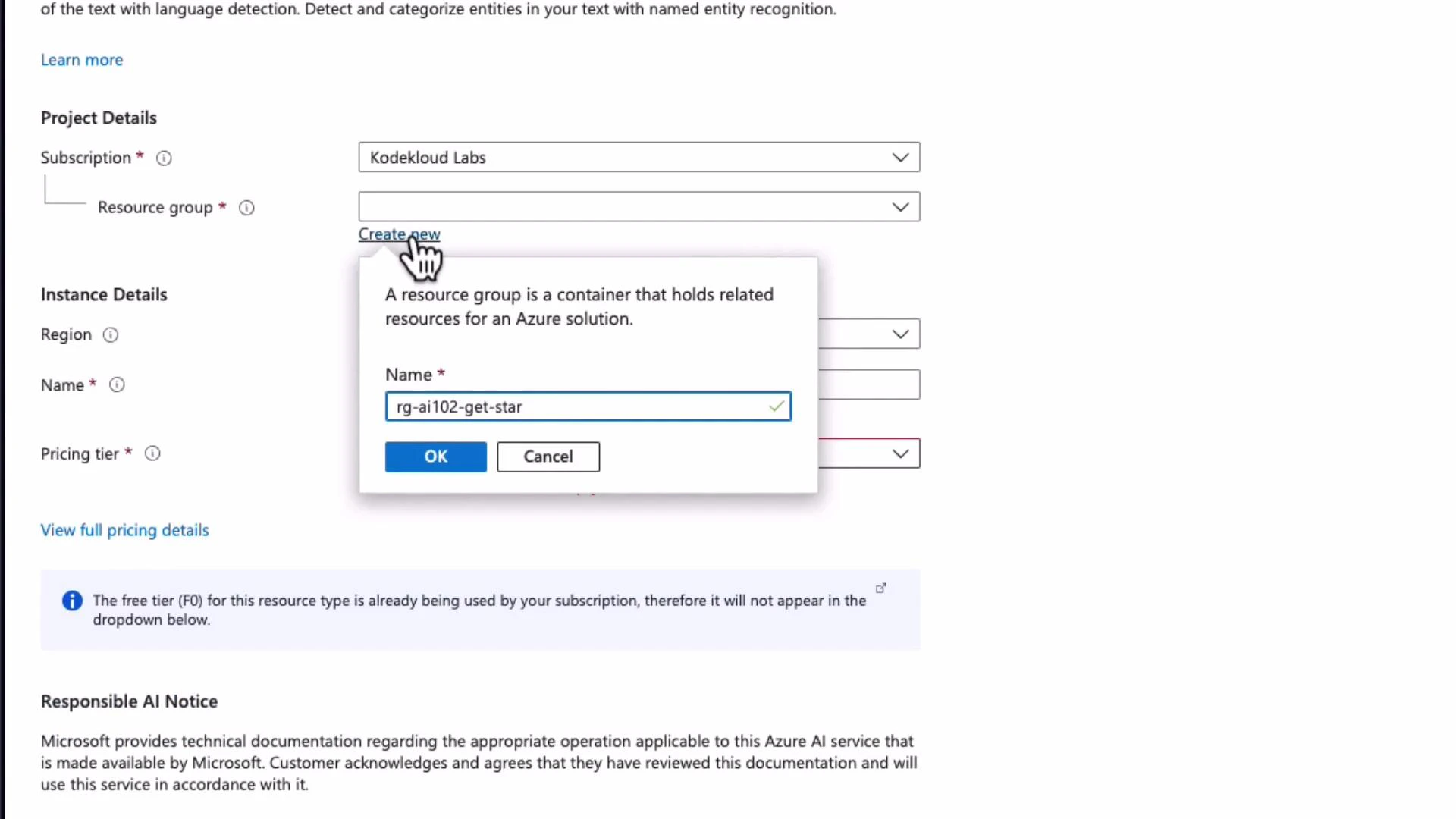
If you prefer a single-purpose resource (for example, a dedicated Language resource), create it from the Language service blade. During creation:
  • Select a subscription and resource group (e.g., rg-ai102-get-started-sdk)
  • Choose a region (e.g., East US)
  • Provide a globally unique resource name (this becomes <service-name>.cognitiveservices.azure.com)
  • Pick a pricing tier (for example S1)
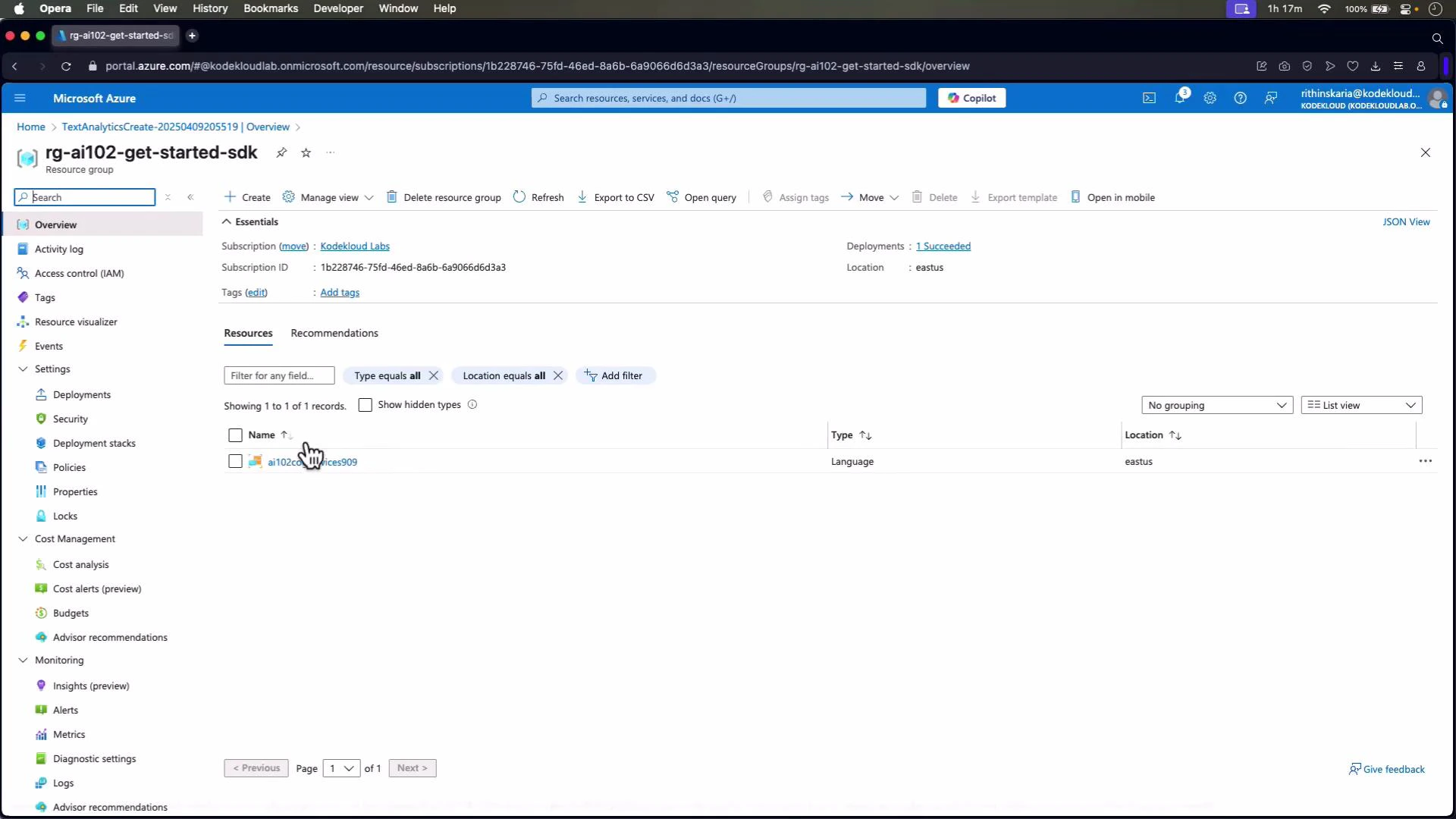
Create the resource and then check the resource group/overview to confirm creation.
A screenshot of the Azure portal showing the Project Details form and a pop-up to create a new resource group, with the name field filled as "rg-ai102-get-star" and OK/Cancel buttons. The Subscription is set to "Kodekloud Labs" and a notice about the free tier/pricing is visible below.
Once created, open the resource and go to Keys and Endpoint to copy the endpoint URL and one of the two keys for use in your client code.
A screenshot of the Microsoft Azure portal showing the Overview page for a resource group named "rg-ai102-get-started-sdk." The page displays subscription details, filters and a single listed resource, plus the left-hand navigation menu with settings and monitoring options.
Do NOT embed long-lived keys directly in source code for production. Use Azure Key Vault, managed identities, or environment variables to secure secrets.

Choose: SDK vs REST

Both approaches return a sentiment label and confidence scores. Use SDKs when available for a cleaner, idiomatic interface and automatic authentication helpers. Use REST when SDKs are not available or you need direct HTTP access. Comparison at a glance:
ResourceUse casePros
Python SDK (azure-ai-textanalytics)Typical development on PythonConcise code, structured objects, handles auth and retries
REST API (HTTP POST)Direct HTTP integrations, non-supported languagesShows exact payload and headers, no SDK dependency
Useful links:

SDK approach (Python)

Install the SDK packages: pip install azure-core azure-ai-textanalytics Example Python SDK usage. Replace endpoint and key with your values (do not hard-code in production).
# python
import os
from azure.core.credentials import AzureKeyCredential
from azure.ai.textanalytics import TextAnalyticsClient

def authenticate_client(endpoint: str, key: str) -> TextAnalyticsClient:
    """
    Authenticate and return a TextAnalyticsClient using the provided endpoint and key.
    """
    credential = AzureKeyCredential(key)
    client = TextAnalyticsClient(endpoint=endpoint, credential=credential)
    return client

def sentiment_analysis(client: TextAnalyticsClient, text: str):
    """
    Perform sentiment analysis on a single document string.
    """
    try:
        response = client.analyze_sentiment([text])[0]
        print(f"\nDocument Sentiment: {response.sentiment}")
        print(
            f"Overall scores: positive={response.confidence_scores.positive:.2f}, "
            f"neutral={response.confidence_scores.neutral:.2f}, "
            f"negative={response.confidence_scores.negative:.2f}"
        )
        return response
    except Exception as err:
        print(f"Encountered exception: {err}")
        return None

def main():
    # Replace with your endpoint and key (do not hard-code in production)
    endpoint = "https://ai102cogservices909.cognitiveservices.azure.com/"
    key = "<YOUR_KEY>"
    sample_text = "Learning AI is good for career growth."
    client = authenticate_client(endpoint, key)
    print("Performing sentiment analysis:")
    sentiment_result = sentiment_analysis(client, sample_text)

if __name__ == "__main__":
    main()
What the SDK returns:
  • Document-level sentiment (positive / neutral / negative)
  • Confidence scores for each class
  • Optional per-sentence sentiment and additional metadata if requested

REST approach (Python + requests)

The REST approach requires building the analyze-text URL and POSTing a JSON body. Ensure boolean values in the JSON are proper booleans (true / false), not strings. Use the endpoint that you copied from Keys and Endpoint. The endpoint should usually end with a trailing slash (or adjust URL concatenation accordingly). Example Python REST code:
# python
import requests
import json

def sentiment_analysis(endpoint: str, key: str, text: str):
    """
    Call the Azure Language analyze-text REST API for sentiment analysis.
    The endpoint should include the trailing slash, e.g. "https://<name>.cognitiveservices.azure.com/".
    """
    url = f"{endpoint}language/:analyze-text?api-version=2023-04-15-preview"

    headers = {
        "Ocp-Apim-Subscription-Key": key,
        "Content-Type": "application/json"
    }

    body = {
        "kind": "SentimentAnalysis",
        "parameters": {
            "modelVersion": "latest",
            "opinionMining": True
        },
        "analysisInput": {
            "documents": [
                {
                    "id": "1",
                    "language": "en",
                    "text": text
                }
            ]
        }
    }

    try:
        response = requests.post(url, headers=headers, json=body)
        if response.status_code == 200:
            sentiment_data = response.json()
            document = sentiment_data["results"]["documents"][0]
            print(f"\nDocument Sentiment: {document['sentiment']}")
            scores = document["confidenceScores"]
            print(
                f"Overall scores: positive={scores['positive']:.2f}, "
                f"neutral={scores['neutral']:.2f}, "
                f"negative={scores['negative']:.2f}"
            )
            return document
        else:
            print(f"Error: {response.status_code}")
            print(response.text)
            return None
    except Exception as err:
        print(f"Encountered exception: {err}")
        return None

def main():
    endpoint = "https://ai102cogservices909.cognitiveservices.azure.com/"  # Endpoint URL (include trailing slash)
    key = "<YOUR_KEY>"
    sample_text = "The food and service were unacceptable."
    print("Performing sentiment analysis:")
    sentiment_analysis(endpoint, key, sample_text)

if __name__ == "__main__":
    main()
Notes on the REST example:
  • The REST payload reveals the exact request structure (kind, parameters, analysisInput.documents).
  • Set “opinionMining”: true to enable opinion mining in results; omit or set false if not needed.
  • The header shown uses Ocp-Apim-Subscription-Key; depending on your resource type, you may also see header variants (follow the current Azure REST docs).

Comparing results and examples

Both SDK and REST return a sentiment label and confidence scores. Example inputs and typical outcomes:
  • “Learning AI is good for career growth.” — typically returns positive with a high positive confidence score.
  • “The food and service were unacceptable.” — typically returns negative.
  • Mixed content — e.g., “Hotel is awesome. The food and service were unacceptable.” — shows how per-sentence analysis can reveal mixed sentiments inside a single document.
Use per-sentence results when you need more granular insights about different parts of a document.

Best practices & next steps

  • For production, never hard-code credentials. Use:
    • Azure Key Vault
    • Managed identities (when running in Azure)
    • Environment variables with secure deployment pipelines
  • Prefer SDKs for simpler, cleaner code and better integration with client libraries.
  • Use REST for custom clients, language/platforms without an SDK, or to inspect raw payloads.
Always restrict and rotate keys regularly. Grant the minimum required permissions and monitor usage for unexpected calls.
You can apply the same patterns shown here to other Azure AI services (Vision, Speech, OpenAI, Content Safety). In later examples we’ll use a mix of SDKs and other languages (for example, C#/.NET) where applicable.

Watch Video