In this lesson we’ll cover how audio output settings affect speech synthesis quality and efficiency, and how to choose and configure voices in Azure Speech Services. Topics include audio file types, sample rates, bit depth, and the difference between standard and neural TTS voices — plus concise code examples (C# and Python) showing how to set output formats and voice names with the Azure Speech SDK.

Audio formats: file type, sample rate, and bit depth

Azure Speech Services supports common audio containers and codecs (WAV, MP3, OGG, and others). Choosing the right format depends on whether you will stream audio, store it for download, or post-process it.
  • File type: Pick a container/codec for compatibility and filesize. WAV/PCM is uncompressed and ideal for high-quality processing; MP3 and OGG are compressed and save bandwidth/storage.
  • Sample rate: Defines how many samples per second are captured. Higher rates (e.g., 24 kHz) improve clarity for wideband content but increase file size. 16 kHz is a common compromise for speech.
  • Bit depth: The number of bits per sample (e.g., 16-bit). Higher bit depth increases fidelity and file size. For speech, 16-bit PCM is typical.
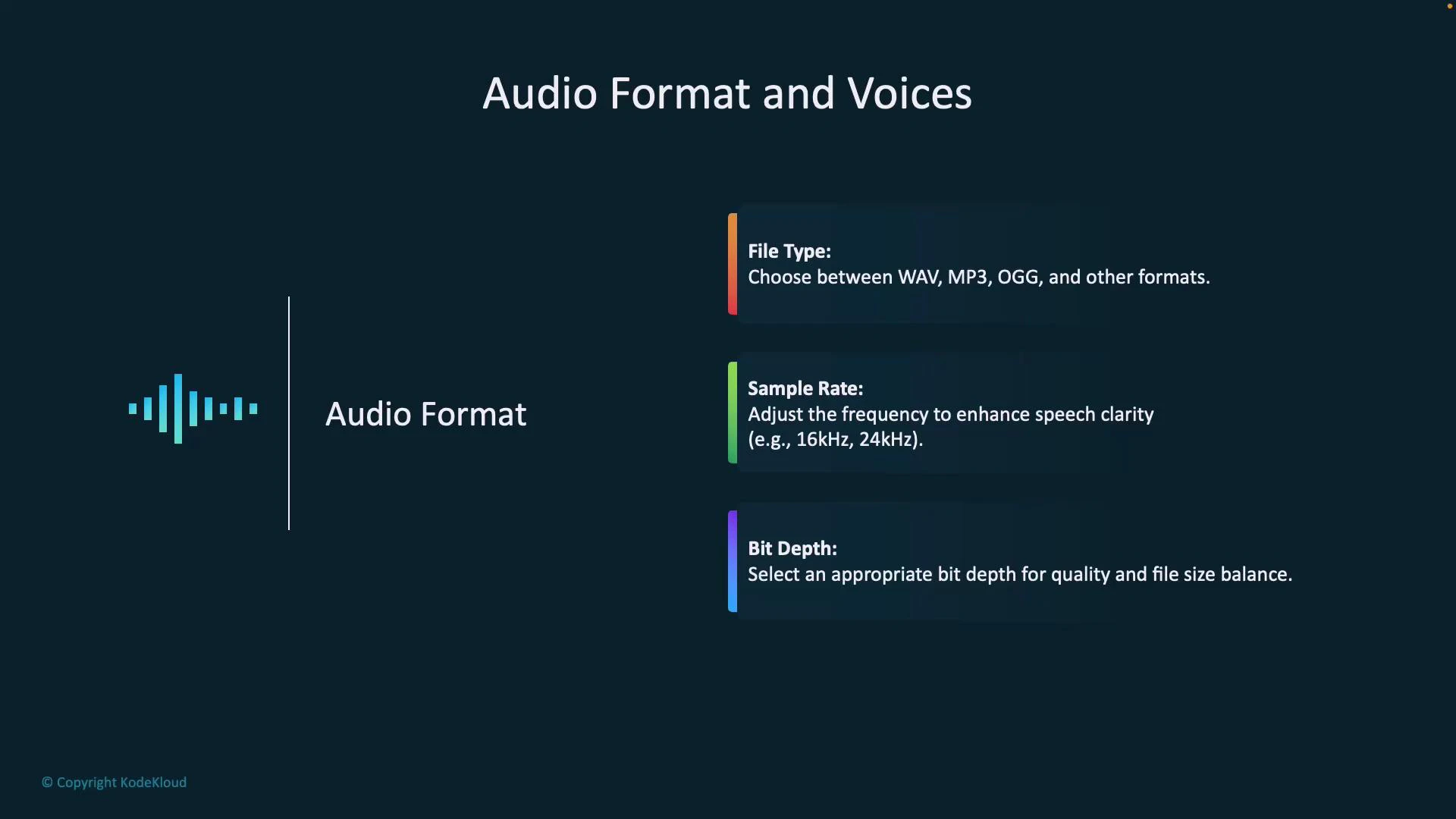
A presentation slide titled "Audio Format and Voices" with a waveform icon and the heading "Audio Format" on the left. On the right are three colored boxes describing File Type, Sample Rate, and Bit Depth with short explanations.
Choose audio format and sample rate to match your downstream needs: use higher sample rates and uncompressed formats for post-processing or human listeners, and compressed formats for streaming, mobile, or bandwidth-constrained scenarios.
Audio format quick reference
File typeUse caseProsCons
WAV (PCM)Post-processing, archival, audio analysisLossless, high fidelityLarge filesize
MP3Streaming, downloads where smaller size mattersSmaller filesize, ubiquitousLossy compression artifacts
OGG (Opus)Low-latency streaming, web appsEfficient at low bitratesLess universal than MP3
Raw PCMDSP and research workflowsSimple and predictableNo container metadata
Sample rates and recommended uses
Sample rateBest for
8 kHzNarrowband telephony
16 kHzTypical speech (voicemail, simple TTS)
24 kHz and aboveHigh-fidelity voice apps, music/voice mixing

Voice options: Standard vs Neural

Azure Speech Services provides two primary types of text-to-speech voices:
  • Standard voices: Pre-built synthetic voices suitable for basic announcements and simple automation. Often faster and lower-cost but may sound slightly robotic.
  • Neural voices: Deep learning–based voices that deliver more natural prosody and expressiveness. Ideal for virtual assistants, audiobooks, and UX-focused experiences.
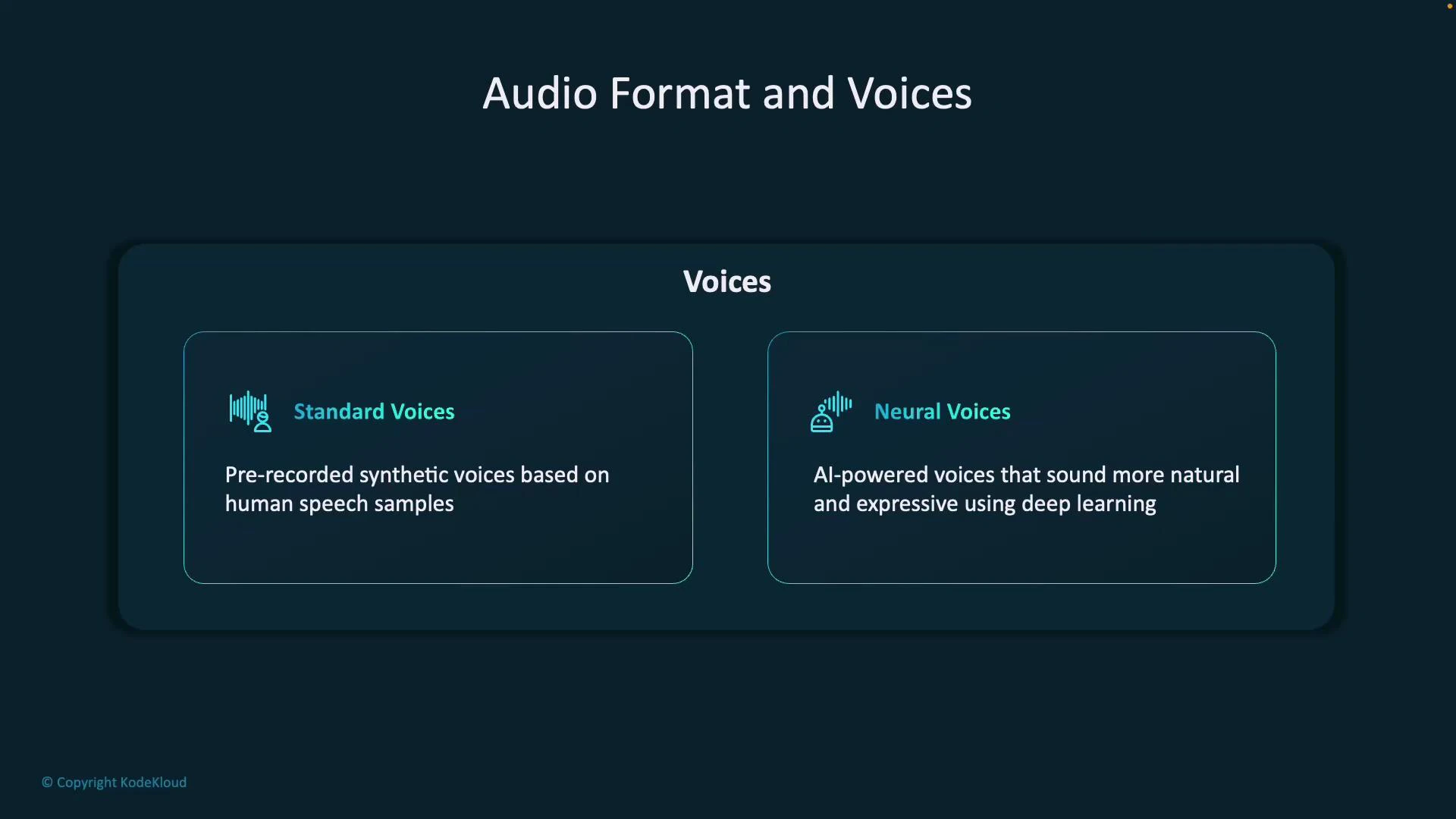
A dark-themed slide titled "Audio Format and Voices" showing two panels describing voice options. The left panel explains "Standard Voices" (pre-recorded synthetic voices) and the right panel explains "Neural Voices" (AI-powered, more natural-sounding voices using deep learning).
Neural voices typically deliver higher naturalness and expressiveness, but review quotas, regional availability, and pricing before production rollout.
Neural voices may have regional availability, quota limits, and different pricing tiers. Verify your subscription limits and regional support in the Azure portal and the Speech Services pricing and quotas documentation.

Configuring output format and voice in code

Below are concise examples showing how to set output formats and voice names in the Azure Speech SDK. Each example demonstrates setting a neural voice and a common RIFF (WAV) output format. C# (set RIFF 16 kHz 16-bit mono PCM and a neural voice)
// Configure Speech SDK (C#)
speechConfig.SetSpeechSynthesisOutputFormat(SpeechSynthesisOutputFormat.Riff16Khz16BitMonoPcm);
speechConfig.SpeechSynthesisVoiceName = "en-US-JennyNeural";
Python examples (Azure Speech SDK)
  • What the examples show:
    1. Create a SpeechConfig and set voice and output format.
    2. Synthesize to the default speaker.
    3. Save synthesized audio to a WAV file.
    4. Use that saved file for Speech-to-Text (STT) recognition.
TTS: synthesize to speaker and save to a file
import azure.cognitiveservices.speech as speechsdk

# Replace these with your Azure Speech resource key and region
speech_key = "YOUR_SPEECH_KEY"
service_region = "eastus"

if not speech_key:
    raise ValueError("You must set your Azure Speech key.")

# Create speech configuration and set voice & output format
speech_config = speechsdk.SpeechConfig(subscription=speech_key, region=service_region)
speech_config.speech_synthesis_voice_name = "en-US-JennyNeural"  # neural voice
speech_config.set_speech_synthesis_output_format(
    speechsdk.SpeechSynthesisOutputFormat.Riff16Khz16BitMonoPcm
)

# 1) Speak to default speaker
print("Speaking text using default speaker...")
synthesizer = speechsdk.SpeechSynthesizer(speech_config=speech_config)
text = "Hello! This is a sample neural voice using Azure Speech Service."

result = synthesizer.speak_text_async(text).get()

if result.reason == speechsdk.ResultReason.SynthesizingAudioCompleted:
    print("Speech synthesized successfully to speaker.")
elif result.reason == speechsdk.ResultReason.Canceled:
    cancellation = result.cancellation_details
    print("Speech synthesis canceled:", cancellation.reason)
    if cancellation.reason == speechsdk.CancellationReason.Error:
        print("Error details:", cancellation.error_details)

# 2) Save same synthesized audio to file
output_filename = "output_audio.wav"
print(f"Saving audio to '{output_filename}'...")
audio_config = speechsdk.audio.AudioOutputConfig(filename=output_filename)
file_synthesizer = speechsdk.SpeechSynthesizer(speech_config=speech_config, audio_config=audio_config)

file_result = file_synthesizer.speak_text_async(text).get()
if file_result.reason == speechsdk.ResultReason.SynthesizingAudioCompleted:
    print(f"Audio saved to '{output_filename}'")
elif file_result.reason == speechsdk.ResultReason.Canceled:
    cancellation = file_result.cancellation_details
    print("Speech synthesis canceled:", cancellation.reason)
    if cancellation.reason == speechsdk.CancellationReason.Error:
        print("Error details:", cancellation.error_details)
Sample console output (illustrative)
Speaking text using default speaker...
Speech synthesized successfully to speaker.
Saving audio to 'output_audio.wav'...
Audio saved to 'output_audio.wav'
STT: recognize speech from an audio file
import azure.cognitiveservices.speech as speechsdk

# Reuse or recreate speech_config as needed.
audio_input = speechsdk.audio.AudioConfig(filename="output_audio.wav")
speech_recognizer = speechsdk.SpeechRecognizer(speech_config=speech_config, audio_config=audio_input)

print("Recognizing speech from audio file...")
result = speech_recognizer.recognize_once_async().get()

if result.reason == speechsdk.ResultReason.RecognizedSpeech:
    print("Recognized Text:")
    print(result.text)
elif result.reason == speechsdk.ResultReason.NoMatch:
    print("No speech could be recognized.")
elif result.reason == speechsdk.ResultReason.Canceled:
    cancellation = result.cancellation_details
    print("Speech recognition canceled:", cancellation.reason)
    if cancellation.reason == speechsdk.CancellationReason.Error:
        print("Error details:", cancellation.error_details)
Typical recognition output (illustrative)
Recognizing speech from audio file...
Recognized Text:
Hello! This is a sample neural voice using Azure Speech Service.

Best practices and tips

  • For pipelines that include post-processing (noise reduction, alignment, ASR training), prefer uncompressed WAV (16-bit PCM) at 16 kHz or 24 kHz.
  • For streaming and mobile delivery, prefer MP3 or Opus (OGG) to reduce bandwidth.
  • Test voice choices with representative text. Neural voices may need different SSML or prosody tuning to get the desired intonation.
  • Monitor quotas and region availability for neural voices; consider fallback to standard voices if unavailable.

Summary

  • Select file type, sample rate, and bit depth based on your target use (streaming vs. storage vs. processing).
  • Use neural voices when you require natural, expressive TTS for UX-heavy applications.
  • Configure output format and voice via SpeechConfig in the Azure Speech SDK; you can synthesize to the speaker, save to a file, and use that audio for Speech-to-Text.
Links and references

Watch Video