Guide for running a deployed Azure Document Intelligence custom model to analyze documents, authenticate requests, use SDKs, and retrieve structured AnalyzeResult via poller.
Analyze documents with a custom-trained model in Azure Document Intelligence. This guide covers the authentication and request pattern needed to run a deployed custom model and retrieve the structured results returned by the service.Key workflow summary:
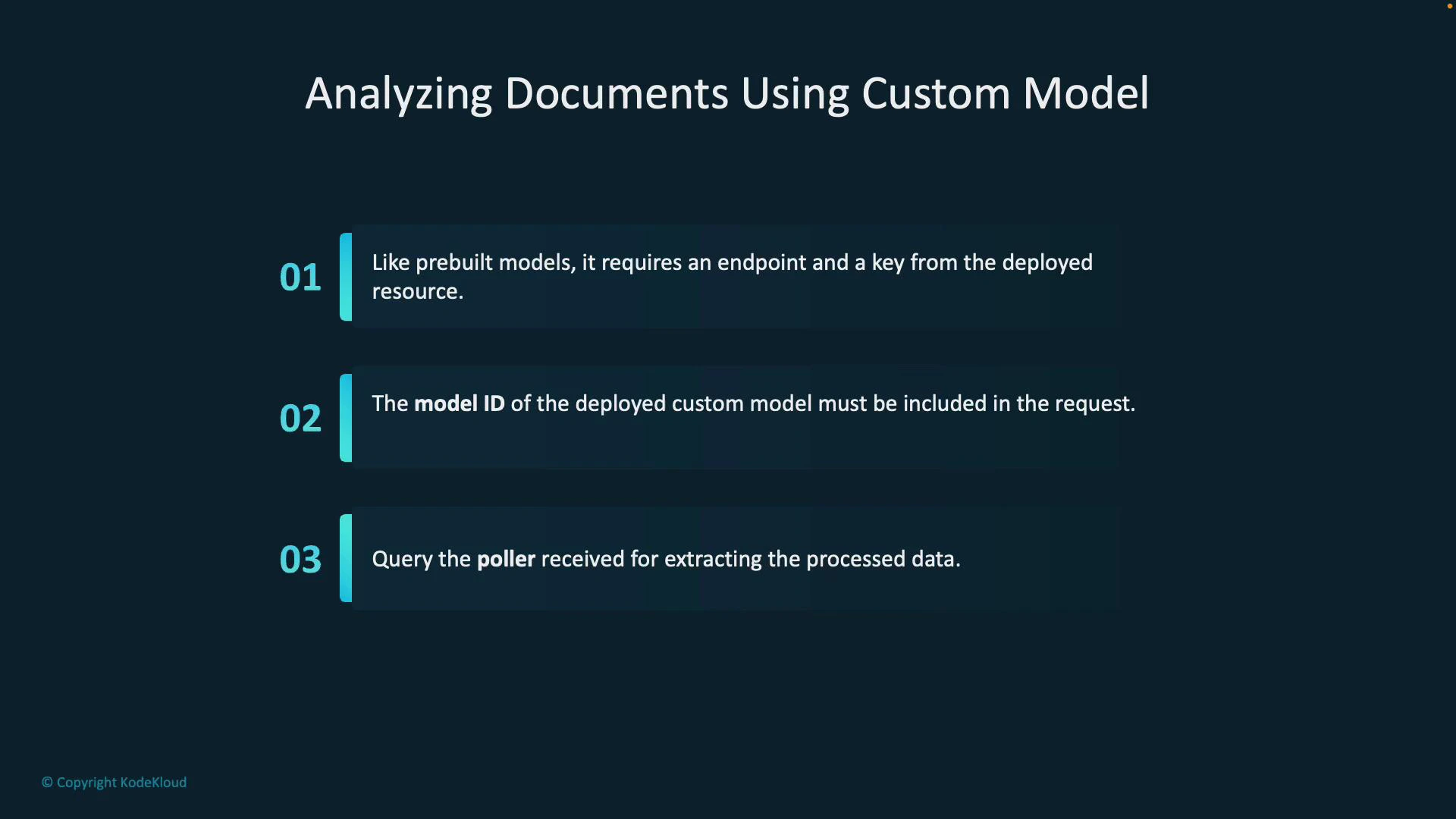
Provide the Document Intelligence resource endpoint and an access key to authenticate API calls.
Include the deployed custom model’s ID in the analysis request so the service knows which model to execute.
The service returns a poller object for long-running analysis operations; use it to monitor progress and obtain the final AnalyzeResult once processing completes.
Before calling the SDK, confirm your custom model is deployed and take note of the model ID. Ensure the document URI is reachable by the service (public URL or storage with proper access). If you use SAS-secured blobs, verify the token grants read access to the file.
Below are example usage patterns for the SDKs. The primary difference from built-in models is that you explicitly pass your custom model’s ID when starting the analysis so the service can run the correct trained model.C# example (async, using DocumentAnalysisClient)
Copy
using Azure;using Azure.AI.DocumentAnalysis;using System;// create the client with the endpoint and keyvar client = new DocumentAnalysisClient(new Uri("<your-endpoint>"), new AzureKeyCredential("<your-key>"));// provide your deployed model ID and the document URIstring modelId = "your-custom-model-id";Uri documentUri = new Uri("https://example.com/path/to/document.pdf");// start analysis and wait for completion (poller)AnalyzeDocumentOperation operation = await client.AnalyzeDocumentFromUriAsync(WaitUntil.Completed, modelId, documentUri);// get the result once the operation finishesAnalyzeResult result = operation.Value;// 'result' now contains pages, fields extracted by your model, confidence scores, and layout metadata
Python example (poller)
Copy
from azure.ai.documentanalysis import DocumentAnalysisClientfrom azure.core.credentials import AzureKeyCredential# create the clientendpoint = "https://<your-endpoint>"key = "<your-key>"client = DocumentAnalysisClient(endpoint, AzureKeyCredential(key))# specify your deployed model ID and the document URLmodel_id = "your-custom-model-id"file_url = "https://example.com/path/to/document.pdf"# begin analysis; returns a poller for a long-running operationpoller = client.begin_analyze_document_from_url(model_id=model_id, document_url=file_url)# wait for completion and obtain the resultresult = poller.result()# 'result' contains pages, extracted fields, confidence scores, and other structured output
Be careful with secrets and endpoint values. Never check your Azure keys into source control. If using storage URIs with tokens, ensure the token provides read access and is valid for the duration of the analysis.
Inspecting results
Once the poller completes, the returned AnalyzeResult (C#) or result (Python) contains:
Extracted fields as defined by your custom model (names, values, and confidence scores).
Page and layout information (text lines, bounding regions).
Additional metadata such as page ranges and any warnings produced during processing.
Use these fields to populate downstream processes, persist structured data, or drive business logic that depends on the extracted content.