

Overview: How the speech pipelines work
Both recognition (Speech-to-Text) and synthesis (Text-to-Speech) follow a similar pattern:- Configure a SpeechConfig with your Azure region and key (or use Azure AD authentication).
- Configure an AudioConfig to specify input or output (microphone, file, or stream).
- Create the runtime object (SpeechRecognizer for recognition, SpeechSynthesizer for synthesis).
- Call the appropriate method (recognizeOnceAsync / speakTextAsync or streaming equivalents) and inspect the result object for success/failure and metadata.
High-level Speech-to-Text pipeline
To perform speech recognition you typically configure two objects:- SpeechConfig — identifies your Azure region and subscription key (tells the service who you are and where your resources are).
- AudioConfig — specifies the input source (a microphone, an audio file, or a stream).
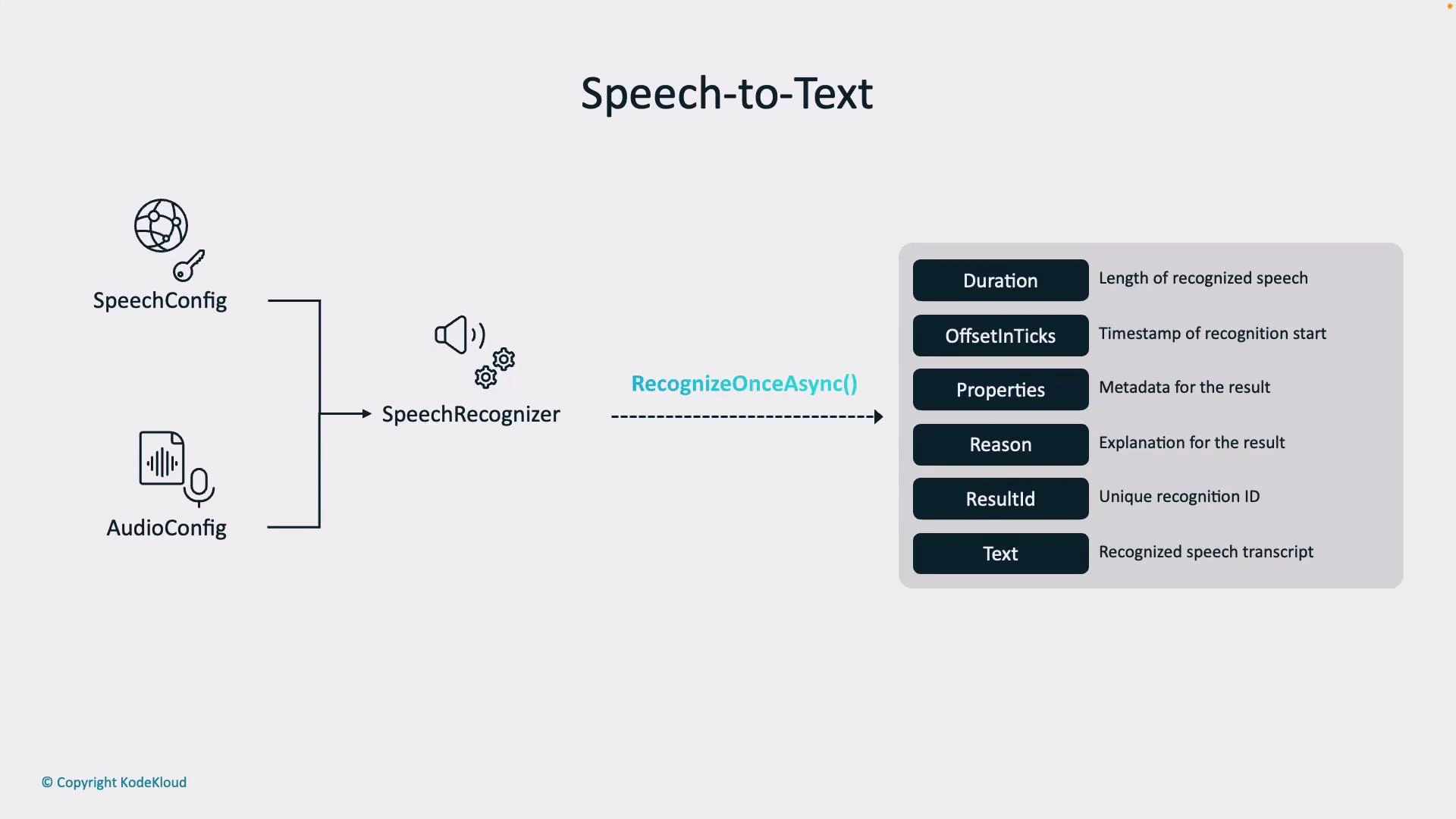
Common recognition result fields
Note: Always check the result Reason before consuming Text. The common result reasons are:
- RecognizedSpeech — recognition succeeded and Text is valid.
- NoMatch — the audio did not contain recognizable speech (e.g., noise or silence).
- Canceled — recognition was interrupted (often due to authentication, quota, or network issues). If canceled, inspect the cancellation details to diagnose the issue.
Always validate Result.Reason (and CancellationDetails when available) before using recognized text. Use Confidence or NBest alternatives to improve UX for low-confidence transcripts.
REST APIs for Speech-to-Text
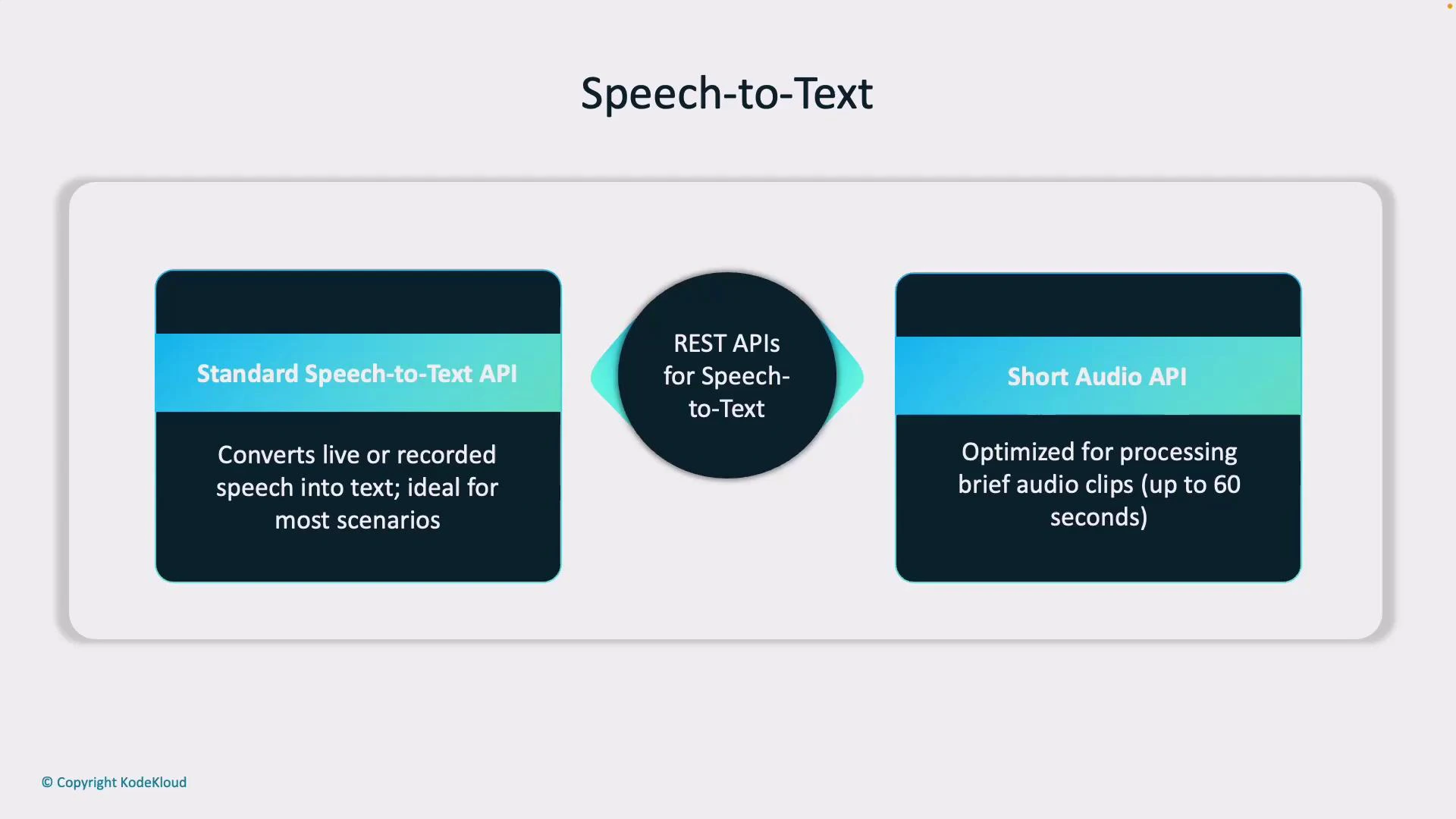
Azure Speech provides two common REST options for recognition:- Standard Speech Service API — supports real-time/streaming and batch scenarios for most production needs.
- Short Audio API — optimized for short audio clips (roughly up to 60 seconds), useful for commands and brief interactions.
SDK support for Speech-to-Text
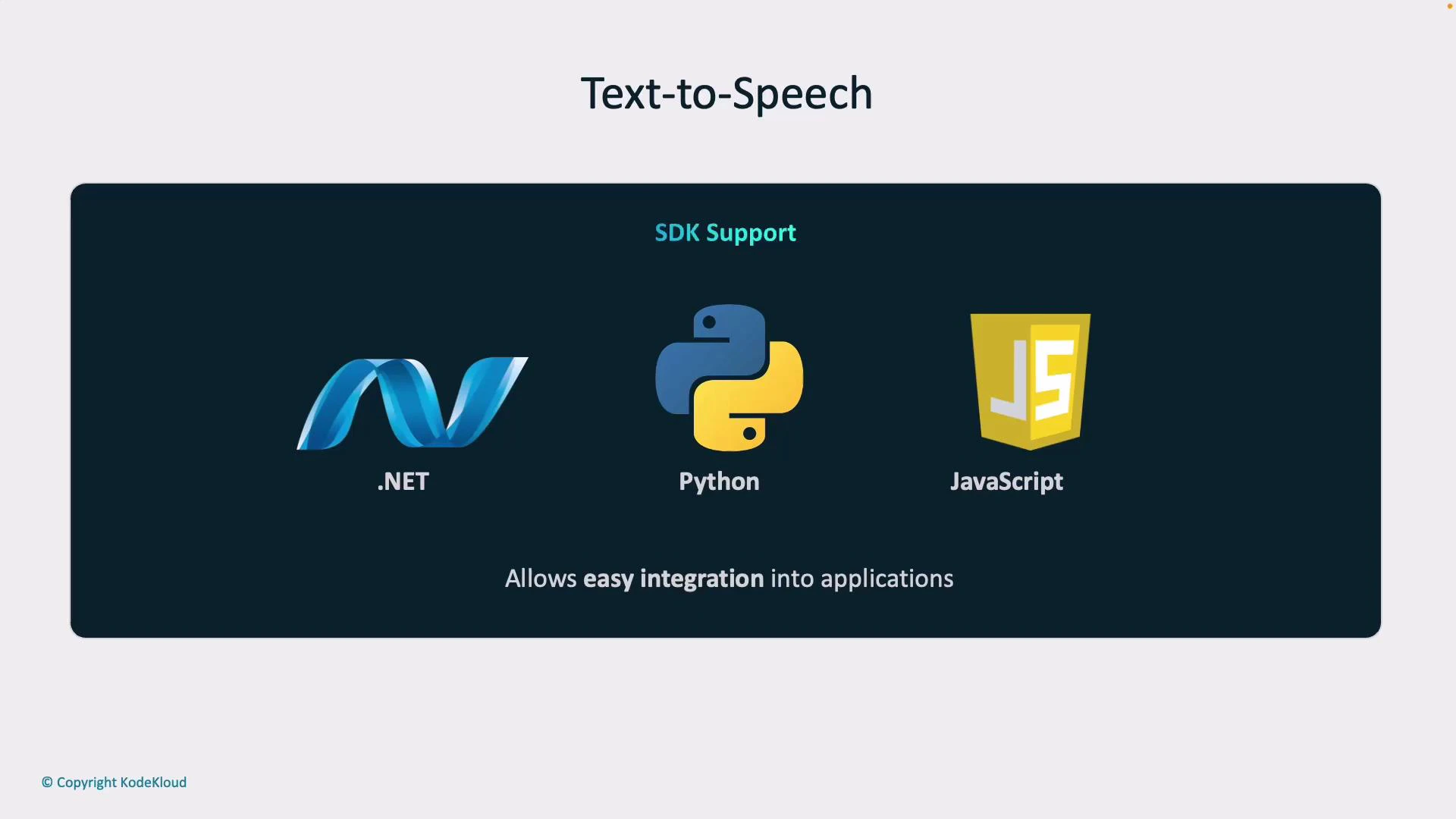
The Speech SDKs (.NET, Python, JavaScript) abstract the REST details and provide:- Synchronous and asynchronous methods for single-shot recognition.
- Event-driven streaming recognition with word-level timestamps.
- Helpers to manage audio devices and format conversions.
Text-to-Speech pipeline
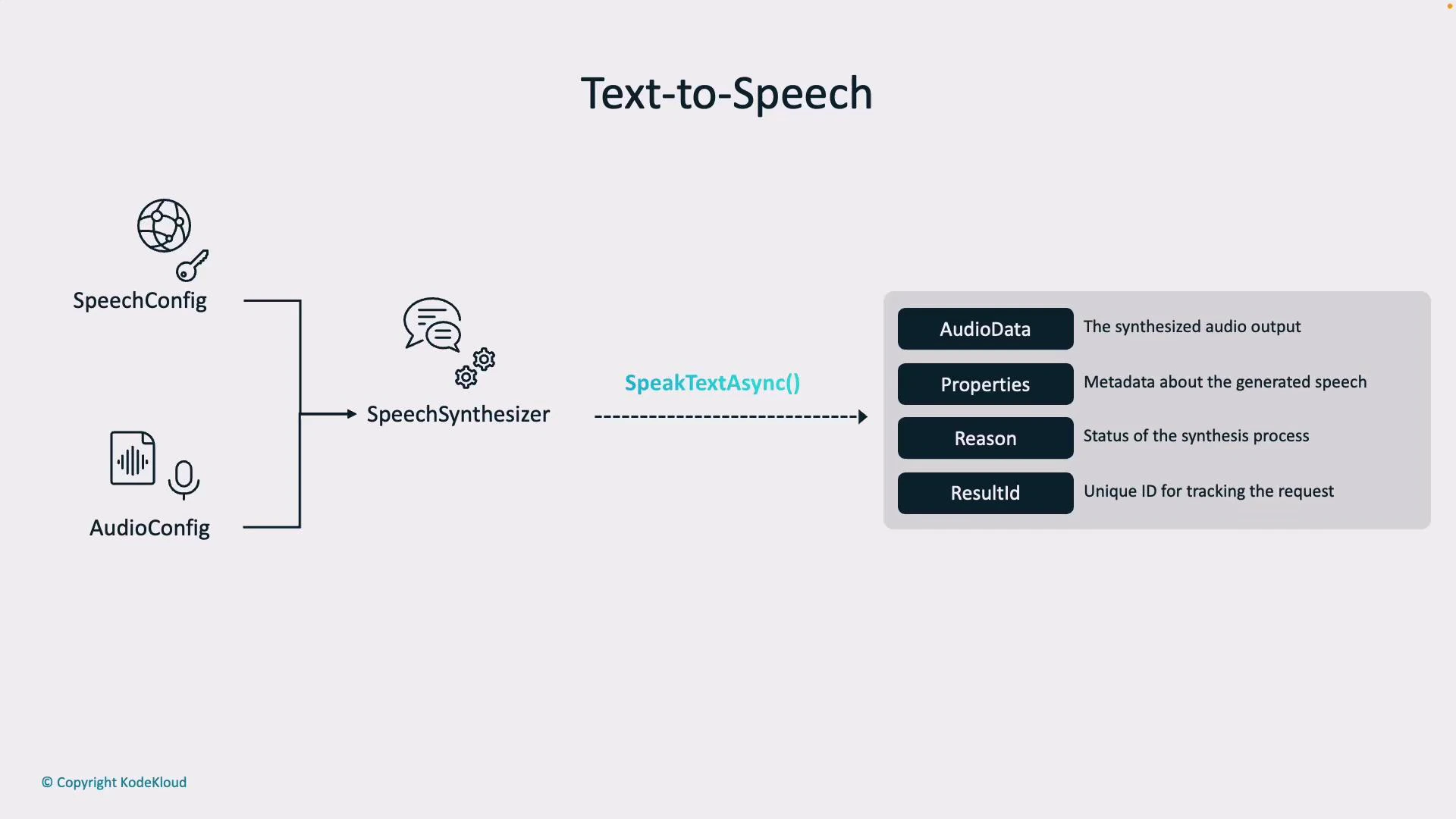
Text-to-Speech follows a similar configuration pattern:- SpeechConfig — your resource location and key.
- AudioConfig — determines the output destination (speaker device, audio file, or stream).
- AudioData — generated audio bytes or a saved file.
- Properties — metadata about the output.
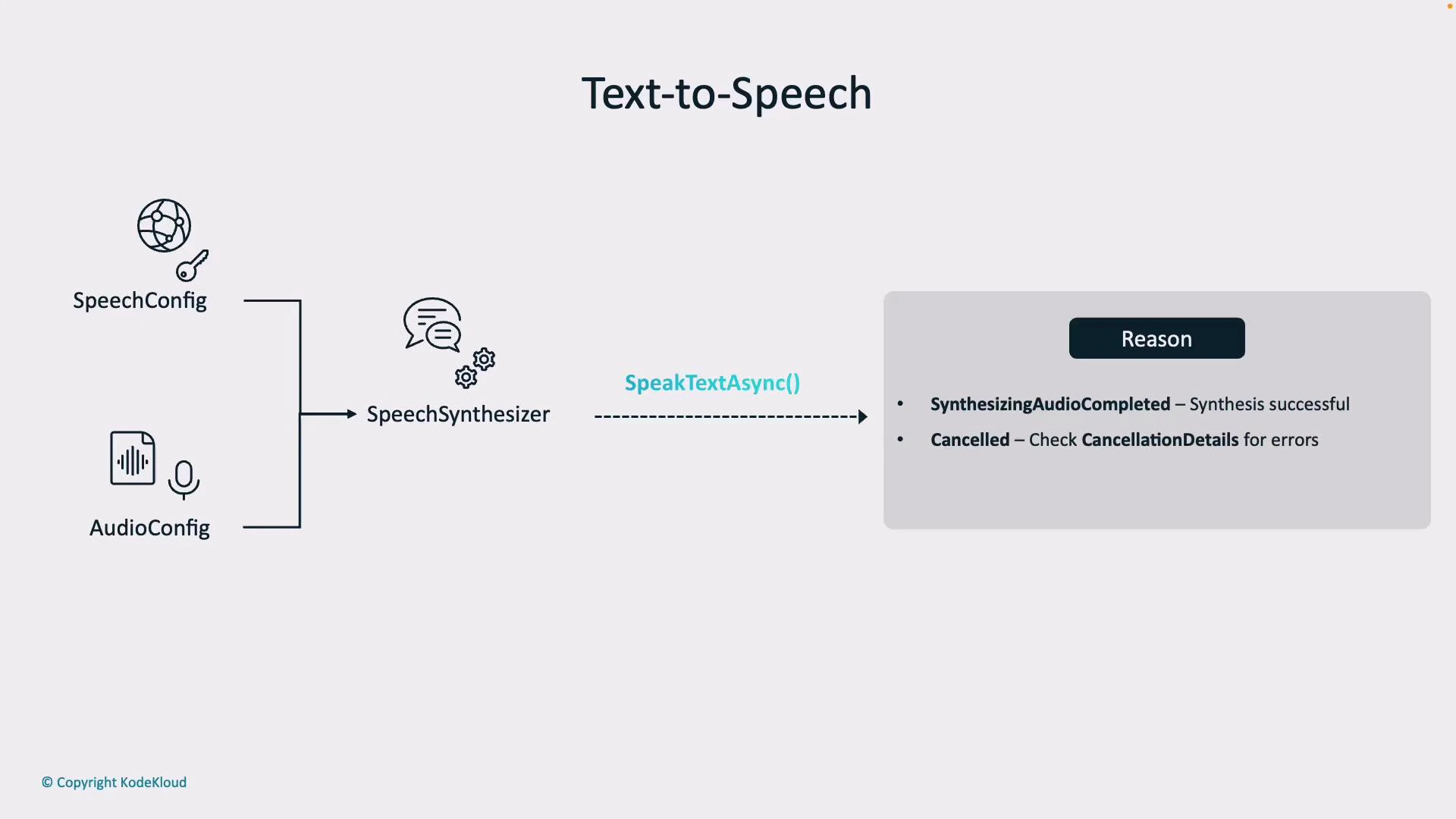
- Reason — indicates success (SynthesizingAudioCompleted) or failure (Canceled).
- ResultId — unique identifier for the synthesis operation.
Text-to-Speech REST APIs
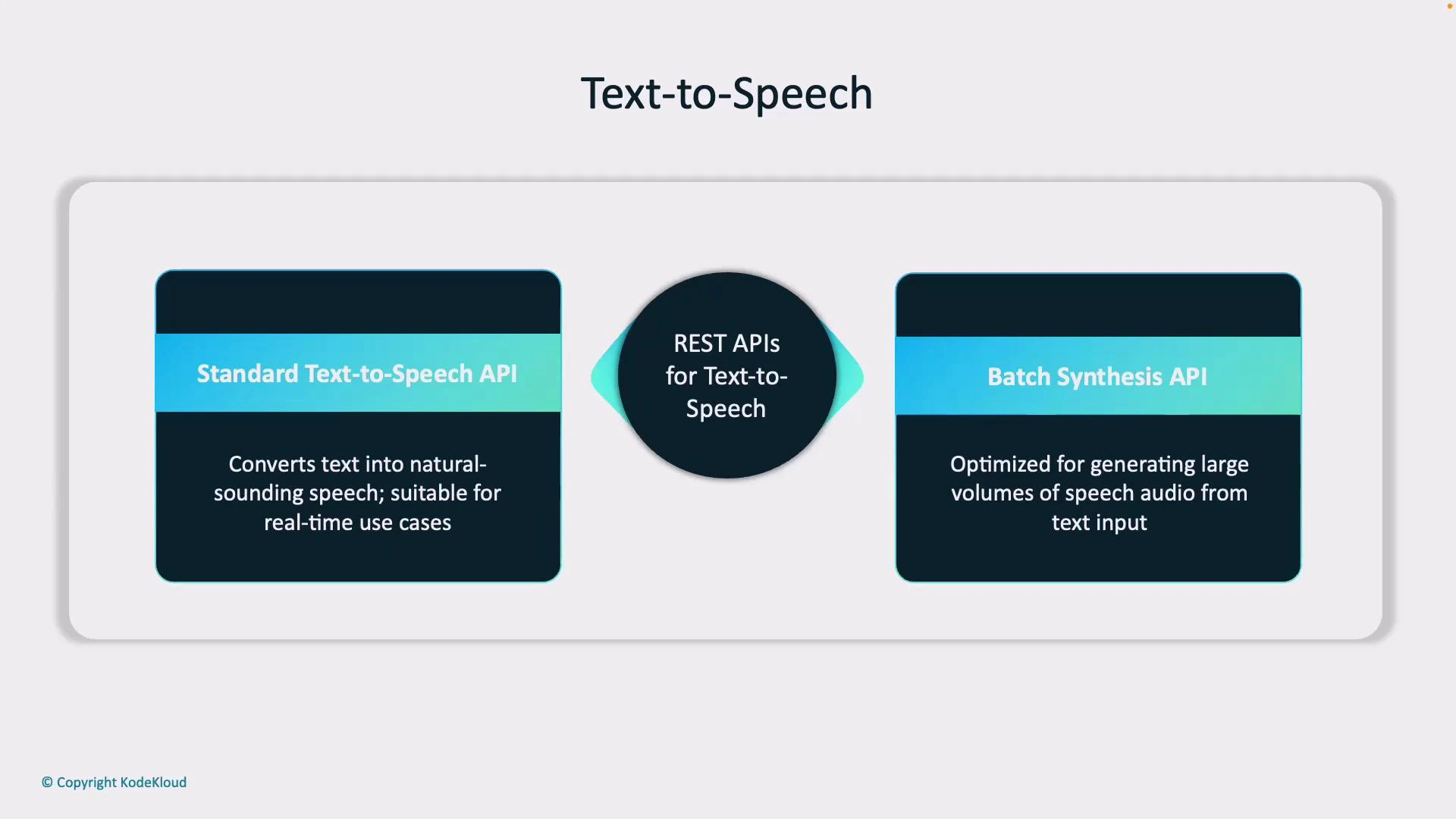
Two primary REST options for TTS:- Standard Text-to-Speech API — real-time conversion for short text inputs (chatbots, IVRs, accessibility).
- Batch Synthesis API — generate large volumes of audio for content creation, e-learning, or datasets.
Quick Azure Portal / Speech Studio walkthrough
Create or reuse a Speech resource in the Azure Portal (under AI Services). The resource page displays endpoints and keys you can use for REST or SDK authentication. Example endpoints: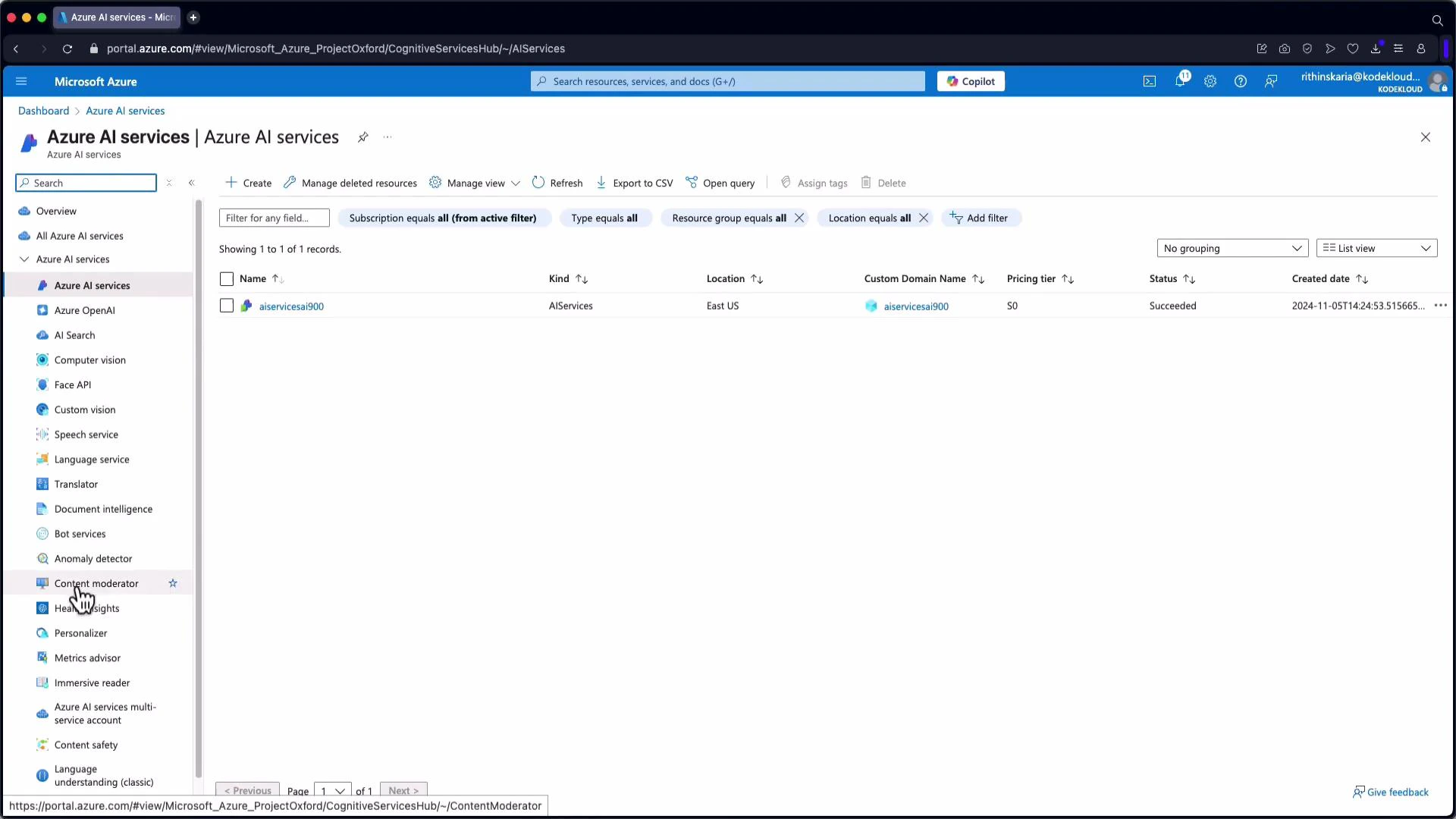
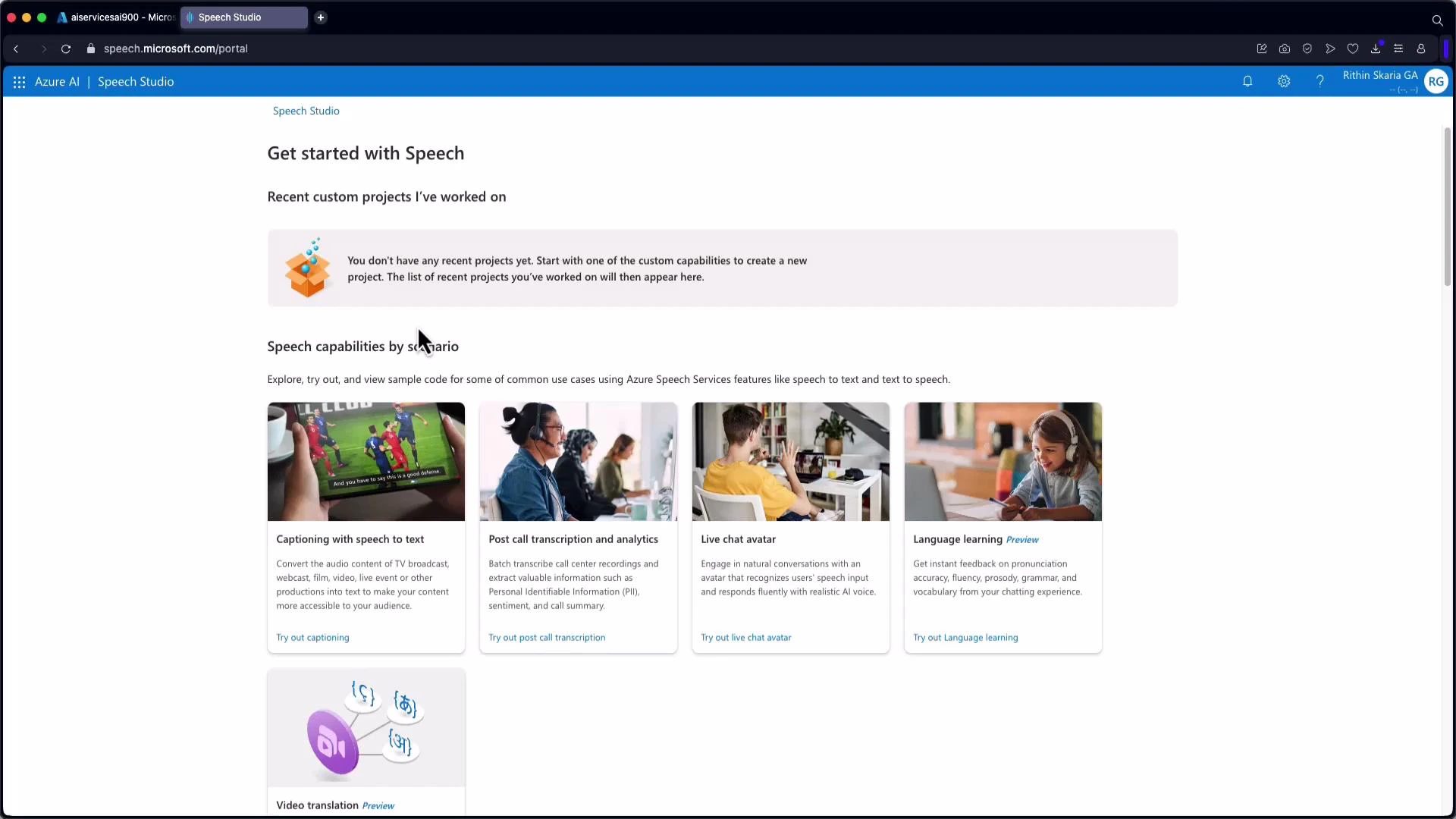
- Microphone-based real-time testing.
- Upload audio files to transcribe and inspect JSON output with segment and word-level timestamps.
- Preview voice styles and languages for TTS.
Real-time Speech-to-Text demo (Speech Studio)
In Speech Studio’s real-time demo you select a resource, grant microphone permissions, and speak. The service returns streaming JSON with segments and word-level timestamps (offset and duration). Example excerpt (formatted):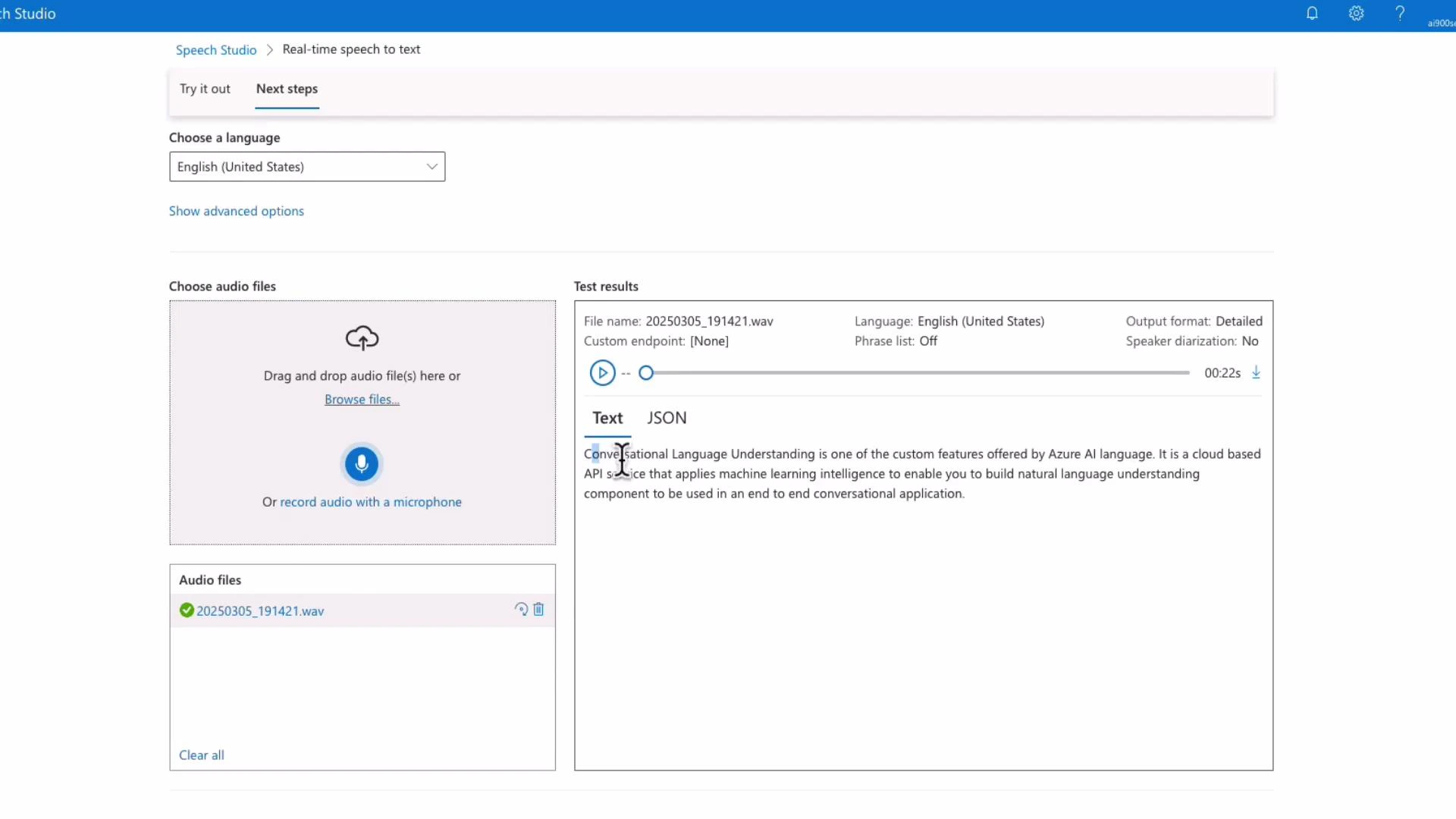
Voice Gallery and Text-to-Speech demo
Speech Studio includes a Voice Gallery to preview built-in voices, switch speaking styles, and test languages. Selecting a voice (for example, “Andrew”) plays sample phrases and shows personality and style controls. Important: changing the voice locale does not translate the input text — it simply uses that voice’s phonetics/locale. For translation, first translate the text (using a translation API) and then synthesize the translated text with an appropriate voice.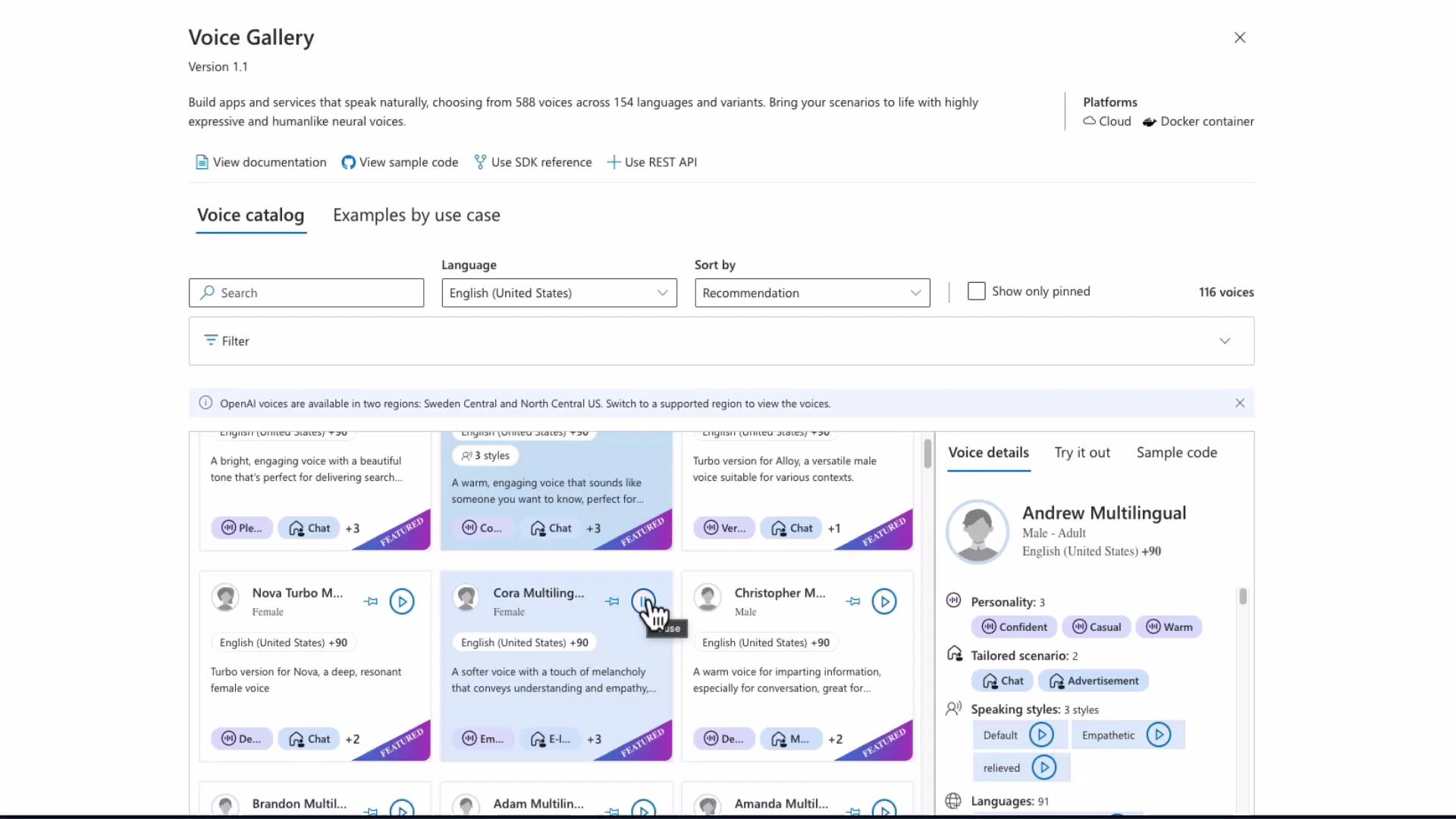
SDKs, integration notes, and best practices
- SDK availability: Python, .NET, and JavaScript SDKs support both recognition and synthesis.
- REST APIs: use when you need serverless/batch flows or to integrate from environments without the SDKs.
- Error handling: always check Result.Reason (or RecognitionStatus) and CancellationDetails. Implement retries for transient failures.
- Region selection: use the correct regional endpoint and monitor quota limits for production workloads.
- Security: prefer Azure AD tokens for long-lived deployments; manage keys and rotate credentials as needed.
For production, ensure correct regional endpoints, robust authentication (Azure AD or subscription keys), and implement Result.Reason / CancellationDetails checks with retries for transient network or quota errors.
Useful links and references
- Azure Speech Service documentation: https://learn.microsoft.com/azure/cognitive-services/speech-service/
- Speech SDK quickstarts: https://learn.microsoft.com/azure/cognitive-services/speech-service/quickstarts
- Speech Studio: https://speech.microsoft.com/