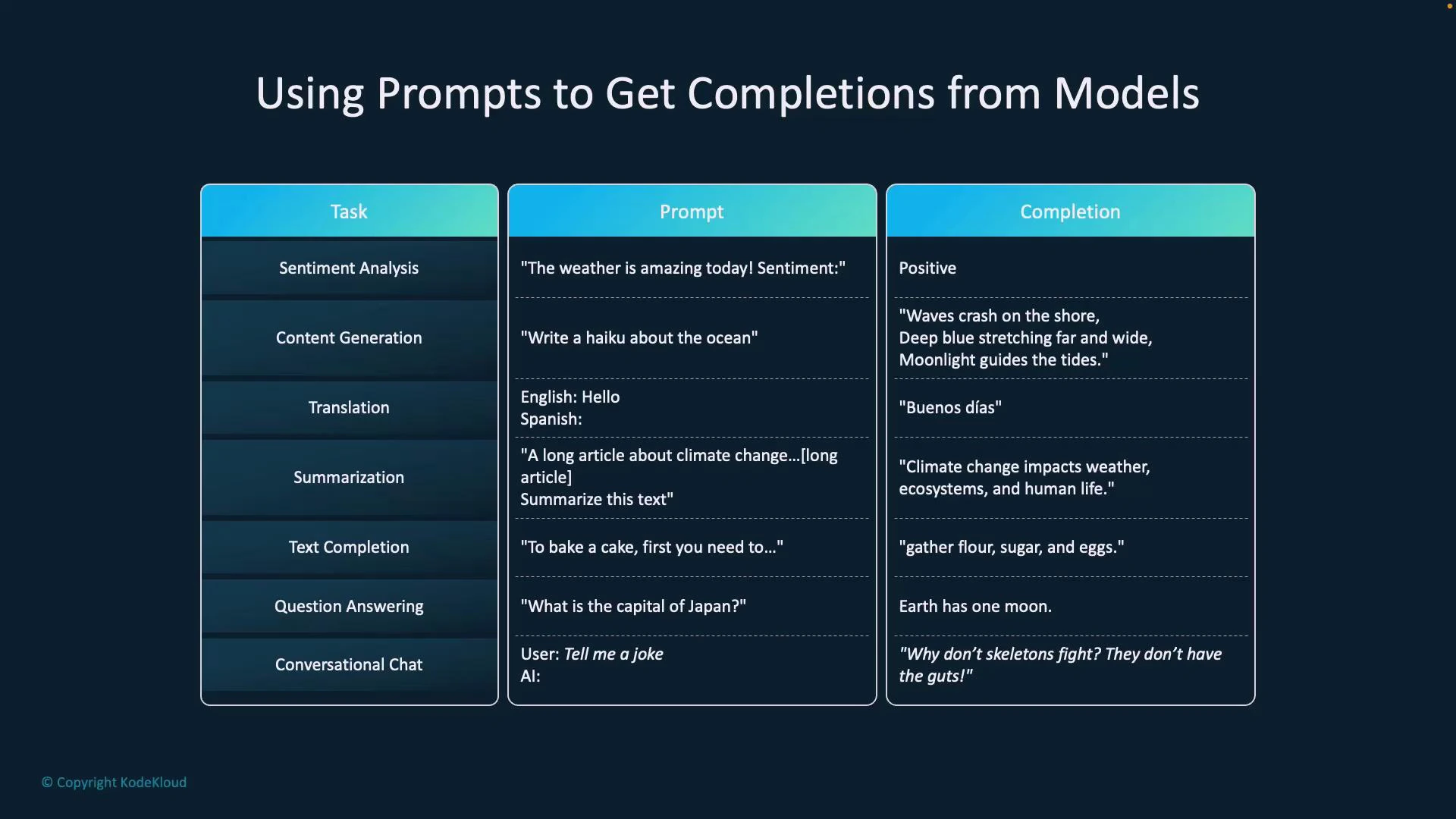
Prompts are how we instruct generative models (like GPT) to produce useful output. The model receives your prompt (the instruction or input) and returns a completion (the generated response). Clear, specific prompts lead to more accurate and relevant completions. Below is a quick reference of common prompt types, example prompts, and the typical completions they produce.
Prompt typeExample promptTypical completion
Sentiment analysis”The weather is amazing today. Sentiment?""Positive”
Generation”Write a haiku about the ocean.”A haiku poem about the ocean
Translation”English: Hello. Spanish:""Hola”
Summarization”Summarize this article:“A concise summary of the article
Text completion”To bake a cake, first you need to”The continuation with steps or instructions
Question answering”What is the capital of Japan?""Tokyo”
Conversational chat”Tell me a joke.”A joke (e.g., “Why don’t skeletons fight? They don’t have the guts.”)
A slide titled "Using Prompts to Get Completions from Models" showing a three-column table listing tasks, example prompts, and example completions (e.g., sentiment analysis, haiku, translation, summarization, Q&A, and a joke). The table has teal headers on a dark blue background with sample prompt/completion pairs in each row.
Key prompt-design tips:
  • Be explicit about the role and expected format (e.g., “You are a travel planner. Return a 10-day itinerary as numbered days.”).
  • Provide examples or constraints (length, tone, style) to guide the model’s output.
  • Use system and context messages to control persistent behavior in chat-style interactions.

Testing prompts in Azure OpenAI Studio (Chat Playground)

Azure OpenAI Studio provides a Chat Playground inside the Azure portal so you can experiment with prompts and deployed models interactively. The playground is ideal for:
  • Iterating on prompt wording and role definitions.
  • Verifying behavior of base or fine-tuned deployments.
  • Generating sample outputs before integrating into an application.
How to use the playground:
  • Select your deployment (for example, a GPT-3.5 or GPT-4.5 deployment).
  • Enter a system instruction to set the model’s role (e.g., “You are an AI assistant that helps people find information.”).
  • Type user prompts in the content box and observe the completion.
  • Review chat history to test multi-turn interactions and context retention.
  • Try the ready-made sample prompts (travel guides, recipes, code examples) and tweak them to fit your use case.
  • Add custom data or test a fine-tuned model to evaluate specialized behavior.
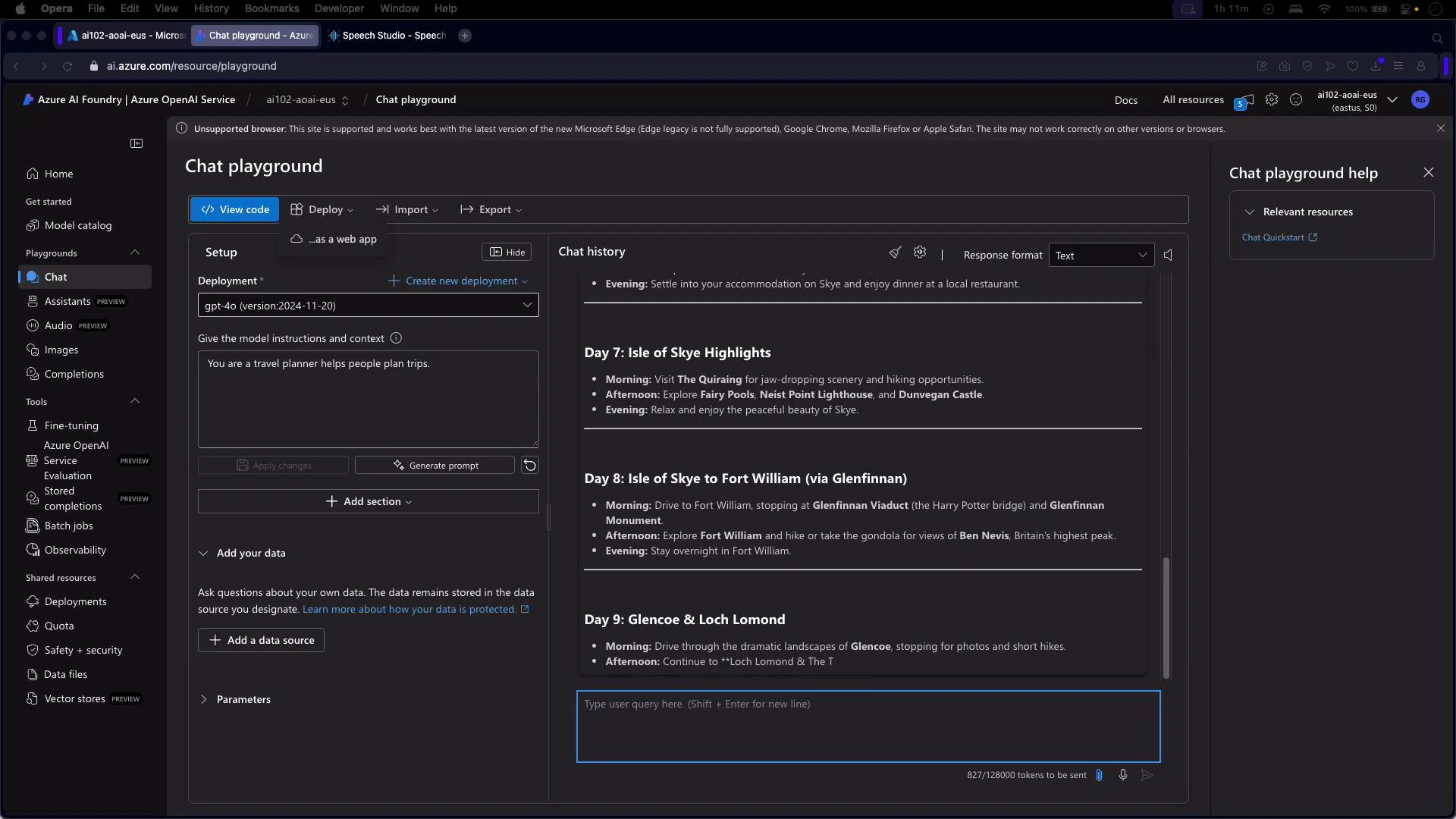
A dark-mode screenshot of the Azure OpenAI "Chat playground" interface in a browser window. The UI shows deployment/setup controls on the left and a chat history with a travel itinerary (Day 7–9: Isle of Skye, Fort William, Glencoe & Loch Lomond) in the main pane.
Example workflow in the playground:
  1. Set the system instruction: “You are a travel planner that helps people plan trips.”
  2. Enter the user prompt: “Plan a 10-day trip to Scotland.”
  3. Inspect the model’s day-by-day itinerary, then refine the system message or user prompt to change style, granularity, or constraints.
The playground is a quick way to validate how a fine-tuned model or a deployment responds to your prompts and any additional context before you integrate it into production.

Example: Chat completion with the OpenAI Python client (Azure)

Below is a concise, working Python example that shows how to create a chat completion against an Azure-hosted model. Update the endpoint, key, and deployment name to match your Azure resource configuration.
# Example using the OpenAI Python client configured for Azure OpenAI
# Install: pip install openai (or the appropriate OpenAI SDK)
import os
from openai import OpenAI

# Set these environment variables or replace with your values
AZURE_OPENAI_API_KEY = os.getenv("AZURE_OPENAI_API_KEY")
AZURE_OPENAI_API_BASE = os.getenv("AZURE_OPENAI_API_BASE")  # e.g., "https://<your-resource-name>.openai.azure.com/"
AZURE_OPENAI_API_VERSION = "2025-01-01-preview"  # ensure this matches a supported API version for your deployment
DEPLOYMENT_NAME = "your-deployment-name"  # the Azure deployment (model alias) name

client = OpenAI(
    api_key=AZURE_OPENAI_API_KEY,
    api_base=AZURE_OPENAI_API_BASE,
    api_type="azure",
    api_version=AZURE_OPENAI_API_VERSION
)

messages = [
    {"role": "system", "content": "You are a travel planner that helps people plan trips."},
    {"role": "user", "content": "Plan a 10-day trip to Scotland"}
]

response = client.chat.completions.create(
    model=DEPLOYMENT_NAME,
    messages=messages,
    max_tokens=800,
    temperature=0.7,
    top_p=0.95,
)

# Print the top choice's message content
print(response.choices[0].message.content)
Keep secrets out of source control. Use environment variables, Azure Key Vault, or managed identities for authentication. Also confirm the AZURE_OPENAI_API_VERSION is supported for your deployment to avoid runtime errors.
Notes and best practices:
  • Replace AZURE_OPENAI_API_BASE, AZURE_OPENAI_API_KEY, and DEPLOYMENT_NAME with your actual Azure values.
  • If you prefer Microsoft’s Azure SDK, see the azure.ai.openai package samples in the Azure docs and use AzureKeyCredential or managed identity for authentication: https://learn.microsoft.com/azure/cognitive-services/openai/
  • Tune parameters such as max_tokens, temperature, and top_p to control response length and creativity.
  • Use system messages to set behavior (role, tone, constraints) and include examples or templates for predictable formatting.
  • Test prompts in the playground with representative inputs and edge cases before deploying.
Azure OpenAI Studio’s Chat Playground simplifies prompt experimentation, iterative tuning, and behavior validation. With these techniques, you can design effective prompts, test completions, and prepare models for integration into applications. The next topic will show how to integrate OpenAI into an application and call the API programmatically.

Watch Video