Learn how to train custom models with Azure Document Intelligence to classify documents or extract specific fields. This guide walks through when to use custom classification vs custom extraction, dataset requirements, model types, the end-to-end training workflow in Document Intelligence Studio, and a short Python example to inspect results. Overview
  • Azure Document Intelligence supports two primary custom model scenarios:
    • Custom classification: assigns a single label to an entire document (useful for routing or sorting).
    • Custom extraction: extracts specific named fields or regions from documents (useful for invoices, IDs, certificates).
  • Use Document Intelligence Studio to annotate, auto-label, train, and obtain a Model ID for API integration.
Custom classification (document-level labeling) When to use:
  • You want to assign an overall category or label to an entire document (e.g., “resume”, “contract”, “tax form”).
  • Useful for automated sorting and routing of incoming document batches.
Requirements:
  • At least two distinct classes (categories).
  • Minimum of five labeled documents per class.
  • A single model makes classification decisions across entire documents.
  • At least two distinct classes (categories).
  • A minimum of five labeled documents per class.
  • Classification uses a single training model that makes decisions across entire documents.
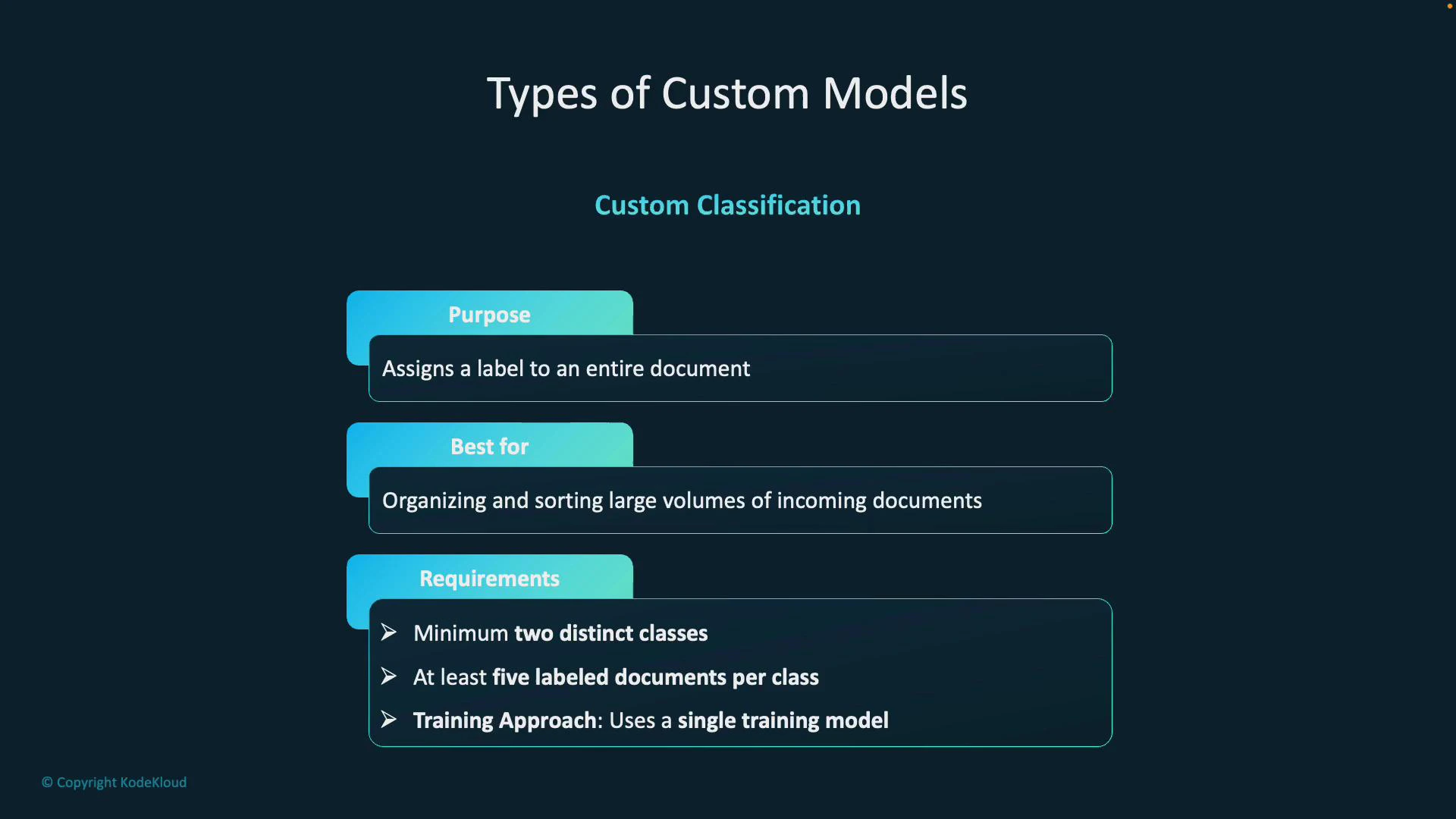
A presentation slide titled "Types of Custom Models" describing "Custom Classification." It lists the purpose (assigns a label to an entire document), best use (organizing/sorting large volumes of incoming documents), and requirements (minimum two classes, at least five labeled documents per class, single training model).
Custom extraction (field-level labeling) When to use:
  • You need to extract specific pieces of information from documents (e.g., invoice number, total, names, dates, signatures).
  • Works for both structured forms (consistent layouts) and unstructured documents (varying layouts).
Requirement:
  • At least five example documents of the same type to train the model to recognize fields.
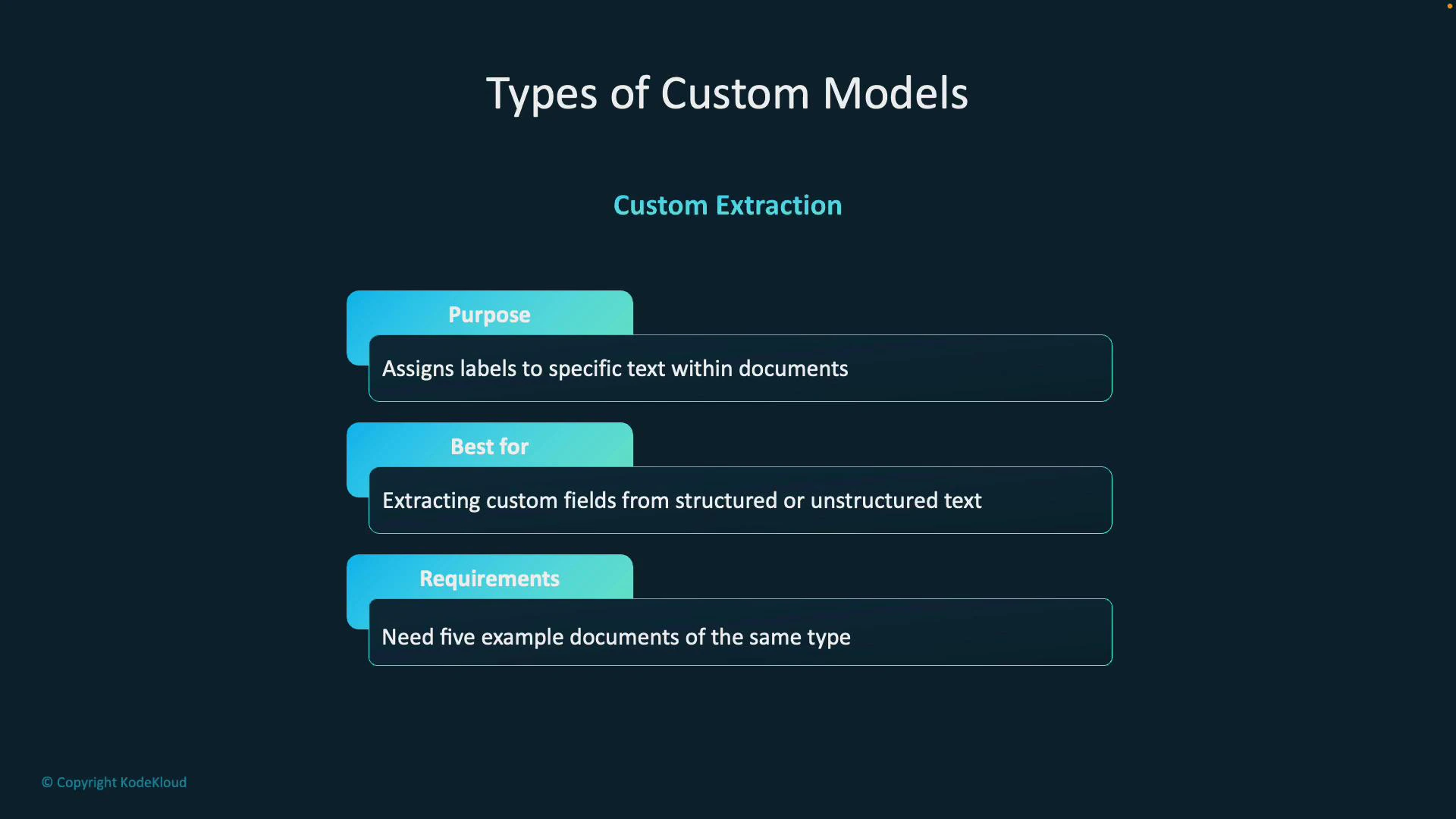
A presentation slide titled "Types of Custom Models — Custom Extraction" that explains its purpose, use case, and requirements. It states the purpose is to assign labels to specific text within documents, it's best for extracting custom fields from structured or unstructured text, and requires five example documents of the same type.
Model types for extraction Choose the model type based on layout variability and training tolerance:
Model TypeBest forTraining timeNotes
Custom Template (Structured Forms)Consistent, repeatable layouts (forms, templates)Fast (1–5 minutes)Relies on fixed layout to locate fields accurately
Custom Neural (Flexible Extraction)Varied or mixed document layoutsLonger (20–60 minutes)Uses neural approaches to generalize across different formats
  • Custom Template: optimized for fixed formats where field positions are predictable.
  • Custom Neural: better when forms vary in layout or when extracting from semi-structured/unstructured documents.
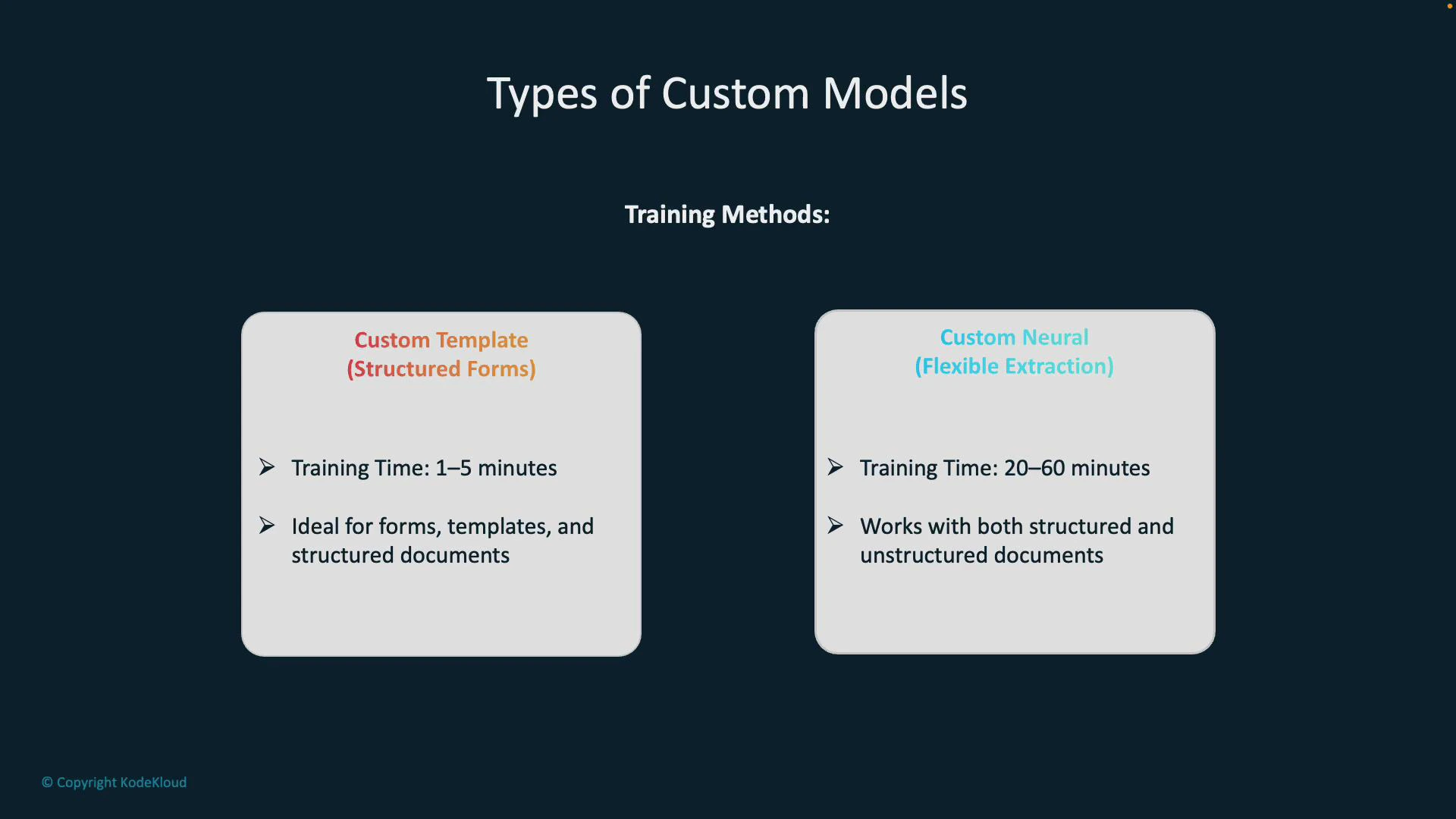
A presentation slide titled "Types of Custom Models" showing two side-by-side boxes. The left describes "Custom Template (Structured Forms)" with short training time and use for templates/forms, and the right describes "Custom Neural (Flexible Extraction)" with longer training time and support for structured and unstructured documents.
Training workflow (high-level) Follow these steps to create a custom extraction model:
  1. Create a project in Document Intelligence Studio.
  2. Upload training files or connect the project to an Azure Blob Storage container so the studio can access your documents.
  3. Define the fields (data types) you want the model to extract (for example, invoice_number, date_of_birth, signature).
  4. Annotate (label) documents by selecting text or drawing regions and assigning field labels across multiple training documents.
  5. Use Layout Analysis and Auto-Labeling (optional) to speed up annotation by leveraging prebuilt models.
  6. Train the model. After training completes, Document Intelligence provides a trained model and a Model ID to use with the APIs.
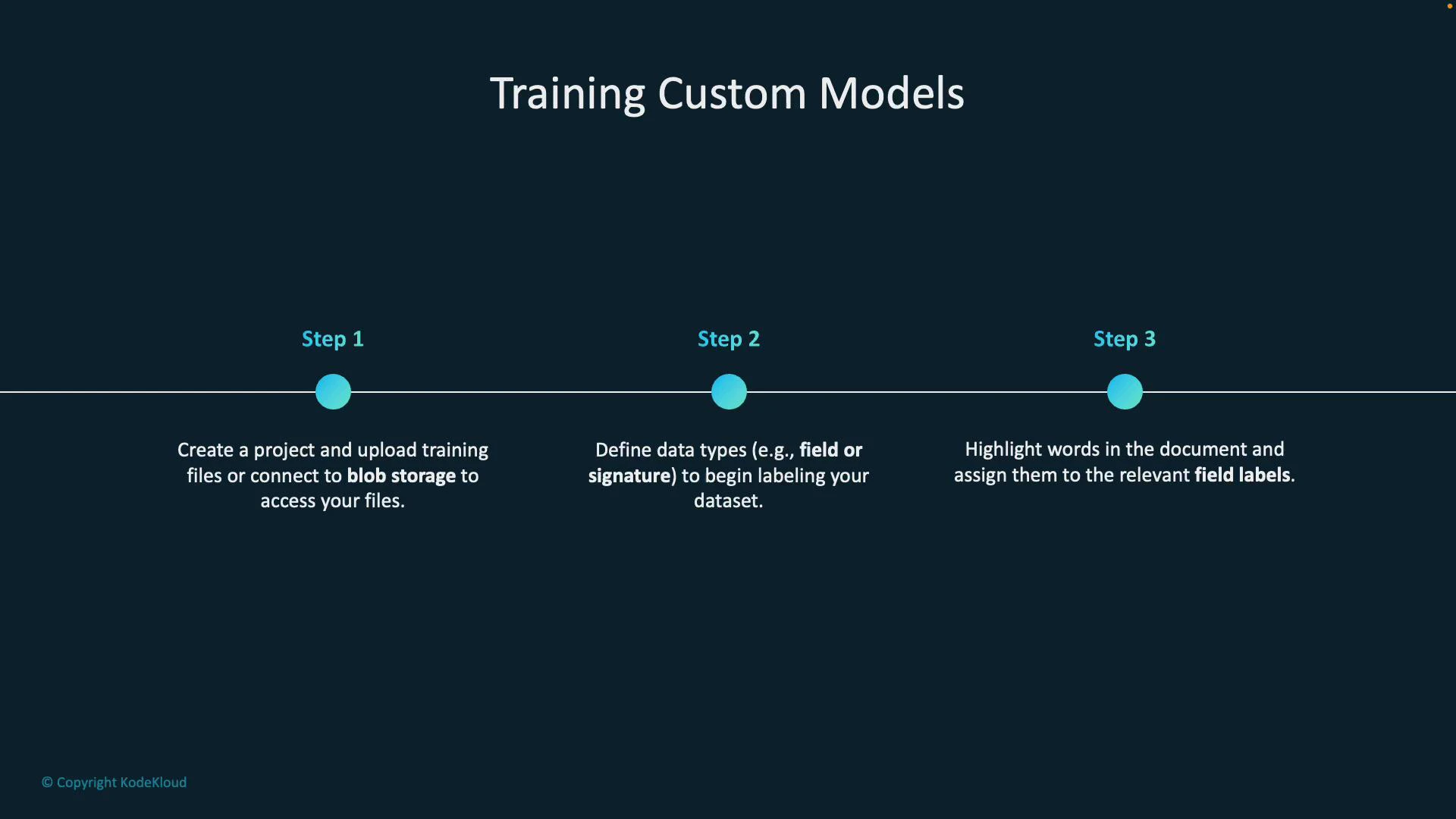
The image is a slide titled "Training Custom Models" showing a three-step horizontal timeline. It summarizes: Step 1 — create a project and upload training files or connect to blob storage; Step 2 — define data types (e.g., field or signature) to label your dataset; Step 3 — highlight words in documents and assign them to relevant field labels.
The quality of extraction improves with more well-labeled examples per field—label multiple instances and variations (different fonts, positions, and noise). Layout Analysis and Auto-Labeling
  • Layout Analysis: detects document regions (text blocks, tables, selection marks) to help you target fields quickly.
  • Auto-Labeling: leverages prebuilt models (e.g., invoice, ID, credit card) to propose field labels automatically, reducing manual effort when documents match known templates.
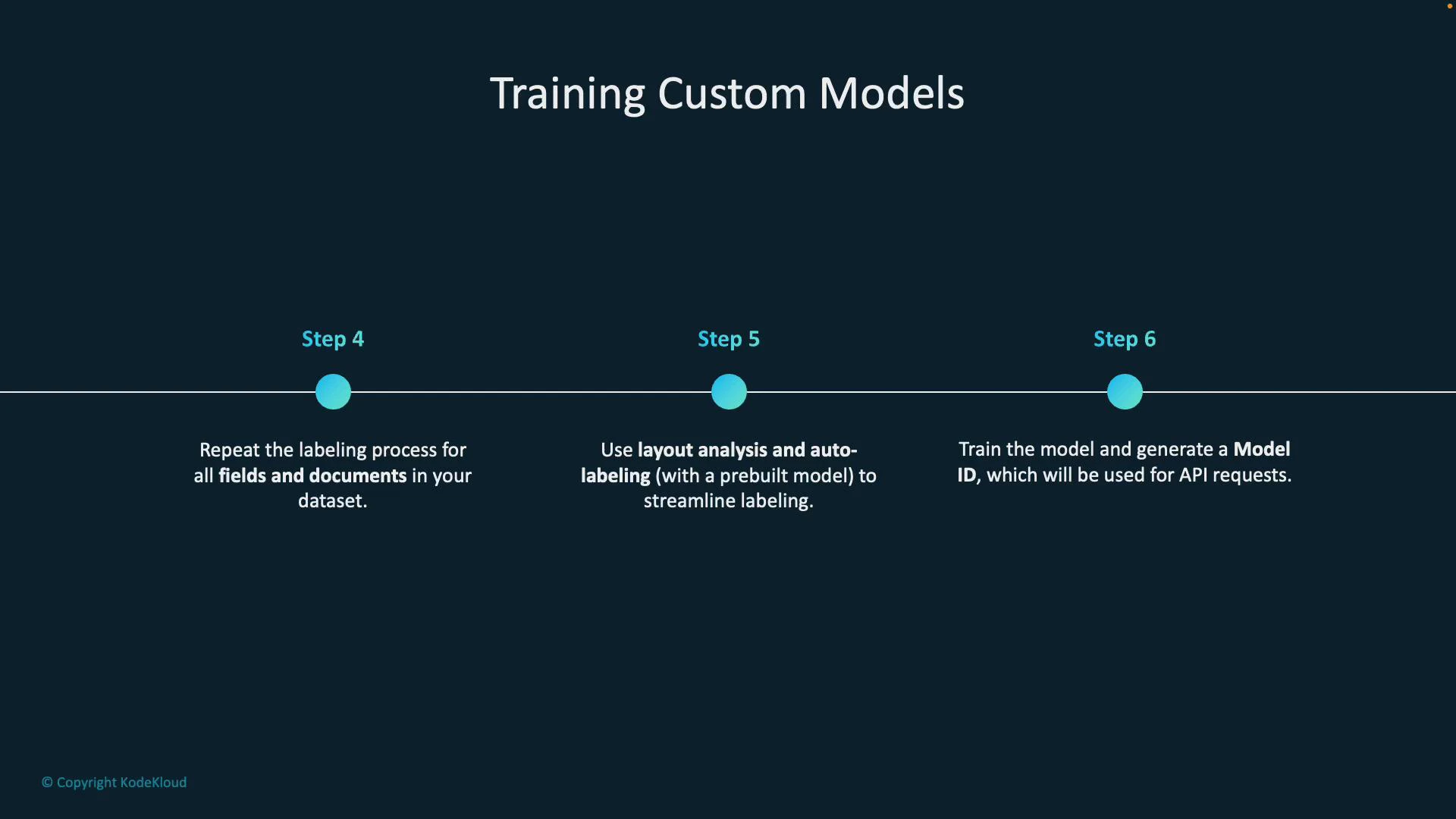
A slide titled "Training Custom Models" showing a horizontal timeline with Step 4–Step 6. The steps summarize repeating labeling for all fields/documents, using layout analysis and auto-labeling to streamline labeling, and training the model to generate a Model ID for API requests.
Using the trained model
  • After training, take the Model ID and call the Document Intelligence REST API or SDKs to analyze new documents.
  • The studio and SDKs provide example code (Python, JavaScript) to integrate analysis into your applications.
Practical walkthrough: training in Document Intelligence Studio The following screenshots illustrate the typical project flow for a custom extraction model.
  1. Label data view — annotate fields directly on sample documents in the studio.
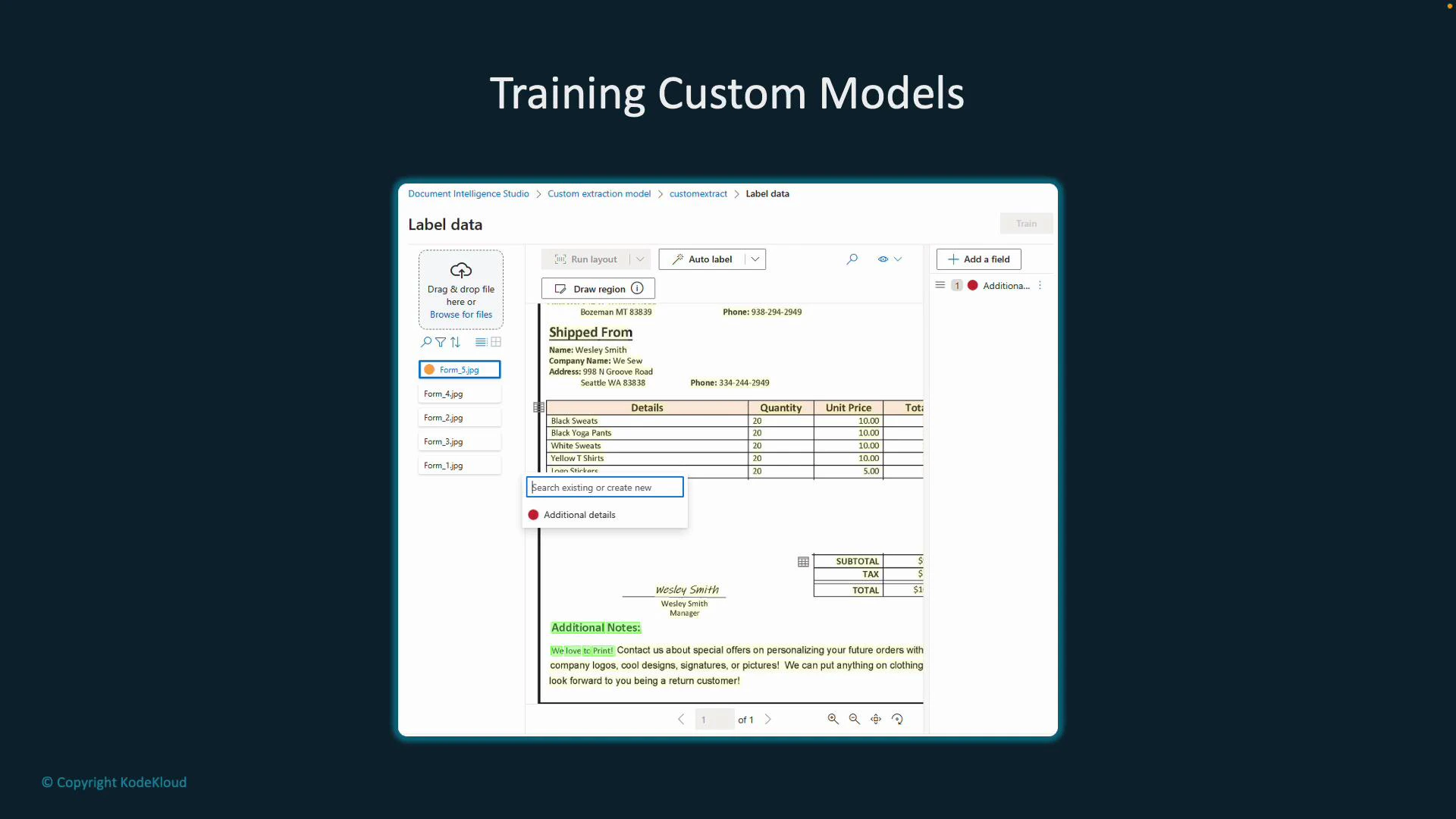
A slide titled "Training Custom Models" showing a Document Intelligence Studio "Label data" interface. The screenshot displays a scanned invoice/form with regions and fields highlighted for labeling and model training.
  1. Prepare your training set in Azure Blob Storage — for this demo, a container holds five marriage certificate PDFs used as training examples.
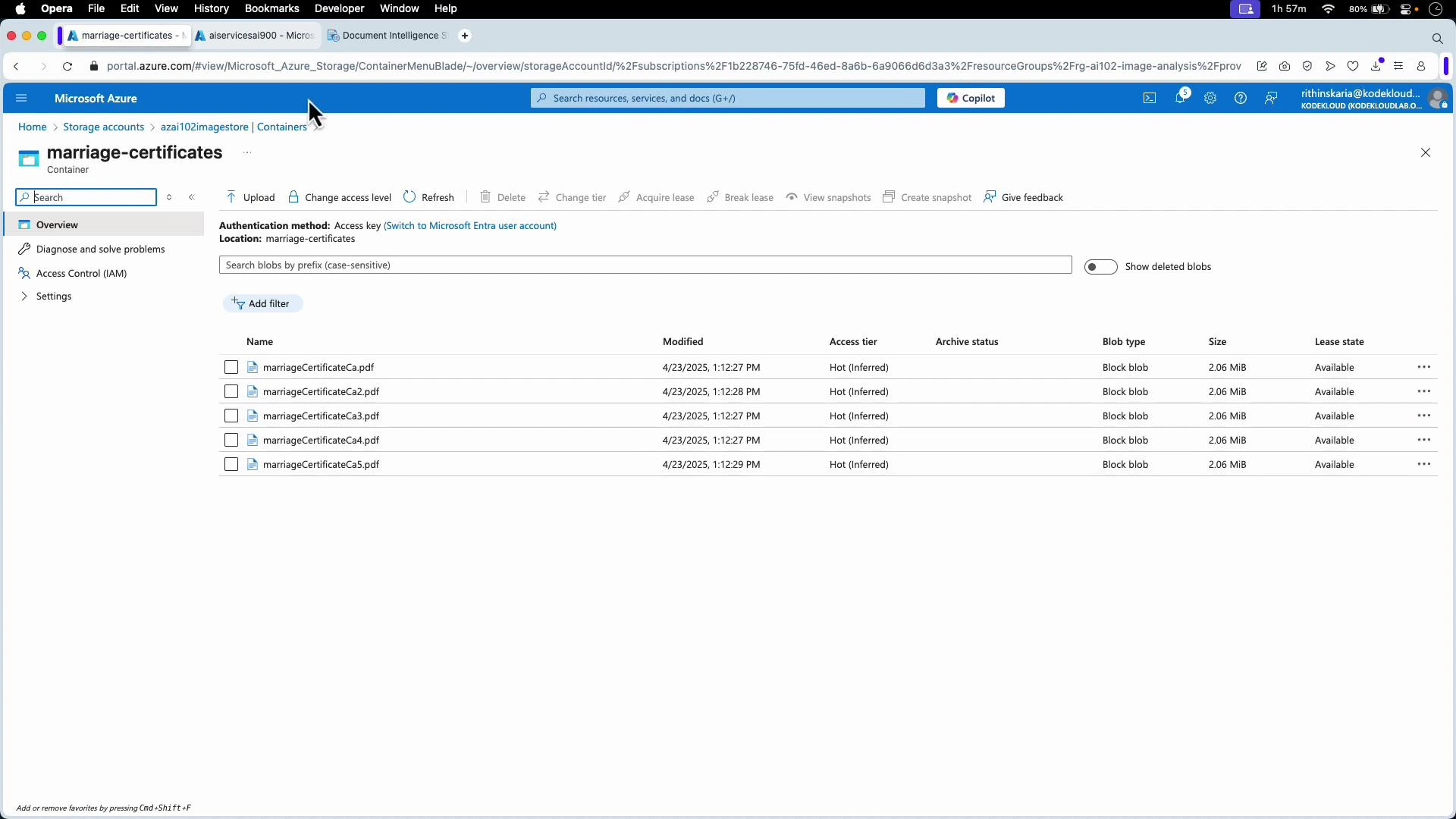
A Microsoft Azure Storage portal view showing a container named "marriage-certificates." The container lists five PDF blobs (marriageCertificateCa*.pdf) with modification timestamps, access tier "Hot (Inferred)," block blob type, and size about 2.06 MiB each.
  1. Choose Custom Extraction in Document Intelligence Studio (we’re extracting named fields rather than classifying whole documents).
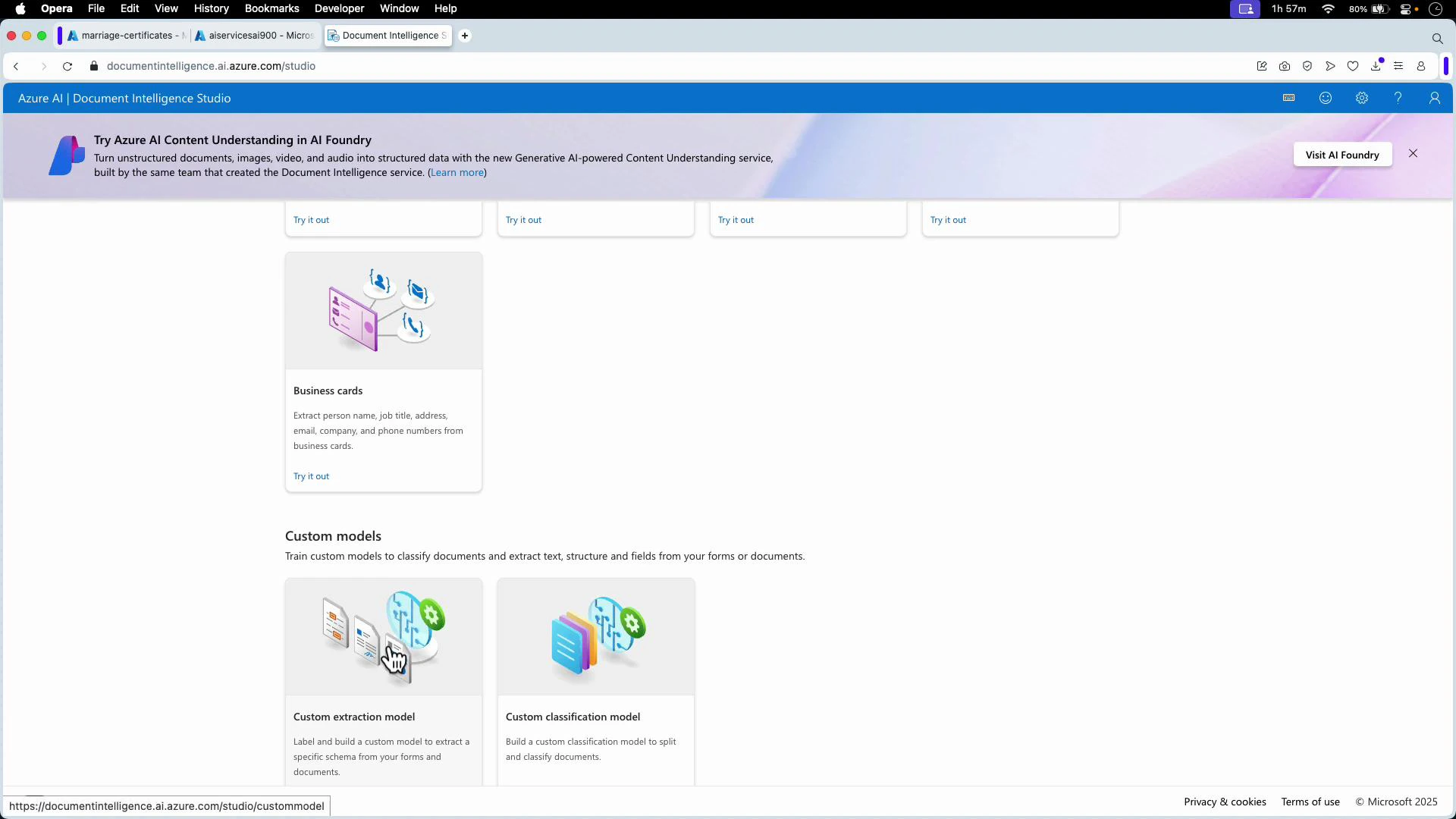
A screenshot of the Azure AI Document Intelligence Studio web interface showing cards for features like "Business cards" and "Custom models" (custom extraction and classification) with "Try it out" options. The page is displayed in a browser window on a macOS-like desktop.
  1. Create a new project and link it to your Document Intelligence resource (select subscription, resource group, and the Document Intelligence resource).
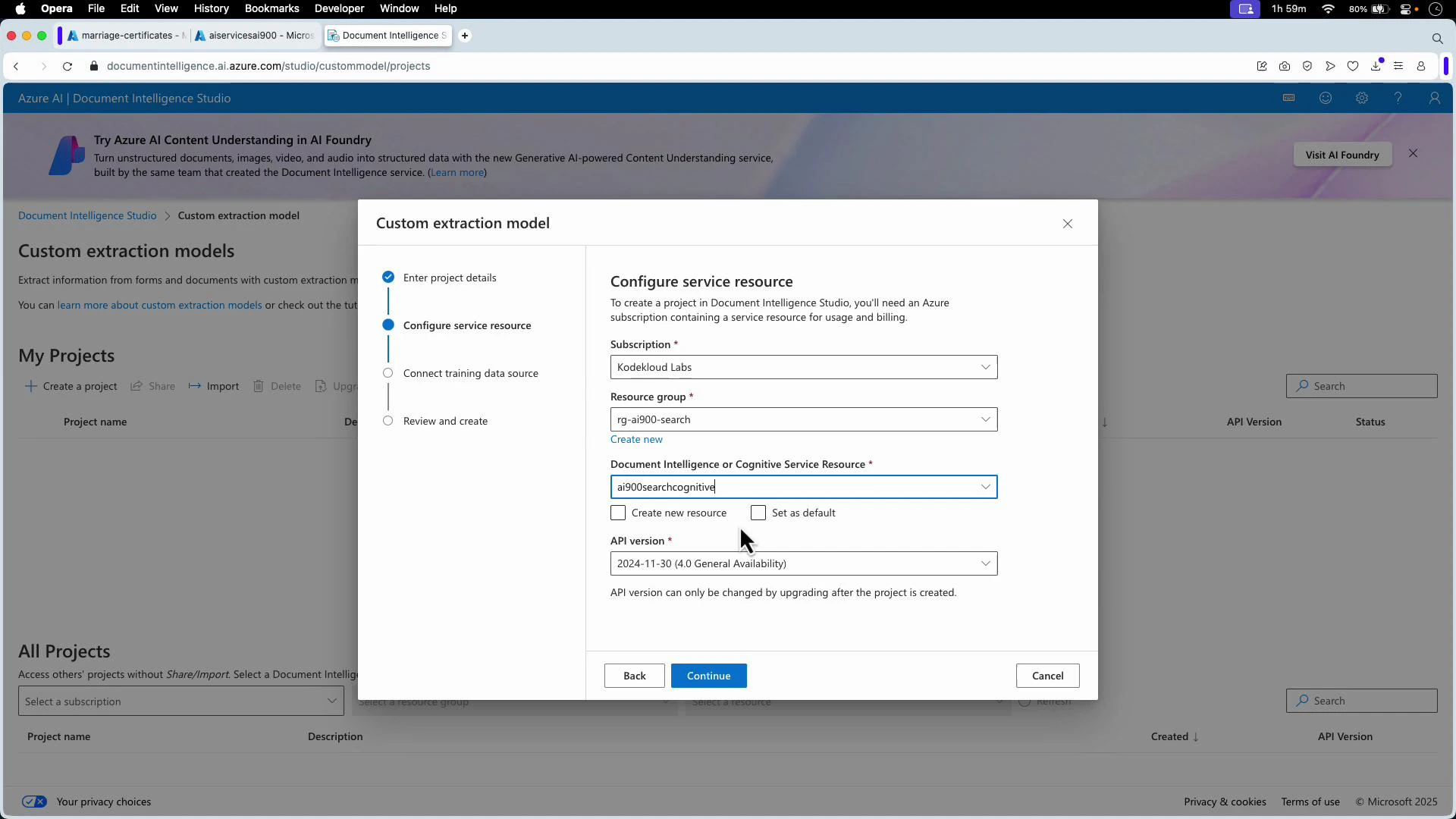
A browser screenshot of Azure AI Document Intelligence Studio with a "Custom extraction model" configuration dialog open, showing fields for subscription, resource group, Document Intelligence resource and API version. The modal overlays the My Projects page and includes Back, Continue and Cancel buttons.
  1. Connect the project to your storage container (e.g., the “marriage-certificates” container). If files are in the container root, leave the folder path empty.
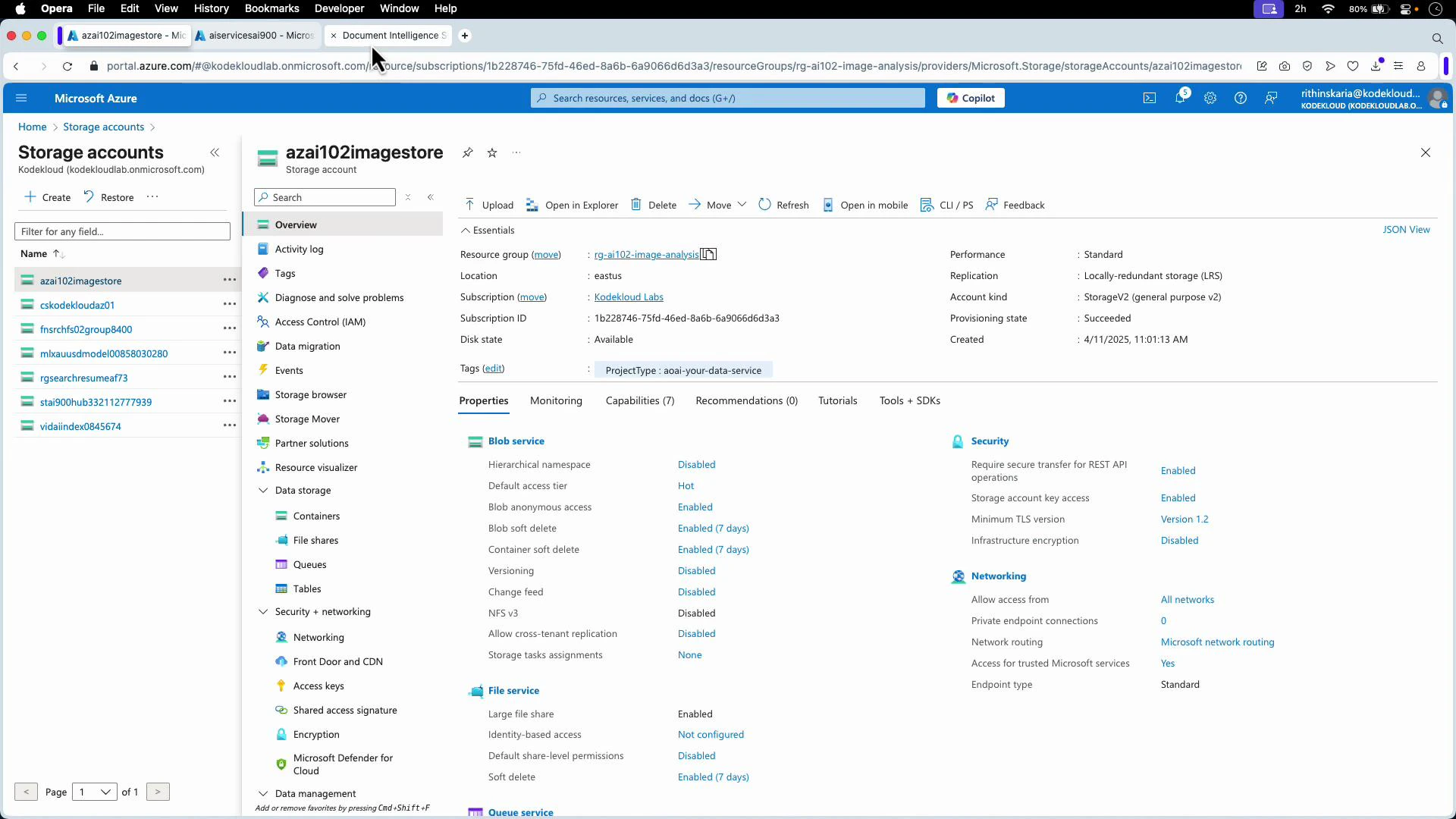
A screenshot of the Microsoft Azure portal open to a Storage accounts page, showing the storage account "azai102imagestore" with its overview, properties, security, and networking details. The left pane lists other storage accounts and navigation options like Containers, File shares, and Access keys.
  1. Start labeling. Optionally run Layout Analysis and Auto-Label to obtain suggested tags from prebuilt models.
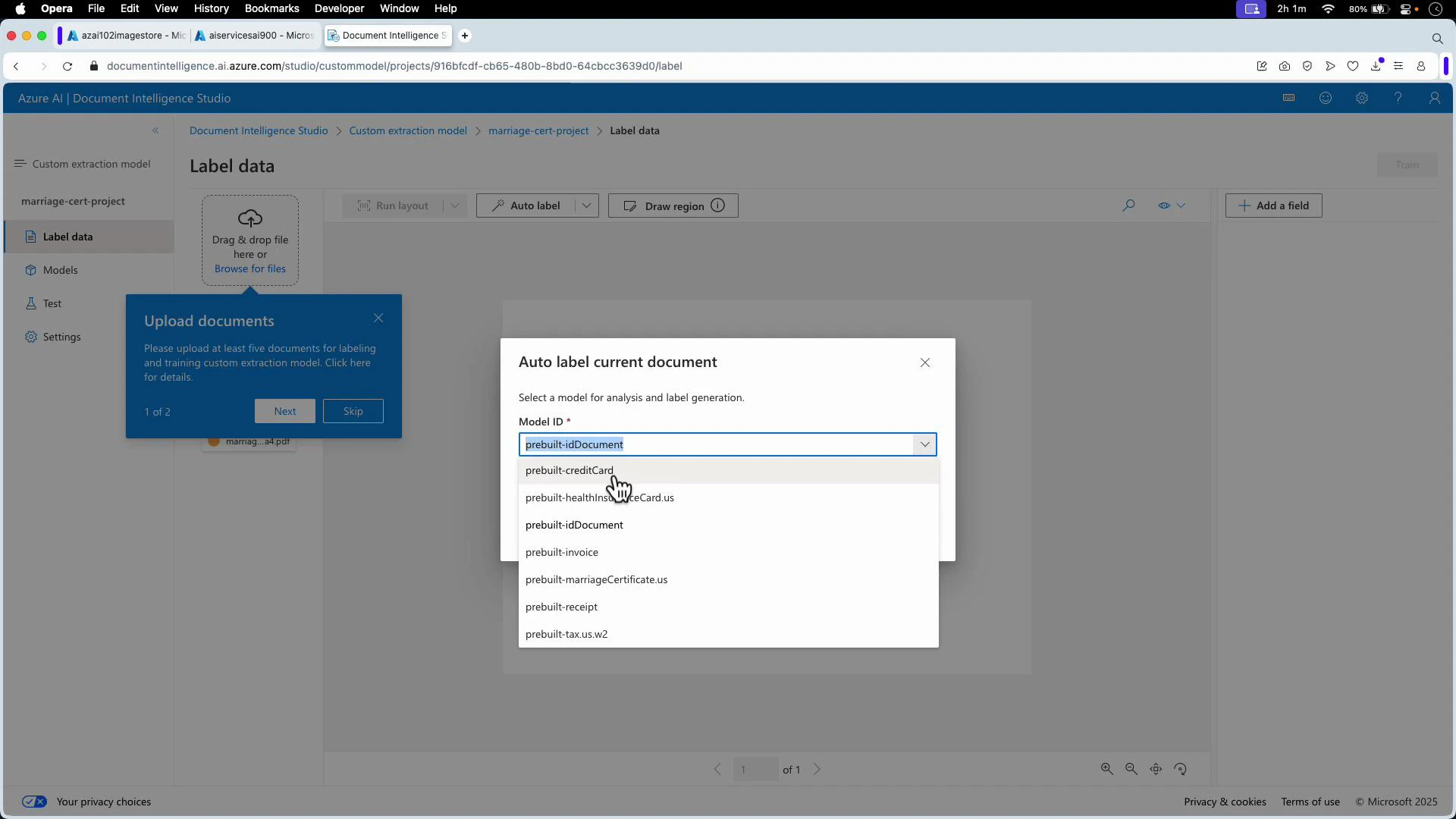
A screenshot of Azure AI Document Intelligence Studio with an "Auto label current document" dialog open, showing a dropdown list of prebuilt model IDs (e.g., prebuilt-idDocument, prebuilt-creditCard, prebuilt-invoice). A blue "Upload documents" pop-up on the left prompts the user to upload at least five documents for labeling.
  1. If auto-labeling is insufficient, add fields and manually tag regions (e.g., bride_name, groom_name, date_of_marriage, place_of_marriage, signature). Label each field across multiple documents, then click Train. Choose:
  • Template (structured) for consistent layouts (faster).
  • Neural (flexible) for diverse layouts (more time but better generalization).
After training completes, the studio displays success, the new model, and accuracy/confidence metrics. Test the model by analyzing a document in your storage container (for example: https://<your-storage-account>.blob.core.windows.net/marriage-certificates/marriageCertificateCa2.pdf). The studio will display extracted fields and confidence scores. Integration and code samples Example: iterate analysis results in Python Below is a Python snippet that inspects pages, lines, words, selection marks, and tables from an analysis result. Assume result is the output from the SDK method (e.g., begin_analyze_document).
# Example assumes `result` is the output from the analyzed document (begin_analyze_document / analyze_document)
# Iterate over pages, lines, words, and selection marks
for page in result.pages:
    print(f"\nLines found on page {page.page_number}")
    for line in page.lines:
        print(f"...Line: '{line.content}' (confidence: {line.confidence})")
    if page.words:
        for word in page.words:
            print(f"...Word: '{word.content}' (confidence: {word.confidence})")
    if page.selection_marks:
        for selection_mark in page.selection_marks:
            print(
                f"...Selection mark: '{selection_mark.state}' (confidence: {selection_mark.confidence})"
            )

# Iterate over tables found in the result
for i, table in enumerate(result.tables, start=1):
    # Print pages where the table exists using bounding_regions
    pages = ", ".join(str(region.page_number) for region in table.bounding_regions)
    print(f"\nTable {i} can be found on page(s): {pages}")
    for cell in table.cells:
        print(
            f"...Cell[{cell.row_index}][{cell.column_index}] has content: '{cell.content}'"
        )

print("---------------------------------------------------------")
Adapt this snippet to map extracted field names (from the model output) into your application’s domain model and persist results (database, search index, or business workflows).
You can find full Python and JavaScript examples in the studio’s code snippets and the official SDK documentation to integrate trained models into your applications.

Watch Video