Guide for building, training, and deploying custom text classification models using Azure Language Studio including data labeling, evaluation, deployment, SDK examples, and best practices.
Custom Text ClassificationThis guide walks through the end-to-end process for building a custom text classification model in Azure Language Studio — from connecting your data to deploying a trained model for inference. Follow these steps to create accurate, production-ready classifiers for scenarios like article tagging, support-ticket routing, or internal document classification.Overview — pipeline steps
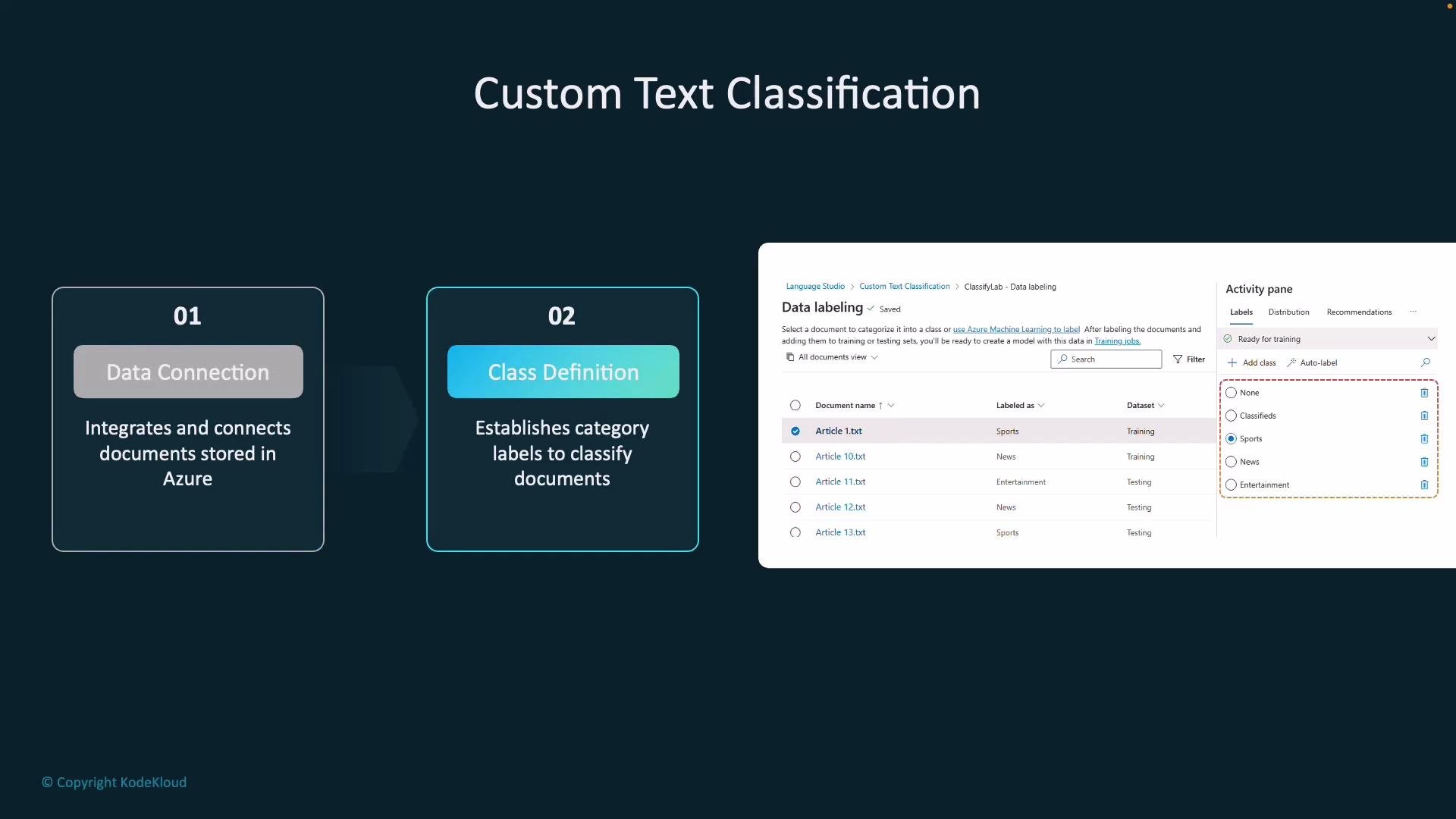
Data connection: connect your stored documents to Language Studio.
Class definition: define the set of labels (single-label or multi-label).
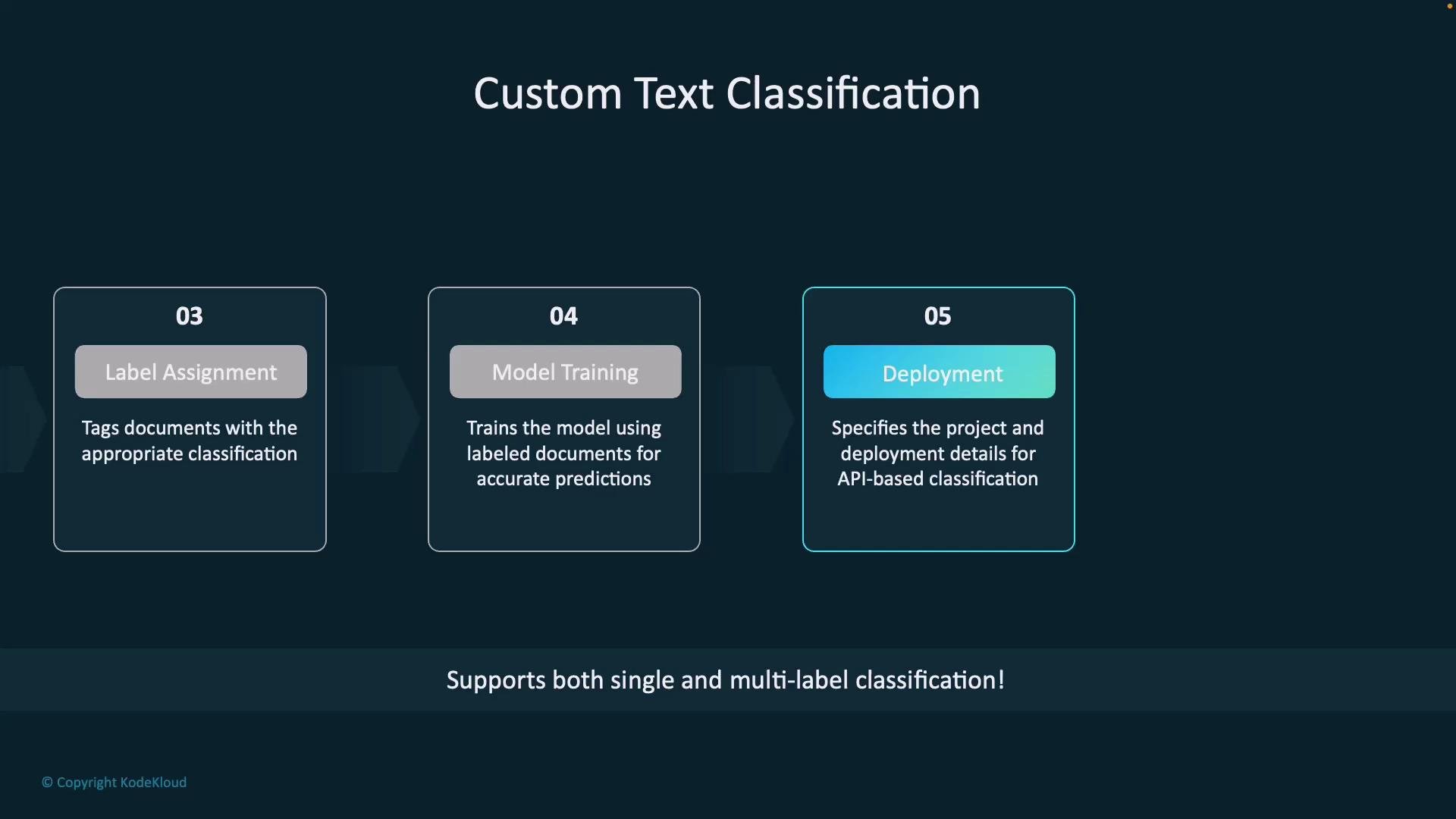
Label assignment: tag documents with the appropriate class labels.
Model training: train and evaluate the classifier.
Deployment: deploy the model as an endpoint for integration.
Step 1 — Data connection and class definition
Start by integrating the documents you want to classify (e.g., news articles, support tickets, internal docs) with Azure Language Studio. Clean, relevant data improves model quality, so filter out noisy files and ensure the content represents the categories you intend to predict.Next, define your classes — these are the categories the model will predict. Examples in this article include Arts, Entertainment, and Sports. Add enough representative examples per class to enable effective learning. You can add, rename, or remove classes later in the project settings.Step 2 — Label assignment
Assign labels to each document to build the supervised dataset used for training. Label consistently: similar content should receive the same tag (e.g., a match report → Sports; a movie review → Entertainment). The portal shows dataset status and whether files are assigned to training or test sets. Proper and consistent labeling is critical to good results.Step 3 — Training and evaluation
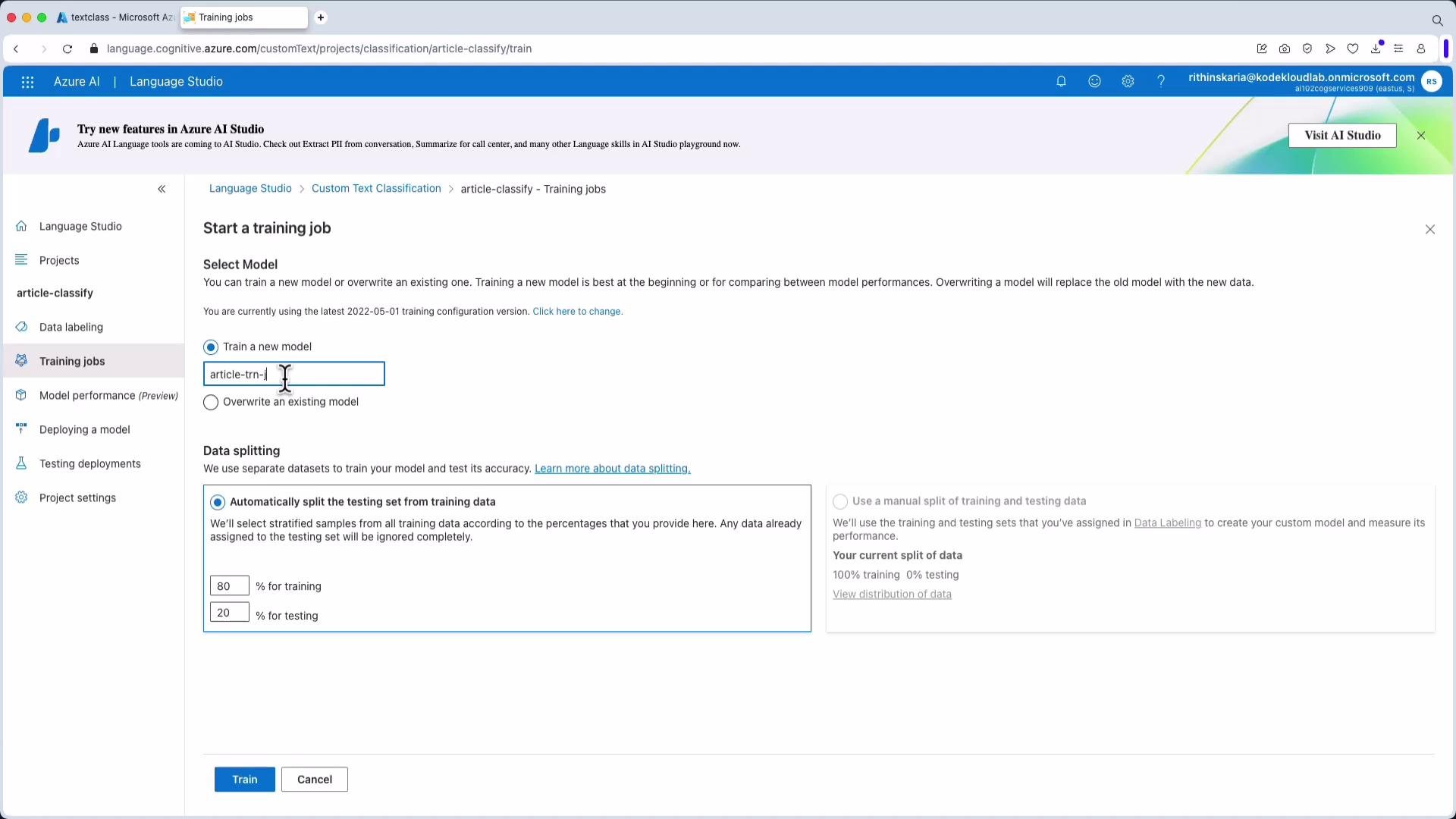
After labeling, start a training job. Choose a data split (commonly 80/20 or 70/30) to hold out evaluation data and monitor generalization. The training process learns patterns that map text to classes and provides an evaluation report on the held-out set to estimate expected performance.Step 4 — Deployment
When satisfied with evaluation metrics, deploy the model as an endpoint (REST + SDK support). Choose a deployment name and resource region. Deployed models become callable from your applications for real-time or batch classification.
Using Language Studio for Custom Text ClassificationThis section provides a practical walkthrough inside Azure Language Studio.Open Language Studio and choose “Classify text (Custom text classification).” The studio includes pre-built features (Analyze sentiment, Detect language), but here we focus on creating a custom classification project.
Create a project
Click “Create a project”.
Select the Azure Language resource to back the project.
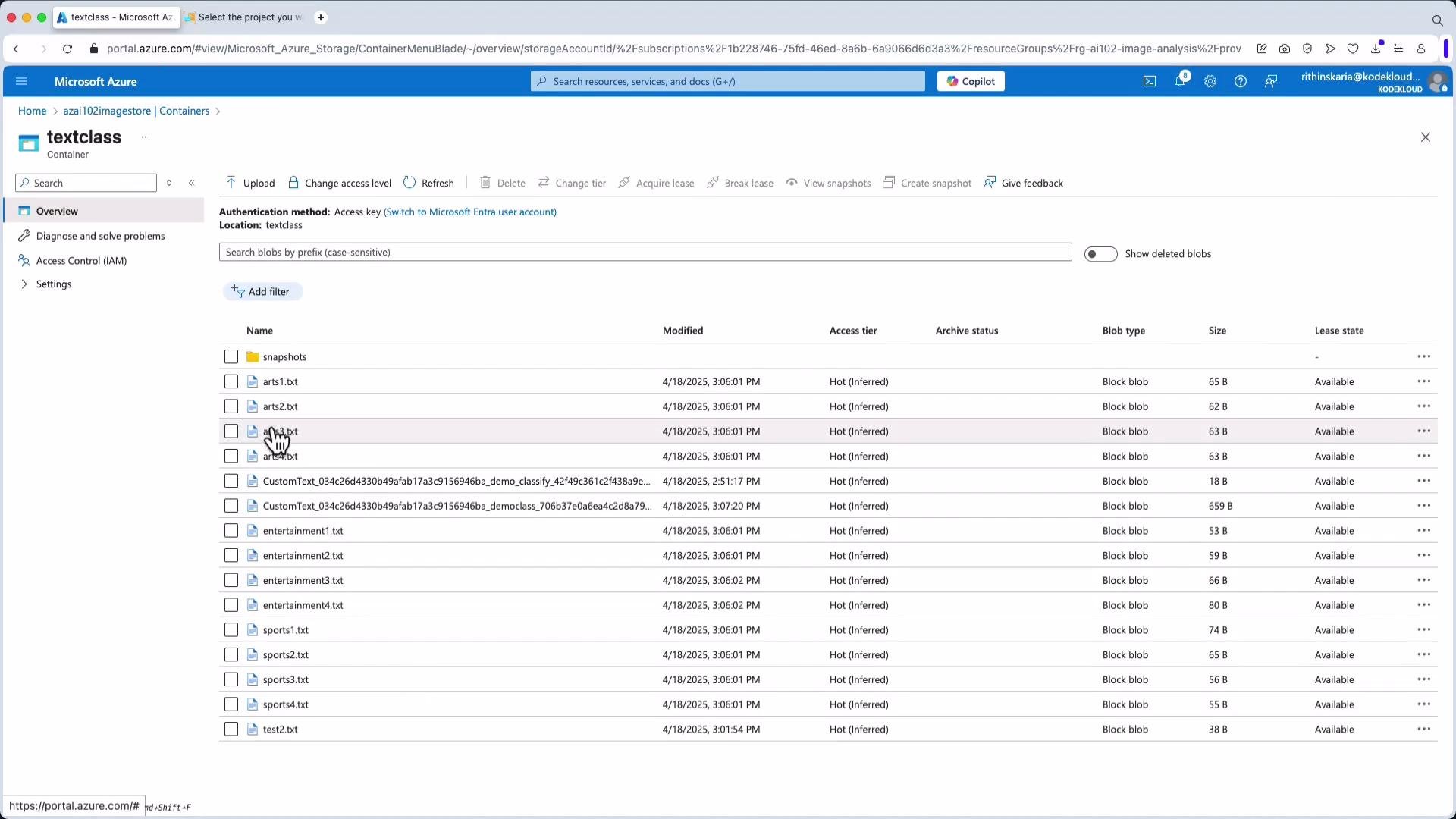
If this is your first time, attach a storage account (documents used for labeling are uploaded to blob storage). Grant the storage account an RBAC role such as Storage Blob Data Contributor so Language Studio can read the blobs.
Ensure the storage account has the Storage Blob Data Contributor role (or equivalent) assigned so Language Studio can access files for labeling and training.
During creation you choose:
single-label classification (one category per document) or
multi-label classification (documents can belong to multiple categories).
In the example here, we select single-label and name the project “Article Classification,” with English as the primary language. Also select the target storage container where labeled files reside.
Choose the container and finish the project setup.
Label the data
Add classes (e.g., Arts, Entertainment, Sports) and begin labeling each document. The portal indicates dataset readiness and shows segmentation into training and test sets. For meaningful performance, use as many varied, labeled examples as possible — dozens to hundreds per label is common for higher accuracy.
Auto-labeling (preview)
Language Studio can suggest labels using auto-labeling (generative models) to help bootstrap large datasets. Always review and correct auto-labeled items before training to avoid propagating errors.
Start a training job
Choose a model name.
Configure data split (for example, 80% training / 20% testing).
Start training and wait for completion; review evaluation metrics and logs on the Training jobs page.
Example: calling the model from Python (SDK)
Below is a compact Python example showing how to classify a local text file using the Text Analytics client. Note: import only the client and AzureKeyCredential — some older examples import non-existent action classes (e.g., SingleCategoryClassifyAction), which will raise ImportError.
# example: classify a local document using the Text Analytics SDKfrom azure.ai.textanalytics import TextAnalyticsClientfrom azure.core.credentials import AzureKeyCredentialdef classify_local_document(file_path, endpoint, key, project_name, deployment_name): # Initialize client client = TextAnalyticsClient(endpoint=endpoint, credential=AzureKeyCredential(key)) # Read the document to classify with open(file_path, "r", encoding="utf-8") as f: document_text = f.read() # Start the classification job (single-label in this example) poller = client.begin_single_label_classify( documents=[document_text], project_name=project_name, deployment_name=deployment_name ) # Wait for result results = poller.result() # results is an iterable of document results for doc in results: if not doc.is_error: # The SDK may expose classifications in either 'classifications' or 'classification' classifications = getattr(doc, "classifications", None) or getattr(doc, "classification", None) if classifications: # If it's a list of classifications, print them if isinstance(classifications, list): for c in classifications: print(f"Predicted Label: {c.category}") print(f"Confidence Score: {c.confidence_score:.2f}") else: # single classification object print(f"Predicted Label: {classifications.category}") print(f"Confidence Score: {classifications.confidence_score:.2f}") else: print("No classifications returned for this document.") else: print(f"Error: {doc.error.code} - {doc.error.message}")
If you see an ImportError such as:
ImportError: cannot import name 'SingleCategoryClassifyAction' from 'azure.ai.textanalytics'
it means the code tried to import a non-existent action class. Import only TextAnalyticsClient and AzureKeyCredential and call the classification method on the client, as shown above.
Deploy the model
After successful training and evaluation:
Add a deployment (give it a name and choose region/resource).
The portal will provide a prediction URL and SDK code snippets to call the endpoint.
Test from the portal
Language Studio includes a quick test UI. Example results from the demo:
Input: “Argentina won the 2022 FIFA World Cup.”
Output: Predicted “Sports” (confidence ~0.39)
Input: “Avengers is a great movie.”
Output: Predicted “Entertainment”
The portal also displays raw JSON output for predictions. Example single-label JSON:
Train with domain-specific examples and iterate — more high-quality labeled data and consistent labeling practices yield the best classification performance.