

What you’ll accomplish
- Prepare images in Amazon S3 for labeling
- Configure a Ground Truth labeling job (image classification)
- Choose a workforce and customize the labeling UI
- Launch the job and validate the input connection
- An AWS account with permissions to create SageMaker jobs and access S3
- Images uploaded to S3 (see recommended structure below)
- An IAM execution role with S3 access and SageMaker Ground Truth permissions
- Navigate to the Ground Truth console Open Amazon SageMaker and select Ground Truth → Labeling jobs to view existing jobs or create a new one.
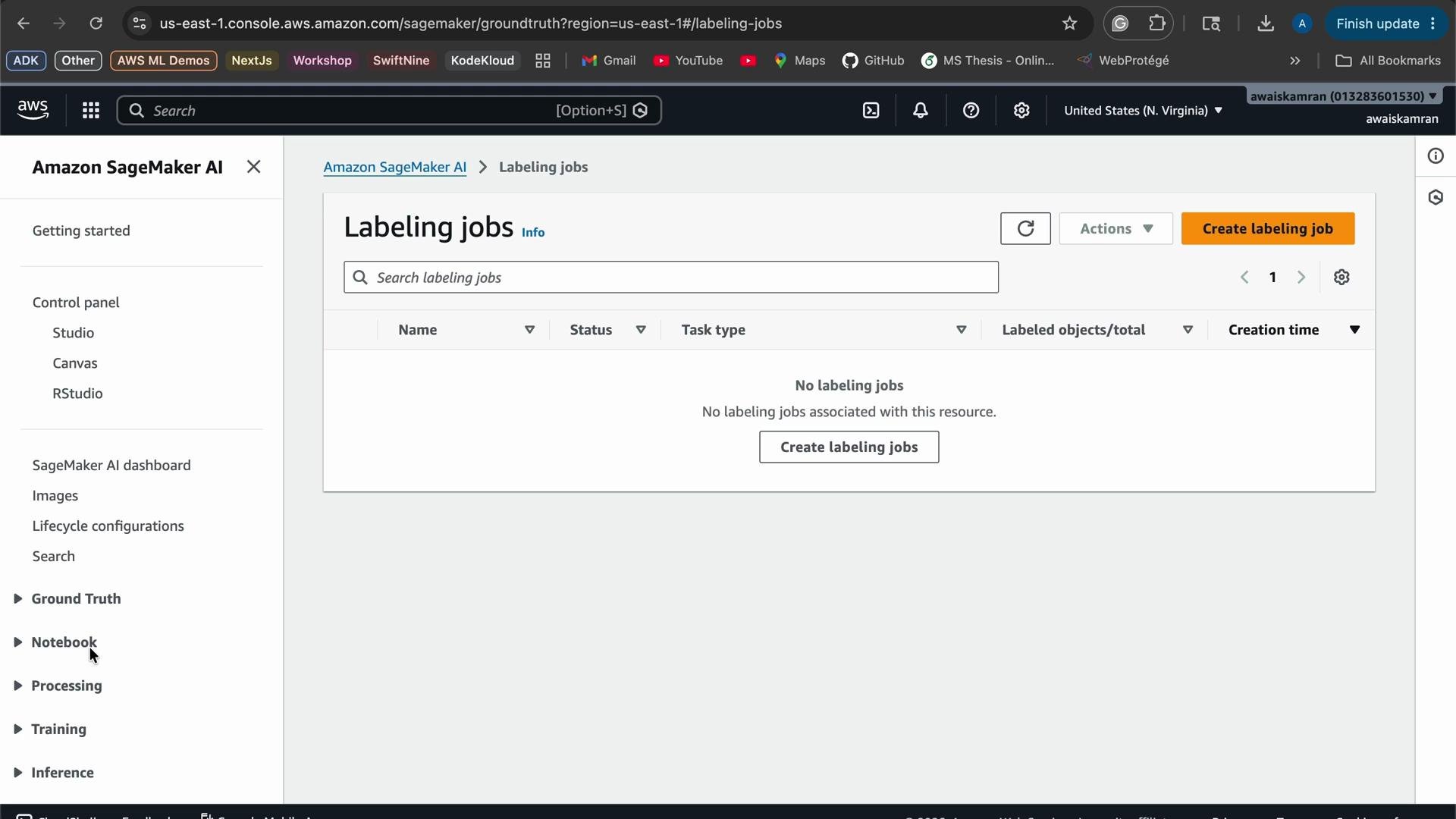
- Create a new labeling job
- Click “Create labeling job”.
- Enter a descriptive job name, for example:
Cats-and-Dog-Labeling-Job. - For a quick setup, use the console’s automated data setup option to generate a manifest from an S3 prefix, or upload your own manifest.
s3://your-bucket/train/cats/...s3://your-bucket/train/dogs/...
- Browse S3 and select the data type
From the Ground Truth setup screen, browse to your S3 bucket and pick the data prefix or manifest. Select the task type as
Classificationand the data type asImage.
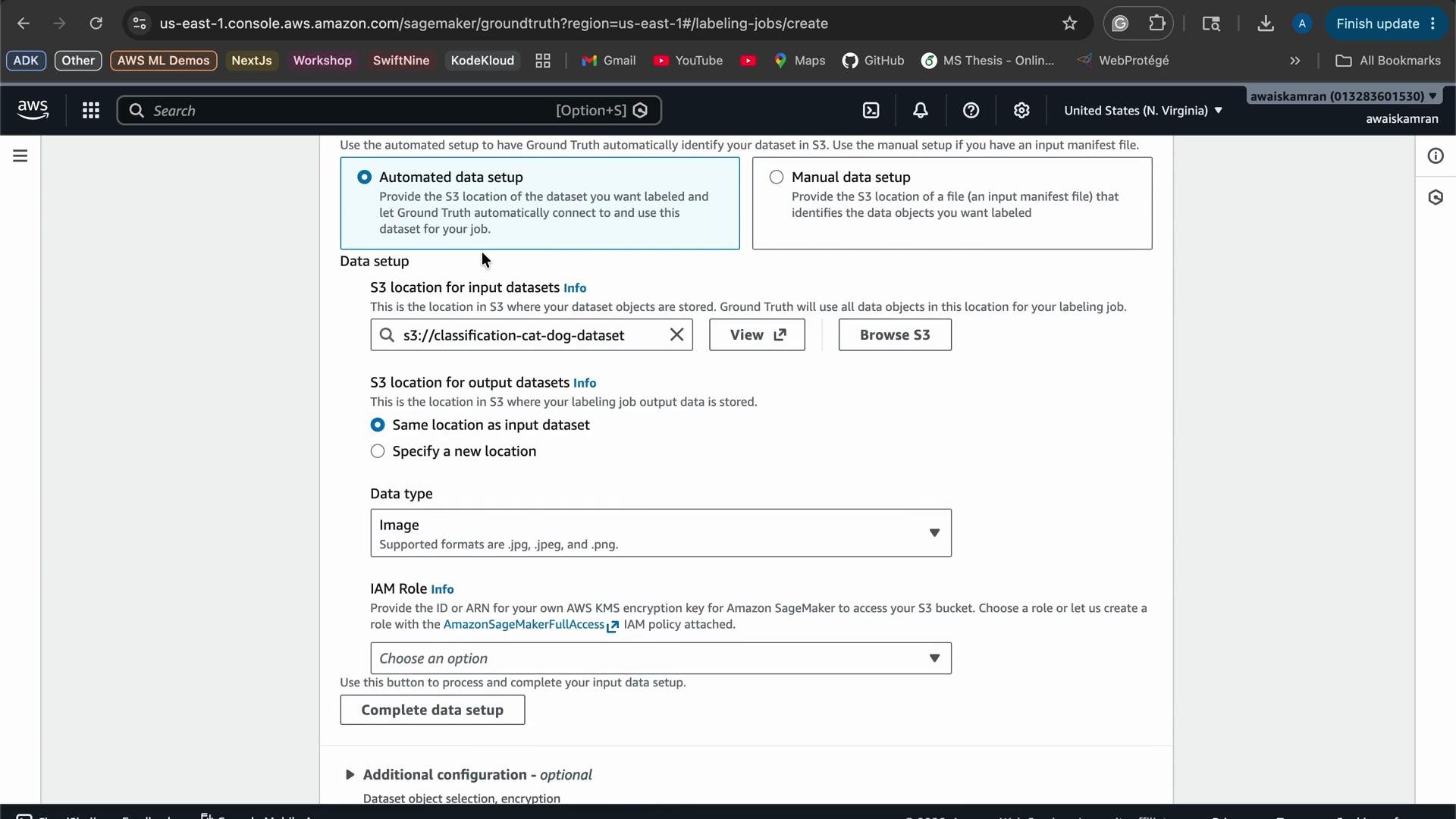
- Choose an IAM execution role
Select an execution role that allows Ground Truth to read from your S3 bucket and write outputs. In this demo the existing IAM role
Lab4955was used. Typical permissions required include:
s3:GetObject,s3:ListBucketon the input bucket- Permissions to create and manage labeling job resources in SageMaker
- Select the labeling task and labeling interface For this demo we select Image classification with a single label per image (each image is either “cat” or “dog”).
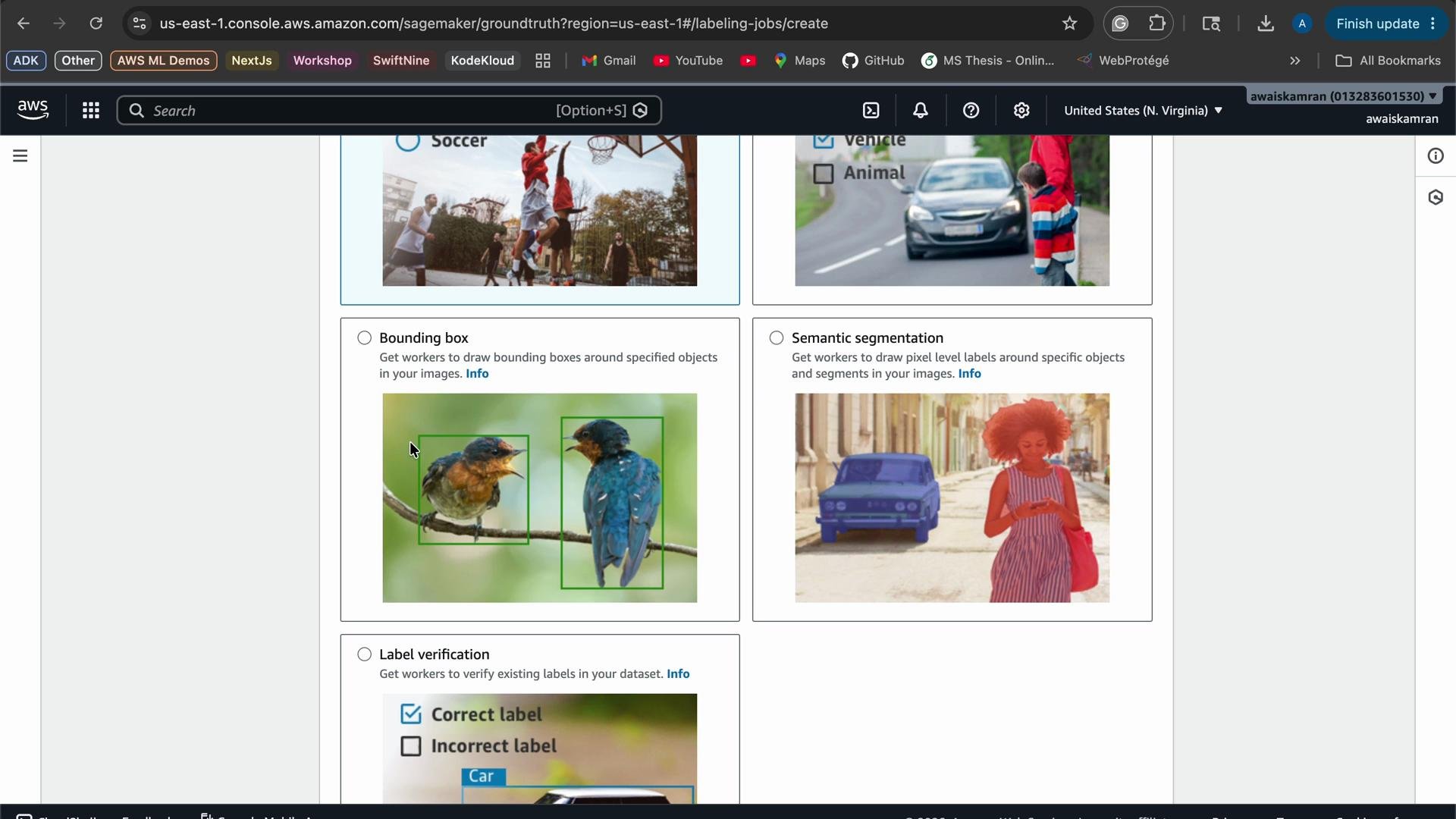
- Configure the workforce and labeler experience Choose a workforce:
- Private workforce — your internal team or contractors (recommended for sensitive data).
- Amazon Mechanical Turk — a public, on-demand workforce (consider privacy and cost).
- Configure team name and invite labelers.
- Set per-task timeouts and review policies.
- Provide clear instructions, good/bad examples, and the set of classes labelers should choose from.
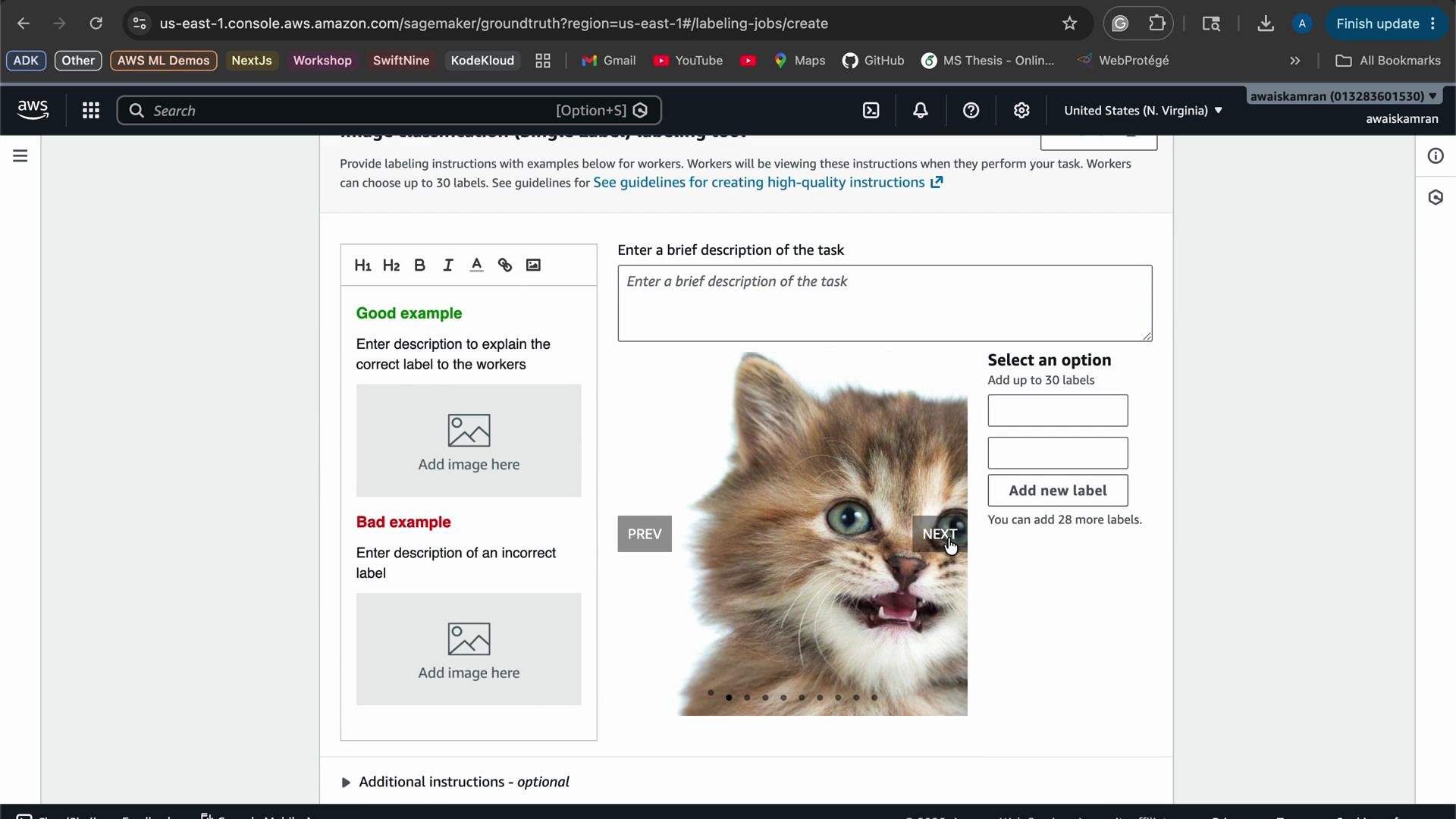
- Launch and monitor the job
- Review configuration and IAM role.
- Start the job.
- Monitor progress on the Labeling jobs page; Ground Truth provides metrics and job logs to inspect worker performance and completed labels.
Make sure the IAM execution role has S3 access to the input prefix and permissions required by SageMaker Ground Truth. If you plan to use a public workforce (Mechanical Turk), review cost and data privacy implications before starting the job.
If your dataset contains PII or sensitive content, avoid public workforces and verify your data handling policies. Always limit the IAM role scope to the required S3 prefixes.