

- Purchase an exam voucher on Pearson VUE.
- Use that voucher code to schedule the exam inside your AWS CertMetrics account.
Step 1 — Purchase a voucher on Pearson VUE
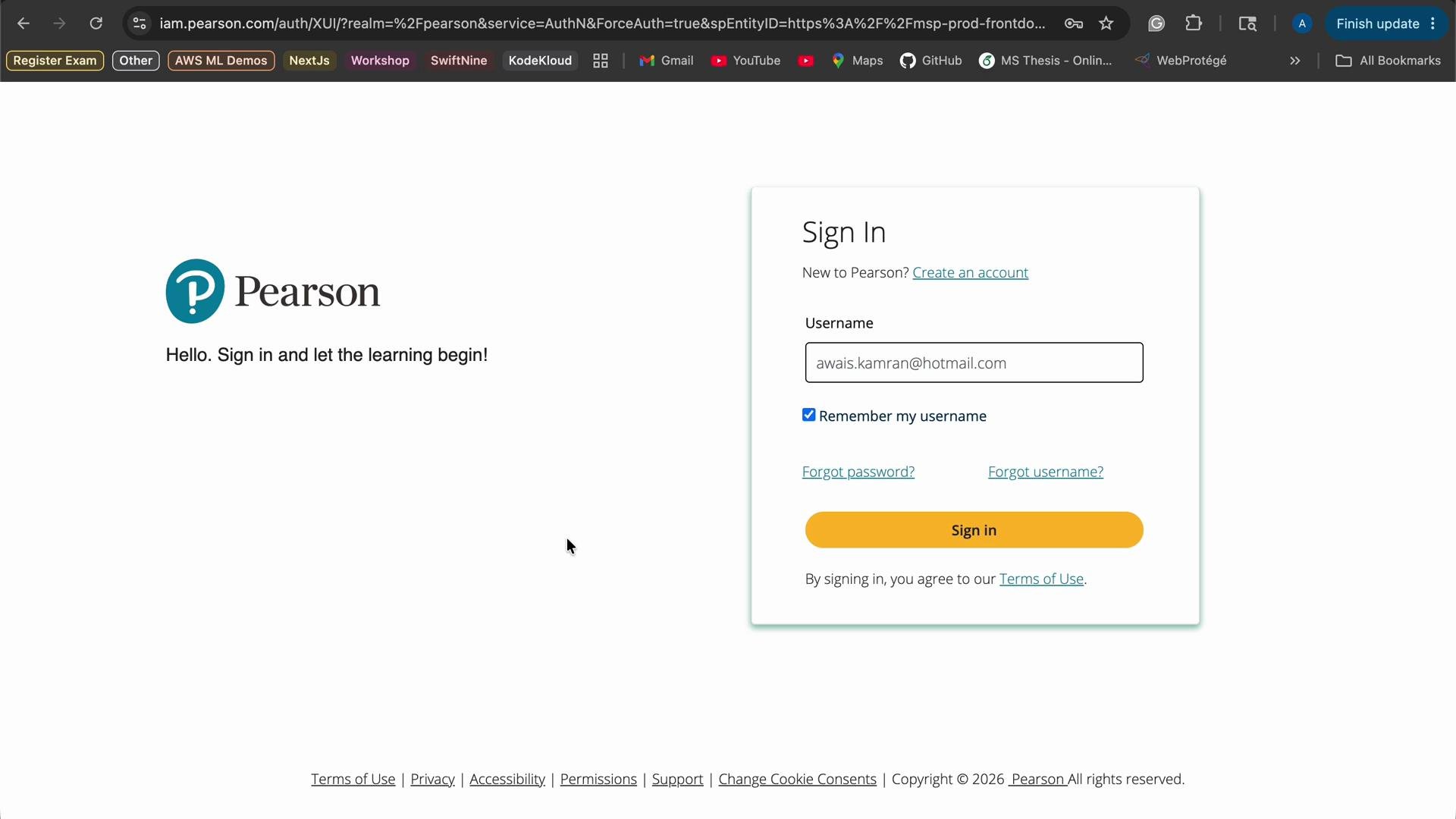
- Go to the Pearson VUE voucher site and create an account: https://wsr.pearsonvue.com
- Sign in to the Pearson dashboard and locate the voucher store or offers section.
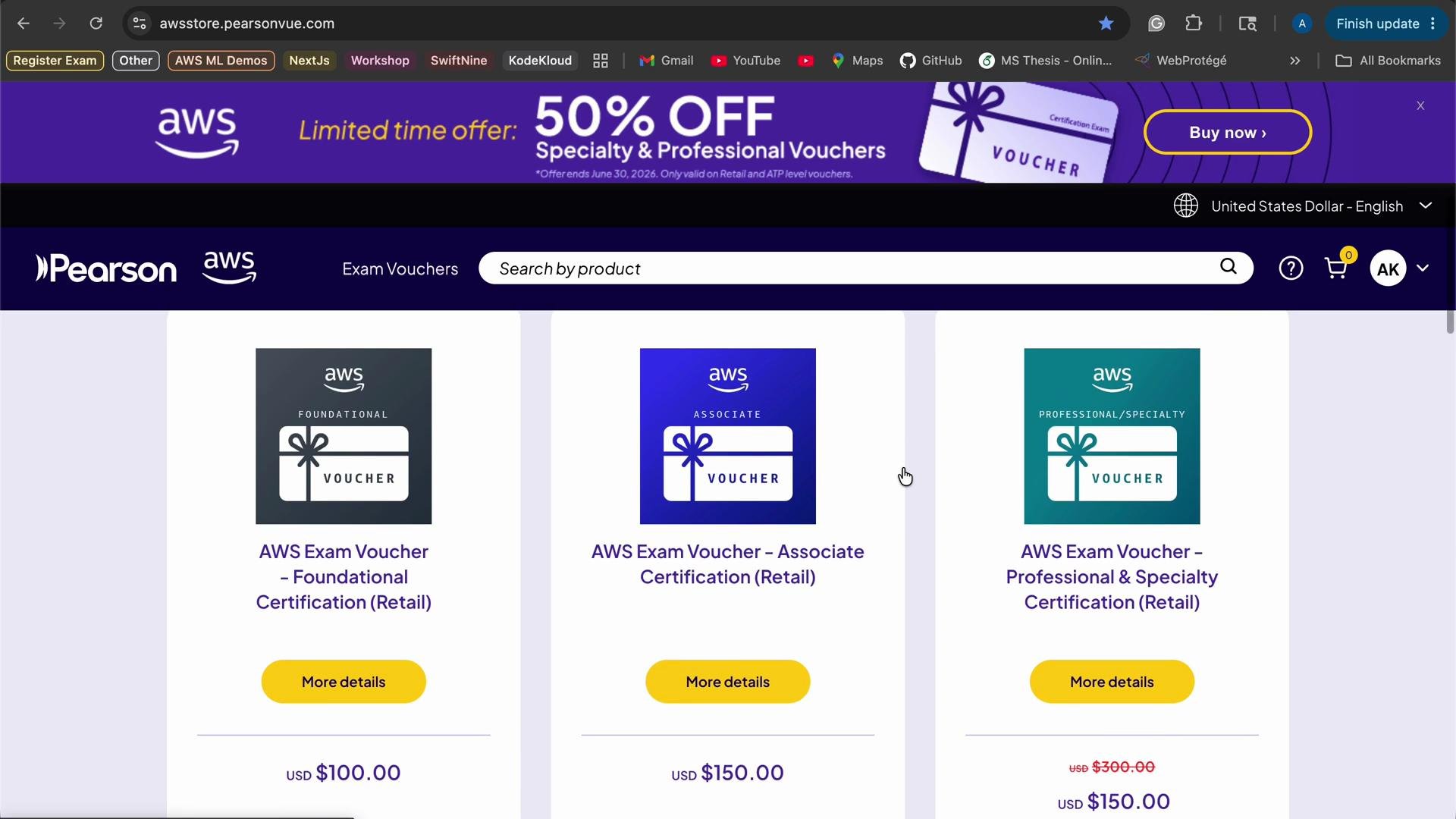
- Select the voucher tier that matches your target exam and complete the purchase.
- Foundational — for practitioner-level exams (e.g., AWS Cloud Practitioner).
- Associate — for associate-level AWS exams.
- Professional and Specialty — higher-cost exams, sometimes offered with large discounts.
After purchase, watch your email for payment confirmation. The voucher code will appear in your Pearson order history only after the transaction is confirmed — use the order details to view voucher codes, invoices, or to request returns/replacements.
Step 2 — Schedule the exam in AWS CertMetrics
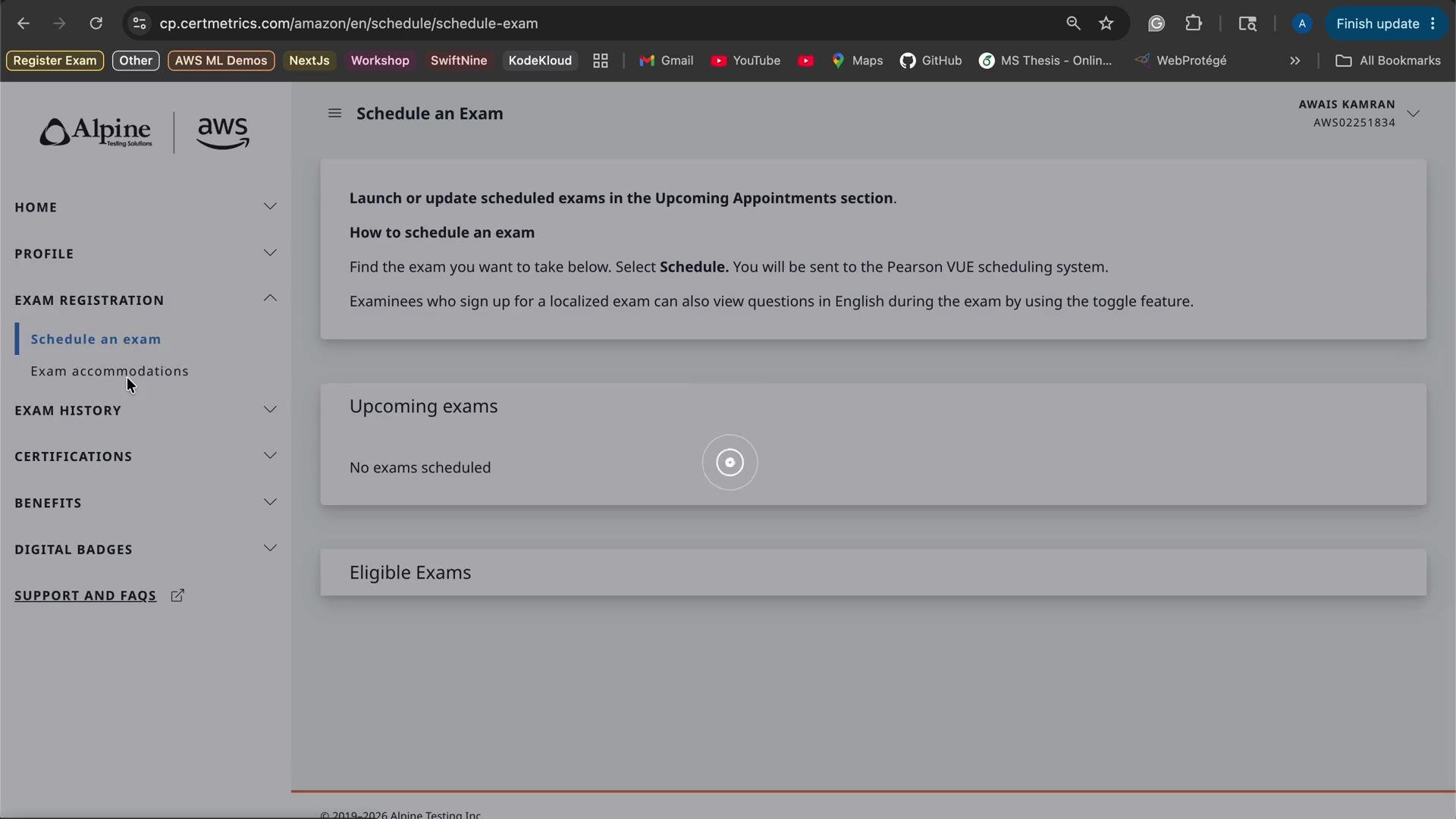
Once you have the voucher code, go to the AWS Certification site and click Schedule Exam (or visithttps://www.aws.training/certification). This redirects you to AWS CertMetrics to complete registration.
In CertMetrics you’ll find sections such as digital badges, benefits, certification history, and exam registration. Click Schedule Exam to begin.
Choose a delivery method
CertMetrics will ask whether you want to take the exam at a physical test center or online via remote proctoring.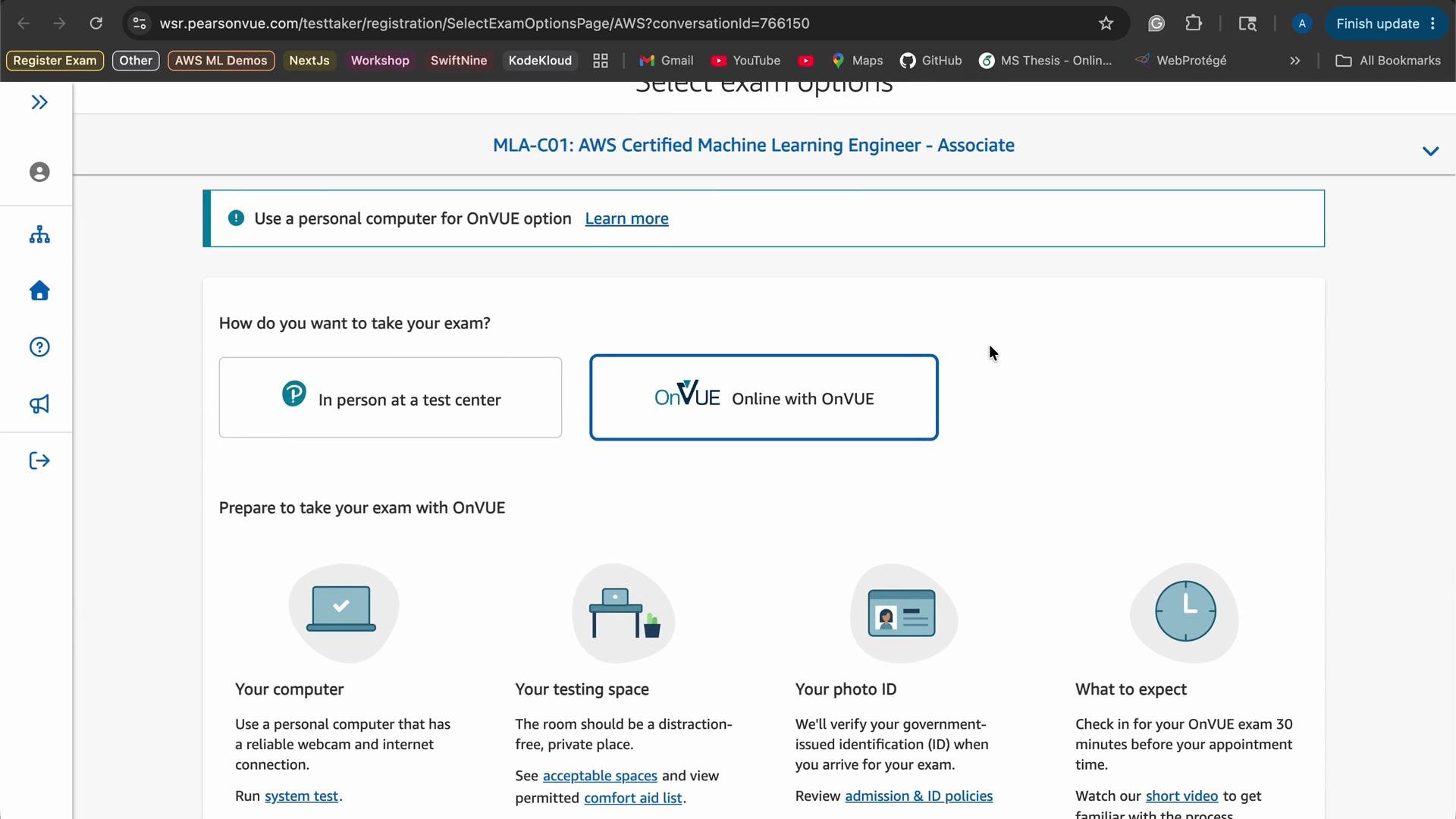
OnVUE prerequisites (quick checklist):
- Working webcam and microphone
- Stable internet connection
- Clean, quiet, well-lit workspace (no other people or materials in view)
- Valid government-issued ID for check-in
Review language, policies, and delivery preferences
After selecting delivery, choose your exam language, review exam policies, and accept terms and conditions. Read the online exam policies carefully (privacy, data processing, and test rules) before proceeding.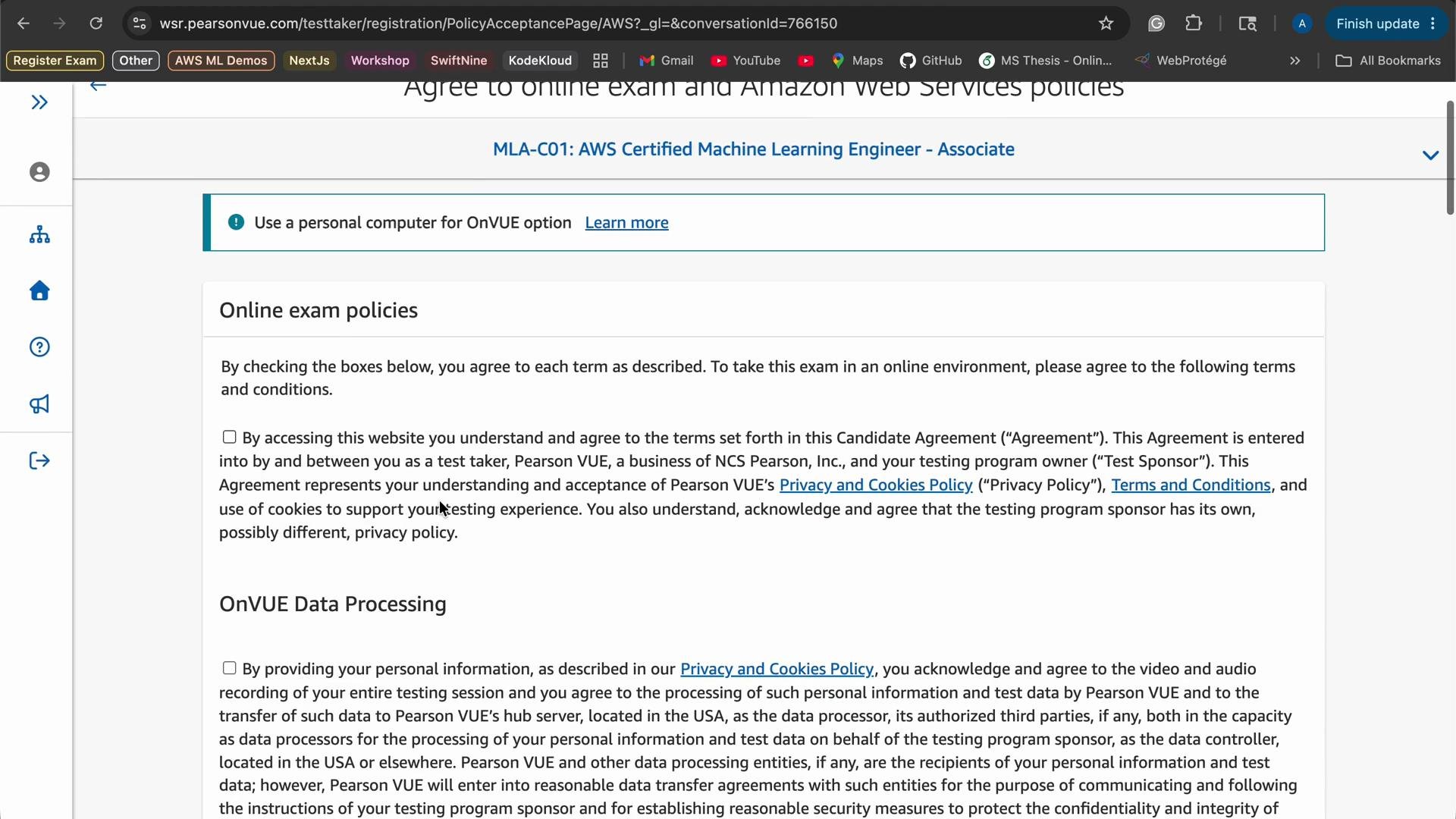
Choose proctor language, time zone, date, and time slot
Pick the proctor’s spoken language and confirm your time zone. Then select an available date and time. If no suitable slots appear, use the “more slots” or browse dates to expand options.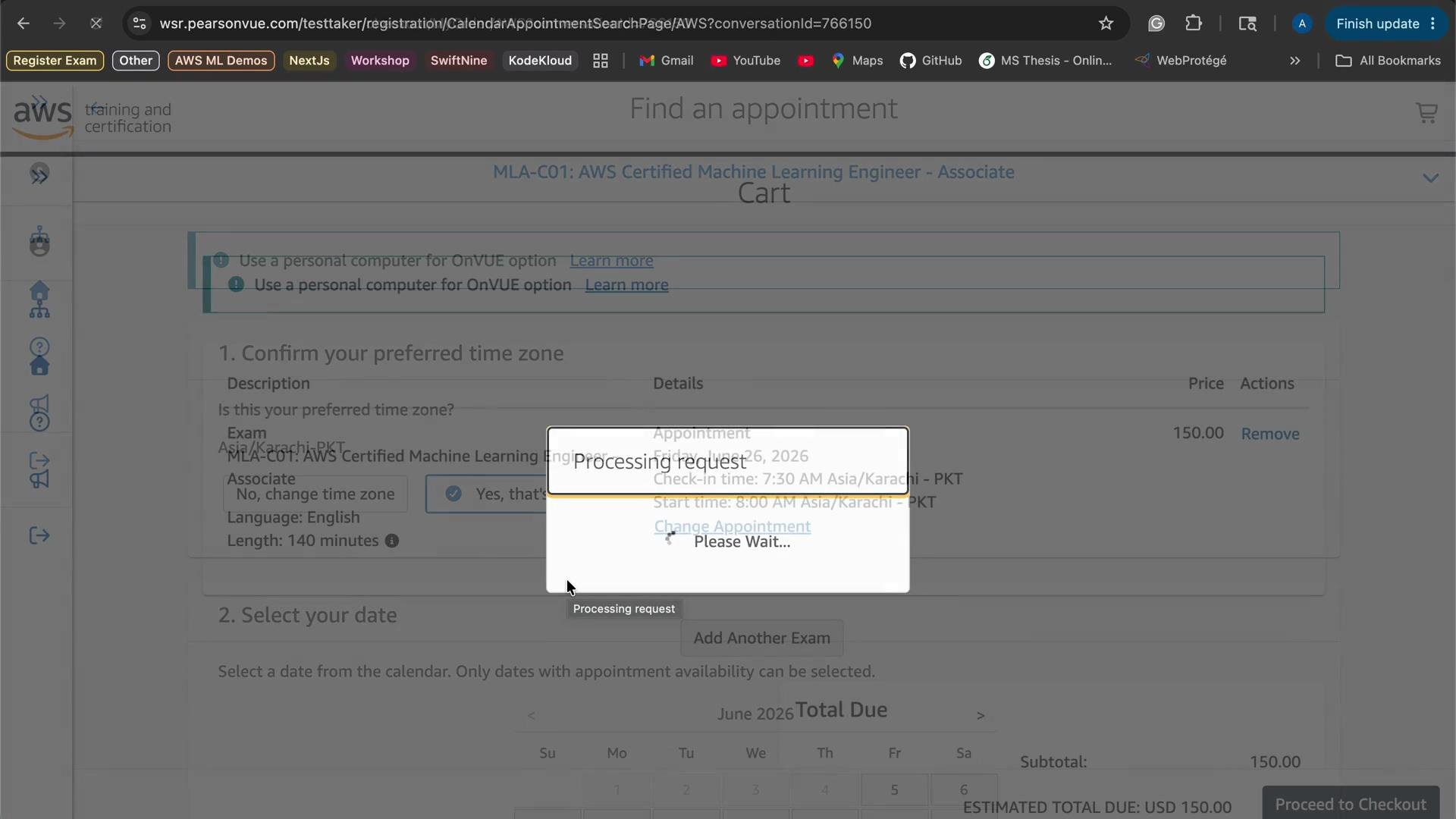
Complete checkout and apply your voucher code
- In CertMetrics, proceed to the checkout page.
- In a new tab, open your Pearson account order history and click View Voucher Codes. Copy the voucher code(s).
- Paste the voucher code into the voucher field in CertMetrics and apply — this should reduce or eliminate the exam fee.
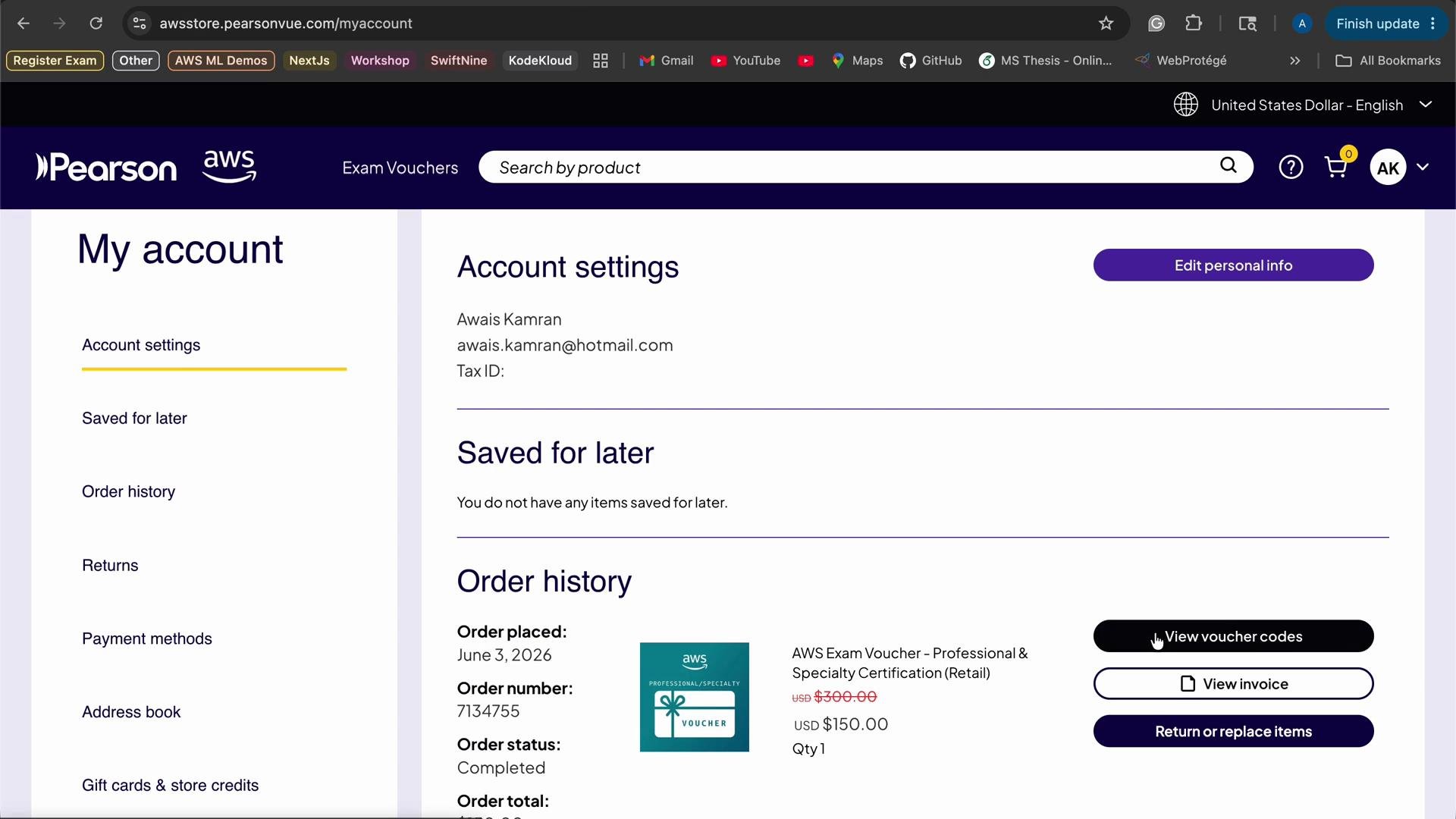
Enter the voucher code exactly as shown. Confirm the voucher is valid for the exam and scheduled date. On exam day, follow OnVUE check-in instructions precisely (ID verification, room scan, and environment checks) to avoid delays, rescheduling, or cancellation.
Quick summary checklist
- Create a Pearson VUE account and purchase the appropriate voucher.
- Wait for confirmation email and locate voucher code in Pearson order history.
- Open AWS CertMetrics via the AWS Certification site and click Schedule Exam.
- Choose delivery: Test center or Online (OnVUE).
- Review/accept policies, select language, time zone, date, and slot.
- Apply voucher code during checkout and confirm your appointment.
- If taking online, test your webcam, microphone, and environment beforehand.
Links and references
- AWS Certification: https://www.aws.training/certification
- AWS CertMetrics: https://www.certmetrics.com/amazon/
- Pearson OnVUE remote proctoring: https://home.pearsonvue.com/onvue
- Pearson VUE voucher portal: https://wsr.pearsonvue.com