

- Deploying a second model variant from JumpStart
- Creating an endpoint configuration with multiple variants
- Assigning variant weights for traffic splitting
- Enabling data capture for Model Monitor
- Comparing variants and promoting the better model
- Deploy the second model from JumpStart
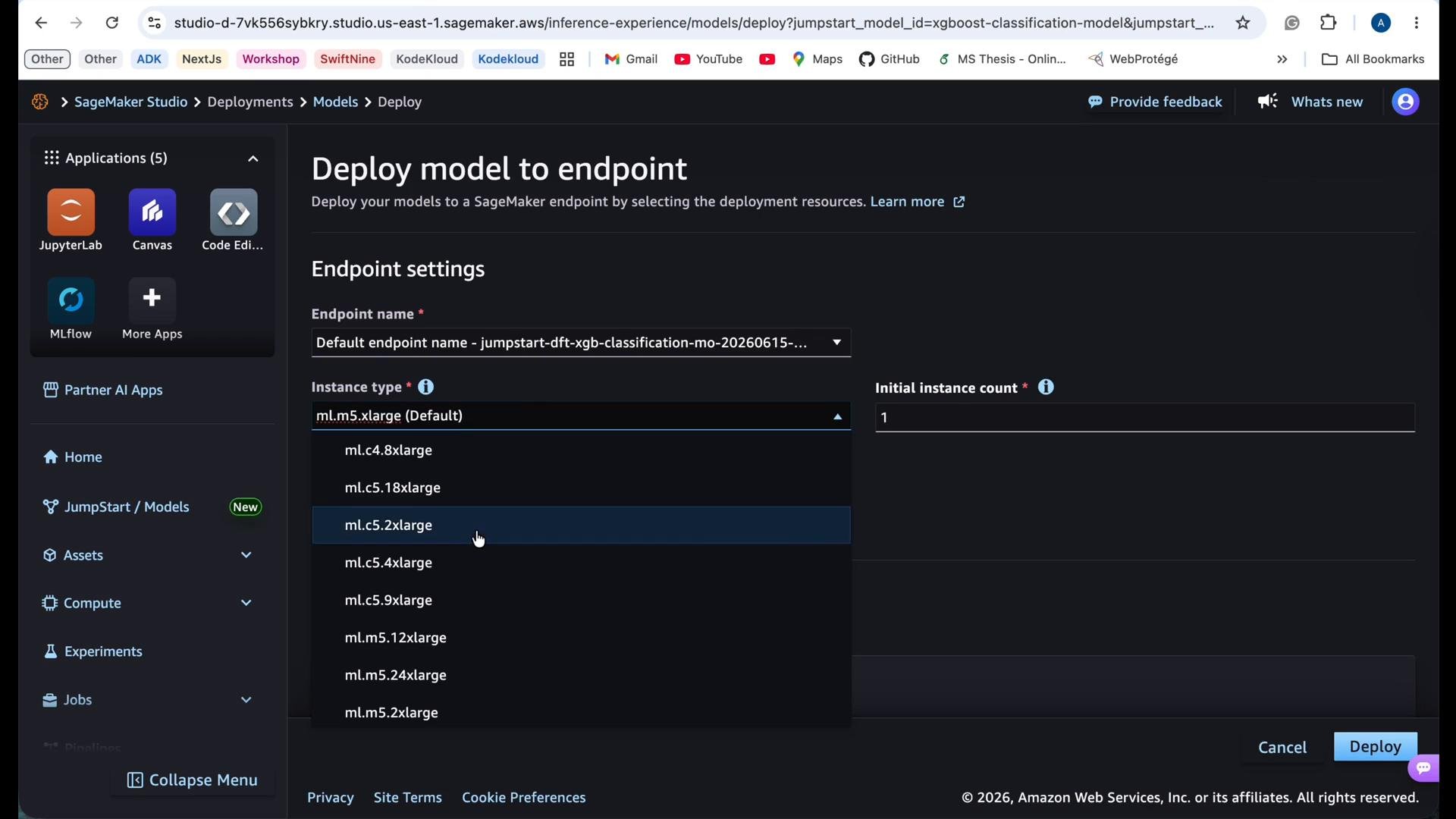
- In SageMaker Studio, open JumpStart and select XGBoost → Classification → Deploy.
- Choose the instance type for this deployment (for this demo we used
ml.c5.2xlarge) and set the initial instance count.
- Confirm the model artifact and view Models
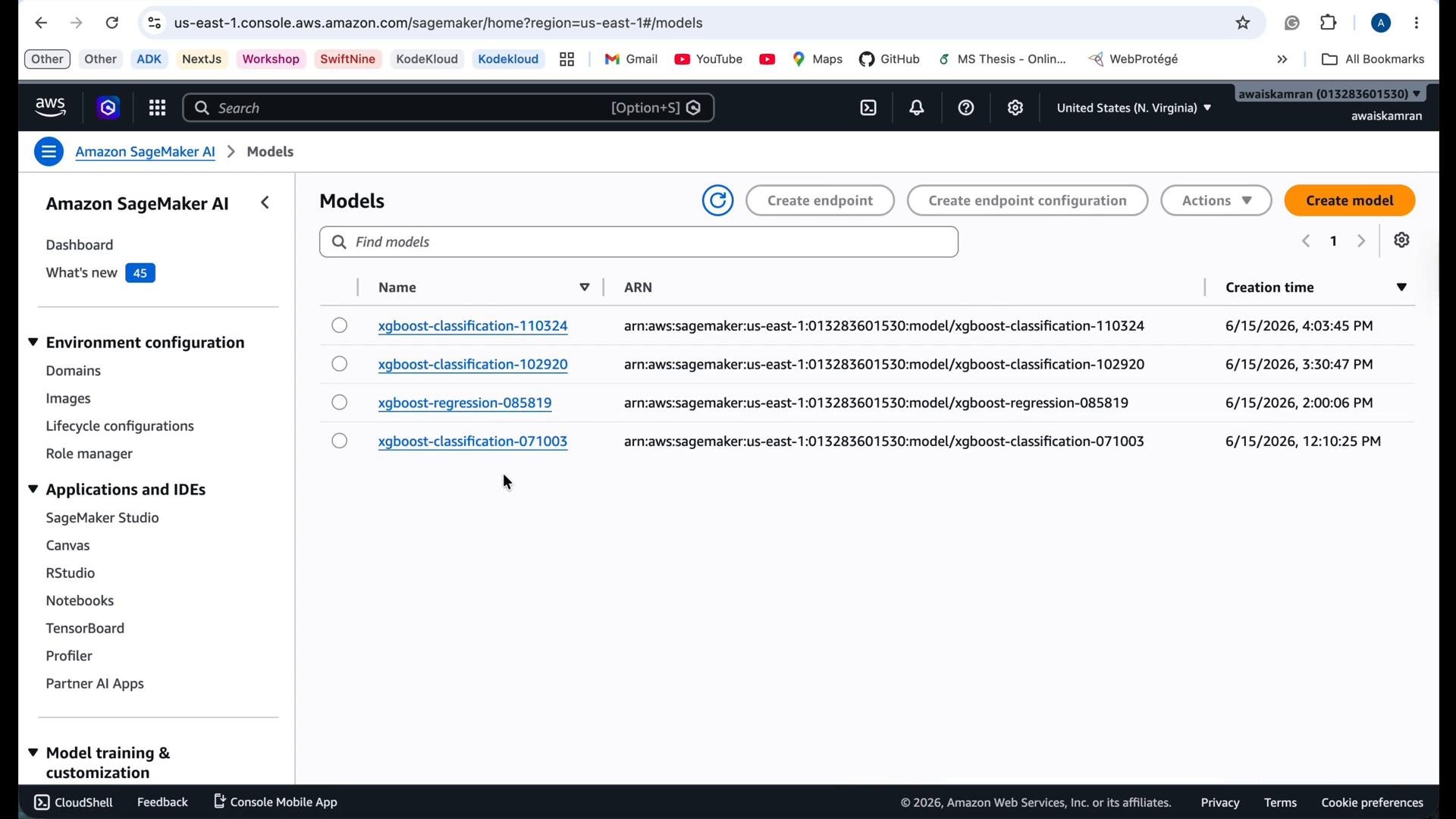
- After starting deployment, SageMaker will create the model artifact. Navigate to the Models page in the SageMaker console to see all available models. The new XGBoost model appears in the Models list with its ARN and timestamp.
- Create endpoint configuration and enable data capture
- In the selected model, click Create endpoint to define an endpoint configuration name, instance type, and instance count.
- Optionally enable encryption for in-flight and at-rest data.
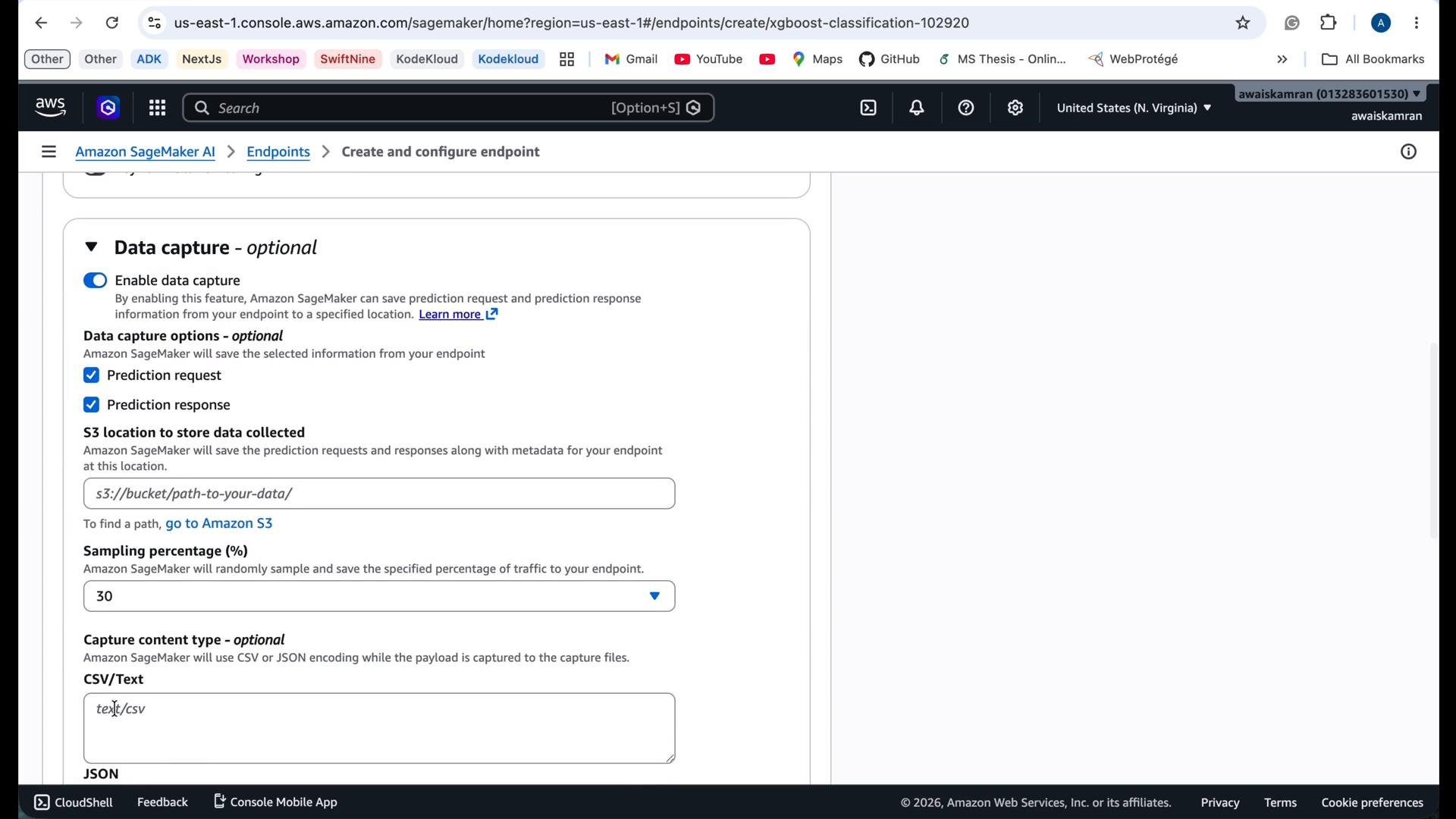
- Enable data capture to store a sample of inference requests and responses to S3. This data is essential for Model Monitor to compute metrics such as prediction distribution, latency, feature drift, and accuracy (when labeled data is available).
- Configure endpoint variants (production vs shadow)
-
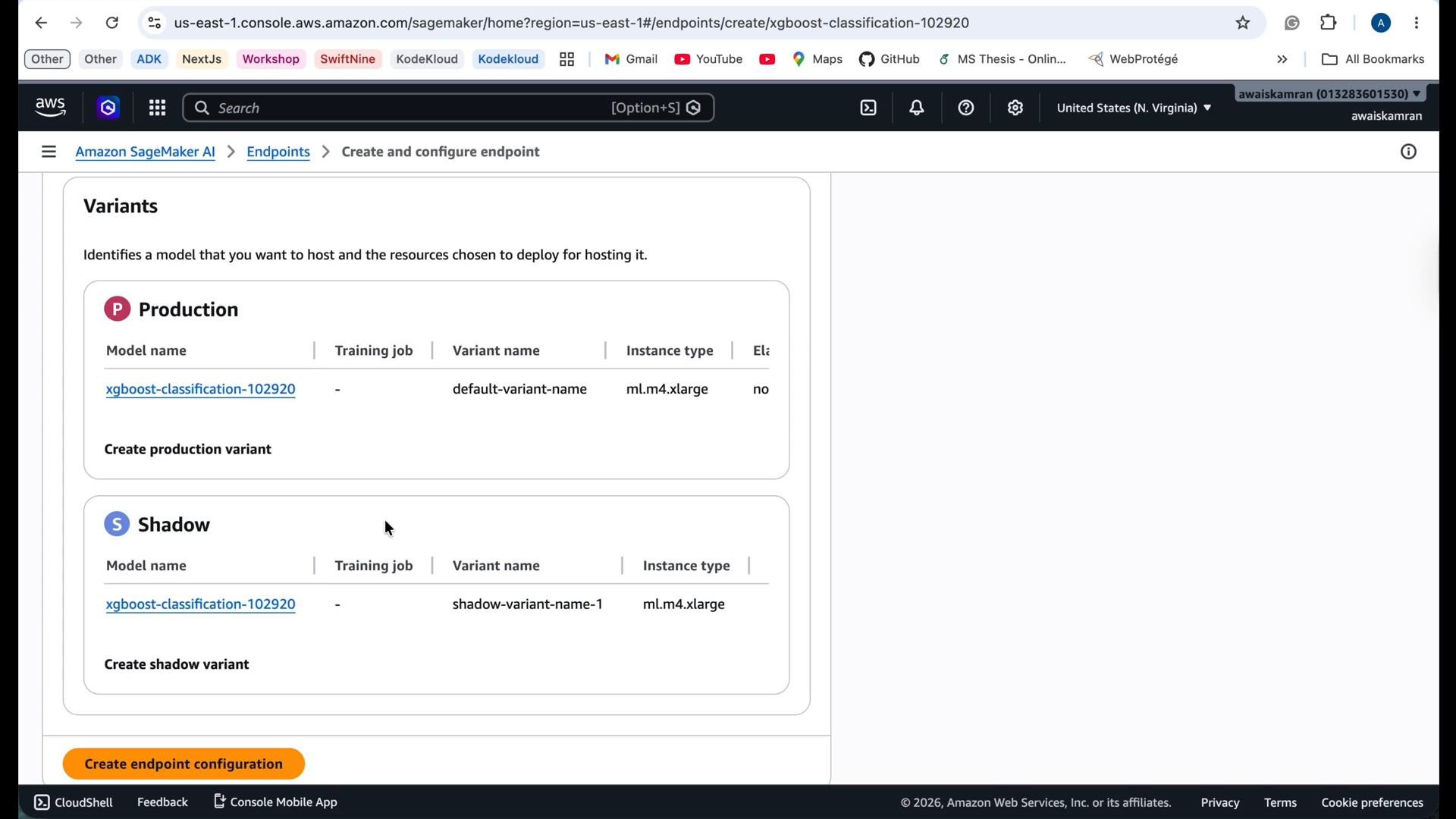
When building the endpoint configuration you can add multiple variants.
- Production variant: receives a share of live inference traffic according to its variant weight.
- Shadow variant: receives a copy of requests for offline evaluation and does not affect responses by default.
- Add a production variant for your existing model and another production variant for the alternative model if you want both to serve live traffic. Alternatively, add the alternative model as a shadow variant to evaluate it without impacting users.
- Watch endpoint provisioning and verify status
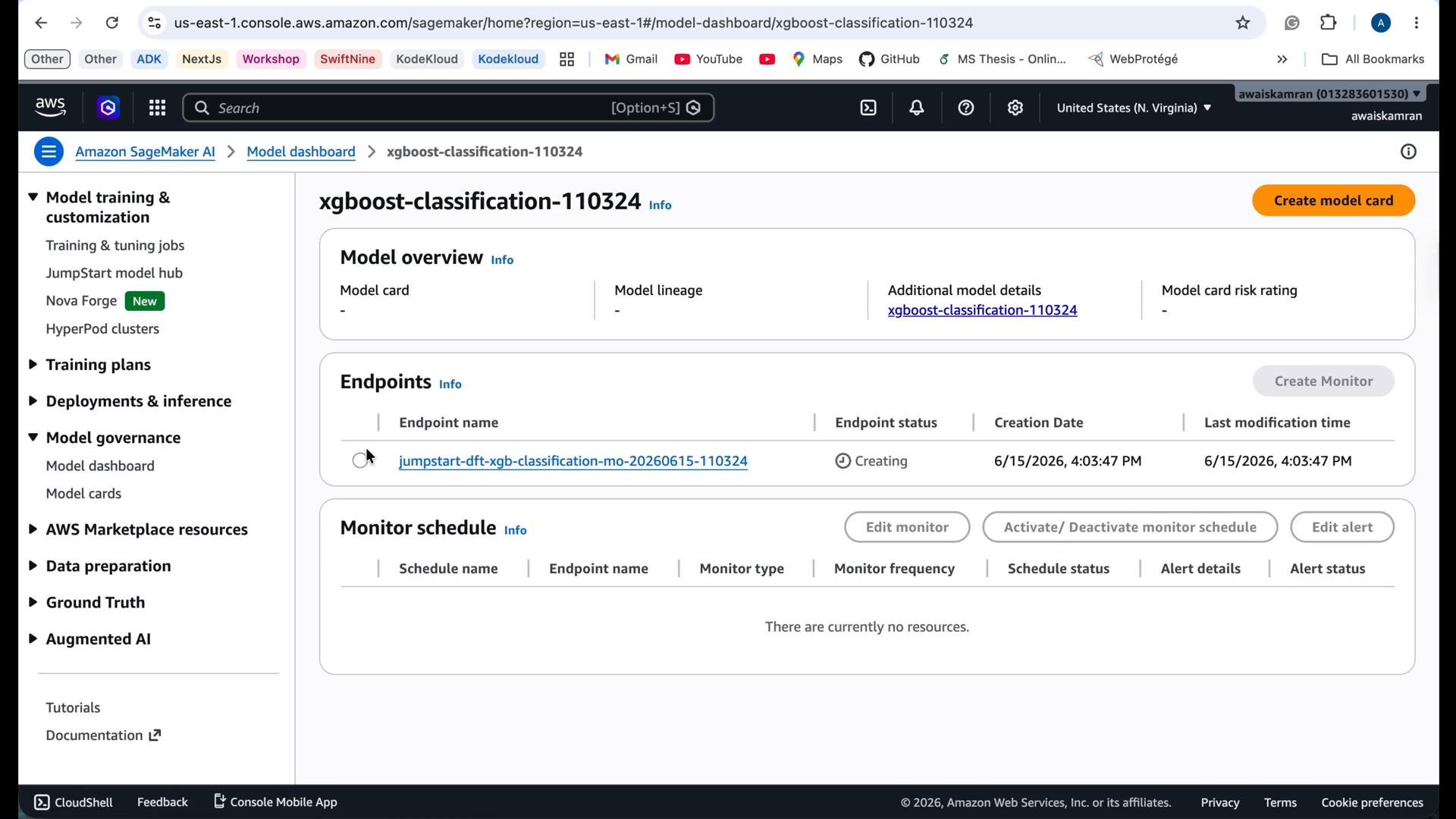
- After creating the endpoint, it will be listed on the model dashboard. The initial status will be Creating while SageMaker provisions resources. Once active, the endpoint accepts traffic according to the configured variant weights.
- Variant weight vs. data capture
- Variant weight determines how production traffic is split across production variants (e.g., 50/50).
- Data capture sampling percentage controls how many requests/responses are saved to S3 for monitoring and analysis. It is independent of traffic split.
- A shadow variant receives requests for evaluation without changing the response returned to the user.
Variant weight controls how much live traffic each production variant receives. Data capture sampling controls the fraction of requests saved for monitoring. A shadow variant receives a copy for evaluation without affecting live responses.
- Example: AWS CLI snippet for creating an endpoint configuration with two production variants (50/50 split)
- Then create the endpoint:
Best practices
- Start with conservative traffic splits (e.g., 10/90) and ramp up as confidence grows.
- Enable data capture and Model Monitor to track latency, prediction distributions, feature drift, and data quality.
- Use shadow variants to collect request/response pairs for offline evaluation before promoting a model to production.
- Include encryption at rest and in transit if handling sensitive data.
- Monitor cost while running multiple variants — additional instances and storage for captured data add to bill.
Running multiple production variants and capturing data increases resource usage and S3 storage. Monitor costs and clean up endpoints and captured data when no longer needed.
- Real-world, comparative evaluation of two (or more) models under identical production request patterns.
- Continuous monitoring via Model Monitor to detect drift and performance regressions.
- The ability to safely promote the better-performing model to 100% production traffic or iterate further.
- Deploy the second model (JumpStart or your own model).
- Create an endpoint configuration that includes multiple variants (production and/or shadow).
- Assign variant weights to split traffic and enable data capture for monitoring.
- Run traffic, compare metrics with Model Monitor, and promote the better model.