

Use Cases
Azure File Share is ideal for:- Migrating from on-premises file shares to the cloud.
- Storing diagnostic data.
- Sharing tools and utilities across multiple teams.
Creating a File Share in the Azure Portal
In this section, we detail how to create and connect to an Azure File Share using the Azure Portal.- Sign in to the Azure Portal and navigate to “File Shares.”
- Click on “Add a File Share” and enter a name (e.g., “Files01”).
- Select a performance tier that meets your requirements. Options include Transaction Optimized, Hot, and Cool—Transaction Optimized is optimal for applications requiring a reliable backend file store.
- Set the maximum capacity (up to five terabytes) and click “Review and Create.” The portal will then generate a script that you can use to mount the file share by specifying the drive letter, storage account key, and your operating system.
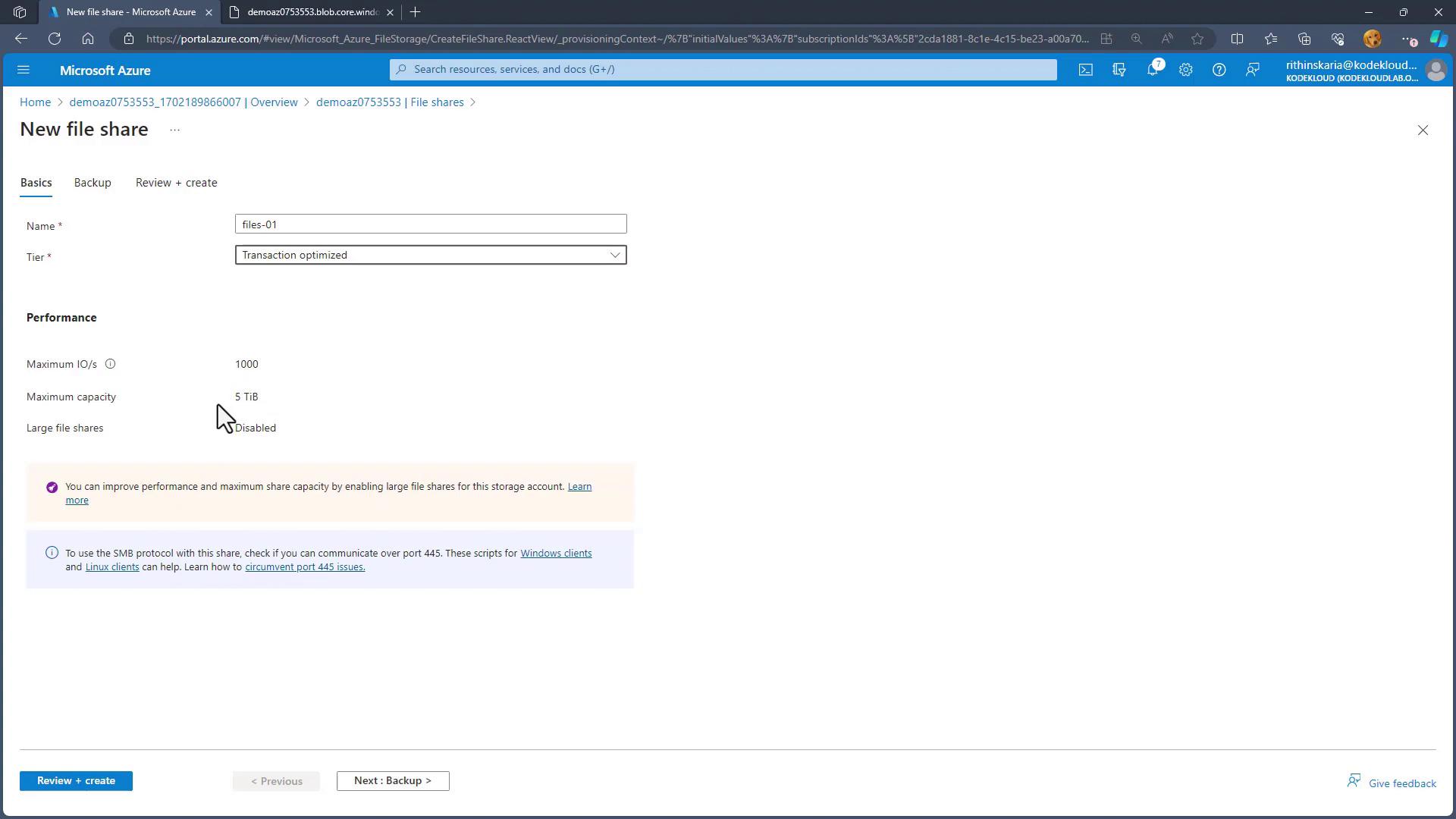
Connecting to the Azure File Share
After the file share has been created, click on “Connect” in the Azure Portal to view the mounting script tailored for your operating system. The portal will display different scripts for Windows, Linux, and macOS. Make sure your local network allows traffic through port 445 for SMB connections, as some Internet Service Providers might block this port.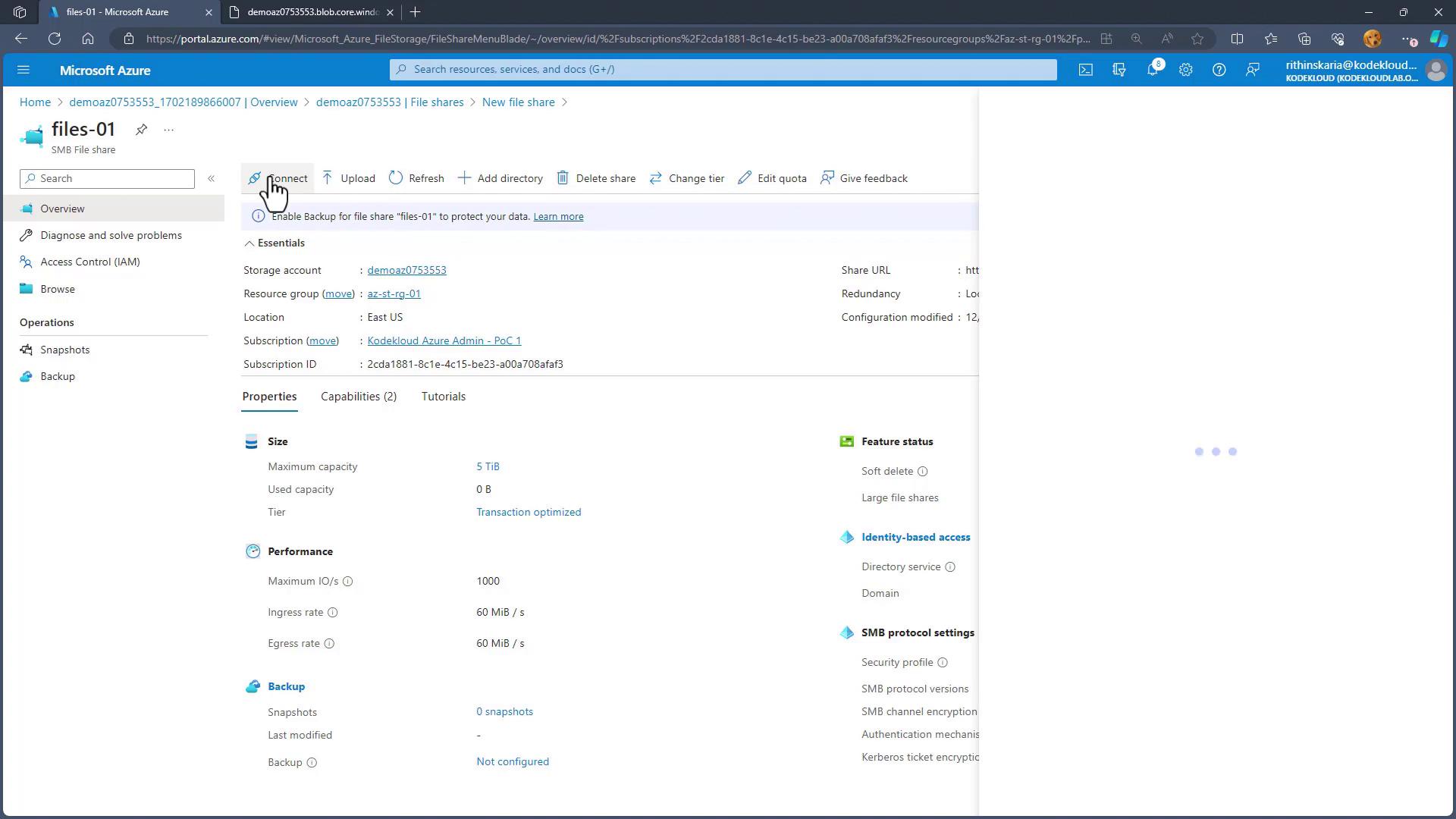
Example: Connecting on Windows
Run the following PowerShell script in your terminal:Securing Your Storage Account
Currently, the file share is accessible over the public internet. If you require enhanced security, Azure provides several options to restrict access. Consider using Azure P2S VPN or ExpressRoute to tunnel SMB traffic through an alternative port.For improved security and compliance, always review and configure your storage account’s network settings according to your organization’s best practices.