

Scenario
- You have a virtual network (VNet) with a subnet and a VM. The VM’s private IP is 192.168.1.4.
- You have an Azure Storage account (named KodeKloud in the diagram) with public access enabled by default.
- The VM currently accesses the storage account using the public service endpoint for blobs, which looks like
<storage-account>.blob.core.windows.netwhen used in URLs.
Goal
Block all public access to the storage account, but allow the VM (hosted in your VNet/subnet) to continue accessing it securely via a Service Endpoint.How it works (overview)
- Configure the storage account’s Networking settings to accept requests only from selected virtual networks and IP ranges.
- Enable a Service Endpoint for the storage service on the subnet that hosts the VM.
- Once enabled, traffic from the VM to the storage account is routed over the Azure/Microsoft backbone. The storage account sees the VM’s private IP as the source. Although the service endpoint still uses the same public DNS name, traffic does not traverse the public internet.
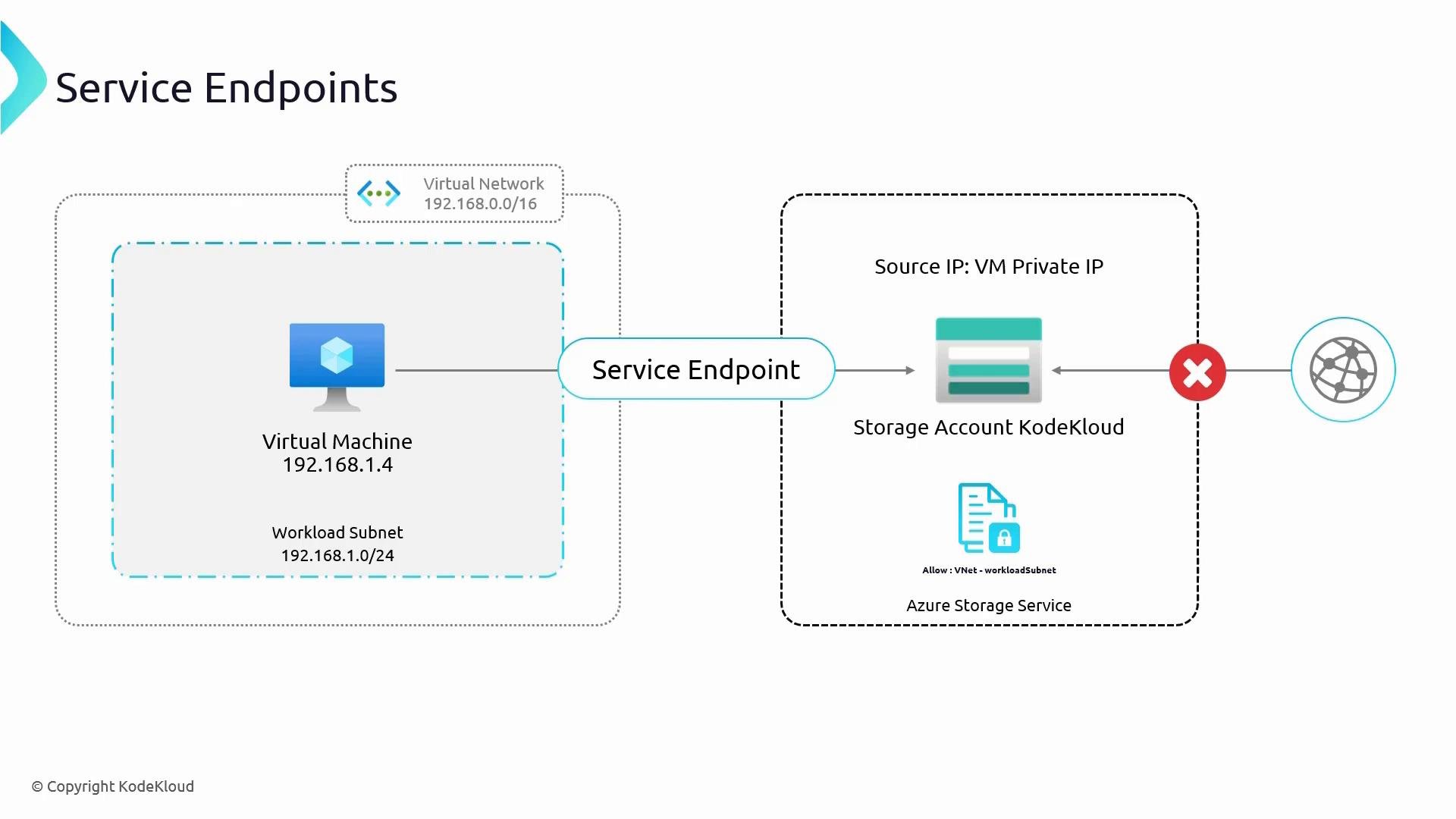
Service Endpoints do not give the service a private IP in your subnet; they authorize and route traffic from your subnet to the service over the Azure backbone. If you need a private IP within your VNet for the service itself, consider Azure Private Link as an alternative.
Benefits of Azure Service Endpoints
Supported services (examples)
Portal demonstration — what we’ll deploy
This walkthrough uses a prep script that creates a VM and a storage account. After the script runs you will have:- A VM named VM01 (or similar).
- A Storage account and a container to test blob access.
Example: running the prep script and listing the folder (PowerShell)
Create a container and upload files
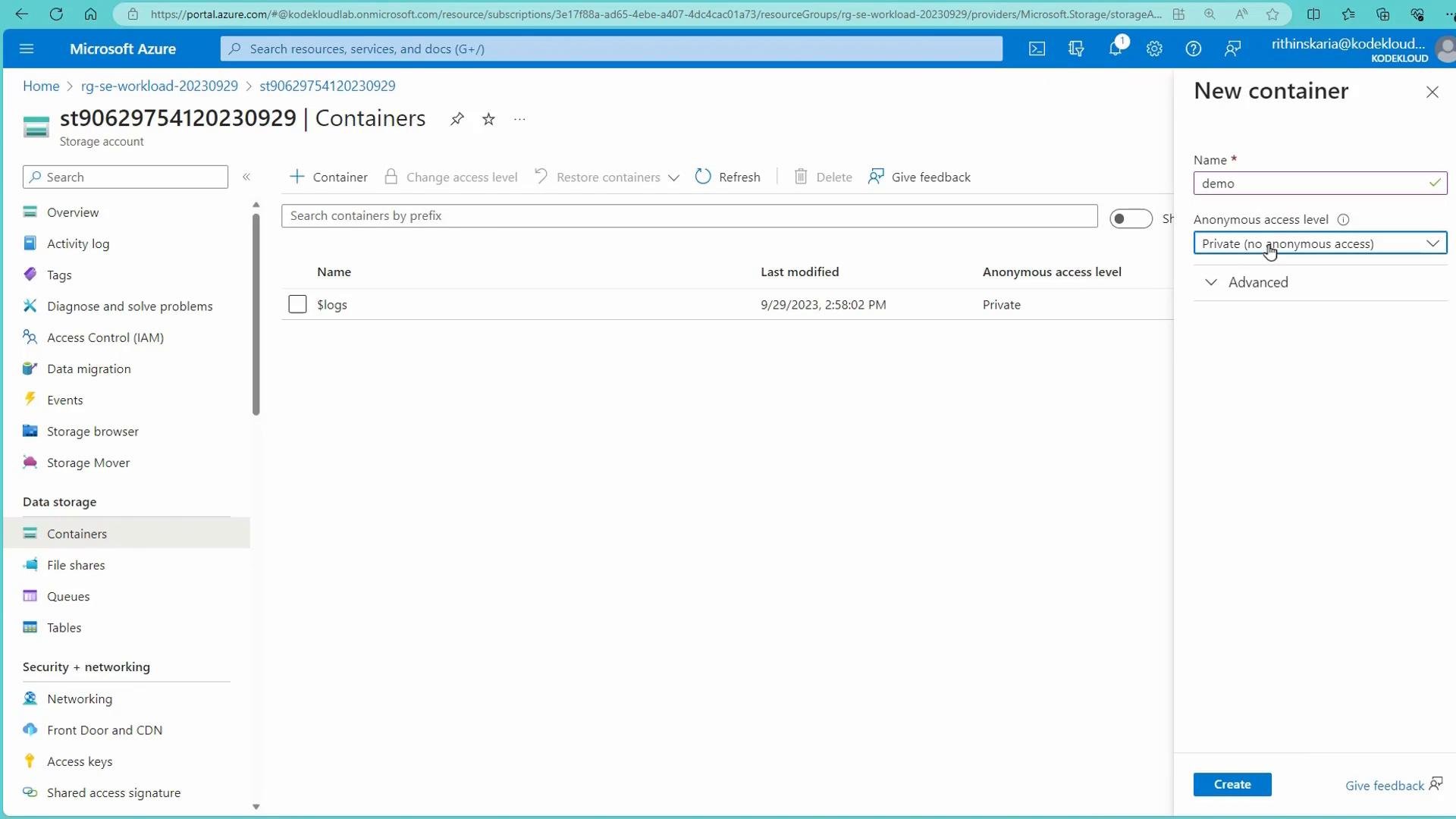
- In the Storage account, open “Containers” and create a new container named
demowith private (no anonymous) access. - Upload a few image files into the
democontainer so you can test access from both the browser (public) and the VM (private VNet).
Testing access from the VM (before locking down the storage account)
SSH into the VM and download an uploaded file using wget. This demonstrates initial public-access behavior where the VM resolves the public endpoint and downloads the blob. Example: successful download from the VMLock down the storage account to selected networks
- In the Storage account, go to Networking.
- Change “Allow access from” from All networks to Selected virtual networks and IP addresses.
- Add your VNet (e.g., VNet01) and the specific subnet (for example, default) to the allowed virtual networks. Adding the VNet/subnet at this step effectively creates the Service Endpoint for the storage service on that subnet.
- Click Save.
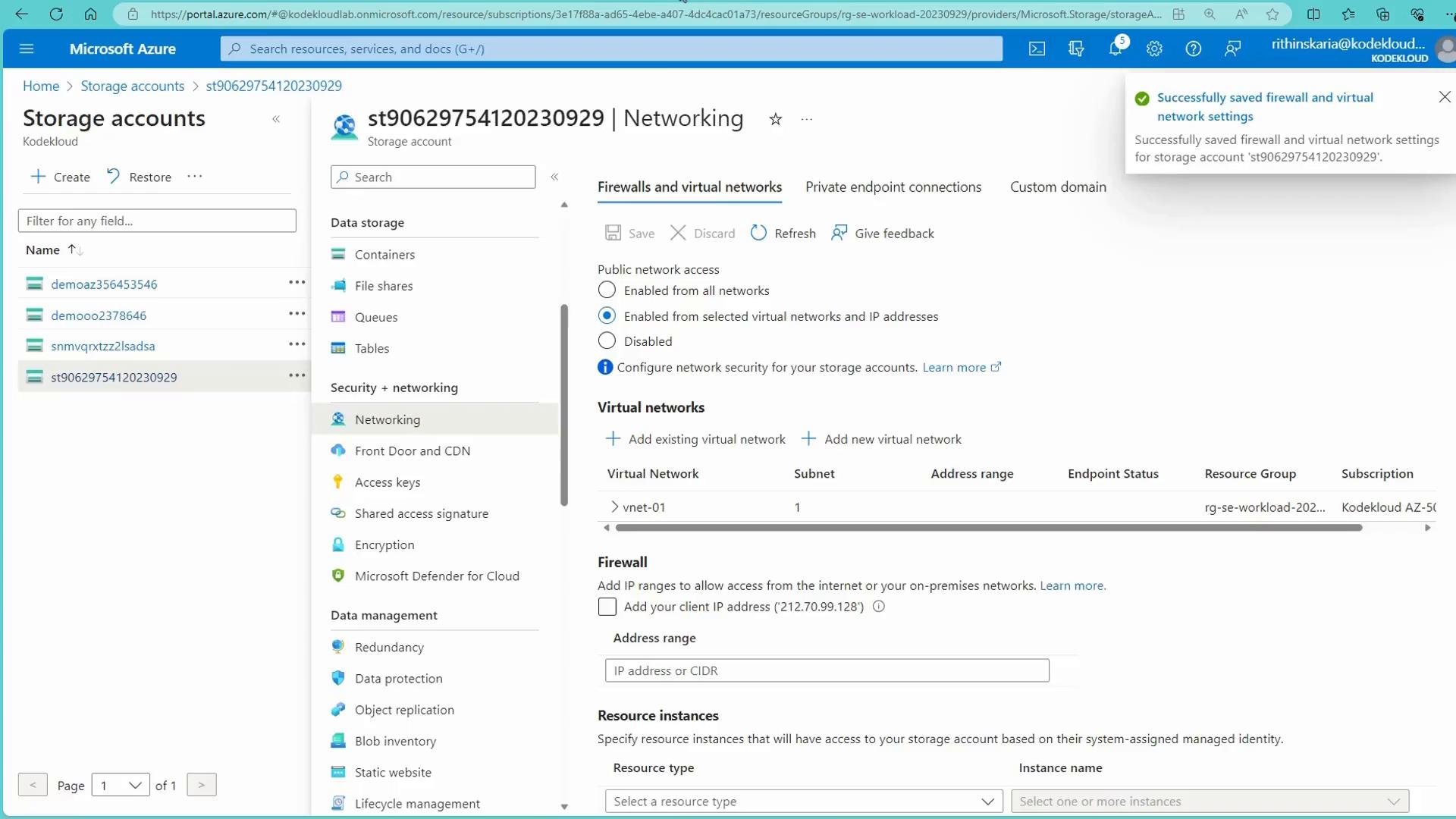
Before switching to “Selected virtual networks and IP addresses”, ensure your management IP or required VNets/subnets are added to avoid locking yourself out of the storage account from the public internet. Add any admin IP addresses or required VNets first, then save.
Testing access from the public internet (after locking down)
- If you try to open the blob URL from a public network / IP that is not on the allowed list, you will receive an authorization error.
Testing access from the VM (after locking down)
- The VM is inside the allowed VNet/subnet, so it should still be able to download blobs. The request is routed over the Microsoft backbone and the storage service sees the VM’s private IP as the source.
Handling missing blobs and verifying other files
- If a blob doesn’t exist you’ll receive a 404 error.
- If the blob exists, the download succeeds as usual.
Summary
- Changing the storage account network settings to Selected virtual networks and IP addresses and adding the VNet/subnet blocks public access from outside your allowed networks.
- The VM inside the allowed VNet/subnet continues to access the storage account; traffic flows over Azure’s backbone and the storage service sees the VM’s private IP as the source.
- Use Service Endpoints when you want to authorize specific VNets/subnets for access to PaaS services without assigning a private IP for the service inside your VNet.
Next steps / Alternatives
- Azure Private Link provides a different model: it creates a private endpoint (private IP) for the service inside your VNet. Use Private Link when you need the PaaS service to have a private IP on your network or need more granular network isolation.