

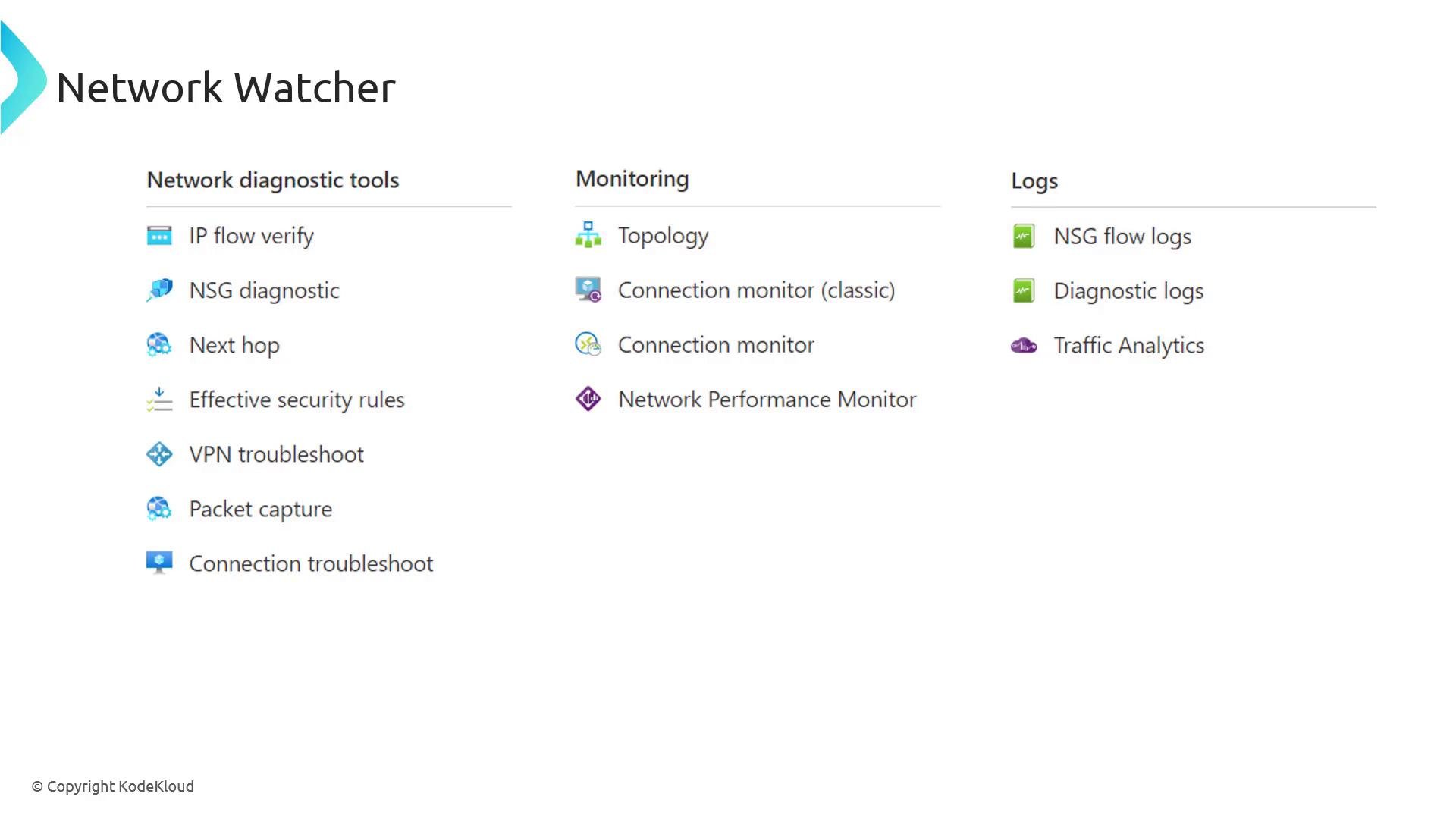
For exam scenarios, be prepared to explain when to use IP Flow Verify vs. Connection Troubleshoot, and how Next Hop reports system routes versus user-defined routes (UDRs). Understanding which tool to pick for specific troubleshooting tasks is commonly tested.
Accessing Network Watcher in the Azure portal
- Search for “Network Watcher” in the Azure portal and open the resource.
- Choose the subscription and region where you want to run diagnostics (Network Watcher is regional).
- Use the left-hand menu to access specific tools such as IP Flow Verify, Next Hop, Connection Troubleshoot, Packet Capture, Topology, and NSG diagnostics.
IP Flow Verify
IP Flow Verify validates whether traffic to or from a virtual machine is permitted by the effective NSG rules. Provide the source and destination IP/port/protocol and the tool reports whether access is allowed or denied and the NSG rule that produced that decision. Example steps:- Select the target VM (for example,
gemboxorjumpbox-vm) and its network interface. - Protocol:
TCP - Direction:
Inbound - Local IP: the VM’s private IP
- Local port: e.g.
3389(RDP) or22(SSH) - Remote IP/port: the source you want to test
3389 is denied due to a “deny all inbound” NSG rule; testing port 22 shows access allowed.
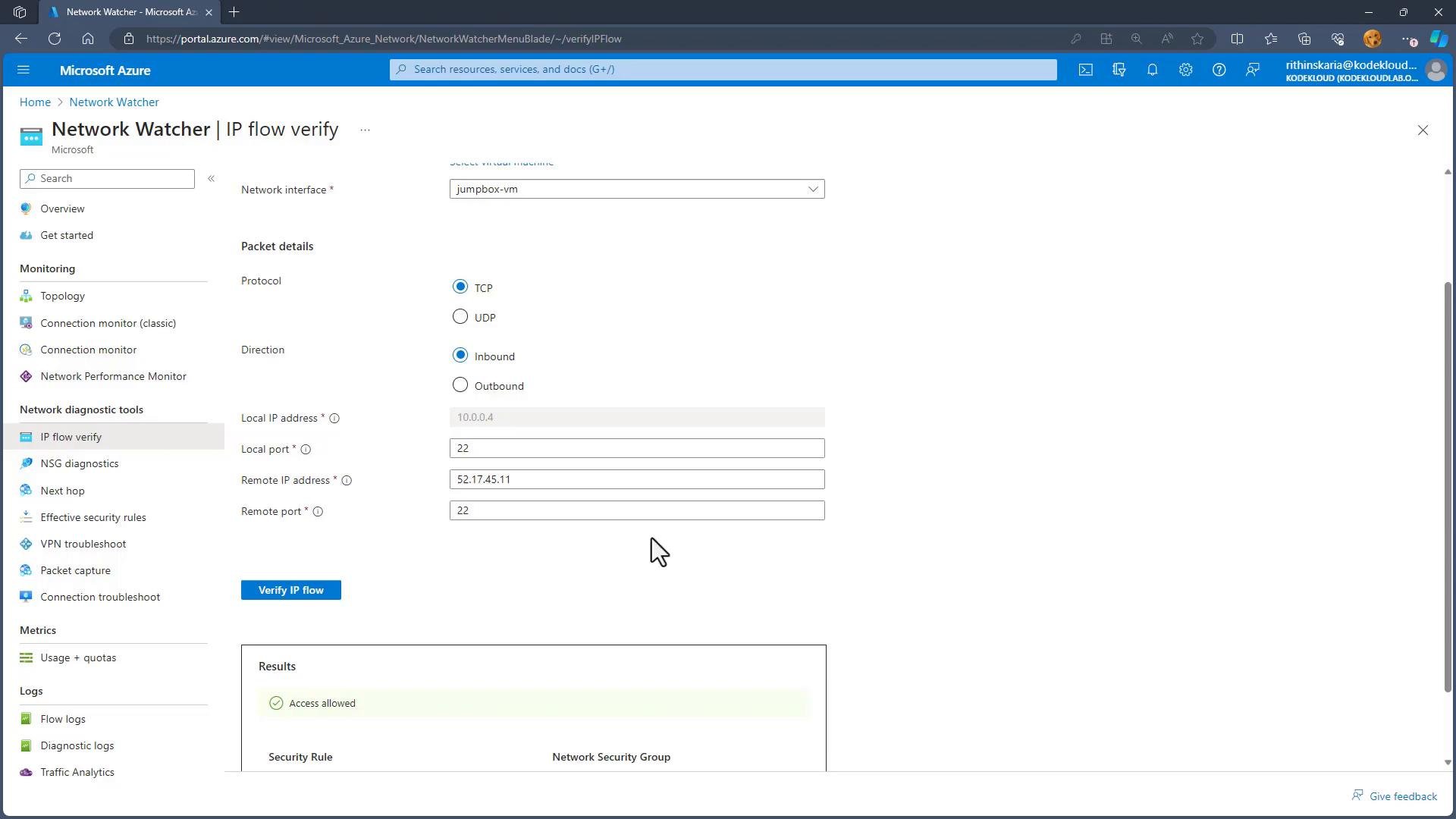
- IP Flow Verify is ideal when you need a quick check to identify which NSG rule permits or blocks a single flow.
- If you need hop-by-hop diagnostics, latency, or port accessibility across the network path, use Connection Troubleshoot instead.
NSG Diagnostics and NSG Flow Logs
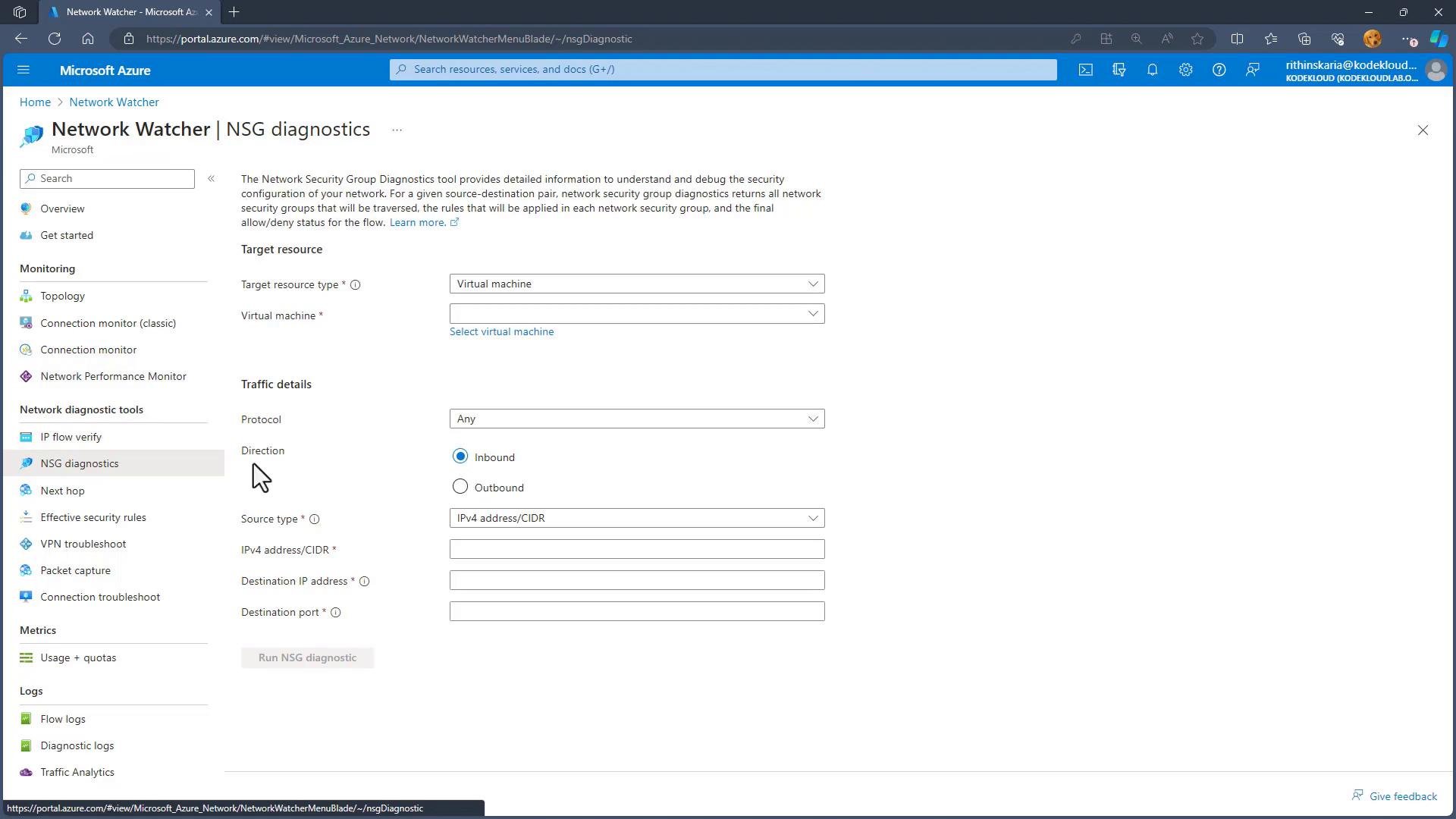
NSG diagnostics (also known as NSG Flow Logs when enabled) capture ingress and egress traffic flowing through a Network Security Group. Configure diagnostic settings to send logs to a storage account, Log Analytics workspace, or Event Hub to support auditing and Traffic Analytics. Use NSG diagnostics to:- Audit traffic patterns and identify suspicious flows.
- Feed logs into Traffic Analytics for visual analysis and reporting.
- Retain flow data in a storage account for historical analysis.
Next Hop
The Next Hop tool shows the immediate routing decision Azure makes for a packet from a VM to a destination IP. Typical results include:- VirtualNetwork — destination inside the same VNet
- Internet — traffic exits to the internet
- VirtualAppliance — a user-defined route (UDR) sends traffic to a firewall or appliance (the UI will show the appliance IP and route table ID)
- If a UDR is in effect, Next Hop displays the route table ID and the configured next hop. If the system route is used, it indicates the system route source.
Effective Security Rules
When NSGs are applied at both subnet and NIC levels, the Effective Security Rules view shows the consolidated and ordered set of rules that actually apply to a network interface. This view is useful to determine exactly which rule will permit or block traffic for a given NIC.VPN troubleshoot
VPN troubleshoot diagnoses VPN gateways and connections to on-premises networks. Select the VPN gateway and choose a storage account for results; the diagnostic run will capture metrics such as bandwidth, throughput, and packet failures. Save results to a storage account for later analysis and to share with support teams.Packet capture
Use Packet Capture to capture traffic from a VM without installing tcpdump or Wireshark on the VM itself. Steps:- Click Add to create a packet capture session.
- Select the target VM and a storage account to store the capture.
- Optionally add filters (for example, port
53for DNS). - Start the capture and stop when you have the required data.
- Download the PCAP file from the storage account and analyze it in Wireshark.
Ensure your account has permission to write to the selected storage account before starting packet capture or NSG diagnostics (for example,
Storage Blob Data Contributor or equivalent).Connection Troubleshoot (Connectivity checks)
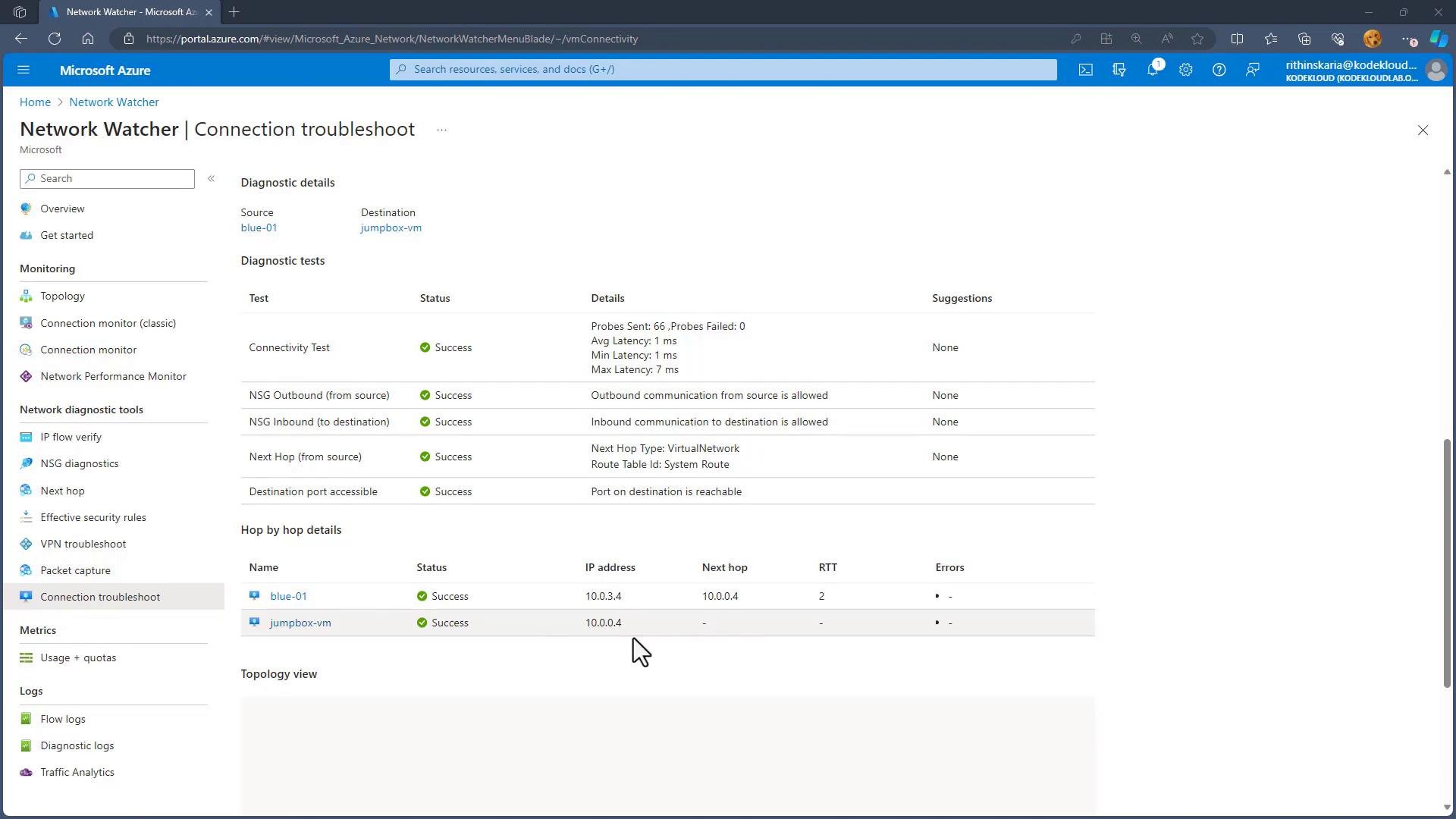
Connection Troubleshoot runs a richer end-to-end connectivity test between two endpoints and returns a consolidated diagnostic including hop-by-hop details, next hop/route, NSG evaluation, port accessibility, and round-trip time. Example:- Source: a VM such as
blue-01 - Destination: another VM, IP address, or FQDN (manual entry is supported)
- IP version:
IPv4orIPv6 - Protocol:
TCPorUDP - Destination port: e.g.
22
- A connectivity status (reachable/unreachable)
- Where traffic was blocked (NSG, UDR, or other)
- Hop-by-hop information and latency (RTT)
- Port accessibility results
Topology
Topology provides a visual representation of resources within a virtual network: VNets, subnets, network interfaces, public IPs, NSGs, gateways, and how they connect. Expanding a subnet reveals attached NICs and VMs plus IP configurations. Use this view to validate design, understand relationships, and quickly find misconfigurations. Tips for using topology:- Select a resource group or virtual network scope to narrow the diagram.
- Expand nodes to reveal details such as NIC IPs and associated NSGs.
- Use topology to confirm whether resources are attached to the expected subnets or network security groups.
Closing notes
Azure Network Watcher equips you with multiple complementary tools:- Use IP Flow Verify for quick NSG permit/deny checks.
- Use Connection Troubleshoot for end-to-end path and performance diagnostics.
- Use Next Hop to validate routing decisions and identify UDRs or virtual appliances.
- Use NSG diagnostics/Flow Logs for traffic auditing and analytics.
- Use Packet Capture for in-depth packet-level investigation.
Links and references
- Azure Network Watcher documentation: https://learn.microsoft.com/azure/network-watcher/
- Traffic Analytics: https://learn.microsoft.com/azure/network-watcher/traffic-analytics-overview
- Wireshark: https://www.wireshark.org/