

- Basic cloud-only SSPR features are included with Azure AD. If you require password writeback to on-premises Active Directory, configure
Azure AD Connectand ensure your tenant has an Azure AD Premium license (P1 or P2). Review your tenant’s licensing before enabling writeback: https://learn.microsoft.com/azure/active-directory/hybrid/whatis-azure-ad-connect
Key capabilities
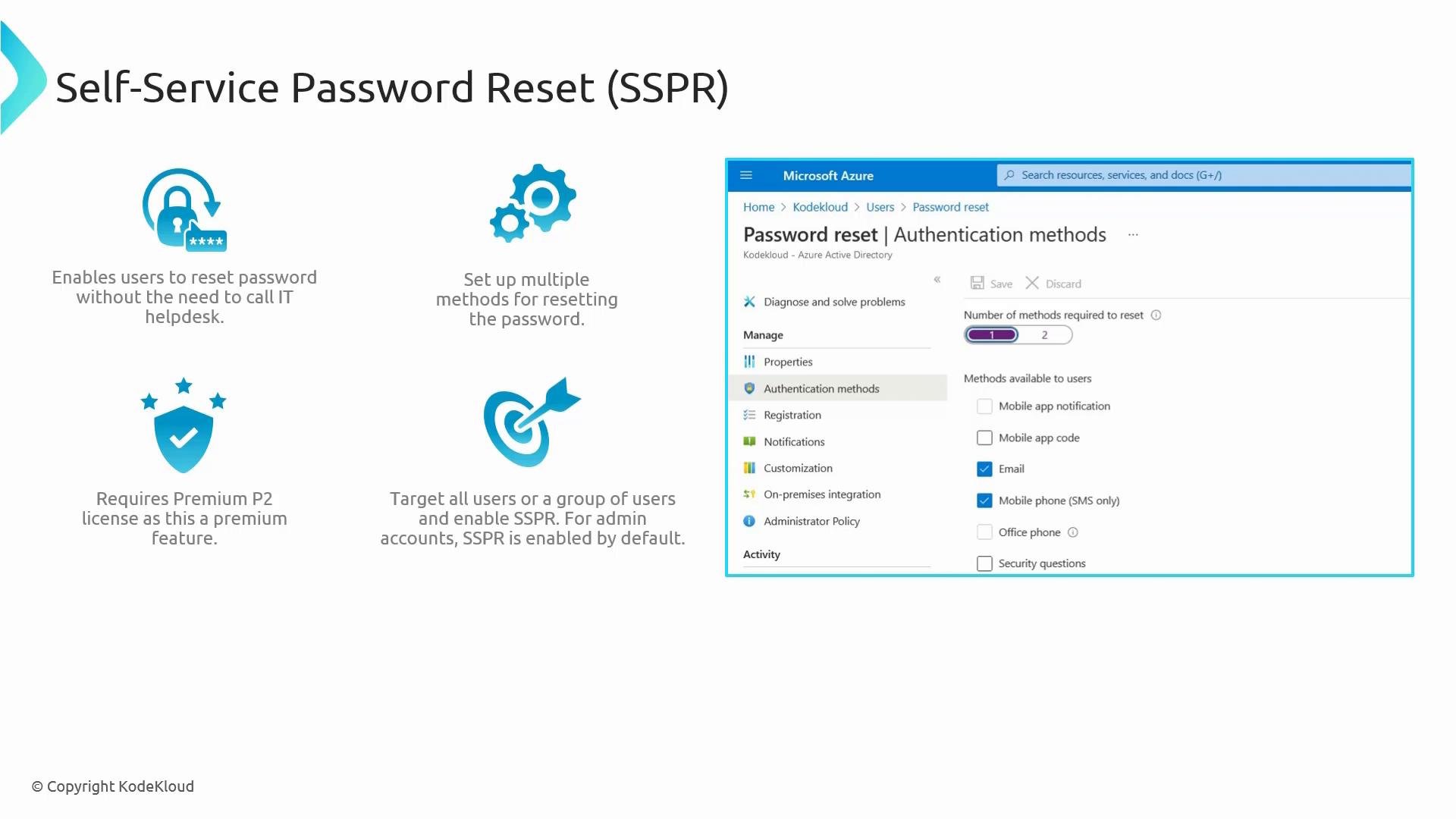
- Enable SSPR for all users or target selected groups.
- Choose which verification methods are available (authenticator app, phone, email, security questions).
- Require one or more authentication methods for a successful reset.
- Enforce user registration and set reconfirmation frequency to keep recovery information current.
Security questions are deprecated for newly created tenants and are not recommended as a primary recovery mechanism. Prefer stronger methods such as an authenticator app, SMS/voice to a verified phone number, or email where appropriate.
Getting started (high level)
- Enable SSPR for All users or Selected groups.
- Configure the required number of authentication methods and select allowed methods.
- Enforce registration so users supply verification methods at sign-in.
Administrators and SSPR
Administrators can be included or excluded from SSPR policies depending on your organization’s security posture. Carefully test SSPR settings for privileged accounts before broad enforcement.Exclude break-glass or highly privileged accounts, or provision dedicated recovery accounts, to avoid administrative lockout. Test recovery procedures for privileged accounts before enforcing SSPR at scale.
Configuring SSPR in the Azure portal
- Open Microsoft Entra ID (Azure Active Directory) and navigate to Password reset.
- Under Properties, choose either All or Selected and target the appropriate groups (for example, a practice group named “Avengers”). Click Save to create the policy.
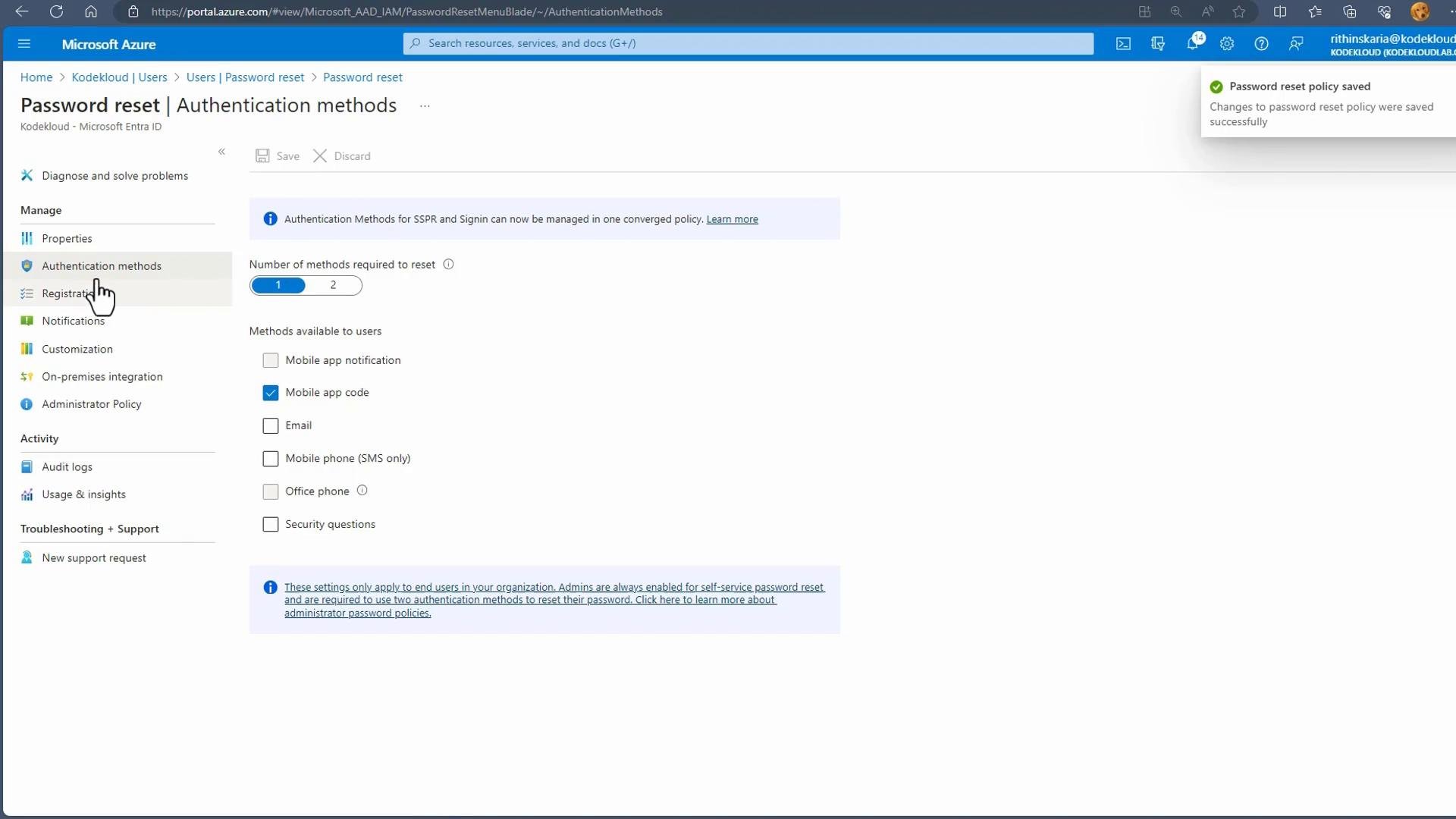
- Under Authentication methods, set the number of methods required for a reset and select which methods are permitted. Requiring a single method is common for usability; requiring multiple methods increases security.
Registration settings
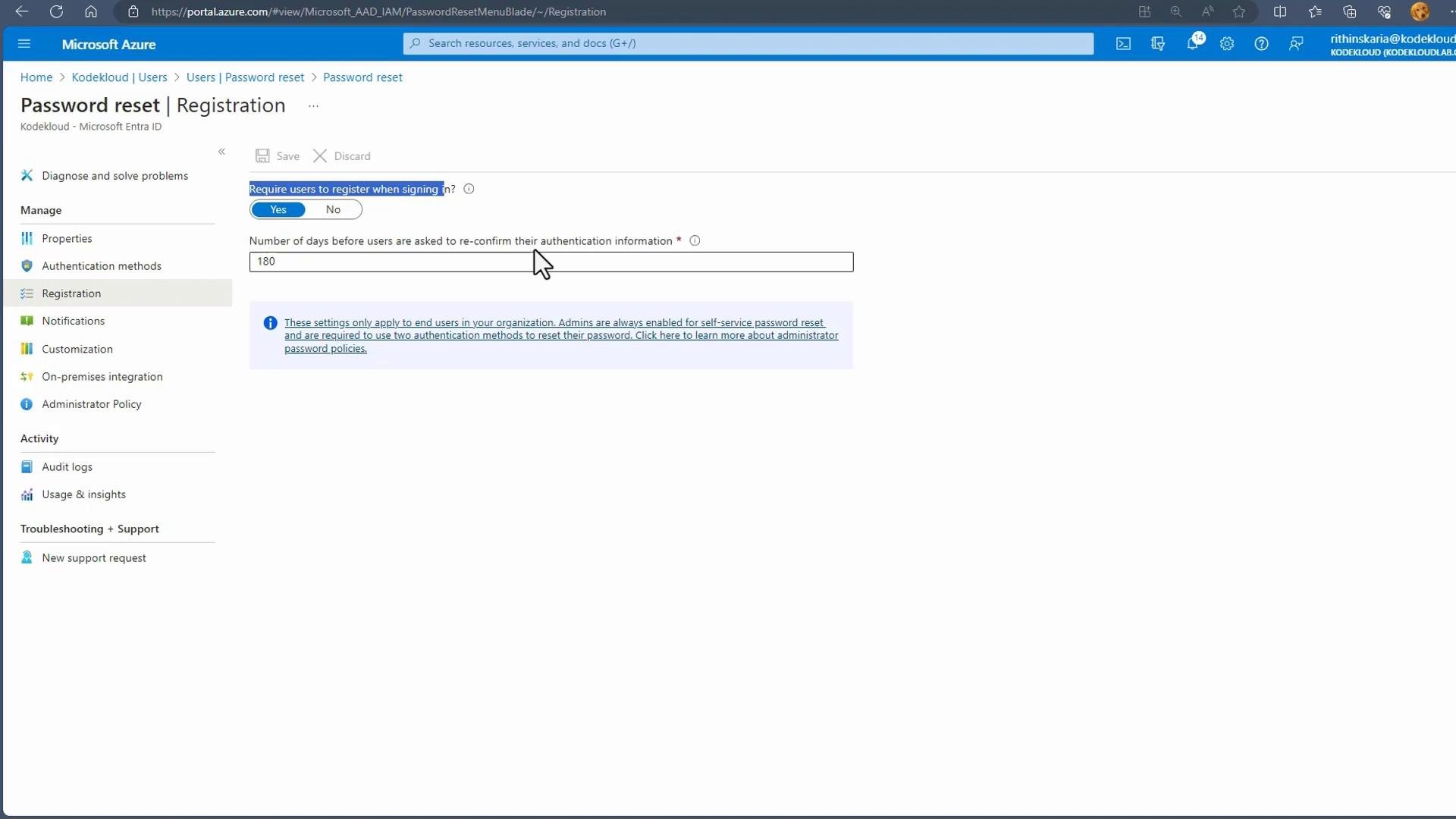
Require users to register for SSPR the next time they sign in by enabling the registration enforcement toggle. Also configure how frequently users must re-confirm their authentication information (for example,180 days). After that period users will be prompted to verify and refresh their methods (Authenticator app, phone, email) to keep recovery options up to date.
User experience: registering SSPR methods
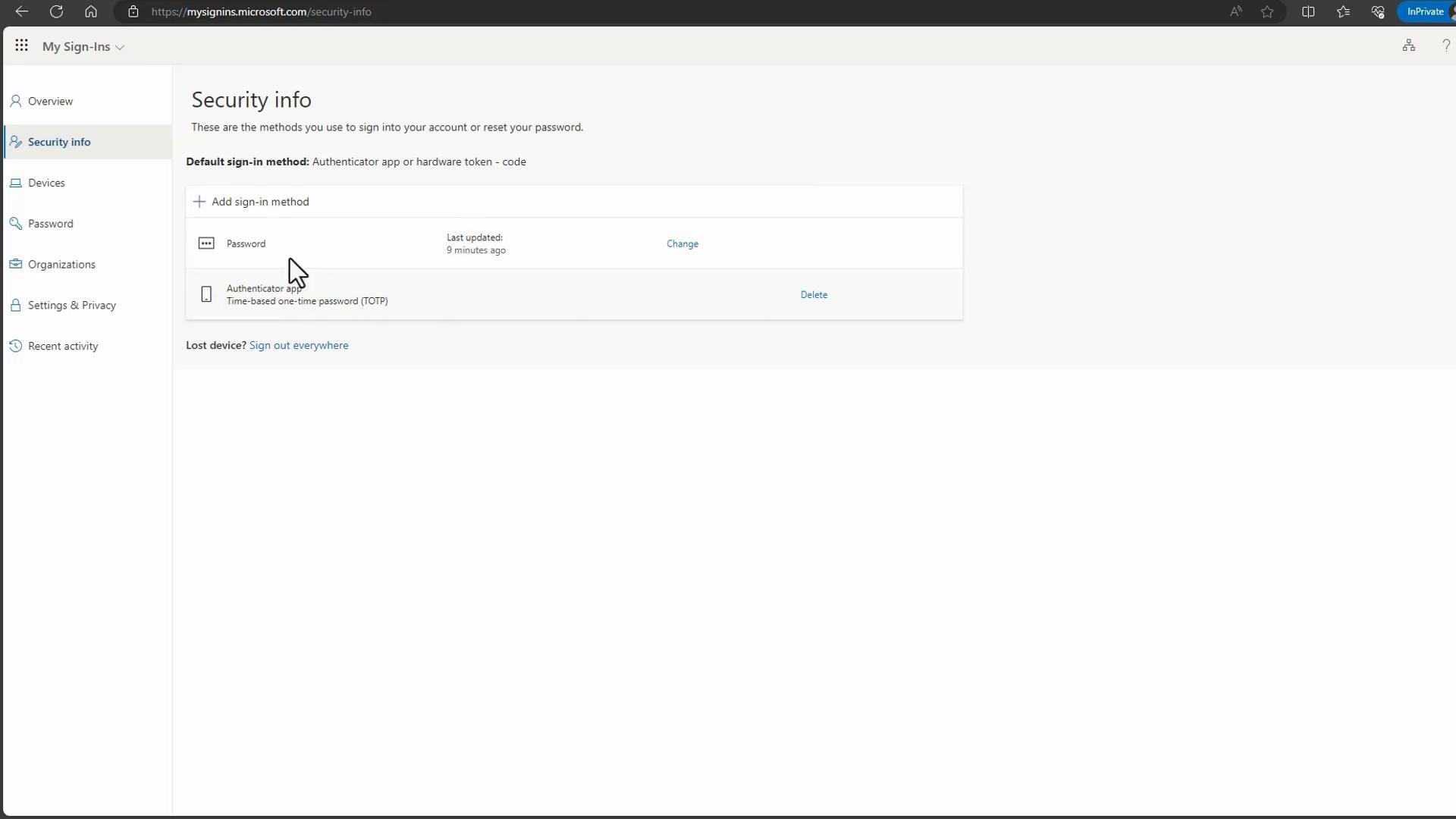
When registration is enforced, users who haven’t set up recovery methods will be prompted at sign-in. A typical flow:- User scans a QR code to register Microsoft Authenticator (or enters a TOTP key).
- User verifies phone number or recovery email as required.
- After completing steps, SSPR is configured for that account.
https://aka.ms/ssprsetup — this redirects to the Security info / My Sign‑ins page where methods can be managed (subject to admin policy).
Resetting a forgotten password
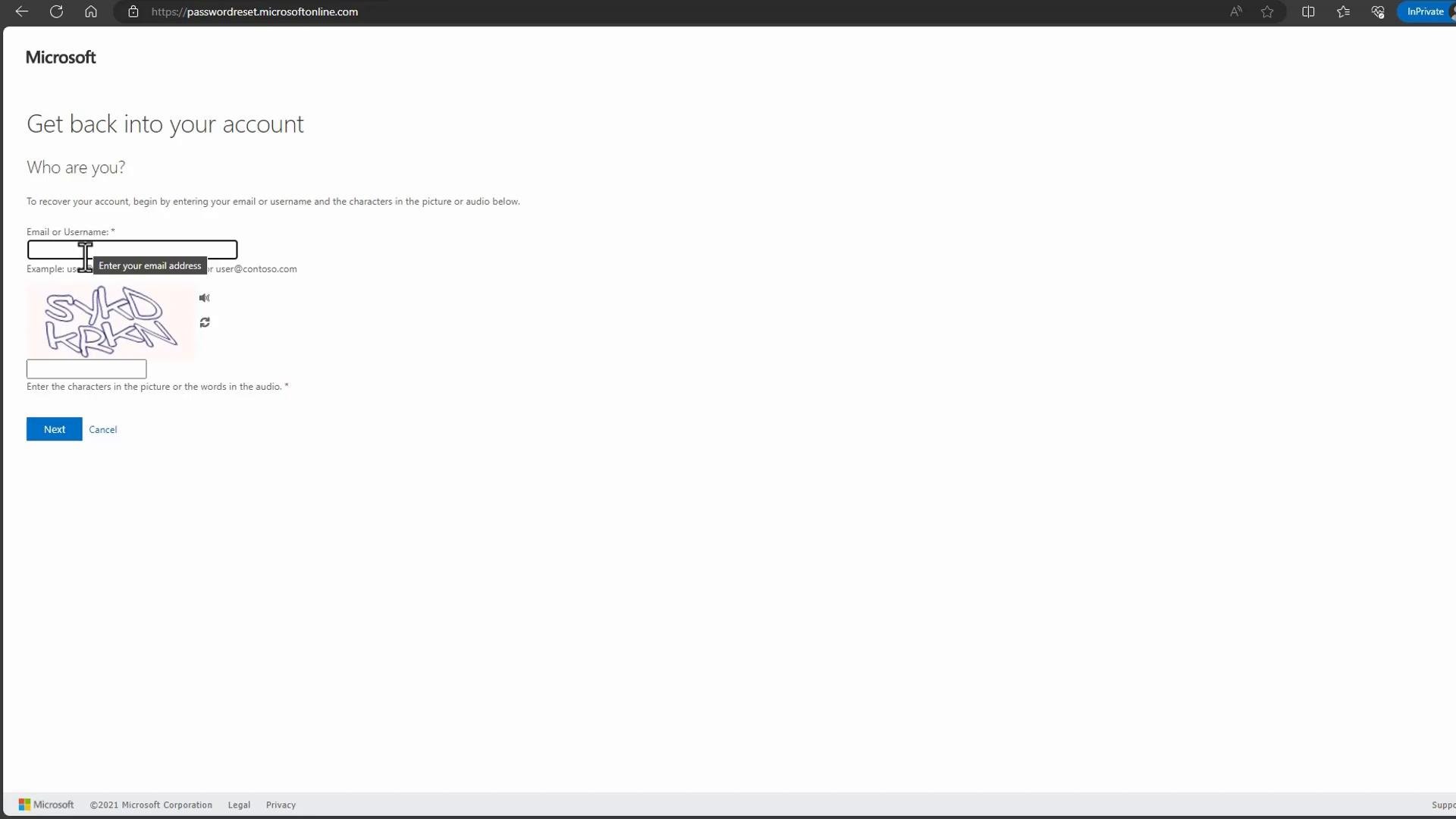
Users can initiate a self-service reset in two main ways:- Direct SSPR URL:
https://aka.ms/sspr— enter your username, complete the CAPTCHA, and follow the verification prompts (for example, enter the code from the Authenticator app) to set a new password. - From the sign-in page: click “Can’t access your account?” → choose “Work or school account” to reach the same flow (landing at
passwordreset.microsoftonline.com).
Recap
- SSPR reduces helpdesk load and improves user productivity by enabling secure password recovery without IT intervention.
- Configure SSPR in Microsoft Entra ID → Password reset: select target users/groups, authentication methods, and registration settings.
- For on-premises password writeback, configure
Azure AD Connectand ensure you have the required Azure AD Premium license (P1 or P2): https://learn.microsoft.com/azure/active-directory/hybrid/whatis-azure-ad-connect - Users can register at
https://aka.ms/ssprsetupand start a reset athttps://aka.ms/sspr.