

- Cloud identities: Standalone accounts that exist only in Microsoft Entra ID (the cloud). These are ideal for cloud-first organizations. A cloud identity may live in your tenant or another organization’s Entra ID; from the home tenant’s perspective it’s a cloud identity.
-
Guest accounts: External identities invited to collaborate (partners, contractors, freelancers). In your tenant they appear as
userTypeGuest. Guests can be personal Microsoft accounts (MSAs), Gmail/Outlook accounts, or identities sourced from another organization’s Entra ID. If the external user belongs to another company that uses Entra ID, their home identity is a cloud identity — but in your tenant they remain a guest.
Note: From your tenant’s view an external user is usually shown as a Guest. However, that external user might still have a cloud identity in their own organization’s Entra ID.
- Directory-synchronized users: Accounts created and managed in an on-premises Active Directory and synchronized to Microsoft Entra ID using Microsoft Entra Connect. Synchronization provides a unified identity across your on-premises and cloud environments and simplifies sign‑on and policy application.
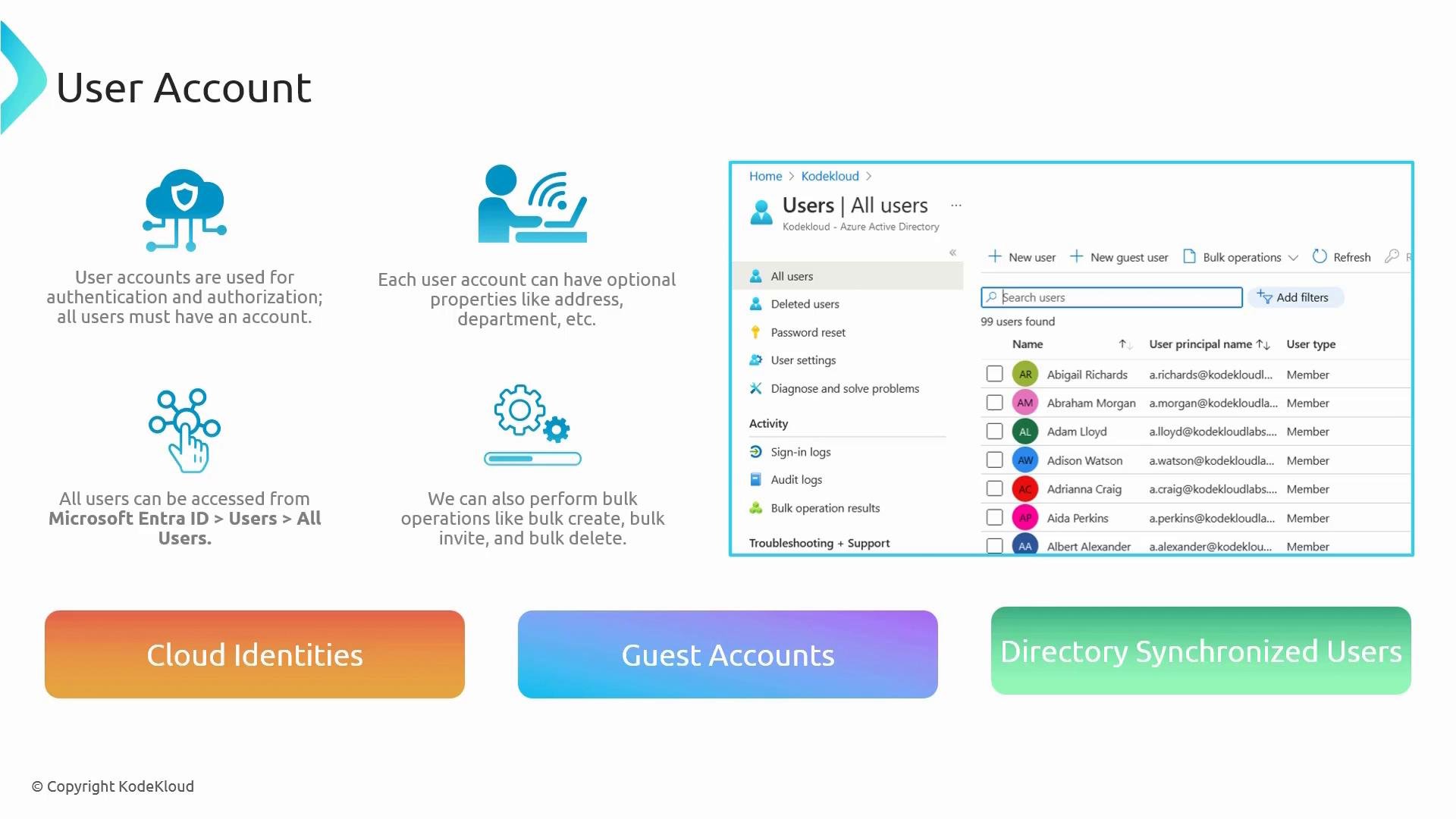
Using the Azure portal to create users
You can create accounts from the Microsoft Entra ID (Azure Active Directory) portal. The two primary creation flows are:
- Create a new user (cloud identity)
- Path: Entra ID > Users > All users > + New user
- You set Display name, User principal name, password (auto-generate or provide), account state (enabled/disabled), and optional profile properties and role assignments.
- Invite external user (guest)
- Path: Entra ID > Users > All users > + New guest user (or Invite external user)
- Enter the external email address, complete the invitation flow, and send the invite. If the email maps to an existing MSA or another Entra ID identity, that existing identity will be used for sign-in.
chrisw@xyz.com) sends a collaboration invitation. After the invite is accepted, the entry in your tenant shows userType as Guest.
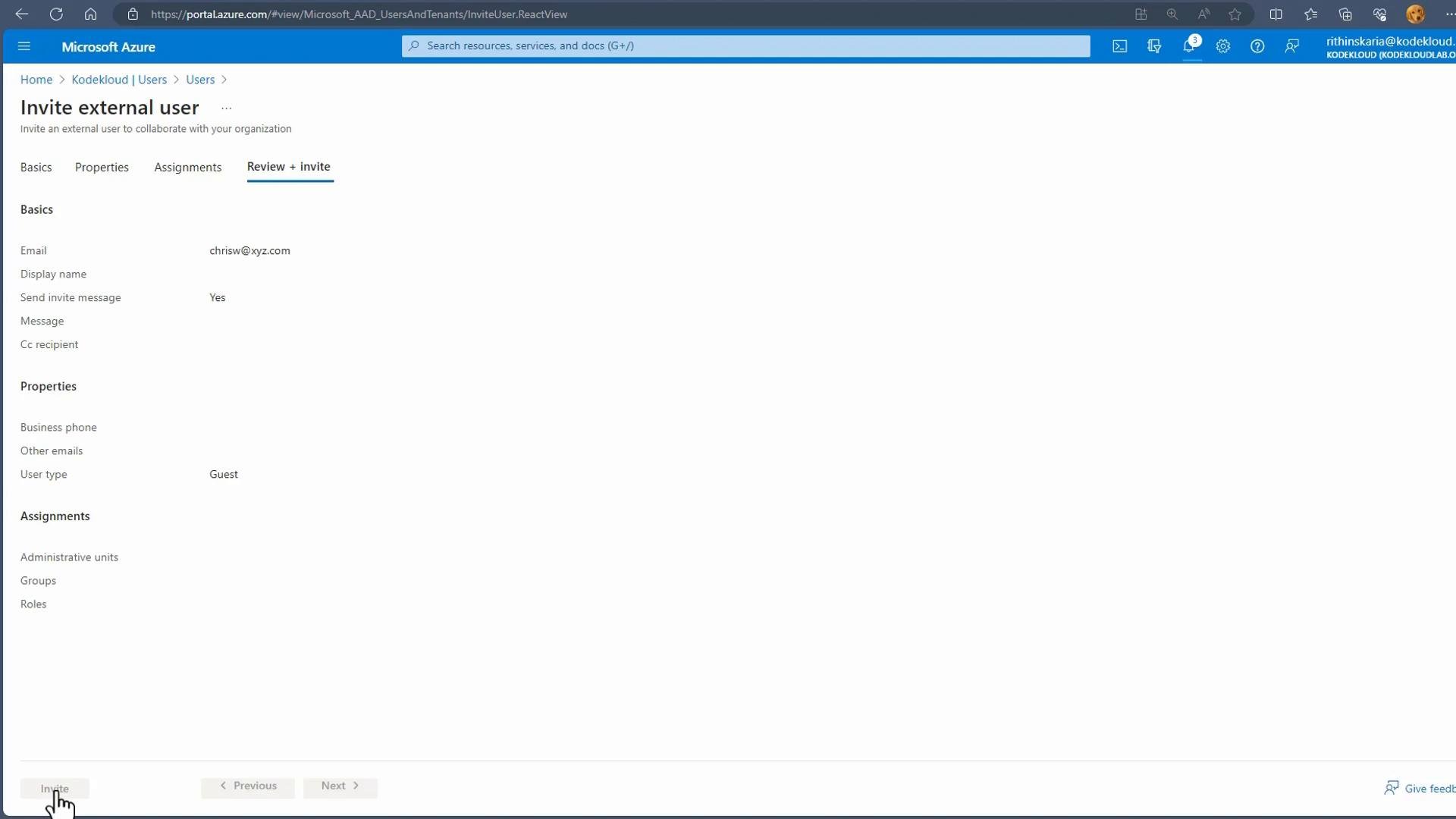
userType and sign-in methods.
Filtering and identifying synchronized users
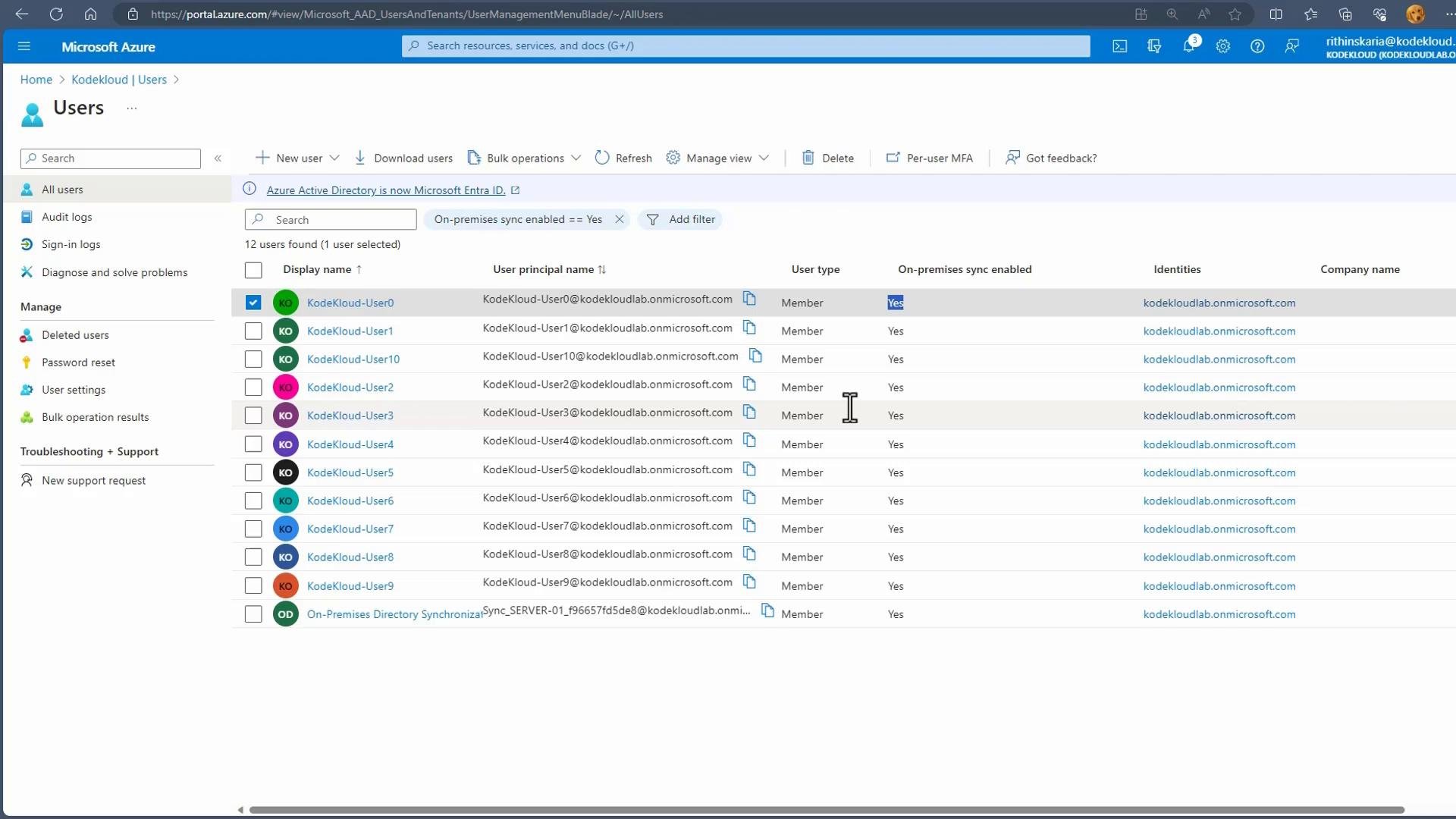
To identify accounts synchronized from your on-premises Active Directory, filter the Users list by the On-premises sync enabled property:
- If
On-premises sync enabled=Yes, the account is synchronized via Microsoft Entra Connect. - If
No, the account was created in the cloud or invited as a guest.
userType, and On‑premises sync status — use these columns to sort and filter large directories.
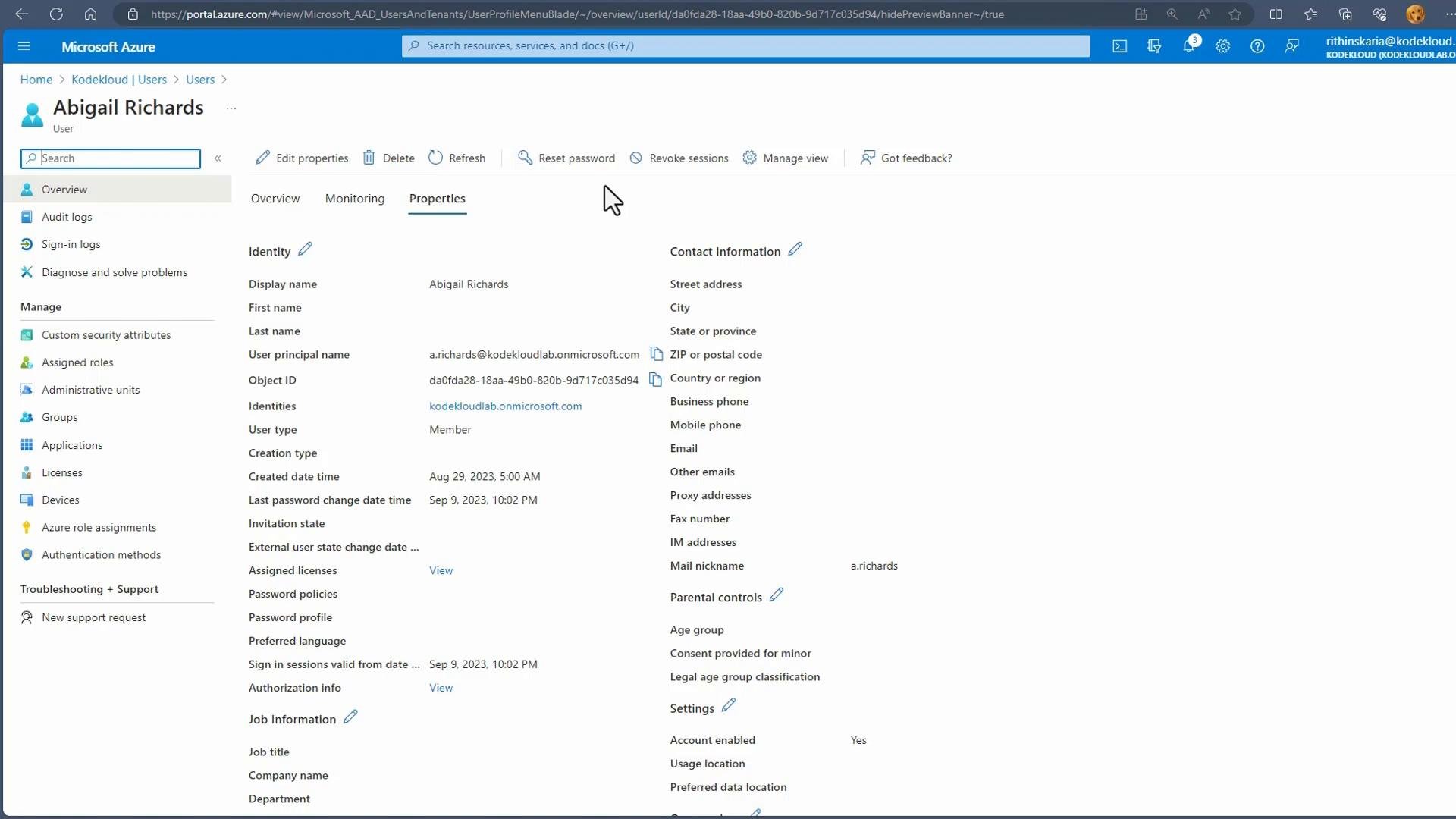
userType, job title, contact information, and other optional attributes. The user blade also provides actions: Reset password, Delete user, Restore user (from Deleted users), Assign roles, and more.
Account lifecycle notes:
- Deleted users are retained for 30 days and can be restored during that period.
- Directory-synchronized users cannot be created or permanently modified directly in the Azure portal — they must be managed in your on-premises Active Directory and synchronized using Microsoft Entra Connect.
Deleted users are retained in the portal for 30 days and can be restored from the Deleted users view. Use restore if you removed an account accidentally.
You cannot create directory-synchronized users directly in the Azure portal. These accounts must be provisioned in on-premises Active Directory and synchronized using Microsoft Entra Connect.
Bulk operations support CSV templates and validation before processing. For templates, error reports, and limits, see the Microsoft documentation on bulk operations.
Additional resources and links
- Microsoft Entra Connect (synchronization): https://learn.microsoft.com/en-us/azure/active-directory/hybrid/whatis-azure-ad-connect
- Manage Azure AD users: https://learn.microsoft.com/azure/active-directory/fundamentals/active-directory-manage-users-roles
- Bulk operations for users: https://learn.microsoft.com/azure/active-directory/users-groups-roles/users-bulk-operations