Gateway Transit simplifies network connectivity in Azure by using a single virtual network gateway for multiple VNets, reducing complexity and operational costs.
Gateway Transit is an Azure feature that simplifies network connectivity by using a single, shared, peered virtual network gateway rather than provisioning individual gateways for each virtual network (VNet). This design not only streamlines connectivity but also reduces management overhead and operational expenses.Imagine you have three virtual networks—VNet A, VNet B, and VNet C—along with your on-premises network for developers. Traditionally, every VNet would require its own VPN gateway for a site-to-site connection to the on-premises network. This conventional approach leads to several challenges:
Redundancy and Complexity: Managing separate VPN gateways for each VNet increases complexity and the risk of misconfigurations.
Resource Utilization: Valuable resources are tied up managing multiple gateways instead of being efficiently deployed elsewhere.
Gateway Transit centralizes connectivity by using a hub-and-spoke design. Instead of establishing direct site-to-site connections from every VNet, each connects via peering to a central hub where a single virtual network gateway handles the connection to the on-premises network.
In a Gateway Transit configuration, the hub VNet contains a single VPN gateway connected via a site-to-site link to the on-premises network. The benefits of this approach include:
Centralized Management: Simplifies network topology with a single control point.
Reduced Complexity: Eliminates the need for multiple individual gateways.
Cost Efficiency: Reduces operational costs by requiring only one VPN gateway.
Resource Optimization: Allows spoke VNets to allocate resources to other tasks.
Streamlined Connectivity: Provides a low-latency path for inter-network traffic.
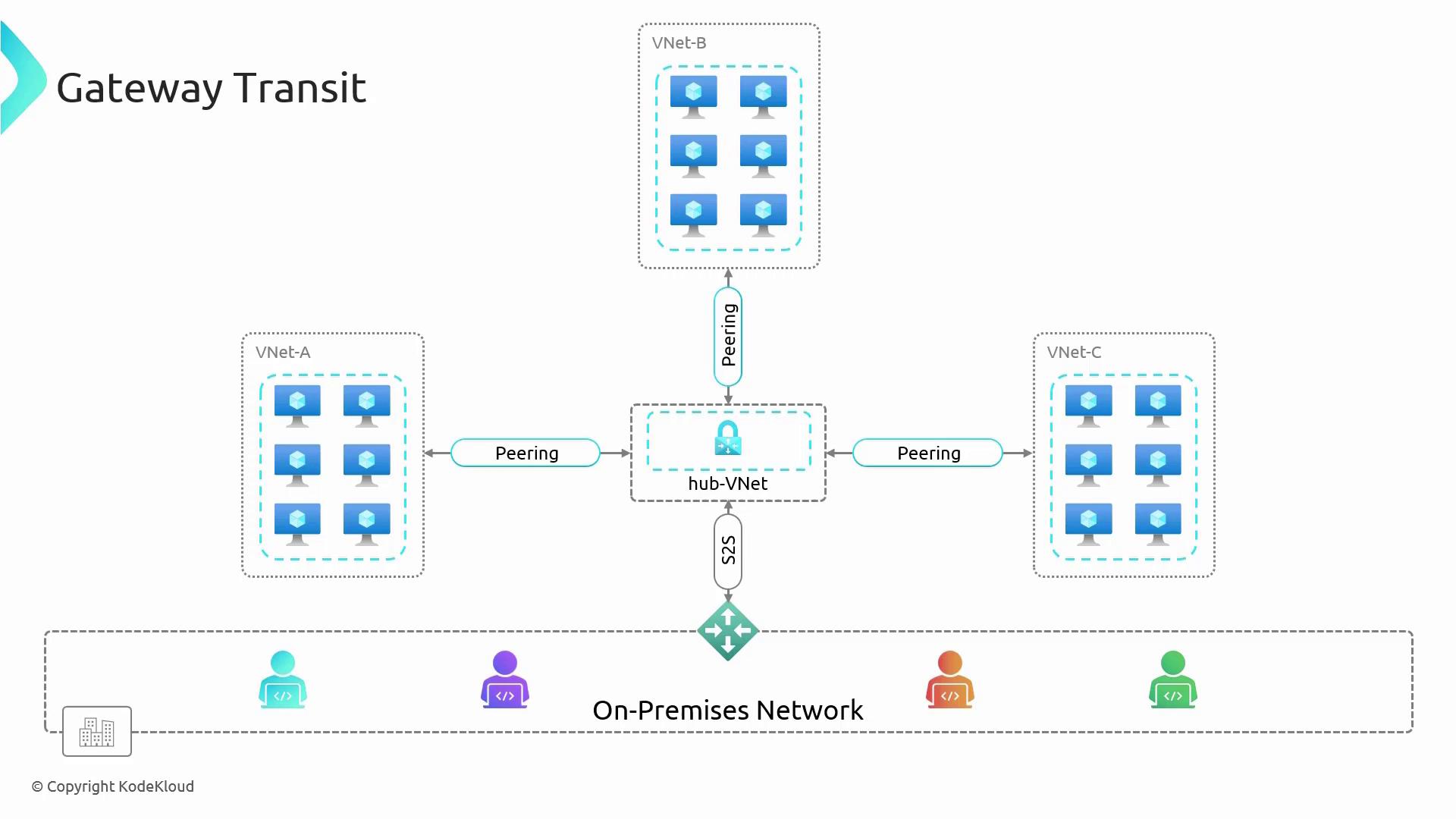
The diagram below illustrates the hub-and-spoke network architecture for Gateway Transit:
This architecture is a best practice in Azure landing zones and supports scalability, high performance, and effective cost management.
In this lesson, we demonstrate a point-to-site VPN connection, which allows direct access to Azure virtual machines over a private IP connection. The demo involves several configuration steps:
Configure Point-to-Site VPN:
Within Azure, a point-to-site VPN connection is set up using Azure Active Directory authentication.
Establish VNet Peering:
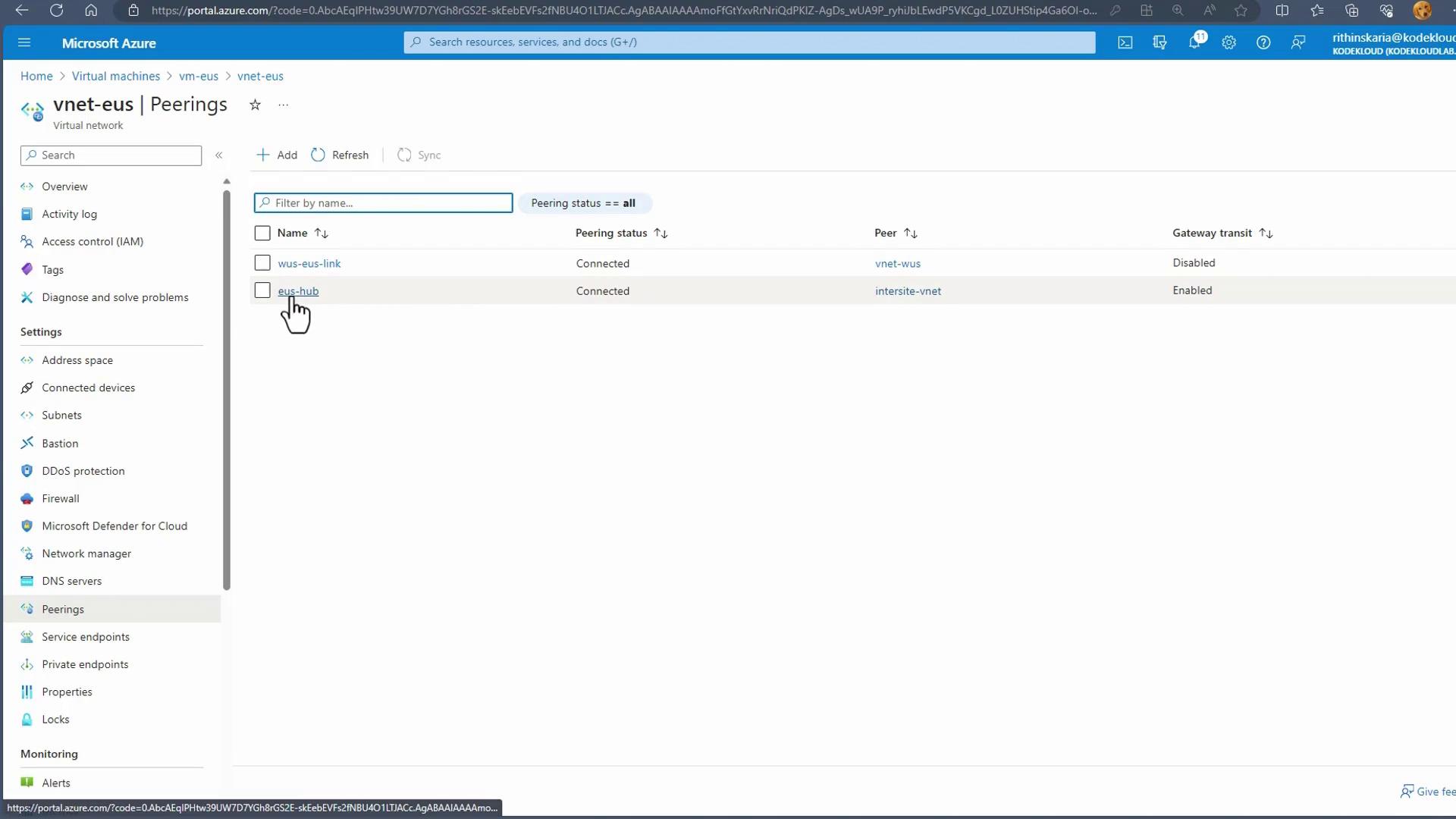
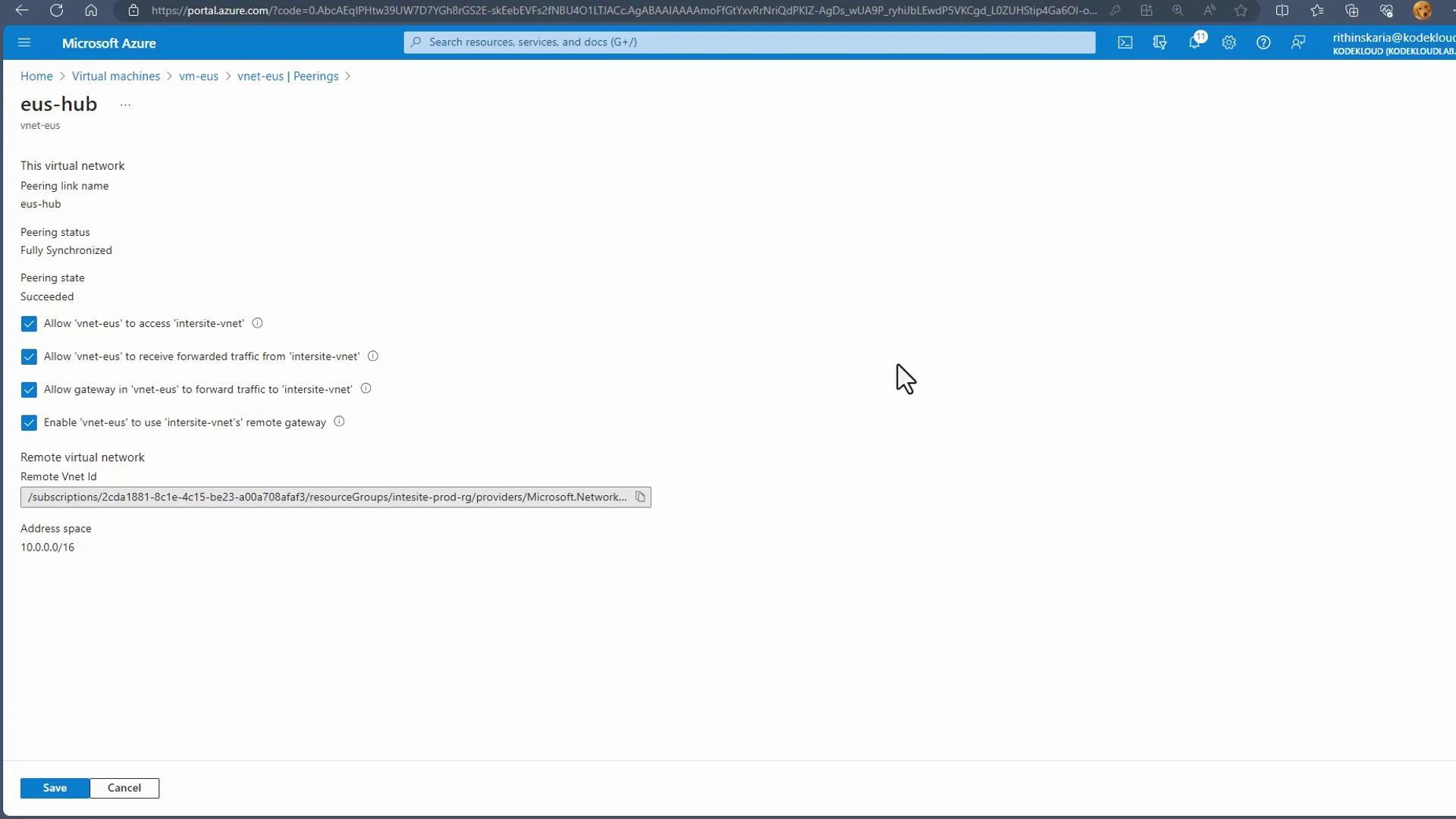
A peering is created between the virtual network in East US (host to a VM) and the hub VNet that contains the VPN gateway. Gateway transit is enabled in the peering settings to properly route traffic to on-premises networks or other destinations.
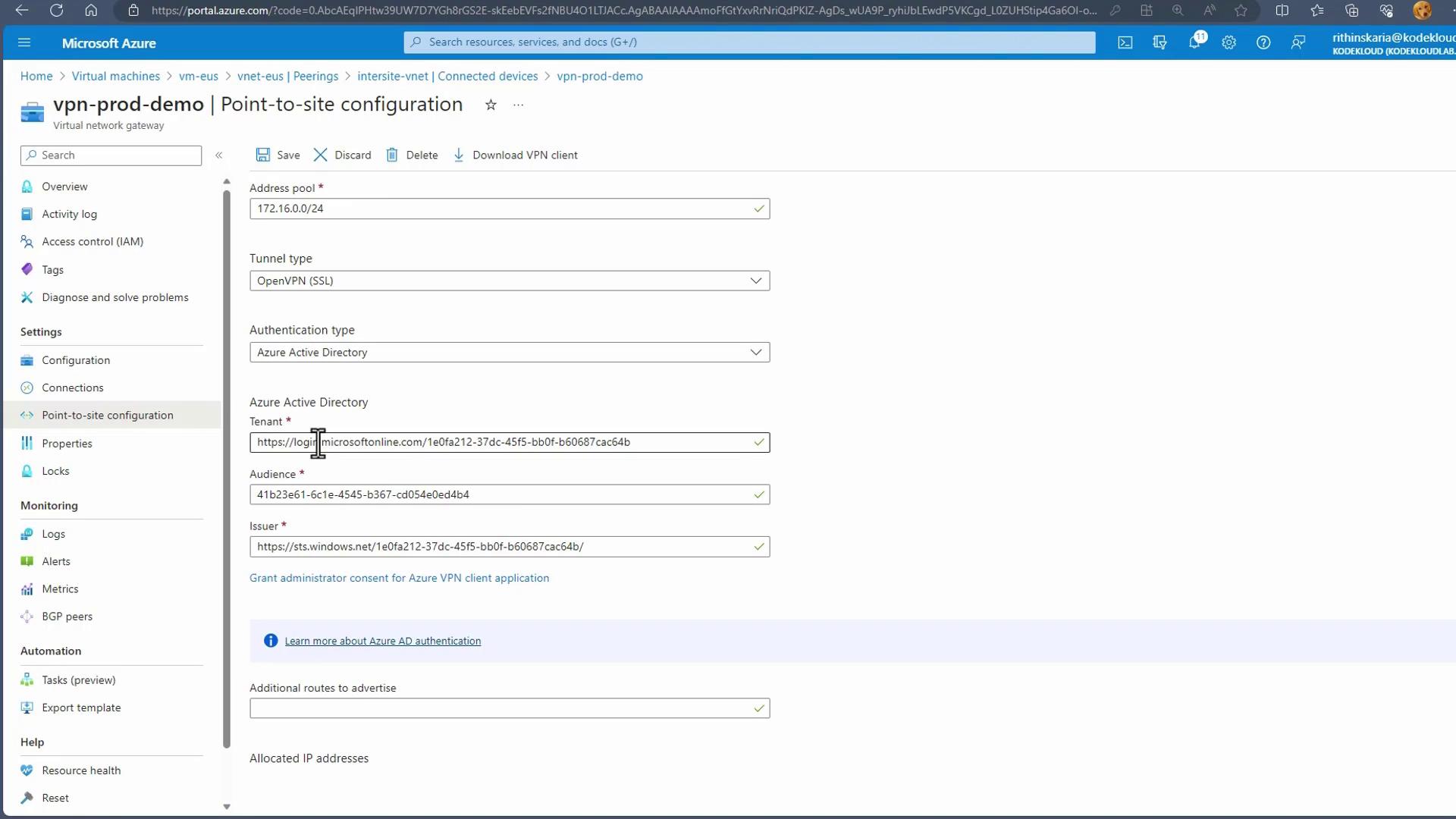
The Azure portal displays the point-to-site VPN configuration as follows:
The following screenshot confirms the peering connection with the VPN gateway:
The next image illustrates the gateway transit configuration details in the peering setup:
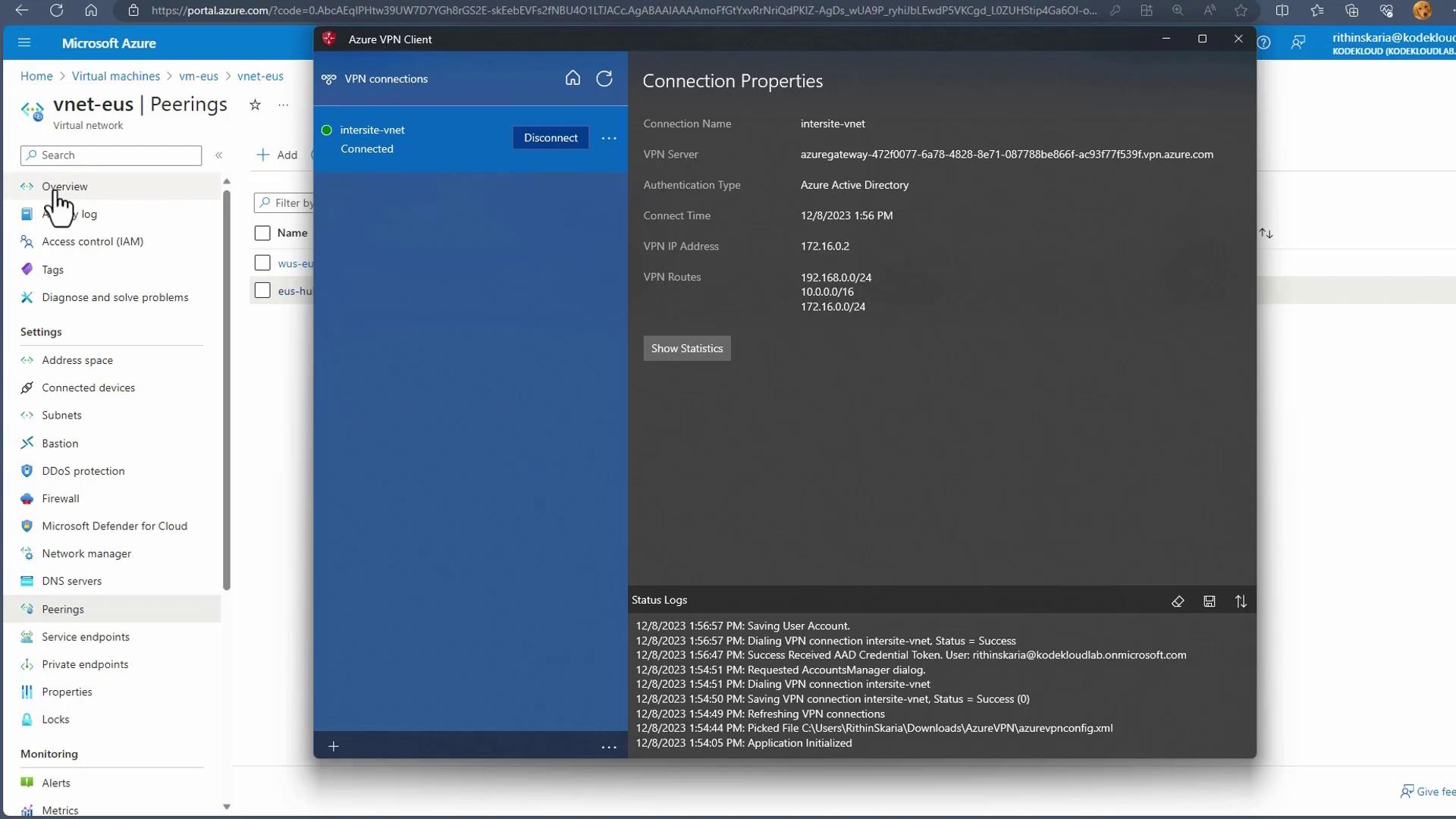
After configuring the connection, you can establish a point-to-site session using the Azure VPN Client. The following image shows the VPN connection interface and status logs:
Below is an example demonstration using a Linux terminal. The steps show how to verify connectivity by pinging an Azure virtual machine and establishing an SSH connection over a private IP.
Copy
Ask AI
kodekLOUD@vm-eus:~$ ping 192.168.1.464 bytes from 192.168.1.4: icmp_seq=120 ttl=64 time=72.8 ms64 bytes from 192.168.1.4: icmp_seq=121 ttl=64 time=72.4 ms64 bytes from 192.168.1.4: icmp_seq=122 ttl=64 time=72.3 ms--- 192.168.1.4 ping statistics ---12 packets transmitted, 12 received, 0.163% packet loss, time 123604msrtt min/avg/max/mdev = 72.338/72.841/75.112/0.729 mskodekLOUD@vm-eus:~$ ip address1: lo: <LOOPBACK,UP,LOWER_UP> mtu 65536 qdisc noqueue state UNKNOWN group default link/loopback 00:00:00:00:00:00 brd 00:00:00:00:00:00 inet 127.0.0.1/8 scope host inet6 ::1/128 scope host2: eth0: <BROADCAST,MULTICAST,UP,LOWER_UP> mtu 1500 qdisc mq state UP group default link/ether 00:0d:34:55:89:36 brd ff:ff:ff:ff:ff:ff inet 192.168.0.4/24 brd 192.168.0.255 scope global eth0 inet6 fe80::20d:3aff:fe55:8936/64 scope linkkodekLOUD@vm-eus:~$ ssh[email protected]The authenticity of host '192.168.1.4 (192.168.1.4)' can't be established.ED25519 key fingerprint is SHA256:gwSm0n3l4fYqCQVYGHYMN0wFbduhdUwJ4K/9Co9Gs.This key is not known by any other names.Are you sure you want to continue connecting (yes/no/[fingerprint])? yesWarning: Permanently added '192.168.1.4' (ED25519) to the list of known hosts.[email protected]'s password:
A similar process can be executed in a Windows environment using PowerShell. Use the following command to establish an SSH connection over the private IP:
Copy
Ask AI
PS C:\> ssh[email protected]The authenticity of host '192.168.0.4 (192.168.0.4)' can't be established.ED25519 key fingerprint is SHA256:tQXst535TmKurM5PHX5ZTozvQskMiiJ4VLnFdjy/70.This host key is known by the following other names/addresses: C:\Users\RithinSkaria\.ssh\known_hosts:54: 172.191.37.104Are you sure you want to continue connecting (yes/no/[fingerprint])? yes[email protected]'s password:
After connecting, verify network connectivity by running a ping command:
Copy
Ask AI
PS C:\> ping 192.168.0.4Pinging 192.168.0.4 with 32 bytes of data:Reply from 192.168.0.4: bytes=32 time=199ms TTL=64Reply from 192.168.0.4: bytes=32 time=198ms TTL=64Reply from 192.168.0.4: bytes=32 time=197ms TTL=64Ping statistics for 192.168.0.4: Packets: Sent = 3, Received = 3, Lost = 0 (0% loss)Approximate round trip times in milli-seconds: Minimum = 197ms, Maximum = 199ms, Average = 198ms
By setting up a point-to-site connection to the virtual network gateway, you enable routing through a peered virtual network using Gateway Transit. As a result, VNets A, B, and C can securely access on-premises resources through a single, centralized gateway.
With the Gateway Transit configuration successfully completed, the next topic in this lesson will cover user-defined routes. This further enhances network routing by allowing more granular control over traffic flows across your Azure environment.