

Session persistence options
When configuring an Azure Load Balancer rule you can choose one of three session persistence modes:- None (default)
- Client IP
- Client IP and protocol
None — five-tuple hash
- Uses a five-tuple hash: source IP, source port, destination IP, destination port, and protocol.
- Because the source port is included, different connections from the same client (different source ports) can be distributed to different backend servers.
- Best for stateless applications or when strict affinity is not required.
Client IP — two-tuple hash
- Uses a two-tuple hash: source IP and destination IP.
- All requests originating from the same client IP are directed to the same backend instance (assuming the destination is the load balancer frontend IP).
- Useful for simple session affinity (e.g., in-memory cache or basic shopping-cart scenarios).
If clients are behind a NAT or forward proxy, many users may appear to share a single source IP. In that case,
Client IP persistence will route all those users to the same backend instance, which can lead to uneven load distribution.Client IP and protocol — three-tuple hash
- Uses a three-tuple hash: source IP, destination IP, and protocol.
- Applies when you need affinity per protocol (for example, separate affinity for secure vs non-secure sessions from the same client IP).
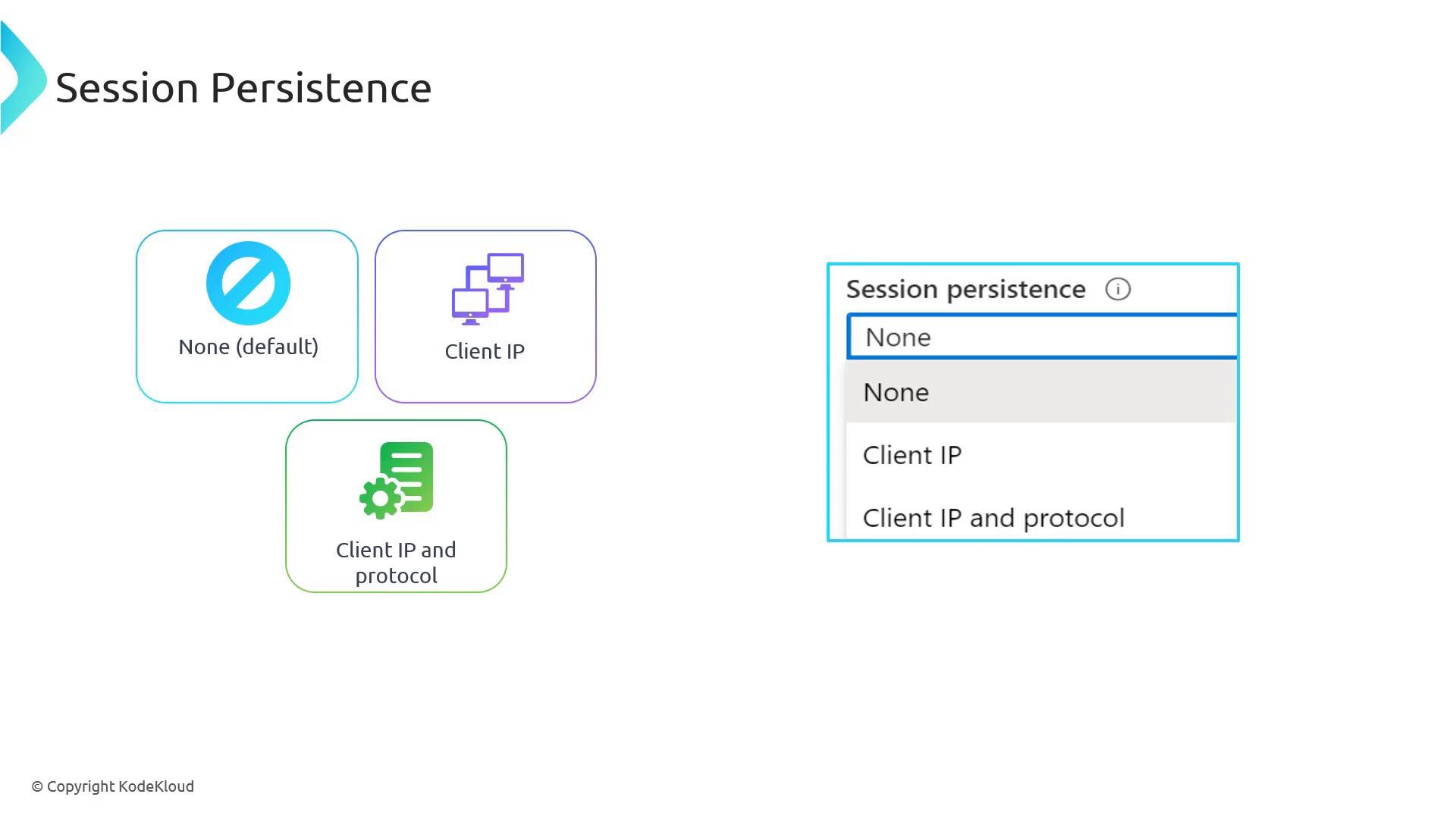
Quick comparison
Choosing the correct setting is a balance between session affinity and even resource utilization — align your choice with how stateful your application is.
Demo: deploy a small test environment
This demo deploys three small webserver VMs, each serving a simple web page with a distinct background color so you can identify which backend served the request. The repository contains a deployment script:070-loadbalancer-prep-infra.ps1
Create the load balancer (Azure portal steps)
-
In the Azure portal, create a new Load Balancer in the same resource group and region as the VMs.
- Example name:
ACLBWEB01 - SKU:
Standard(recommended for production).Basicis available for development/test. - Type:
Public(regional)
- Example name:
-
Add a frontend IP configuration:
- Create a Public IP resource (for example
aclbpip) and assign it to the frontend (e.g.,FE).
- Create a Public IP resource (for example
-
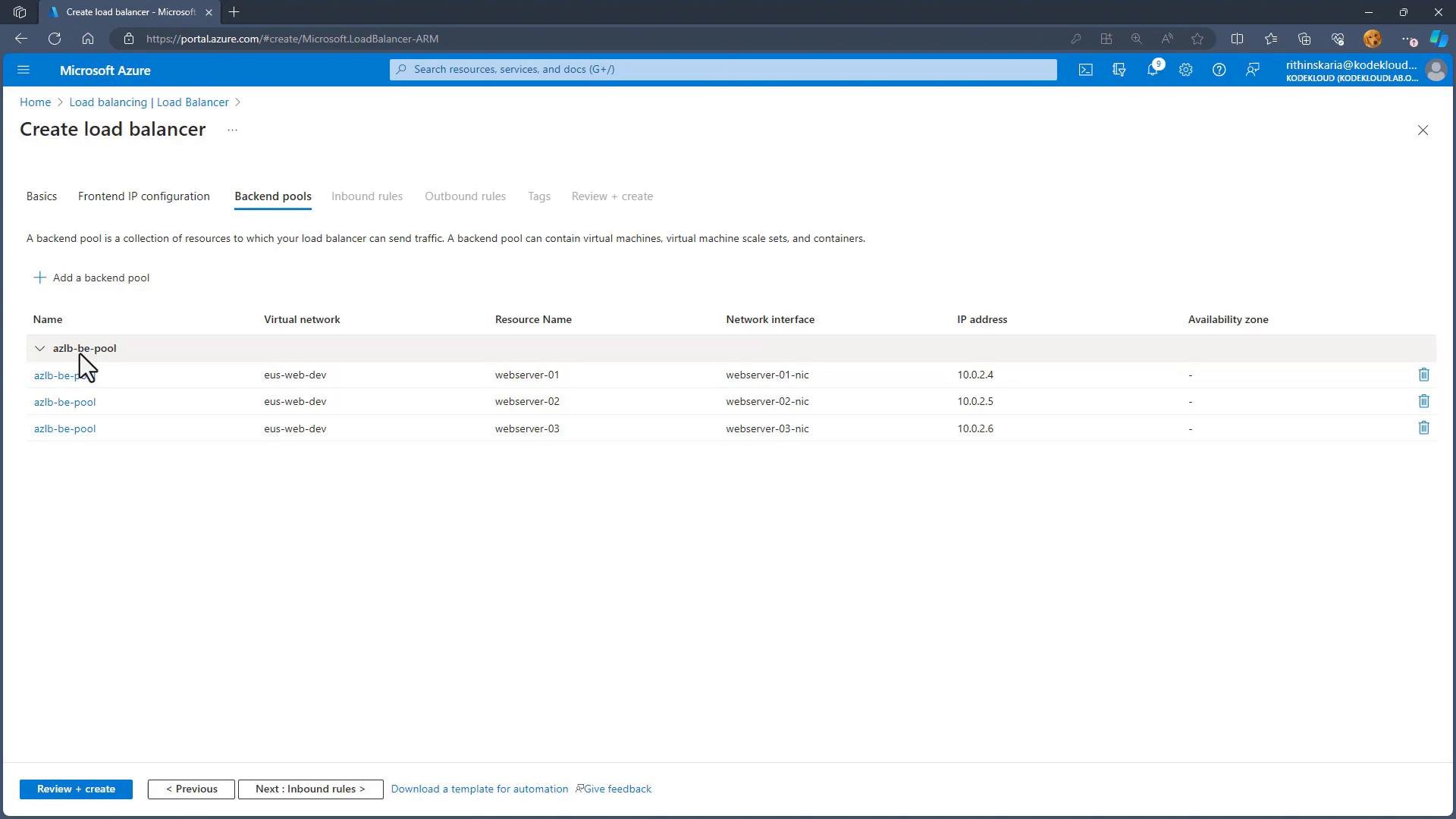
Create a backend pool:
- Example:
ACLBBE - Add the three webserver VMs to the backend pool by selecting the appropriate virtual network and the NICs or IP addresses of each VM.
- Example:
Create a load balancing rule
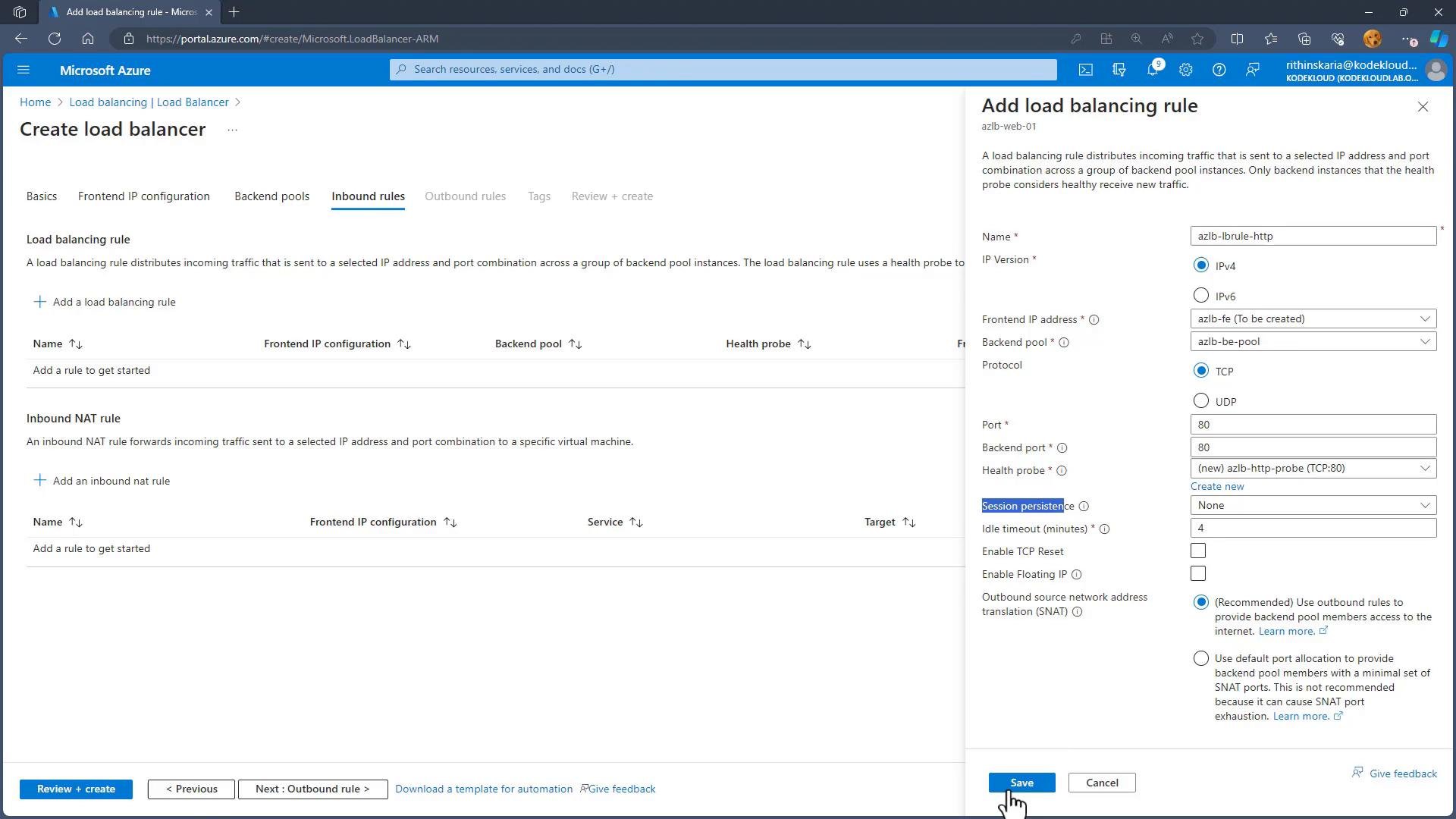
A load balancing rule maps the frontend IP and port to the backend pool and defines the protocol and health probe. When you add a load balancing rule (for exampleHCLB-LBHTTP) configure:
- Protocol:
TCP - Frontend IP: the public IP you created
- Backend pool: the three webservers
- Frontend port:
80 - Backend port:
80 - Health probe: create an HTTP probe on port
80(probe interval ~5s) - Session persistence: choose one of
None,Client IP, orClient IP and protocol
None (five-tuple hash) and save the rule.
Finish deployment and test
- Complete the create operation and note the public IP assigned to the load balancer frontend.
- Browse to that public IP. The load balancer will forward requests to healthy backend VMs according to the selected hashing algorithm.
- With the default
None(five-tuple) you may observe that requests from the same browser session could hit different backends because the source port can change between requests. Refresh the page several times to observe variations. - Use the background color of each response (red, green, blue) to identify which backend served a request.
- Change to
Client IPand observe that requests from the same client IP consistently hit the same backend. - Change to
Client IP and protocoland observe affinity is maintained per-protocol.
Additional tips
- Use health probes to ensure only healthy backends receive traffic.
- If your clients are behind NAT/load balancer or you rely on cookies/session storage, consider application-level sticky sessions or centralized session stores (Redis) instead of relying solely on LB affinity.
- For production workloads prefer
StandardSKU for predictable performance and features.
Links and references
- Azure Load Balancer overview
- Azure Load Balancer: inbound NAT, load balancing rules, and health probes
- Azure networking documentation