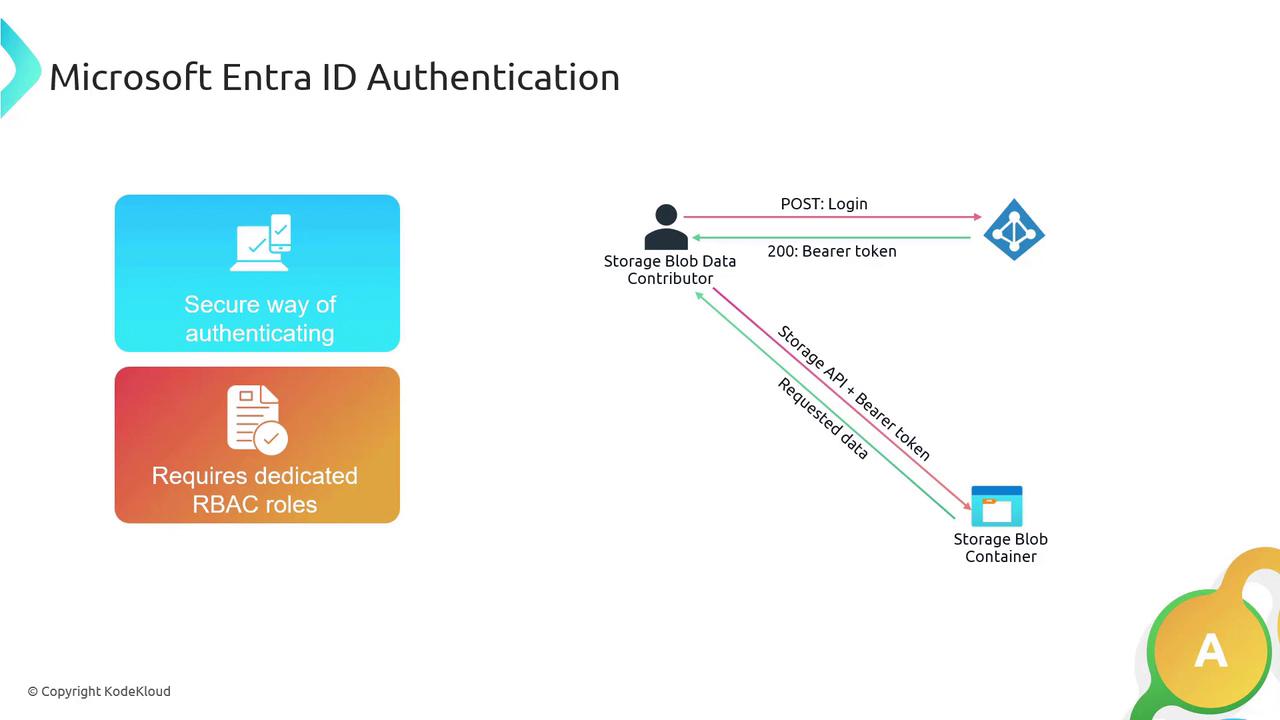
For enhanced security, always prefer Entra ID Authentication over SAS tokens to protect your storage account. Integrated features such as multi-factor authentication and conditional access provide an additional layer of security.
Authentication and Authorization Workflow
Consider a scenario where you have the “Storage Blob Data Contributor” role and need to access a storage account. The process involves three key steps:-
Authentication:
The process begins with submitting a login request to Microsoft Entra ID using your credentials (username and password). After successful authentication—potentially including multi-factor verification—Microsoft Entra ID returns an HTTP 200 status with a bearer token. -
Authorization:
This bearer token is then used to authenticate your subsequent request to the Azure Storage API. Access is verified against your assigned RBAC role (e.g., Storage Blob Data Contributor), ensuring that only authorized operations are allowed. -
Data Access:
On successful authorization, the storage service processes your request and returns the requested data.
Setting Up a Service Principal for Storage Access in Azure Portal
This section explains how to set up a service principal (an app registration in Microsoft Entra ID) to access an Azure Storage account without using a personal user account.-
Create the Service Principal:
- Log in to the Azure Portal and navigate to Azure AD (Microsoft Entra ID).
- Open App registrations and create a new registration (for instance, “storage-spn”) for a single tenant.
- After the app is created, copy the Client ID from the overview page.
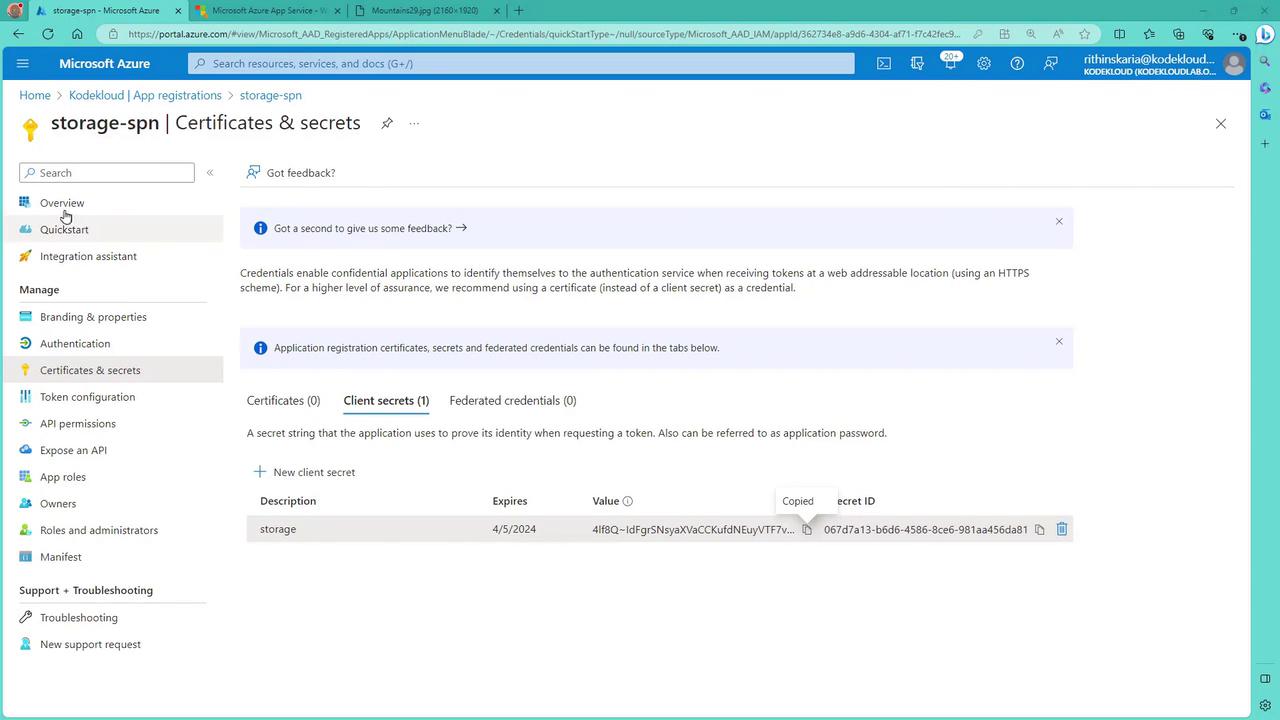
- Move to the Certificates & secrets section, generate a new client secret, and save its value for later use.
- Also, note the Tenant ID found on the Azure AD overview page.
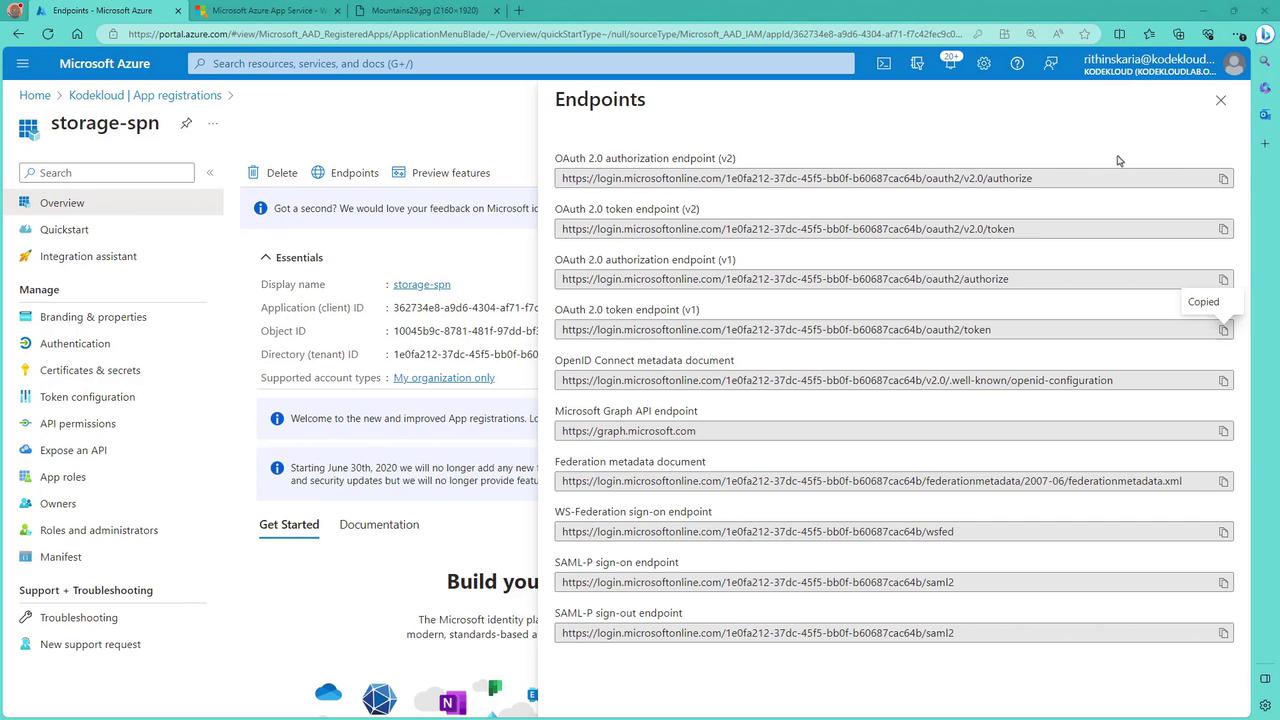
- Additionally, copy the endpoint for V1 if required.
-
Assign RBAC Roles on the Storage Account:
- Navigate to the desired Storage Account.
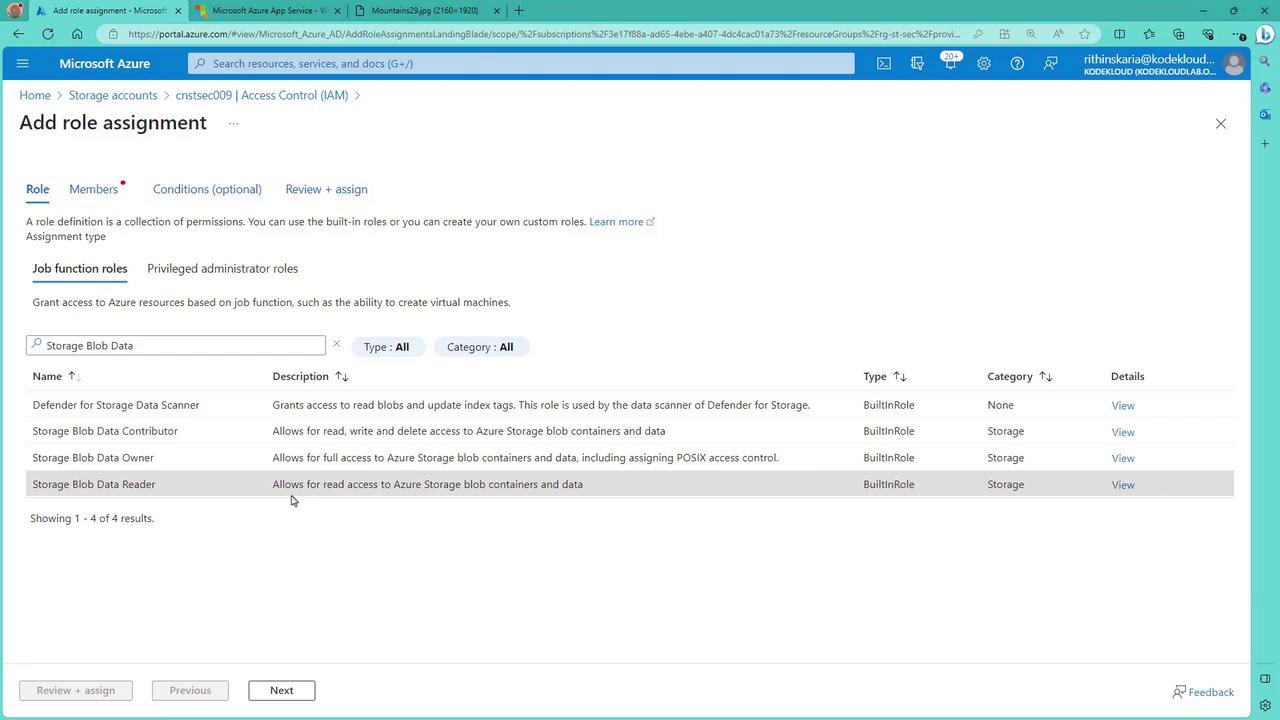
- Under the Access Control (IAM) section, add a role assignment.
- For example, assign the built-in Storage Blob Data Reader role to grant read-only access to blob data.
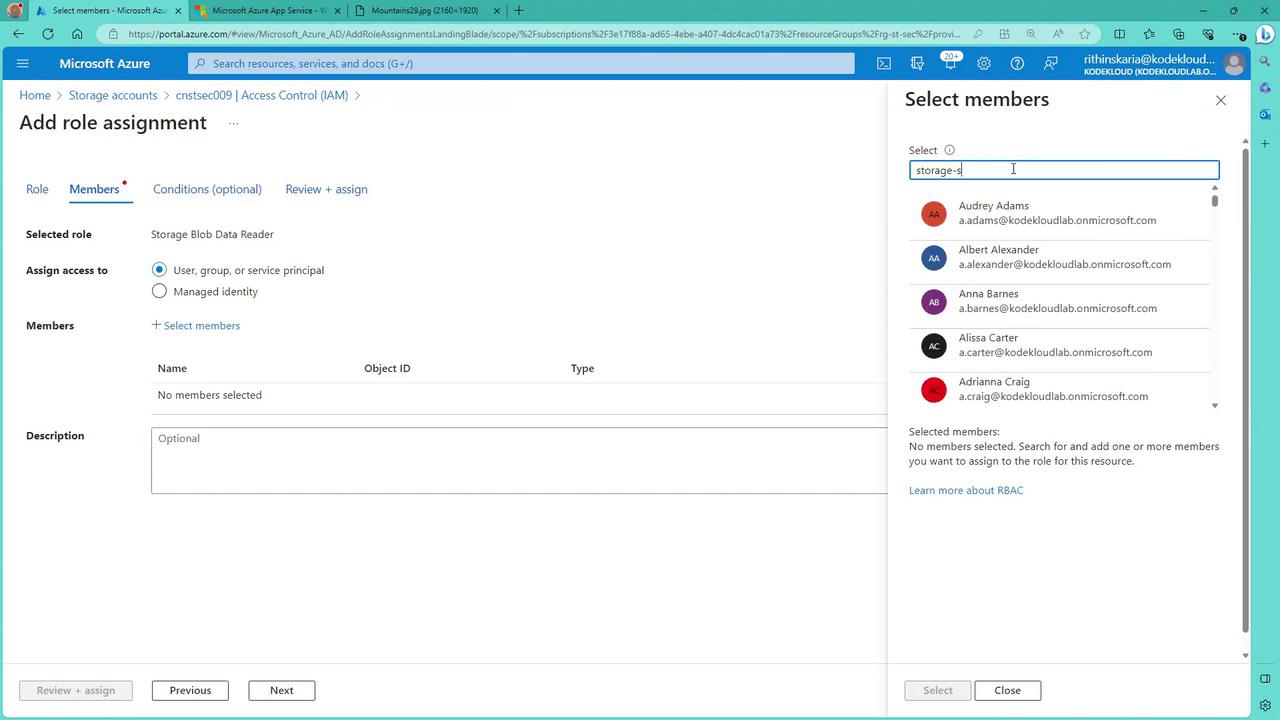
- Click Next, select Members, and search for the registered service principal named “storage-spn” to complete the role assignment.
Generating an Access Token Using Postman
After configuring the service principal with the appropriate RBAC role, you can generate an access token to communicate with the Storage API via Postman.-
Token Request Setup:
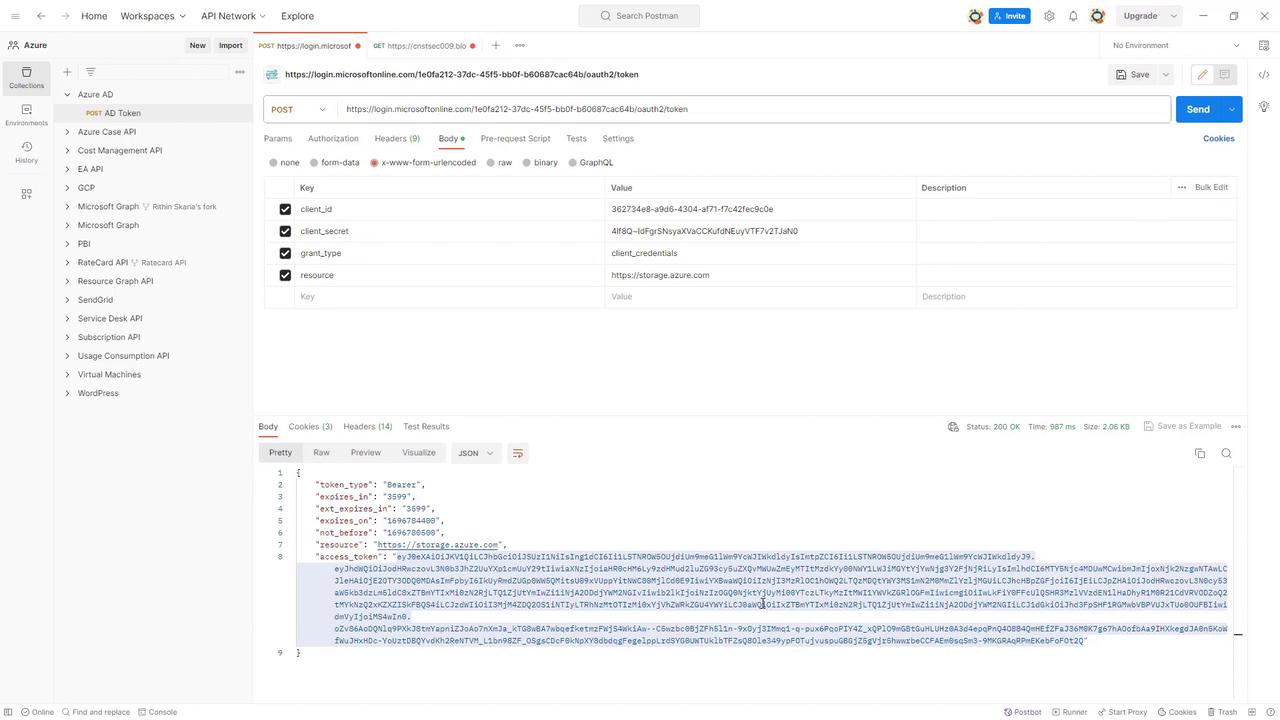
- In Postman, initiate a POST request to the Azure AD token endpoint.
-
Set the following form data parameters:
- client_id: Paste the Client ID obtained from your app registration.
- client_secret: Paste the generated client secret.
- grant_type: Use
client_credentialsto indicate the type of authentication. - resource: Set this parameter to
https://storage.azure.com.
- Send the request; a successful call returns a JSON response similar to the following:
-
Accessing Storage Resources:
- Use the generated access token in subsequent requests to the storage API.
- Paste the storage endpoint URL in Postman.
- If you send the request without setting an authentication header, you will receive a “ResourceNotFound” response.
-
To resolve this, add the following headers:
- X-MS-Version: Set to
2017-11-09to specify the storage service version. - Authorization: Use the format
Bearer <your_access_token>to include your token.
- X-MS-Version: Set to
- After adding these headers, resend the request. If the token is valid and RBAC permissions are correct, the storage service will return the file data.