

Overview
- Why groups matter: centralize access control, simplify role assignments, enable collaboration features (Microsoft 365 groups), and automate membership with dynamic rules.
- When to use: use security groups for access control, Microsoft 365 groups for collaboration, and dynamic groups to reduce administrative overhead.
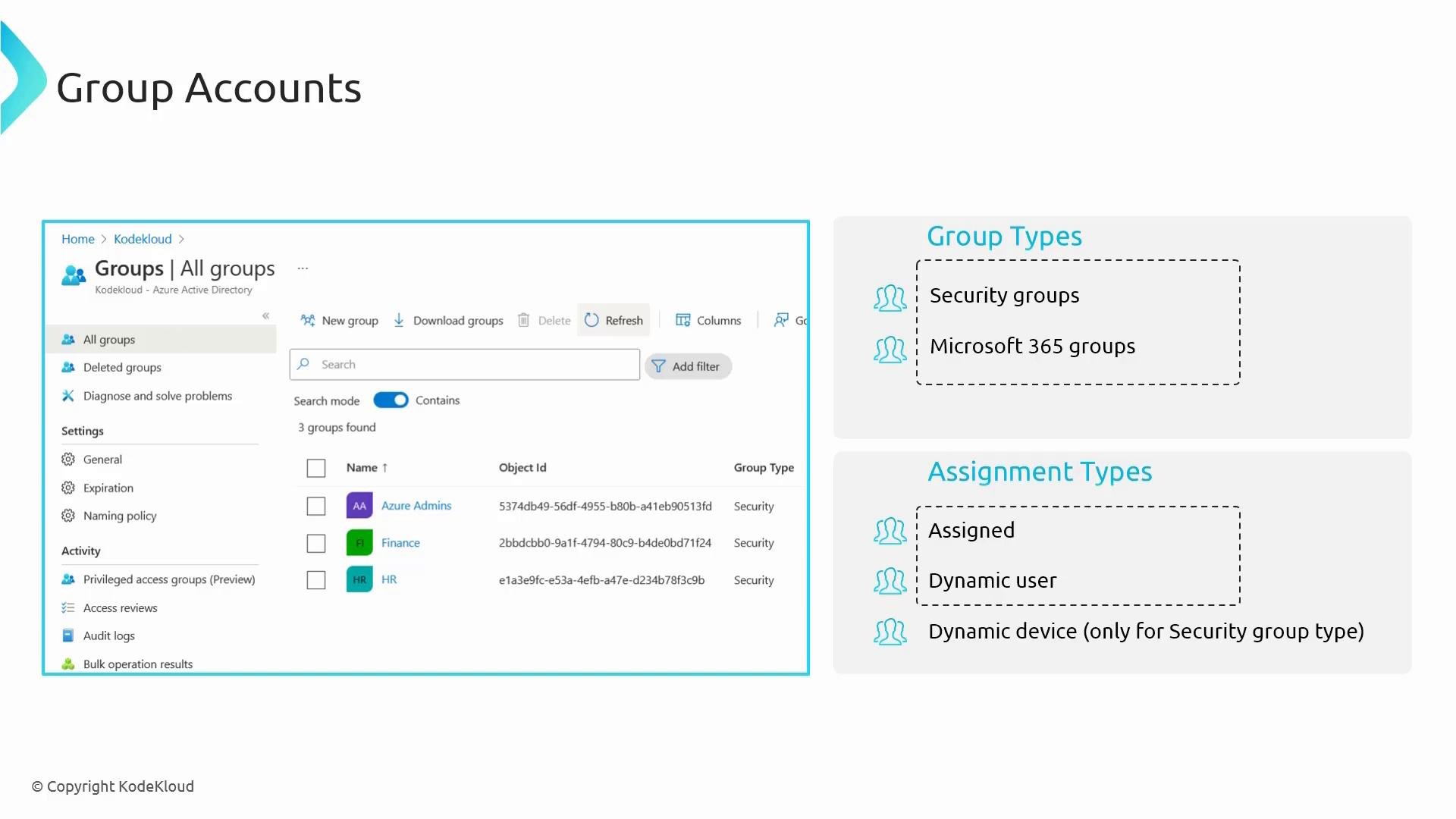
Group types
- Security groups are ideal for access management across Azure resources and enterprise applications.
- Microsoft 365 groups automatically provision collaboration tools (Teams, Outlook, SharePoint, OneDrive).
Dynamic membership rules automate group membership but depend on accurate user and device attributes. Keep attributes like
department, usageLocation, and device OS up to date for predictable results.Assignment (membership) types
- Assigned groups: explicit membership management; admins add or remove users.
- Dynamic groups: rules are evaluated automatically; membership changes when attributes change.
- Dynamic device membership is supported for security groups only (not Microsoft 365 groups).
Creating groups in the Azure portal
Steps to create a group:- In the Azure portal, go to Microsoft Entra ID (Azure AD) → Groups.
- Click + New group.
- Configure:
- Group type: Security or Microsoft 365
- Group name and description
- Option to allow this group to be assigned Entra ID roles (enable only when required)
- Membership type: Assigned, Dynamic User, or Dynamic Device
- Owners and members (for assigned groups)
- Click Create when finished.
Hiring managers
- Group type: Security
- Membership type: Assigned
- The creator is the default owner (you can add more owners)
- Add members manually or add existing groups to nest groups
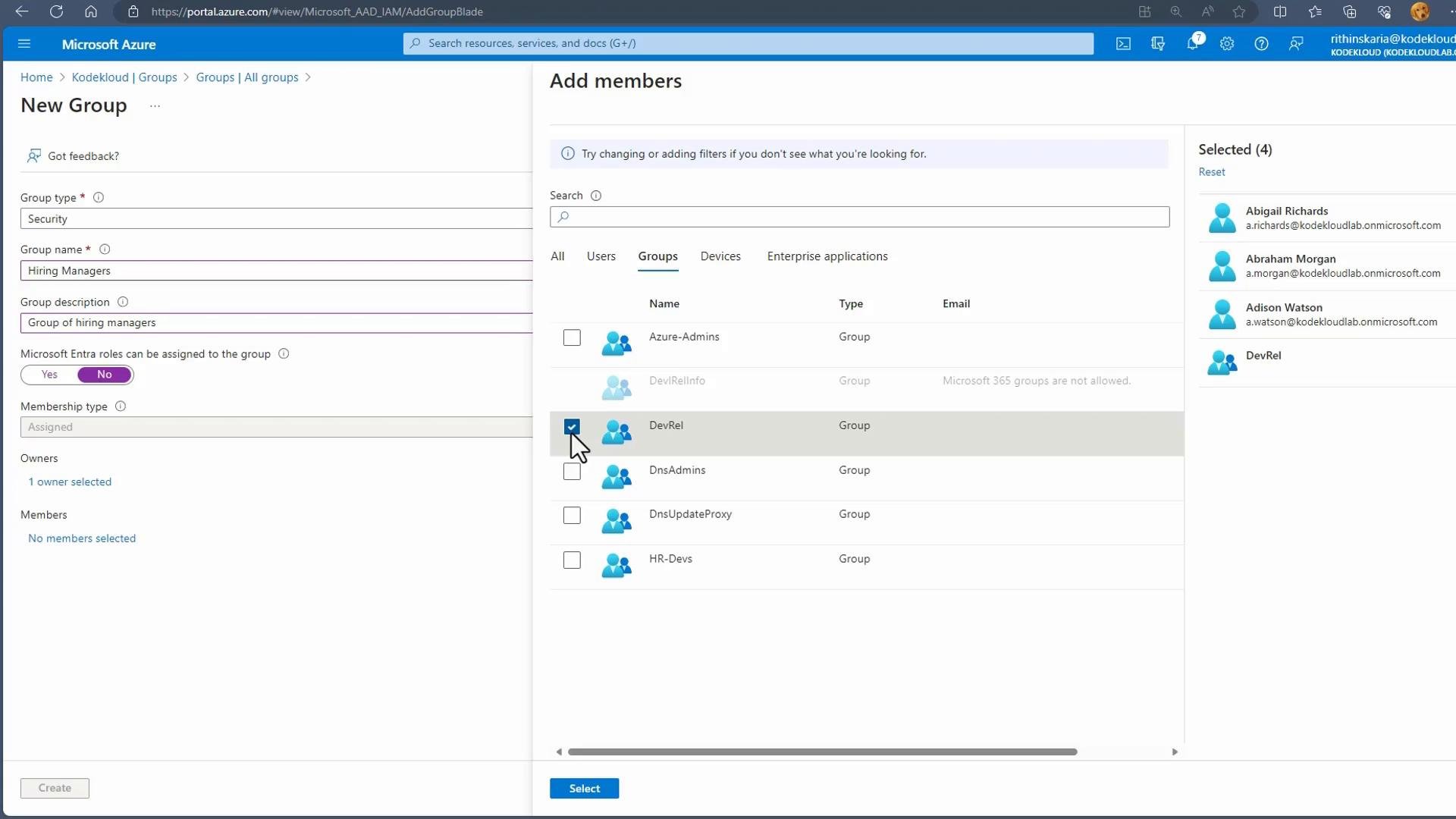
- Owners can add/remove members and manage group settings.
- Nested groups are supported: add an existing group (e.g.,
DevRel) as a member of another group to simplify management.
Bulk-creating users (prepare attributes for dynamic groups)
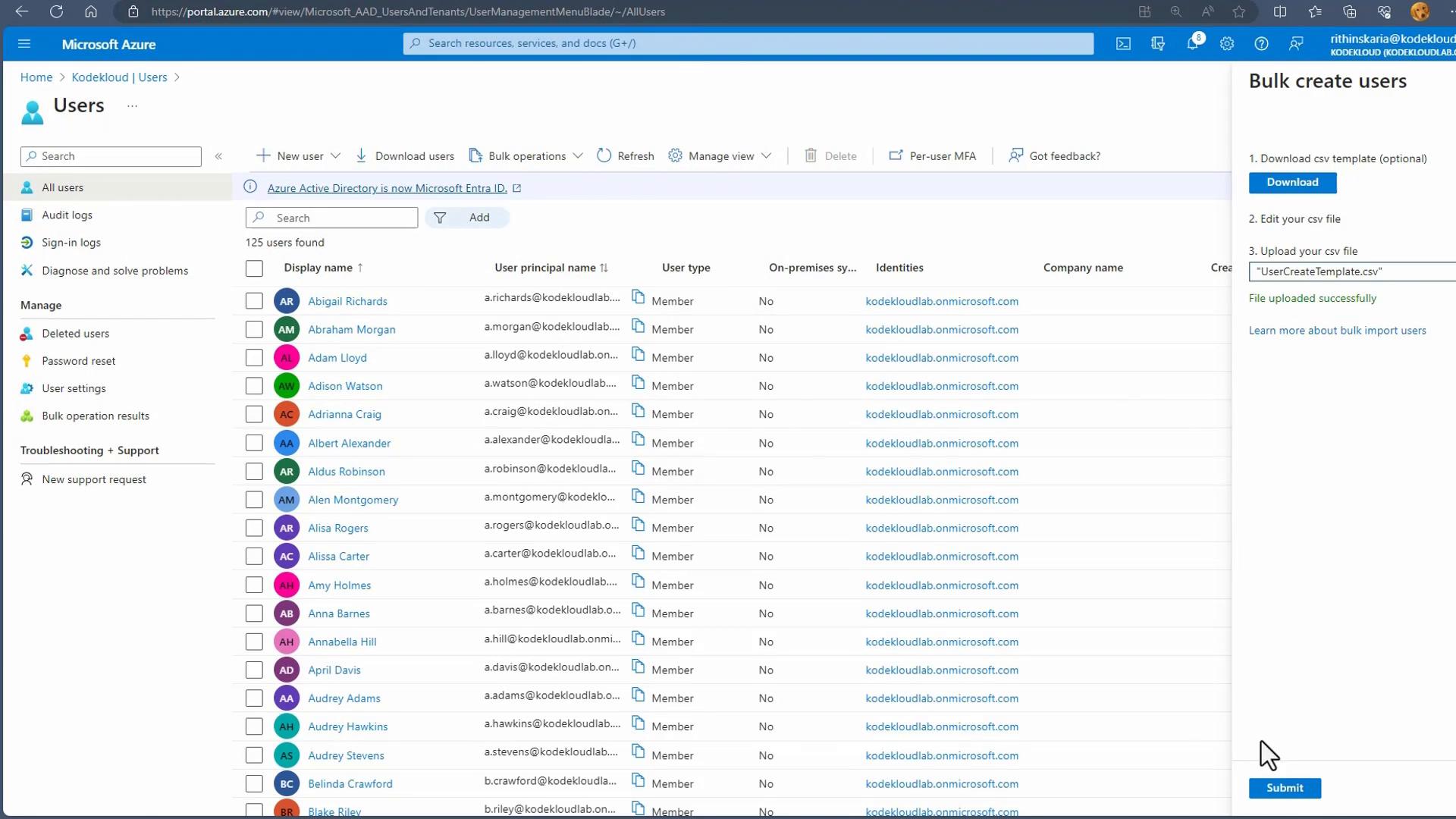
If you plan to use dynamic user groups, prepare users with consistent attributes (for exampledepartment and usageLocation) using Azure AD’s bulk create feature.
Steps to bulk-create users:
- Prepare a CSV with required attributes (Display Name, User Principal Name, Department, Usage Location, etc.).
- In Azure portal: Users → Bulk operations → Bulk create.
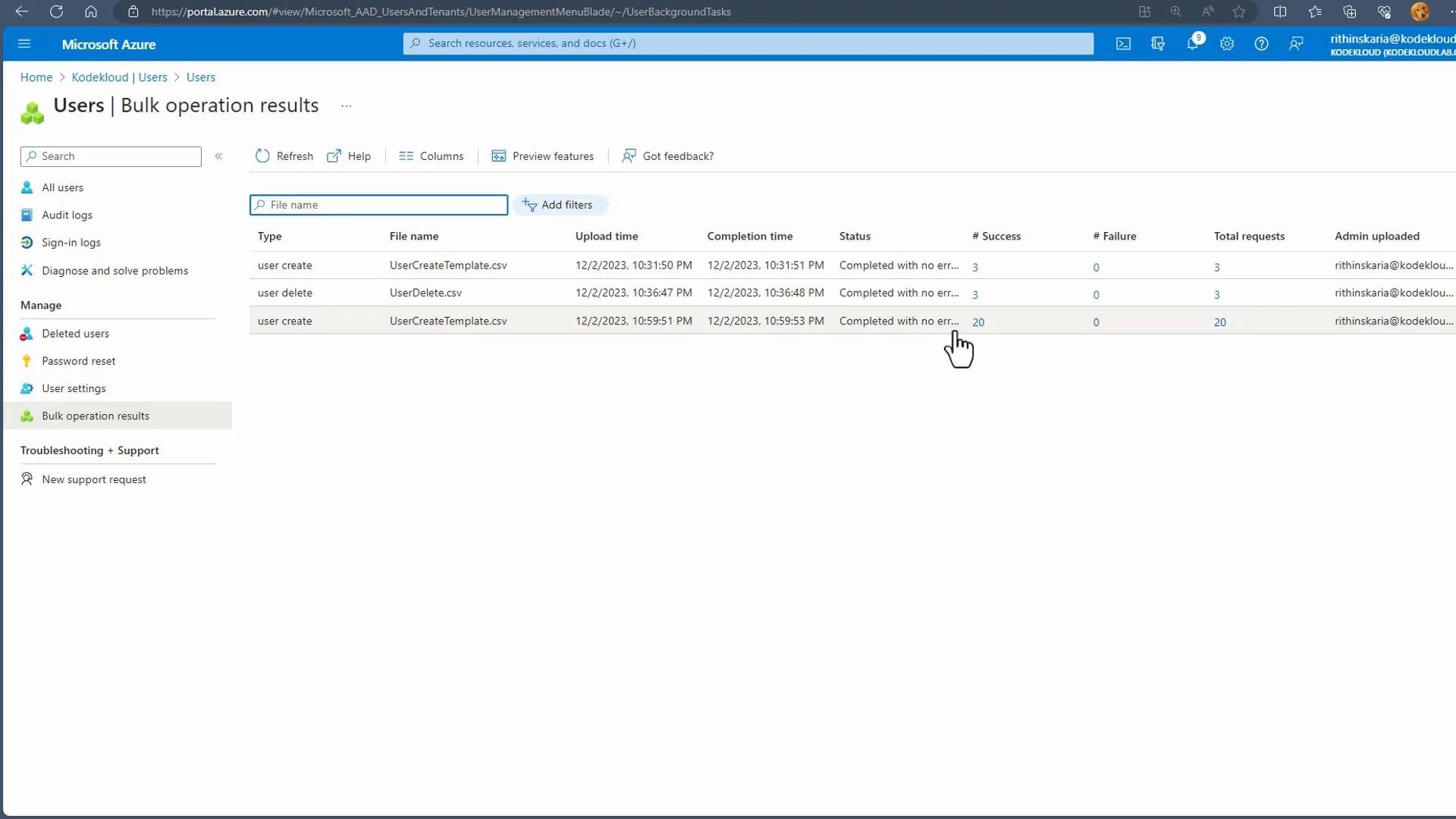
- Upload the CSV, submit the job, and monitor the results.
- Verify the created accounts and attribute values before relying on them in dynamic rules.
Dynamic user groups — example: “Avengers”
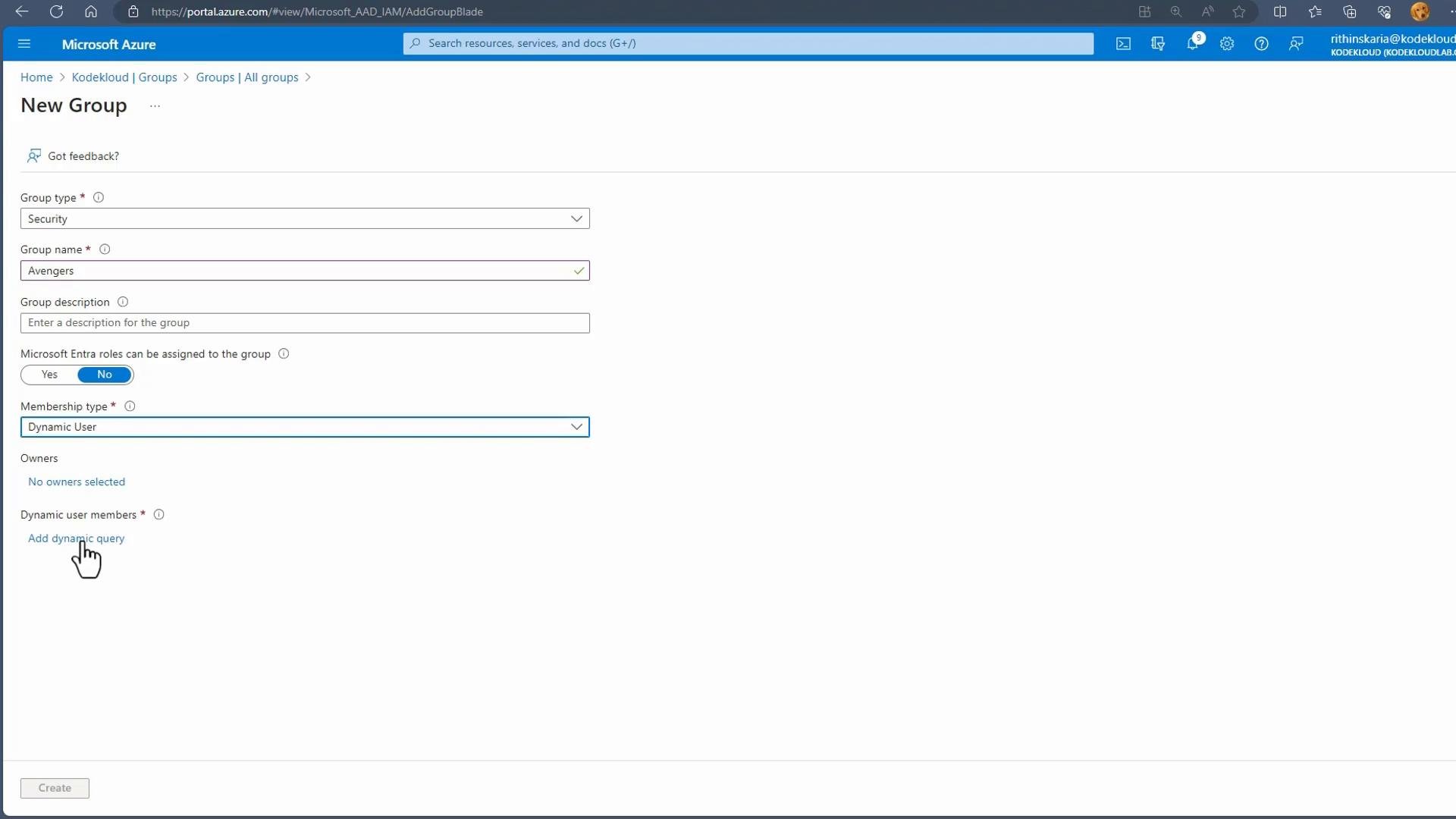
To create a dynamic user group:- Create a new group: Group type = Security, Membership type = Dynamic User.
- Click Add dynamic query to build the membership rule based on user attributes.
- Use expressions and logical operators (
and,or) to construct the rule.
department = Avengers and usageLocation = US):
- After saving, Azure evaluates the rule and adds matching users automatically.
- Users are removed automatically when their attributes no longer match.
- Use Validate rules to test whether a specific user meets the rule conditions and to troubleshoot mismatches.
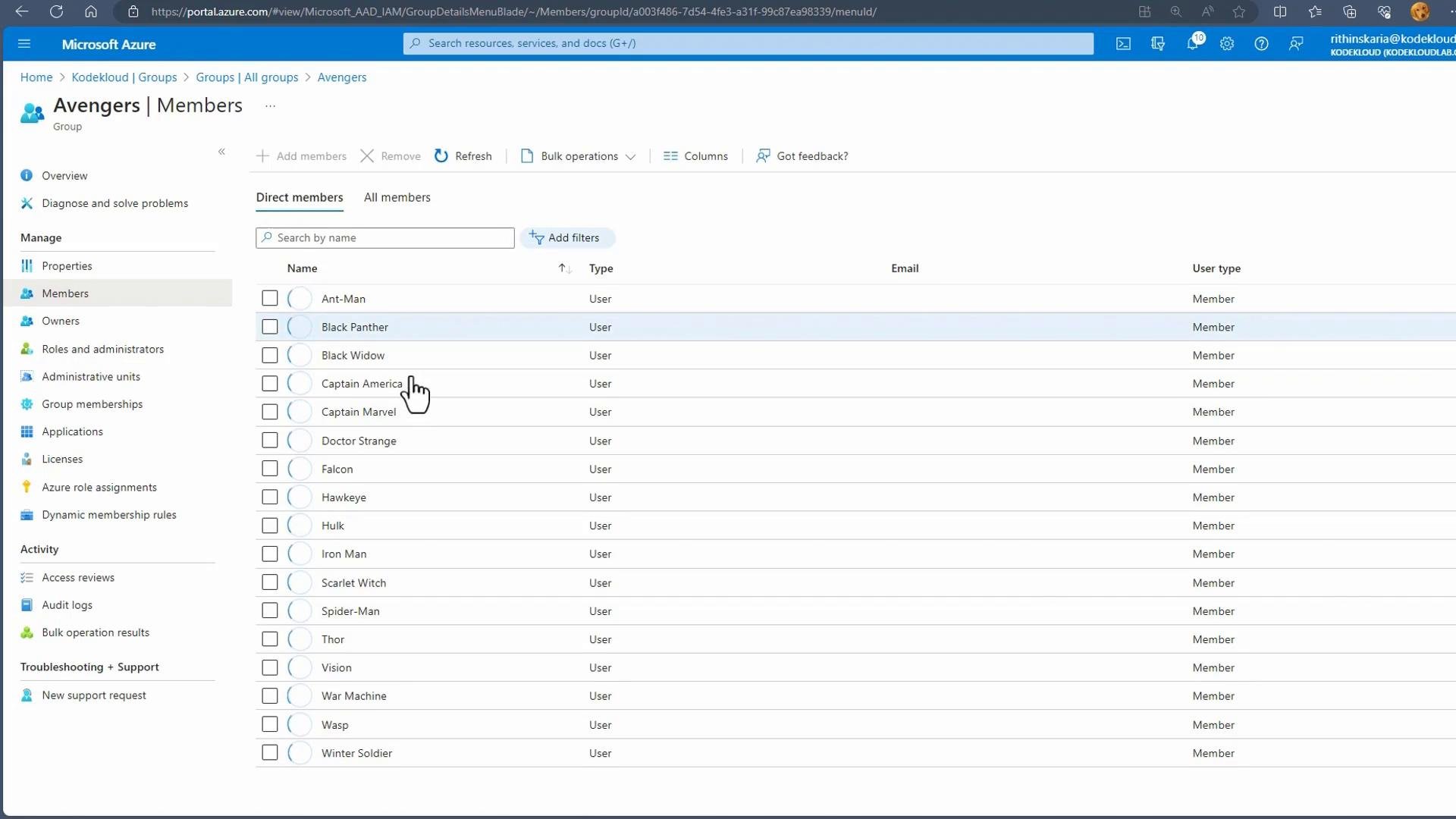
usageLocation = US but department = Guardians of the Galaxy, she will not be included by the rule above because department does not equal Avengers. Use rule validation to confirm exactly which clause fails.
Dynamic device groups
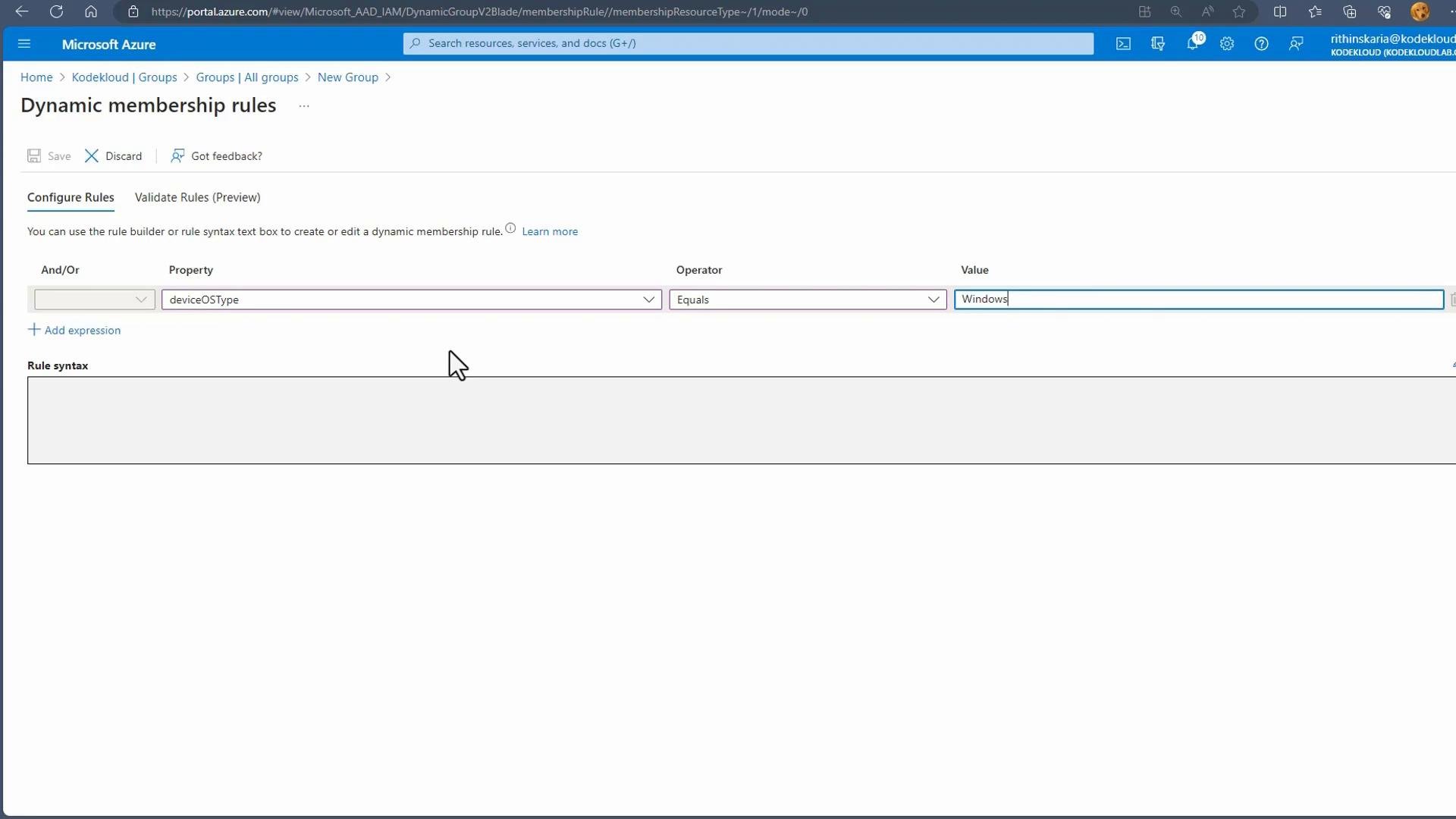
Dynamic device groups use device attributes and are supported only for security groups. Common device attributes:deviceOSType, deviceOwnership, OS version, and manufacturer.
Example rule to include Windows devices:
- Devices matching the rule are added automatically and removed when they no longer match.
- Useful for targeted policies, software deployment, or compliance workflows.
Dynamic groups require proper licensing (Azure AD Premium P1) and accurate attribute data. Dynamic device membership is supported only for security groups—not Microsoft 365 groups.
Additional group management features
- Deleted groups: groups are soft-deleted and can be restored from a recycle bin-like view.
- Expiration policies: configure automatic group expiration and renewal processes.
- Naming and membership policies: restrict group names (blocked words) and apply rules to control group creation and membership.
- Microsoft docs — Azure Active Directory groups: https://learn.microsoft.com/azure/active-directory/enterprise-users/groups-overview
- Dynamic membership rules reference: https://learn.microsoft.com/azure/active-directory/enterprise-users/groups-dynamic-membership