Azure Policy is a governance service that helps you define, enforce, and report on organizational rules across Azure resources. Policies codify standards (for example, allowed regions or required tags) and identify resources that don’t comply. They can block or audit requests, or trigger remediation workflows. Why use Azure Policy?
  • Enforce organizational standards consistently across subscriptions and resource groups.
  • Prevent accidental or non-compliant deployments (for example, disallowed regions or VM SKUs).
  • Report compliance posture at scale and automate remediation where supported.

Core concepts

Common policy use cases:
  • Required tags — ensure billing and organizational metadata are present.
  • Inherit tags — populate tags from subscription or resource group.
  • Allowed locations — limit where resources can be deployed (useful for data residency).
  • Allowed VM SKUs — restrict VM sizes for cost control.
  • Allowed resource types — prevent deployment of unwanted services.
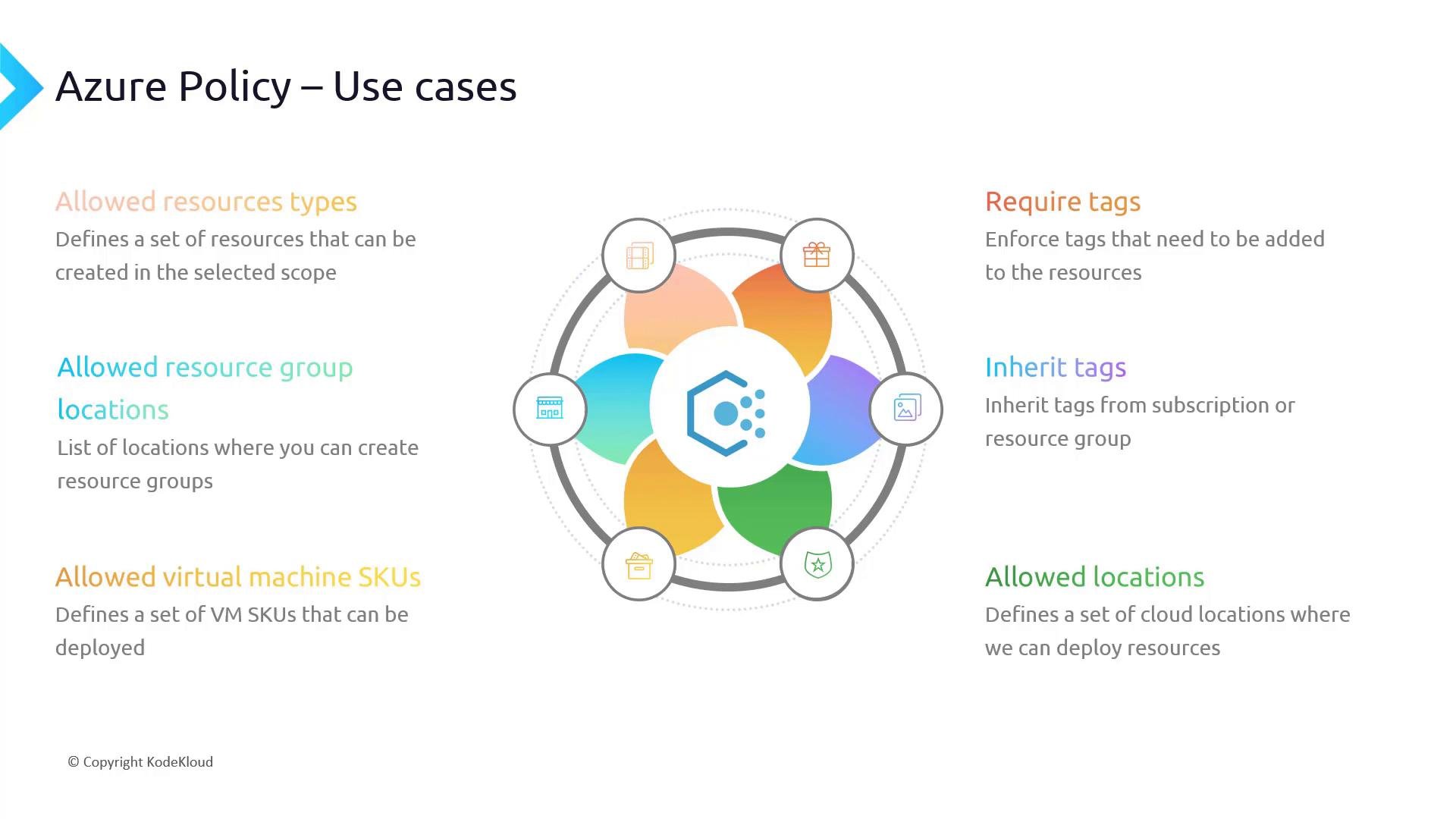
A presentation slide titled "Azure Policy – Use cases" showing a colorful central diagram and bullet points describing policy examples like allowed resource types, allowed resource group locations, required/inherited tags, and allowed VM SKUs. The slide uses color-coded headings and short descriptions to explain different Azure policy controls.
If you want to restrict a subscription to deploy only VMs, App Services, databases, and virtual networks, you can use an “allowed resource types” policy. This blocks deployments of other services (for example, expensive services such as ExpressRoute) at the assigned scope.

Portal walkthrough and initiatives

In the Azure portal, search for “Policy” to manage Definitions, Initiatives, Assignments, and Compliance.
  • Definitions: Browse built-in and custom policy definitions.
  • Initiative: A collection (group) of policies. Use initiatives to assign many related policies at once (for example, regulatory standards) and to get aggregated compliance reporting.
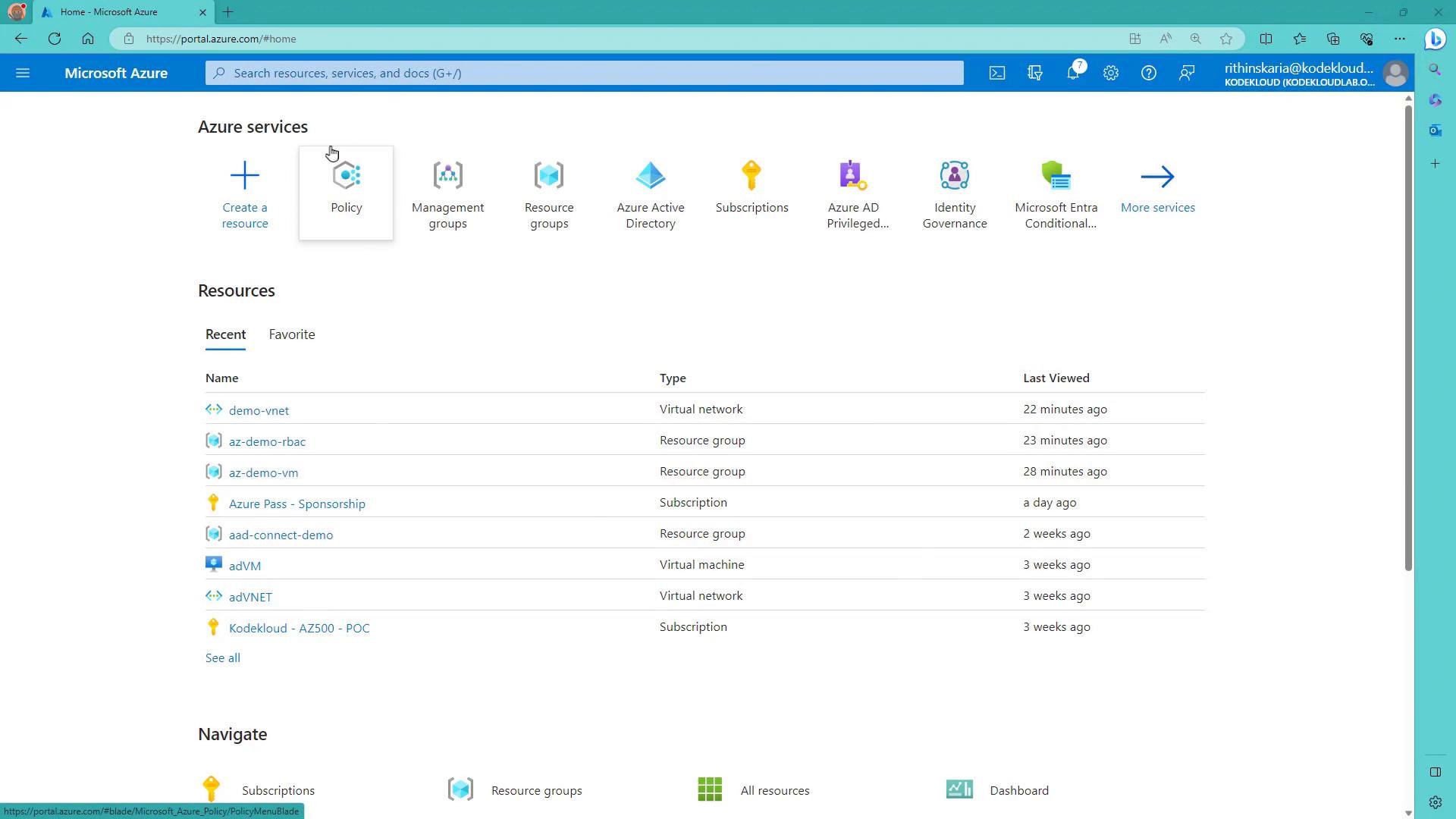
A screenshot of the Microsoft Azure portal home page showing service icons (Policy, Resource groups, Azure Active Directory, Subscriptions, etc.). Below is a "Resources" list with recent items like demo-vnet, az-demo-rbac and adVM, showing their type and last viewed times.
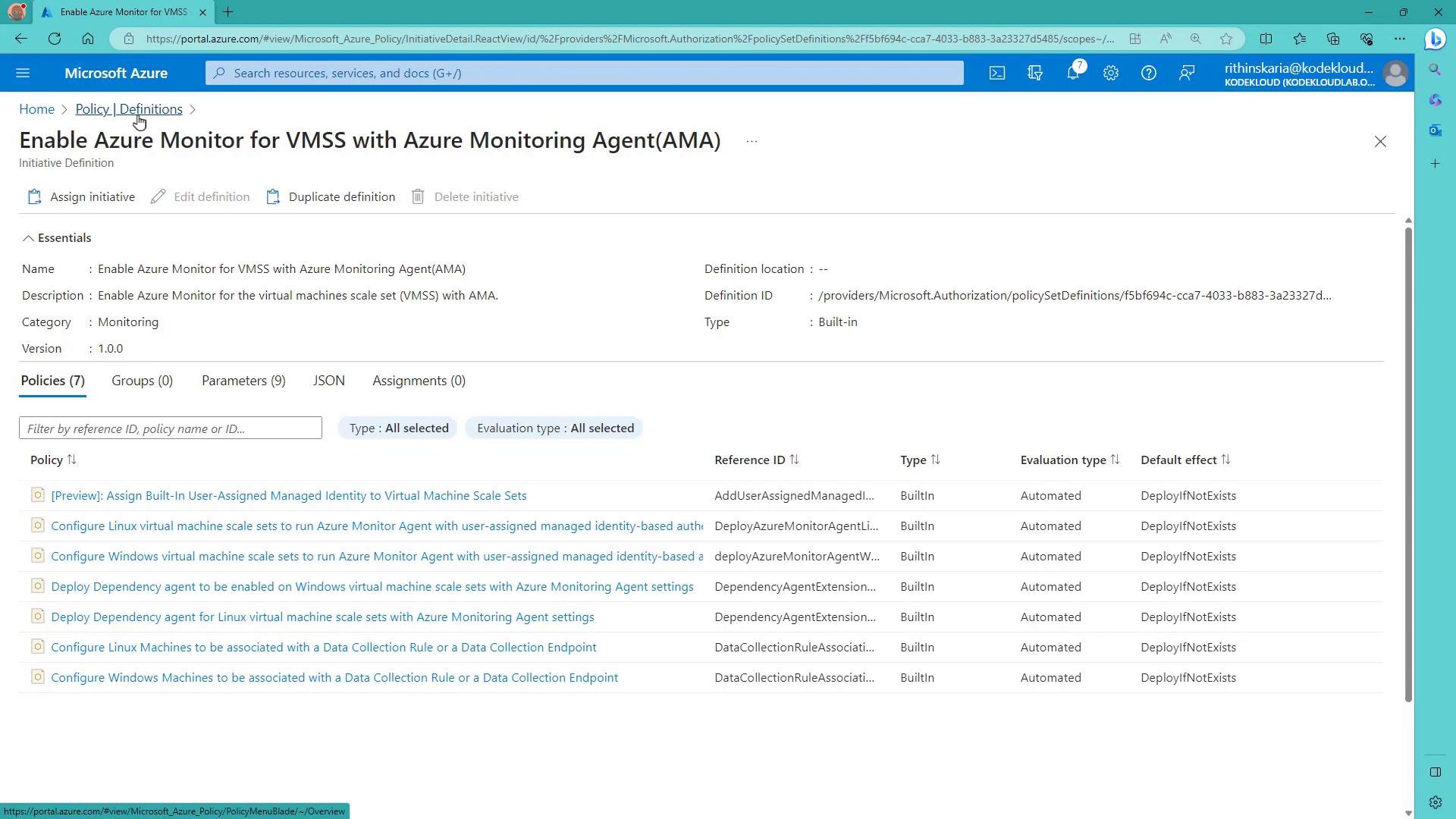
Open an initiative to see the policies it contains and assign the entire initiative as a single unit.
A screenshot of the Microsoft Azure portal showing the initiative definition "Enable Azure Monitor for VMSS with Azure Monitoring Agent (AMA)" with its Essentials and a list of built-in policies. The page displays policy entries, types, evaluation types, and tabs like Policies, Parameters, and JSON.
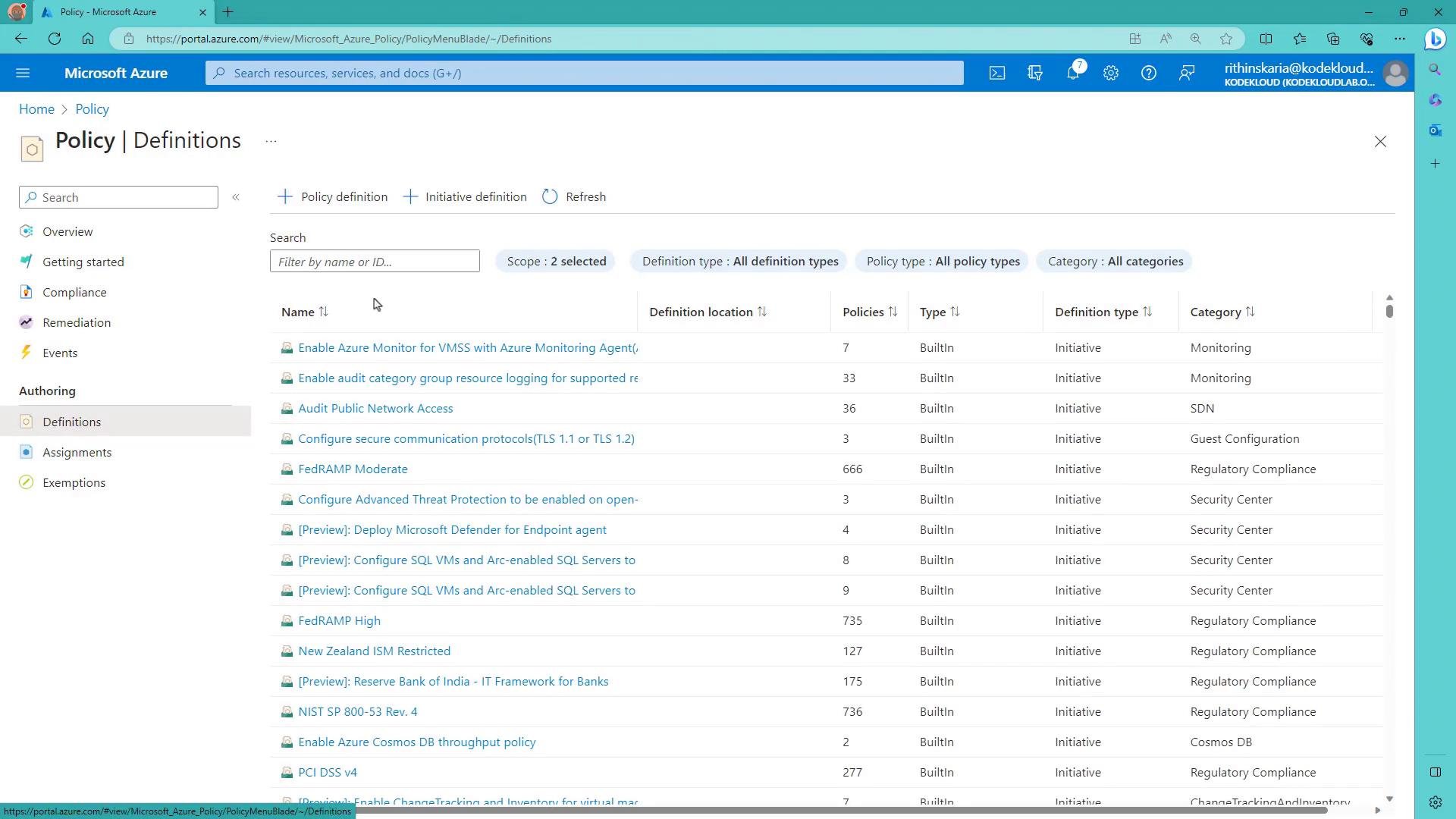
Azure supplies initiatives for common regulatory standards (PCI DSS, FedRAMP, etc.). Assigning an initiative applies all included policies together and simplifies compliance tracking.
A screenshot of the Microsoft Azure portal showing the Policy > Definitions page with a list of built-in policy initiatives and columns for name, policies count, type and category. The top has search/filters and the left sidebar shows navigation items like Overview, Compliance and Assignments.

Example: Allowed locations policy

The built-in “Allowed locations” policy restricts where resources may be deployed. It accepts a parameter listOfAllowedLocations (an array of regions) and denies deployments that are neither in that list nor marked as global. Consolidated example policy definition (parameters and rule):

Assigning the policy

Click Assign to apply the policy to a scope. Choose from management group, subscription, resource group, or a specific resource; specify any exclusions and parameter values; give the assignment a name and description; and set enforcement to Enabled to actively block disallowed deployments.
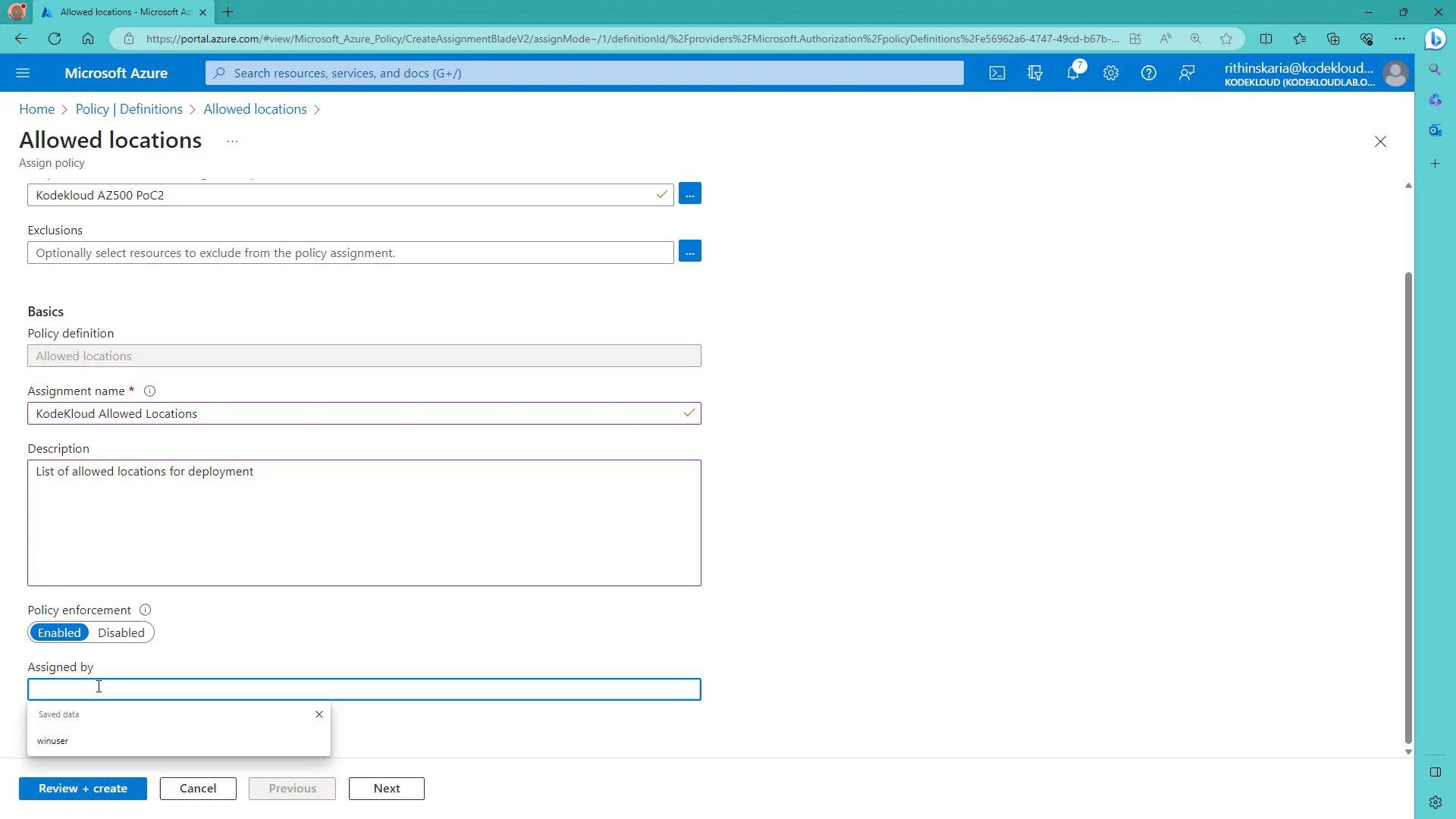
A screenshot of the Microsoft Azure portal showing the "Allowed locations" policy assignment form with fields for assignment name, description, exclusions, and policy enforcement. The page includes action buttons like "Review + create," "Cancel," and "Next."
Be careful when enabling enforcement. If you set the assignment to Enabled (or use the deny effect), new deployments outside the allowed set will fail. To evaluate impact without blocking, use Audit or set enforcement to Disabled temporarily.
Provide parameter values (for example, set listOfAllowedLocations to eastus and westus) and optionally add a custom non-compliance message to help users understand the requirement.
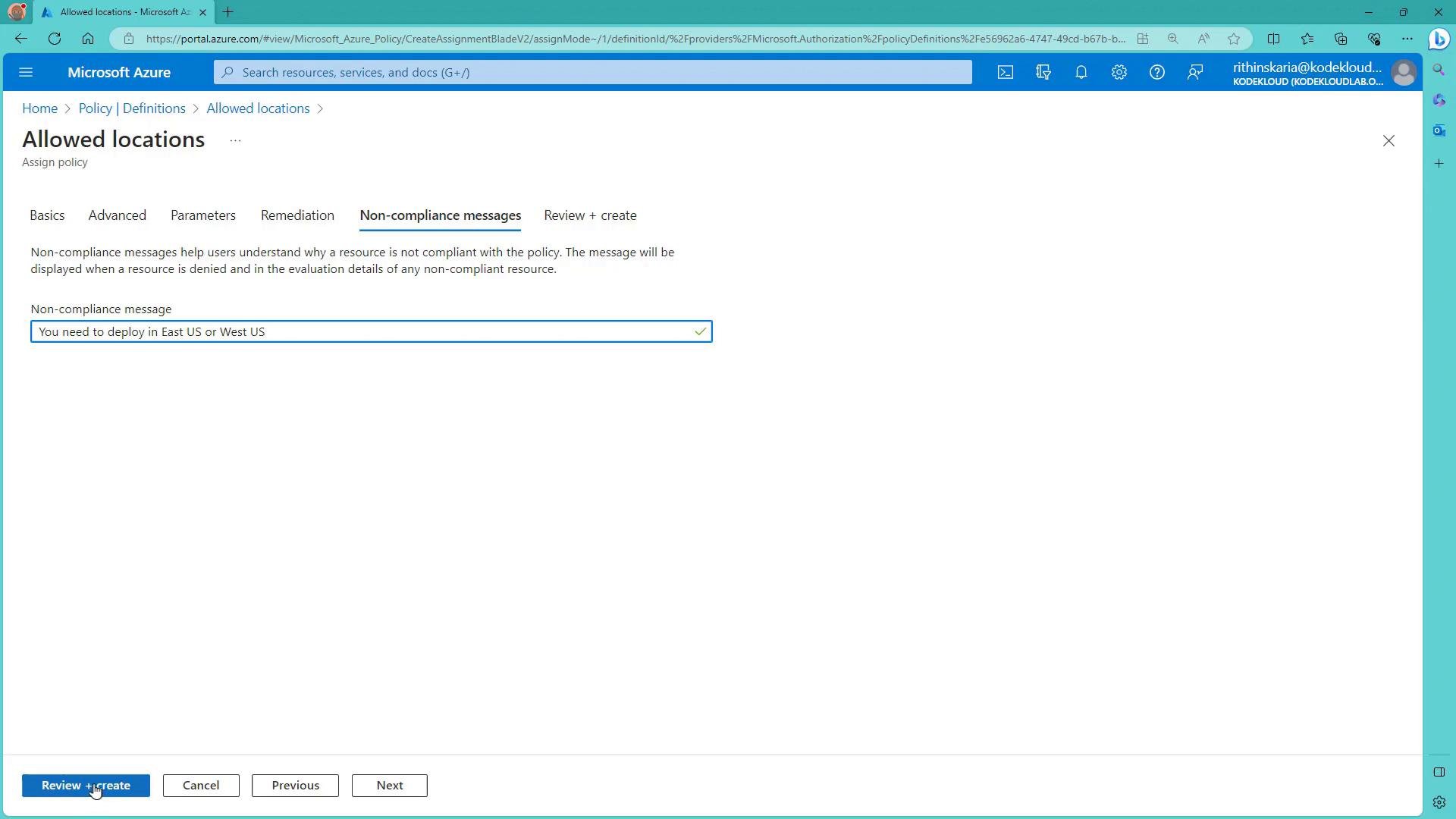
A screenshot of the Microsoft Azure portal on the "Allowed locations" policy assignment page, open to the "Non-compliance messages" tab. The custom non-compliance message shown reads: "You need to deploy in East US or West US."
Policy evaluation can be delayed by a few minutes after assignment. If a deployment is attempted immediately after assignment, it may still be allowed until the evaluation is active.

Monitor compliance

After assignment, go to Policy > Compliance to review aggregated and assignment-level compliance. The initial status may show NotStarted until the service completes evaluations (typically 5–15 minutes).
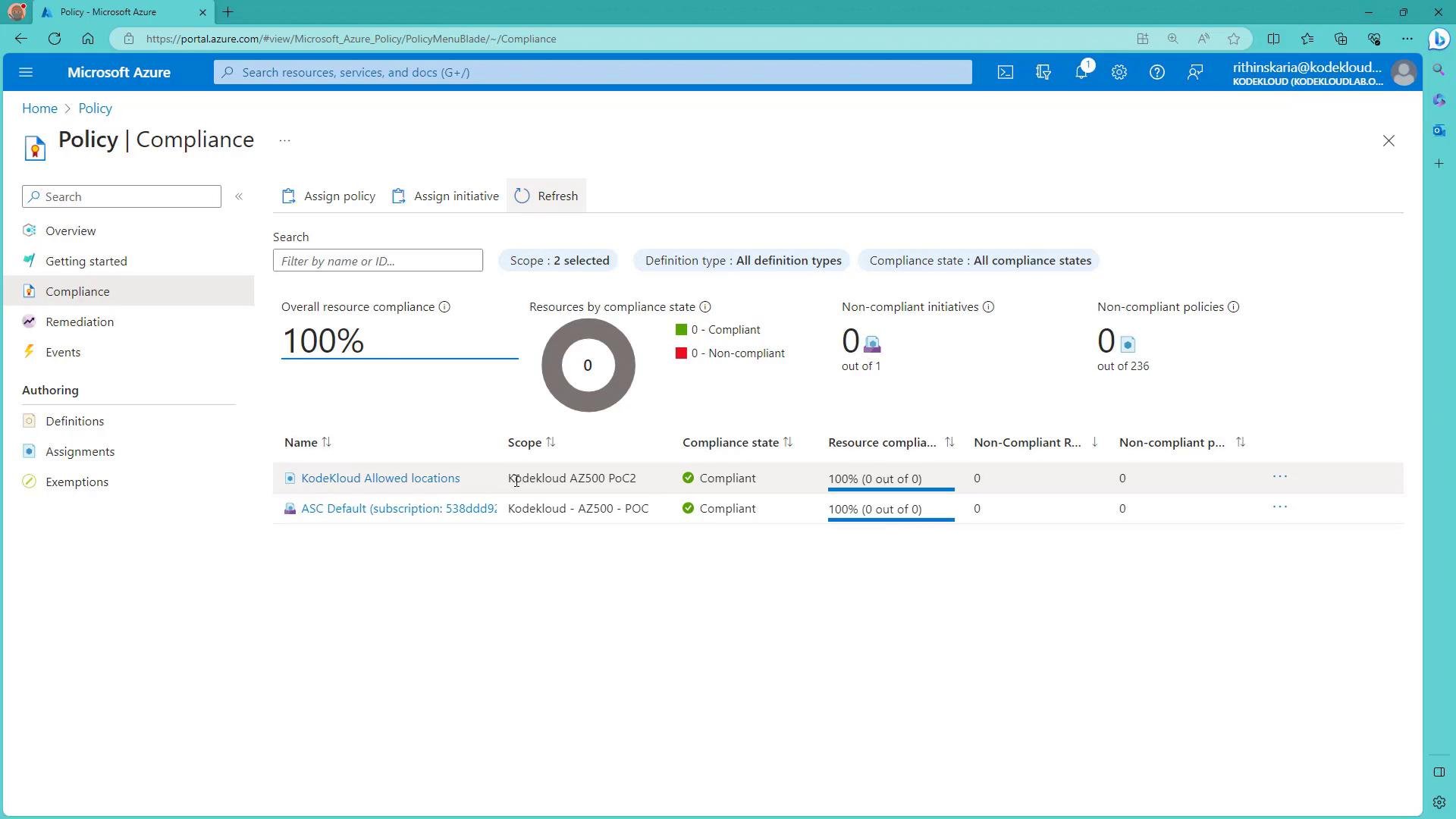
A screenshot of the Microsoft Azure Policy "Compliance" dashboard showing overall resource compliance at 100% with a circular compliance chart. The page lists two policy assignments (both marked compliant) and summary counts for non-compliant initiatives and policies.

Testing assignments — expected behaviors

  • Creating a resource in an allowed region succeeds.
  • Attempting to create a resource in a disallowed region will fail once enforcement is active.
  • If a deployment is started while evaluation is still propagating, it may initially proceed but will fail when policy enforcement runs.
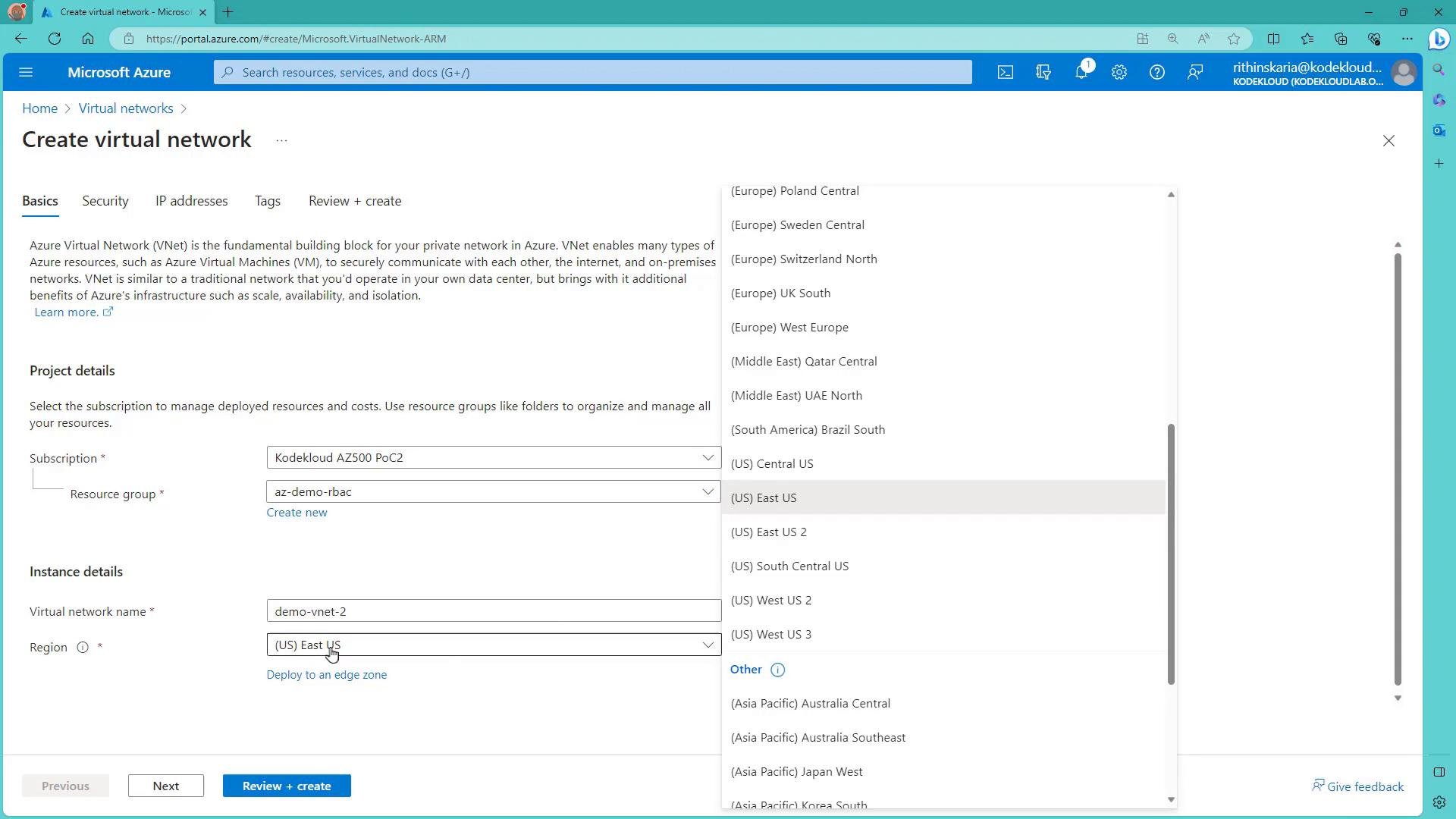
A screenshot of the Microsoft Azure "Create virtual network" portal showing project and instance details (subscription, resource group, virtual network name). The Region dropdown is expanded, listing various Azure regions (e.g., US East US).
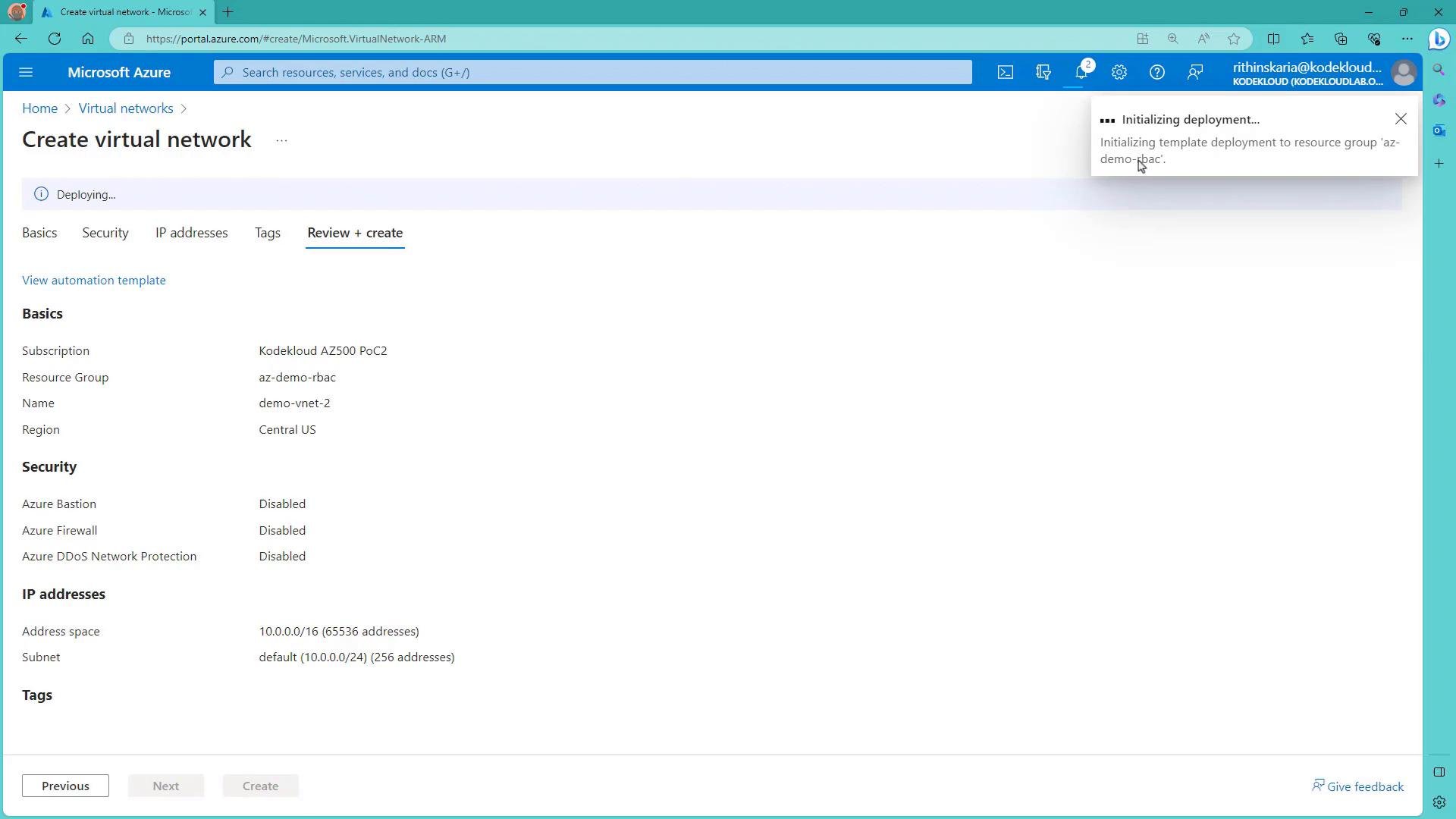
If the assignment is active, Azure blocks the create action. If enforcement is propagating, the deployment may begin but end in failure.
A screenshot of the Microsoft Azure portal showing the "Create virtual network" Review + create page with basics and IP address details (demo-vnet-2, Central US, 10.0.0.0/16). A notification in the corner says "Initializing deployment..."
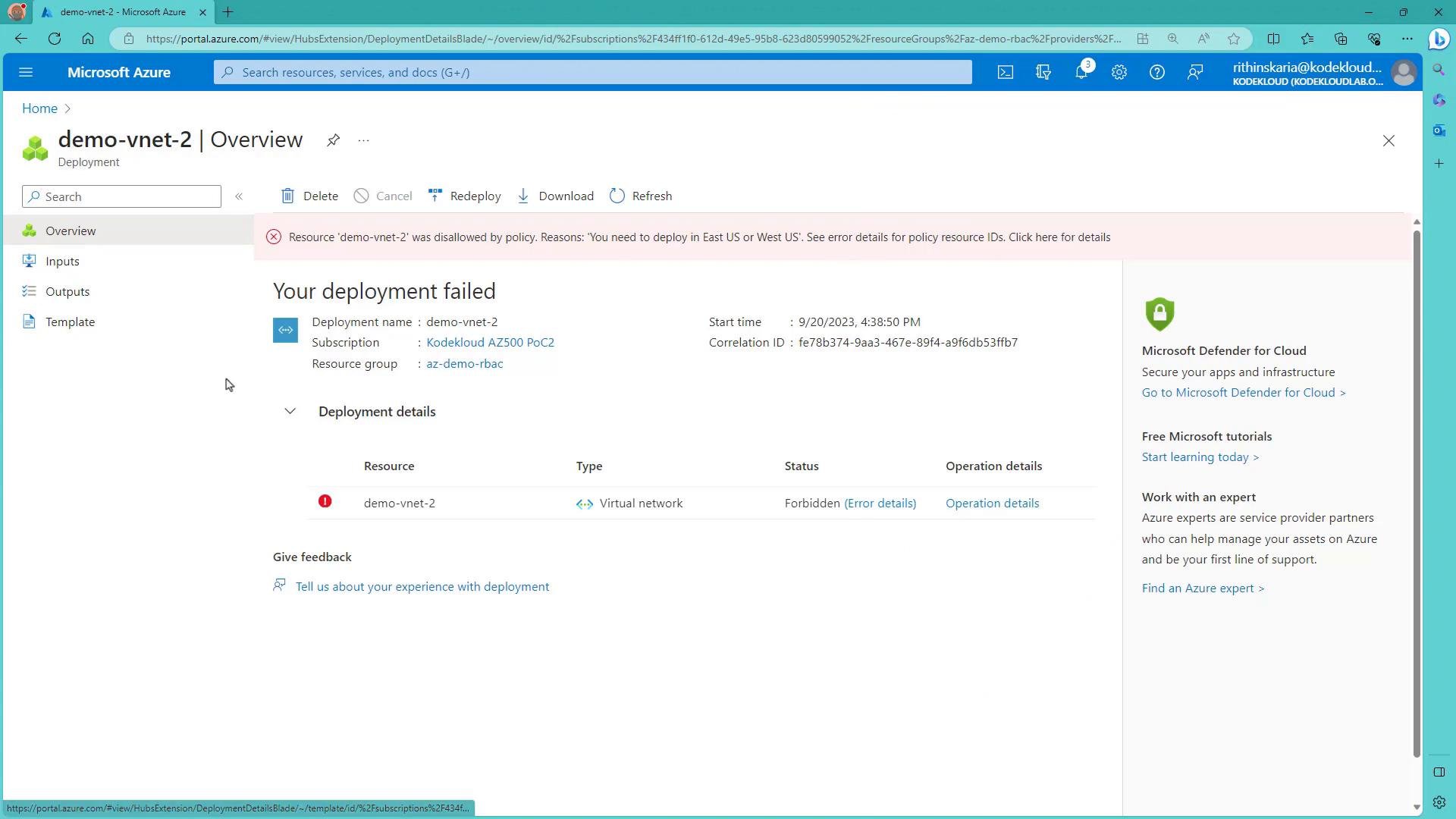
When a deployment fails due to policy, the portal shows a forbidden/error banner with details including the policy name and your custom non-compliance message.
A screenshot of the Microsoft Azure portal showing a failed deployment for "demo-vnet-2" (virtual network) with a pink policy error banner saying the resource was disallowed and must be deployed in East US or West US. The Overview lists the deployment as "Forbidden" with links to error and operation details.
Example error payload returned for a policy violation:
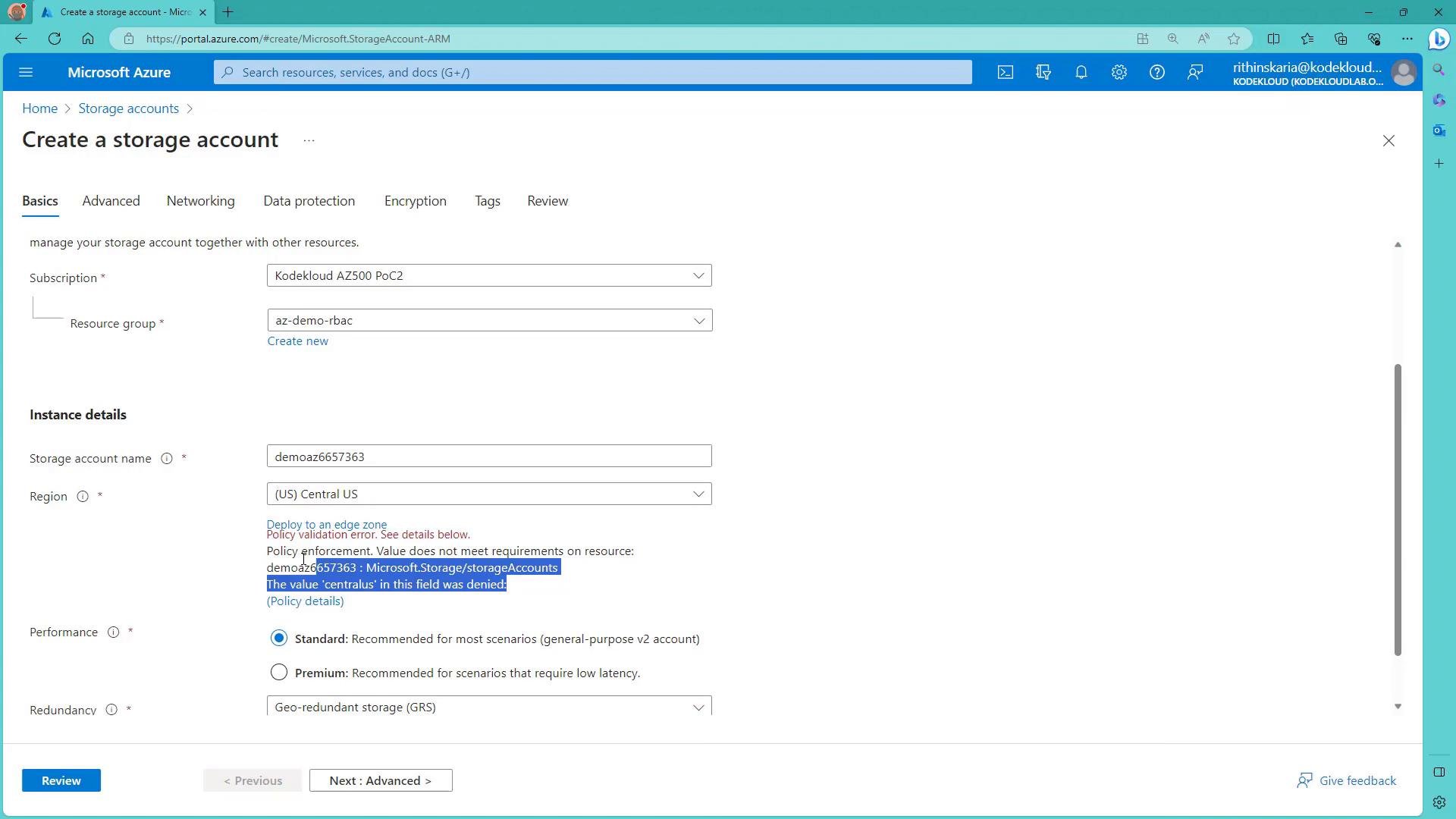
When creating some resource types (for example, storage accounts) the portal performs immediate client-side policy validation and will show a region validation error before you submit the deployment.
A screenshot of the Microsoft Azure portal on the "Create a storage account" page showing the Basics tab with fields for subscription, resource group, storage account name and region. A policy validation error is shown saying the region value "centralus" was denied.

Summary

  • Policy definition = JSON document that defines the rule and effect.
  • Scope = management group, subscription, resource group, or resource.
  • Assignment = applying a definition to a scope; includes parameters and exclusions.
  • Compliance = evaluation of resources after assignment; pre-existing non-compliant resources remain until remediated.
  • Initiative = a grouped collection of policies assigned together for simplified management and aggregated compliance reporting.
Additional topics to explore:
  • Policy effects (Audit, Append, DeployIfNotExists, Modify, Deny) and their behaviors.
  • Creating custom policies and initiatives.
  • Remediation tasks and DeployIfNotExists patterns.
  • Using Azure Policy with IaC (ARM templates, Bicep, Terraform) and Azure Blueprints.

Watch Video