

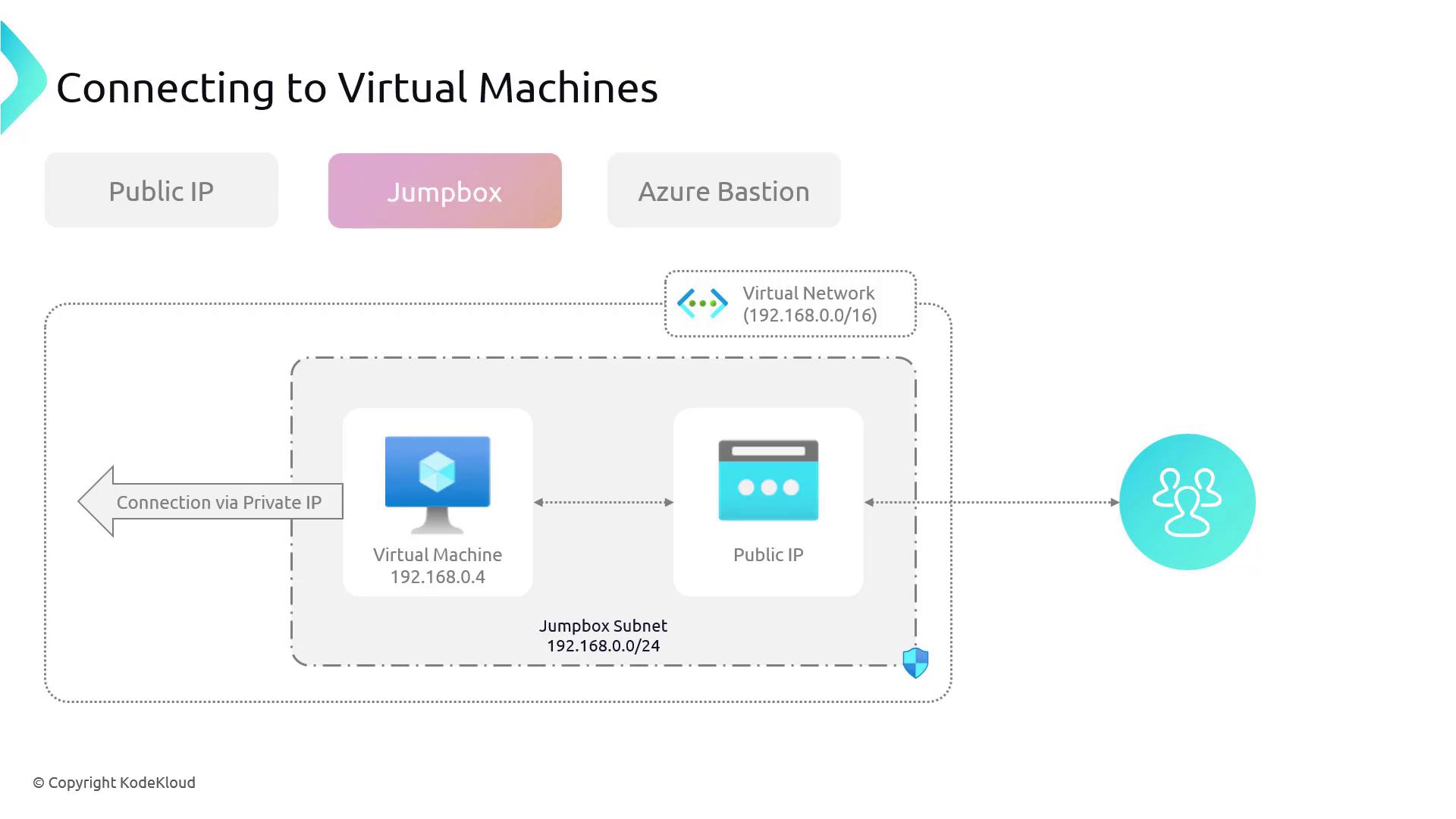
Connecting Using Public IP Address and Jumpbox
One common method to access a virtual machine is by using its public IP address. With a public IP, you can:- Use an SSH client (for Linux)
- Use an RDP client (for Windows)
Connecting with Azure Bastion
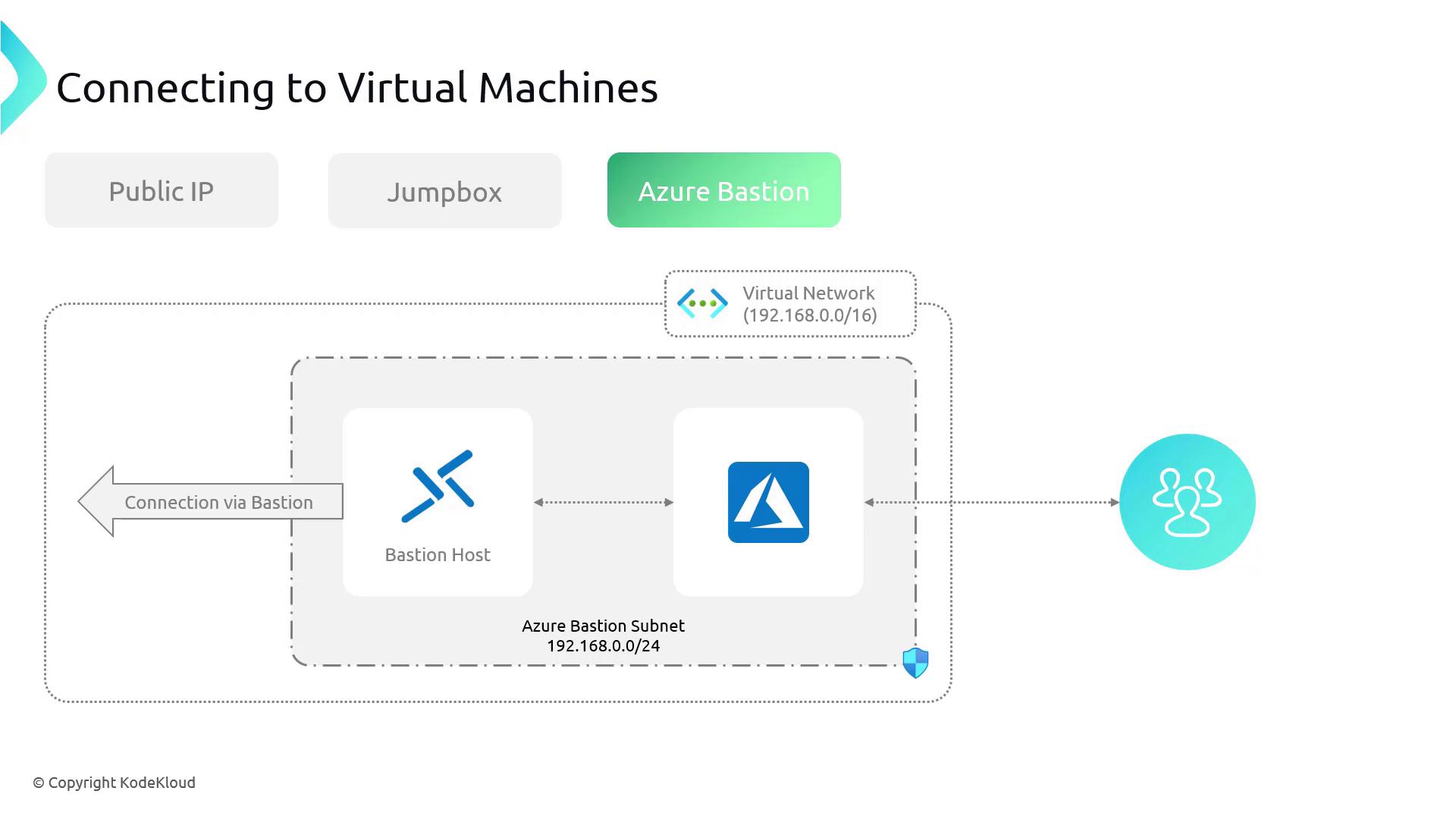
Azure Bastion is a managed service that simplifies VM connectivity by allowing secure, direct browser-based access to your VMs. This method eliminates the need to deploy and manage jumpbox VMs, download special clients, or expose any ports directly to the internet.Azure Bastion enhances security by ensuring that no public ports are exposed, which helps protect your infrastructure from potential attackers.
Overview of Connection Methods
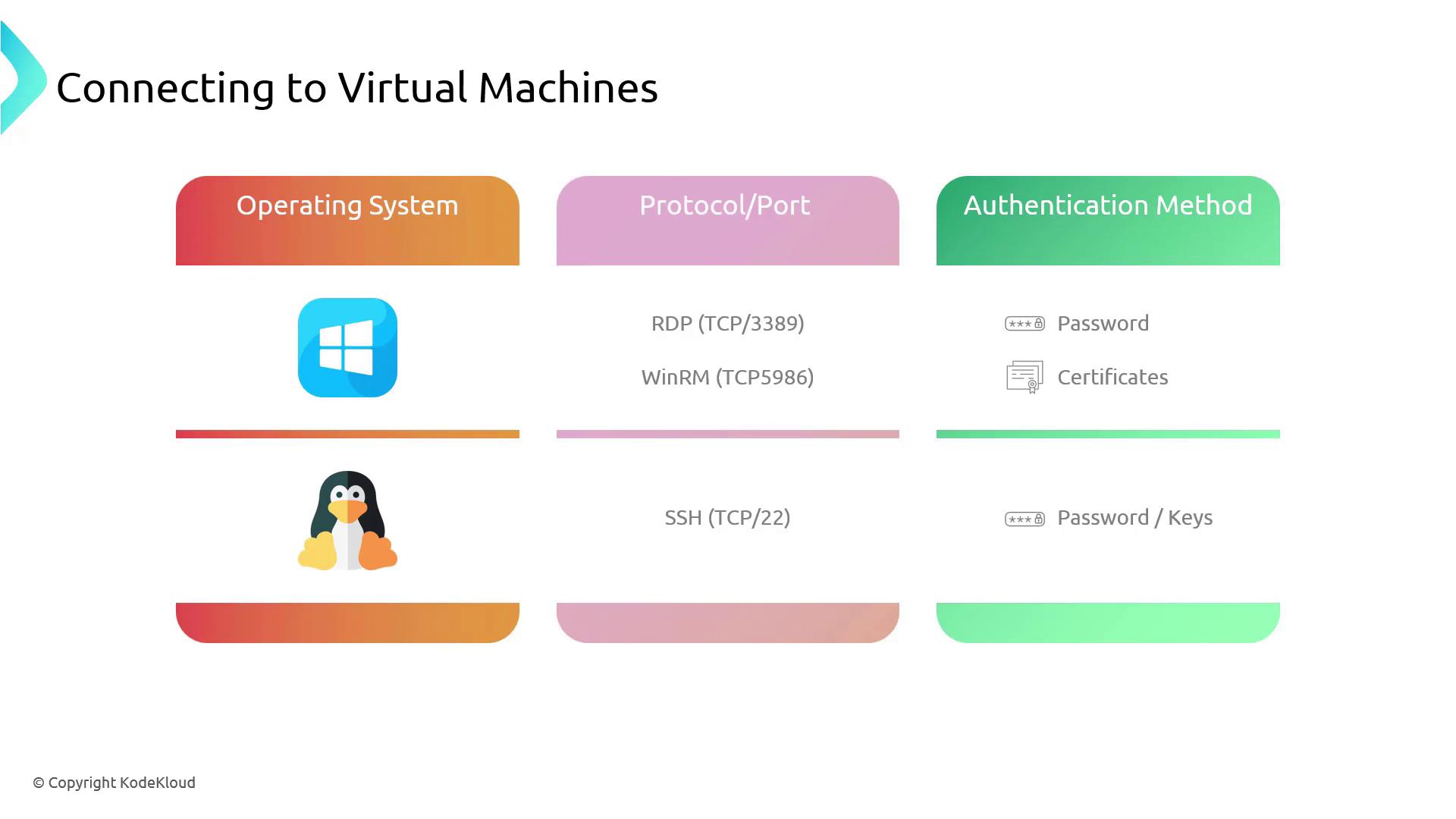
Below is an overview of available connection methods based on the operating system, protocol, and authentication:-
Windows:
- RDP: Uses TCP port 3389. Authenticate with a password.
- WinRM: Utilizes PowerShell for remote management over TCP port 5986 (requires certificate configuration).
-
Linux:
- SSH: Utilizes TCP port 22. Supports authentication via passwords or SSH key pairs.
Connecting via SSH
To connect to a Linux VM using its public IP address, open your terminal and run:Deploying VMs for Azure Bastion
Now, let’s explore how to use Azure Bastion. The following PowerShell script creates two VMs—one Linux and one Windows—both with private IP addresses. These VMs are ideal for secure access via Bastion.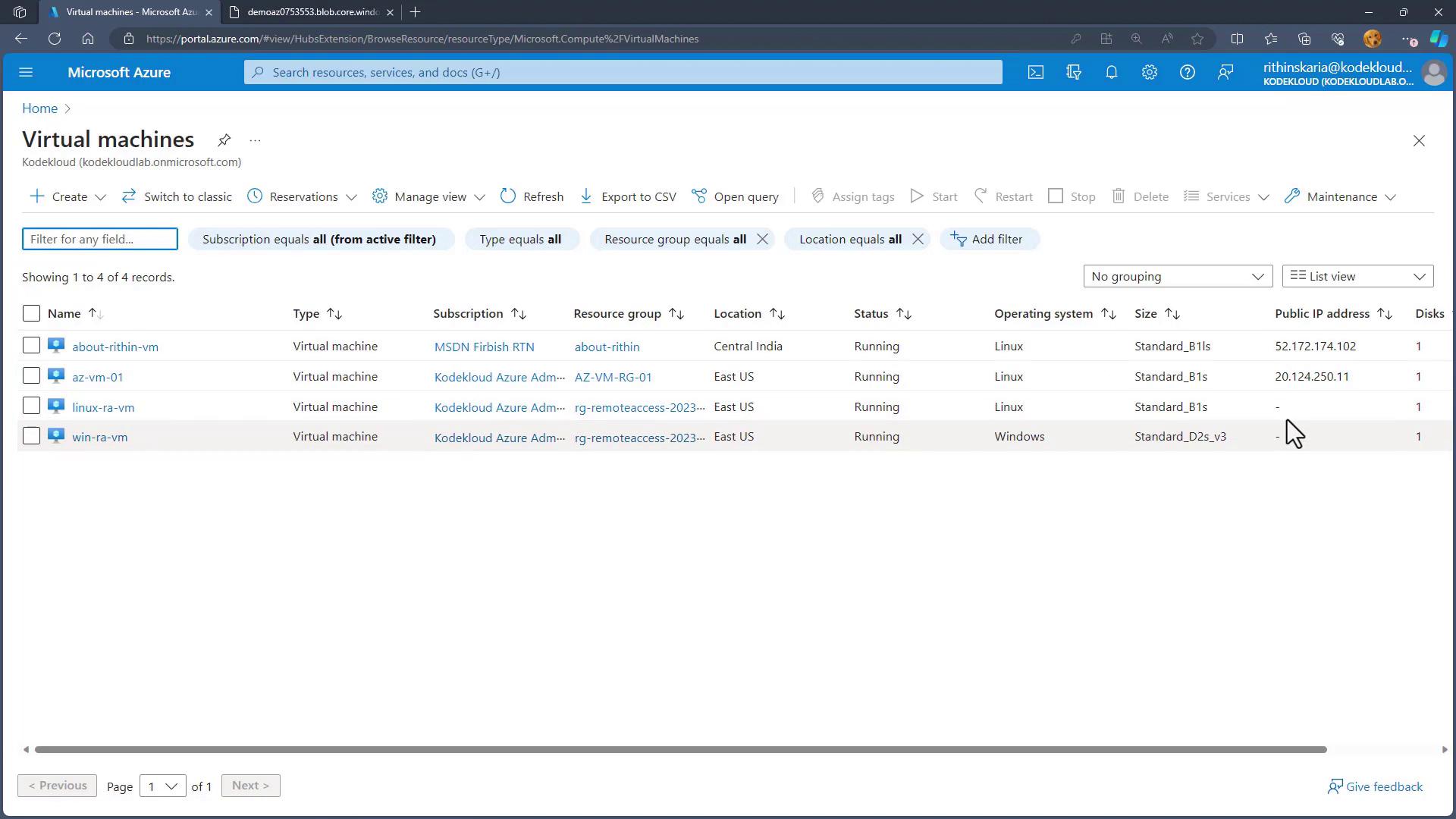
Configuring Azure Bastion
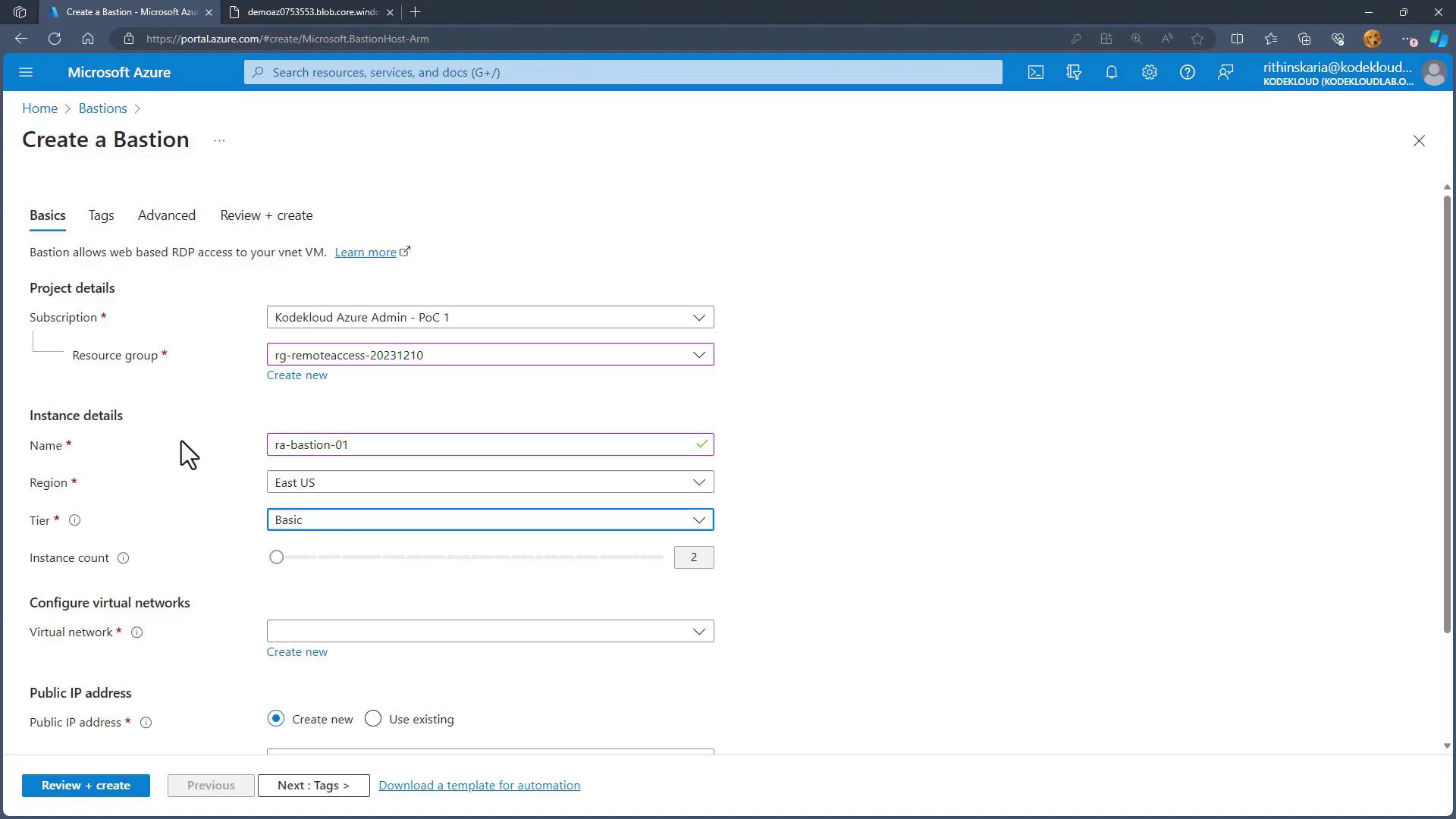
Follow these steps to set up a Bastion host:- Navigate to the Bastion resource in the Azure portal.
- Create a new Bastion host with the settings below:
- Resource Group: Remote Access
- Name: RABastion01
- Region: East US
- Tier: Basic (to minimize costs)
- Choose the virtual network (vnet-remoteaccess) and ensure Bastion has a dedicated subnet named “AzureBastionSubnet” by clicking on “Manage subnet configuration.”
- Create a new public IP address.
- Click “Review and Create” to deploy Bastion.
Connecting to the Linux VM via Azure Bastion
- Open the Azure portal and navigate to the Linux VM.
- Click on “Connect” and select “Connect via Bastion.”
- Enter your username and password, then click “Connect.”
Connecting to the Windows VM via Azure Bastion
- In the Azure portal, navigate to the Windows VM.
- Click on “Connect” and choose “Connect via Bastion.”
- Enter the required credentials and click “Connect.”
Using Azure Bastion provides secure, private access to your VMs without exposing them to the public internet.