

- You want partial orchestration and automatic scaling without operating a Kubernetes control plane.
- You need revision-aware deployments and traffic splitting for safe rollouts.
- You want simple integration with Azure Container Registry (ACR) and CI/CD pipelines.
- If you require full Kubernetes features and granular control, use AKS instead.
- Environment: a secure boundary where multiple Container Apps run and share networking and scaling infrastructure.
- Container App: an individual microservice (one or more containers) deployed inside an Environment.
- Revision: an immutable deployment snapshot that enables traffic splitting, rollbacks, and gradual rollouts.
- Autoscaling: provided by KEDA, including support for scale-to-zero on the Consumption plan.
- Dapr: optional sidecar integration for building microservices with pub/sub, state, and service invocation.
- Ingestion service: accepts and validates incoming data.
- Processing/delivery service: transforms, enriches, or forwards data.
- Packaging service: prepares or packages data for downstream consumers.
Platform integrations and common flow
- Build container images in CI pipelines (GitHub Actions, Azure Pipelines) and push to ACR.
- Configure Container Apps to pull images from ACR and deploy them to your Environment.
- Optionally enable Dapr and Service Connectors to simplify communication and secret handling.
- Open the Azure portal and search for “Container Apps”, then click Create.
- Select the subscription and resource group, and enter a name for the Container App (example:
demo-app). - Choose or create a Container Apps Environment. Creating a new environment exposes options such as workload profiles (Consumption or Dedicated), zone redundancy, and networking choices.
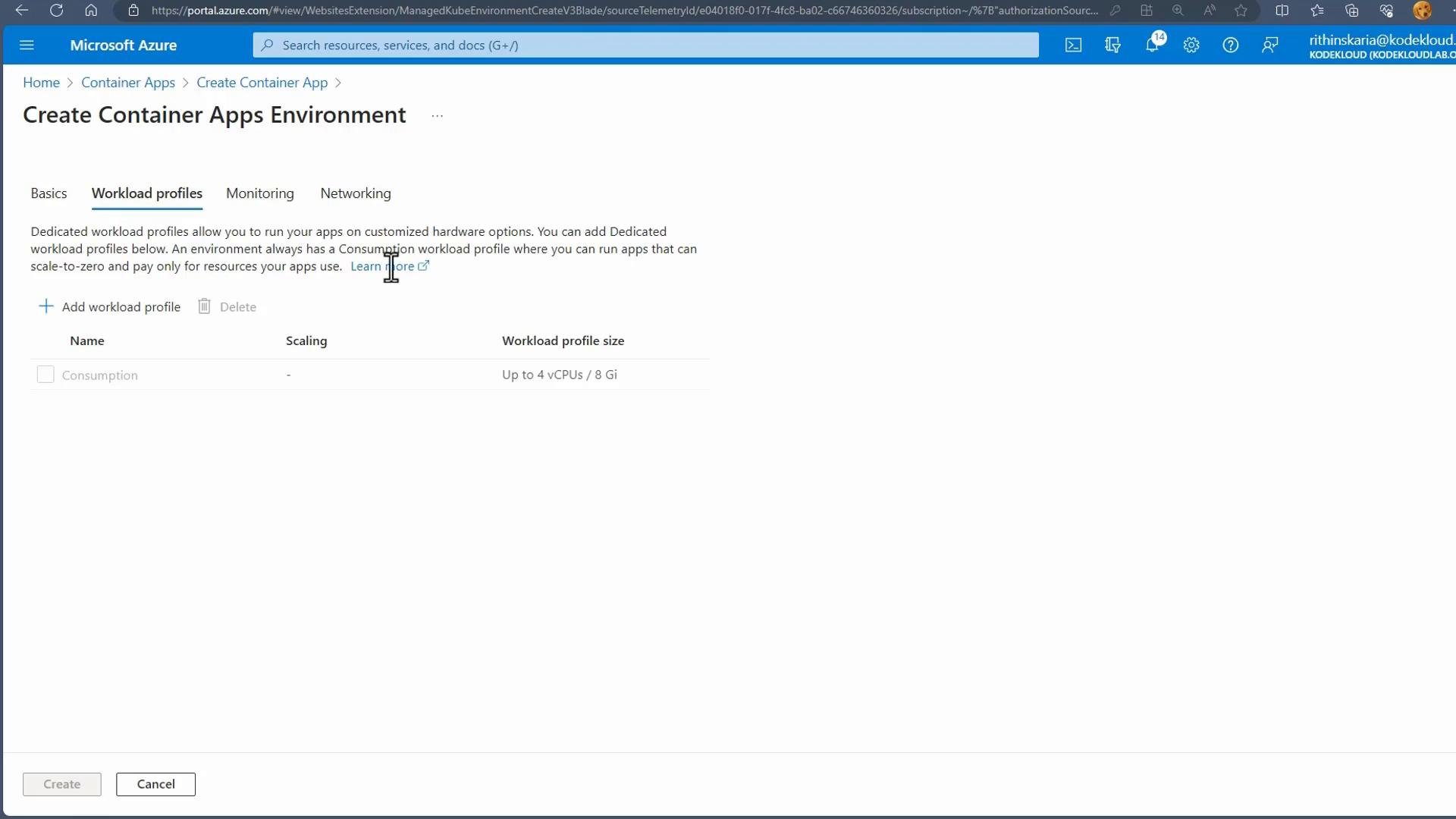
- Workload profiles
- Consumption: serverless billing, supports scale-to-zero, good for variable traffic.
- Dedicated: provisioned resources for predictable workloads and higher baseline capacity.
- Zone redundancy: enable for improved availability across availability zones.
- Networking: choose platform-managed networking for simplicity, or attach a Virtual Network for private endpoints, VNet integration, and more advanced topologies.
- Multiple profiles: create different workload profiles within the same Environment to support mixed resource requirements.
- Use a quickstart image (for example, a Hello World image) when experimenting.
- Enable ingress and set the public port (commonly port 80 for HTTP).
- Review and create the Container App. After deployment, the portal shows the app URL to access the service.
az extension add --name containerapp and az login.)
After deployment — next steps in the portal
- Add additional containers or sidecars to the Container App.
- Configure scaling rules and min/max replicas.
- Set up continuous deployment from ACR or GitHub Actions.
- Configure custom domains, Dapr, and Service Connectors.
- Manage revisions for blue-green or canary rollouts.
http-scaler, CPU-based rules, or custom event-driven scalers, and define minimum and maximum replica counts.
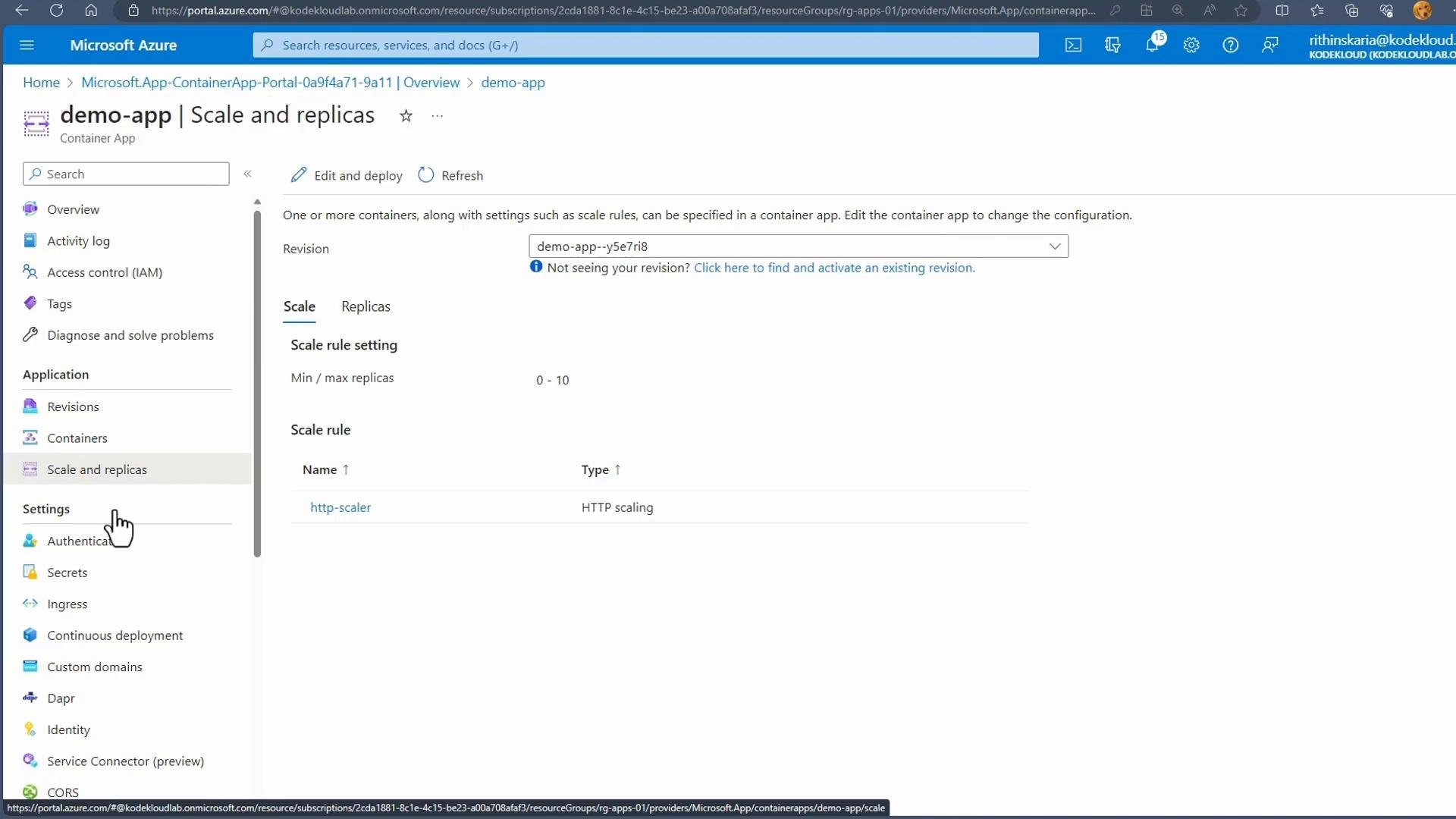
- Each deployment produces an immutable revision. Revisions enable traffic splitting (e.g., 90/10 for canary releases) and easy rollback to a previous revision.
- Use revision labels and traffic weights to perform gradual rollouts or blue-green deployments.
- Dapr integration: toggle on Dapr to use service invocation, pub/sub, bindings, and state stores without wiring plumbing code.
- Service Connectors: connect to Azure services (Cosmos DB, Storage, etc.) with simplified configuration and managed secrets.
- Continuous deployment: hook Container Apps to ACR, GitHub Actions, or Azure Pipelines for automated image build and deployment workflows.
When enabling public ingress (HTTP), evaluate authentication, network controls, and private networking as part of your security posture. For production, prefer managed identities, private endpoints, or an authentication gateway depending on requirements.
- Azure Container Apps documentation
- Azure Container Registry (ACR)
- Azure Container Instances (ACI)
- Azure Kubernetes Service (AKS)
- Dapr documentation
- KEDA (Kubernetes Event-driven Autoscaling)
- Azure DevOps Pipelines