Overview of Virtual Network Peering
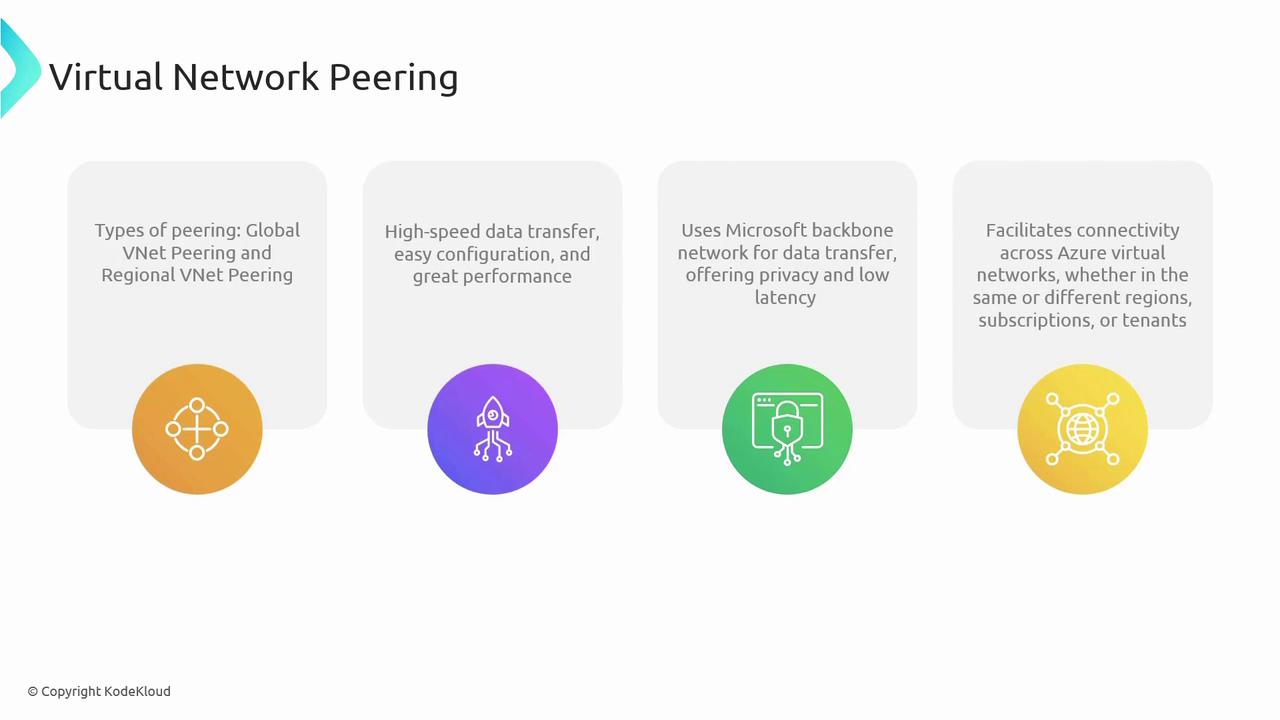
Virtual Network Peering simplifies the process of connecting resources across different VNets without the need for additional gateways, hubs, or public internet exposure. There are two primary types of peering:- Global VNet Peering: Connects VNets across different Azure regions.
- Regional VNet Peering: Connects VNets within the same Azure region.
Key Benefits and Capabilities
- High-Speed Data Transfer: Optimized for robust performance with low latency, ensuring seamless application communication.
- Utilization of Microsoft Backbone Network: When peered, data flows over Microsoft’s secure private backbone network instead of the public internet.
- Seamless Connectivity: Supports connectivity across VNets in different regions, subscriptions, and even Azure Active Directory tenants, facilitating scalable and resilient network architectures.
Ensure you have the necessary permissions and network configurations in place before starting the peering setup.
Demonstration Setup
In this section, we will create an environment using a PowerShell script to test Virtual Network Peering. The provided repository includes a folder named “060-Administer Intersite Connectivity” containing the scriptpeering-pref-infra.ps1.
Setting Up the Environment
Begin by navigating to the correct directory in your terminal:Testing Connectivity Between Virtual Machines
After deployment, note the IP assignments:- The East US VM is part of the East US VNet and is assigned the IP address 192.168.0.4.
- The West US VM is in a separate IP range, for instance, 192.168.1.4.
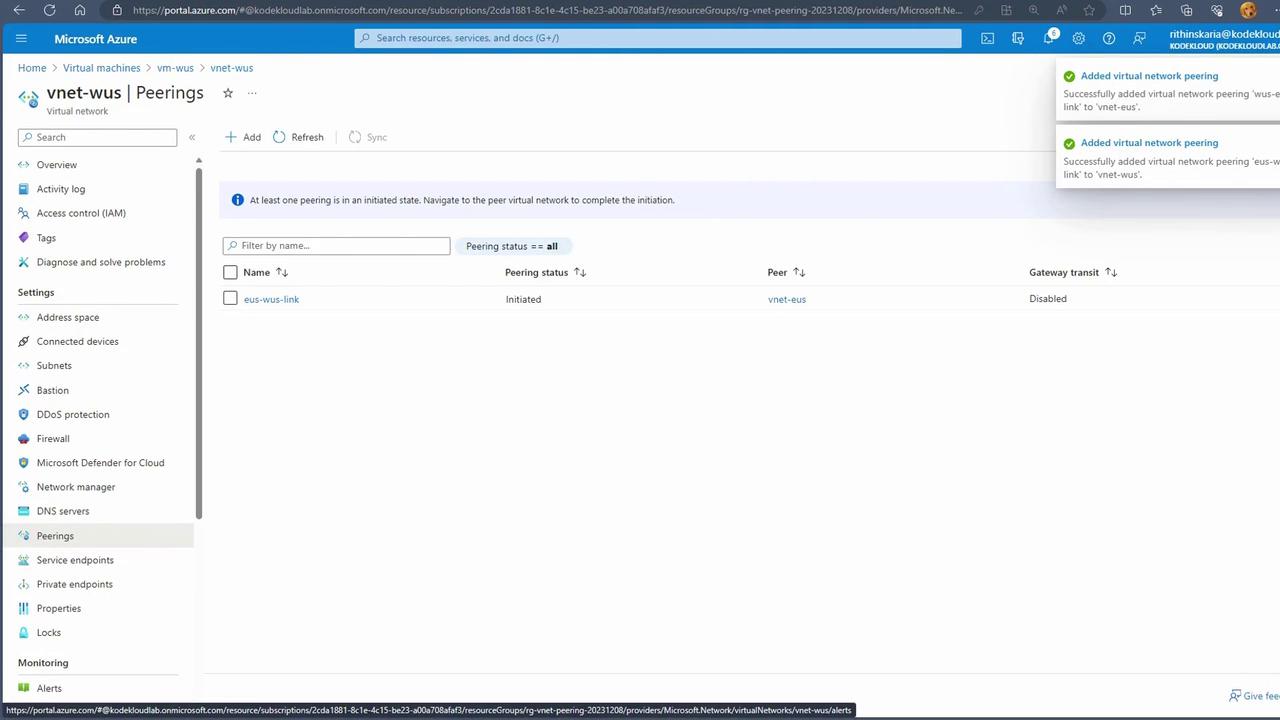
Configuring Virtual Network Peering
To establish a peering connection:- Open the Azure portal and navigate to the Virtual Network section of either the East US or West US VNet.
- Select the Peerings option.
- Follow these steps:
- Click Add peering.
- Enter a link name (e.g., “USWS link”).
- Configure the following settings:
- Allow VNets to access the peered network: Yes.
- Allow the VNET (West US) to receive forwarded traffic from the peered network: Yes.
- Optionally enable Gateway Transit (this is not required for the demonstration).
- For the remote virtual network, select the corresponding VNet (e.g., “WUS US link”) and enable forwarded traffic.
- Click Add to create the peering connection.
Both VNets must be configured simultaneously for peering to work correctly. The settings ensure secure data flow between the networks.